What's New
The release introduces the following new functionality.
Note
Some of these changes might not apply to your organization's use of ProLinkAIM. Please contact us if you have questions about whether and how a particular change affects your organization.
Deal Updates
This section describes updates related to deal-level functionality.
Ability to See Set-Asides on Unit Mix
The Current Unit Mix grid on the Unit Mix screen now includes the ability to track the Median Income % for each different unit mix. You can enter a percentage directly into the grid field or, if the value is available in your underwriting model, it can be updated through SmartDox.
This field has always been available on the Edit Unit Mix - Forecast screen, and now it is added to the Forecast Unit Mix grid on the Unit Mix screen. Like the "current" value, the "forecast" value can be entered manually or updated through SmartDox.
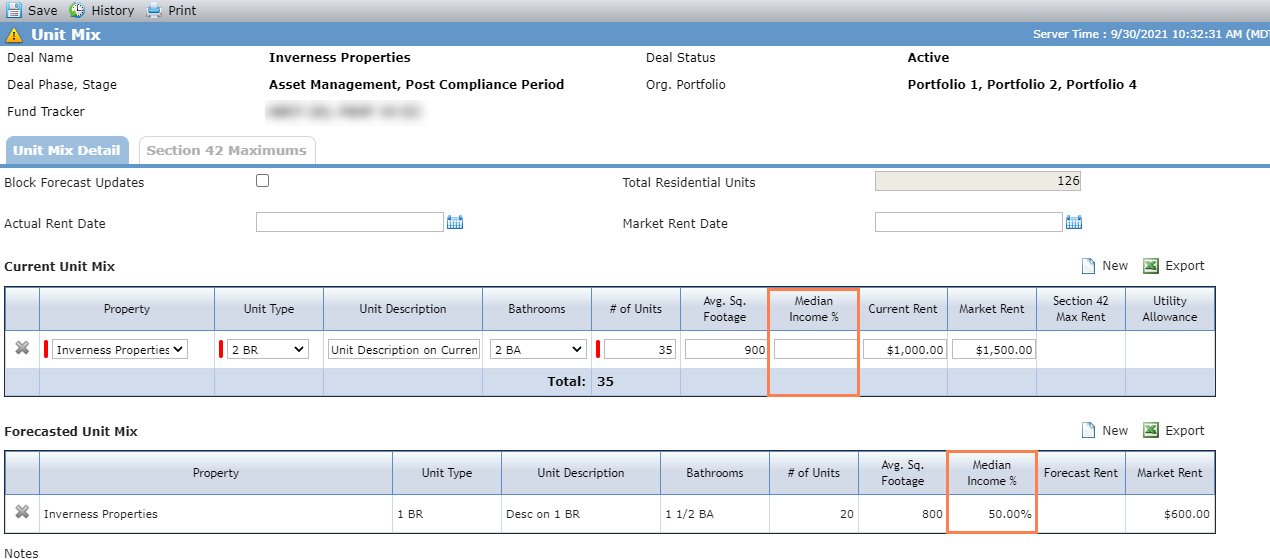
The Current Unit Mix Median Income % field has been added to the Unit Mix data view, the Current Unit Mix node of the SmartDox Financial Forecast schema, and workflow.
Fund Updates
ProLink has made a number of fund-related enhancements.
Fund Details Updates
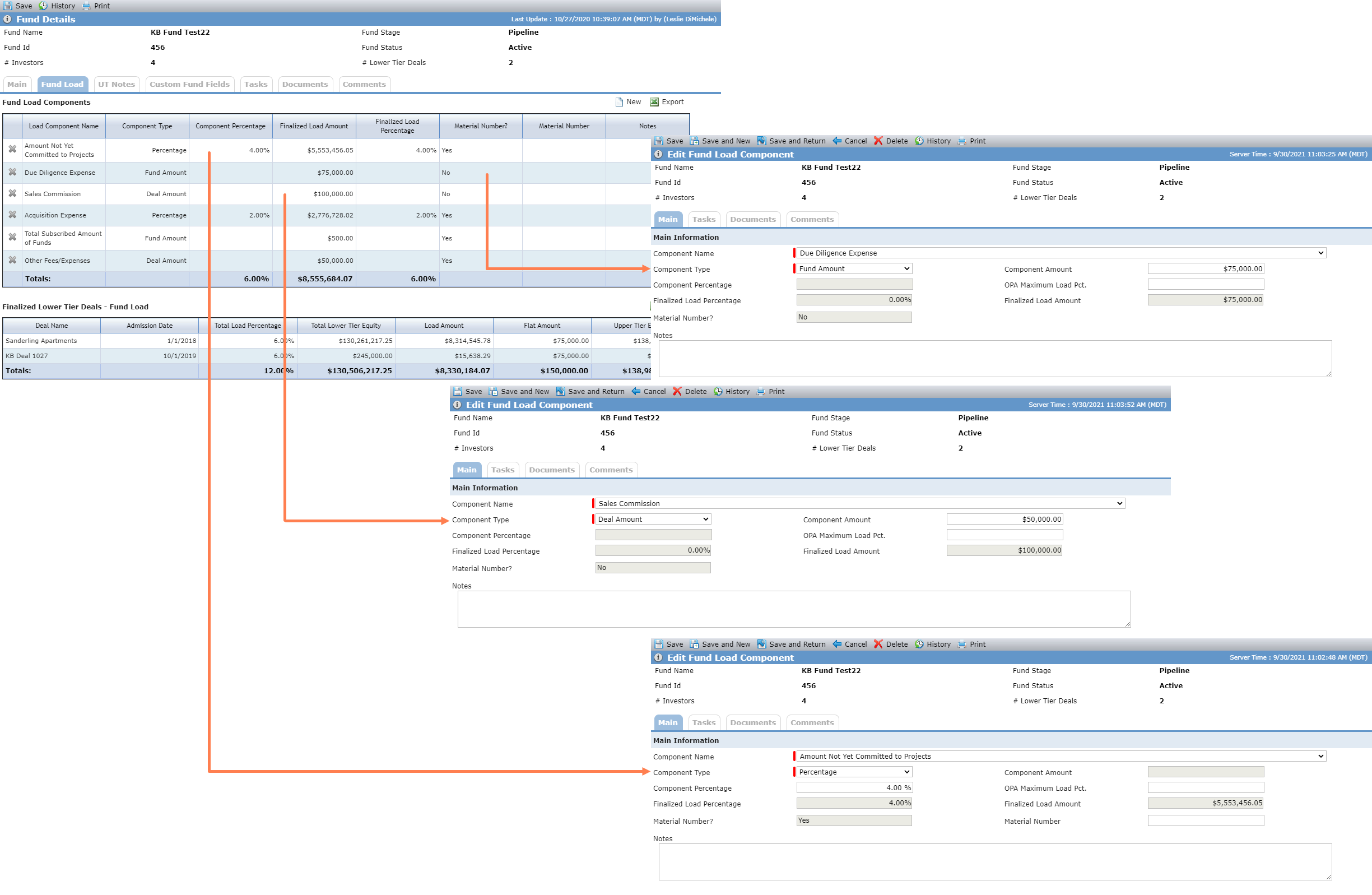
You can now add a flat fee amount for load components instead of having to assign a percentage. The flat amounts can be deal level or fund level. The deal level amount allows users to allocate a specific amount to each owned lower tier deal as part of the upper tier equity. The fund level amount allows a flat amount to be added directly to the upper tier equity regardless of the owned lower tier deals.
The Fund Load Components grid now displays a Component Type column, which indicates whether the load is a percentage, deal amount, or fund amount. The Finalized Lower Tier Deals - Fund Load grid now displays a Flat Amount column, which indicates the amount allocated to each lower tier deal when the Component Type is Deal Amount. You set these values on the Edit Fund Load Component screen. If the Component Type is Percentage, the Flat Amount field is disabled, and if the Component Type is Deal Amount or Fund Amount, the Component Percentage field is disabled.
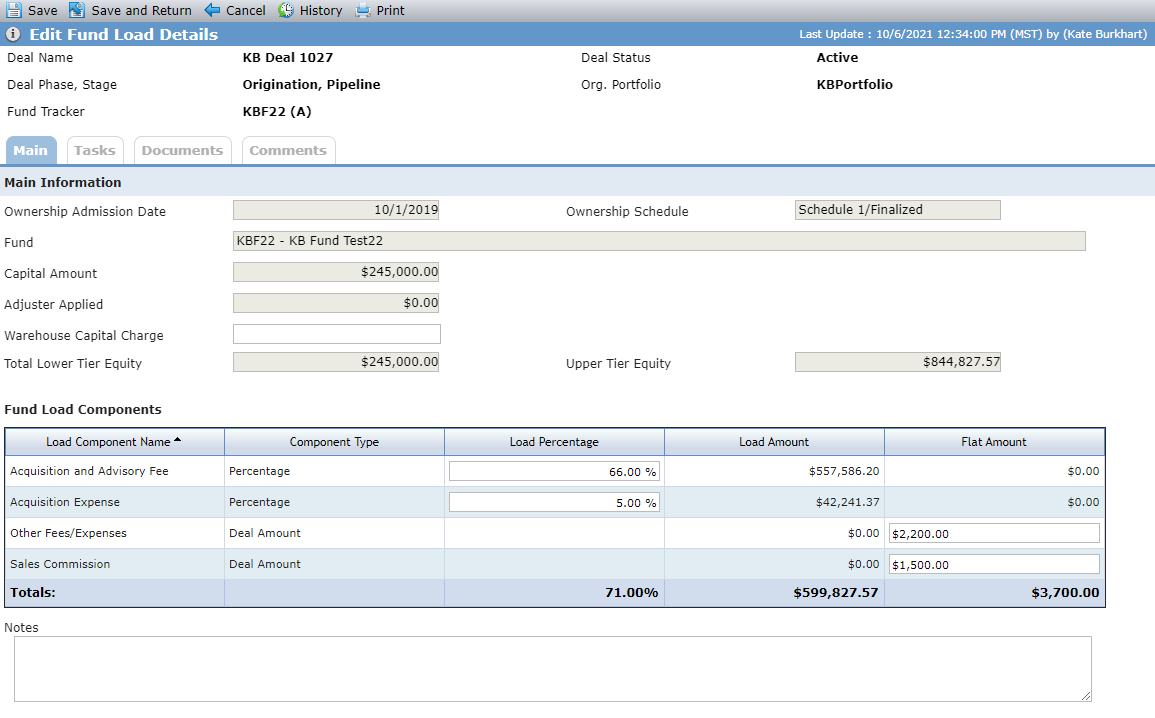
The Edit Fund Load Details screen on the lower tier deal has also been updated to include the Component Type and Flat Amount. Deal amounts, although initially set as the same amount for each deal at the fund level can be customized for a component at the deal level. You can navigate to a lower tier deal through the Finalized Lower Tier Deal - Fund Load grid. You can then modify the Flat Amount for a specific component.
Note
If you entered any Deal Amount Component Types between the first build and second build of the 2021 Q4 release, the Flat Amount at the deal level will show zero dollars. You will need to edit the deal-level record.
Fund Investor Reports Updates
ProLink has reconfigured the Investor Reports functionality to better identify the reports that are required and when they need to be delivered to investors.
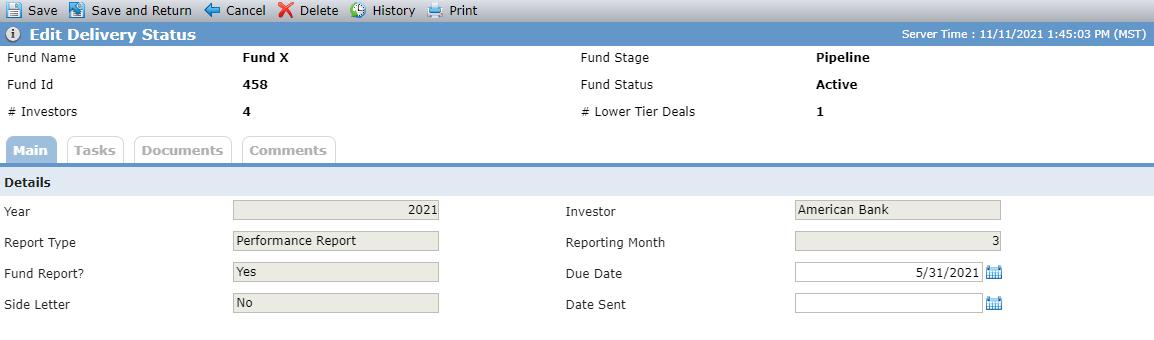
The Investor Reports screen (previously named List Investor Reports) now includes two tabs: Delivery Status and Report Requirements. The Delivery Status tab provides a schedule of when reports are due to each investor. Filtering is available so you can locate specific records easily. This tab includes a New Year button, which allows systematic creation of investor report records for the specified year, and a New Delivery Status button, which allows you to create a Delivery Status record without running the New Year systematic process or adding a new Report Requirement. In order for the New Year Process to create records, the fund must have an Actual Close Date on the Fund Details screen.
Once the Delivery Status records are created, you must manually edit or delete the records to reflect changes to the ownership schedule.
Note
When an investor report has a periodicity of Ad Hoc, the report is not eligible for Delivery Status record creation through the New Year Process (whether through the New Year button on the Delivery Status tab or through the New Year Process utility). You can create the Delivery Status record(s) through the New Delivery Status button on the Delivery Status tab.
After reports are sent to an investor, you can populate the Date Sent.
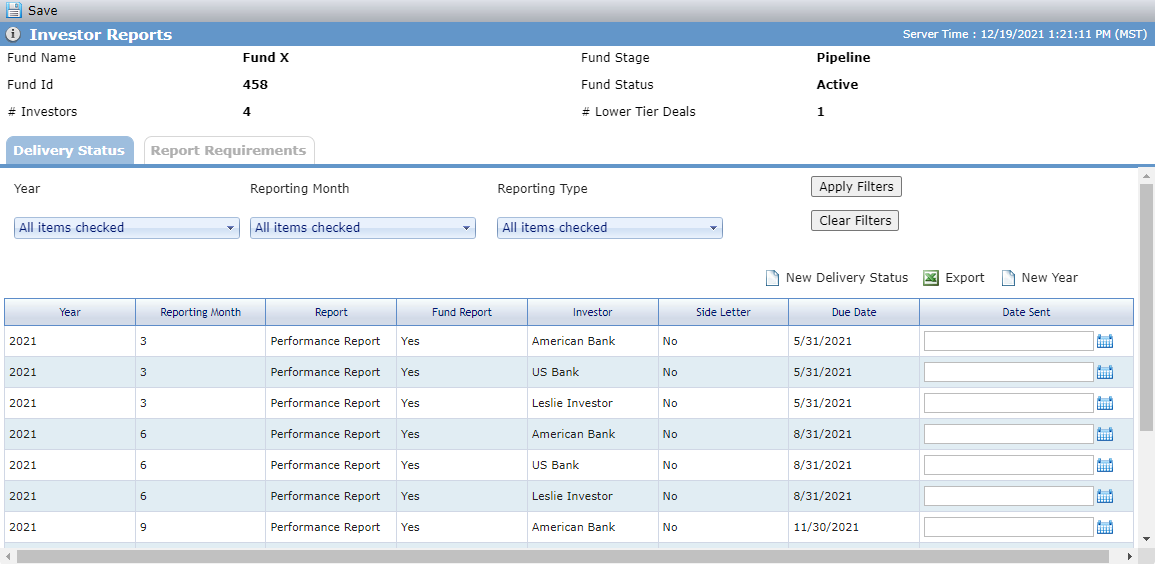
Clicking into a row on the Delivery Status tab allows you to view and edit the details of the specific report delivery status.
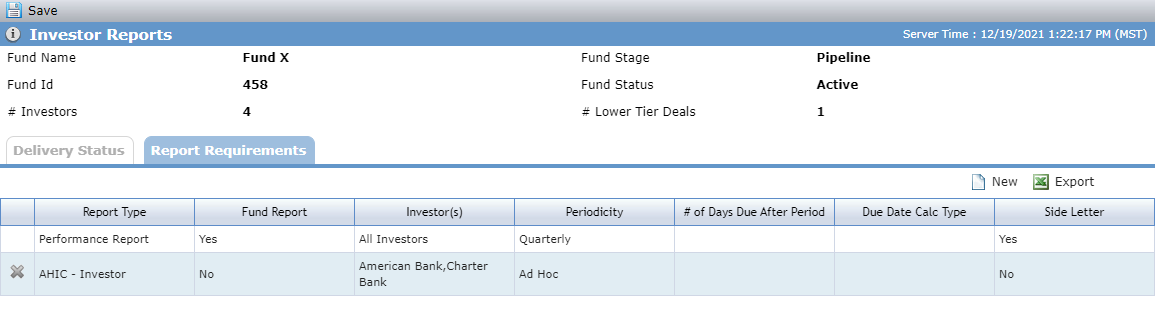
The Report Requirements tab includes the Investor Reports List grid. The grid includes new columns: Fund Report, Investor(s), # of Days Due After Period, and Side Letter. As with other ProLinkAIM grids, you can export the grid contents to Microsoft Excel.
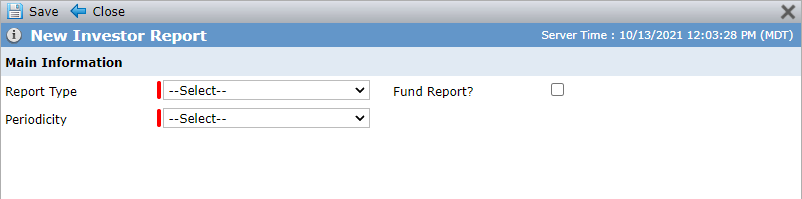
To create a new report, click the New button located above the Investor Reports List grid, which opens a modified New Investor Report popup.
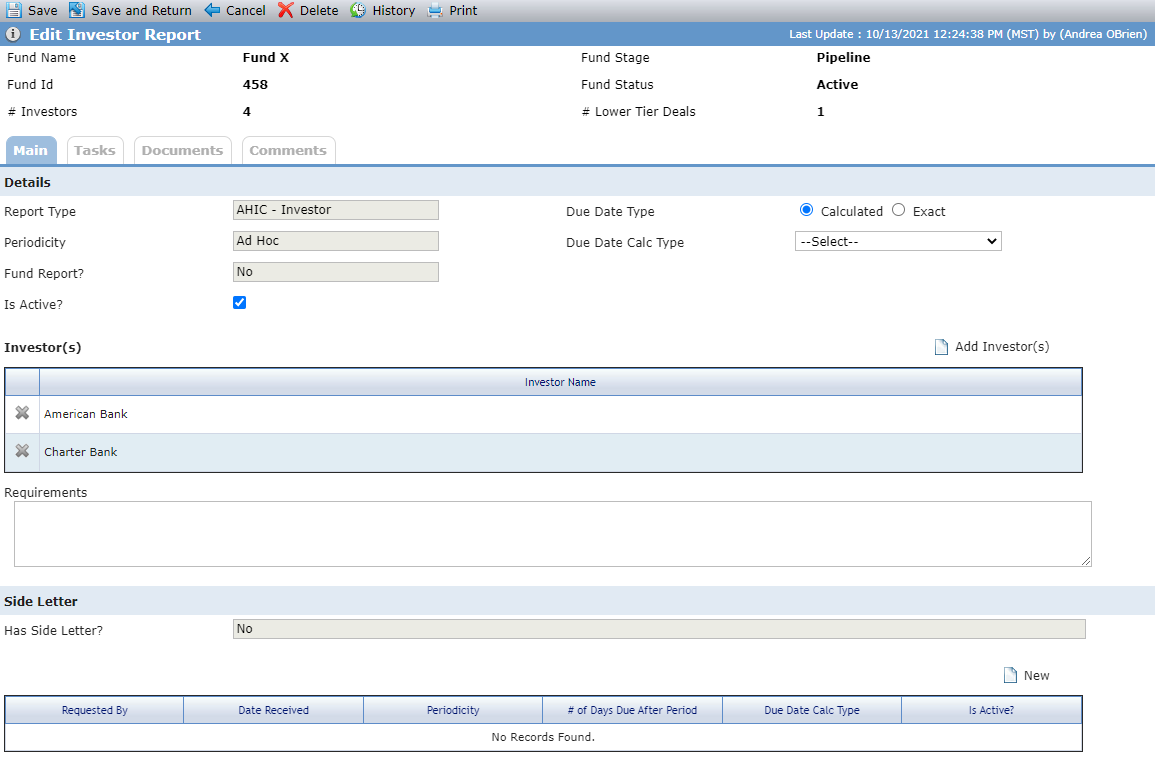
The Edit Investor Report screen for an individual report includes new fields:
Due Date Calc Type (when Due Date Type is Calculated)—The number of days after the period that the report is due (calculated): End of Following Month (last day of the month after the reporting period), Middle of Following Month (the 15th day of the second month after the reporting period), End of 2nd Following Month (the last day of the second month after the reporting period), End of 3rd Following Month (the last day of the third month after the reporting period), End of 4th Following Month (the last day of the fourth month after the reporting period).
# of Days Due After Period (when Due Date Type is Exact)—The number of days after the period that the report is due (exact). Use if a specific date is needed.
Fund Report—Indicates if the report is a Fund Report.
Is Active—Indicates if the report is active.
When you run the new year systematic process on the Delivery Status tab, the system determines the report due date based on the Periodicity and the Due Date Type.
If the Due Date Type is Calculated, then the system calculates the date, which is not necessarily exact, using the calculation type. For example, if the reporting period ends on February 28 and the Due Date Calc Type is "End of the Following Month (~30 days)," then the due date is March 31 (more than 30 days). If the reporting period ends on March 31 and the Due Date Calc Type is "End of the Following Month (~30 days)," then the date date is April 30.
If the Due Date Type is Exact, then the system is exactly the number of days entered from the end of the reporting period. For example, if the reporting period ends on February 28 and the # of Days Due After Period is 10, then the due date is March 10. If the reporting period ends March 31 and the # of Days Due After Period is 10, then the due date is April 10.
The screen includes a new grid to display all investors associated with the report. If the report is a Fund Report, this grid is hidden and all investors are associated with the report.
The screen also includes a new section to add side letters to an investor report. Like the investor report due date, the side letter due date is determined by whether the Due Date Type is calculated or exact. When side letter(s) exist, the system calculates both the parent investor report due date and the side letter due date(s) and then applies the lesser of all due dates to all investors selected for the report.
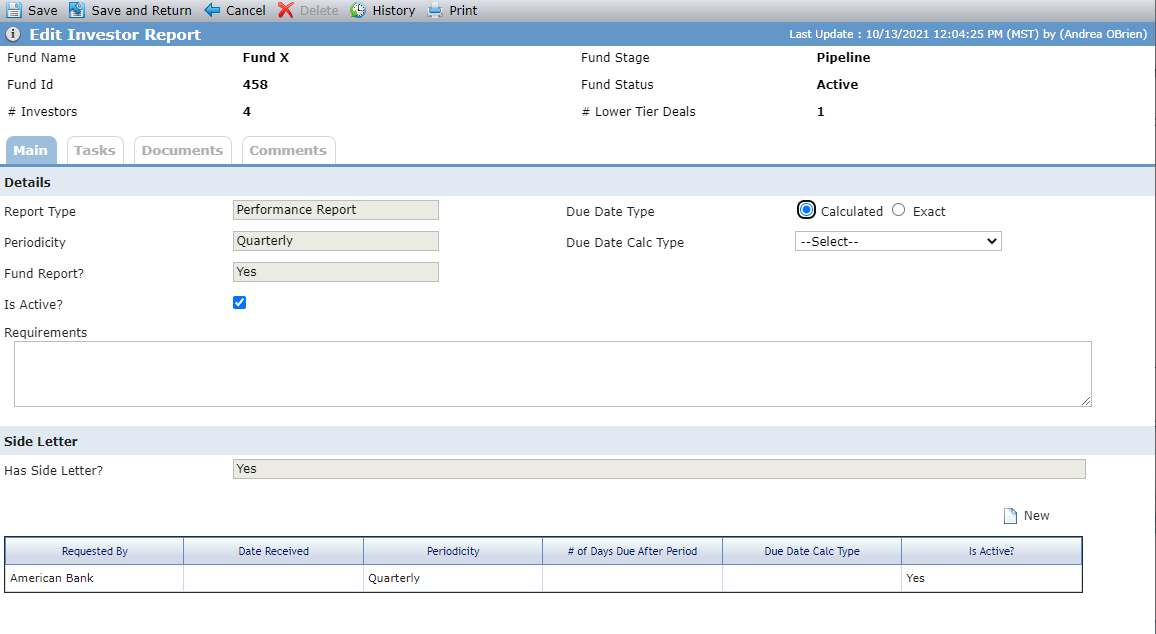
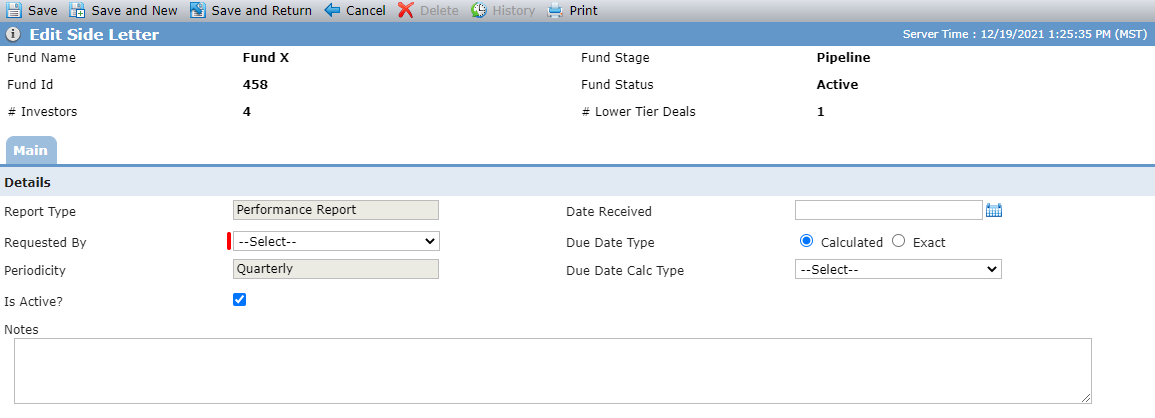
Edit Investor Report (with Side Letter section); Edit Side Letter
You will not be able to delete a Report Requirement if one or more associated Delivery Status records exists. If needed, you can inactivate the Report Requirement.
We have also updated the Fund Investor Reports data view to include new fields as well as created a new Delivery Status data view to provide reporting on Investor Report delivery statuses across the system.
ProLinkAIM workflow functionality has been updated to include new Investor Report and Side Letter fields so that you can build workflows based on the enhanced Investor Reports functionality.
New Fund Manager
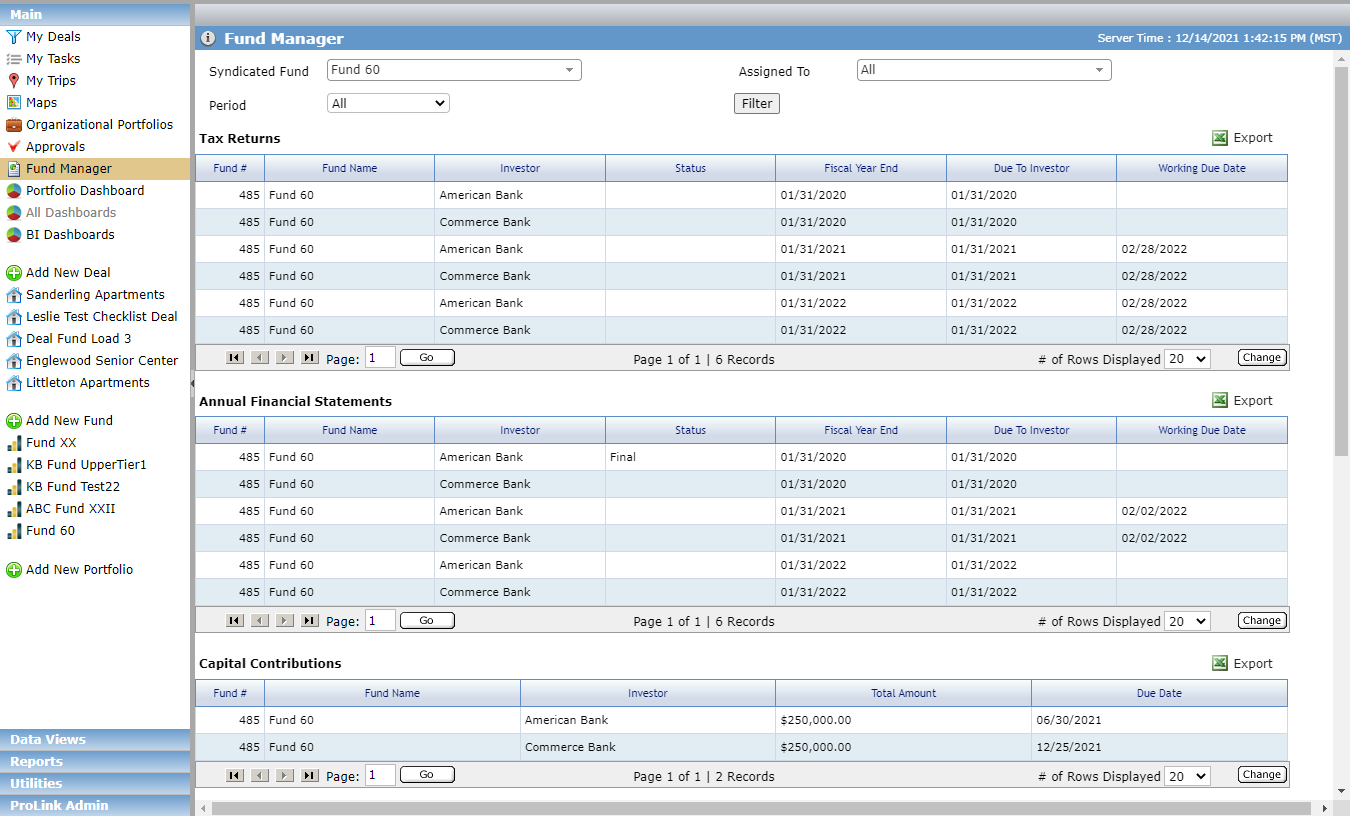
The Main panel includes a new option called Fund Manager, which opens a screen with the following sections:
Tax Returns—Displays a row for each investor on the Syndicated Fund where the Tax Return’s Due to Investor date falls within the Period filter and the investor’s Date Sent is not populated.
Annual Financial Statements—Displays a row for each investor on the Syndicated Fund where the Annual Financials' Due to Investor date falls within the Period filter and the investor’s Date Sent is not populated.
Capital Contributions—Displays a row for each Investor where the Investor’s Due Date on their Accounting Transaction falls within the Period filter and the Date Paid is not populated.
Investor Reports—Displays a row for each investor on the Syndicated Fund where the report due date falls within the Period filter and the investor's Date Sent is not populated.
Note
The Tax Returns grid and Annual Financial Statements grid now include a column for Working Due Date. See Fund OPA Obligations Updates below for more information about the Working Due Date field.
Fund OPA Obligations Updates
Fund Managers can now track the date the fund needs to deliver Annual Financials and Tax Return information to the organization's accountants so that the information can be prepared for investors.
The Edit Fund Annual Financials screen and the Edit Fund Tax Return screen include a new field called Working Due Date.
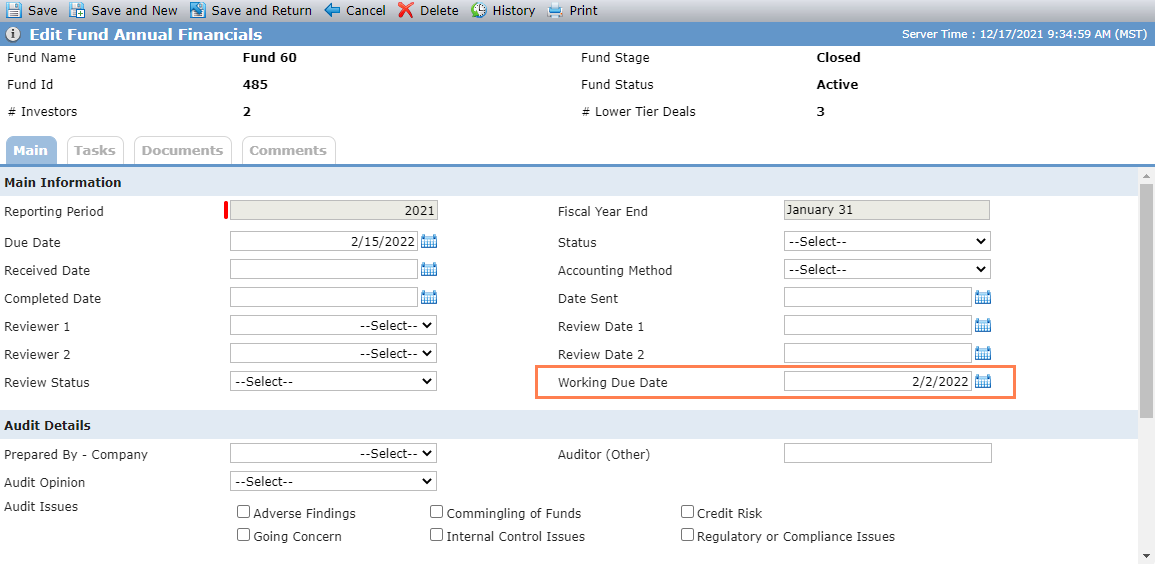
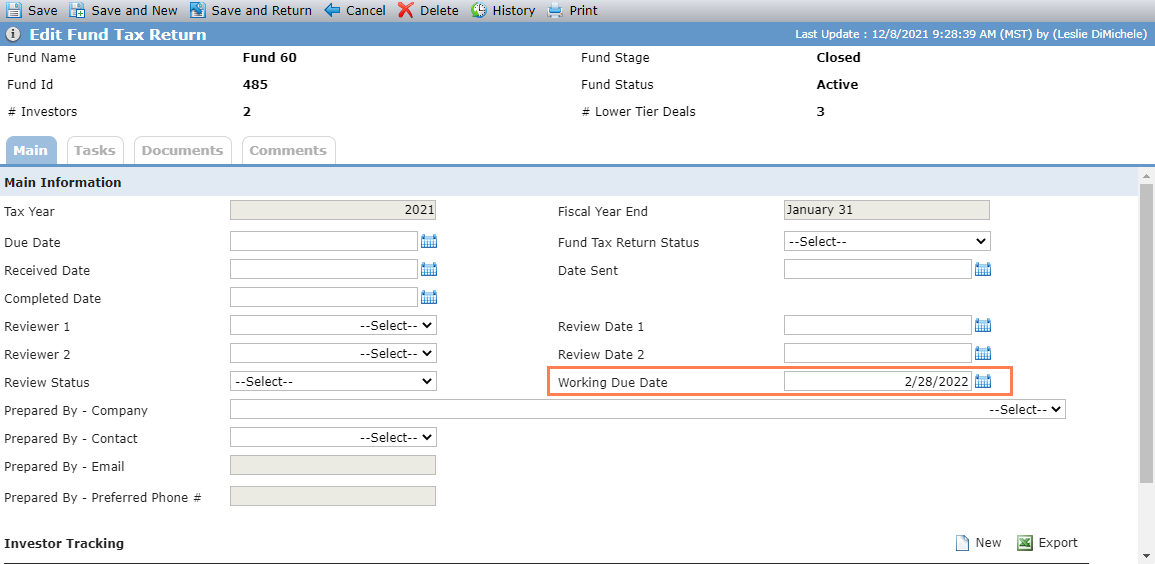
Edit Fund Annual Financials; Edit Fund Tax Return
The Edit Annual Financials screen for the Lower Tier Deal includes a read-only field for the Working Due Date, which displays the date from the Fund Annual Financials record for the same year for the fund that is the active Owner in a Finalized Ownership Schedule on the deal. If there is more than one active Syndicated Fund Owner, then the earliest Working Due Date for the corresponding record is used.
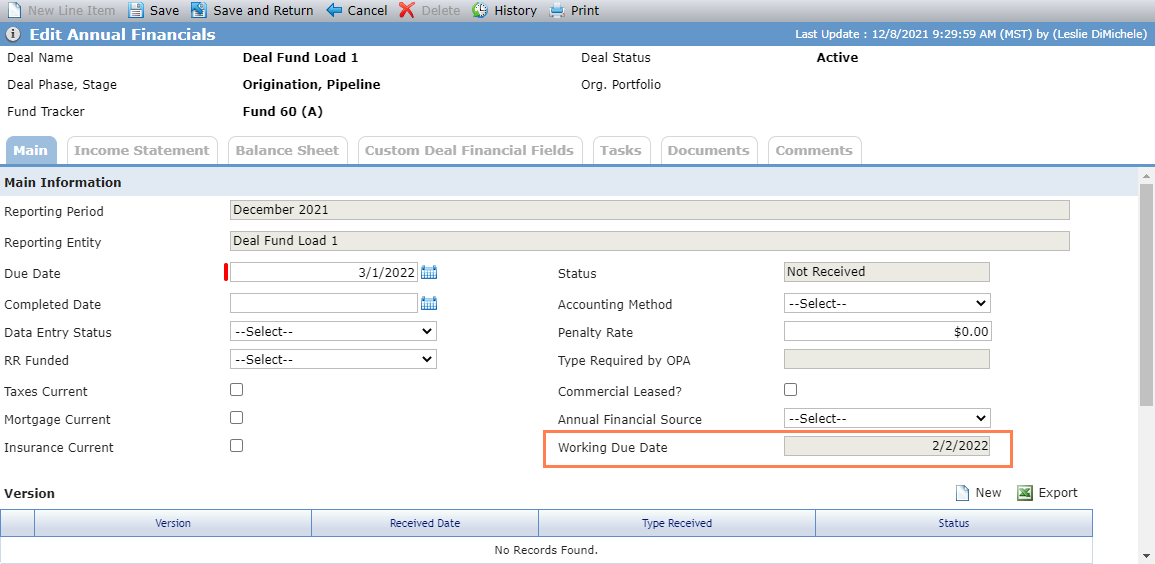
And the Edit Tax Returns screen for the Lower Tier Deal includes a read-only field for the Working Due Date, which displays the date from the Fund Tax Return record for the same year for the fund that is the active Owner in a Finalized Ownership Schedule on the deal. If there is more than one active Syndicated Fund Owner then pull the earliest Working Due Date for the corresponding record.
The Working Due Date field has been added to workflow, SmartDox schemas (Fund, Deal, Financials), the Lower Tier Tax Return data view, and the Lower Tier Annual Financial data view.
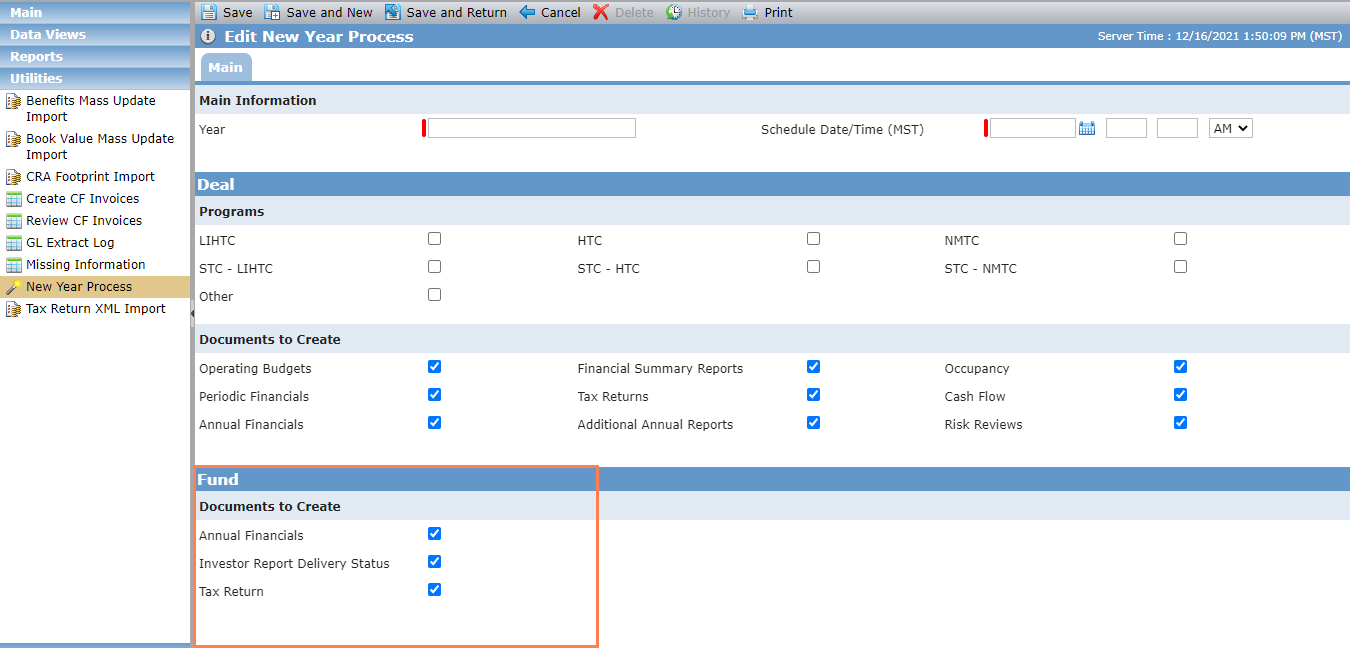
In addition, Fund OPA Obligations have been added to the New Year Process utility. The utility now includes a new Fund section, where you can select Annual Financials, Investor Report Delivery Status, and Tax Return records. When you schedule the new year process with these options selected, the system will create the selected records when the Fund Stage is Closed, the Fund Status is Active, and the record does not already exist for the selected year.
Data View Updates
ProLinkAIM data views include new Financials data views:
Income Statement—Reports at each individual income statement line item for the Periodic and Annual Financials. This includes both system and custom fields. Metrics are included, while subtotals are not included.
Balance Sheet—Reports at each individual balance sheet line item for the Periodic and Annual Financials.
Because of the large amount of data returned by these data views, you might experience performance delays.
Report Updates
This section describes updates and additions to ProLinkAIM reports.
Added Visual Data to Property Overview Monthly Report
The Construction Completion Status section of the Property Overview Monthly Report has been updated so that it shows the picture from the Construction Draw screen instead of the grid data. The report shows the picture from the draw of the corresponding month of the report (Received Date). If multiple draws exist for the month, the report uses the picture from the earliest draw.
Note
With this change, there are now two versions of the Property Overview Monthly Report. One version includes this change, while the other version does not change. Please reach out to your ProLink representative if you are unsure which version your organization uses.
New Watchlist Report
ProLink introduces a new report for deals that are in stabilization, the Stabilizing Watchlist Report. This report provides the details regarding the finances and occupancy of the deals. When the deal has a risk rating not equal to A or B, then the report also includes any issues that are occurring and actions that need to be taken to remove it from the watchlist.
In a related change, the existing Watchlist Report has been renamed to Under Construction Watchlist Report.
New AHIC Report
ProLink introduces two new Microsoft Excel reports:
AHIC Property Report—A standard AHIC report that can be included in the Investor Reporting package
AHIC Quarterly Report—A standard AHIC report, intended to report quarterly financial information that can be included in the Investor Report Package.
SmartDox Updates
ProLink updated the Financial Forecast schema so that it deletes and recreates records when a Send is performed. Previously, it deleted specific records only. If the Block Forecast checkbox is selected for a record, the system will not delete the data and no updates will be made to the record.
If your organization has existing templates using the Financial Forecast schema, you might need to re-map the templates. Please work with your ProLink representative if needed.
Document Hub Updates
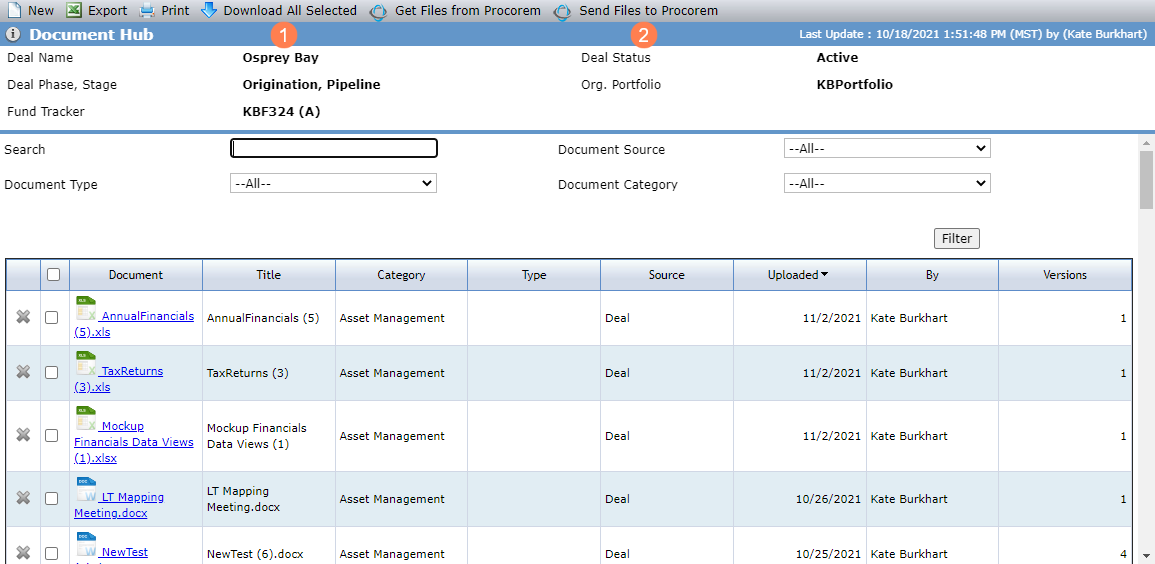
The Documents Hub for deals and funds provides new options for managing files:
You can download multiple files at one time from the Document Hub to your device.
You can upload files from the Document Hub to a Procorem WorkCenter.
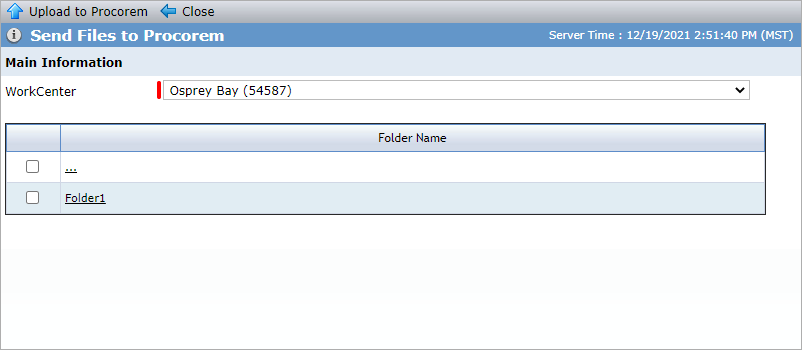
Note that the ellipsis (...) can indicate selection of the top level of the WorkCenter or folder. It can also be navigational, allowing you to move back up if you have drilled into a folder.
You can perform these actions only if you have access to the Procorem WorkCenter(s). These options are available when the ProcoremEnable configuration setting is set to "true."
Entity Updates
ProLinkAIM now provides the ability to link a Procorem WorkCenter to an entity. The Edit Entity screen includes a new tab called WorkCenters, which shows the linked WorkCenters. The screen allows you to set the primary WorkCenter (create a new WorkCenter or link to an existing WorkCenter) and navigate to the linked WorkCenters in Procorem.
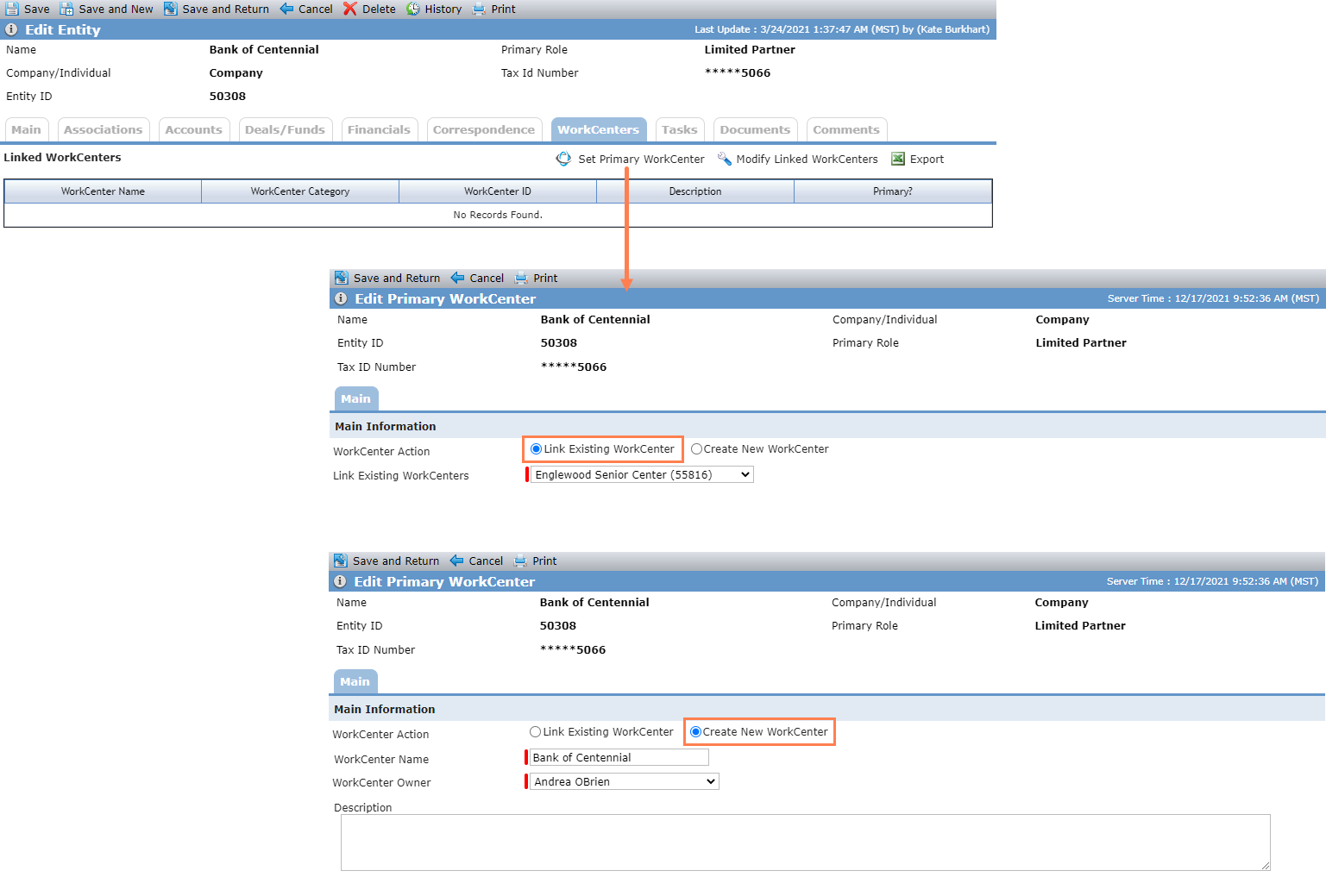
When you are viewing an entity, the WorkCenter defaults to the entity WorkCenter. Similarly, if you are within a deal or fund, on the Entity tab, the WorkCenter defaults to the entity WorkCenter. However, if you are within a deal or fund, not viewing entity information, the WorkCenter continues to default to the deal or fund WorkCenter.
Help Updates
The Help Center includes new content: Deal Equity Schedule, Unit Mix, Tax Returns, Fund Equity Schedule, Lower Tier Deals,OPA Obligations, Investor Reports, Fund Manager, Manage Procorem WorkCenters in ProLinkAIM, AHIC Property Report, and AHIC Quarterly Report.