Introduction to ProLinkAIM Underwriting
Underwriting is a critical component of your deal origination process. The objective of underwriting is to screen prospective deals and ensure deals will perform financially to meet your portfolio objectives. Deal underwriting is typically performed in a Financial Forecast model, also known as the pro forma.
Because Financial Forecasts are updated numerous times as the deal progresses through the deal origination process, you can upload your Financial Forecasts to the system multiple times at major milestones. For example, you might consider uploading your preliminary Financial Forecast early in your underwriting process and then uploading the updated Financial Forecast at closing. Throughout the asset management phase, the deal's actual financial performance will be compared against the last Financial Forecast data you have uploaded in the system.
Typically, final, closing data should be saved as the last Financial Forecast in the system. Financial Forecast data often consists of sources and uses (also known as the development/construction budget), equity installment schedule, benefits schedule, and 15-year cash flow projections. Many other types of deal information can be part of the Financial Forecast.
You can use the Underwriting screen to track the status of Financial Forecasts and Pricing Models as they evolve during the origination process leading up to the deal closing.
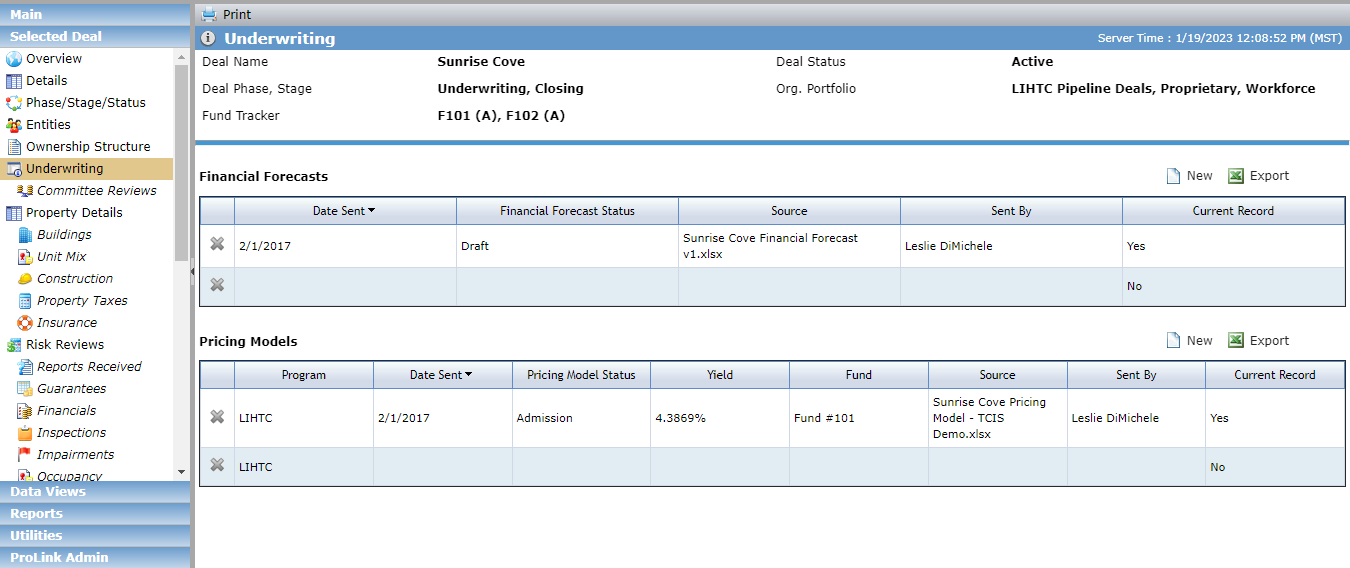
The Underwriting screen includes two grids:
Financial Forecasts—All Forecast records
Note
The Date Sent, Source, and Sent By columns are populated only when the record is created through a SmartDox template.
Pricing Models—All Pricing Model records
The system creates a Financial Forecast record when the deal is initially added to the system. The Notes field shows "System Generated" for this record.
To add a new Financial Forecast record manually, click New above the grid on the Underwriting screen.
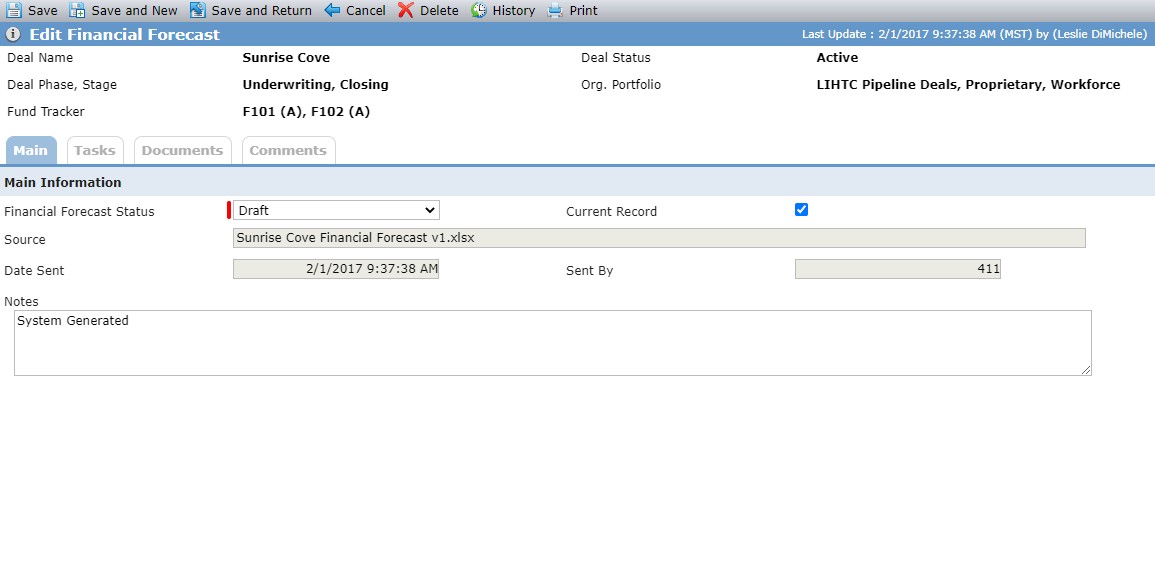
The Financial Forecast Status is required. When the Financial Forecast has a status of "Final," you cannot create additional forecast records (manually or through SmartDox). And only if you have the appropriate security privilege ("Financial Forecast - Final") can you delete a Final Financial Forecast.
Only one Financial Forecast record can be marked as the Current Record. If you select the checkbox for a record, the system clears the checkbox for any other record(s).
The Source, Date Sent, and Sent By fields are populated from the most recent SmartDox template used to create the record.
Sending Financial Forecast via SmartDox Template
In most cases, your organization will have a SmartDox underwriting model, which allows you to send the data directly to ProLinkAIM.
Tip
The system saves a copy of the underwriting model to the Documents tab on the Edit Financial Forecast screen.
When you send the underwriting model through a SmartDox template, and the system creates a Forecast record, the following system logic occurs:
If all required fields are populated for a Debt record, the system adds a new Debt record if one does not exist for the "From (Lender), Type, and To (Borrower)" combination.
If the Original Projected Date is sent for a Debt record and the record doesn't have a Debt Instrument Stage defined for Closed, the system creates a new Debt Instrument Stage record and sets the Original Projected Date to the mapped template value and sets the Stage to Closed.
If information to create a Debt record with a Type of Bridge Loan, Construction Loan, Conversion Loan, Letter of Credit, or Permanent Loan is sent, and the Balance Sheet Loan field = Yes, then the system creates a Debt Instrument Fee record for the Debt record using the Rate (Points) and Amount values populated in the template. The Fee Type is Origination.
If Initial Amount Required for a Reserve record with a type of Operating is sent, and if a Reserve record with a type of Operating does not exist on the deal, the system creates a new Reserve record, sets the Initial Amount Required to the value sent, sets the Reserve Type = Operating, and sets Entity equal to the Entity that has the deal role of "Partnership" on the deal.
If Amount/Unit/Month for a Reserve record with a type of Replacement is sent, and if a Reserve record with a type of Replacement does not exist on the deal, the system creates a new Reserve record, sets the Amount/Unit/Month to the value sent, sets the Percent to the value sent, sets the Reserve Type = Replacement, and sets the Entity equal to the Entity that has the deal role of "Partnership" on the deal.
If all required fields are populated for a Unit Mix - Forecast record, the system adds a new Unit Mix - Forecast record if one does not exist for the Unit Type.
If a Utility Allowance value is sent on a Unit Mix - Forecast record, the system adds a new Utility Allowance Record to the Unit Mix - Forecast record associated to the deal. Unless otherwise indicated in the template, the system sets the Source = Utility Company and the Effective Date = the current date.
If a value for Guarantee Amount or Projected Expiration Date is sent for a Guarantee record with a type of Operating Deficit, and if a Guarantee record with a type of Operating Deficit does not exist on the deal, the system creates a new Guarantee record and sets the Guarantee Type = Operating Deficit.
If all required fields are populated for an OPA Commitment record, the system creates an OPA Commitment record if one does not exist for the given sequence mapped. If a value is specified for Conditions on a given OPA Commitment record, the system creates a new Installment Condition record if one does not exist for the given installment number, setting the Condition Name to the value in the Conditions field and setting the Installment Number to the value selected for the Installment Number on the OPA Commitment record.
If all required fields are populated for a Capital Contribution record, the system adds a new Capital Contribution record if one does not exist for the given sequence mapped.
If a value for Projected Amount for a given Source record is sent, the system creates a Source record for the corresponding transaction type if one does not exist for the deal.
If a value for Forecast Units is sent for a given Reporting Month and Reporting Year, the system creates a new Occupancy record if one does not exist for the given Reporting Month and Reporting Year. The system sets the Periodicity to Monthly. The system sets the Due Date to the <last day of the Reporting Month and Reporting Year combination (Reporting Period)> + <# Days Due After Period defined in Deal Details>OPA tab>Occupancy Reports - Stabilization. If # Days Due After Period is not specified in the OPA, the system uses the Occupancy Reports (Days After Period) value from the Reports Received # Days Due Defaults section in Config Settings. If # Days Due Defaults section in Config Settings is not specified, the system uses "30."
Note
You can send the Reporting Month and Reporting Year for new records only. You cannot edit the values for existing Occupancy records.
If at least one value is specified for a given line item for a year, the system adds a new Operating Budget record if one does not exist for the given year and sets the following values:
Reporting Period = December <Specified Year in Model>
Entity = Entity that has the deal role of "Partnership" on the deal
Due Date = <first day of the FY in the Reporting Year> - <# Days Due Before Period defined in OPA>. If <#Days Due Before Period> is not specified in the OPA, the system uses the Operating Budget value from the # Days Due Defaults section in Config Settings. If the Operating Budgets value from the # Days Due Defaults section in Config Settings is not specified, the system uses "60" for # Days Due Before Period. If the Fiscal Year End Month is not specified, the system uses December.
Financial Status = Not Received
Note
First day of the FY is determined by the FYEM. If the FYEM is December, then Jan 1 is the first day of the FY, if FYEM is June, then July 1 is the first day of the FY.
If the Forecast Fee Amount is sent for a given Fee Type, the system adds a new Fee Distribution Priority record if one does not exist for the given Fee Type for the given Annual Cash Flow Distribution record and sets the Priority to 1 plus the existing maximum priority defined for the collection of Fee Distribution Priority records for the given Annual Cash Flow Distribution. When sending the Forecast Fee Amount, the system creates an Annual Cash Flow Distribution record if one does not exist for the corresponding year on the deal.
When you send a template, if the Status is not Final, then any of the following existing records on the deal are deleted:
The following records will not be deleted when their corresponding Block Forecast Updates checkbox is selected:
Building
Equity Schedule (Capital Contributions, Conditions, OPA Commitments)
Property
Unit Mix - Current Mix
Getting Financial Forecast via SmartDox Template
When performing a Get for a Financial Forecast record, the data is pulled from the Current Record.
You can maintain information about a version of the pricing model on the Edit Pricing Model screen.
The system creates a Pricing Model record when the deal is initially added to the system. The Notes field shows "System Generated" for this record.
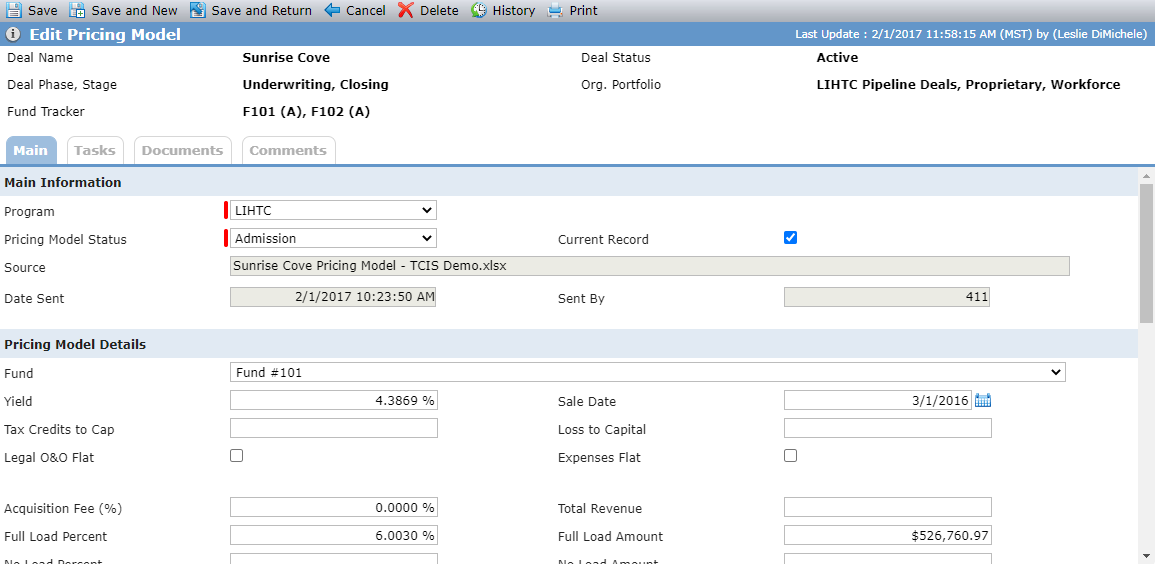
The Program and Pricing Model Status are required. Only one Pricing Model record for each program on the deal can have a Pricing Model Status of "Arc Approved." After a Pricing Model record for a program is Arc Approved, you cannot create additional Pricing Model records (manually or through SmartDox).
Only one record can be marked as the Current Record for each Program. If you select the checkbox for a record, the system clears the checkbox for any other record(s).
The Source, Date Sent, and Sent By fields are populated from the most recent SmartDox template used to create the record.
When you select or change a fund (and save the record) OR when you Send data through the SmartDox Pricing Model schema, if the entity that represents the fund (that is, the entity in a Fund Role of Syndicated Fund on the selected fund) is not an owner of the "Partnership" owned entity with a role of "Investment Limited Partner" on a proposed ownership schedule for the deal, then either:
The system updates the existing proposed ownership schedule, if one exists.
OR
The system creates a new proposed ownership schedule with the following values:
Schedule Name will be "Pricing Model - <Fund Abbreviation>"
Schedule Start Date will be the current date
Description will be "Syndicated Fund Updated on Pricing Model"
Partnership Owned Entity will be the Partnership on the deal
Syndicated Fund Entity will be added as an Owner with the Owner Role of Investment Limited Partner and Admission Date of the current date
Note
If a finalized schedule exists, the system creates a new proposed schedule with the information from the finalized schedule copied over along with the revisions identified above.
In the Details section, if you enter and save a year (YYYY) for the Forecasted GAAP Net Income - Year 1 field, then the system calculates the Year 2 and 3 values (plus 1 for Year 2, plus 2 for Year 3).

When you send a SmartDox template, the system will delete all existing Benefit and Cash Flow records if the deal has HTC or STC Programs, and does not have LIHTC or NMTC Programs.
Add a Pricing Model Scenario
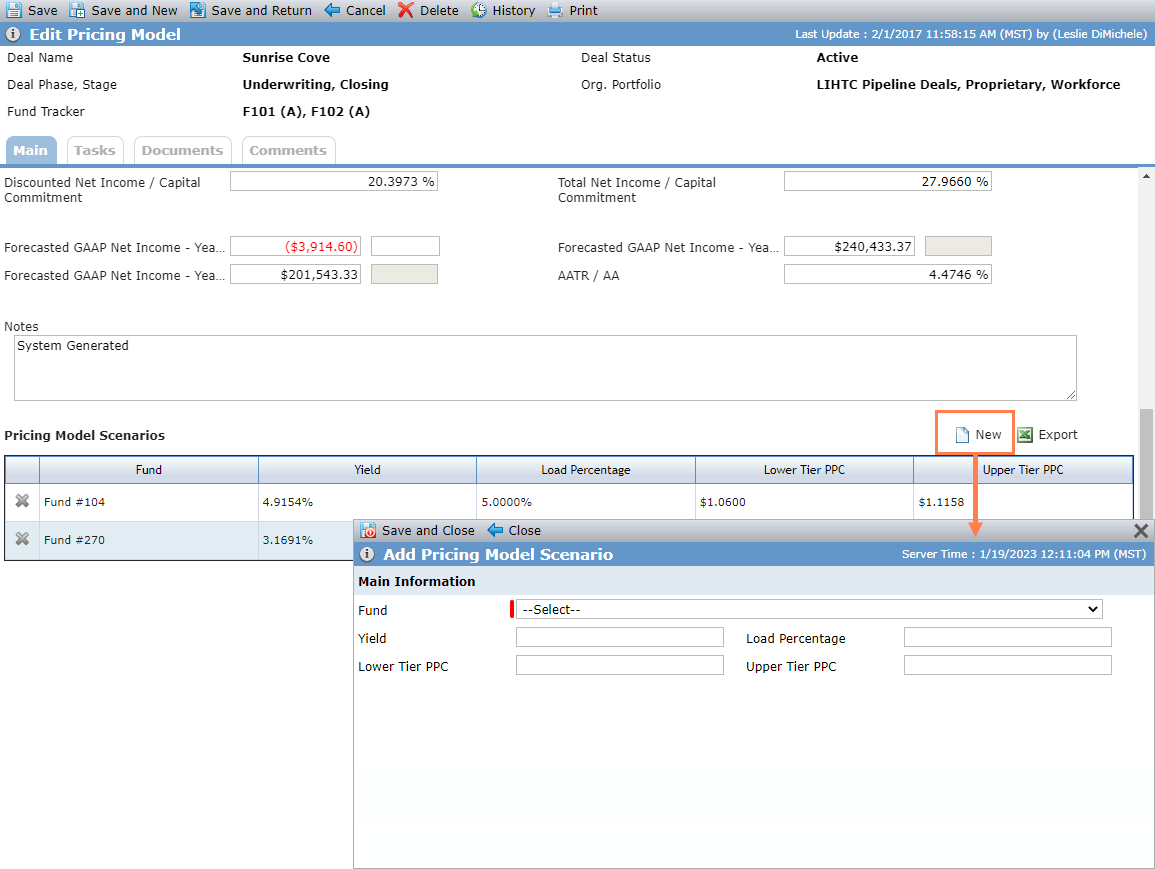
You can compare potential syndicated fund ownership in a deal. Click New above the Pricing Model Scenarios grid to open the Add Pricing Model Scenario popup.
Note
If you delete a Pricing Model record, the system deletes all associated Pricing Model Scenarios.