Cash Flow
As a deal begins to generate positive net cash flow, that cash flow must be distributed among many different priorities. The order that the new cash flow is distributed to those priorities is called the cash flow waterfall, and the specific list of priorities and their order may be different for each year in a deal's lifecycle. The Cash Flow screens exist to aid Asset Managers in the allocation of net cash flow to individual priorities (Fee Distribution Priority) for a particular year (Annual Cash Flow Distribution).
For LIHTC and HTC deals, the process typically begins with the Forecast Model. You will build the model and upload the data to the system using SmartDox. From the model, SmartDox will create a number of Fee Distribution Priorities of particular Fee Types, one for each year. After creation through SmartDox, or in place of SmartDox, you can manage individual Annual Cash Flow Distributions and Fee Distribution Priorities.
The Cash Flow utilities help you to invoice appropriate parties to pay amounts due to cover the fees. After an invoice is sent, when the Finance department receives a payment, Finance can log the payment in the Cash Flow screens, and a workflow configured by a system administrator can be used to notify Asset Management. Asset Managers will then access the Edit Payment screen to allocate the received funds to particular Fee Distribution Priorities with outstanding amounts.
Tip
Two Cash Flow data views are available to help you analyze and report on Cash Flow across all deals: Annual Cash Flow Distributions and Fee Distribution Priorities.
Business Process Overview
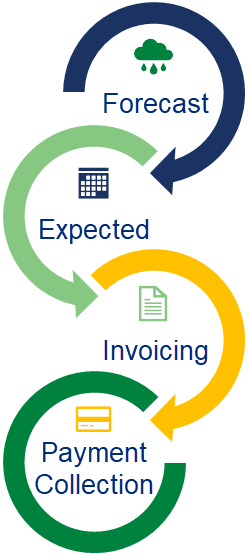
Forecast—Syndicators need to understand how much the deal's entities are entitled to in terms of fees, such as the partnership management fee, investor service fee, priority return to the investing limited partner, and incentive management fee. You can store these values in the Forecast Fee Amount field for each Fee Distribution Priority record based on either the SmartDox proforma for all years, or entry of the Initial Year Fee Amount and Escalator fields, along with selecting Add to Subsequent Yrs to project the fees for future years.
If you do not create all year projections from the proforma, you can create the individual Cash Flow records manually each year.
Expected—Throughout the Asset Management period, the syndicator needs to "true up" the cash flow waterfall based on the actual cash flow. Typically, these calculations are performed in Microsoft Excel.
You can populate the Fee Amount Expected field from the SmartDox template or manual entry. When the Fee Amount Expected is populated, the Invoice button becomes available.
Invoicing—The syndicator will generate an invoice to the General Partner, outlining the fees due. You can generate invoices at the deal level or in bulk from the Cash flow utilities. The system creates an invoice for each Bank Affiliate Payable To entity.
Payment Collection—After money is collected, you can create a payment record, which allocates the payment across multiple Fee Distribution Priorities. When allocations are complete, you can view how much of each Fee Distribution Priority has been paid and how much is remaining on the Annual Cash Flow Distribution.
With money collected from the General Partner, the syndicator can distribute money owed to entities in the partnership.
Introduction to the Cash Flow Screen
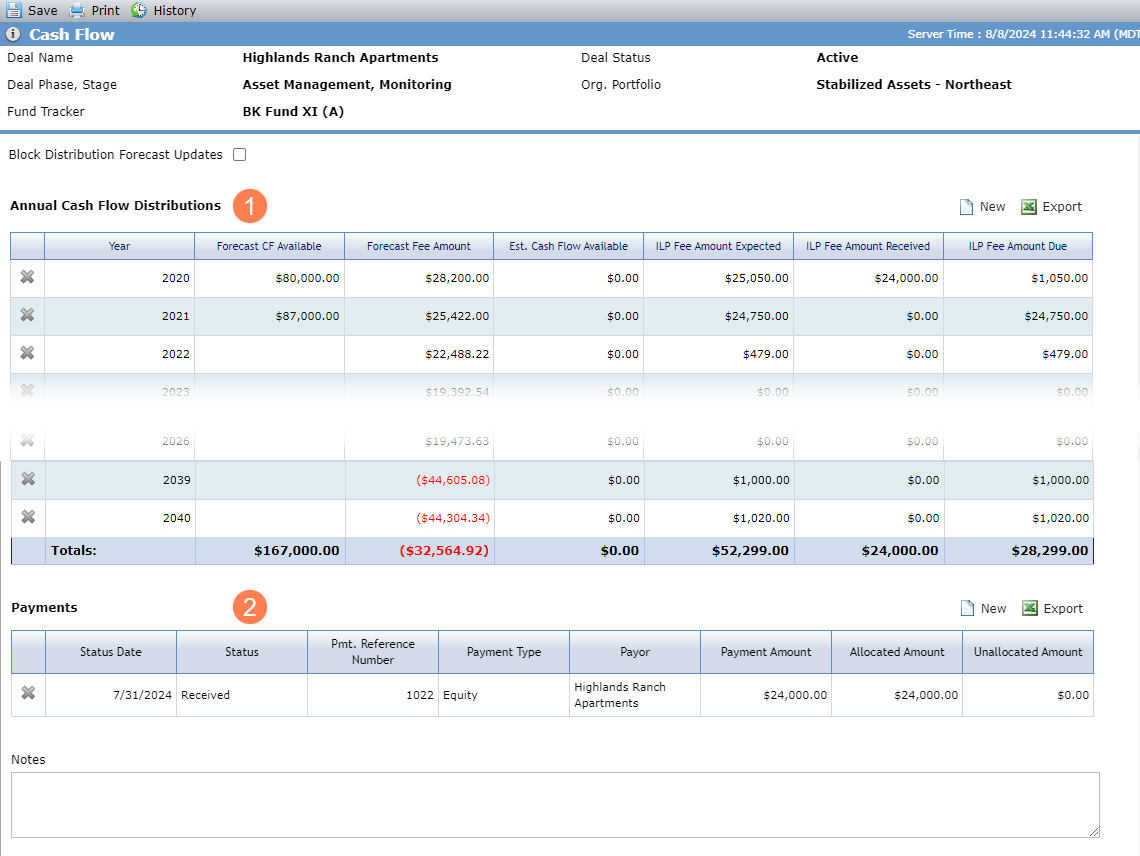
Annual Cash Flow Distributions—Each row represents an individual year. Each column represents the sum of individual fees from the Edit Annual Cash Flow Distribution screen.
The deal can have one record per year.
You can delete only the first and last year records, and only if no Fee Distribution Priorities are associated.
All fields in the grid, except the ILP Fee Amount fields, display the data from the Edit Annual Cash Flow Distribution screen.
ILP Fee Amount Expected displays the sum of all Fee Amount Expected fields for the year where the entity selected for the Payable To field on the Fee Distribution Priority is a Bank Affiliate.
ILP Fee Amount Received displays the sum of all Fee Amount Allocated fields for the year where the entity selected for the Payable To field on the Fee Distribution Priority is a Bank Affiliate.
ILP Fee Amount Due displays the sum of all Fee Amount Due fields for the year where the entity selected for the Payable To field on the Fee Distribution Priority is a Bank Affiliate.
Payments—The Payments grid is a summary view of all Allocation records from the Fee Distribution Priority records. Each row represents an individual allocation or group of allocations, depending on how each payment is allocated to individual fee(s).
Annual Cash Flow Distributions
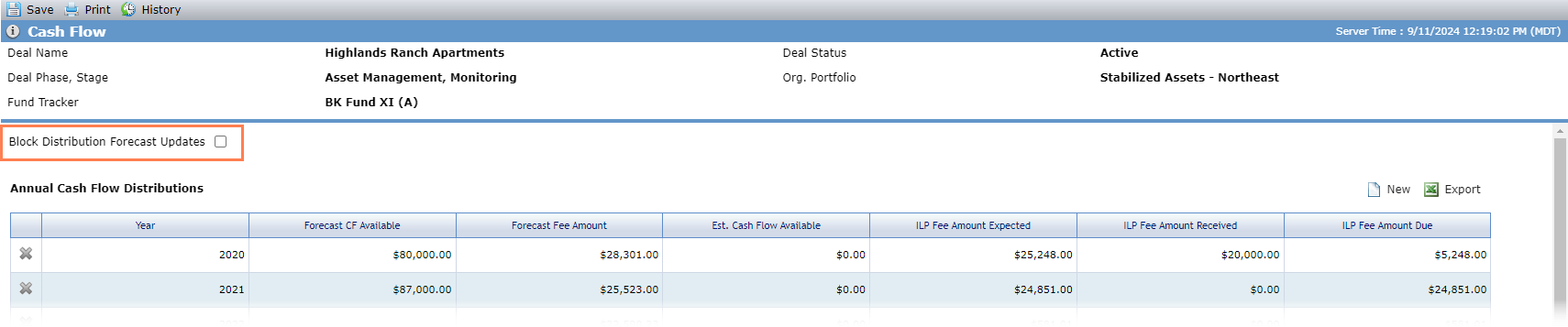
When you select the Block Distribution Forecast Updates checkbox, the system will not update the Annual Cash Flow Distribution records through the SmartDox Financial Forecast schema.
Navigate to the deal, and then select the Cash Flow option in the left navigation panel.
The Cash Flow screen opens.
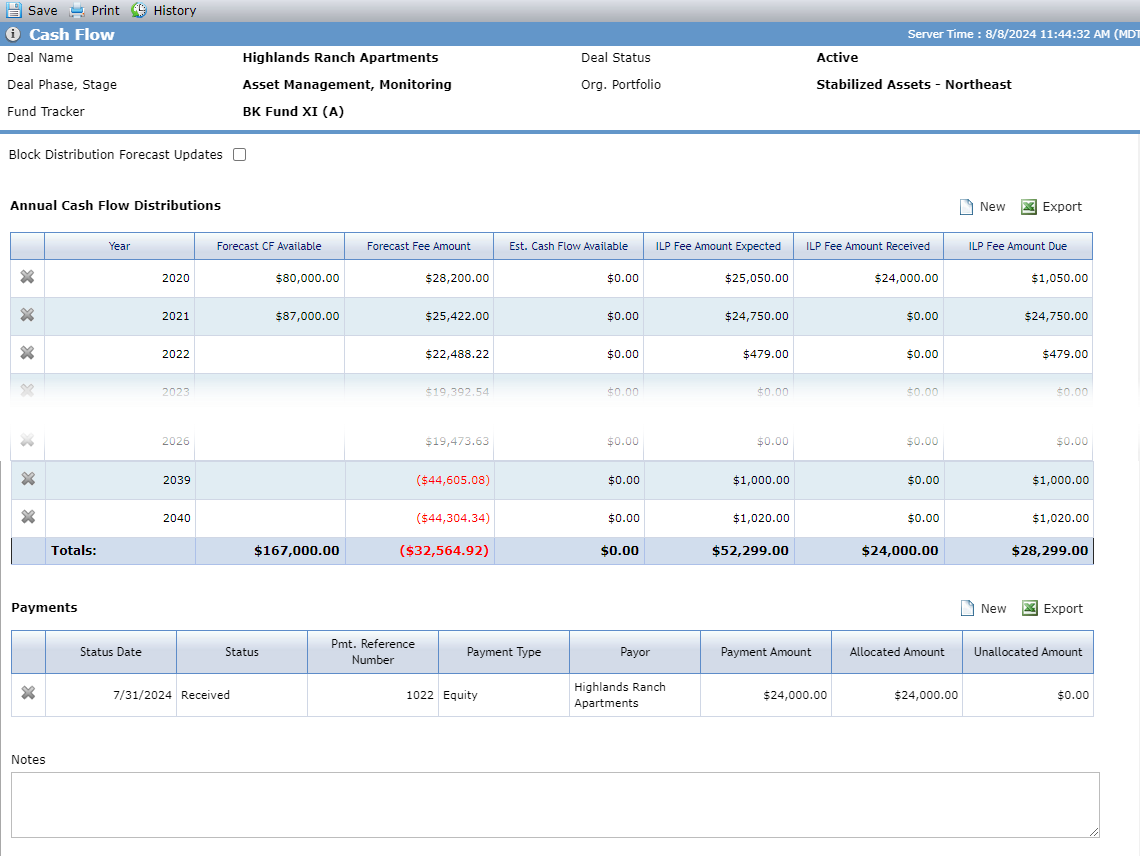
Click New above the Annual Cash Flow Distributions grid.
The Add Annual Cash Flow Distribution popup opens.
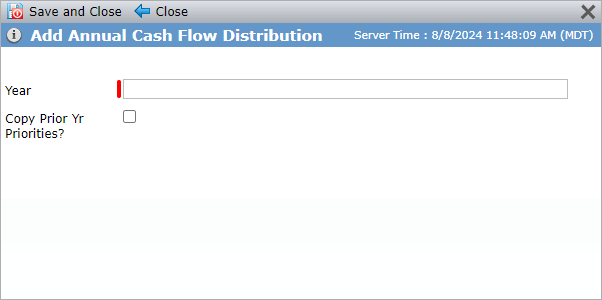
Enter the Cash Flow Year.
The year must be unique for the deal. The year cannot be more than one year greater than the highest existing year, nor more than one year less than the lowest existing year.
If you want the new year's record to include the Fee Distribution Priority records from the previous year, select the Copy Prior Yr Priorities checkbox.
Click Save and Close.
The Edit Annual Cash Flow Distribution screen tracks the Fee Distribution Priorities and Invoices for the selected Cash Flow year.
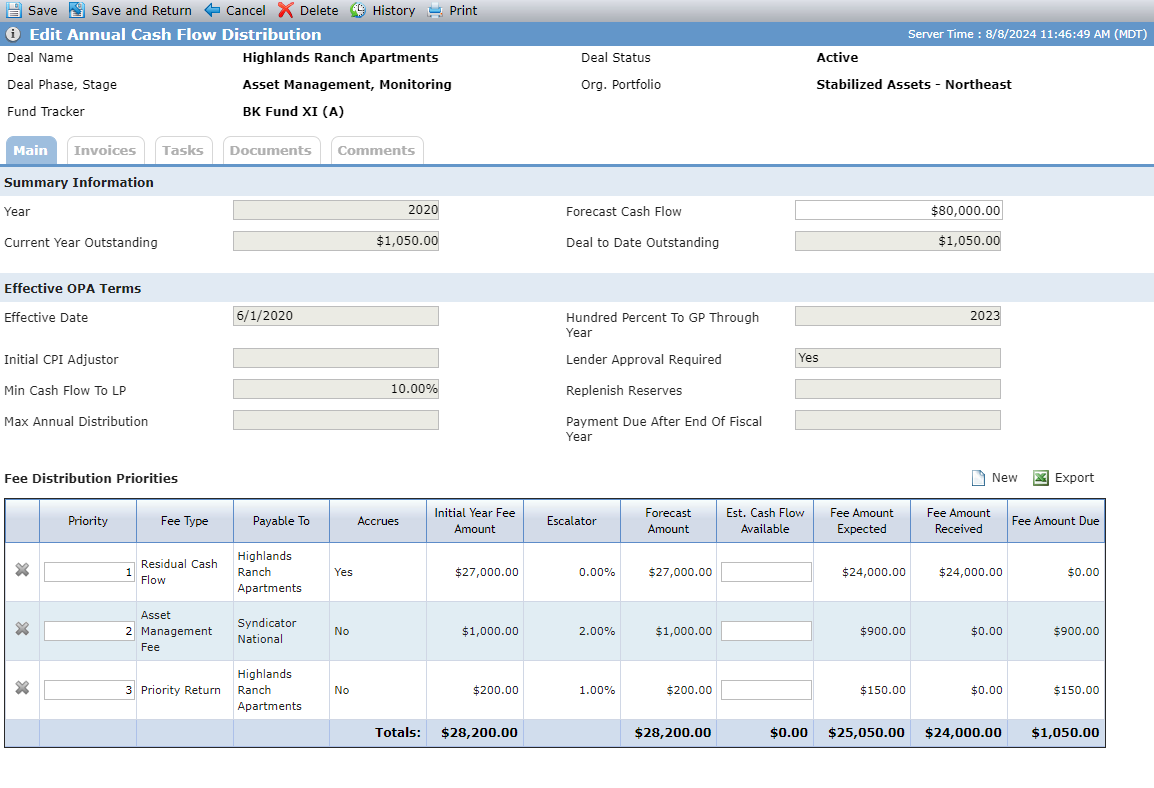
Field | Description |
|---|---|
Summary Information | |
Year | Year of the Annual Cash Flow Distribution record (read-only) |
Forecast Cash Flow | The forecasted cash flow for the year |
Current Year Outstanding | Sum of all Fee Amount Due fields for all Fee Distribution Priorities where the entity selected for the Payable To field of the Fee Distribution Priority has the Bank Affiliate checkbox selected (Edit Entity - Main tab) |
Deal to Date Outstanding | Sum of all Fee Amount Due fields for all Fee Distribution Priorities between the earliest year and the year selected/displayed where the entity selected for the Payable To field of the Fee Distribution Priority has the Bank Affiliate checkbox selected (Edit Entity - Main tab) |
Effective OPA Terms This section displays information from the Cash Flow OPA Terms with the greatest Effective Date that is on or before December 31 of the Cash Flow year. | |
Effective Date | Displays the Effective Date from the Cash Flow OPA Terms (Deal Details) |
Hundred Percent To GP Through Year | Displays the 100% to GP Through value from the Cash Flow OPA Terms (Deal Details) |
Initial CPI Adjustor | Displays the Initial CPI Adjustor from the Cash Flow OPA Terms (Deal Details) |
Lender Approval Required | Displays the Lender Approval Required value from the Cash Flow OPA Terms (Deal Details) |
Min Cash Flow to LP | Displays the Min Cash Flow to LP value from the Cash Flow OPA Terms (Deal Details) |
Replenish Reserves | Displays the Replenish Reserves value from the Cash Flow OPA Terms (Deal Details) |
Max Annual Distribution | Displays the Max Annual Distribution value from the Cash Flow OPA Terms (Deal Details) |
Payment Due After End of Fiscal Year | Displays the Payment Due after End of Fiscal Year value from the Cash Flow OPA Terms (Deal Details) |
The Fee Distribution Priorities grid lists all Fee Distribution Priorities associated with that year.

From the grid, you can change the Priority of the Fee Distribution Priority records and edit the Est. Cash Flow Available.
You can delete a Fee Distribution Priority only when no Allocations are associated.
Click into a row to open the Edit Fee Distribution Priority screen.
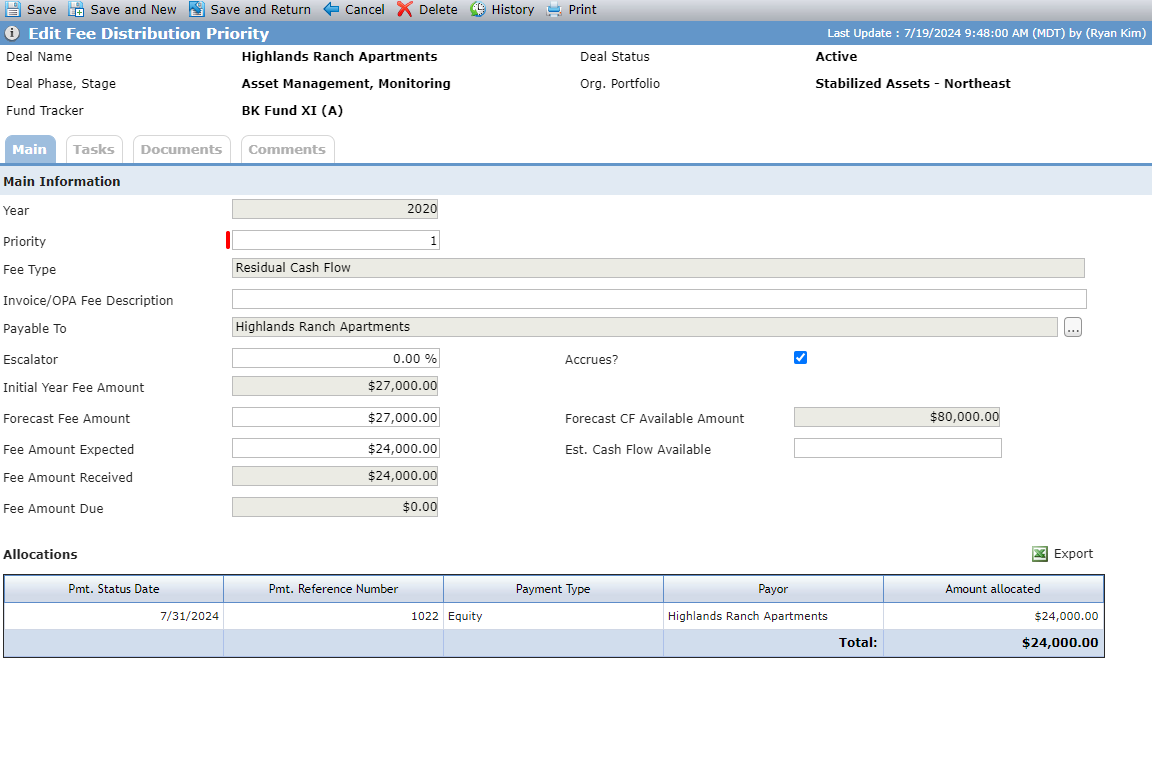
The Allocations grid displays all Allocations associated with the Annual Cash Flow Distribution. All values in the grid are populated from the Edit Allocation screen, except for the Pmt Status Date, which is populated from the Edit Payment screen associated to the allocation. For more information about Allocations, see Add an Allocation.
Field | Description |
|---|---|
Year | The Cash Flow year |
Add to Subsequent Yrs | When the checkbox is selected and the record is saved, the system creates a new Fee Distribution Priority record for the current year and all existing future Cash Flow years. If the Escalator field is populated, then for each Fee Distribution Priority record for future years, all values will be the same as the original record, except the Forecast Fee Amount and Fee Amount Expected. The system will use the values from the prior year multiplied by the Escalator percentage. If the Escalator field is not populated, then for each Fee Distribution Priority record for future years, all values will be the same as the original record. |
Priority | Defaults to the highest Fee Distribution Priority record plus 1. |
Other Priorities | Determines how the priorities of other Fee Distribution records are handled in the case of a conflict. For example, if you have a Fee Distribution with the priority of "1" and then create a new Fee Distribution record that also has the priority of "1," the system will check the Other Priorities value. "Retain Priority" will result in two records that both have a priority of "1," while "Reduce Priority" will reduce the priority of the original record to "2," and only the newly created record will have the priority of "1." The field is visible only when you first create a Fee Distribution Priority record. |
Fee Type | The Fee Type values are based on the PL_CashFlowDistributionFeeType system picklist. When an Allocation exists for the record, the Fee Type will be read-only, and the Payable To search button becomes inactive. |
Reserve | Conditionally required field when the Fee Type is equal to Reserve Replenishment Displays a list of all Reserves on the Deal in the following format: <Alternate Name> - <Reserve Type> - <Entity> |
Invoice/OPA Fee Description | Optional description to help explain the selected Fee Type. For example, if you select a Fee Type of "Other," you can use this field to provide the details about the fee. |
Payable To | You can add any entity in the application as the Payable To. When an Allocation exists for the record, you can no longer edit the Payable To field. TipWhen you Send the fee distribution data from SmartDox or enter it manually, be sure to include a Bank Affiliated Payable To entity. When the Payable To entity is missing or populated with an entity that is not Bank Affiliated, the Invoice button is not available. |
Escalator | If the Escalator is populated and the Add to Subsequent Yrs checkbox is selected, then the system uses the Escalator percentage to calculate the Forecast Fee Amount and Fee Amount Expected for the future Cash Flow years. |
Accrues | Checkbox that indicates that unpaid balances of the fee will carry forward. |
Initial Year Fee Amount | Displays the Forecast Fee Amount from the Fee Distribution Priority record from the earliest Annual Cash Flow Distribution year that has the same Fee Type and Payable To. |
Forecast Fee Amount | The amount projected for the fee type for the cash flow year (see Step 1 of the Business Process Overview). |
Forecast CF Available Amount | Displays the Forecast Cash Flow field from the Annual Cash Flow Distribution associated with the Fee Distribution Priority. |
Fee Amount Expected | The actual amount expected for the fee type for the cash flow year based on the annual audited financials for the year (see Step 2 of the Business Process Overview). When the value is zero, the Invoice button is not available. |
Est Cash Flow Available | The estimated amount expected. You can use this field to track the preliminary value prior to the Fee Amount Expected. |
Fee Amount Received | Displays the Amount Allocated from the corresponding Payment Allocation record. |
Fee Amount Due | Displays the Unallocated Payment Amount from the corresponding Payment record (Payment Amount minus the sum of all allocated payments). |
Add a Fee Distribution Priority
Navigate to the deal, and then select the Cash Flow option in the left navigation panel.
The Cash Flow screen opens.
Click the row of the Annual Cash Flow Distribution.
The Edit Annual Cash Flow Distribution screen opens.
Click New above the Fee Distribution Priorities grid.
The Edit Fee Distribution Priority screen opens.
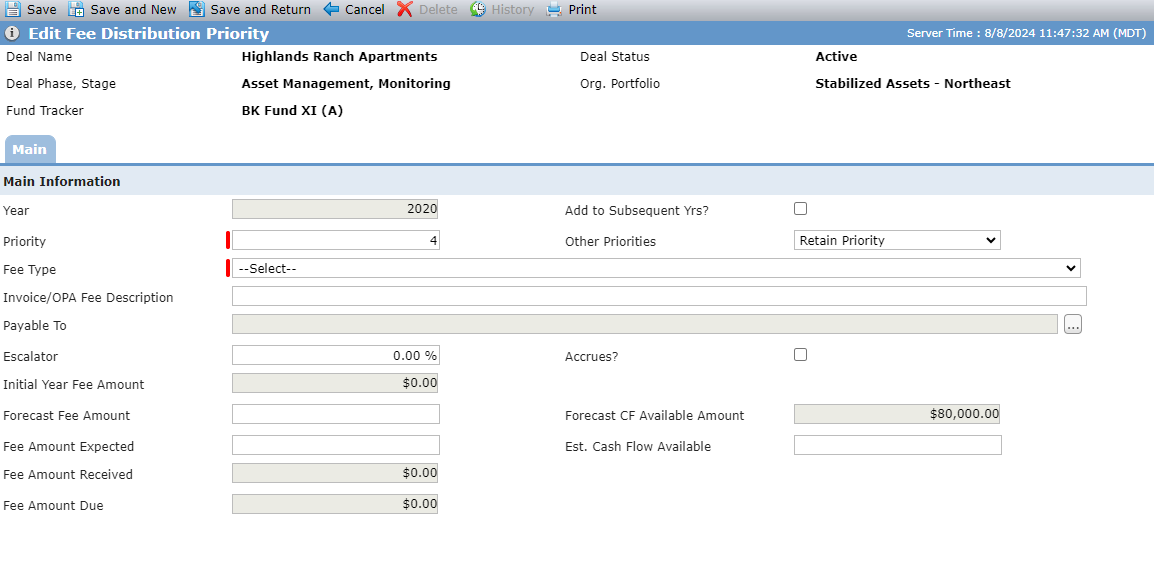
Select the Add to Subsequent Yrs checkbox to add the Fee Distribution Priority to subsequent Cash Flow years.
When the record is saved, the system adds a Fee Distribution Priority record for the current year and all existing future Cash Flow years.
Enter a number to indicate the priority of the Fee Distribution Priority for the selected year.
Other Priorities defaults to "Retain Priority". You can change the behavior to "Reduce Priority".
Select the Fee Type.
If the Fee Type is Reserve Replenishment, select the Reserve.
Optionally, enter the Invoice/OPA Fee Description.
Add the Payable To entity.
The Entity Search popup opens.
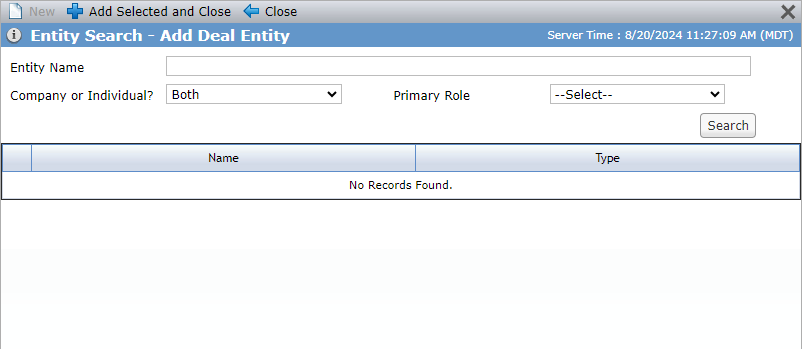
Enter the Entity Name, or select the Primary Role of the entity.
Click Search.
Select the entity to add.
Click Add Selected and Close.
Optionally, enter the Escalator.
If the Escalator is populated and the Add to Subsequent Yrs checkbox is selected, then the system uses the Escalator percentage to calculate the Forecast Fee Amount and Fee Amount Expected for the future Cash Flow years.
Optionally, select the Accrues checkbox.
Optionally, enter the Forecast Fee Amount.
Optionally, enter the Fee Amount Expected.
Optionally, enter the Est. Cash Flow Available.
Click Save.
The Allocations grid becomes available, displaying all Allocations associated with the Annual Cash Flow Distribution.
The Arcadia Apartment deal has Annual Cash Flow Distribution records projected for Year 2020 to 2039. Each year already has a Residual Cash Flow fee record. We add a new Fee Distribution Priority record (Asset Management fee) to the 2020 Cash Flow year, with Add to Subsequent Yrs selected, $1000 Forecast Fee Amount, and 2% Escalator. For the 2020 record, the Forecast Fee Amount is $1000. For 2021 through 2039 Cash Flow records, the system adds a Priority 2, Asset Management fee record with the Forecast Fee Amount calculated based on the Escalator. For example, for 2021, the Forecast Fee Amount equals $1020.
Invoices
You can generate invoices at the deal level or in bulk from the Cash flow utilities.
Tip
If your organization generates invoices at the deal level, the system includes workflows that can deliver an email to the General Partner, Property Manager, and Tax Accountant with the invoice attached. The workflow can be triggered manually.
You can create an invoice when the Payable To is populated with a Bank Affiliate entity and the Fee Amount Due is greater than zero. The system creates an invoice for each Bank Affilate Payable To entity.
Click into a record to navigate to the Edit Cash Flow Distribution Invoice screen. The read-only values on the Edit Cash Flow Distribution Invoice screen are displayed from the Edit Annual Cash Flow Distribution screen.
From the Edit Cash Flow Distribution Invoice screen, you can:
View the invoice, which lists all outstanding fees due to date.
Edit the Approved Date and Sent Date.
When the Approved Date is saved, the record becomes a snapshot and the values will not be updated in real-time.
When the Approved Date is populated on the Invoice record, the snapshot values display on the Invoice Report. When the Approved Date is not populated on the Invoice record, the real values display on the Invoice Report.
The system sends an email alert to the user who approved the invoice when the Sent Date is not populated and a value is updated in the system that would change the values on the snapshot invoice.
Navigate to the deal, and then select the Cash Flow option in the left navigation panel.
The Cash Flow screen opens.
Click the row of the Annual Cash Flow Distribution.
The Edit Annual Cash Flow Distribution screen opens.
Select the Invoices tab.
The Invoices tab on the Edit Annual Cash Flow Distribution screen displays the invoices for the Cash Flow year.
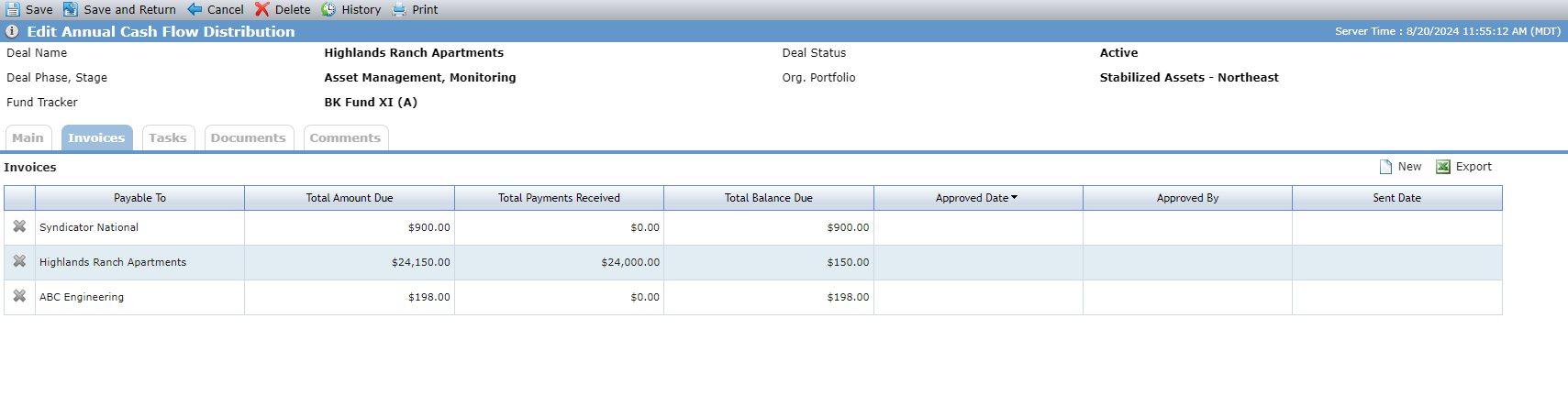
Click New above the Invoices grid.
The system creates an Invoice record for each Payable To entity that is a Bank Affiliate and has a Fee Amount Due that is not zero. If no such entities exist, the New button is not available.
Click the record in the Invoices grid to open the Edit Cash Flow Distribution screen.
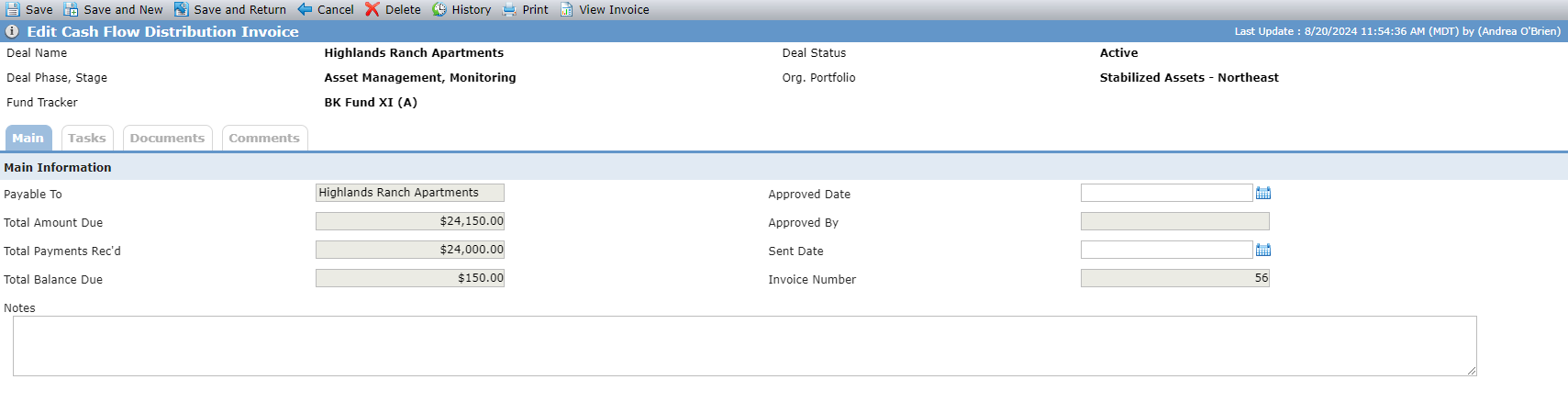
Click View Invoice in the top toolbar to view the Cash Flow Invoice Report.
Every Cash Flow Distribution Invoice has an associated Invoice Report. Three copies of the invoice will be available for each deal, one each for General Partner, Property Manager, and Accountant, if they are set up as entities on the deal. Each invoice contains, by year, the amount due for the property, the payments that have been received, and the total balance due.
There are two versions of the report. Please contact ProLink Support if you have questions about which version your organization uses.
The system administrator can define the following payment specifications for the Invoice Report in Config Settings:
ReportInvoice Phone
ReportInvoiceAttn (Attention To)
ReportInvoiceCSZ (CityStateZip)
ReportInvoiceAddress
Version 2 of the report also uses the following settings:
ElectronicPaymentAcctNumber
ElectronicPaymentABANumber
ElectronicPaymentCityStateZip
ElectronicPaymentAddress
ElectronicPaymentAddressName
You can access the report through the Review Cash Flow Invoice utility or the Edit Cash Flow Distribution Invoice screen. You cannot access the report through the Reports panel.
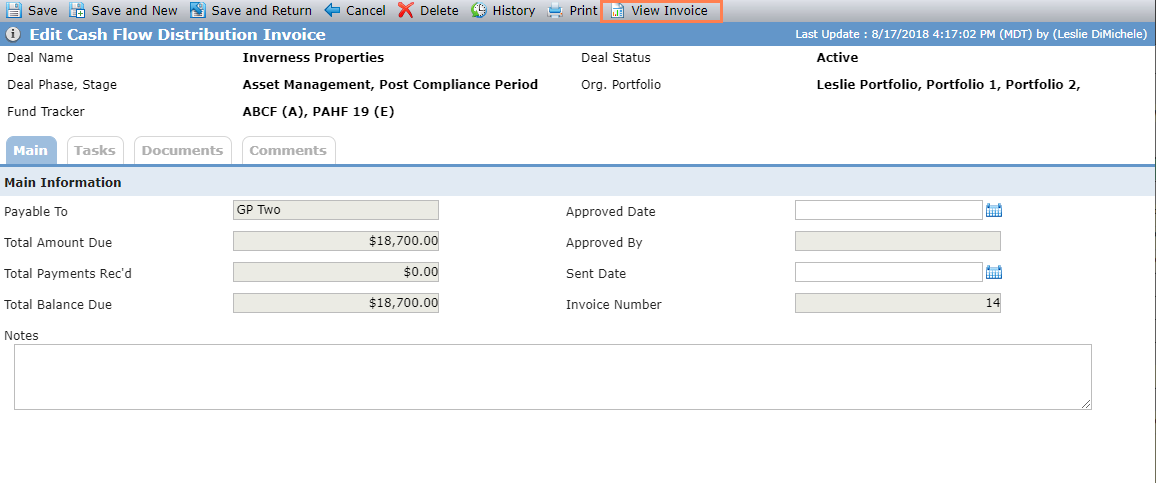
From the Edit Cash Flow Distribution Invoice screen, click View Invoice in the top toolbar to view the report for the specific deal.
For more information about Cash Flow at the deal level, see Cash Flow.
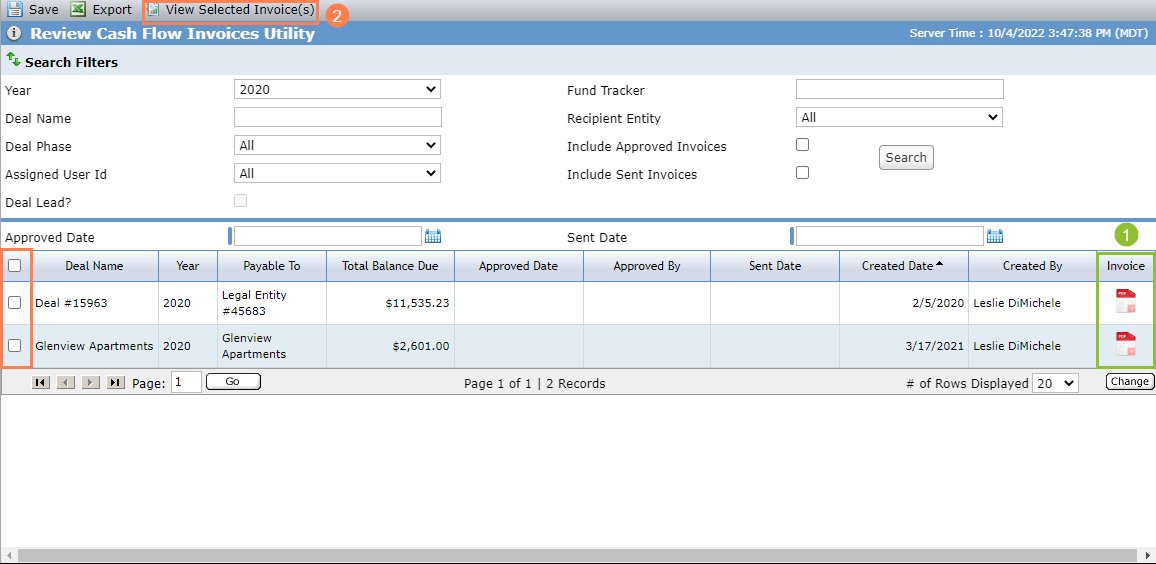
From the Review Cash Flow Invoice utility, you can:
Click
 to view the report for a specific deal.
OR
Select multiple deals in the grid, and then click View Selected Invoice(s) in the top toolbar to view the report for multiple deals in one report.
Tip
The report viewer opens in a new window. You might need to allow pop-ups in your browser to load the report viewer.
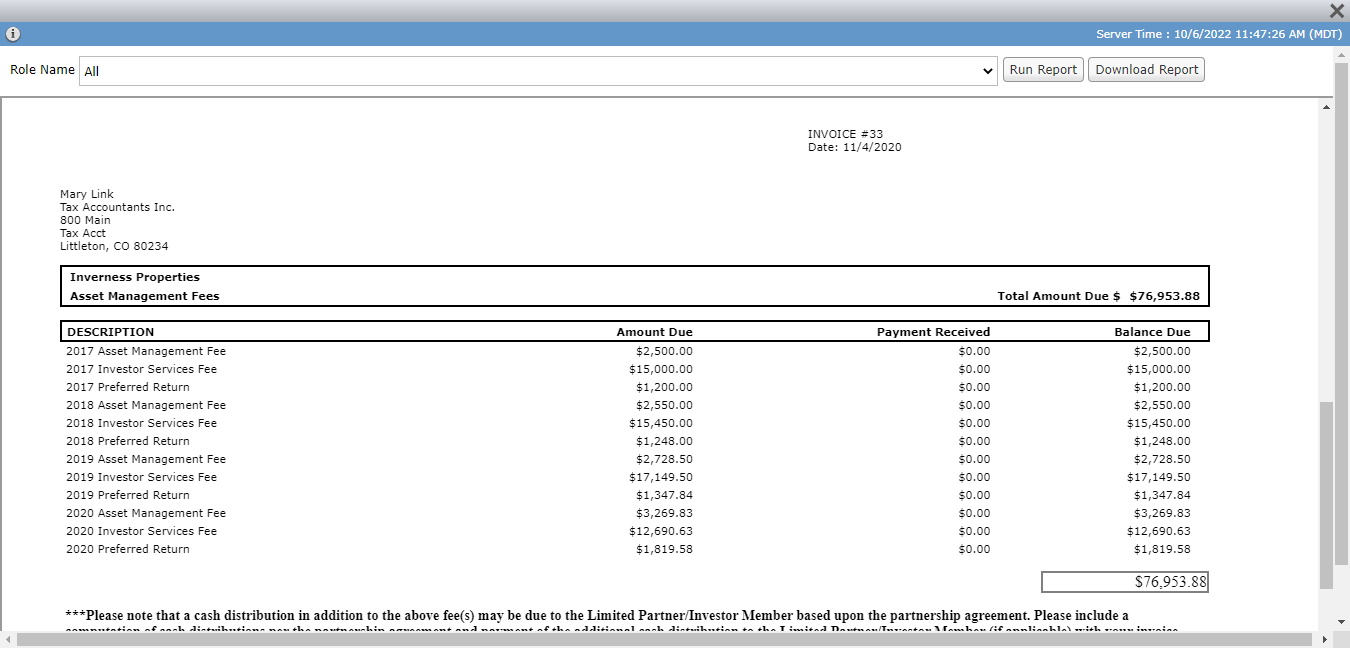
The default Role Name selection in the report viewer is "All," which means the report will show one page for each active entity in the role of General Partner, Property Manager, and Accountant - Tax. You can filter to a specific role, if needed. Then click Run Report.
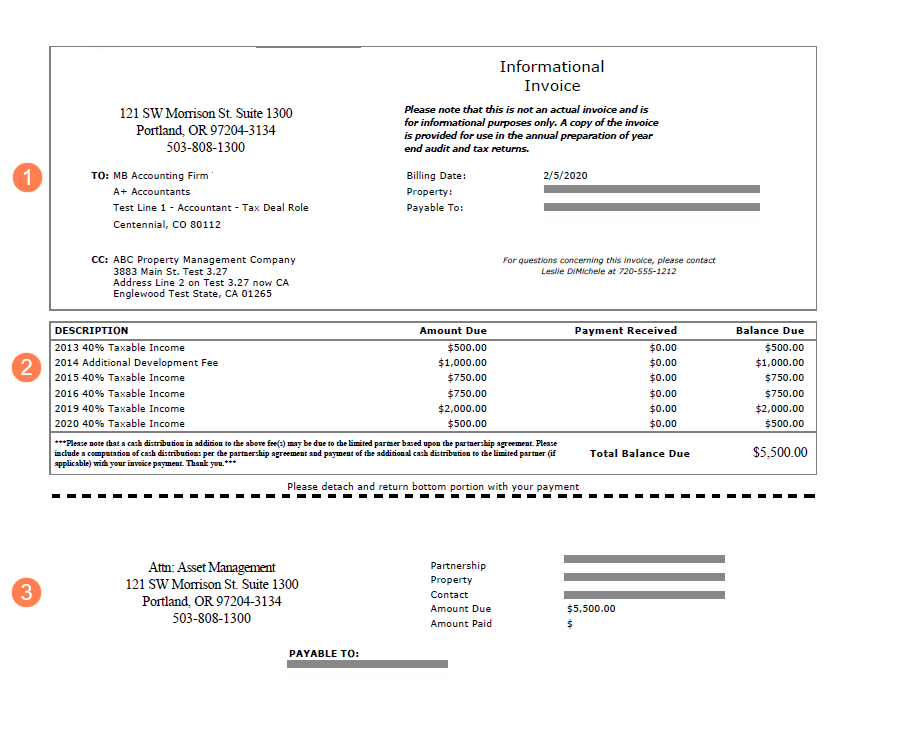
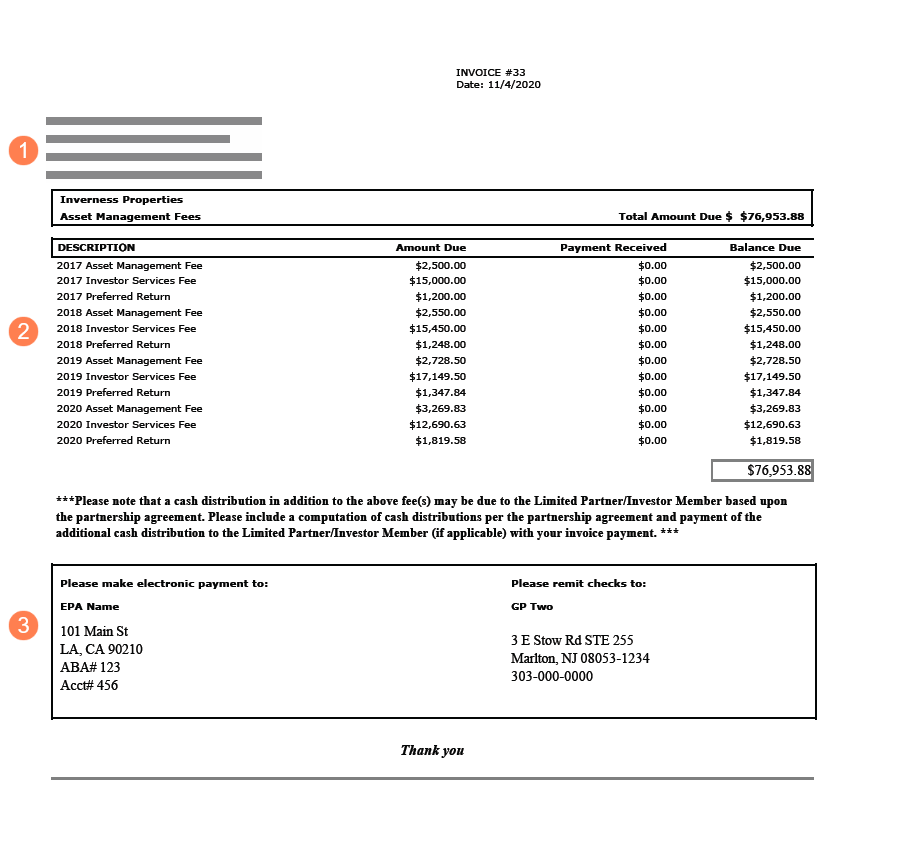
Version 1; Version 2
The invoice has three sections:
Address and contact information
Line items for outstanding cash distributions and totals
Return with payment section
Field | Version 1 Description | Version 2 Description |
|---|---|---|
{Return Address} | Config Settings
| N/A |
TO | Displays the name of the primary contact for the active Accountant, General Partner, or Property Manager. | |
{To Entity Name} | Displays the name of the entity for which the report is being created. | |
{To Address} | Displays the address from Edit Entity for the entity for which the report is being created. | |
CC | Displays the name and address of the active entity that has a deal role of Property Manager. | N/A |
Invoice # | N/A | Displays the Invoice Number from Edit Cash Flow Distribution Invoice. |
Billing Date | Displays the date the Invoice record was created from Edit Cash Flow Distribution Invoice. | N/A |
Date | N/A | Displays the date the Invoice record was created from Edit Cash Flow Distribution Invoice. |
Property | Displays the name of the property from Edit Property. If there are multiple properties on the deal, the report displays the first one. | |
Payable To | Displays the "Payable To" value from the Edit Cash Flow Distribution Invoice. | N/A |
Questions Contact | Displays the name and phone number of the Deal Lead assigned to the deal (from Edit User for the assigned user). | N/A |
Description | Displays the Fee Type - Invoice/OPA Fee Description from Edit Fee Distributions Priority. | |
Amount Due | Displays the Total Amount Due from Edit Cash Flow Distribution Invoice. | |
Payment Received | Displays the Total Payments Rec'd from Edit Cash Flow Distribution Invoice. | |
Balance Due | Displays the Total Balance Due from Edit Cash Flow Distribution Invoice. | |
Total Balance Due | Displays the sum of the Balance Due for all displayed fees. | |
{Electronic Payment To} | N/A | Config Settings:
|
{Remit Checks To} | Config Settings
| Displays the "Payable To" value from the Edit Cash Flow Distribution Invoice. Config Settings:
|
Payable To | Displays the "Payable To" value from the Edit Cash Flow Distribution Invoice. | N/A |
Partnership | Displays the name of the deal from Deal Details. | N/A |
Property | Displays the name of the property from Edit Property. If there are multiple properties on the deal, the report displays the first one. | N/A |
Contact | Displays the name of the Deal Lead assigned to the deal (from Edit User for the assigned user). | N/A |
Amount Due | Displays the Total Balance Due. | N/A |
Amount Paid | Displays "$". | N/A |
Payments
When a check is received, you can create a Payment record. The Edit Payment screen provides access to Allocations grid, where you can split the payment amount to individual fees. The Amount Allocated populates the Fee Amount Received field on the Edit Fee Distribution Priority screen for the fee type.
Tip
There is a workflow called “Cash Flow New Payment Added”, which sends an email notification to an Asset Manager on the deal, informing a payment record was created.
Navigate to the deal, and then select the Cash Flow option in the left navigation panel.
The Cash Flow screen opens.
Click New above the Payments grid.
The Edit Payment screen opens.
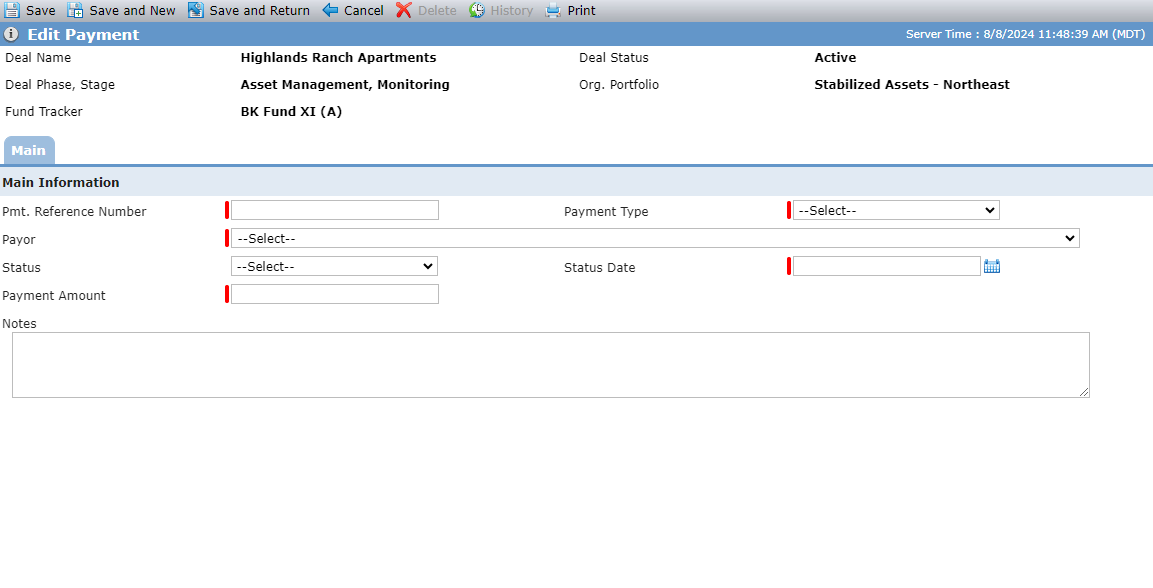
Enter the Pmt Reference Number.
Select the Payment Type. You cannot change the Payment Type after saving the record.
The ability to modify and delete payments after creation depends on your user security role privileges (Check, Wire, Equity; External Transaction).
Select the Payor from a list of the deal's entities.
Optionally, select the Status of the payment.
Enter or select the Status Date.
Enter the Payment Amount.
The system displays a warning if the sum of all Amount Allocated values is greater than the Payment Amount.
Optionally, enter any Notes about the payment.
Click Save.
The Allocations grid becomes available.
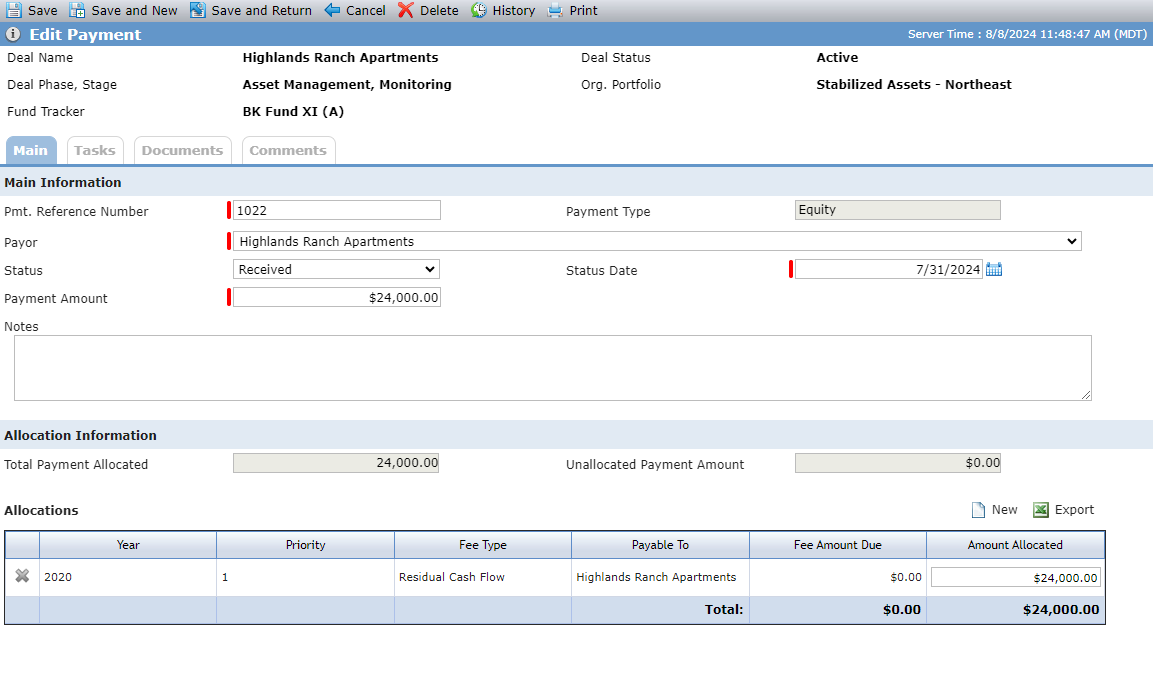
Click New above the Allocations grid.
The New button is available when:
The payment Status is a value other than "NSF" (Not Sufficient Funds).
The Payable To is populated with an entity that is a Bank Affiliate.
The Fee Amount Due is greater than $0.
The Edit Allocation screen opens, with the Total Amount Due calculated based on all outstanding fees.
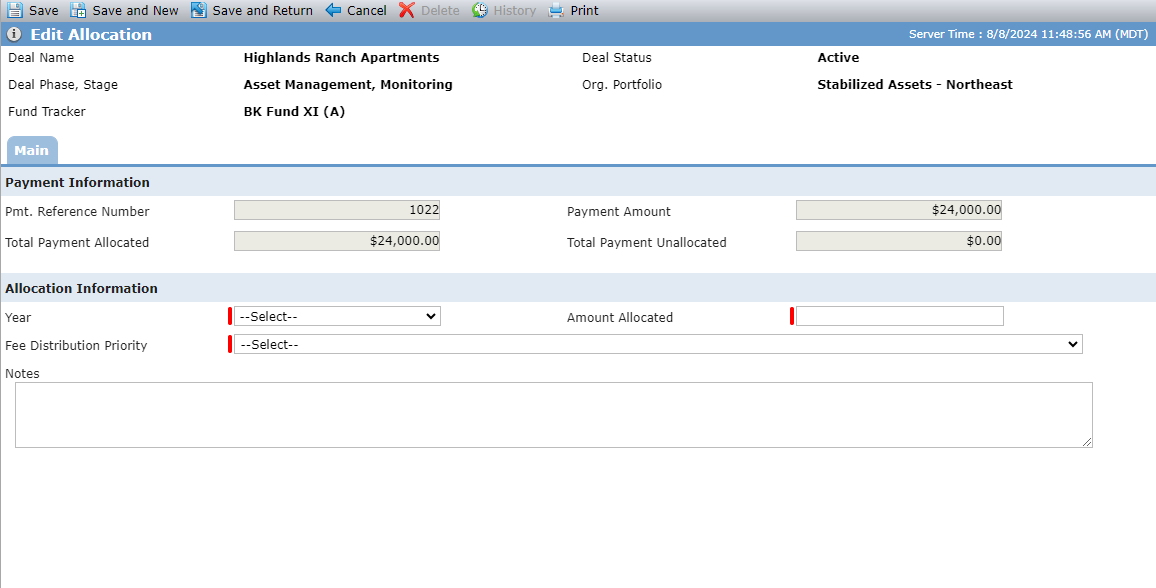
Select the Year from all years with a Cash Flow Distribution record.
Enter the Amount Allocated.
Select the Fee Distribution Priority.
The values are formatted as follows when an amount is due: <Priority> - <Fee Type> - <Fee Amount Due>
The values are formatted as follows when no amount is due: <Priority> - <Fee Type>
Click Save.
Field | Description |
|---|---|
Pmt Reference Number | Displays the value from the associated Payment record. |
Payment Amount | Displays the value from the associated Payment record. |
Total Payment Allocated | The sum of all Amount Allocation values displayed in the Allocations grid. |
Total Payment Unallocated | Payment Amount minus Total Payment Allocated. |