About Fund Details - UT Notes Tab
On this tab, you can add Upper Tier Notes to a fund. The grid is grouped by UT Note Category.
Important
The system administrator pre-defines the notes and categories through Picklists in ProLinkAIM Admin.
Above the grid, you can select from a list of all Year and Quarter combinations for which UT Notes have been added to the fund.
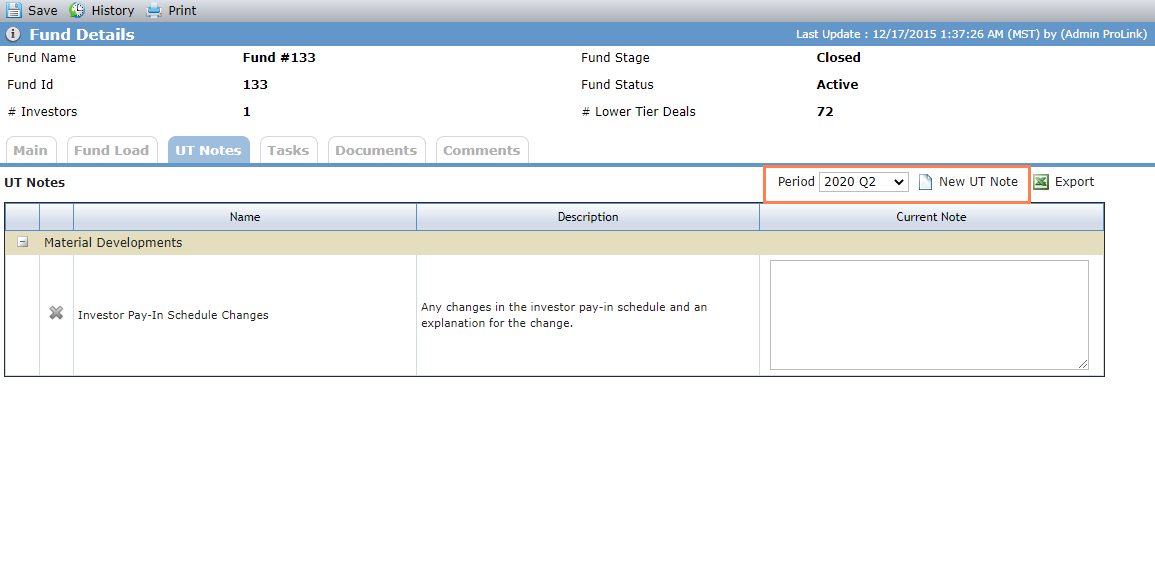
To add a new note:
Navigate to the fund, and then select Details in the left navigation menu.
The Fund Details screen opens.
Click the UT Notes tab.
Click New UT Note above the UT Notes grid.
The Add UT Note popup opens.
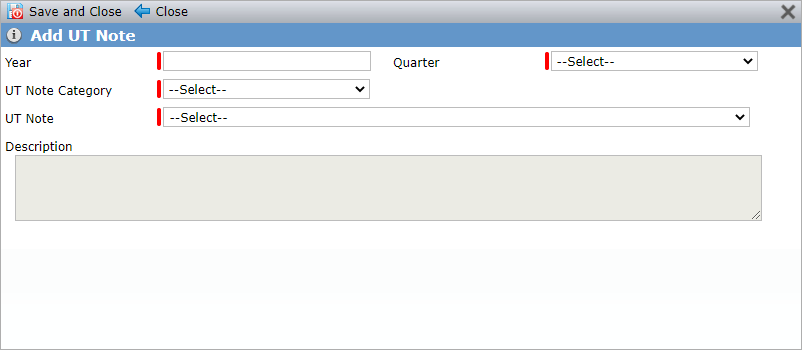
Enter the Year for the note.
Select the Quarter for the note.
Select the UT Note Category.
Select the applicable UT Note. The options available depend on the note category.
The full note description is populated in the Description field.
Click Save.
As needed, add your own notes in the Current Note text box in the UT Notes grid. Remember to click Save in the top toolbar to save your notes.
The only change you can make to a note is to enter information in the Current Note text box in the UT Notes grid. To delete a note, click  in the first column of the given UT Note record of the UT Notes grid. Then confirm the deletion.