Introduction to the ProLinkAIM Deal Equity Schedule
The Deal Equity Schedule tracks the funding for all aspects of the deal, including any loads that are imposed from fund ownership. Along with the funding, the functionality also tracks the conditions that need to be met for the funding to occur.
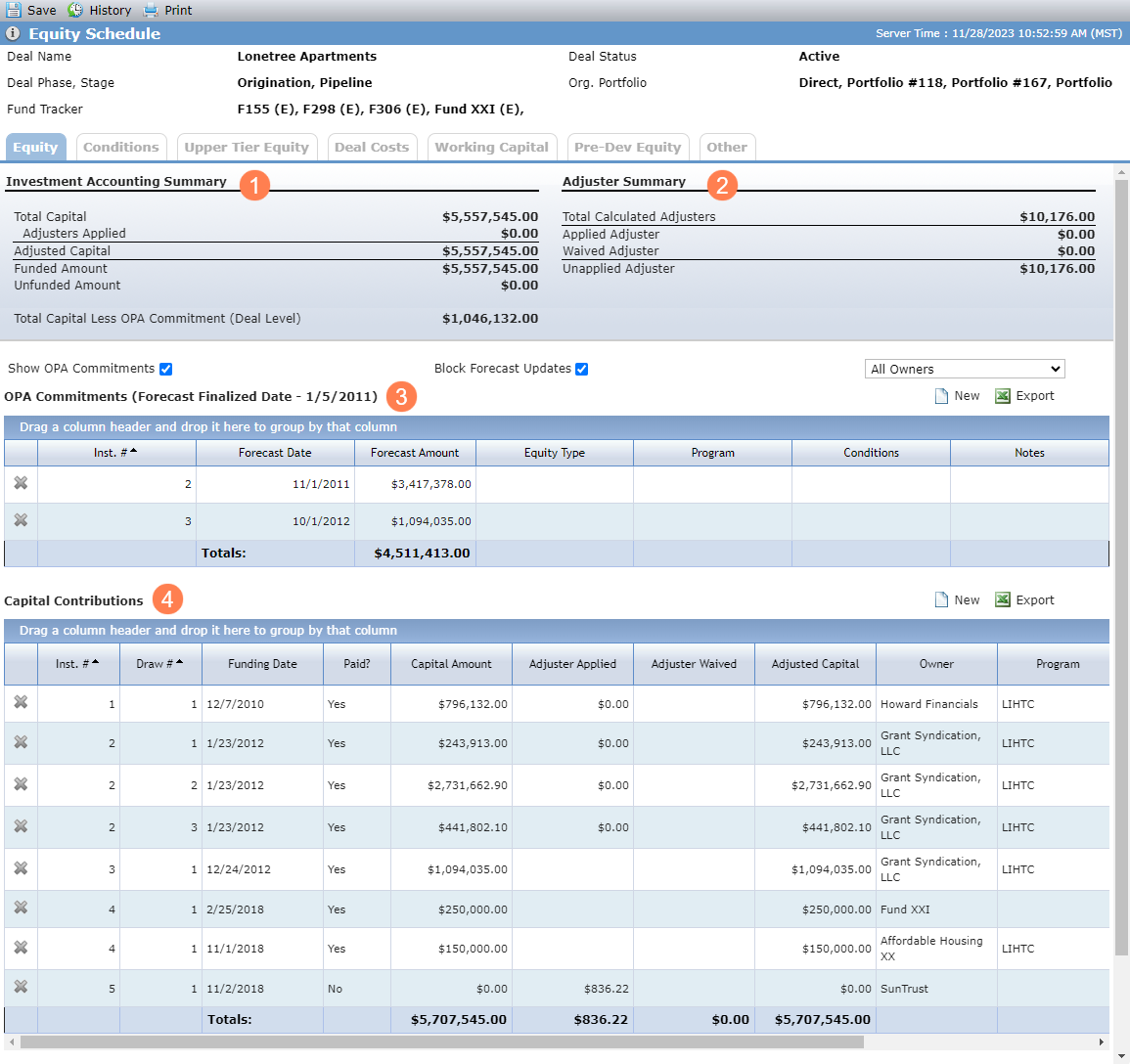
The deal Equity Schedule screen (Equity tab) is divided into three sections:
Investment Accounting Summary
Field
Description
Total Capital
Sum of Capital Amount where Exclude from Total Capital equals “No”
Adjusters Applied
Sum of Adjuster Applied where Paid equals "Yes" and Exclude from Total Capital equals "No"
Adjusted Capital
Total Capital plus Adjusters Applied
Funded Amount
Sum of Adjusted Capital where Paid equals "Yes" and Exclude from Total Capital equals "No"
Unfunded Amount
Sum of Adjusted Capital where Paid equals "No" and Exclude from Total Capital equals "No"
Total Capital Less OPA Commitment (Deal Level)
Total Capital minus Total Forecast Amount
Total Forecast Amount is the sum of Forecast Amount from OPA Commitments
Adjuster Summary
Field
Description
Total Calculated Adjusters
Sum of Total Adjuster amounts in the Calculation Summary section on the Adjusters screen
Applied Adjuster
Sum of Adjuster Applied where Paid equals "Yes" and Exclude from Total Capital equals "No"
Waived Adjuster
Sum of Adjuster Waived where Exclude from Total Capital is "No"
Unapplied Adjuster
Total Calculated Adjuster minus (Applied Adjuster plus Waived Adjuster)
OPA Commitments—When the Show OPA Commitments checkbox is selected, the OPA Commitment grid is displayed, showing all OPA Commitment records by Installment Number. See OPA Commitments for more information.
Capital Contributions—This grid shows all Capital Contributions by Installment Number. See Capital Contributions for more information.
Capital Contribution records cannot be created or deleted for a deal that is selected as the Reporting Deal for a Syndicated Fund (Fund Details - Main tab).
The Owner list displays all Owners that are in a Finalized Ownership Schedule. When you select an Owner in the list, only that Owner’s values will display.
Note
When the Block Forecast Updates checkbox is selected, no updates sent through the Financial Forecast or Pricing Model SmartDox templates will be made.
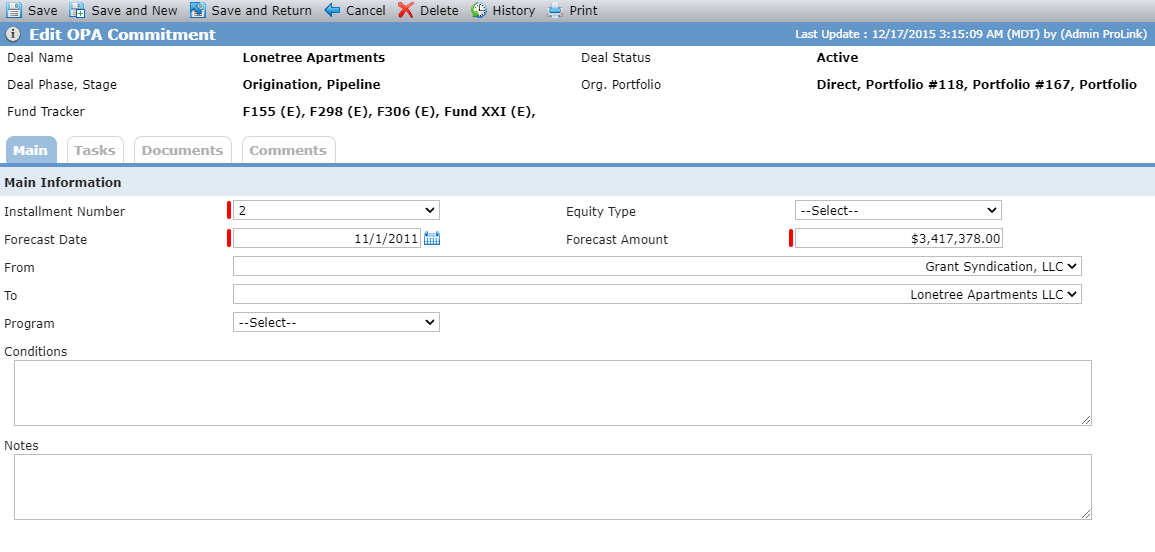
The Edit OPA Commitment screen allows you to track the agreed capital that can be requested. The Installment Number must be unique for a deal.
The To and From entity lists display all deal-level entities; the fields cannot be the same.
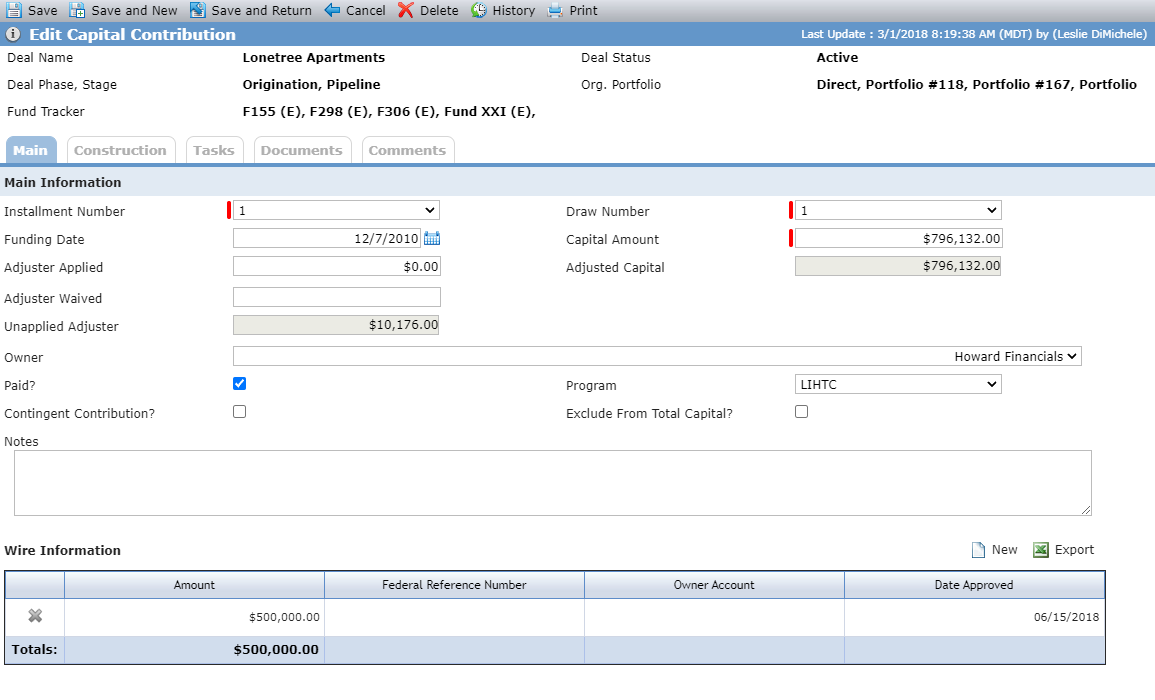
When an Owner is selected on the record, the Funding Date, if populated, must be greater than the selected Owner’s earliest Admission Date in the current Finalized Ownership Schedule. This logic does not apply to systematically created records.
The Adjusted Capital is the Capital Amount plus Adjuster Applied (when the Paid checkbox is selected).
The Unapplied Adjuster displays from Unapplied Adjuster on the Equity Schedule screen.
If any capital should not be included in the Capital totals, then be sure to select the Exclude from Total Capital checkbox.
Note
ProLinkAIM Capital Contributions functionality supports User Defined Fields (UDFs). If any Capital Contributions UDFs exist, the Custom Capital Contributions Fields tab is available.
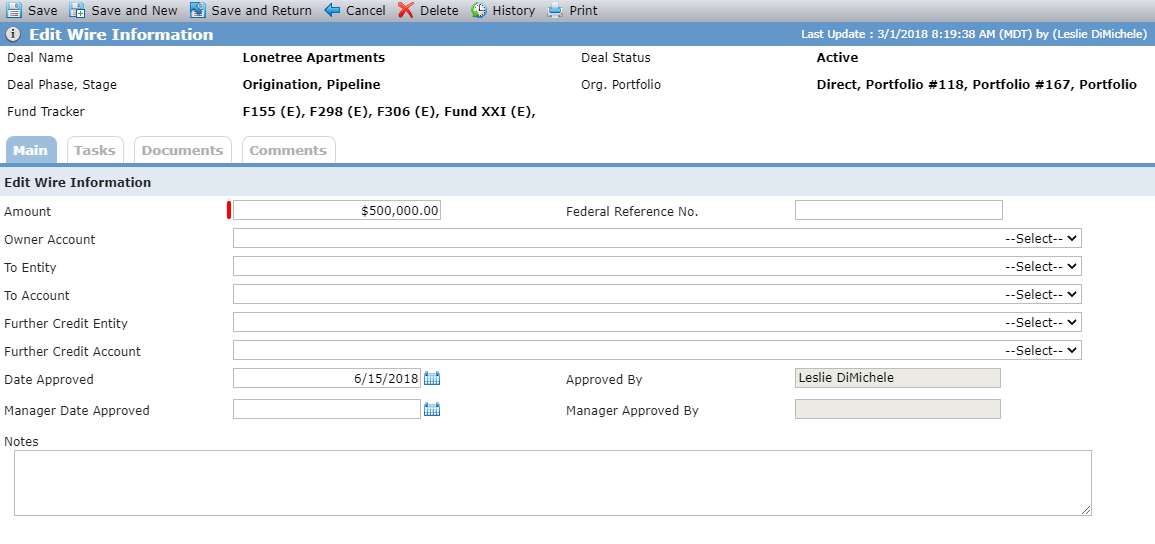
You can create multiple wire records for each Capital Contribution record.
The sum of all wires cannot exceed the Adjusted Capital Amount.
The To Entity displays all Owned Entities on the Deal (Ownership Schedule). The To Account displays all Accounts that exist for the entity selected as the To Entity.
Further Credit Entity displays all of the Deal entities and their associated companies on the deal. Further Credit Account displays all Accounts that exist for the entity selected as the Further Credit Entity.
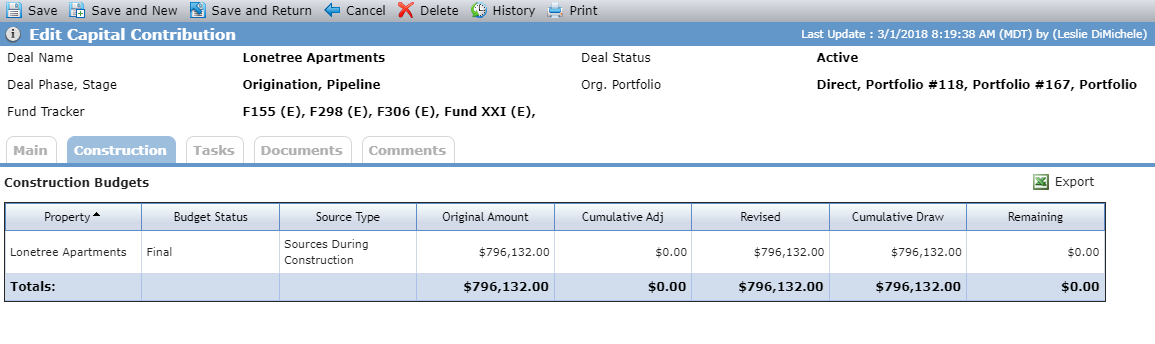
The Construction tab lists all Construction Budget records, where the Capital Contribution is selected as a Source.
A systematic Capital Contribution record is created to represent the unallocated adjusters for the Owners on a Deal. Records will only be created for active Owners (active defined as either no Exit Date or the Exit Date is greater than the current Date) that exist in a Finalized Schedule. Records are only created when no existing systematic record exists for the Owner. Systematic records are created when a change is made in the application that impacts the Total Calculated Adjuster Amount or when an Ownership Schedule is Finalized.
Systematic records are not created for Owners when the:
Applied Adjuster amount for the Owner equals $0.00 OR
Owner's manually created Capital Contributions are all paid OR
Deal is linked to an Upper Tier (Syndicated) deal
When systematic records are created, they are created using the following values:
Installment Number = Maximum existing Installment Number for the deal + 1
Draw Number = 1
Funding Date = The latest existing Funding Date that currently exists + 1
Capital Amount = $0.00
Adjuster Applied Amount = Total Calculated Adjuster amount for Owner minus the sum of Adjuster Applied and Adjuster Waived amount on all non-systematic Capital Contributions for the Owner
Once a systematic record is created for an Owner, any changes to the Total Calculated Adjuster amount will automatically update the existing record, unless the systematic record has been manually updated. If an Owner is exited from a Finalized Schedule, or the Adjuster Applied amount for any Owner equals zero, that Owner's systematic record will be systematically deleted.
Capital Contribution records are systematically created from the Fund Accounting Transaction when a lower tier deal is selected as a Reporting Deal for a Syndicated Fund. Deals are selected through the Link to Reporting Deal functionality on the Fund Details screen for a Syndicated Fund. The deal must have a Syndicated Fund as an Owner on the deal to be selected. Once selected, manual records cannot be created; rather Fund Accounting Transactions are displayed as Capital Contributions for reporting purposes and for calculating correct impairments for a deal. Tooltips exist, when hovering over the New and Delete buttons on the Equity Schedule and Edit Capital Contribution screen, which notify you that this deal is a Syndicated Fund Reporting Deal.
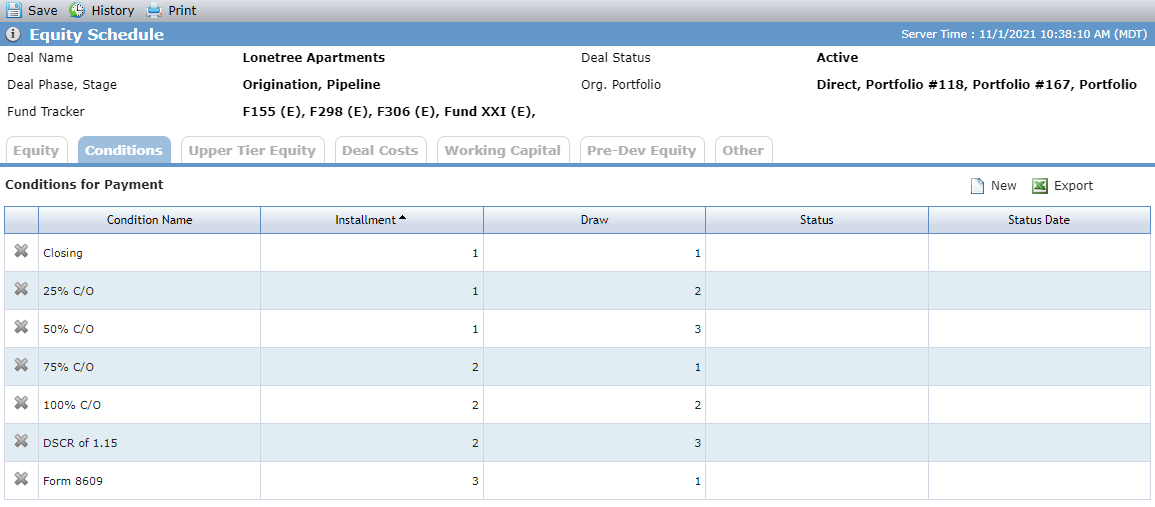
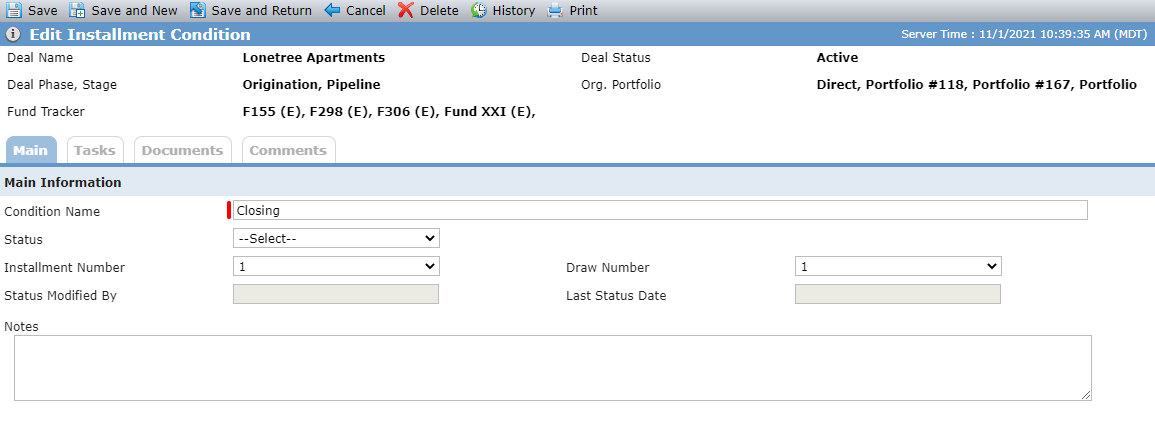
Conditions list screen; Edit Installment Conditions screen
Condition records allow you to track the conditions that must be met for a specific funding installment to be paid. You can add multiple Conditions with the same Installment Number/Draw Number combination.
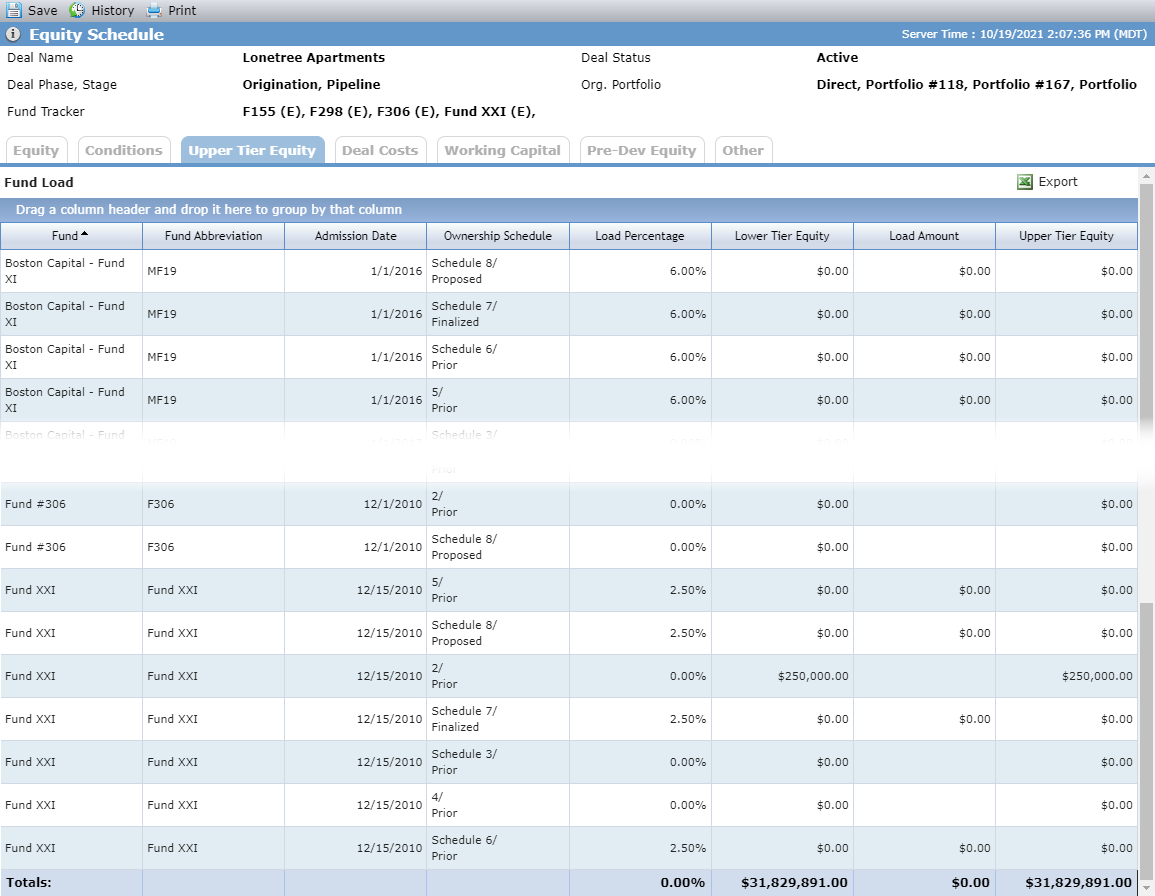
Upper Tier Equity provides an overview of the total equity owed to the deal from each syndicated fund owner. The Upper Tier Equity tab is displayed only when an Owner Entity in a Proposed or Finalized Ownership Schedule has an Owner Role of Syndicated Fund.
The Total Load Percentage is the Total Load Amount divided by the Total Upper Tier Equity Amount.
Edit Fund Load Details - Main Tab
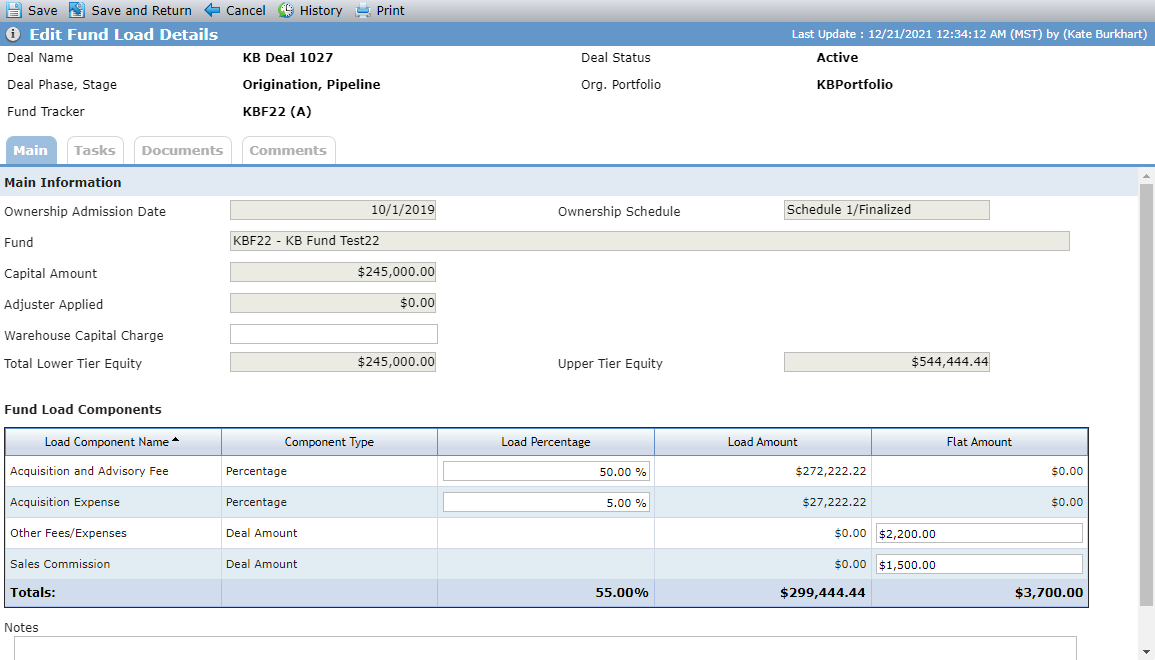
The Fund Load Components grid displays the Fund Load Components that exist on the Fund (Fund Details - Fund Load tab).
Field | Description |
|---|---|
Ownership Admission Date | Displays the Admission Date for the Syndicated Fund |
Ownership Schedule | Displays the Ownership Schedule Name/Status of the Schedule where the Syndicated Fund is an Owner |
Fund | Displays the Fund Abbreviation and the Fund Name |
Capital Amount | Sum of Capital Amounts where Exclude from Total Capital equals "No" and the Funding Date falls within the Admission and Exit Date for the Syndicated Fund |
Adjuster Applied | Sum of Adjuster Applied amounts where Exclude from Total Capital equals "No" and the Funding Date falls within the Admission and Exit Date for the Syndicated Fund |
Total Lower Tier Equity | Capital Amount plus Adjuster Applied plus Warehouse Capital Charge |
Upper Tier Equity | Total Lower Tier Equity plus Total Load Amount plus Total Flat Amount |
Component Type | Displays whether the load is a percentage, deal amount, or fund amount. The percentage allows to you base the load on a percentage of the lower tier equity. The deal level amount allows you to allocate a specific amount to each owned lower tier deal as part of the upper tier equity. The fund level amount allows a flat amount to be added directly to the upper tier equity regardless of the owned lower tier deals. |
Load Percentage | Editable field that displays the percentage for the Load Component (Percentage Component Type only) from the corresponding Fund record. |
Load Amount | Total Lower Tier Equity divided by (100 minus Total Load Percentage) times Load Percentage |
Flat Amount | Editable field that displays the amount for the Load Component (Deal Amount Component Types only) from the corresponding Fund record. |
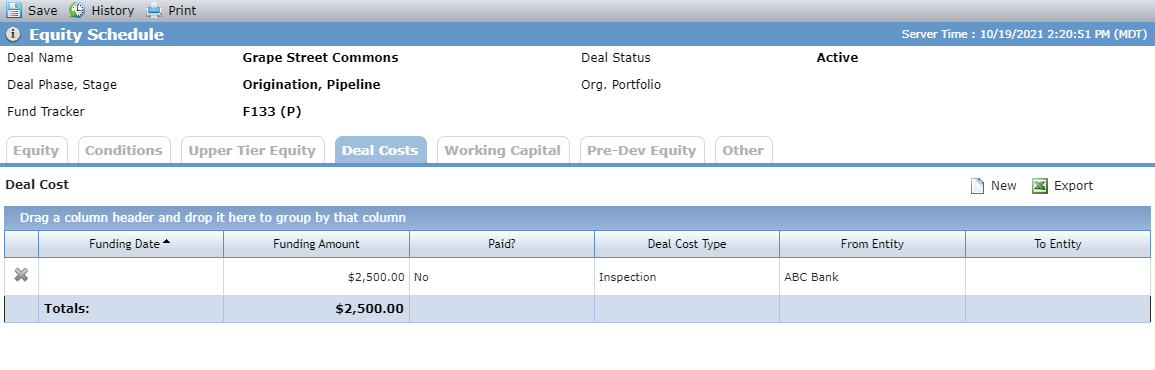
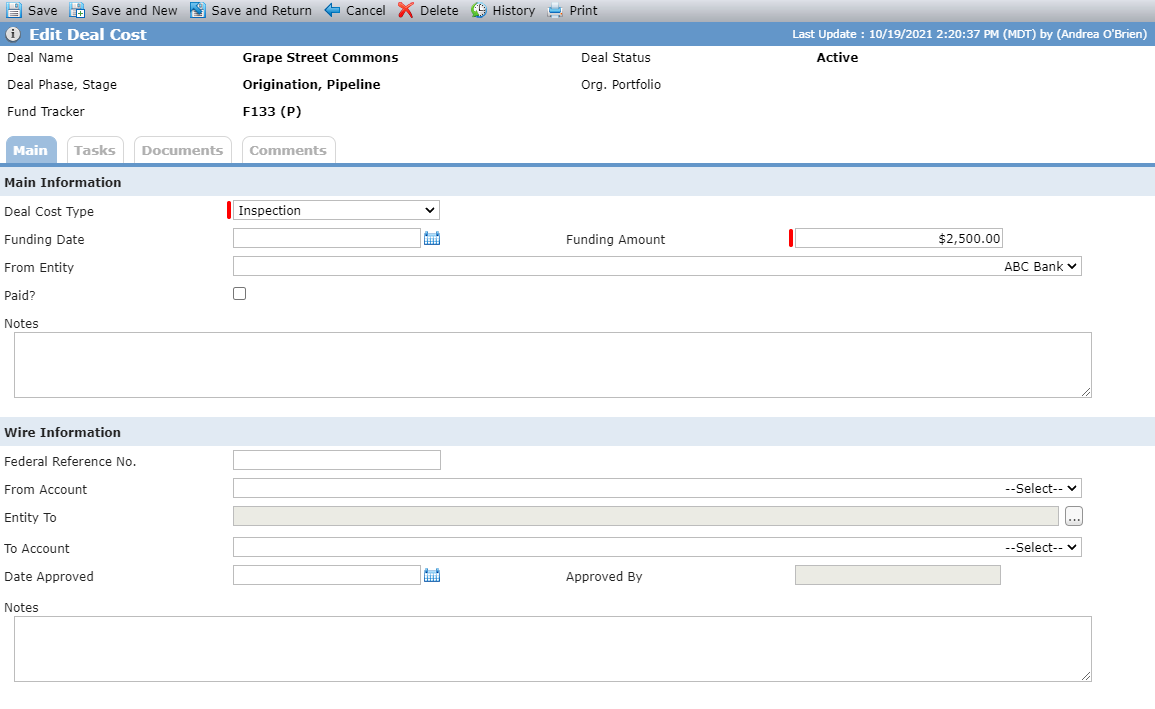
Deal Costs list screen; Edit Deal Cost screen
The From Entity displays all Owner Entities on the deal (Ownership Schedule). The From Account displays the Accounts that exist for the entity selected as the From Entity. The Entity To allows you to choose from any entity in the system. The To Account displays the Accounts that exist for the entity selected as the Entity To. The From Entity and Entity To cannot be the same.
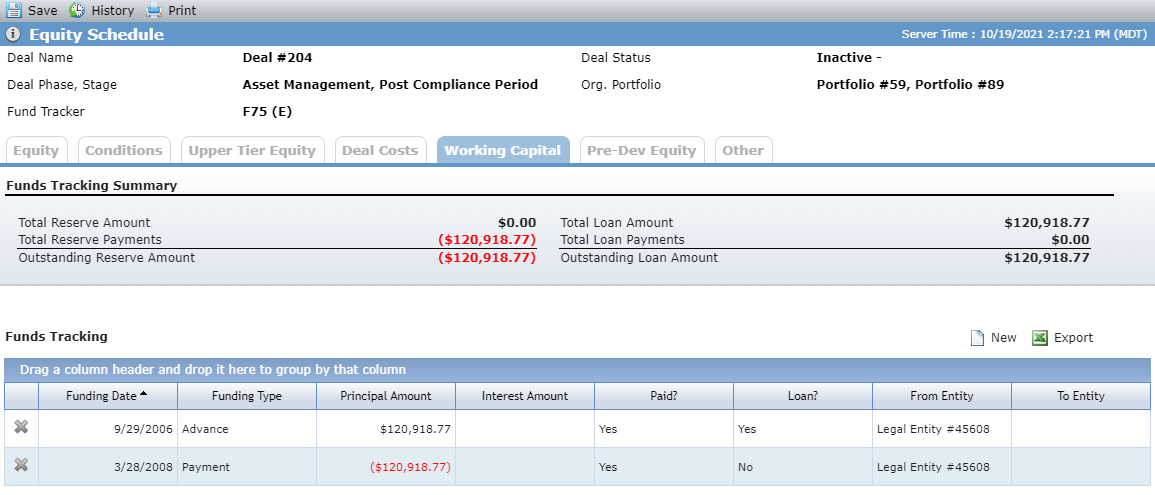
Field | Description |
|---|---|
Total Reserve Amount | Displays the sum of the Principal Amounts where the Funding Type equals “Advance” and the Loan equals “No” NotePrincipal Amount is actually the Funding Amount when the Funding Type is equal to "Advance." It is labeled Principal Amount in the Fund Tracking grid. |
Total Reserve Payments | Displays the sum of Principal Amounts where the Funding Type equals “Payment” and the Loan equals “No” |
Total Loan Amount | Displays the sum of the Principal Amounts where the Funding Type equals “Advance” and the Loan equals “Yes” NotePrincipal Amount is actually the Funding Amount when the Funding Type is equal to "Advance." It is labeled Principal Amount in the Fund Tracking grid. |
Total Loan Payments | Displays the sum of Principal Amounts where the Funding Type equals “Payment” and the Loan equals “Yes” |
Outstanding Loan Amount | Displays Total Loan Amounts minus Total Loan Payments |
Outstanding Reserve Amount | Displays the Total Reserve Amounts minus Total Reserve Payments |
The details of a Working Capital record are located on the Edit Working Capital Funds Tracking screen.
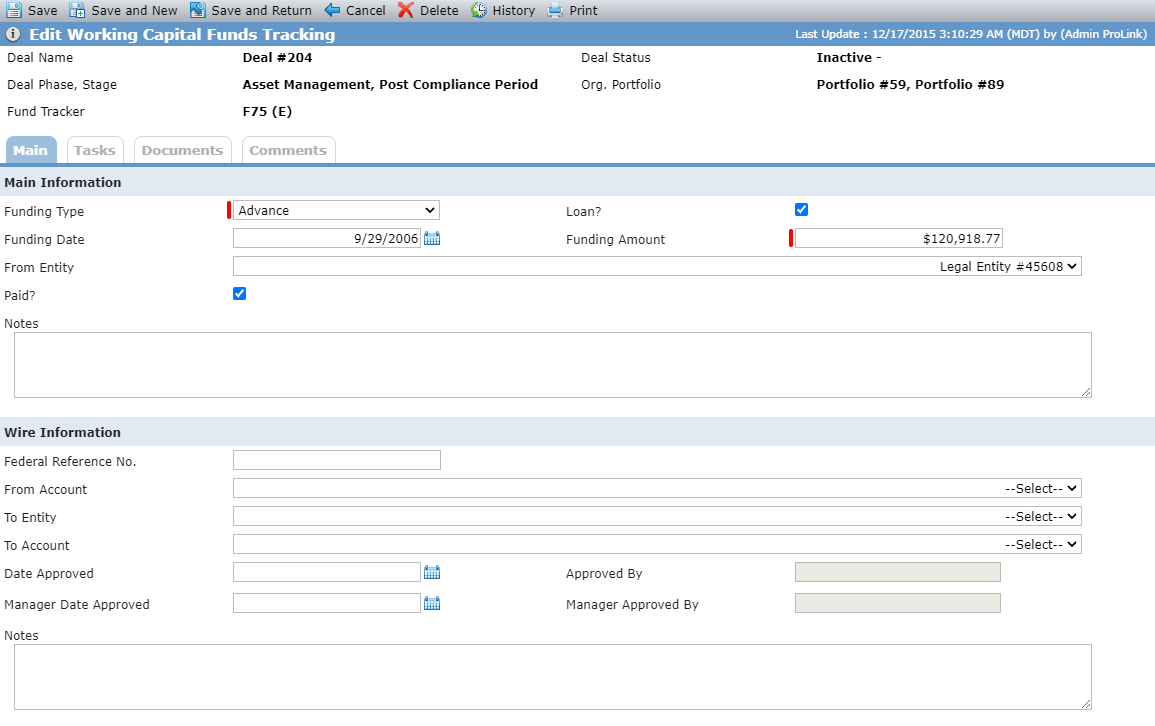
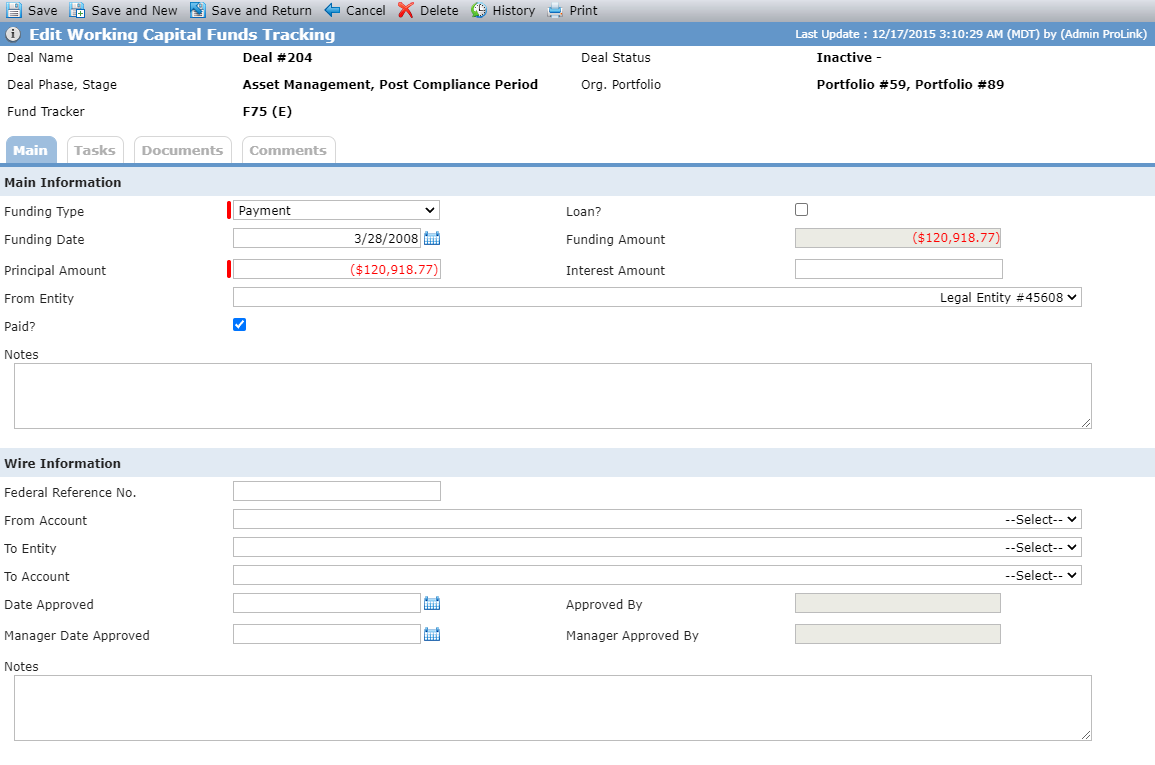
Funding Type = Advance; Funding Type = Payment
The From Entity displays the Owner Entities on the deal, and the From Account displays the Accounts that exist for the entity selected as the From Entity. The To Entity displays the Owned Entities on the deal, and the To Account displays a list of Accounts that exist for the entity selected as the To Entity. The From and To entities cannot be the same.
When a From Entity is selected, the Funding Date, if populated, must be greater than the selected entity's earliest Admission Date in the current Finalized Ownership Schedule.
When Funding Type Equals... | Then... |
|---|---|
Advance | The Funding Amount is editable and required. The Funding Amount must be equal to or greater than zero. The Principal Amount and Interest Amount are hidden. |
Payment | The Funding Amount is read-only. It displays the Principal Amount plus the Interest Amount. The Principal Amount is required, and the Interest Amount is available. When populated, these values must be equal to or greater than zero. |
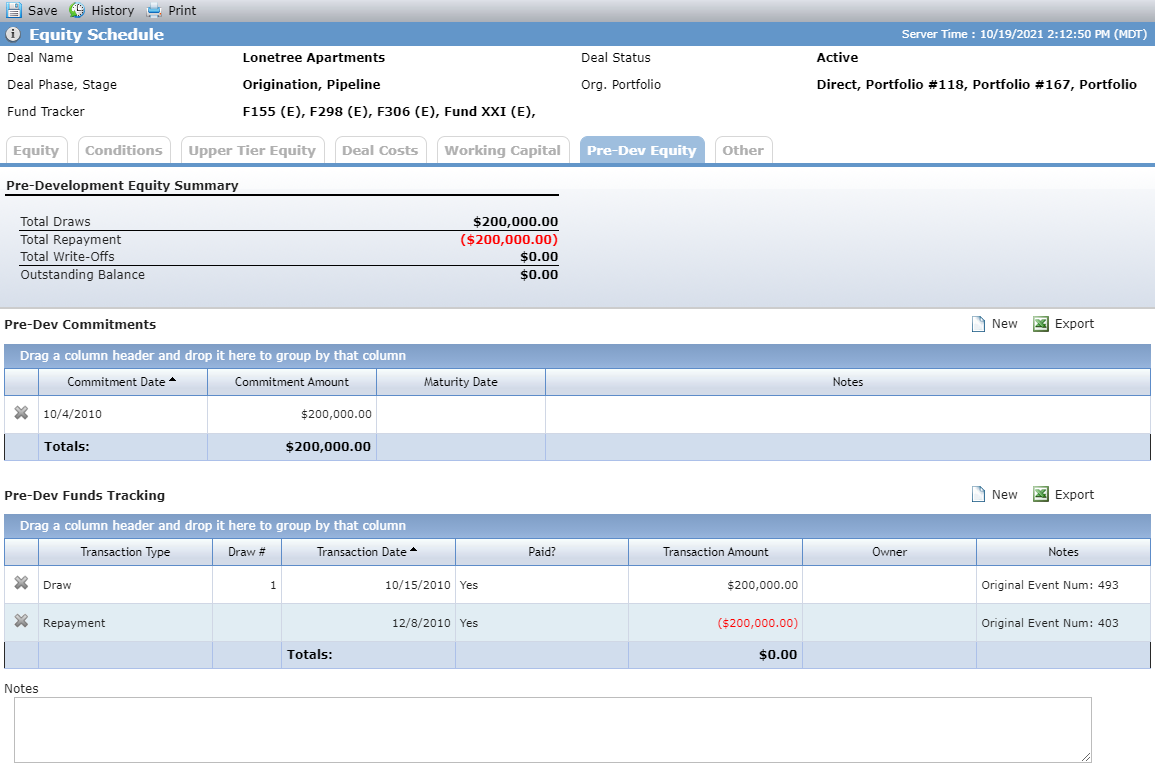
Field | Description |
|---|---|
Total Draws | Displays the sum of Transaction Amounts where the Transaction Type equals "Draw" and the Paid checkbox is selected |
Total Repayment | Displays the sum of Transaction Amounts where the Transaction Type equals "Repayment" and the Paid checkbox is selected |
Total Write-Offs | Displays the sum of Transaction Amounts where the Transaction Type equals "Write-Off" and the Paid checkbox is selected |
Outstanding Balance | Total Draws plus Total Repayment plus Total Write-Offs |
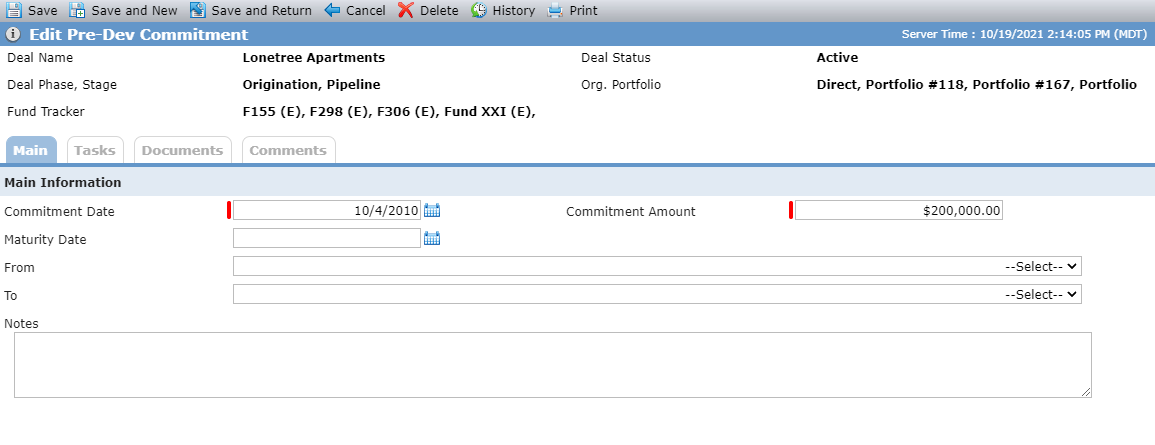
The Edit Pre-Dev Commitment screen shows the details of a specific Commitment record. The Total Commitment Amount for all records must be greater than the total amount for all Pre-Dev Tracking records with a Transaction Type of Draw.
The To and From fields display all deal-level entities. They cannot be the same.
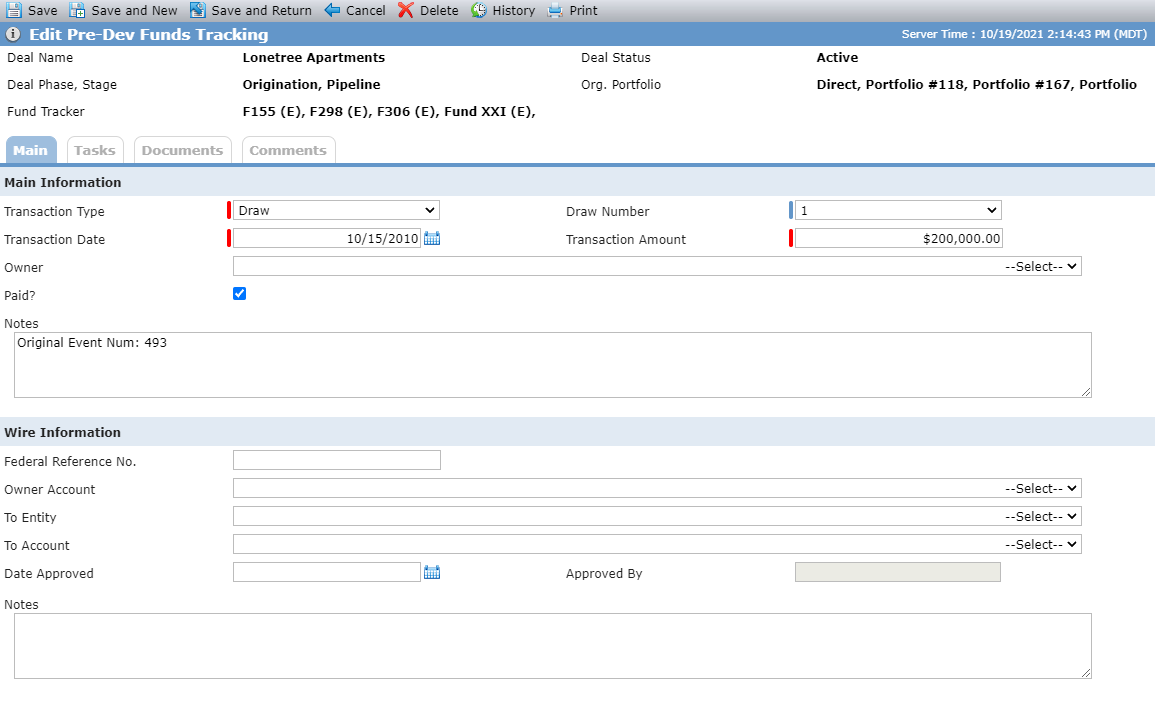
The Edit Pre-Dev Funds Tracking screen shows the details of a specific Transaction record. The total of all Transaction Amounts with a Transaction Type of Draw must be less than the total of Commitment Amounts.
The Transaction Amount must be a positive amount if the Transaction Type is Draw. The Transaction Amount must be a negative amount if the Transaction Type is Repayment or Write-Off.
The Owner displays the Owner Entities on the deal, while the To Entity displays a list of all Owned Entities on the deal.
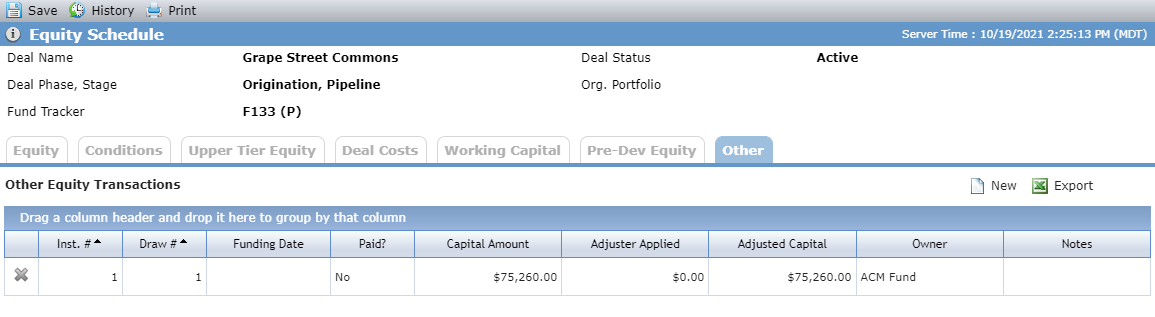
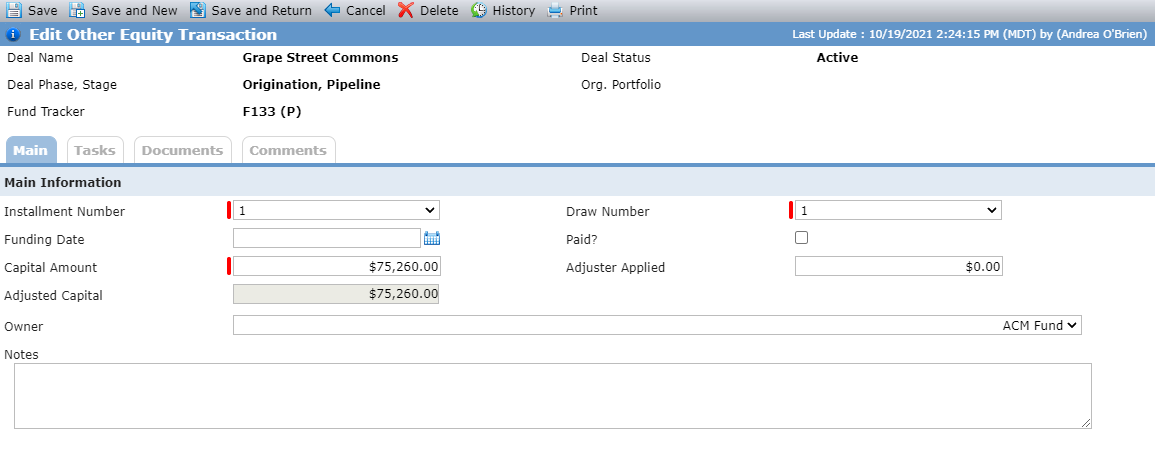
Other list screen; Edit Other Equity Transaction screen
Track other equity transactions on the Edit Other Equity Transaction screen.