Introduction to the Benefits Mass Update Import Utility
Important
The Benefits Mass Update Import utility includes the following security privileges:
Benefit Schedule - Modify to attempt an import
Benefit Schedule - Expected Credit - Modify to attempt an import of a file that contains an Expected Credit override
Benefit Schedule - Override Owner Level Actuals - Modify to attempt an import of a file that contains an Owner Level Actual override
The Benefits Mass Update Import utility provides functionality to update multiple tax credit benefits across deals and owners at one time. The import process populates values from an Excel spreadsheet template to the corresponding records in the application. Specific column headers in the template are used in the logic to determine what values are eligible for updating.
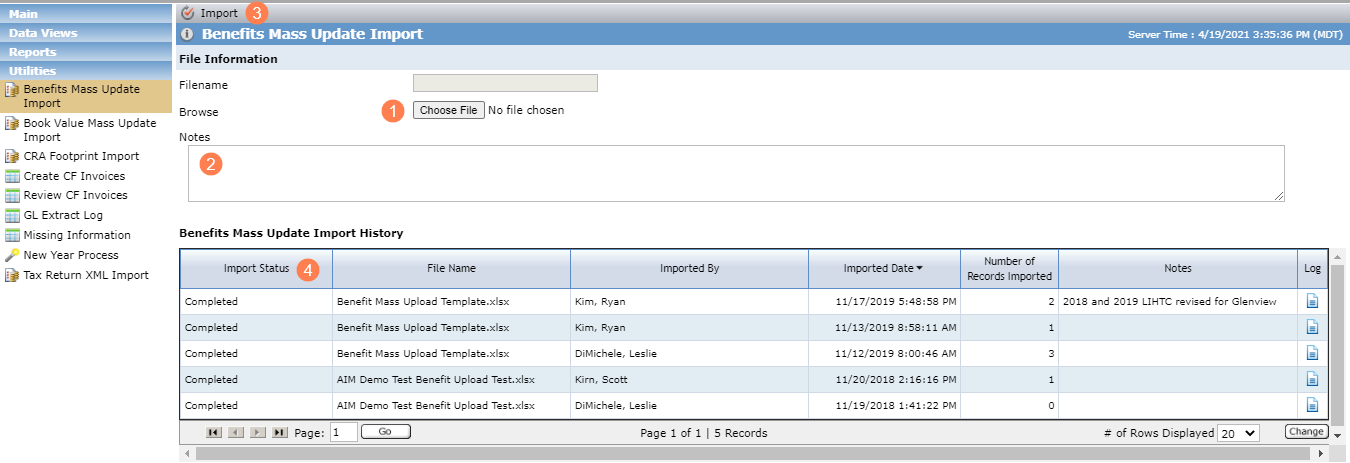
Select an Excel file through the Choose File button. The file name is displayed.
Optionally, enter notes related to the import file.
Click Import in the top toolbar.
View the status in the Benefits Mass Update Import History grid.
Status | Description |
|---|---|
Processing | A file has a status of Processing while it is being processed. The Import button is disabled until file processing has been completed. |
Completed | All records contained in the file were processed. |
Completed with Errors | One or more records in the file could not be updated, or the Owner Override was in conflict. |
Any Excel template can be used as long as the required column headers are included.

Click the XLS icon to download ProLink's Benefits Mass Update Import template.
Column Header | Description |
|---|---|
Deal Number | Always required |
Year | Always required |
Tax Credit Type | Always required |
Legal Entity ID | Required for owner-level updates |
Deal QEI ID | Required for NMTC QEI-level updates |
Revised OPA Amount | Required to update the OPA Credits value Can be updated for LIHTC, HTC, State, and Other |
Revised Calculated/Current Amount | Required to update Calculated/Current Amount Can be updated for HTC, NMTC (QEI), State, and Other |
Revised LT Actual Amount | Required to update LT Actual Amount Can be updated for LIHTC, HTC, State, and Other |
Revised Expected Amount | Required to update Expected Amount Can be updated for LIHTC only |
Revised UT Actual Amount | Required to update UT Actual Amount Can be updated for all tax credit types |
Override? | Deal level:
Owner level:
|
Importing a file will systematically update the contained Benefits values at both a deal and owner level, depending on the data the file contains.
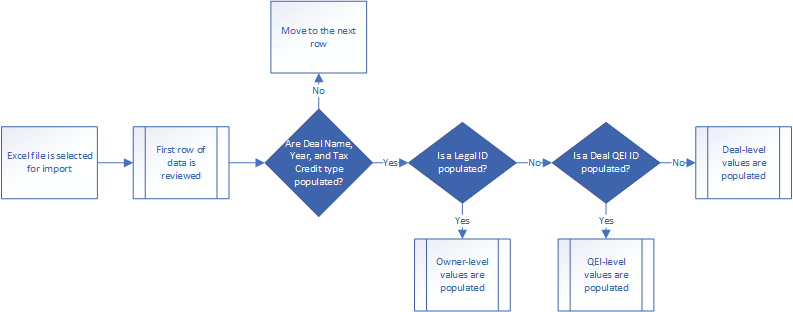
The process the application uses to match the data in the file to the appropriate benefit record
When a file is imported:
If the file can be processed, the system attempts to match the following column headers to the values in the Benefits table:
Deal Number
Year
Tax Credit Type
Legal Entity ID
Deal QEI ID
If the system cannot locate a match on Deal Number, Year, and Tax Credit Type, either because the column does not exist in the template or there is no data in the column, the system moves onto the next item.
If the system locates a row with a match on Deal Number, Year, and Tax Credit Type, but no Legal Entity ID or Deal QEI ID value is provided, it then locates the values populated in the following columns and populates the deal-level corresponding fields.
Template Column Name
ProLinkAIM Field Name
Revised OPA Amount
OPA Credits
Revised Calculated/Current Amount
Calculated/Current Credits
Revised LT Actual Amount
LT Actual Credits
Revised Expected Amount
Expected Credits
Revised UT Actual Amount
UT Actual Credits
Override
Override
If the system locates a match on Deal Number, Year, Tax Credit Type, and Legal Entity ID, and if the Override Owner Level Actuals flag is set to True, then the system updates the values populated in the following columns:
Template Column Name
ProLinkAIM Field Name
Revised LT Actual Amount
LT Actual Credits
Revised UT Actual Amount
UT Actual Credits
If the system locates a value of False in the Override column, the corresponding value in the Calculated/Current Amount column will not be updated.
If there are multiple owners on the same deal, the value populated for the first owner located in the template for the Deal and Year will set the Override checkbox for all owners in the template. In other words, if there are three owners, and the first owner has Override = True, all three owners' values will override even if the second two have Override = False. In this scenario, the log will include an error, indicating there was a conflict on the override for owners 2 and 3.
If the system locates a match on Deal Number, Year, Tax Credit Type, and Deal QEI ID, and if the Override flag is set to True, then the system populates the QEI-level corresponding field.
Template Column Name
ProLinkAIM Field Name
Revised Calculated/Current Amount
Calculated/Current Amount
If the system locates a value of False in the Override column, the corresponding value in the Calculated/Current Amount column will not be updated.
The Log file reports the errors that occur during the process that prohibited a record from being updated. If there are no errors, the log file provides detail on when the process began and ended.
Click  in the Benefits Mass Update Import History grid to download the log file for the import record.
Common errors include:
The Override flag is set to True, but the user does not have the authority to override the value.
A Legal Entity ID is populated in the template, but there is no corresponding Deal Number, Year, or Tax Credit Type.
The Expected Credits value has been populated, but the Override flag is False.
There is no matching Benefit record in the application for the Deal Number, Year, and Tax Credit Type in the template.
The Override checkbox for Legal Entity ID <ID> for Deal ID <ID> was in conflict.