Investment Allocation Report
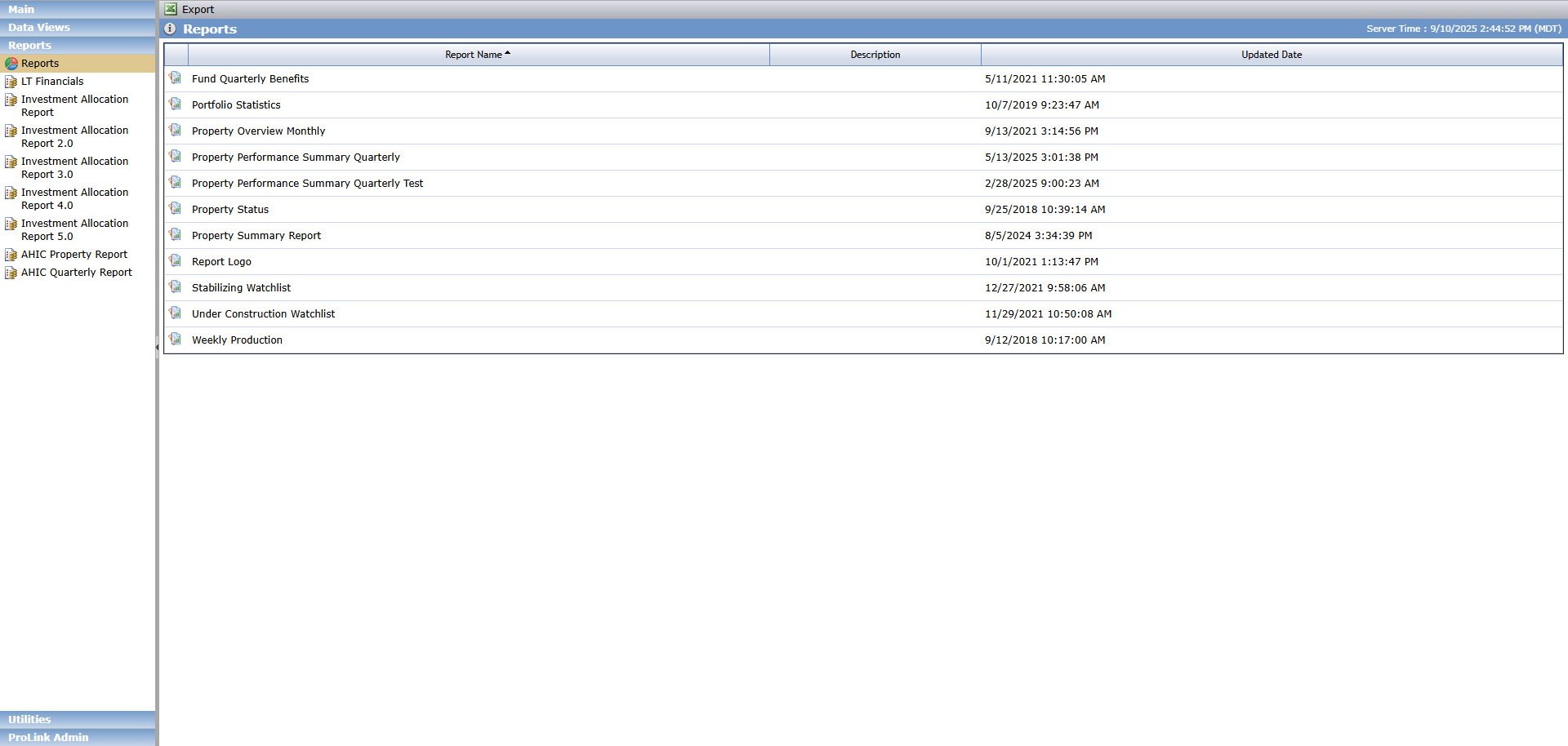
The Investment Allocation Report is available in the Reports panel.
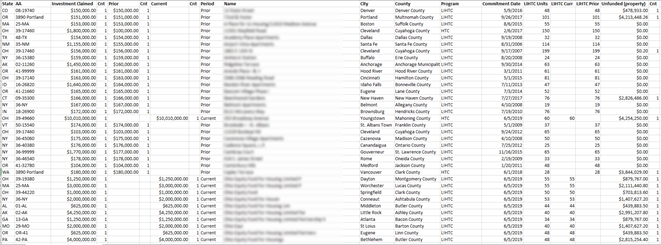
This report is a Microsoft Excel formatted report that helps an organization determine how they are performing in meeting their CRA obligations. The report uses a deal's book balance to determine the CRA investment amount and the Actual Close Date to determine the exam period the investment is allocated. The data is reported at a deal's property level with some of the data points at the deal level.
The CRA Investment is displayed in one of two columns based on whether the deal's Actual Close Date is prior to or within the exam period. If the date is prior to the exam period, then the investment amount is displayed in the Prior column. If it is within the exam period, it is displayed in the Current column.
The report contains two tabs—Investment As Of Sale Date and Investment End of Cycle. The tabs represent data based on two timing perspectives—the book balance as of the last calendar month (prior to the report As of Date) and a future look at the end of the CRA exam period.
The requirements for running the report:
Deal-level
Must be active
Committee Review type of Credit Approval with an Approval Date must exist
Book Balance greater than 0.00 for the month prior to the As of Date must exist (to populate the Mapping Invest As Of Sale Date tab)
A Projected CRA Period End Value greater than 0.00 must exist (to populate the Investment End of Cycle tab)
This field can be populated only through the Book Value Mass Update Import.
The Import can be used only when the Impairment Method is Manual.
Application-level
A Bank CRA Exam period must exist
The exam period is created through the Bank CRA menu option under the ProLink Admin panel.
CRA Assessment Areas should exist
These are created through the CRA Admin menu option under the ProLink Admin panel. If not created, then no assessment area will be displayed on the report.
To generate the report:

The As Of Date defaults to the current date. Enter a different date within the exam period if needed.
Select the Current CRA Exam Period.
This list shows all active CRA Exam Periods with the most current being the default.
Click Run Report.
Depending on your browser settings, the Microsoft Excel formatted report is downloaded automatically or you are prompted to save the file.
Report Field | ProLinkAIM Field | ProLinkAIM Location | Description (Logic) |
|---|---|---|---|
Investment As Of Selected Date Tab | |||
State | Property State | Property Details | The state where the property is located. |
AA | CRA Assessment Area | Property Details | The CRA Assessment Area where the property is located. |
Investment Claimed | Ending Book Balance for the month before the As of Date | Impairments | The Investment Claimed uses a calculated amount and is not pulled directly from the ending Book Balance on Impairments. For Deals where there is only one associated Property, the Ending Book Balance amount is multiplied by 100% to get the value. For Deals where there are multiple properties, the ending Book Balance is multiplied by a split ratio. The split ration is calculated as follows:
|
Cnt | Value 1 is populated if Investment Claimed is populated. | ||
Prior | The Investment Claim amount if the deal's Actual Close Date is prior to the selected CRA Exam period, otherwise blank. | ||
Cnt | Value 1 is populated if Prior is populated. | ||
Current | The Investment Claim amount if the deal's Actual Close Date is within the selected CRA Exam period, otherwise blank. | ||
Cnt | Value 1 is populated if Current is populated. | ||
Period | Identifies whether the deal is in the Prior or Current period (See definition in Prior and Current). | ||
Name | Property Name | Property Details | When a deal has multiple properties, the property name is appended to the Deal Name. |
City | Property City | Property Details | The city where the property is located. |
County | Property County | Property Details | The county where the property is located. |
Program | Deal Type | Deal Details | The deal type for the deal. If the Deal Type is Non Tax Credit, the Sub Type (Deal > Benefits Schedule > Total Benefits > Total Benefits - Other) is displayed. |
Commitment Date | Approved Date | Edit Committee Review | The Approved Date for the Credit Approval. When the Type is equal to Credit Approval. |
LIHTC Units | Property Total TC units | Property Details | The property total TC units. |
LIHTC Curr | Property Total TC Units | Property Details | Only displays in Current column if deal is in Current Period. |
LIHTC Prior | Property Total TC Units | Property Details | Only displays in Prior column if deal is in Prior Period. |
Unfunded (property) | Unfunded Amount | Equity Schedule | The Unfunded equity amount. Value 1 is populated if Unfunded is greater than $0.00. If multiple properties for the Deal, then the Unfunded Amount is calculated based up a ratio. The ratio is determined by using the CRA Investment Amount for each property. Sum up all CRA Investment Amounts and calculate each property’s percentage of the whole. Multiply the deal’s Unfunded Balance by that percentage to get the property’s amount. |
Investment End of Cycle | |||
This tab is populated for deals with values in Current column and the Prior column on As Of Date tab. | |||
State | Property State | Property Details | The state where the property is located. |
AA | CRA Assessment Area | Property Details | The CRA Assessment Area where the property is located. |
Investment Claimed | Projected CRA Period End Value for the month before the As of Date | Impairments | The Investment Claimed uses a calculated amount and is not pulled directly from the ending Projected CRA Period End Value on Impairments. For Deals where there is only one associated Property, the Projected CRA Period End Value is multiplied by 100% to get the value. For Deals where there are multiple properties, the ending Projected CRA Period End Value is multiplied by a split ratio. The split ration is calculated as follows:
|
Cnt | Value 1 is populated if Investment Claimed is populated. | ||
Prior | Projected CRA Period End Value for the month before the As of Date | Impairments | The Investment Claim amount if the deal's Actual Close Date is prior to the selected CRA Exam period, otherwise blank. |
Cnt | Value 1 is populated if Prior is populated. | ||
Current | Projected CRA Period End Value for the month before the As of Date | Impairments | The Investment Claim amount if the deal's Actual Close Date is within the selected CRA Exam period, otherwise blank. |
Cnt | Value 1 is populated if Current is populated. | ||
Period | Identifies whether the deal is in the Prior or Current period (See definition in Prior and Current). | ||
Name | Property Name | Property Details | When a deal has multiple properties, the property name is appended to the Deal Name. |
City | Property City | Property Details | The city where the property is located. |
County | Property County | Property Details | The county where the property is located. |
Program | Deal Type | Deal Details | The deal type for the deal. If the Deal Type is Non Tax Credit, the Sub Type (Deal > Benefits Schedule > Total Benefits > Total Benefits - Other) is displayed. |
Commitment Date | Approved Date | Edit Committee Review | The Approved Date for the Credit Approval. When the Type is equal to Credit Approval. |
LIHTC Units | Property Total TC Units | Property Details | The property total TC units. |
LIHTC Curr | Property Total TC Units | Property Details | Only displays in Current column if deal is in Current Period. |
LIHTC Prior | Property Total TC Units | Property Details | Only displays in Prior column if deal is in Prior Period. |
Unfunded (property) | Unfunded Amount | Equity Schedule | The Unfunded equity amount. Value 1 is populated if Unfunded is greater than $0.00. If multiple properties for the Deal, then the Unfunded Amount is calculated based up a ratio. The ratio is determined by using the CRA Investment Amount for each property. Sum up all CRA Investment Amounts and calculate each property’s percentage of the whole. Multiply the deal’s Unfunded Balance by that percentage to get the property’s amount. |
Cnt | Value 1 is populated if Unfunded is greater than $0.00. | ||