Edit an Entity - Contacts Tab
The Contacts tab on the Edit Entity screen allows you to connect other entities—as contacts—to the selected entity.
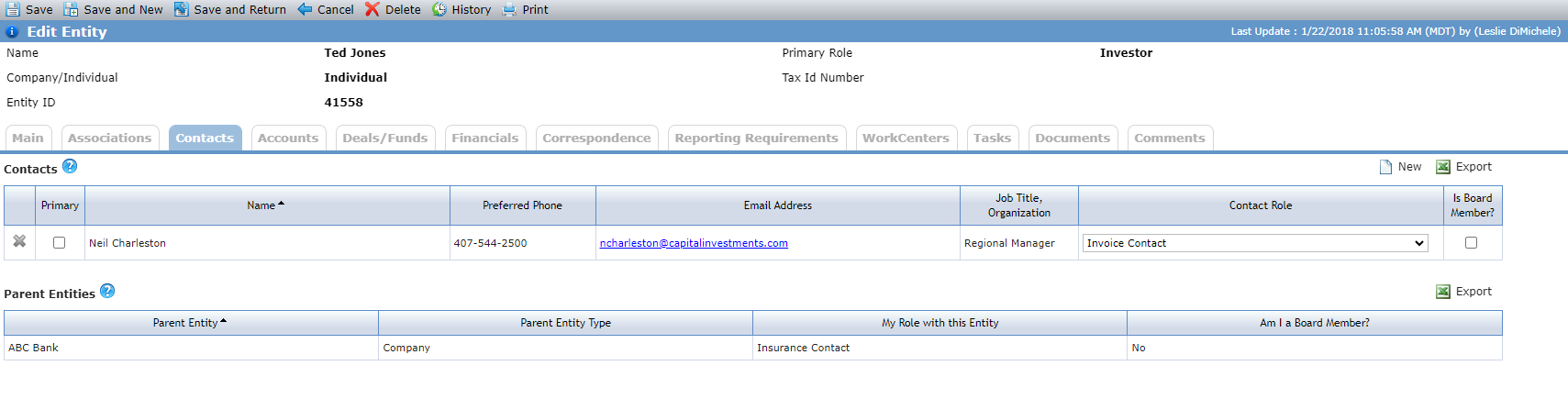
The Contacts grid tracks individuals who are contacts for the entity (for example, the person you will talk to on the phone).
The contact relationship is one-directional. For example, if you add John Smith as a Contact on the Barrington Development Group Entity record, and you want Barrington Development Group to be an association of John Smith, you have to add it as a Company on John Smith's Entity record.
If you select the Is Board Member checkbox, and if the entity's primary role is an Allocatee or if the entity is an Allocatee on any deal, then the contact is added as an Allocatee Board Member on any Allocatee Certification record that is not complete. If you select the Is Board Member checkbox, and if the entity's primary role is Sub-CDE or if the entity is on any deal in the role of Sub-CDE, then the contact is added as a Sub-CDE Board Member on any Allocatee Certification records where the Sub-CDE is selected as the To Entity, the entity is selected as the Allocatee on the QEI, and the Allocatee Certification Status is not complete.
To add a contact association, click New above the Contacts grid. Use the Entity Search popup to find and add the individual. After you add the individual to the Contacts grid, you can select the Primary checkbox to indicate the individual is the primary contact; only one contact can be the primary. Select the individual's role in the Contact Role list.
The Parent Entities grid is displayed only if the current entity is an Individual. The Parent Entities grid shows entities for whom the current entity is a contact. Typically, the parent entity would be the employer of the individual.
Clicking the row of a contact or parent entity opens the Edit Entity screen for that entity.
Deleting a contact from the Contacts tab removes that entity as a linked contact. It does not delete the entity from the system.