Export to Excel
Every data view and most grids in the ProLink application allow you to export the data displayed to a spreadsheet in Excel, where you can use all Excel functionality.
Click Export in the top toolbar. The export process depends on your browser's settings. The Excel spreadsheet version of the screen might be downloaded automatically to your default downloads location. Or you might be presented the choice to open or save the file. You can save the file to a location you specify.
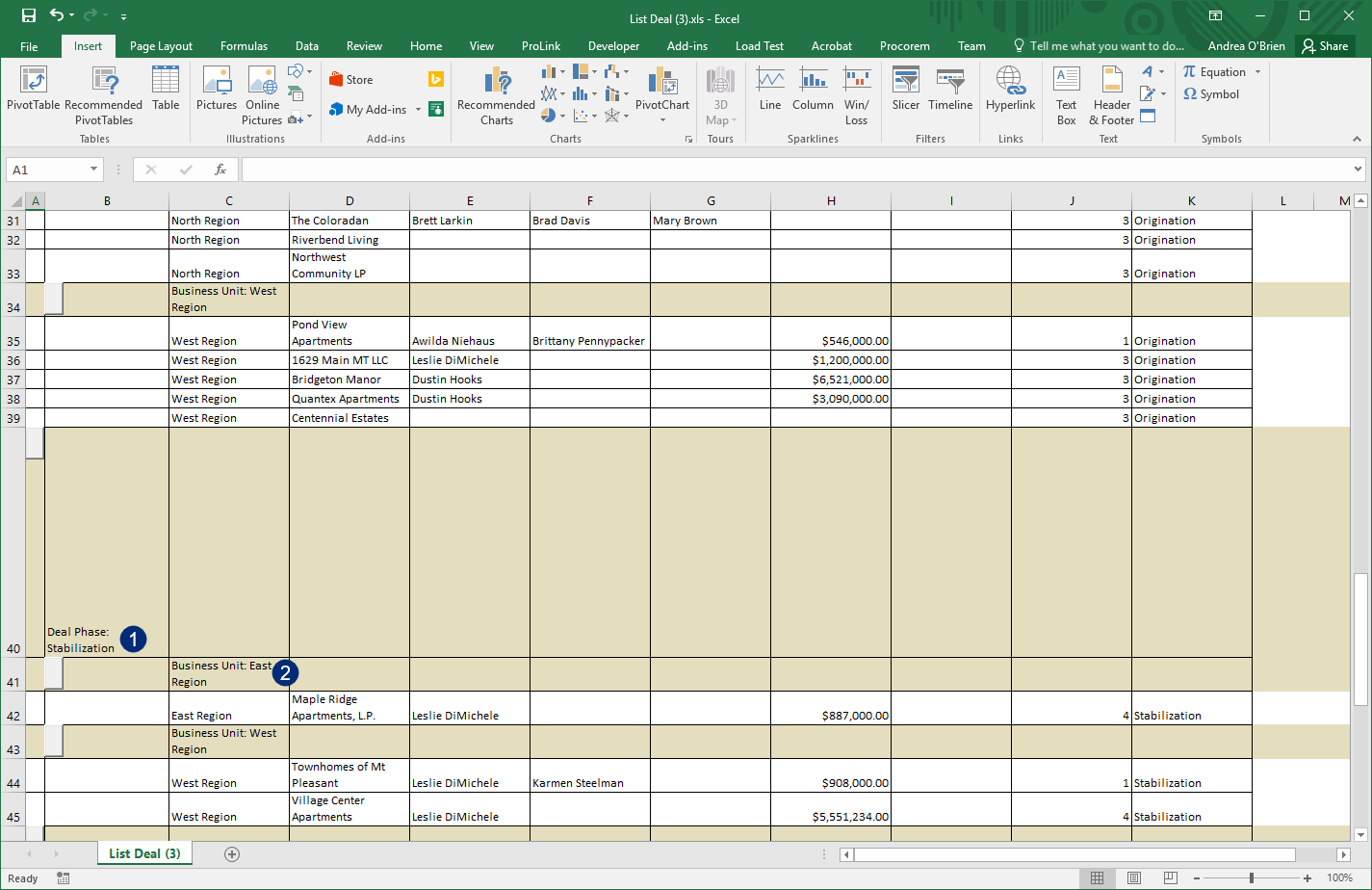
When you open the file in your Excel application, the ProLink application's screen data is displayed in the spreadsheet.
If you export a data view with over 100 columns or 15,000 records, then the system exports the data as XML. You can right-click the XML file to open the properties and configure the file to open with Microsoft Excel by default.
All grouping, filtering, and sorting applied to the grid or data view in the ProLink application is carried over to the Excel spreadsheet.
If you want an unformatted version of the data view (no grouping, filtering, sorting), then click Unformatted Export in the top toolbar. You might consider using this option for a faster export of large data sets.
If a data view in the ProLink application has grouping on Deal Phase and Business Unit, the data exported to Excel reflects the same settings.