Introduction to the New Year Process Utility
The New Year Process is a process that allows you to create tracking records for a specific year for the documents that are required for an active closed deal or an active closed fund. The records will be created for only those documents required per the deal or entity's OPA requirements or the fund's OPA obligations, and if the records don't already exist for the specific year.
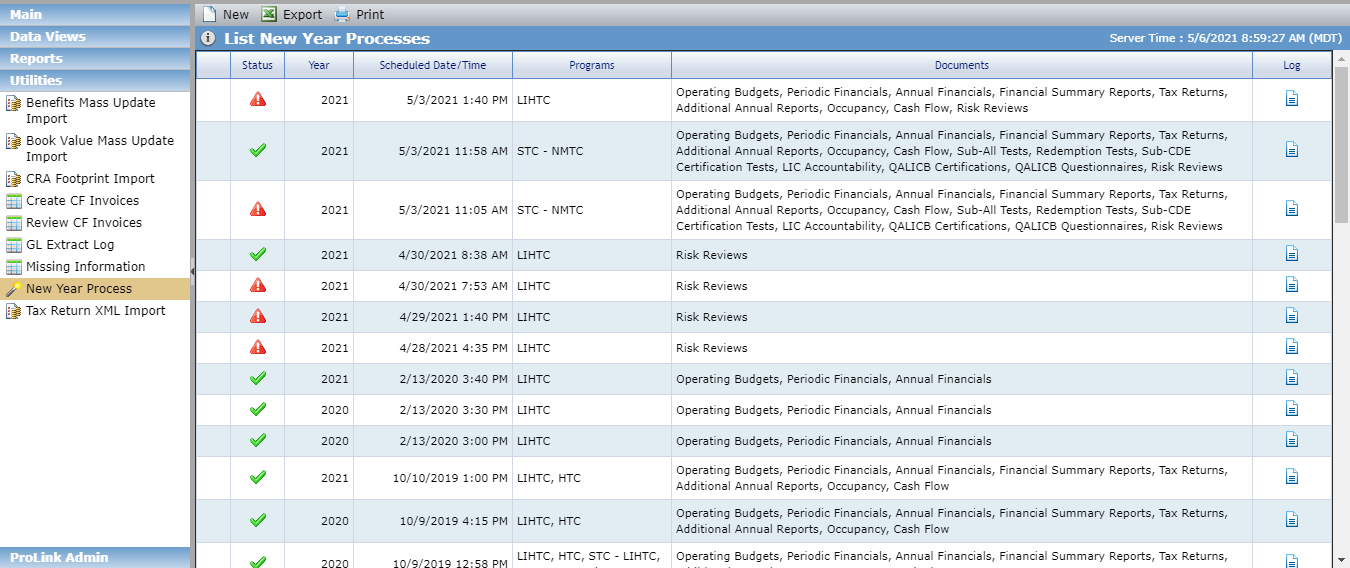
The Status column reflects the following statuses:
 —Indicates New Year Process that has not yet run.
 —Indicates New Year Process that is currently running.
 —Indicates New Year Process that completed with errors.
 —Indicates New Year Process completed without errors.
Navigate to the Utilities panel, and then select the New Year Process option in the left navigation menu.
The List New Year Processes screen opens.
Click New in the top toolbar.
The Edit New Year Process screen opens.
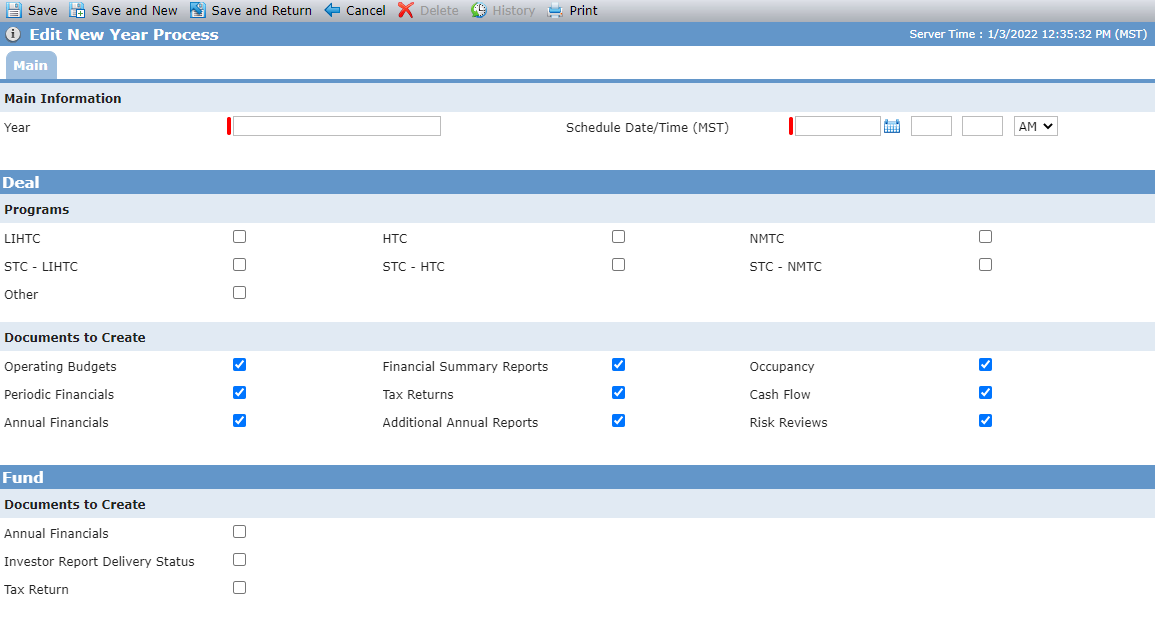
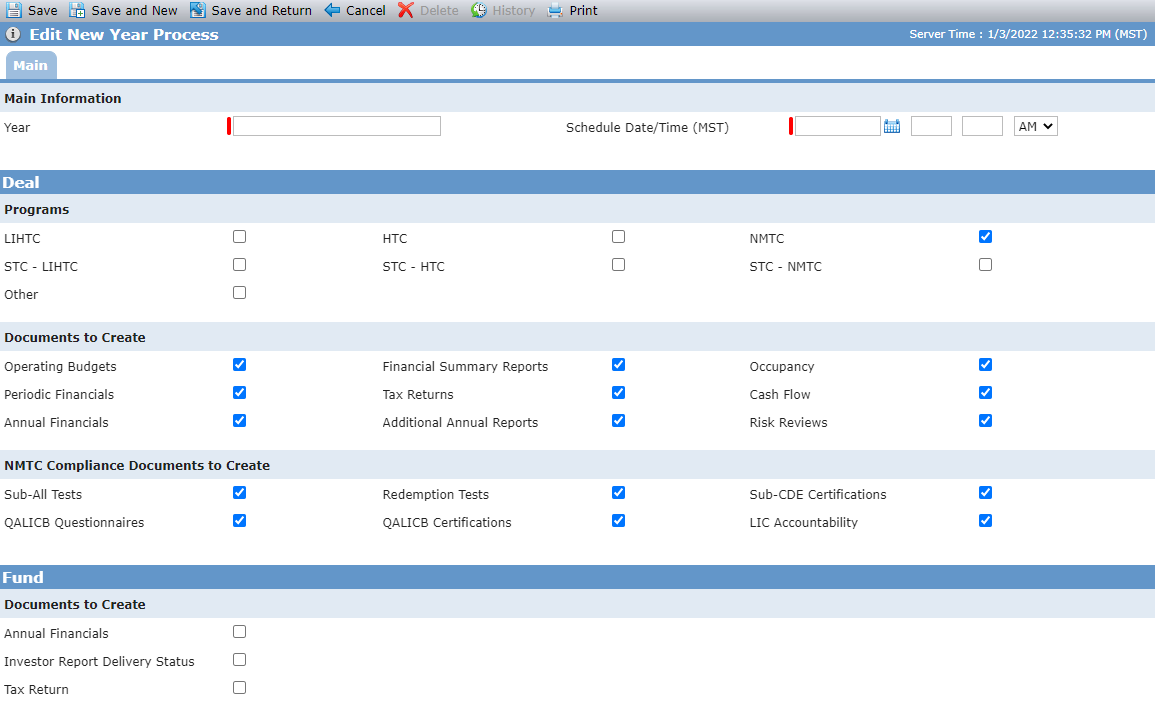
Additional fields are available when NMTC is selected
Enter the Year.
Enter the Schedule Date/Time.
For deal documents, select the Programs that you want to create documents for.
The Documents to Create section may show different options depending on the Program(s) selected.
Select the checkboxes for the Documents to Create.
You can schedule the New Year Process for deals, funds, or both. By default, the options in the deal Documents to Create section are selected and the options in the fund Documents to Create section are cleared.
Click Save.
You cannot modify a New Year Process that has already run.
Navigate to the Utilities panel, and then select the New Year Process option in the left navigation menu.
The List New Year Processes screen opens.
Select a new year process by clicking the row in the grid.
The Edit New Year Process screen opens.
Update as needed.
Click Save.
You cannot delete New Year Processes that are currently running or have already run.
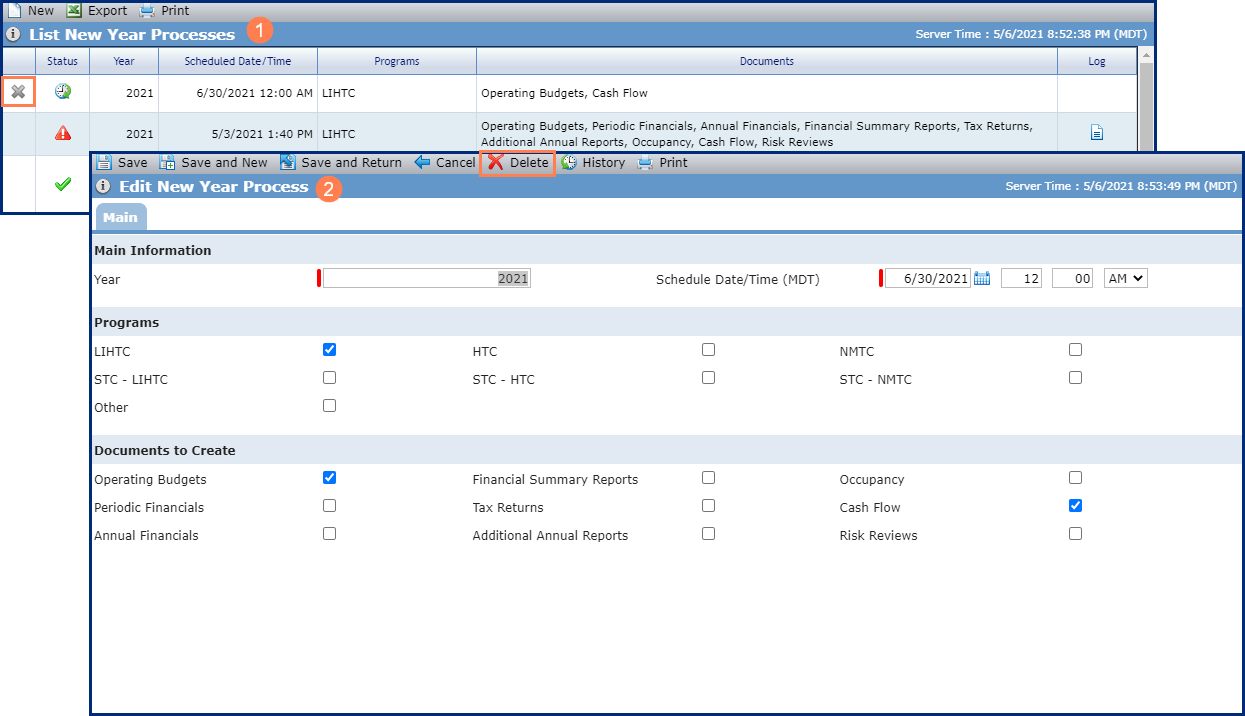
You have two options if you need to delete a New Year Process:
Click
 in the first column next to the New Year Process record to delete on the List New Year Processes screen.
OR
Click Delete in the top toolbar on the Edit New Year Process screen.
You will be asked to confirm that you want to delete the record.
Once the New Year Process is set up to run at a specific date and time, the application evaluates the selected documents to create and the active closed deals' and funds' existing records for the year.
New Year Processes will not run simultaneously. Each time the scheduler looks for New Year Processes to run, it will look for all New Year Processes with Scheduled Date/Time values in the past that have not yet been run, and will run each process in order from the earliest Scheduled Date/Time to the latest. If another New Year Process is already running, any other scheduled New Year Processes will run after the current process is complete, and at the next time the scheduler runs.
During each run of the New Year Process, the system will find all Active, Closed Deals in the system, and for each Deal, the system will create all Documents selected for creation in the Documents to Create section of the Edit New Year Process screen. Closed Deals are those Deals with an Actual Close Date populated. The system will also find all Active (Fund Status), Closed (Fund Stage) Funds in the system, and for each Fund, the system will create all Documents selected for creation in the Documents to Create section of the Edit New Year Process screen.
If a Document to be created already exists on the Deal or Fund, no action is taken. The system does not create the document and does not change data on existing documents. For each document type, the document already exists if the following conditions are met:
Deal Operating Budgets already exist if an Operating Budget record exists with the same Reporting Period, Reporting Entity, and Version.
Deal Annual Financials already exist if an Annual Financial record exists with the same Reporting Period, Reporting Entity, and Version.
Deal Periodic Financials already exist if any Periodic Financial records exist (for any Periodicity) for the same year and Reporting Entity.
Deal Financial Summary Reports already exist if a Financial Summary Report exists with the same As of Date and Type of Statement.
Deal Tax Returns already exist if a Tax Return exists with the same Tax Year, Federal / State, State, Reporting Entity, and Tax Return Type.
Deal Additional Annual Reports already exist if an Additional Annual Report exists with the same Document type, Period, and Report Type.
Deal Occupancy already exists if an Occupancy record exists with the same Reporting Period.
Deal Annual Cash Flow Distributions already exist if an Annual Cash Flow Distribution exists with the same Year.
Deal Risk Review already exists if a Risk Review record exists for the same quarter for the same year.
Fund Annual Financials already exist if a Fund Annual Financials record exists for the same Year.
Fund Investor Report Delivery Status already exists if a Delivery Status record exists with the same Year, Reporting Month, Report Type, and Investor.
Fund Tax Return already exists if a Fund Tax Return record exists for the same Year.
To account for deals that close after a New Year Process runs, typically at the end of the year, the system also completes the following evaluation when the Actual Close Date for a deal is populated:
Check if any New Year Processes have already been run for the year of the Actual Close Date or later.
If yes, then check if the Program(s) selected on the deal match those selected on the New Year Process.
If yes, then run the New Year Process for only that deal.
If Annual Financials (deal) is selected on the Edit New Year Process screen | Then for each deal that has Required selected for Annual Financials on the Edit Deal - OPA tab or Edit Deal - Entity OPA tab | The system will create an Annual Financials record and set the following values:
|
If Periodic Financials is selected on the Edit New Year Process screen | Then for each deal in the Stabilization phase that has Required selected for Periodic Financials - Stabilization on the Edit Deal - OPA tab or Edit Deal - Entity OPA tab | The system will create Periodic Financials records for all periods of the selected Periodicity (Periodic Financials - Stabilization section of OPA tab) of the selected Year and set the following values: NoteIf Periodicity is not monthly, the system determines what months will be created based on the Fiscal Year End Month. For example, if FYEM is October, then quarter records are created for January, April, July, and October.
|
If Periodic Financials is selected on the Edit New Year Process screen | Then for each deal in the Asset Management phase that has Required selected for Periodic Financials - Asset Management on the Edit Deal - OPA tab or Edit Deal - Entity OPA tab | The system will create Periodic Financials records for all periods of the selected Periodicity (Periodic Financials - Asset Management section of OPA tab) of the selected Year and set the following values: NoteIf Periodicity is not monthly, the system determines what months will be created based on the Fiscal Year End Month. For example, if FYEM is October, then quarter records are created for January, April, July, and October.
|
If Operating Budgets is selected on the Edit New Year Process screen | Then for each deal that has Required selected for Operating Budgets on the Edit Deal - OPA tab or Edit Deal - Entity OPA tab | The system will create an Operating Budget and set the following values:
|
If Financial Summary Reports is selected on the Edit New Year Process screen | Then for each deal that has Required selected for Affiliate Financials Summary Reports - General Partner on the Edit Deal - OPA tab | The system will create Financial Summary records for all Deal Entities and Associated Companies on the Deal with a Deal Role = General Partner and will set the following values:
|
If Financial Summary Reports is selected on the Edit New Year Process screen | Then for each deal that has Required selected for Affiliate Financials Summary Reports - Guarantors on the Edit Deal - OPA tab | The system will create Financial Summary records for all Deal Entities and Associated Companies on the Deal with a Deal Role = Guarantor and will set the following values:
|
If Tax Returns (deal) is selected on the New Year Process screen | Then for each deal that has Required selected for Tax Returns on the Edit Deal - OPA tab or Edit Deal - Entity OPA tab | The system will create one Draft and one Final Tax Return record and set the following values on each:
|
If Additional Annual Reports is selected on the Edit New Year Process screen | Then for each Additional Annual Report listed on the Deal Details - OPA tab or Edit Deal - Entity OPA tab with Required selected | The system will create a record for the Year and set the Status to Not Received |
If Occupancy is selected on the Edit New Year Process screen | Then for each deal in the Stabilization phase that has Required selected for Occupancy Reports - Stabilization on the Edit Deal - OPA tab | The system will create Occupancy records for all 12 months of the selected Year and set the following values:
|
If Occupancy is selected on the Edit New Year Process screen | Then for each deal in the Asset Management phase that has Required selected for Occupancy Reports - Asset Management on the Edit Deal - OPA tab | The system will create Occupancy records for all 12 months of the selected Year and set the following values:
|
If Cash Flow is selected on the Edit New Year Process screen | The system will create an Annual Cash Flow Distribution record for the selected Year. If the deal has an Annual Cash Flow Distribution for the year immediately prior to the selected Year, the new Annual Cash Flow Distribution will be created with the same Fee Distribution Priority records as the prior year. If there is an escalator identified, the system sets the Expected Amount to calculate using the escalator. | |
If Risk Reviews is selected on the Edit New Year Process screen | Then for each deal that has Required selected for Risk Reviews on the Edit Deal - OPA tab | The system will create Risk Review records for Q1, Q2, Q3, and Q4 if the Frequency of Quarterly is selected on the deal. The system will create Risk Review records for the selected quarters if a Frequency other than Quarterly is selected on the deal. If any records exist, the New Year Process will skip those quarters and only create those that are required that do not exist. The Risk Review status will default to the most recent prior Risk Review status. If no prior status is found, the status will default to Pre-Construction. |
If Annual Financials (fund) is selected on the Edit New Year Process screen | Then for each fund | The system will create a Fund Annual Financials record for the year (Reporting Period) selected for the New Year Process. |
If Investor Report Delivery Status is selected on the Edit New Year Process screen | Then for each fund | The system will create new Investor Report Delivery Status records (similar to the New Year process at the fund level). The system will create new records for active reports when the current date is greater than the Actual Close Date on the fund. One record is created for each investor associated with the Report Requirements record as long as the investor is an owner at any time during the reporting period. The system creates records based on the report's Periodicity:
NoteThe system does not create records for reports with a Periodicity of Ad Hoc. |
If Tax Return (fund) is selected on the Edit New Year Process screen | Then for each fund | The system will create a Fund Tax Return record for the year (Tax Year) selected for the New Year Process. |
Click  in the last column of the New Year Process record to download the log file for a New Year Process that has already run. The system log includes the following information:
Year
Scheduled Date/Time
All errors encountered while processing the new year, including details about the type of error that occurred, the deal on which the error occurred, and the type of document for which the error occurred
A summary message explaining whether the process completed successfully or with errors