Manage Bank CRA Exam Periods and Allocations
Important
For an overview of bank Community Reinvestment Act (CRA) allocations in ProLinkAIM, see Intro to Bank CRA.
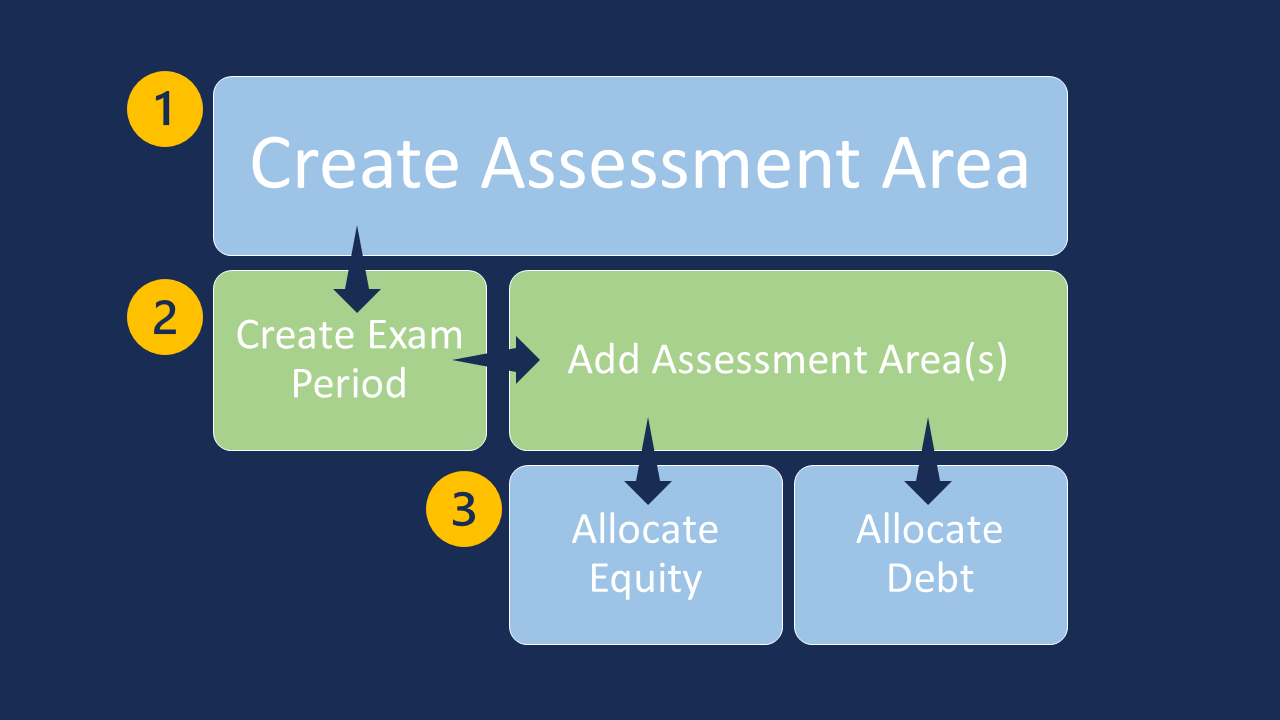
Create the assessment area in CRA Admin.
Create the Exam Period in Bank CRA, and then add the assessment area(s).
Allocate equity/allocate debt to an Exam Period Assessment Area.
The Bank CRA admin functionality allows you to create and manage the exam periods as well as allocate equity and debt to an exam period.
You can create an unlimited number of exam periods, and exam periods can overlap. An exam period can be modified, but cannot be deleted.
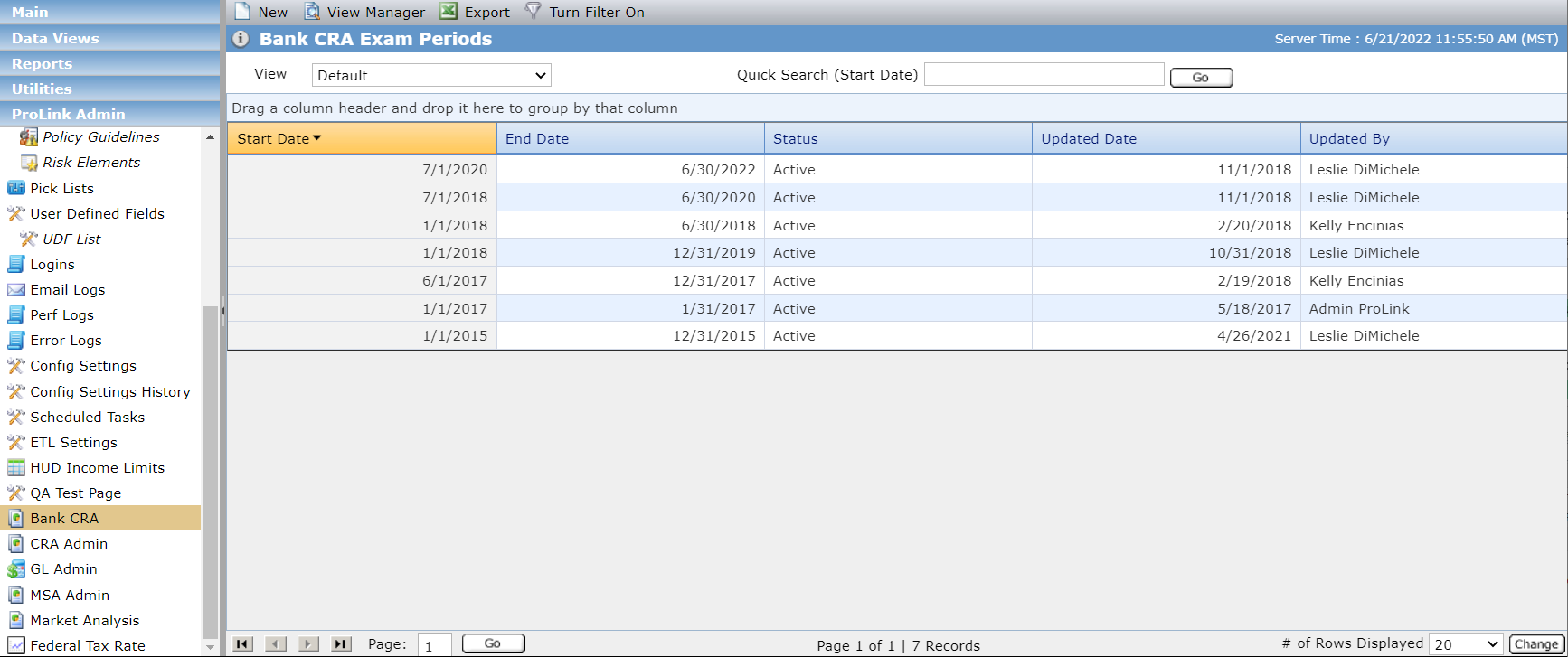
The Bank CRA Exam Periods screen is a data view screen, which means you can filter, sort, search, and create custom views, like with other data views.
Navigate to ProLink Admin in the left navigation panel, and then click the Bank CRA menu option.
The Bank CRA Exam Periods screen opens.
Click New in the top toolbar.
The Edit Bank CRA Exam Period screen opens.
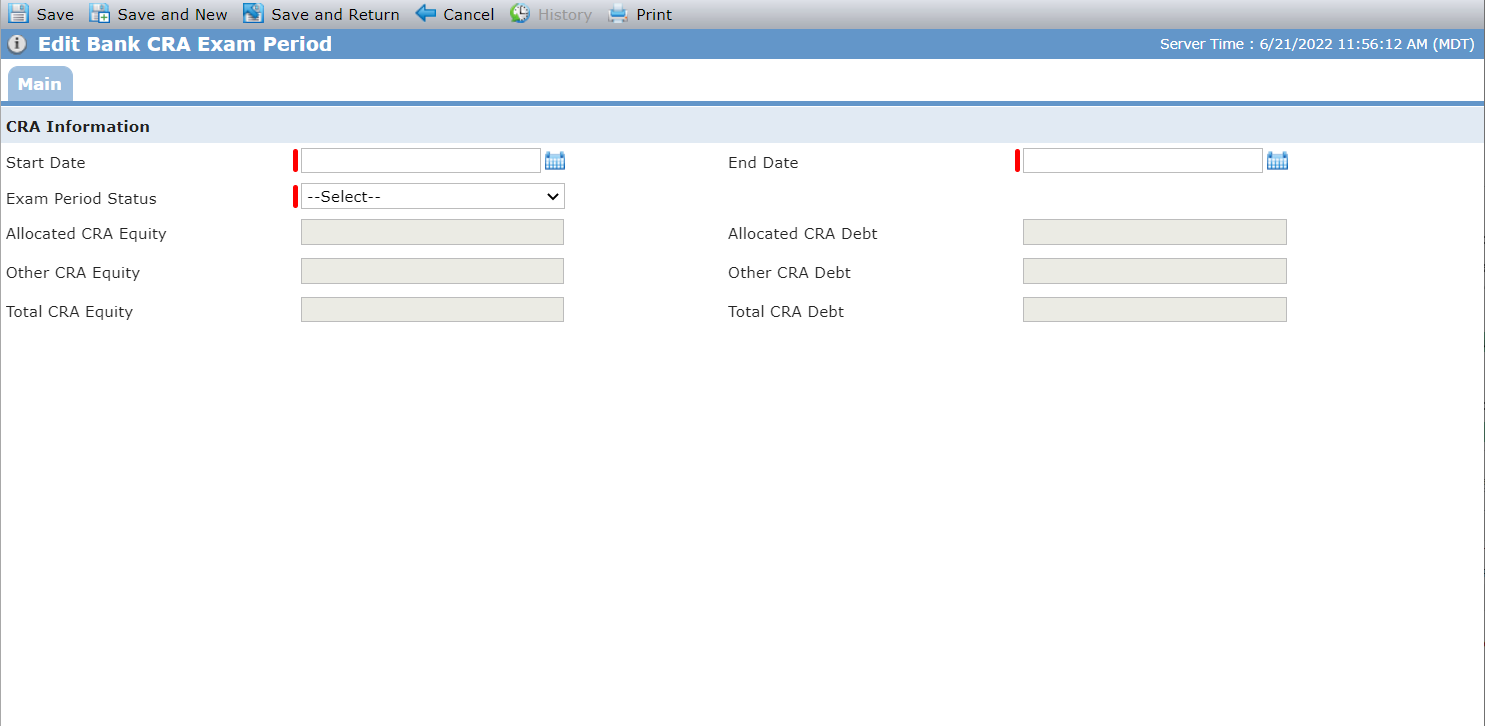
Enter the Start Date.
Enter the End Date.
Select an Exam Period Status.
Click Save.
The Assessment Areas grid is displayed.
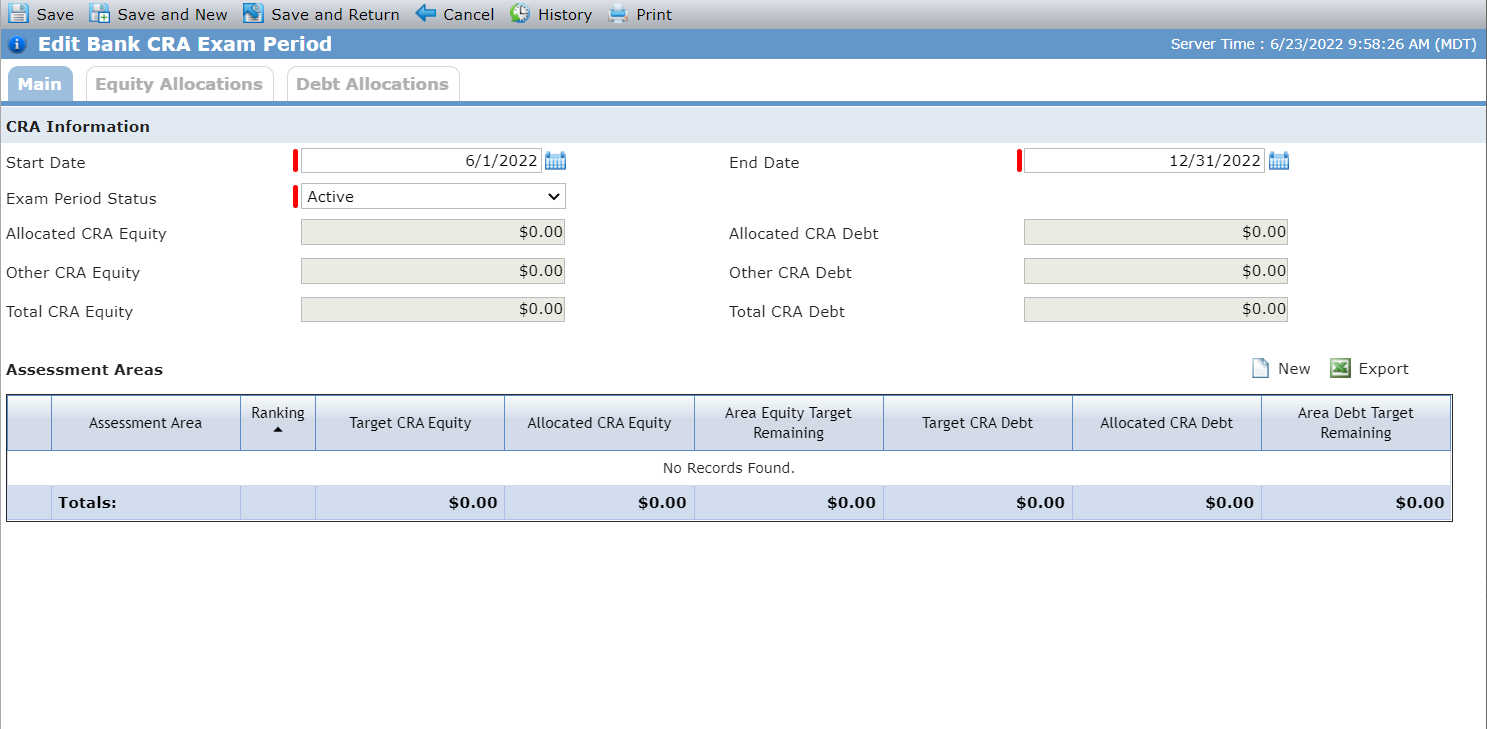
Add an assessment area:
Important
Assessment areas are created and managed through CRA Admin. An assessment area must be set up in CRA Admin before you can add it through Bank CRA.
Click New above the Assessment Areas grid.
The Add Assessment Area popup opens.
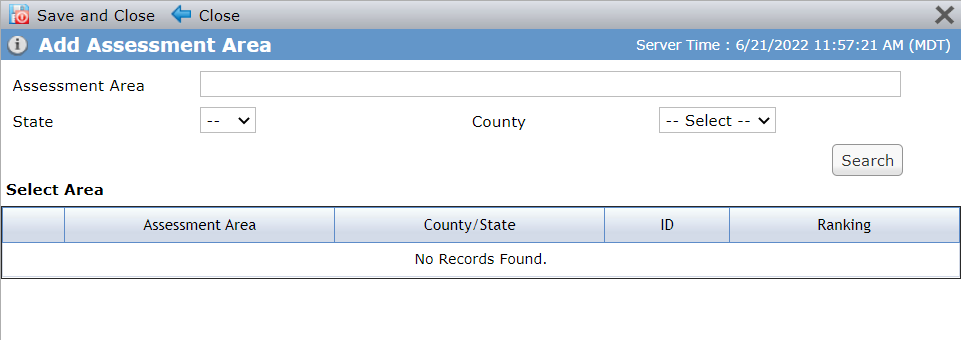
Click Search. Optionally, filter by Name (partial name is OK), State, or State/County before searching.
The results are returned from the assessment areas/counties in CRA Admin. If the assessment area is already selected for the exam period, it is not displayed in the results.
Select the checkbox of the row for the assessment area to add. You can add only one assessment area at a time.
Note
If you later change the county information for an assessment area, any existing allocations for the county remain in the assessment area; however, deals in the county will not be returned in the search results for new allocations.
Click Save and Close.
The assessment area is added to the exam period, and the Edit Exam Period Assessment Area screen opens.
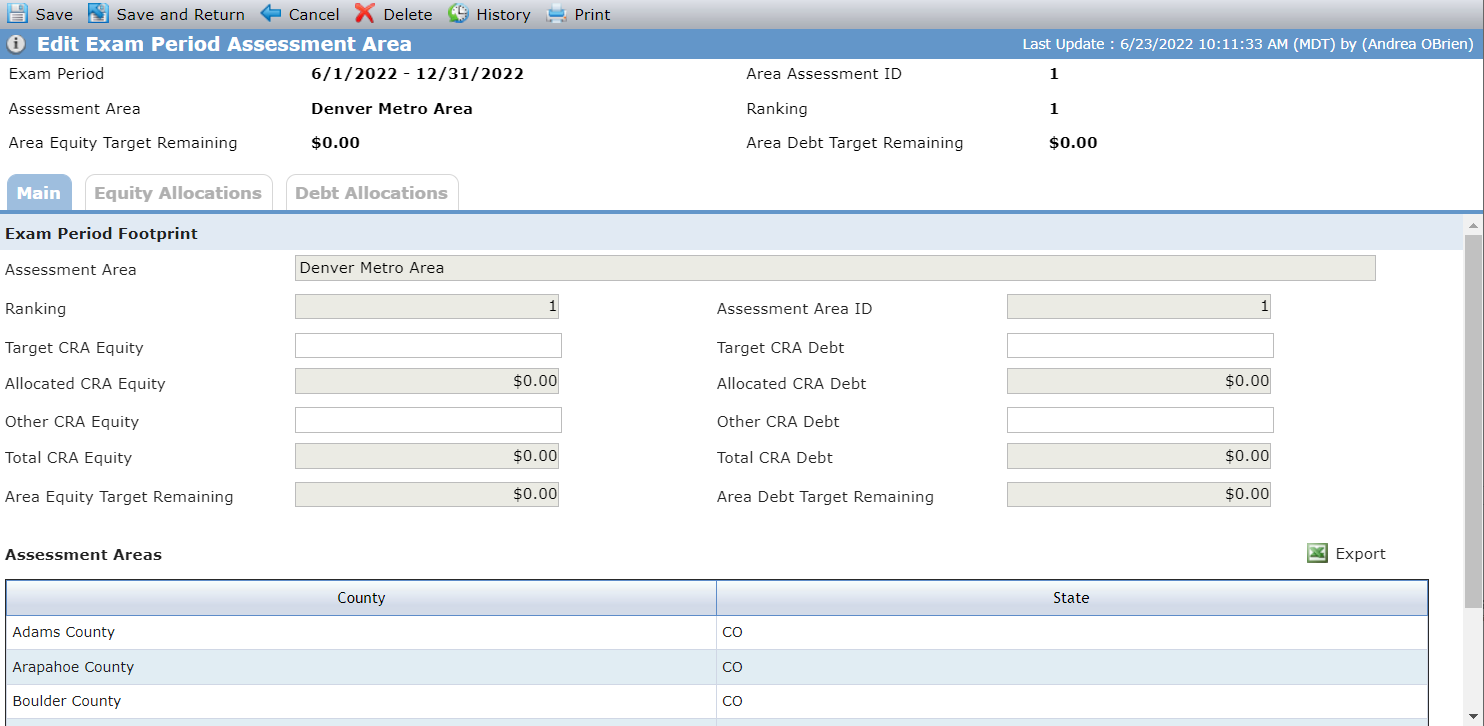
You can continue onto allocating equity or debt, or you can click Cancel to return to the Edit Bank CRA Exam Period screen.
Edit Bank CRA Exam Period
The Edit Bank CRA Exam Period includes overview information about the exam period in the CRA Information section as well as the Assessment Areas grid.
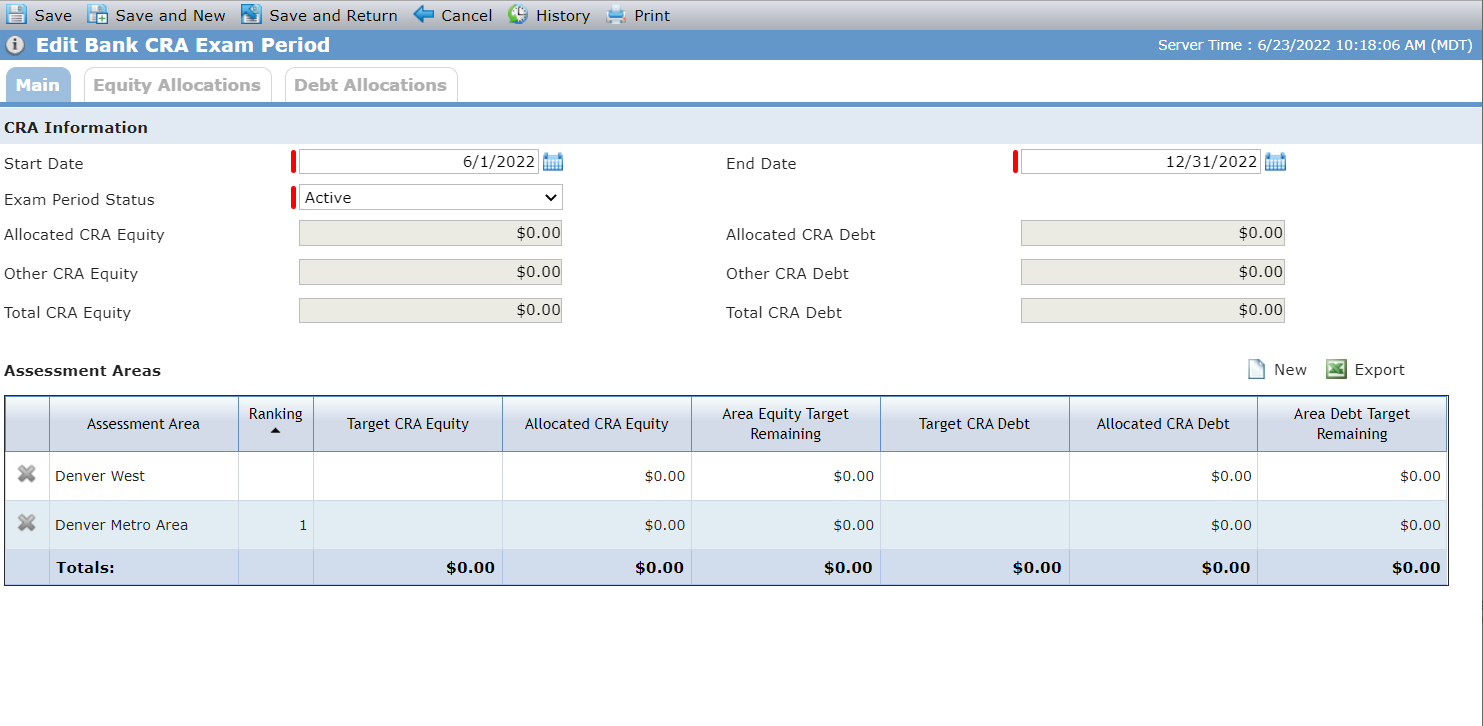
Field | Description |
|---|---|
Allocated CRA Equity | Sum of Allocated CRA Equity for all assessment areas for the Bank CRA Exam Period. |
Allocated CRA Debt | Sum of Allocated CRA Debt for all assessment areas for the Bank CRA Exam Period. |
Other CRA Equity | Sum of Other CRA Equity for all assessment areas for the Bank CRA Exam Period. |
Other CRA Debt | Sum of Other CRA Debt for all assessment areas for the Bank CRA Exam Period. |
Total CRA Equity | Sum of Allocated CRA Equity + Other CRA Equity for the Bank CRA Exam Period. |
Total CRA Debt | Sum of Allocated CRA Debt + Other CRA Debt for the Bank CRA Exam Period. |
Edit Exam Period Assessment Area
The Edit Exam Period Assessment Area tracks detailed information regarding the selected Assessment Area. The header tracks the targeted equity and debt remaining for the area.
Field | Description |
|---|---|
Target CRA Equity | The amount of Equity Allocations expected for this assessment area for this exam period. This field helps keep track of what still needs to be allocated to meet the target amount. |
Target CRA Debt | The amount of Debt Allocations expected for this assessment area for this exam period. This field helps keep track of what still needs to be allocated to meet the target amount. |
Allocated CRA Equity | Sum of Allocated CRA Equity in the Exam Period for the Bank CRA Assessment Area. |
Allocated CRA Debt | Sum of Allocated CRA Debt in the Exam Period for the Bank CRA Assessment Area. |
Other CRA Equity | Equity that is allocated to the Assessment Area that is not stored within ProLinkAIM. |
Other CRA Debt | Debt that is allocated to the Assessment Area that is not stored within ProLinkAIM. |
Total CRA Equity | Sum of Allocated CRA Equity + Other CRA Equity for the Bank CRA Assessment Area. |
Total CRA Debt | Sum of Allocated CRA Debt + Other CRA Debt for the Bank CRA Assessment Area. |
Area Equity Target Remaining | Sum of the Target CRA Equity minus the Total CRA Equity for the Bank CRA Assessment Area. |
Area Debt Target Remaining | Sum of the Target CRA Debt minus the Total CRA Debt for the Bank CRA Assessment Area. |
Tip
You can update the CRA goals—Target CRA Equity, Target CRA Debt, Other CRA Equity, Other CRA Debt—for each assessment area for an exam period in bulk using the CRA Targets Import utility.
Delete an Exam Period Assessment Area
You cannot delete an Assessment Area from the Bank CRA Exam Period if it has associated equity or debt allocation records.
View Exam Period Equity Allocations
The read-only Equity Allocation tab on the Edit Bank CRA Exam Period screen provides an overall view, by deal, of the Equity Allocations that have been made across assessment areas for this exam period.
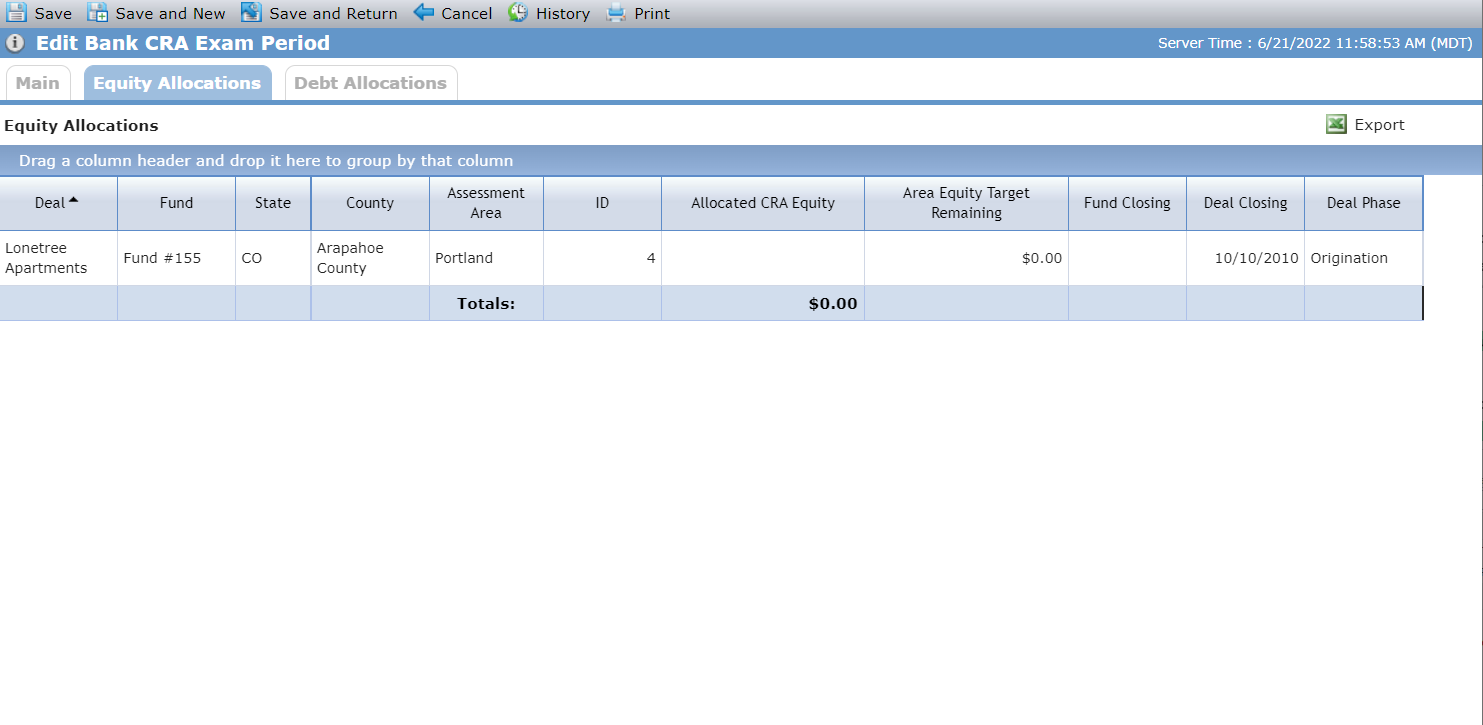
The Allocated CRA Equity = sum of all Allocation Amounts from the deal for the exam period.
The Totals row at the bottom of the grid = sum of all the Allocated CRA Equity.
View Exam Period Debt Allocations
The read-only Debt Allocation tab on the Edit Bank CRA Exam Period screen provides an overall view, by deal, of the Debt Allocations that have been made across assessment areas for this exam period.
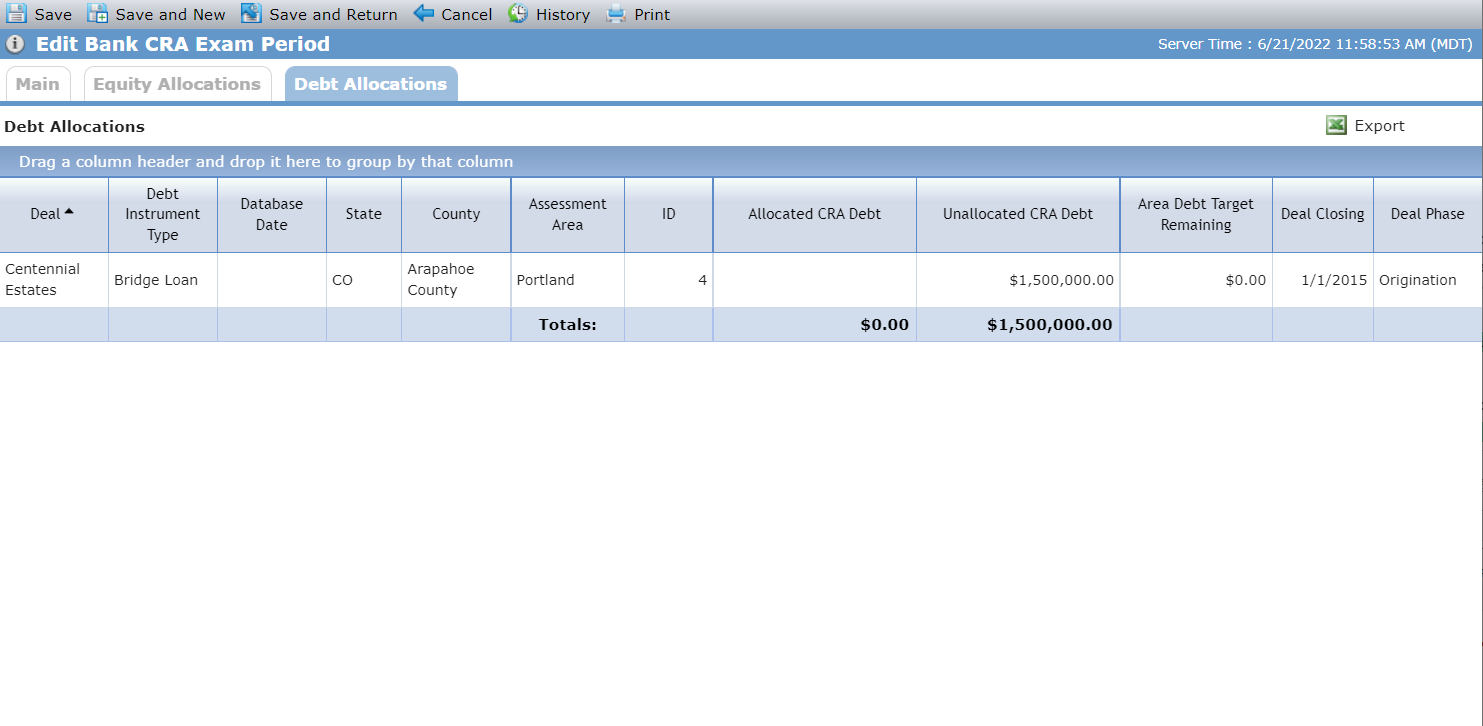
The Allocated CRA Debt = sum of all Allocation Amounts from the deal for the exam period.
The Totals row at the bottom of the grid = sum of all the Allocated CRA Debt.
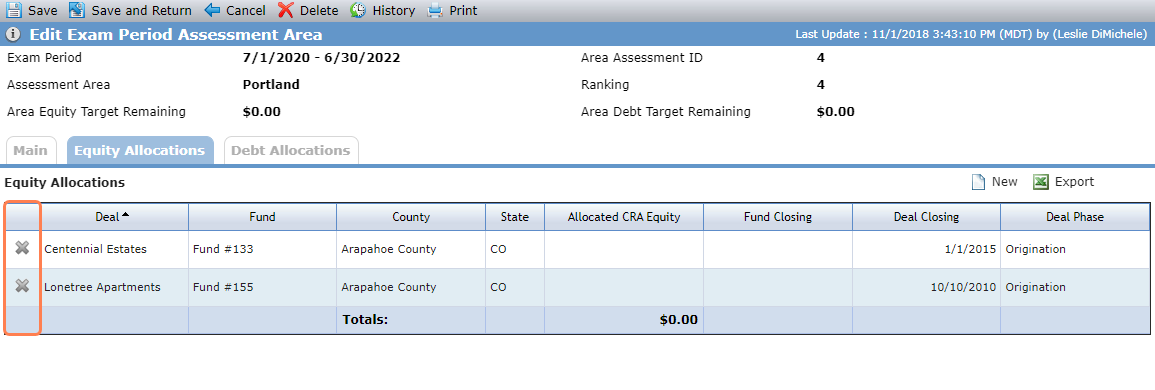
The Equity Allocation tab on the Edit Exam Period Assessment Area screen lists the individual deals, for the assessment area, to which equity has been allocated. The screen includes details on the deal and fund, if there is an associated fund.
Note
This is a list of the equity allocations specific to the assessment area in the exam period. For a full listing of all equity allocations, access the Equity Allocations in the Edit Bank CRA Exam Period.
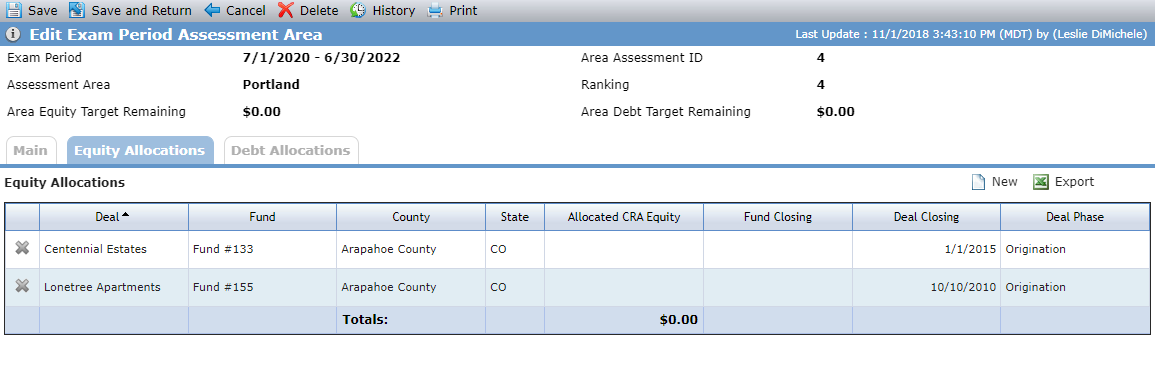
If a deal includes multiple properties, with different states and counties, the State and County columns will display "Multiple."
The Total - Allocated CRA Equity field displays the sum of the Allocated CRA Equity column.
To add an equity allocation:
Navigate to ProLink Admin in the left navigation panel, and then click the Bank CRA menu option.
The Bank CRA Exam Periods screen opens.
Select the exam period.
The Edit Bank CRA Exam Period screen opens.
Select the assessment area.
The Edit Exam Period Assessment Area screen opens.
Click the Equity Allocations tab.
Click New above the Equity Allocations grid.
The Find CRA Equity Matches popup opens.
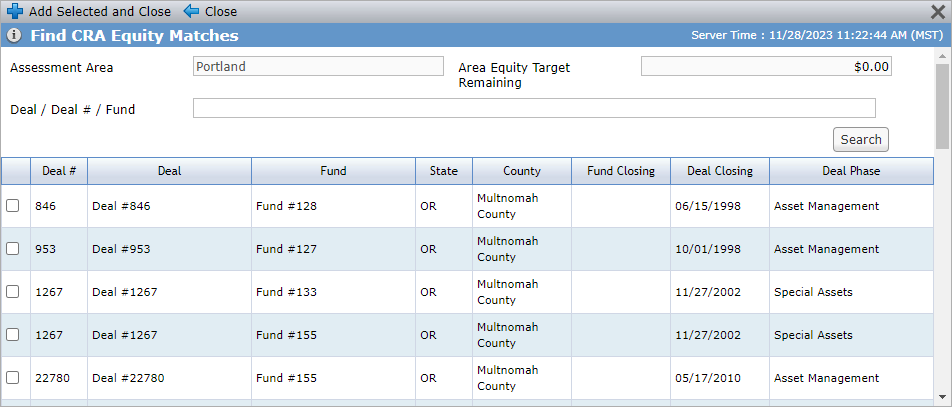
Add the lower tier deal(s) or syndicated fund(s):
Deals that meet the following criteria are returned:
The deal is located in the Bank CRA Assessment Area. (At least one property on the deal matches the State and County for the assessment area.)
AND
An Equity Allocation does not already exist for the deal for this exam period.
AND
The deal is associated to a fund and the fund does not have an Actual Close Date.
OR
The deal is associated to the fund and the Bank Investment checkbox on Edit Entity for the investor is selected.
OR
The deal is not associated to any fund.
Optionally, enter the name in the Deal/Fund field if you are looking for a specific lower tier deal or syndicated fund, and then click Search.
Select the checkbox of the row of the deal/fund to add.
You can select only one deal at a time.
Click Add Selected and Close.
Note
If a deal is associated to more than one syndicated fund (the syndicated fund is an owner in a proposed or finalized ownership scheduled), the deal is displayed multiple times—once for each syndicated fund relationship.
The Edit Bank CRA Equity Allocation screen opens.
Edit Bank CRA Equity Allocation
Navigate to ProLink Admin > Bank CRA > Selected Exam Period > Selected Assessment Area > Equity Allocations Tab. Then click the row of an equity allocation to view and edit it.
You can assign an allocation amount through the Edit Bank CRA Equity Allocation screen.
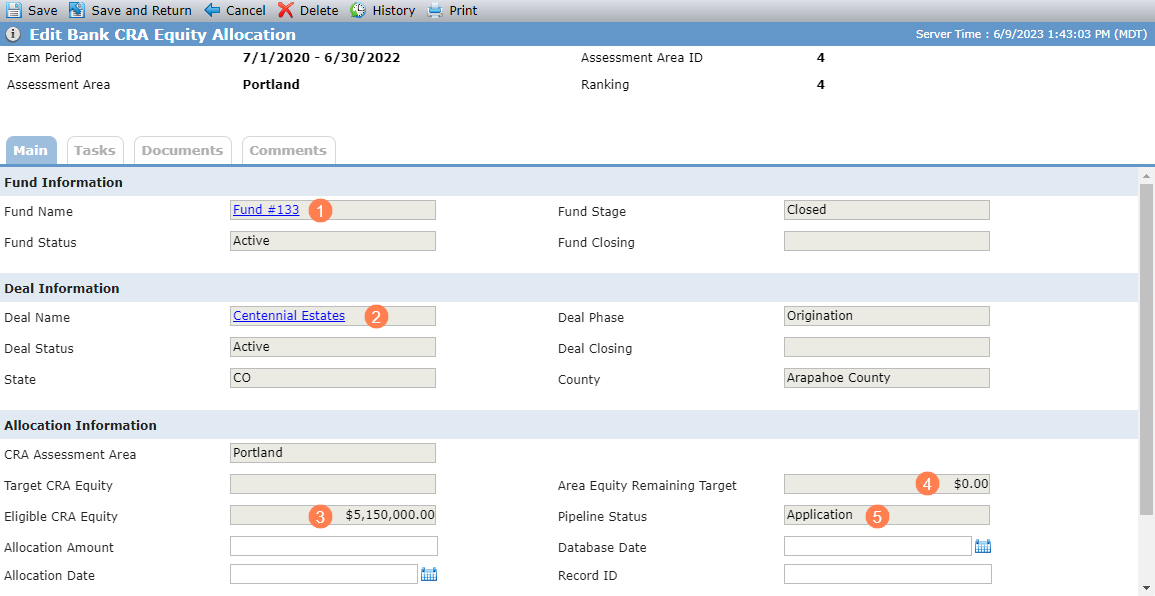
The fund name, if one is displayed, is a hyperlink so you can navigate to the Fund Overview screen.
The deal name is a hyperlink so you can navigate to the Deal Overview screen.
Eligible CRA Equity is displayed from the Deal Adjusted Capital (from Equity Schedule).
The Area Equity Remaining Target = Target CRA Equity minus Total CRA Equity (located on the Main tab of Edit Exam Period Assessment Area).
The Pipeline Status is displayed from the Deal Details screen.
Delete an Equity Allocation
You can delete an equity allocation record from the Equity Allocations grid on the Equity Allocations tab of the Edit Exam Period Assessment Area screen. Click  , and then confirm the deletion.
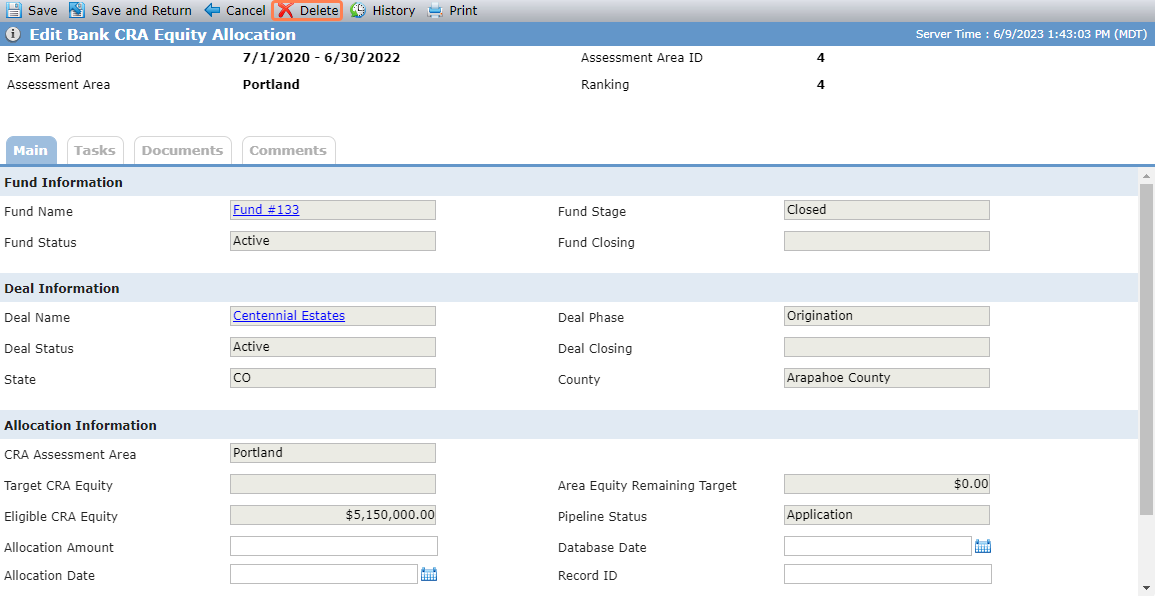
You can also delete an equity allocation from the Edit Bank CRA Equity Allocation screen. Click Delete in the top toolbar, and then confirm the deletion.
When you delete an equity allocation, the system completes the following actions:
The equity allocation is deleted from the assessment area.
The equity allocation becomes available from the Find CRA Equity Matches popup.
The system calculations are re-adjusted.
The Total in the Allocated CRA Equity column of the Equity Allocations tab of the Edit Exam Period Assessment Area screen.
The Area Equity Target Remaining on the Equity Allocations tab of the Edit Exam Period Assessment Area screen.
The Area Equity Target Remaining on the Main tab of the Edit Exam Period Assessment Area screen.
The Allocated CRA Equity on the Main tab of the Edit Exam Period Assessment Area screen.
The Total CRA Equity on the Main tab of the Edit Exam Period Assessment Area screen.
The Allocated CRA Equity on the Main tab of the Edit Bank CRA Exam Period screen.
The Total CRA Equity on the Main tab of the Edit Bank CRA Exam Period screen.
The Allocated CRA Equity column of the Assessment Areas grid on the Edit Bank CRA Exam Period screen.
The Total in the Allocated CRA Equity column of the Assessment Areas grid on the Edit Bank CRA Exam Period screen.
The Area Equity Target Remaining column of the Assessment Areas grid on the Edit Bank CRA Exam Period screen.
The Total in the Area Equity Target Remaining column of the Assessment Areas grid on the Edit Bank CRA Exam Period screen.
The Total in the Allocated CRA Equity column of the Equity Allocations tab of the Edit Bank CRA Exam Period screen.
The Debt Allocation tab on the Edit Exam Period Assessment Area screen lists the individual deals, for the assessment area, to which debt has been allocated. The screen includes details on the deal, such as allocated and unallocated debt, deal closing date, and deal phase.
Note
This is a list of the debt allocations specific to the assessment area in the exam period. For a full listing of all debt allocations, access the View Exam Period Debt Allocations.
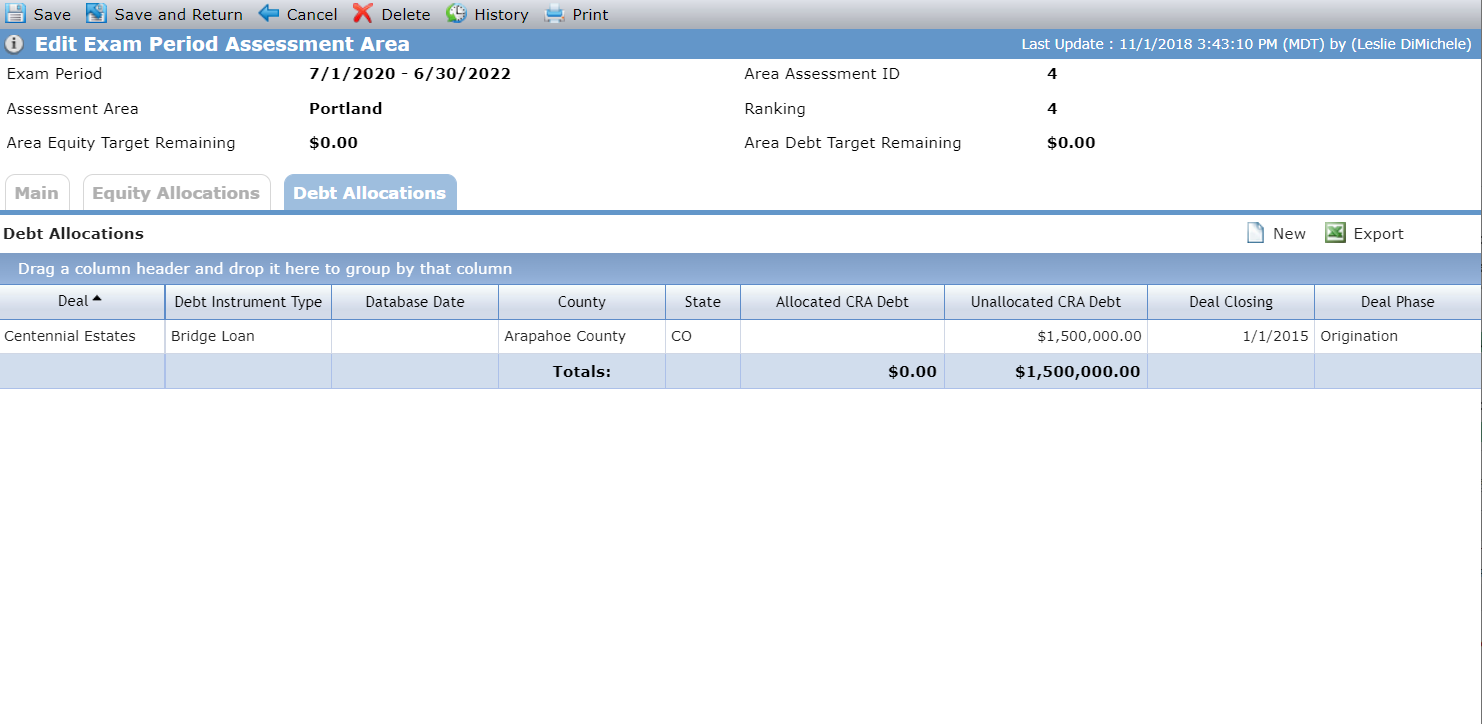
If a deal includes multiple properties, with different states and counties, the State and County columns will display "Multiple."
The Allocated CRA Debt is the Allocation Amount for the deal. The Unallocated CRA Debt is the Current Projected Amount of the Debt Instrument.
The Total - Allocated CRA Debt field displays the sum of the Allocated CRA Debt column. The Total - Unallocated CRA Debt field displays the sum of the Unallocated CRA Debt column.
To add a debt allocation:
Navigate to ProLink Admin in the left navigation panel, and then click the Bank CRA menu option.
The Bank CRA Exam Periods screen opens.
Select the exam period.
The Edit Bank CRA Exam Period screen opens.
Select the assessment area.
The Edit Exam Period Assessment Area screen opens.
Click the Debt Allocations tab.
Click New above the Debt Allocations grid.
The Find CRA Debt Matches popup opens. Debt allocation is made by debt instrument record. As such, a separate row is displayed for each debt instrument record for the deal. If a deal has a construction loan and two permanent loans, then three rows will be displayed.
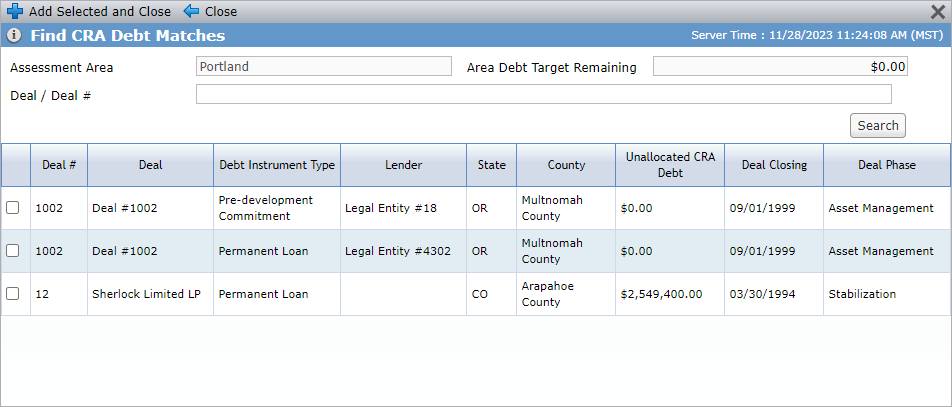
Add the dept instrument type(s) for the deal(s) located in the assessment area:
Deals that meet the following criteria are returned:
Deals that meet the following criteria are returned:
The deal is located in the Bank CRA Assessment Area. (At least one property on the deal matches the State and County for the assessment area.)
AND
A Debt Allocation does not already exist for the debt instrument record for this exam period.
AND
The Balance Sheet Loan checkbox is selected on the Debt record.
Optionally, enter the name in the Deal field if you are looking for a specific lower tier deal, and then click Search.
Select the checkbox of the row of the deal to add.
You can select only one deal at a time.
Click Add Selected and Close.
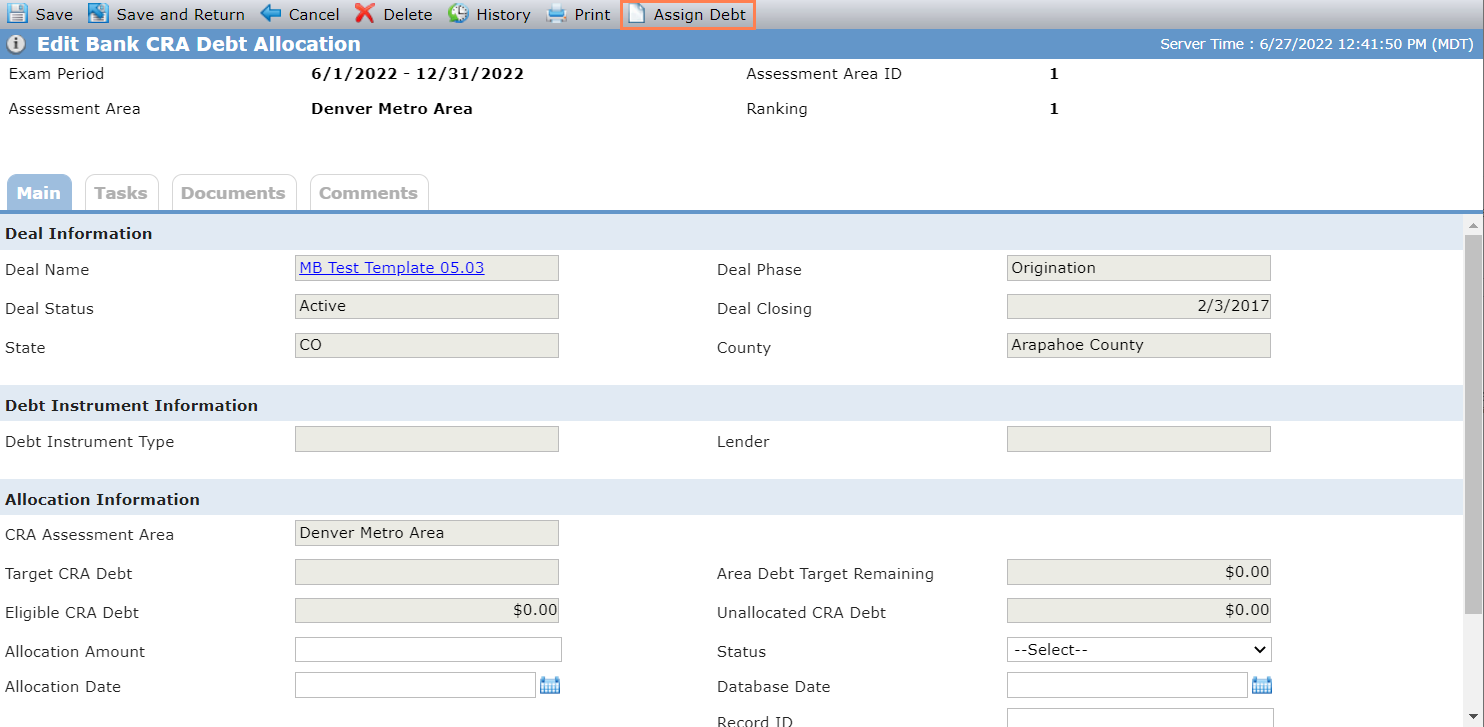
The Edit Bank CRA Debt Allocation screen opens.
Edit Bank CRA Debt Allocation
Navigate to ProLink Admin > Bank CRA > Selected Exam Period > Selected Assessment Area > Debt Allocations Tab. Then click the row of a debt allocation to view and edit it.
You can assign an allocation amount through the Edit Bank CRA Debt Allocation screen.
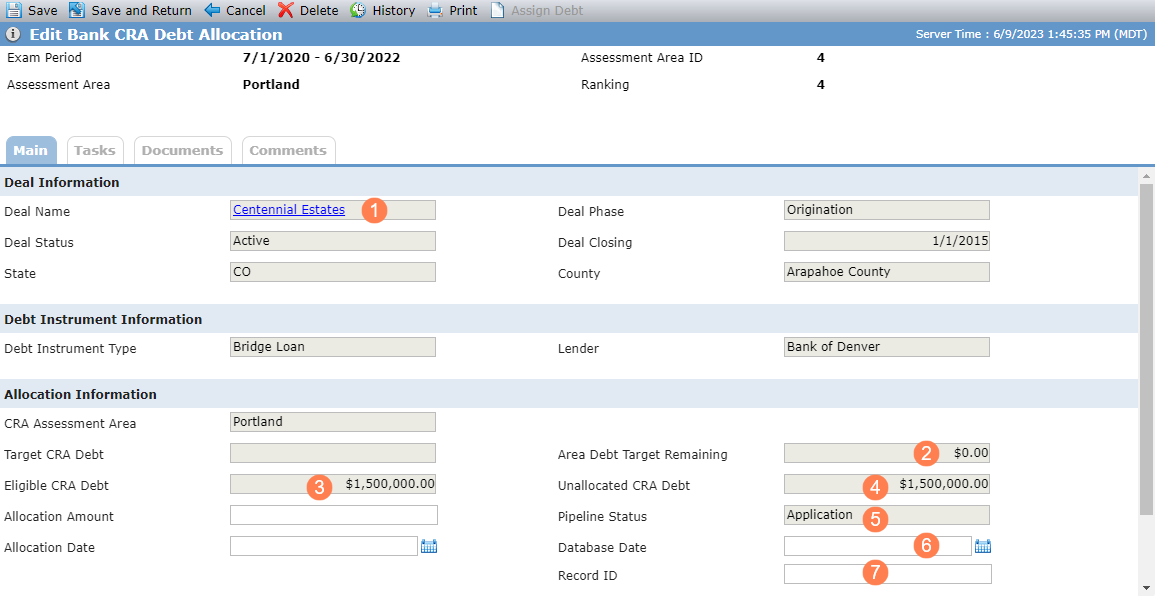
The deal name is a hyperlink so you can navigate to the Deal Overview screen.
The Area Debt Remaining Target = Target CRA Debt minus Total CRA Debt (located on the Main tab of Edit Exam Period Assessment Area).
Eligible CRA Debt displays the Current Projected Amount from the Debt Instrument record.
Unallocated CRA Debt displays the Current Projected Amount of the Debt Instrument minus the Allocated CRA Debt for the Debt Instrument.
The Pipeline Status is displayed from the Deal Details screen.
The Database Date reflects the date the allocation was entered into the bank organization's internal CRA tracking system, if you have one.
The Record ID reflects the number assigned to the allocation in the bank organization's internal CRA tracking system, if you have one.
Delete a Debt Allocation
You can delete a debt allocation from the Edit Bank CRA Debt Allocation screen. Click Delete in the top toolbar, and then confirm the deletion.
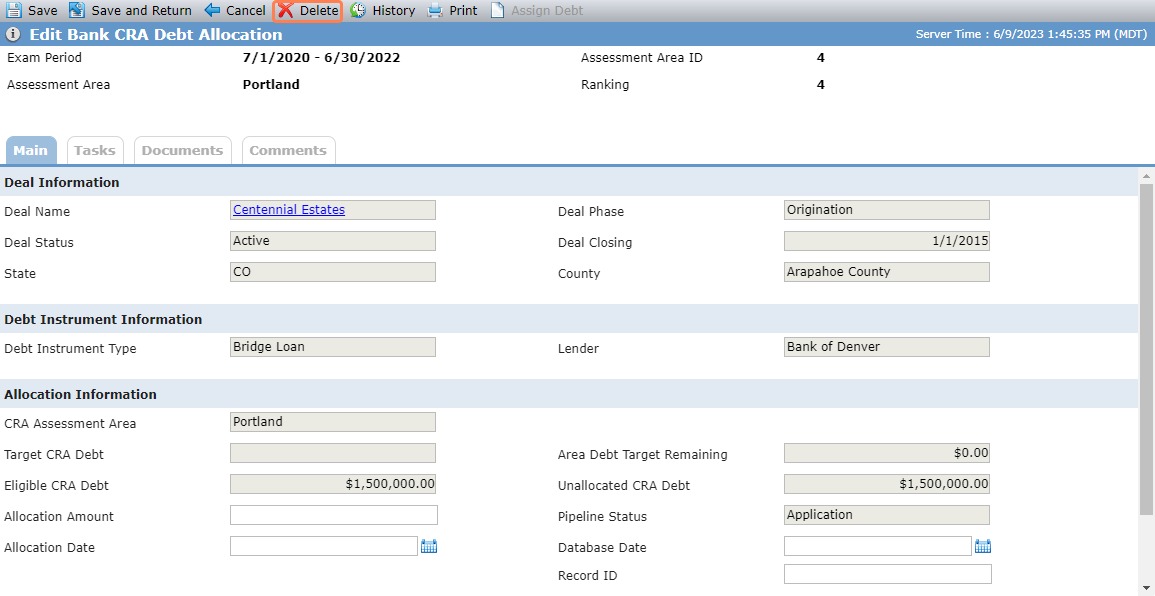
When you delete a debt allocation, the system completes the following actions:
The debt allocation is deleted from the assessment area.
The debt allocation becomes available from the Find CRA Debt Matches popup.
The system calculations are re-adjusted.
The Total in the Allocated CRA Debt column of the Debt Allocations tab of the Edit Exam Period Assessment Area screen.
The Area Debt Target Remaining on the Debt Allocations tab of the Edit Exam Period Assessment Area screen.
The Area Debt Target Remaining on the Main tab of the Edit Exam Period Assessment Area screen.
The Allocated CRA Debt on the Main tab of the Edit Exam Period Assessment Area screen.
The Total CRA Debt on the Main tab of the Edit Exam Period Assessment Area screen.
The Allocated CRA Debt on the Main tab of the Edit Bank CRA Exam Period screen.
The Total CRA Debt on the Main tab of the Edit Bank CRA Exam Period screen.
The Allocated CRA Debt column of the Assessment Areas grid on the Edit Bank CRA Exam Period screen.
The Total in the Allocated CRA Debt column of the Assessment Areas grid on the Edit Bank CRA Exam Period screen.
The Area Debt Target Remaining column of the Assessment Areas grid on the Edit Bank CRA Exam Period screen.
The Total in the Area Debt Target Remaining column of the Assessment Areas grid on the Edit Bank CRA Exam Period screen.
The Total in the Allocated CRA Debt column of the Debt Allocations tab of the Edit Bank CRA Exam Period screen.
Manage Orphan Records
Records with no Debt Instrument value might display in the Debt Allocations grid. If a record is created and the Debt Instrument record is subsequently deleted, the Allocation record remains, but the Debt Instrument Type, Allocated CRA Debt, and Unallocated CRA Debt columns for the row will be blank.
To assign a new Debt record to the allocation, open the Allocation record and click Assign Debt in the top toolbar to open the Find CRA Debt Matches popup. Then select an eligible debt instrument record for the deal. (Eligible means the Debt record has Balance Sheet Loan selected and there is not an existing allocation record for the exam period for the Debt record.)