Manage Deal Details - Main Tab
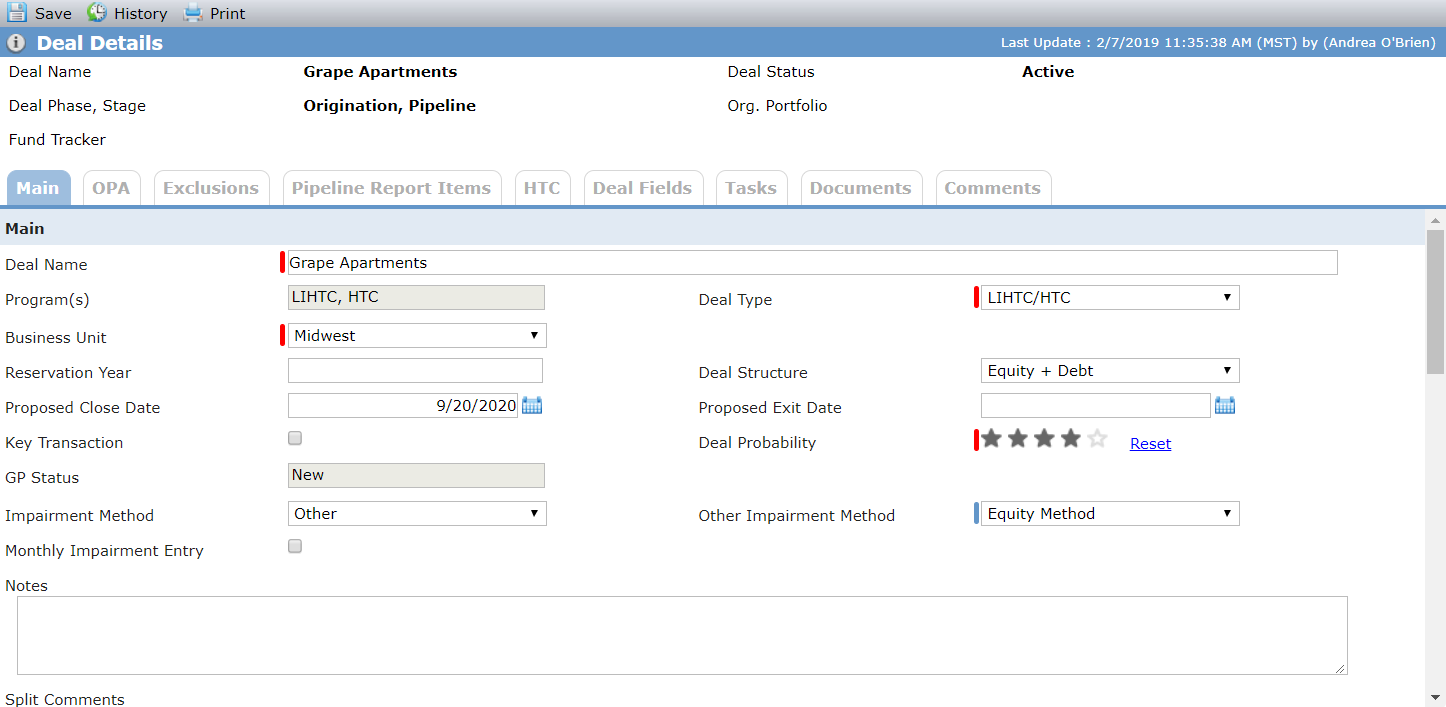
The Deal Details screen contains both high-level and detailed information regarding the deal. Some information is populated early in the life cycle of the deal and other data is not populated until the deal is closed. The information is spread across multiple tabs, some of which are displayed only for deals that have specific programs selected.
To access the Deal Details screen, navigate to the deal, and then select the Details option in the left navigation panel.
The Data Views menu includes a Deal data view, which allows you see deal-level data across deals.
Field | Description |
|---|---|
Deal Name | Defaults from when the deal was created |
Program(s) | Defaults from when the deal was created We recommend knowing the program(s) and deal type before creating the deal because these selections dictate the underlying structure of the deal and which configurable items will be used (Documents, Checklists, Risk Elements, and Policy Guidelines). However, if you need to change the program(s) after the deal is created, you can do so from the Benefits Schedule. |
Deal Type | Defaults from when the deal was created A non-system picklist that identifies the type of deal. |
Business Unit | Defaults from when the deal was created A non-system picklist that identifies the organization's Business Unit that is associated to the Deal. |
Reservation Year | Defaults from when the deal was created The year that the tax credits were applied for. |
Deal Structure | Defaults from when the deal was created A system picklist that identifies whether the deal is Equity, Debt, or both. |
Proposed Close Date | Defaults from when the deal was created |
Proposed Exit Date | The date that the investors plan to exit the deal. |
Key Transaction | Used to indicate when the deal is far enough along in the process to be considered a key transaction. You can update this field based on the Probability. |
Deal Probability | Defaults from when the deal was created The probability the deal will close. One star is a low probability and 5 stars means will definitely close. |
GP Status | Defaults to New. If the General Partner on the deal is also on another closed deal, then the value defaults to Repeat; otherwise, it defaults to New. |
Impairment Method | Defaults to Other. The value selected dictates the manner in which impairments (amortization) will be calculated for the deal. |
Other Impairment Method | Defaults to Equity Method. If the Impairment Method is set to a value not equal to Other, then the Other Impairment Method field is set to -Select- and disabled. |
Monthly Impairment Entry | You can select this checkbox only when the Impairment Method is Other. This checkbox allows monthly values to be populated on the Impairment Schedule for the entities on the deal. |
Notes | Defaults from when the deal was created |
Split Comments | Capture additional information when there are multiple owners on a deal. |
Pipeline Section
The Pipeline section is used to track detail, such as status and last contact, while the deal is in the Pipeline stage.

Status History Section
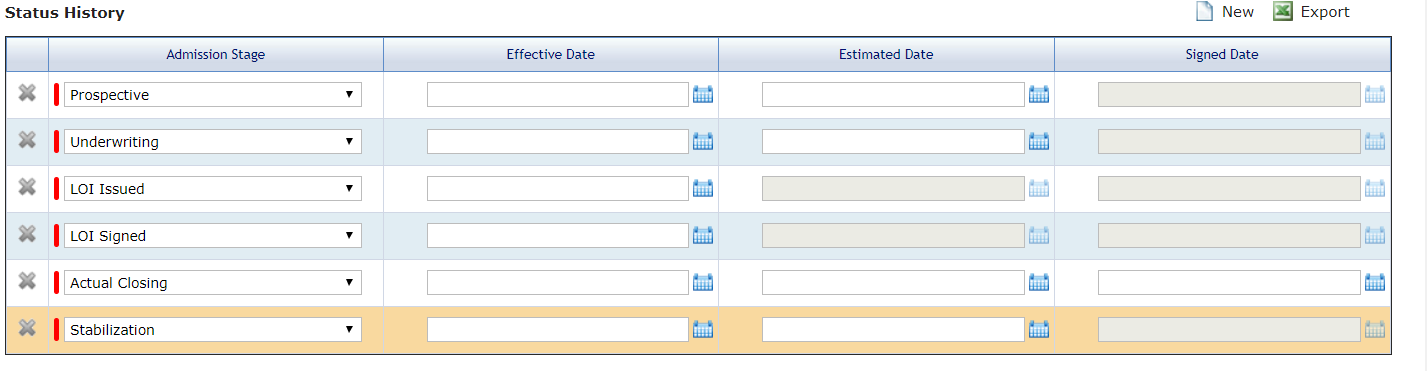
This section tracks specific deal milestone dates through the actual close date of the deal.
The listing of items available and the corresponding dates are configurable so that you can track the milestone dates important to your organization. The only date that must be displayed is Actual Closing. Here is an example of milestone dates that can be tracked:
ARC Approved
TCIC Approval
Actual Closing
Investor Approval
AM Transition
Short Form Admission
Investor Approval
Actual Closing
Each admission stage can have multiple entries (rows) except for Actual Closing.
When the Effective Date is initially populated in the Actual Closing admission stage, thus indicating the deal is closed, it is also displayed on the Overview screen in the Actual Close Date field.
Other IDs Section
The Other IDs section allows you to track other IDs for the deal. The IDs might be for an external company that is also involved in the deal and has assigned a separate ID; for example, a state or HUD assigned ID.
Click New above the Other IDs grid to add another row to the grid.

Federal Tax Rate Information Section
This section allows the tracking of an application-level federal tax rate and an individual-level federal tax rate, if the rate for the deal is different. The tax rate is used to help calculate the loss that can be taken on a deal.
The Federal Tax Rate field displays the most recent Federal Tax Rate from the Edit Federal Tax Rate screen (ProLink Admin menu).
Click New above the Deal Federal Tax Rates grid to add another row to the grid.
