What's New
The release introduces the following new functionality.
Note
Some of these changes might not apply to your organization's use of ProLinkAIM. Please contact us if you have questions about whether and how a particular change affects your organization.
Commercial Leased Checkbox on Annual Financials
The risk review now evaluates both the December Periodic Financial (as it did previously) and Annual Financial records when determining risk related to commercial space. The Annual Financial record is used when the Data Entry Status field is Complete and when the Version is any value except Not Received.
The Annual Financial record includes a new Commercial Leased checkbox, which is used when evaluating risk.
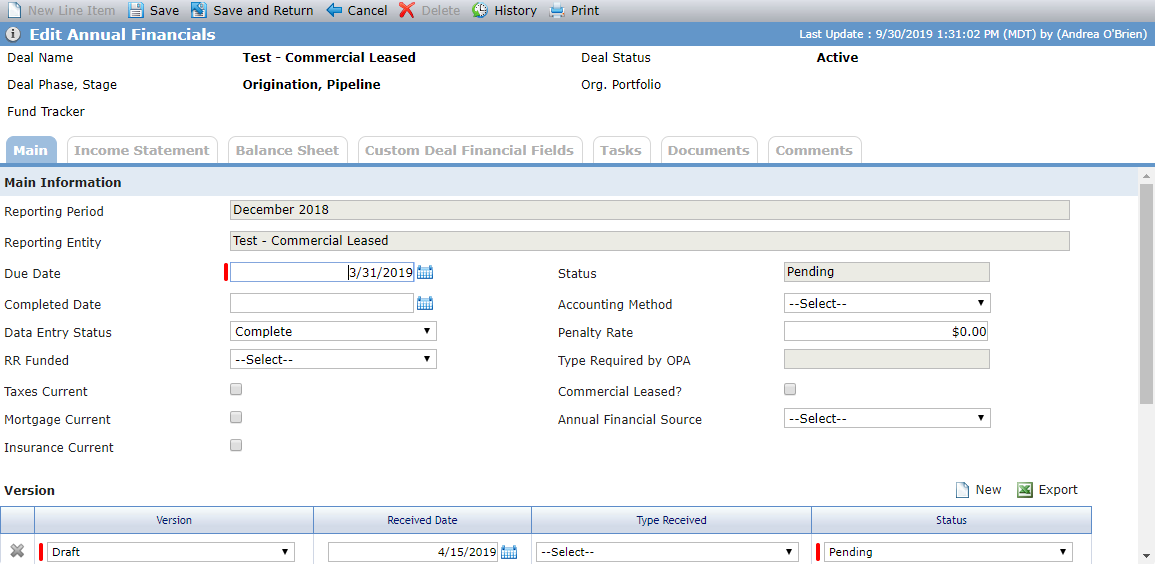
Annual Financial Record Where Data Entry Status Is Complete, Version Is Not Not Received, and Commercial Leased Is Not Selected
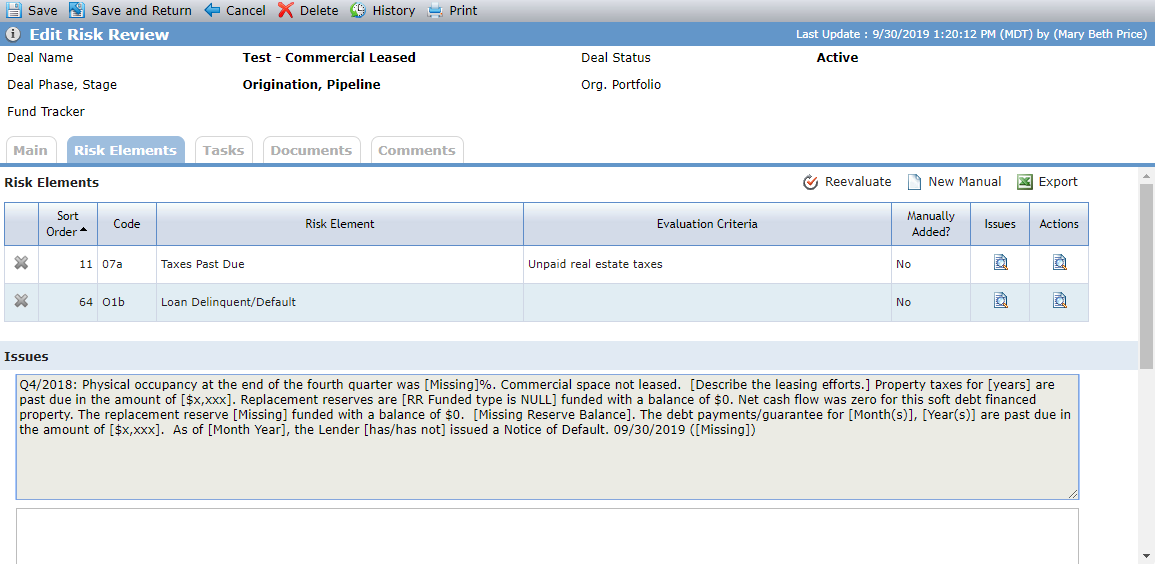
Risk Review with Commercial Lease Risk
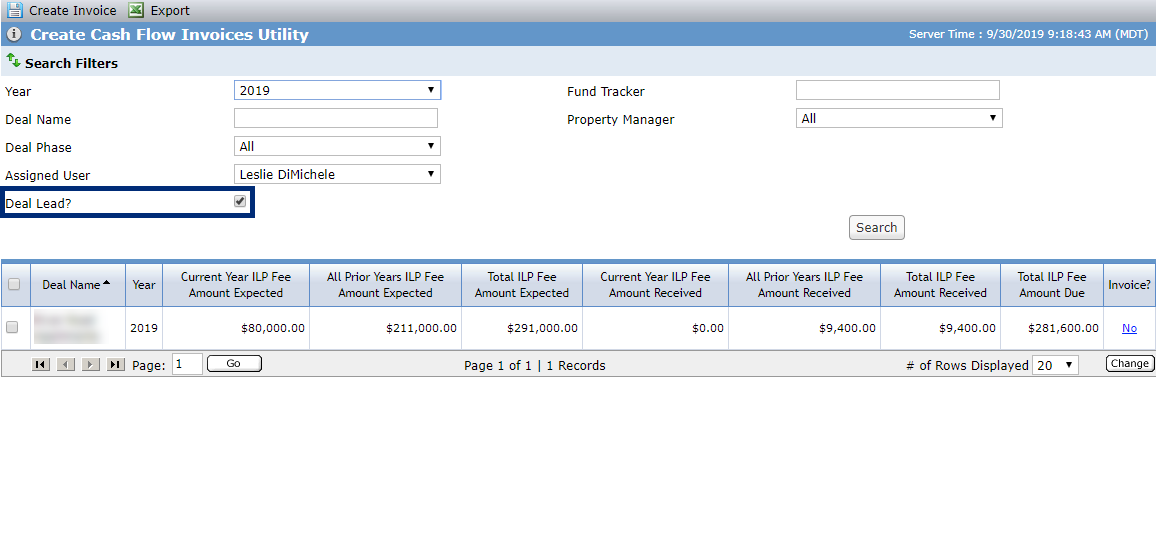
Deal Lead Checkbox on Utilities
ProLink Solutions added the Deal Lead checkbox to the following utilities:
Create CF Invoice
Review CF Invoice
Missing Information
You must select the assigned user to be able to select the Deal Lead checkbox. When the checkbox is selected, the search returns results where the assigned user is also the deal lead.
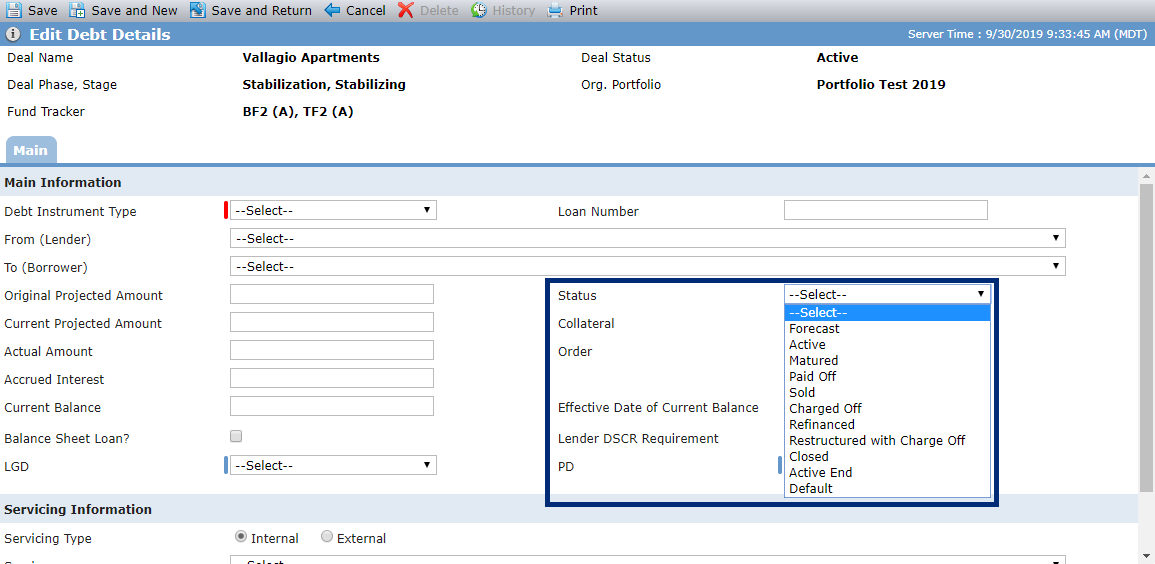
Debt Financing Status Value (PLS Support Ticket 2971)
The Status list on the Debt Financing record includes a new value of Paid Off.
Config Settings Redesign (PLS Support Ticket 1703)
When you access the Config Settings menu option, the settings are now presented in a data view, which makes it easier to find and manage the settings. From the list screen, click the row of a setting to open the edit screen.
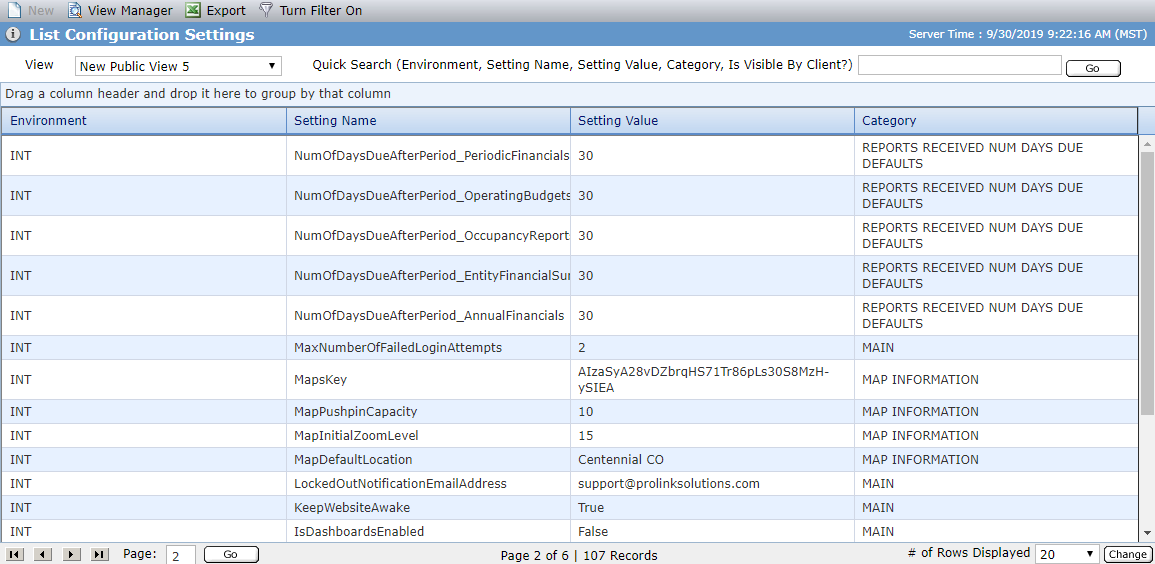
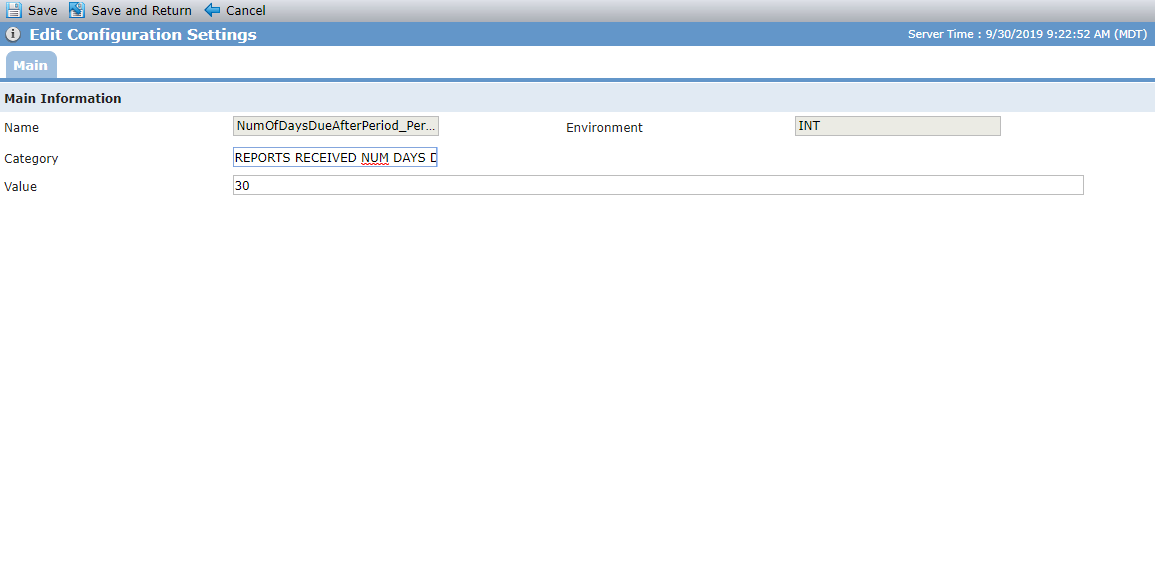
List Configuration Settings Screen; Edit Configuration Settings Screen
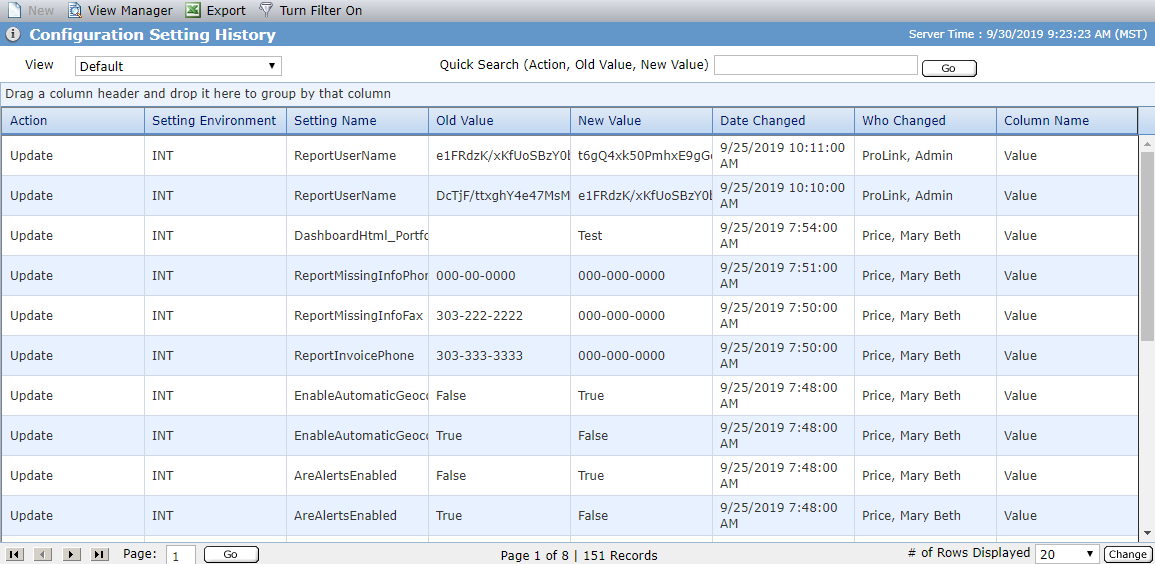
In addition, we added a menu option for Config Settings History. This option is a data view that provides a log of the changes made to config settings.
New Bank CRA Data Views
Under Deals in the Data Views menu, ProLink Solutions added two data views: Bank CRA Debt Allocations and Bank CRA Equity Allocations. These data views allow you to see debt and equity allocation data across exam periods. You can quickly search by deal name or state. And when you click a row, the corresponding Edit Bank CRA {Equity/Debt} Allocation screen opens.
Risk Review Changes
Risk validation now occurs regardless of the deal types and risk elements of the deals. The application looks at the Risk Elements under Templates to see whether a Risk Element should be included in validation. If it is marked as Include in Validation = True, then you cannot complete the risk review without a score for the risk element.
In addition, the Suggested Overall Rating field on a risk review now shows the rating, even when there is only a single rating of C or D.
Workflow Changes (PLS Support Ticket 1175)
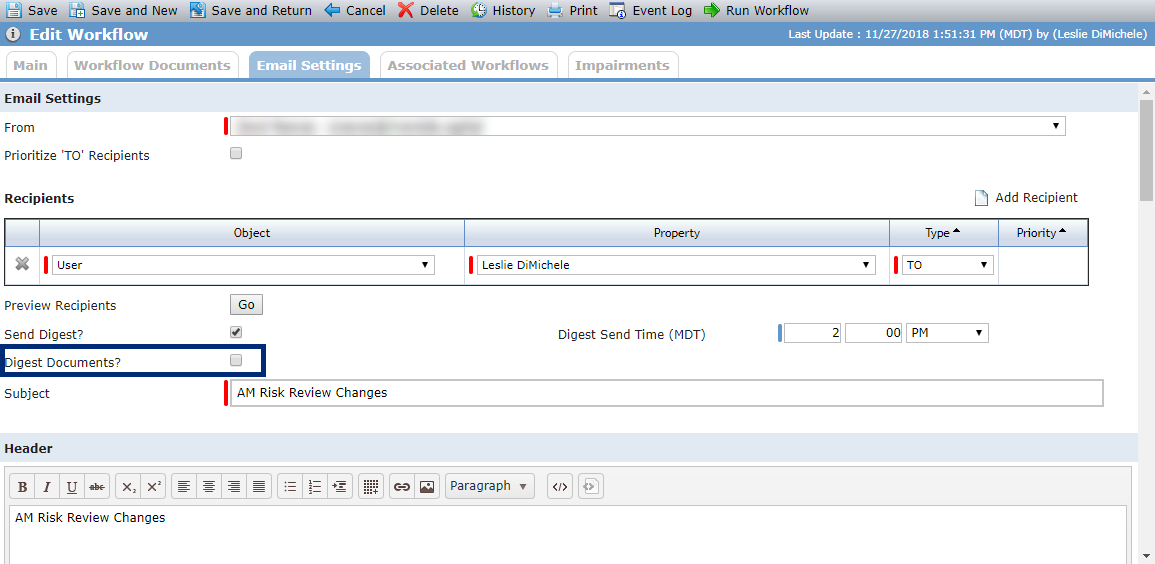
Administrators who are responsible for creating workflows have a new option to indicate that only one workflow document is attached to a workflow email when selecting email digest.
Additional UDF Data View
ProLink Solutions has added a new User Defined Field (UDF) view so that it is easier for you to see all UDFs in one view. The UDF List data view is located in the Utilities panel, under the User Defined Fields menu option.
Update Entities - Deal/Fund Tab (PLS Support Ticket 3063)
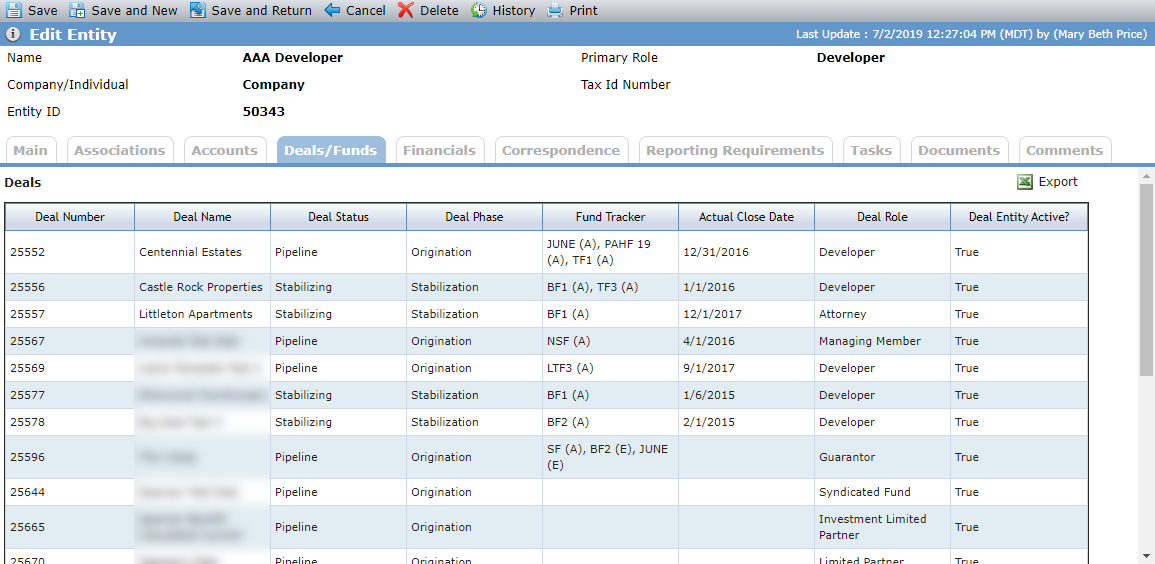
The Deals/Funds tab of the Edit Entity screen reflects the following changes (whether a deal entity or associated company):
Removed GP/Guarantor Financials Required per OPA column
Removed GP/Guarantor # of Days Due After Period column
Removed GP/Guarantor Type of Statement column
Added Deal Status column
Added Deal Phase column
Added Fund Tracker column
Added Actual Close Date column
Added Deal Entity Active column
Populate Required Replacement Reserve Field from Reserves
For new Financials records, the Required Replacement Reserve Deposits line item on the Income Statement tab is populated from the Required Deposit value on the Reserve record as follows:
Annual Financials—For the applicable year, Required Deposit value
Period Financials—For the applicable year, calculated based on the quarter and the Required Deposit value (times 25% for Q1, 50% for Q2, 75% for Q3, 100% for Q4)
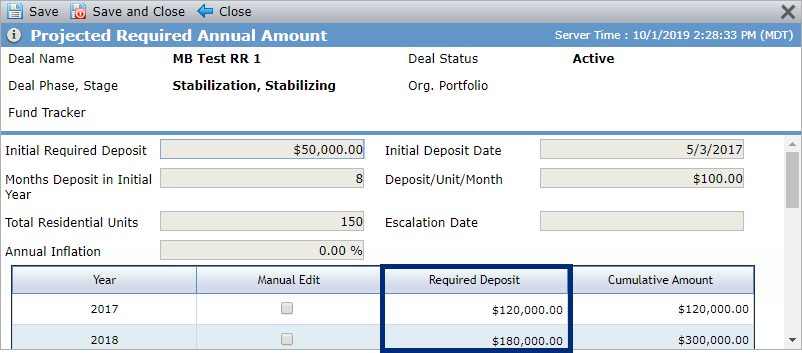
Accounting Summary > Reserves > Annual Projection
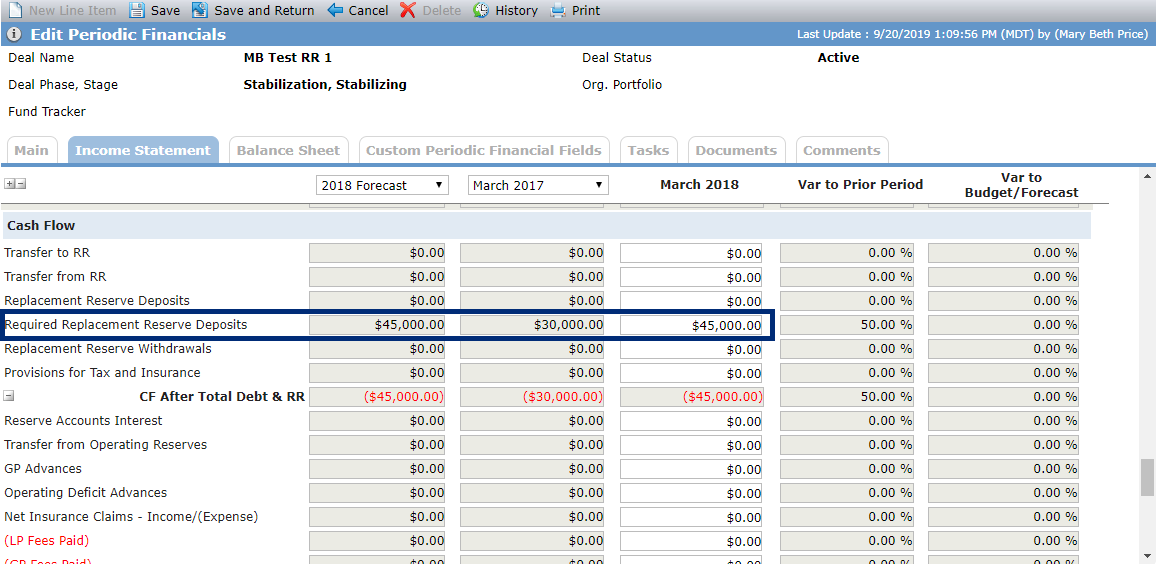
Risk Reviews > Financials > Income Statement
No changes will be made to the Required Replacement Reserve Deposits line item for existing Financials records. If you edit the Reserve record and the Required Deposit value is re-calculated, then the application also updates the Financials record if the record status is Not Received, Received, or Pending.