Change the ProLink Environment
This information is for system administrators or super users who are responsible for multiple environments. General users are connected to the production version of the ProLink application and should never need to change the environment.
ProLink SmartDox has the ability to connect to multiple ProLink application environments. Under normal circumstances the environment that SmartDox will connect to will be the production version of the ProLink application, but instances may arise where connecting SmartDox to a Quality Assurance (QA), User Acceptance Testing (UAT), or other version of the ProLink application may be necessary. Connecting SmartDox to other ProLink environments is possible through the About ProLink option on the ProLink menu.
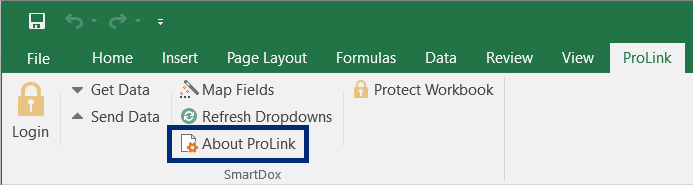
To determine which environment SmartDox is connected to, click About ProLink on the ProLink menu.
The About window opens. The environment to which SmartDox is currently connected is displayed in the Connection Info section.
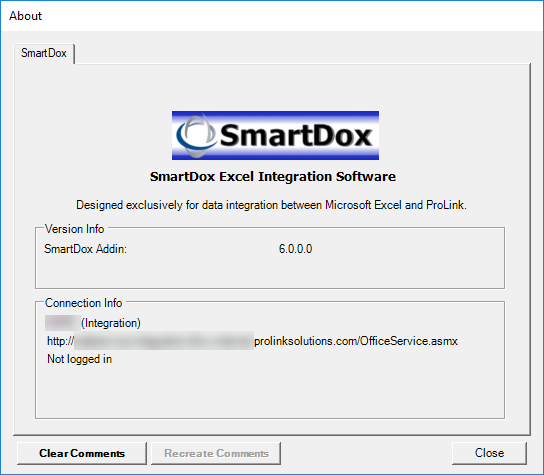
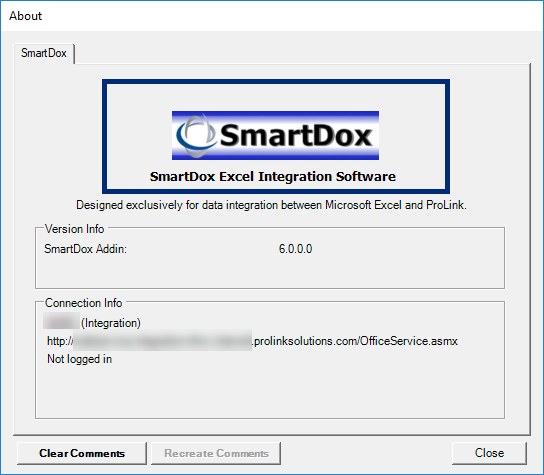
Click the SmartDox logo to access the Configure SmartDox window.
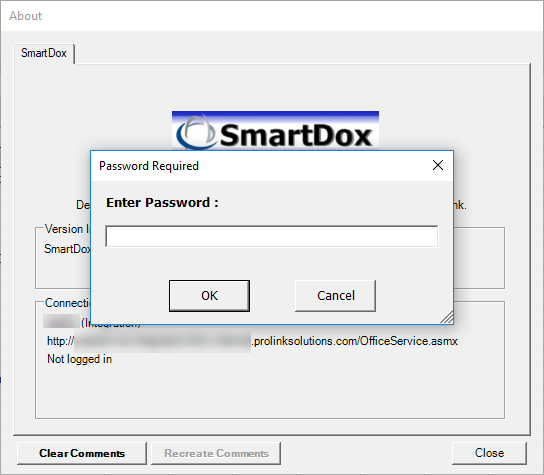
The Password Required window appears. Contact your system administrator or ProLink Solutions for the password to access the Configure ProLink window.
Enter the password and click OK.
The Configure SmartDox window appears. Select the appropriate environment using the Default Connection drop-down menu.
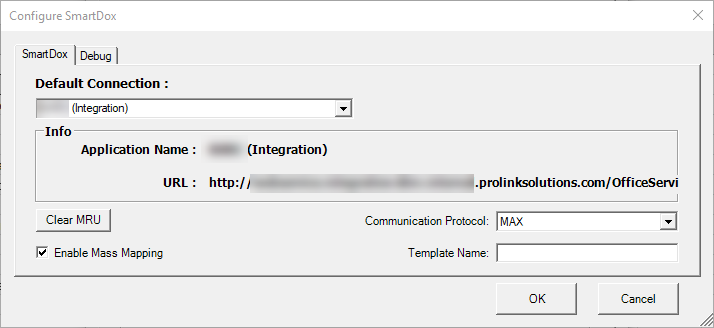
Click OK to save the change and close the Configure SmartDox window.
Click Close to close the About window.
SmartDox is now communicating with the selected environment.