Introduction to ProLinkAIM Deal Impairments
For accounting and CRA reporting purposes, the book value of an equity investment may be depreciated over time to reflect the outstanding value of the investment in a deal. Common methods of calculating this depreciation include Proportional Amortization, the Equity Method, and Straight Line Amortization. The result of this calculation is the book value of the investment. Other factors that might affect book value include impairment and equity adjustments.
Impairments occur when a company's assets lose value. If the actual fair market value of an asset decreases less than the book value of an asset, then the asset is impaired. The fair market value is the value of the asset in a transaction between unrelated parties. The book value of the asset is the amount the asset is worth on the company's financial statements. Impairments are the difference between the book value and fair market value.
The ProLinkAIM Edit Impairments screen originated to track impairment and has evolved to track impairment, depreciation, and other book value adjustments. You can use the ProLinkAIM Impairment functionality to track the book value of equity investments in tax credit deals over time. Depending on the impairment method selected for a deal, the book value will be determined using a system calculation or imported manually.
ProLinkAIM supports the following types of deal impairments: Straight-Line, Proportional Amortization, Other (Equity), and Manual.
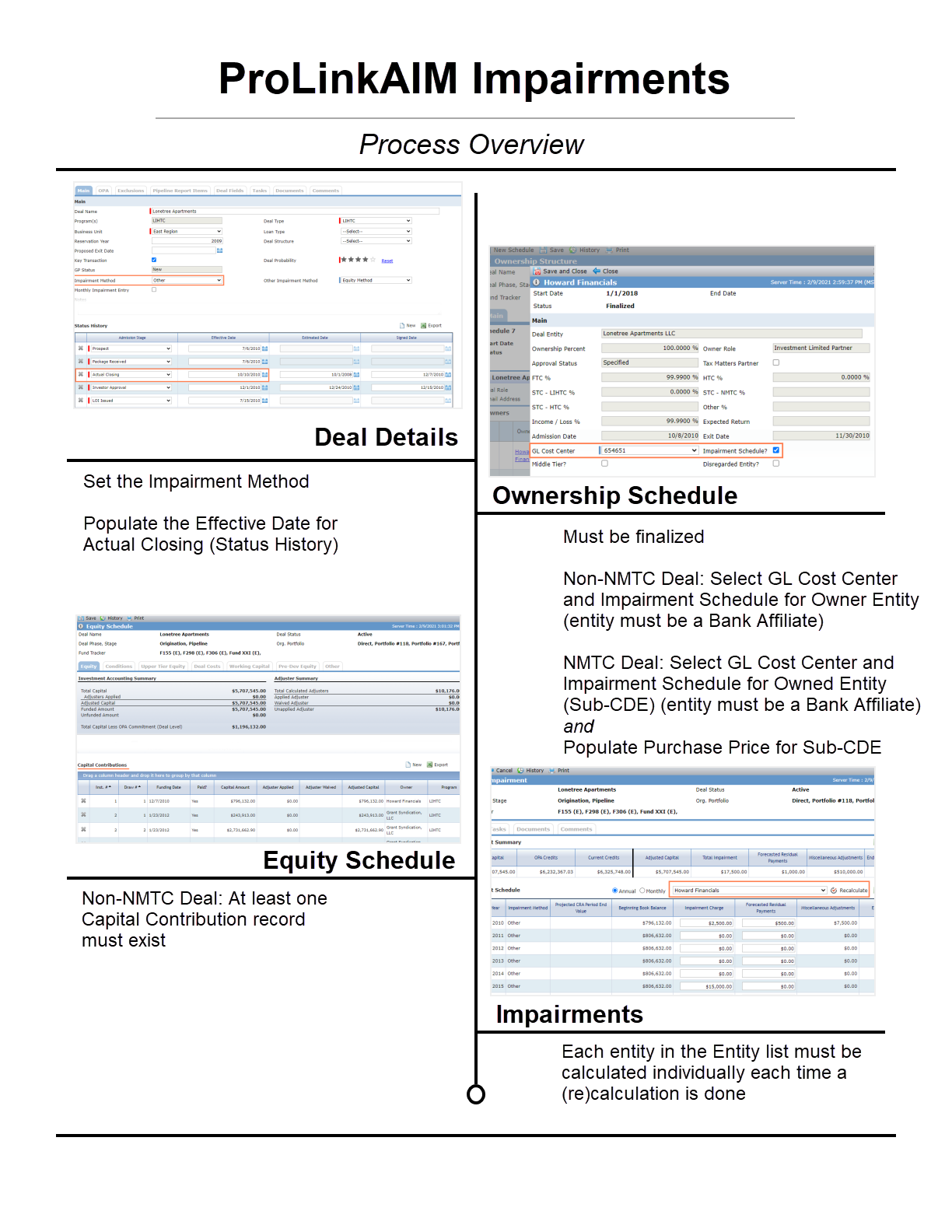
Prior to tracking impairments, you will need to ensure that certain information is set up through Deal Details, the Ownership Schedule, and the Equity Schedule.
Note
If you change the impairment method from one method to another, the system preserves existing impairment method records.
Tip
ProLink includes data views to help report on impairments across the portfolio:
Deal Impairments—Displays a row for each deal Impairment record, allowing you to view each impairment year per owner entity per deal. You can click a row to navigate to the applicable Edit Impairment screen for the deal. You can quick search on Deal ID, Deal Name, or Entity Name.
Impairment Schedule - All—Displays a row for each fund annual Impairments record and each deal annual Impairments record, allowing you to see book values across deal and fund investments. For example, you can report on all impairment entries for an owner/investor entity across both deal and fund investments. No click-through functionality is available. You can quick search on Fund or Deal ID, Name, or Entity Name.
Navigate to the deal, and then select Impairments in the left navigation menu.
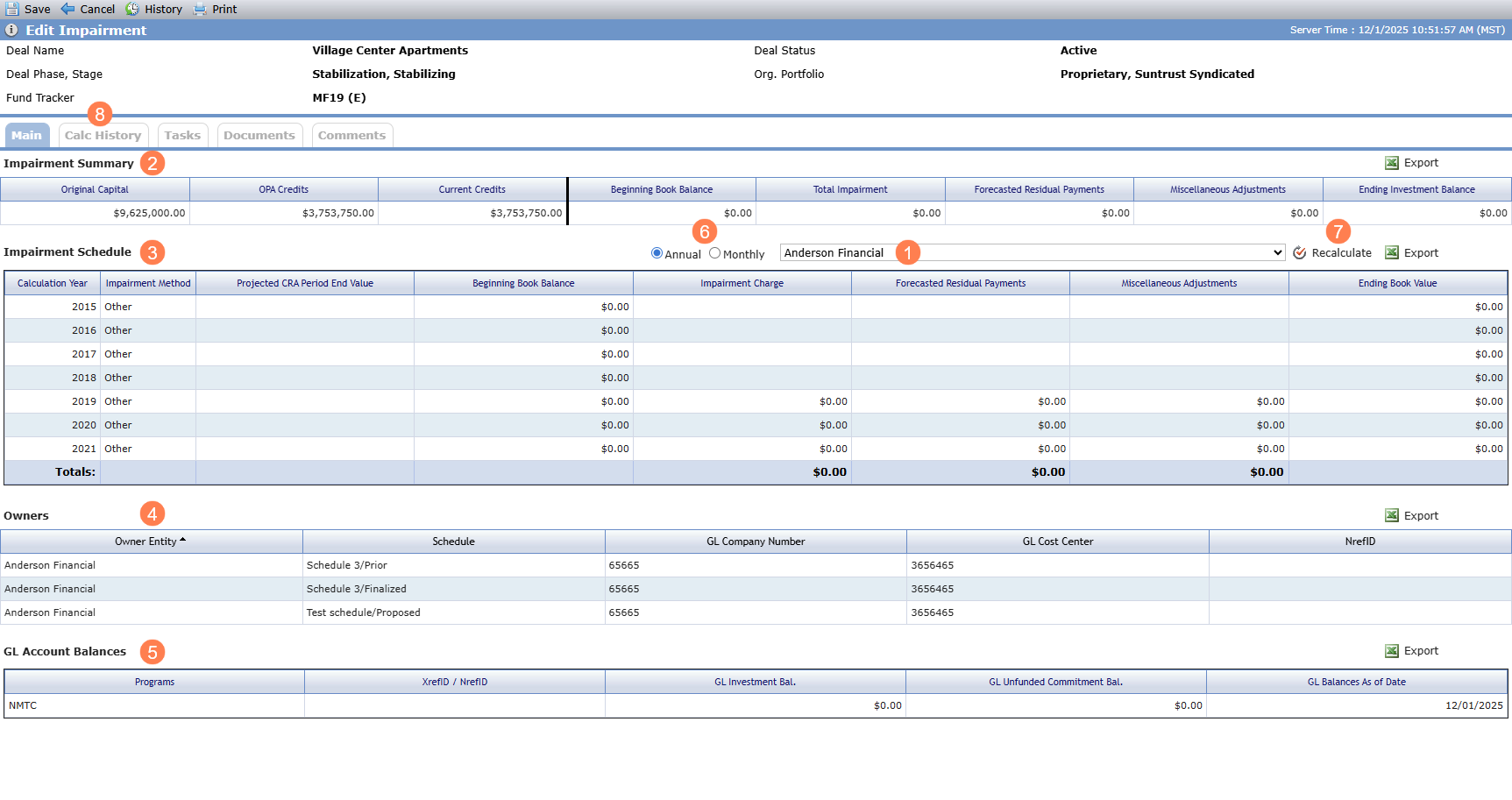
Entity list—Displays a list of all Owner or Owned Entities on an Ownership Schedule with a GL Cost Center selected and the Impairment Schedule checkbox selected.
Note
The entity must be noted as a Bank Affiliate on the Entity record before you can select a GL Cost Center and Impairment Schedule.
Impairments Summary grid—Displays a single row summarizing impairment information from the deal and all Owner Impairment Schedules.
Column
Description
Original Capital
Deal-level Total Capital from Equity Schedule
OPA Credits
Sum of total OPA Credits from all tax credit grids on the Benefit Schedule
Current Credits
Sum of the following:
LIHTC—Use Expected Credits if not equal to zero, otherwise use OPA Credits.
For all other tax credit types—Sum LT Actual if available; if that equals zero, use Current Credits; if that equals zero, use OPA Credits.
Adjusted Capital
The Adjusted Capital column appears if the deal is not a NMTC or STC-NMTC deal.
Deal-level Adjusted Capital from Equity Schedule
Beginning Book Balance
The Beginning Book Balance column appears if the deal is a NMTC or STC-NMTC deal.
Sum of the Purchase Price for all Sub-CDEs listed in the Entity list
Total Impairment
Sum of Impairment Charges from all Impairment Schedule rows, for all Sub-CDEs, across all annual Impairment Schedules on the Deal
Forecasted Residual Payments
Sum of Forecasted Residual Payments from all Impairment Schedule rows across all annual Impairment Schedules, for all Sub-CDEs on the Deal
Miscellaneous Adjustments
Sum of Miscellaneous Adjustments from all Impairment Schedule rows across all annual Impairment Schedules, for all for all Sub-CDEs on the Deal
Ending Investment Balance
NMTC and STC – NMTC Deals: Beginning Book Balance + Total Impairment + Forecasted Residual Payments + Miscellaneous Adjustments
All Other Deals: Adjusted Capital + Total Impairment + Forecasted Residual Payments + Miscellaneous Adjustments
Impairment Schedule grid—You populate this grid using the Recalculate button. See About Impairment Recalculation for information about impairment recalculation.
Column
Description
Calculation Year
MM/YYYY
The month and year of the period for the monthly view.
The year of the period for the annual view.
Impairment Method
Displays the Impairment Method selected for the deal (Deal Details).
Projected CRA Period End Value
For manual impairment method, the projected CRA period ending value, updated through the Deal Book Value Mass Update Import utility.
For system impairment methods, will be blank.
Beginning Book Balance
The book value for the investment at the start of the month, prior to applying any depreciation or adjustments.
For Impairment Schedule Month records, this value will be set to the prior month's Ending Book Balance.
For Impairment Schedule Year records, this value will be set to the prior year's Ending Book Balance.
Impairment Charge
The calculated depreciation to be applied that period. Represented as a negative currency amount.
For Straight-Line:
Monthly—Displays the monthly Impairment Charge from the Impairment Schedule Month record, read-only.
Annual—Displays the annual Impairment Charge from the Impairment Schedule Year record, read-only.
For Proportional:
Monthly—Displays the monthly Impairment Charge from the Impairment Schedule Month record, read-only.
Annual—Displays the annual Impairment Charge from the Impairment Schedule Year record, read-only.
For Other (Equity):
Monthly—Display Impairment Charge from the Impairment Schedule Month record when read-only.
Annual—Display Impairment Charge from the Impairment Schedule Year record when read-only.
Also note:
This field is editable for the current calendar year or future calendar years on the Annual view when the Monthly Impairment Entry checkbox on Deal Details is cleared.
This field is editable for prior calendar years on the Annual view when the Monthly Impairment Entry checkbox on Deal Details is cleared and you have the Impairment Backdating privilege.
This field is editable for the current calendar month or future calendar months on the Monthly view when the Monthly Impairment Entry checkbox on Deal Details is selected.
This field is editable for prior calendar months on the Monthly view when the Monthly Impairment Entry checkbox on Deal Details is selected and you have the Impairment Backdating privilege.
Forecasted Residual Payments
For Straight-Line:
Will be blank
For Proportional:
Monthly—Displays the monthly Forecasted Residual Payments from the Impairment Schedule Month record, read-only.
Annual—Displays the annual Forecasted Residual Payments from the Impairment Schedule Year record, read-only.
For Other (Equity):
Monthly—Display Forecasted Residual Payments from the Impairment Schedule Month record when read-only.
Annual—Display Forecasted Residual Payments from the Impairment Schedule Year record when read-only.
Also note:
This field is editable for the Annual view when the "Other" Impairment Method is selected (Deal Details) and for the Monthly view when the "Other" Impairment Method is selected and the Monthly Impairment Entry checkbox is selected (Deal Details).
This field is editable for the current calendar year or future calendar years on the Annual view when the Monthly Impairment Entry checkbox on Deal Details is cleared.
This field is editable for prior calendar years on the Annual view when the Monthly Impairment Entry checkbox on Deal Details is cleared and you have the Impairment Backdating privilege.
This field is editable for the current calendar month or future calendar months on the Monthly view when the Monthly Impairment Entry checkbox on Deal Details is selected.
This field is editable for prior calendar months on the Monthly view when the Monthly Impairment Entry checkbox on Deal Details is selected and you have the Impairment Backdating privilege.
Miscellaneous Adjustments
Adjustments to the book value that are applied after depreciation.
For Straight-Line:
Monthly—Displays the monthly Miscellaneous Adjustments from the Impairment Schedule Month record, read-only.
Annual—Displays the annual Miscellaneous Adjustments value from the Impairment Schedule year record, read-only.
For Proportional:
Monthly—Displays the monthly Miscellaneous Adjustments from the Impairment Schedule Month record, read-only.
Annual—Displays the annual Miscellaneous Adjustments value from the Impairment Schedule year record, read-only.
For Other (Equity):
Monthly—Display Miscellaneous Adjustments from the Impairment Schedule Month record when read-only.
Annual—Display Miscellaneous Adjustments from the Impairment Schedule Year record when read-only.
Also note:
This field is only editable for the Monthly view when the "Other" Impairment Method is selected and the Monthly Impairment Entry checkbox is selected (Deal Details).
This field is editable for the current calendar month or future calendar months on the Monthly view when the Monthly Impairment Entry checkbox on Deal Details is selected.
This field is editable for prior calendar months on the Monthly view when the Monthly Impairment Entry checkbox on Deal Details is selected and you have the Impairment Backdating privilege.
Ending Book Value
For Straight-Line:
Beginning Book Balance – Impairment Charge + Miscellaneous Adjustments
For Proportional and Other:
For non-NMTC deals—Owner Adjusted Capital + <LTD Impairment Charge> + <LTD Forecasted Residual Payments> + <LTD Miscellaneous Adjustments>
For NMTC deals—Purchase Price + <LTD Impairment Charge> + <LTD Forecasted Residual Payments> + <LTD Miscellaneous Adjustments>
LTD includes all months prior to and including the month being calculated.
Owners grid—Displays a list of all Owner Entities on any Ownership Schedule for the deal that have both the GL Company Number and GL Cost Center fields populated.
If the same entity is in multiple Ownership Structures, the entity is displayed in the Owners grid multiple times.
GL Account Balances grid—Displays one row for current GL account balances, plus a list of snapshot GL account balances created by the GL Extract Generation Process for the entity selected in the Entity list. For more information, see GL Extract Processes and GL Extract Log Utility.
The XrefID/NrefID column shows the XrefID for LIHTC, HTC, STC-LIHTC, and STC-HTC programs.
The XrefID/NrefID column shows the NrefID for NMTC and STC-NMTC programs.
View—Select from the following views:
Annual—Select to display all Impairment Schedule Year records for the selected entity. The Annual view uses Calculation Year as the first column of the grid.
Monthly—Select to display all Impairment Schedule Month records for the selected entity. The Monthly view uses MM/YYYY as the first column of the grid.
Recalculate button—See About Impairment Recalculation for information about impairment recalculation. The button is disabled if:
The deal does not have an Impairment Method selected on Deal Details.
No entities are displayed in the Entity list.
You do not have the Modify - Recalculate Impairment privilege.
Calc History tab—See Calculation History for information about the Calc History tab.
For deals using the Straight-Line method, Proportional Amortization method, or Other method, you can use the system impairment recalculation. You might perform this task on a quarterly basis (for projections) or annual basis (for actuals).
For deals using the Manual method, you will also use the Recalculate button to initially populate the Impairments Schedule grid. All values will be $0 by default.
Navigate to the deal, and then select Impairments in the left navigation menu.
Click Recalculate above the Impairment Schedule grid to open the Recalculate Impairment popup.
For the Proportional Amortization, Other, or Manual methods, the Current Impairment Schedule grid in the popup shows the same data as the Annual Impairment Schedule for the selected entity on the Edit Impairment screen.
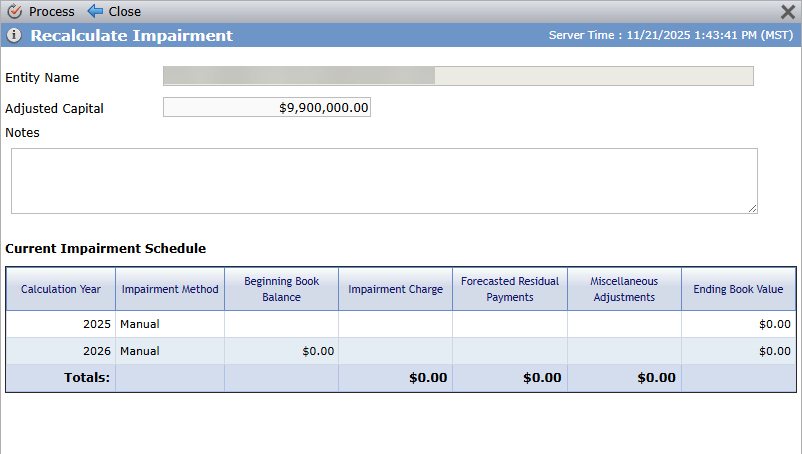
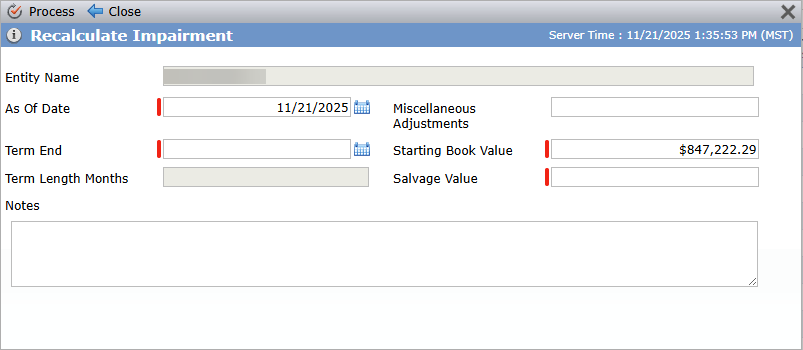
Deals with Manual Method (no option for setting the As of Date); Deals with Straight-Line Method
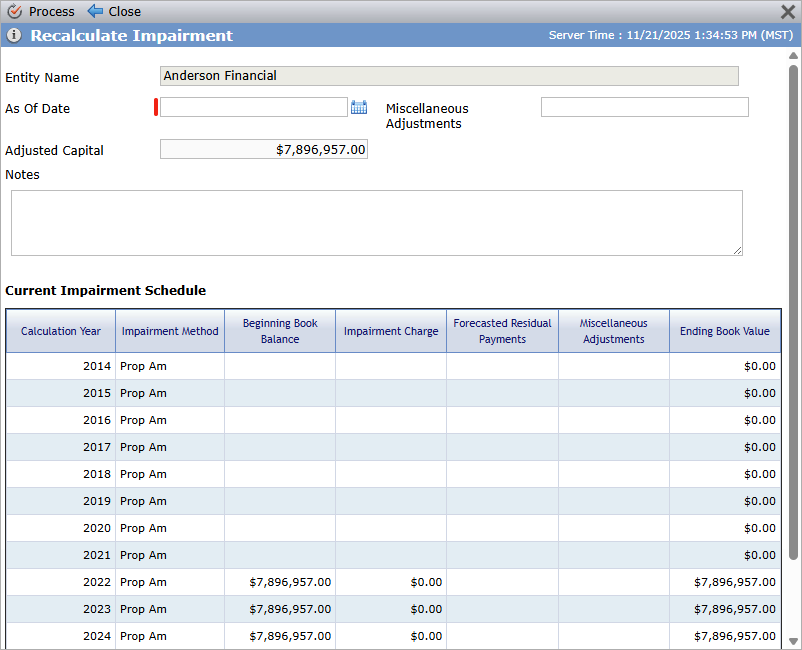
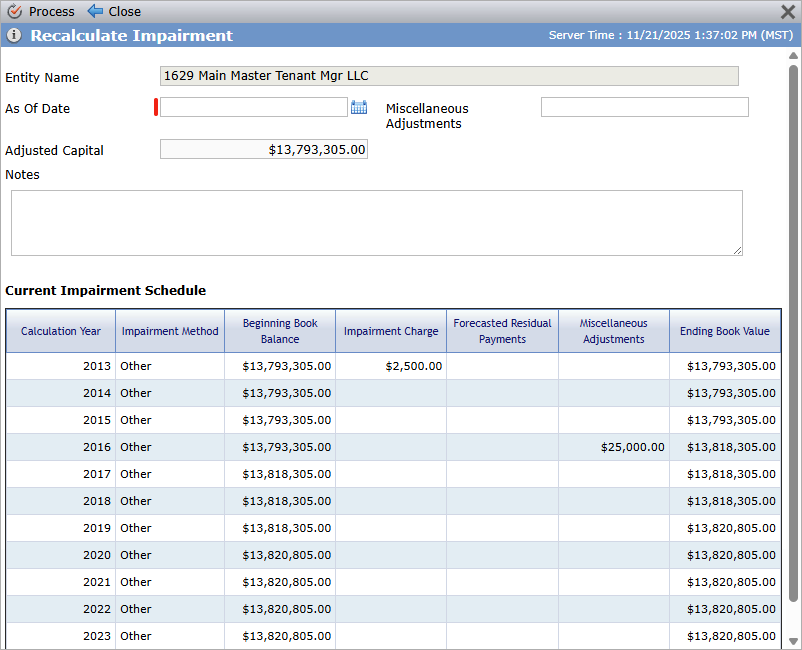
Deals with Proportional Amortization Method; Deals with Other Method
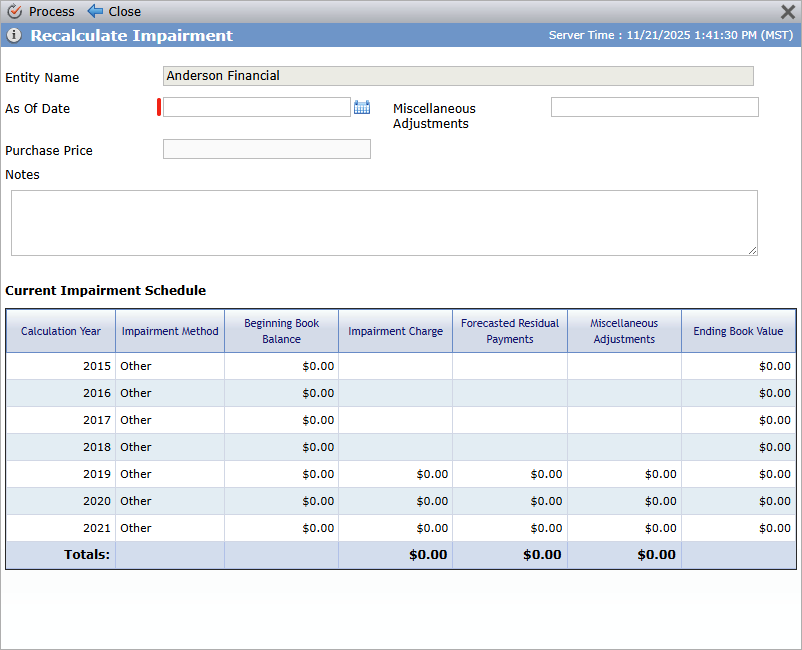
NMTC and STC-NMTC deals (Purchase Price instead of Adjusted Capital)
For Straight-Line method deals:
The Entity Name displays the name of the investor entity selected on the Edit Impairment screen.
Enter the date from which to begin calculating values in the As Of Date field.
Values for years prior to the selected As Of Date will not be updated.
Important
If you have the Impairment Backdating privilege, you can enter an As of Date that is before the first day of the current calendar month or after the current date.
If you enter an As of Date prior to the first year of the Impairment Schedule, January 1 of the first year of the Impairment Schedule is used as the effective date.
If needed, enter an adjustment up or down to the Book Value in the Miscellaneous Adjustments field, which will will be applied to the month of the As Of Date.
Enter the date on which the impairment term will end in the Term End Date field.
The Term Length Months field is a read-only reference field containing the calculated number of months from the month of the As Of Date to the month of the Term End Date.
If needed, update the Starting Book Value of the investment on the As Of Date.
If the calculation has never been run before, the value defaults to the Total Adjusted Capital for the selected Investor Entity. If the calculation has been run previously, the value defaults to the Beginning Book Balance for the month of the As Of Date. You can change the default.
Enter the expected final book value at the end of the term in the Salvage Value field.
Enter optional information about the recalculation in the Notes field, which is saved to the history.
For Proportional Amortization and Other method deals:
The Entity Name displays the name of the investor entity selected on the Edit Impairment screen.
Enter the date from which to begin calculating values in the As Of Date field.
Values for years prior to the selected As Of Date will not be updated.
Important
If you have the Impairment Backdating privilege, you can enter an As of Date that is before the first day of the current calendar month or after the current date.
If you enter an As of Date prior to the first year of the Impairment Schedule, January 1 of the first year of the Impairment Schedule is used as the effective date.
If needed, enter an adjustment up or down to the Book Value in the Miscellaneous Adjustments field, which will will be applied to the month of the As Of Date.
Enter optional information about the recalculation in the Notes field, which is saved to the history.
For non-NMTC and non-STC-NMTC deals, the Adjusted Capital field displays the selected entity's Adjusted Capital from the Equity Schedule.
For NMTC and STC-NMTC deals, the Purchase Price field displays the selected entity's Purchase Price.
Enter optional information about the recalculation in the Notes field, which is saved to the history.
For Manual method deals:
The Entity Name displays the name of the investor entity selected on the Edit Impairment screen.
For non-NMTC and non-STC-NMTC deals, the Adjusted Capital field displays the selected entity's Adjusted Capital from the Equity Schedule.
For NMTC and STC-NMTC deals, the Purchase Price field displays the selected entity's Purchase Price.
Enter optional information about the recalculation in the Notes field, which is saved to the history.
Click Process in the top toolbar.
If the Monthly Impairment Entry checkbox is selected on Deal Details, for years on or after the year of the As Of Date, the Impairment Charge, Forecasted Residual Payments, and Miscellaneous Adjustments will be the sum of their monthly values from their records for that year.
If the Monthly Impairment Entry checkbox is cleared on Deal Details:
For any year, the monthly Miscellaneous Adjustments value for only the As of Date month will be updated to the amount entered in the Miscellaneous Adjustments field in the Recalculation popup.
For the years after the year of the As of Date, the Impairment Charge and Forecasted Residual Payments will be the annual amount divided by 12.
For the year of the As of Date, compare the Impairment Charge for the year to the sum of the Impairment Charges from Impairment Schedule Months for the year.
If the values are equal, then no updates are necessary
If the values are different, then Impairment Charges are as follows:
Sum of Impairment Schedule Month Impairment Charge minus Impairment Schedule Year value.
Divide the difference by the number of months between the As Of Date month and the end of the year.
Add that value to the Impairment Charge for each Impairment Schedule Month for months between the As Of Date Month and the end of the year.
For the year of the As of Date, compare the Forecasted Residual Payments for the year to the sum of the Forecasted Residual Payments from Impairment Schedule Month for that Year.
If the values are equal, then no updates are necessary.
If the values are different, then calculate the sum of the Impairment Schedule Month Forecasted Residual Payments
Minus the Impairment Schedule Year value.
Divide the difference by the number of months between the As Of Date month and the end of the year.
Add that value to the Forecasted Residual Payments
For each Impairment Schedule Month for months between the As Of Date month and the end of the year.
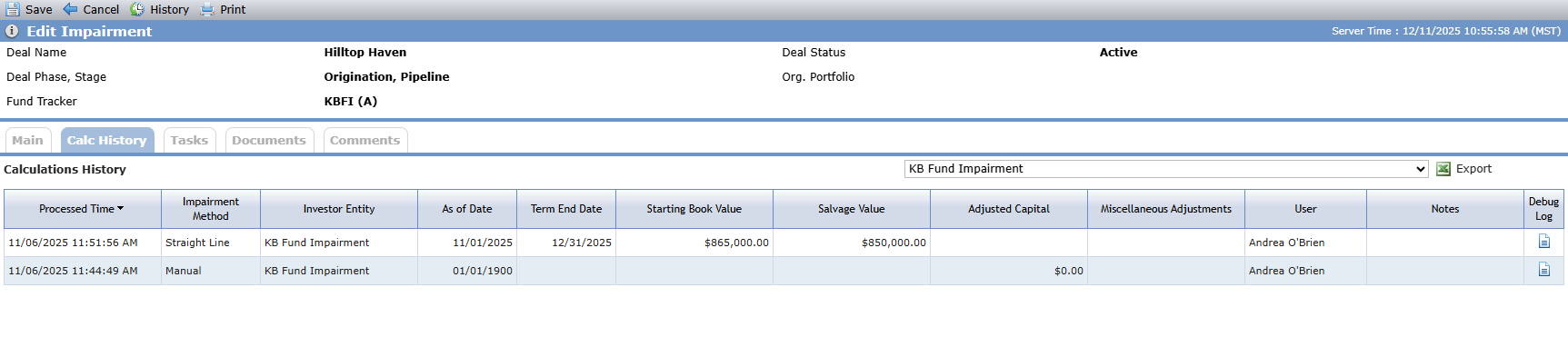
The system captures the history of impairment calculations for each investor-investment relationship on the Calc History tab of the Edit Impairment screen. Different from the standard record audit history, the calculation history shows the values that were used to perform impairment calculations. The calculation history is available for all impairment methods, and the columns in the grid depend on the impairment method(s) listed.
Caution
If you clear the Impairment Schedule checkbox on a finalized ownership schedule for an owner, the system deletes the impairment history along with current impairment data.
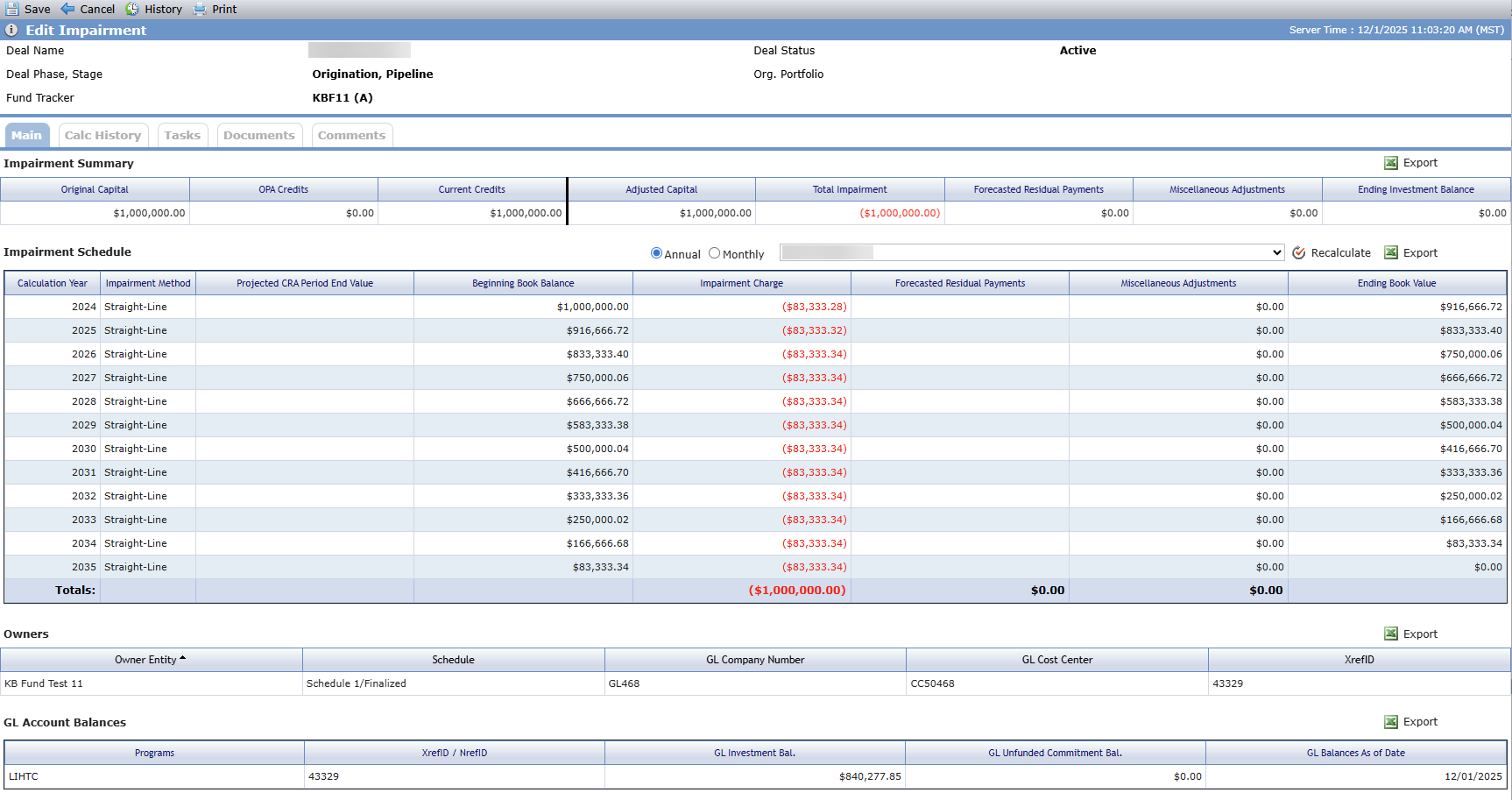
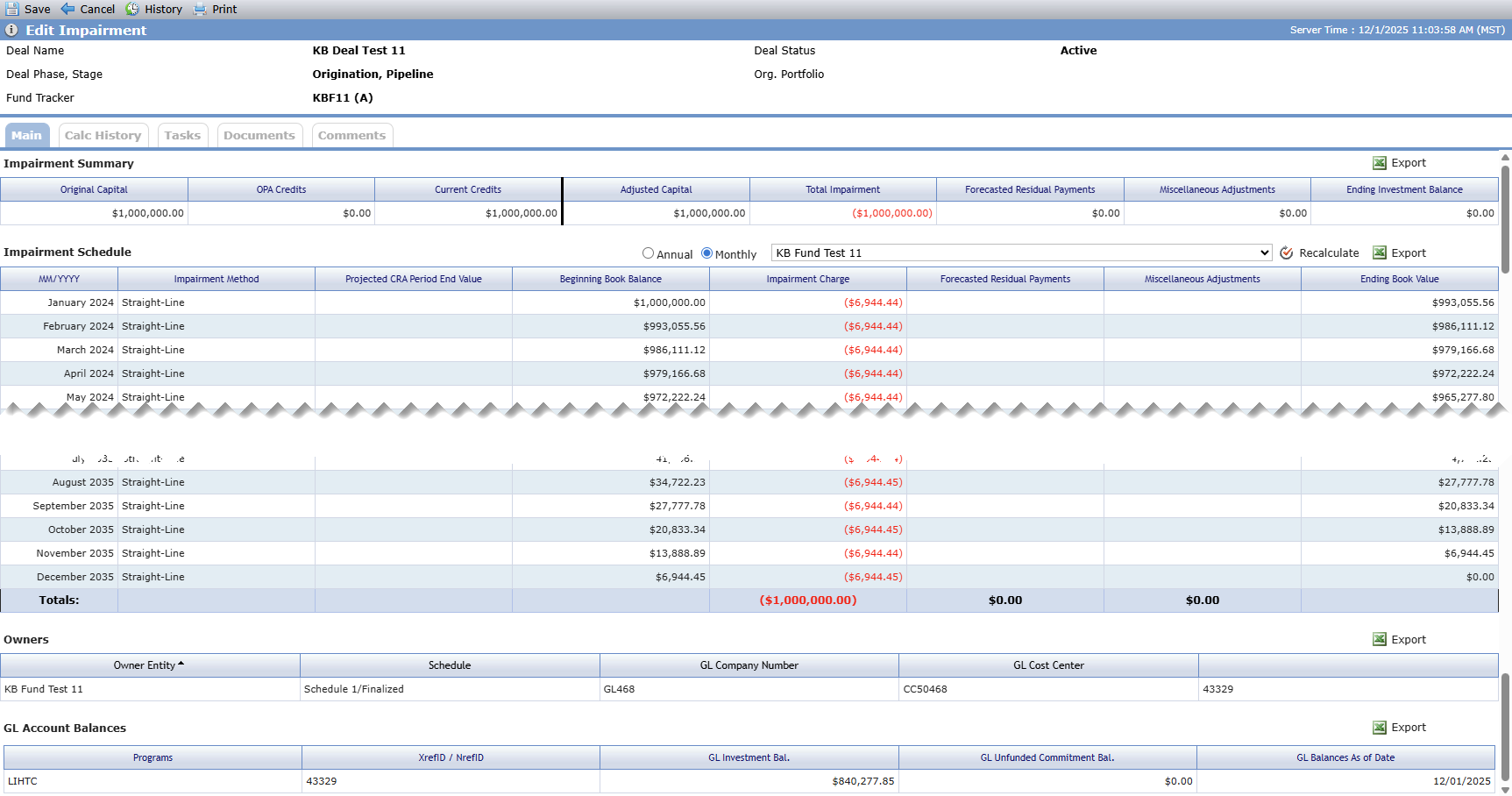
When you click Process, the system calculates the Impairment Schedule using the Straight-Line depreciation method. During processing, the system:
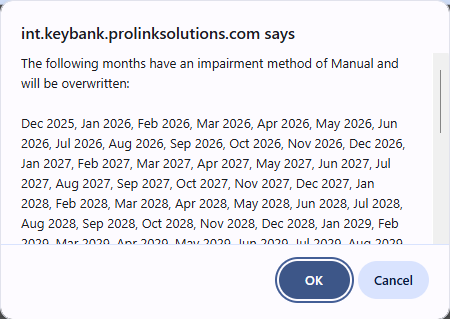
Validates whether the process will overwrite any existing Manual Impairment records. If so, the system prompts you to confirm or cancel the overwrite.
Creates the Impairment Schedule Year and Month records if they do not already exist.
For NMTC deals, the first year record will be the earliest value of the following options: year of the deal's Actual Close Date (Effective Date of the Actual Closing Admission Stage in Deal Details) or year of the value entered into the As Of Date field in the Recalculate Impairment popup. For all other deal types, the first year record will be the earliest value of the following options: year of the Admission Date of the selected entity from the finalized ownership schedule or year of the As Of Date.
The last year record will be the year with the greatest value of the following options: last year of benefit schedule years, last year of the Date Received from Cash Flow Payments where the selected entity is the payor, last year of Capital Contribution records where the assigned owner is the same as the selected entity, last year of the Exit Date for the selected entity on the finalized ownership schedule, or year of the end of the amortization term (Term End Date in the Recalculate popup).
Calculates monthly Impairment records. Calculation will start in the month of the As Of Date and terminate at the month of the Term End Date, with the month of the As Of Date counting as Month 1 in the Term and the month of the Term End Date counting as the final month in the Term. The Ending Book Value in the last month of the term will be equal to the Salvage Value that was defined in the Recalculate Impairment popup.
First impairment month record:
Beginning Book Balance—User-entered Starting Book Value
Impairment Charge—(Starting Book Value - Salvage Value) / Length of Term
Miscellaneous Adjustments—Any user-input value for Miscellaneous Adjustments will be recorded on the Miscellaneous Adjustments field for this month
Ending Book Value—Beginning Book Balance – Impairment Charge + Miscellaneous Adjustments
Subsequent impairment month records:
Beginning Book Balance—Ending Book Value from the month immediately prior to the month being calculated
Impairment Charge—(Month Beginning Book Balance – Salvage Value) / Length of Term Remaining
Miscellaneous Adjustments—Will be blank. If there is an existing value for Miscellaneous Adjustments in a given month, that value should remain. The existing value should be factored into the calculation for Ending Book Value for that month.
Ending Book Value—Beginning Book Balance – Impairment Charge
Calculates annual Impairment records based on the results of the monthly impairment calculation.
Beginning Book Balance—The book value for the investment at the start of the year
Impairment Charge—The sum of Impairment Charge values from every Impairment Month Record in the year
Miscellaneous Adjustments—The sum of Miscellaneous Adjustments from every Impairment Month Record in the year
Ending Book Value—The Ending Book Value from the last month of the year
Automatic System Recalculation
When you import data for deals that use the Straight-Line impairment method, the system automatically recalculates the remainder of the depreciation term for the updated Impairment Schedule when the Ending Book Value in the import file is different than the Ending Book Value in the system for the same month. The recalculation begins in the month immediately after the latest month of an imported value.
The system uses the impairment Calc History to determine the variables for the recalculation:
As Of Date = First of the month immediately after the latest manually updated (imported) month
Term End Date = Date from the most recent history record for the impairment schedule
Salvage Value = Value from the most recent history record for the impairment schedule
Starting Book Value = The Ending Book Value specified in the import for the prior month
Miscellaneous Adjustments = $0.00
Automatic recalculation is skipped if the Impairment Schedule has never been calculated using the Straight-Line method before, if the date of the imported row is after the calculated Term End Date for the auto-recalculation, or if the imported value is less than the salvage value selected for the recalculation.
Automatic recalculation results in a new impairment calc history record with ProLink Admin shown as the user. The import log file also includes information about auto-recalculations.
If you visit the Impairment Schedule where automated recalculations are being processed, the screen displays a message indicating recalculations are pending or in process and the Recalculate button is disabled. In addition, the Impairment Schedule field on the Ownership Structure popup is disabled.
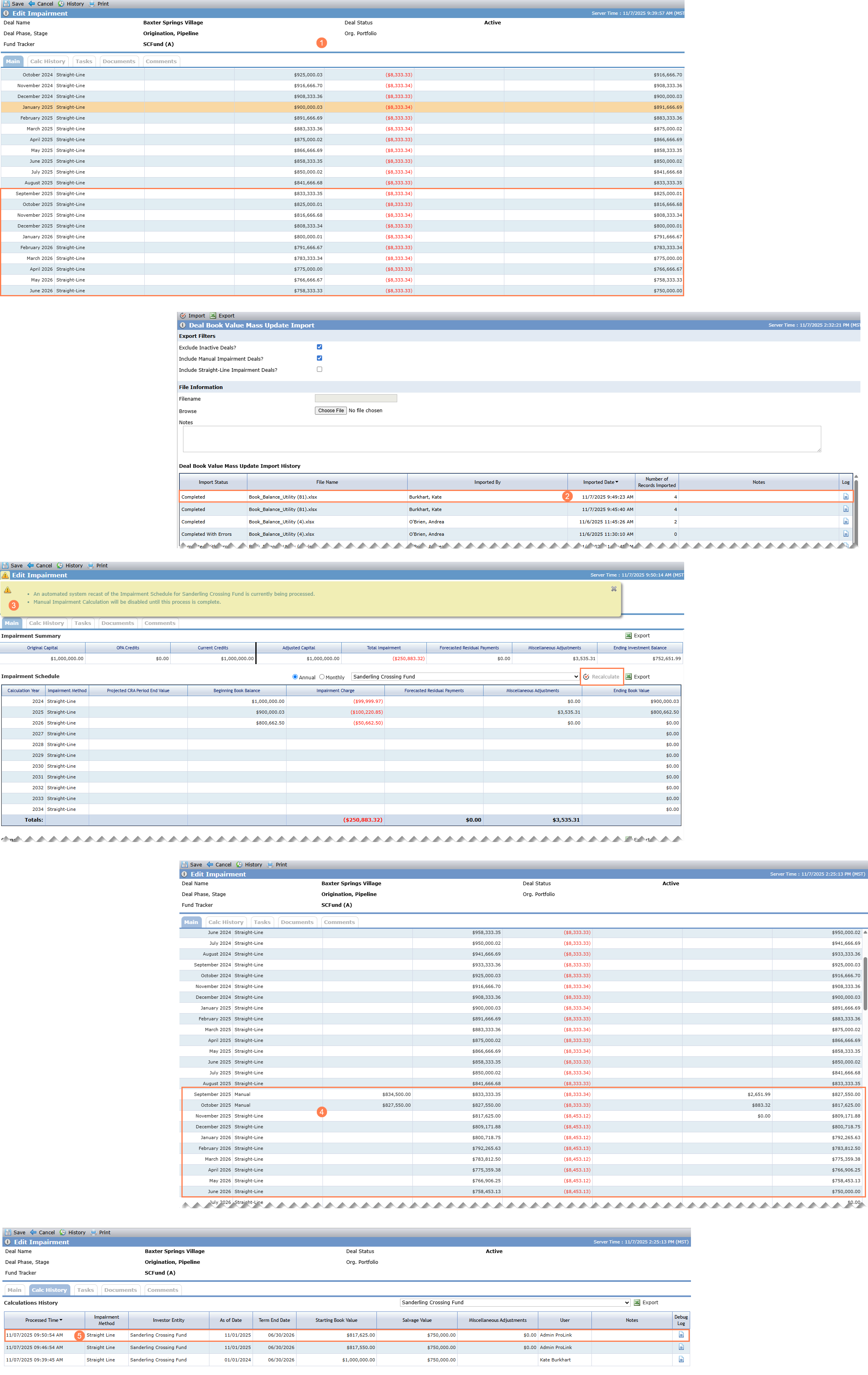
Before automatic system recalculation, the Impairment record shows the Impairment Schedule using the Straight-Line method.
Next, we import a Book Balance file with updated entries for September 2025 and October 2025.
If you visit the Edit Impairment screen, the system indicates an automatic system recalculation is being processed.
When the automated system recalculation is complete, the Impairment Schedule shows Manual for the Impairment Method for September 2025 and October 2025, with updated values. In addition, the system has updated the values for all future rows.
If you visit the Calc History tab, the grid shows the "Admin ProLink" user initiated an impairment calculation.
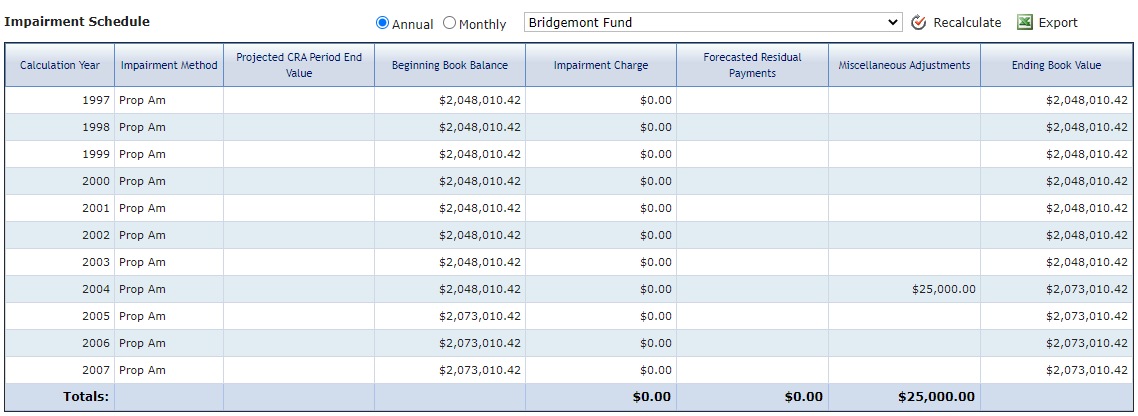
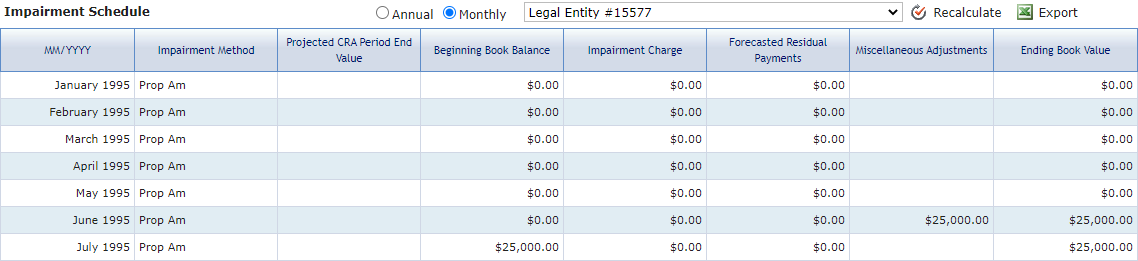
When recalculating the annual Impairment Charge, the Impairment Charge for Impairment Schedule Year records for years prior to the year of the As of Date will not be updated.
On recalculation, the Impairment Charge for each year being updated in the Impairment Schedule will be set to the result of the following calculation:
(<Owner Year Expected or Delivered Tax Credits> / (<Owner Total Tax Credits> - <LTD Owner Year Expected or Delivered Tax Credits> + <Owner Year Expected or Delivered Tax Credits>)) * <Adjusted Beginning Book Balance> * -1 where:
<Owner Year Expected or Delivered Tax Credits> = sum of the following for all tax credit types for the Benefit Year of the Impairment Schedule year being calculated:
LIHTC: If Total Expected Credits for the selected Owner is not equal to zero, then use Expected Credits for the year in the sum. Otherwise, use OPA Credits for the year in the sum.
All other tax credit types: Sum the best available tax credit value for all Benefit Years. Use LT Actual, if available, otherwise use Current Credits if available, or use OPA Credits.
<Owner Total Tax Credits> = sum of the following for all tax credit types for all Benefit Years:
LIHTC: If Total Expected Credits for the selected Owner is not equal to zero in the LIHTC Federal Credits grid, then use Total Expected Credits for the year in the sum. Otherwise, use Total OPA Credits for the year in the sum.
All other tax credit types: Sum the best available tax credit value for all Benefit Years. Use LT Actual, if available, otherwise use Current Credits if available, or use OPA Credits.
<LTD Owner Year Expected or Delivered Tax Credits> is similar to <Owner Year Expected or Delivered Tax Credits>, but only sum the first year of the Impairment Schedule through the year being calculated.
Adjusted Beginning Book Balance = Current Owner Adjusted Capital + Prior Year LTD Impairment Charge + Prior Year LTD Miscellaneous Adjustments + Prior Year LTD Forecasted Residual Payments.
Creating and Calculating Amortization
The system first creates any missing Impairment Schedule Year records. The years that will be created is based on:
First Year
NMTC and STC-NMTC Deals—Actual Close Date of the deal
Other Deals—Year of the earliest Admission Date of the selected entity from the Finalized Ownership Schedule.
Last Year—Based on the year of the following records that exist for the entity:
Benefits Year—Last year
Cash Flow Payments—Last Year of Date Received from Payments
Capital Contributions—Last year of Funding Date where the selected entity is the Owner of the record
Exit—Last year of Exit Date of Owner
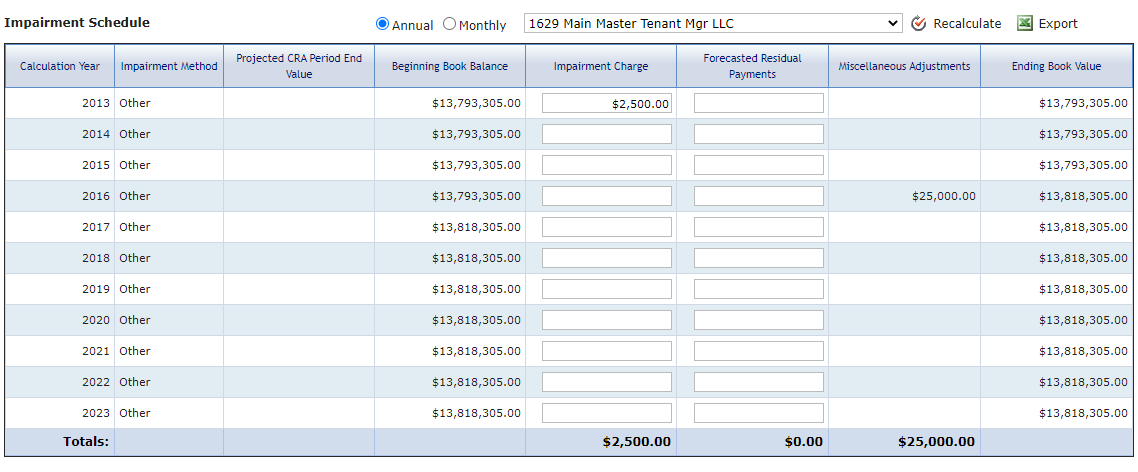
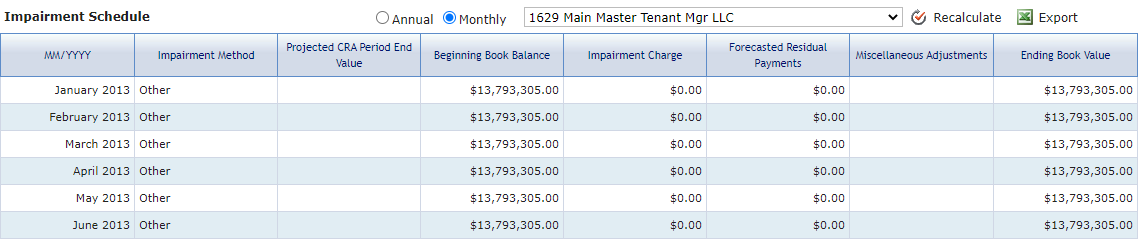

The Calculation for the Ending Book Value is the sum of the Beginning Book Balance + the Impairment Charge + the Forecasted Residual Payments + the Miscellaneous Adjustment.
The fields are read-only when the Monthly Impairment Entry checkbox is selected on Deal Details.
Creating and Calculating Amortization
The system first creates any missing Impairment Schedule Year records. The years that will be created is based on:
First Year
NMTC and STC-NMTC Deals—Actual Close Date of the deal
Other Deals—Year of the earliest Admission Date of the selected entity from the Finalized Ownership Schedule.
Last Year—Based on the year of the following records that exist for the entity:
Benefits Year—Last year
Cash Flow Payments—Last Year of Date Received from Payments
Capital Contributions—Last year of Funding Date where the selected entity is the Owner of the record
Exit—Last year of Exit Date of Owner
In cases where book values are calculated outside of ProLinkAIM, you will set up the Deal Details to use the Manual impairment method.
You then use the Deal Book Value Mass Update Import utility, which allows you to upload book values into ProLinkAIM for all deals in your portfolio using the Manual impairment method.
ProLinkAIM includes functionality to recalculate impairment schedules for all deals in the application, located within the Workflows menu option in the ProLink Admin panel. Access to run the update is limited to specific, administrative role users. These users can run the recalculation based on a number of different dates, including Current Date, each deal's Actual Close Date, or a selected As of Date.
For more information, see Recalculate Impairments for All Deals.