Associate an Entity to a Deal or Fund
When an entity exists in the application, it is available to be associated to a deal or fund. You can associate an entity in the following ways:
As a Deal Entity—The entity will play a specific role on the deal. An example is the Partnership; their relationship is directly with the deal.
As a Fund Entity—The entity will play a specific role on the fund. An example is the Investment Limited Partner; these are entities that will be owners in the fund.
As an Associated Company—The entity will play a role on the deal or fund, but the relationship is through a Deal Entity or Fund Entity, not directly with the deal or fund. An example is a Property Manager; their relationship is typically through the Partnership rather than directly to the deal.
Note
When a deal or fund is created, depending upon the programs selected, the application might systematically create entities. See Create a Deal for more information.
Tip
Visit the Deal Entities and Fund Entities data views to see all the entities that have been associated to the deal or fund as well as the role they play.
Navigate to the deal or fund.
Select the Entities option in the left navigation panel of the selected deal or fund.
The List Entities screen opens. This screen shows all entities associated to the deal or fund.
Click New in the top toolbar.
Search for the entity.
Enter any combination of name, company/individual designation, and primary role.
If searching by name, enter only a portion of the name to broaden the results. Be sure to also search for variations of the name or acronyms.
Note
The results list shows up to 100 records. Refine the search criteria as needed to see the results you are looking for.
If the entity doesn't exist in the application, you can click New to open a blank Edit Entity screen and add the entity. When creating an entity in this manner, you need to assign a deal/fund role in addition to the primary role.
Caution
Before creating a new entity record, you should always perform a search to make certain the entity does not already exist. Creating duplicate entity records might create problems with reporting or when future updates are required.
Select the checkbox of the matching entity, and then select the Role (deal or fund specific role).
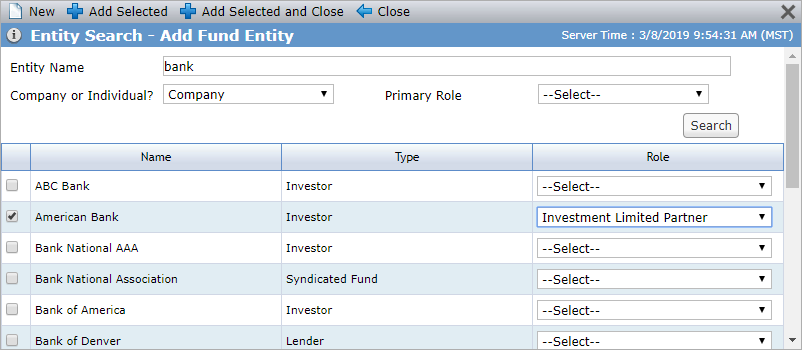
If you do not see the role you need to assign the entity, the entity might need to be added as an Associated Company instead.
Click Add Selected and Close.
The entity is added to the deal or fund in the selected role. You can now select the specific contacts for the deal/fund.
Note
To update information about the entity in the application, click Edit Entity Record to open the Edit Entity screen. To remove the entity from the deal or fund, click Remove from [Deal | Fund]. The entity still exists in the application to associate to other deals or funds.
Navigate to the deal or fund.
Select the Entities option in the left navigation panel of the selected deal or fund.
The List Entities screen opens. This screen shows all entities associated to the deal or fund.
Identify the deal or fund entity you want to associate the company to.
Click
 to expand the entity listing.
The entity listing expands to show the Associated Companies grid.
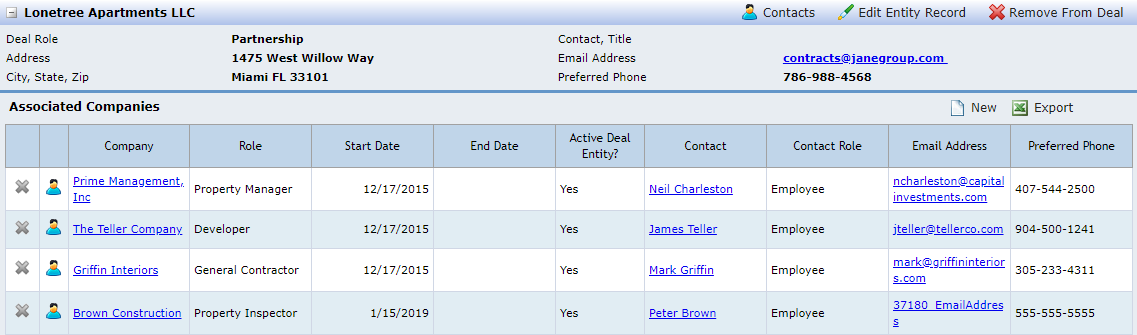
Click New above the Associated Companies grid.
The Entity Search popup screen opens.
Search for the entity.
Enter any combination of name, company/individual designation, and primary role.
If searching by name, enter only a portion of the name to broaden the results. Be sure to also search for variations of the name or acronyms.
Note
The results list shows up to 100 records. Refine the search criteria as needed to see the results you are looking for.
If the entity doesn't exist in the application, you can click New to open a blank Edit Entity screen and add the entity. When creating an entity in this manner, you need to assign a deal/fund role in addition to the primary role.
Caution
Before creating a new entity record, you should always perform a search to make certain the entity does not already exist. Creating duplicate entity records might create problems with reporting or when future updates are required.
Select the checkbox of the matching entity, and then select the Role (deal or fund specific role).
Click Add Selected and Close.
The entity is added as an associated contact to the deal entity or fund entity. You can now select the specific contacts for the deal/fund.
Note
To update information about the associated company in the application, click the hyperlink of the Company to open the Edit Entity screen. To remove the entity as an associated company, click  in the applicable row. The entity still exists in the application to associate to other deal entities or fund entities.
Add or Edit the Contacts for the Entity
Navigate to the deal or fund.
Select the Entities option in the left navigation panel of the selected deal or fund.
The List Entities screen opens. This screen shows all entities associated to the deal or fund.
Click Contacts above the desired entity listing to access the contacts for the deal entity or fund entity.
OR
Click
 in the applicable row of the Associated Companies grid to access the contacts for the associated company.
The Edit Contacts screen opens. This screen shows the Contacts from the Associations tab of the Edit Entity screen.
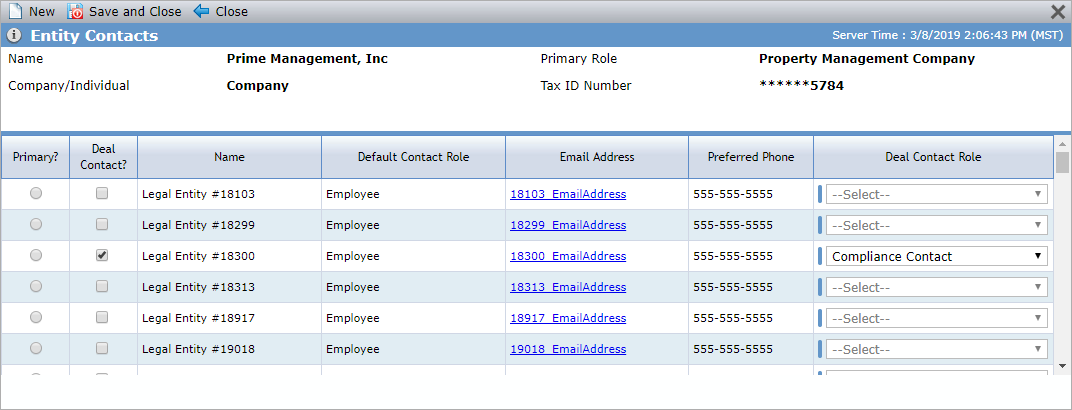
Indicate which contact is the primary contact for the deal/fund.
For contacts that will work on the deal/fund, select the Deal Contact checkbox, and then select their role on the deal.
Click Save and Close.