What's New
The release introduces the following new functionality.
Note
Some of these changes might not apply to your organization's use of ProLinkAIM. Please contact us if you have questions about whether and how a particular change affects your organization.
Deal Updates
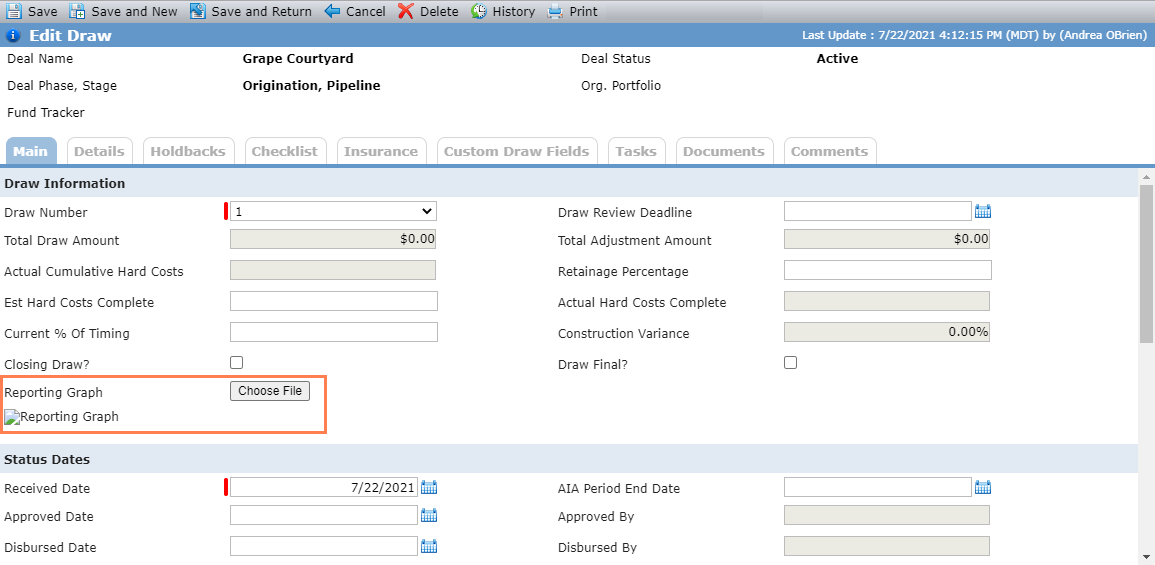
You can upload a picture to the Edit Draw screen (Construction Budget). Be sure to save the Draw record after uploading the file.
This picture may be displayed in the Watchlist Report (see New Watchlist Report).
Report Updates
This section describes updates to ProLinkAIM reports.
New Watchlist Report
The new Watchlist Report is available in the Reports panel. The report helps to monitor watchlist deals in stabilization status and includes the following sections: Property Overview, Issues, Construction Completion Status, Qualified Occupancy Status, Property Details, Financing Information, Guaranty Details, Background, Plan of Action, and Recent Updates.
To run the report, you need to provide the following report criteria: Property or Fund/Portfolio, Qtr End Month and Year, and Include Child Funds (Yes/No).
The report includes the picture uploaded to the Edit Construction Draw screen for the property (Reporting Graph). The system determines which draw record and picture to use based on the report month. If the construction budget includes multiple draws in one month, the report shows the picture from the earliest draw.
Changes to LT Financials Report
The LT Financials Report is updated to include the financials of any Lower Tier deals that pass through a Middle Tier before the Upper Tier Fund. The report continues to show Lower Tier deals that are directly associated to Upper Tier funds through the ownership schedule.
Admin Updates
ProLink Admin - MSA Admin has been appended with new MSA records to reflect Census Bureau data.
ProLink Admin Config Settings include the following new settings used for a new, client-specific version of the Invoice Report:
Invoice Report/Electronic Payment Address Name
Invoice Report/Electronic Payment Address
Invoice Report/Electronic Payment City, State, Zip
Invoice Report/Electronic Payment ABA#
Invoice Report/Electronic Payment Acct#
If you have questions about these settings or the report, please contact your Principal Business Consultant.
Help Updates
The Help Center includes new content: Construction Budget