Introduction to ProLinkAIM Inspections
The Inspections functionality provides a way for Asset Managers to schedule and manage their inspections for selected properties.
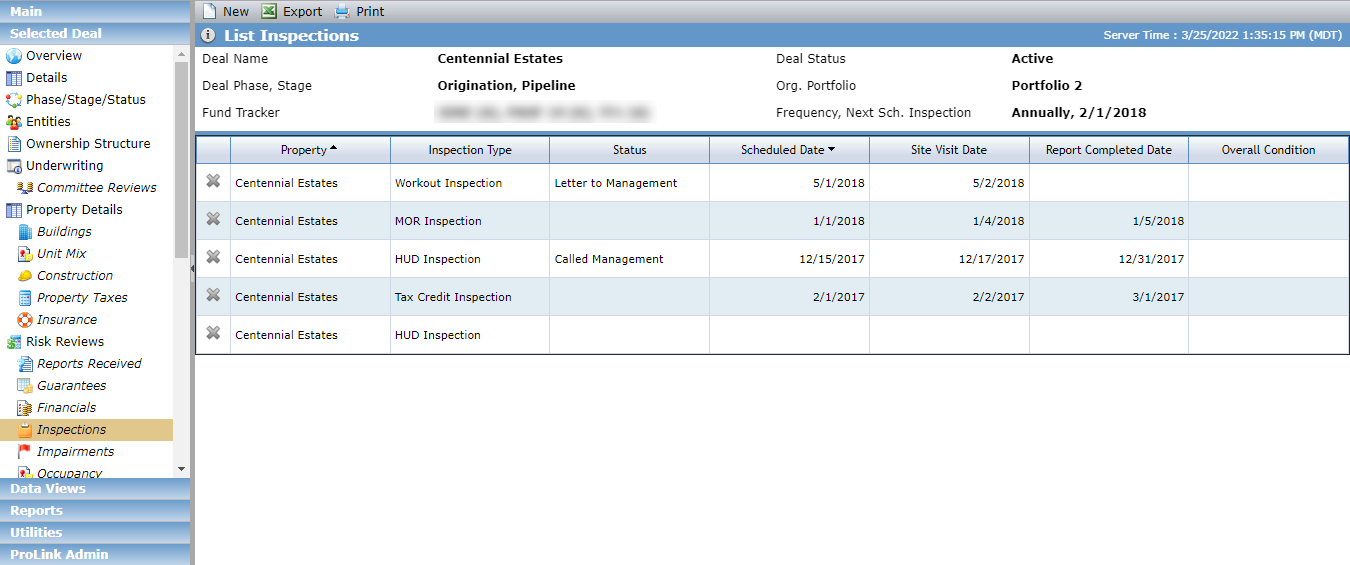
The Next Scheduled Inspection Date in the header displays:
The earliest Scheduled Date from all Tax Credit Inspections where the Completed Date is empty; otherwise,
Note
If "Tax Credit Inspection" does not exist as a value in the PL_InspectionType picklist, then the system looks at all inspections regardless of type.
The latest Scheduled Date from all Tax Credit Inspections where the Completed Date is populated plus the number of months equal to the inspection frequency selected; otherwise,
Note
If "Tax Credit Inspection" does not exist as an value in the PL_InspectionType picklist, then the system looks at all inspections regardless of type.
Note
Inspection frequency options ((Deal Details - OPA tab - Inspections section):
+12 months if the frequency = Annual
+6 months if the frequency = Semi-Annual
+24 months if the frequency = Every 2 Years
last inspection date if the frequency = Once
The Actual Placed in Service Date (PISD) from Edit Property plus the number of months equal to the inspection frequency selected; otherwise,
Blank (no Next Scheduled Inspection Date)
Note
ProLinkAIM Inspections functionality supports User Defined Fields (UDFs). If an Inspection UDFs exist, the Custom Inspection Fields tab is available on the Edit Inspection screen.
Main Tab
The Main tab provides general information about the inspection, including dates, inspector information, scores, and overall results.
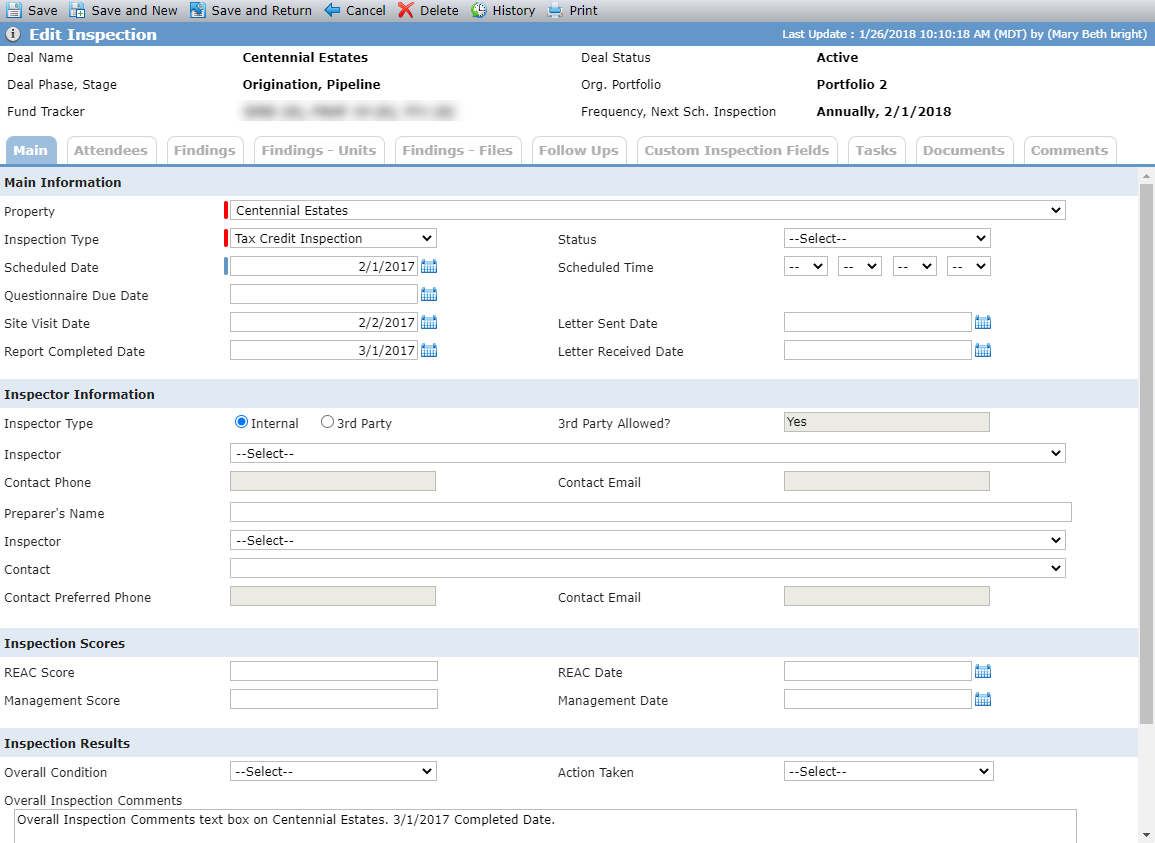
Field | Description |
|---|---|
Property | Displays a list of all properties on the deal. |
Report Completed Date | Must be on or after the Site Visit Date. |
Letter Received Date | Must be on or after the Letter Sent Date. |
Inspector Type | When the Inspector Type selected is 3rd Party:
When the Inspector Type selected is Internal:
If the Inspector Type value is modified, all previously populated values from the Inspector Information section (except 3rd Party Allowed) will be cleared. When the Status equals Scheduled, the Schedule Date will be required. |
3rd Party Allowed | Displays Yes (and enables the 3rd Party radio button) when:
|
Attendees Tab
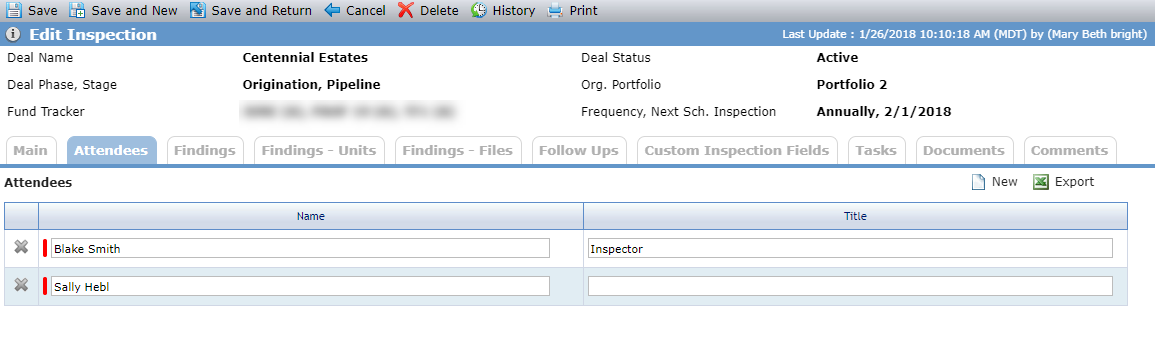
Track the people involved in the inspection on the Attendees tab.
Findings Tab
Track the findings from the inspection on the Findings tab. You can expand and collapse each section.
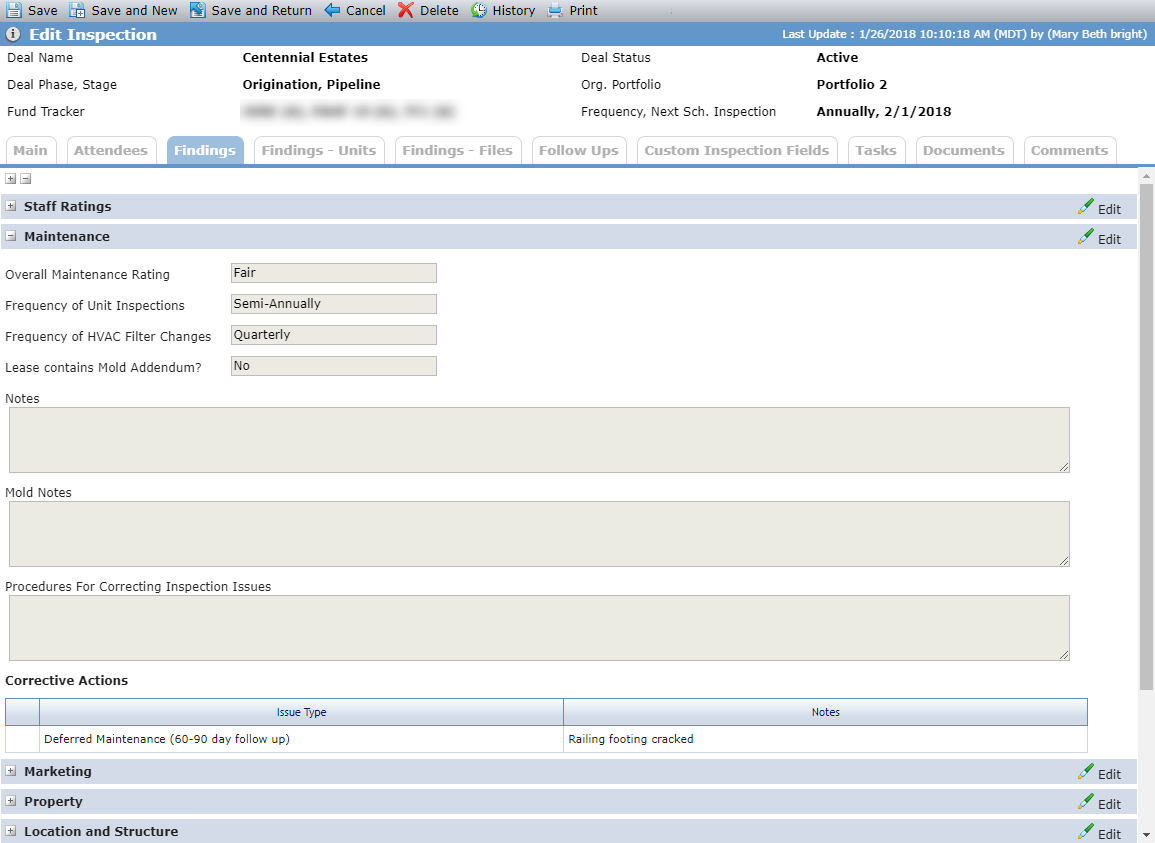
When you create a new Inspection record where the Inspection Type equals Tax Credit Inspection, the system populates the following fields with values from the most recently created Inspection record:
List Common Areas (Findings section)
Structure Additional Information grid (Findings section)
Type of Heat (Amenities section)
If other Type of Heat, describe (only if Type of Heat equals Other) (Amenities section)
When a section is expanded, the fields are read only. To edit a field, click  for the section. A popup opens, allowing you to make updates.
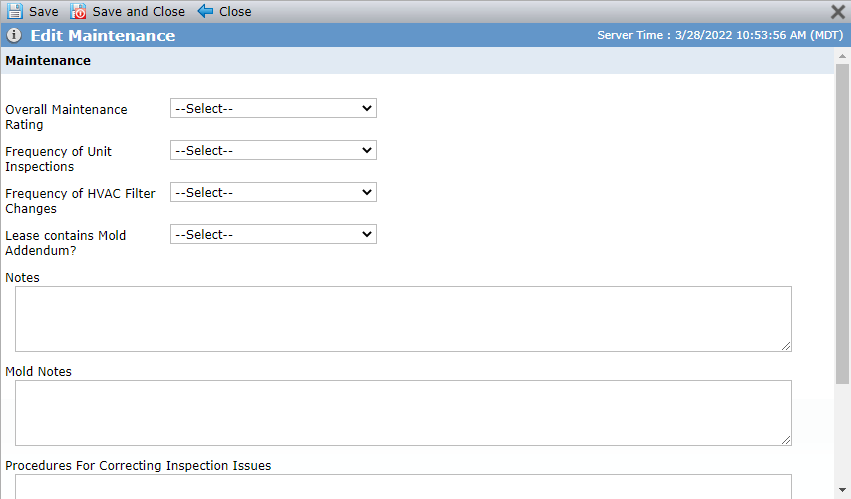
When you add a Corrective Action row to the grid, the Issue Type is required.
In addition, the system automatically creates an Inspection Follow Up record with the following values:
Due Date is based upon the Corrective Action Issue Type:
5 days—Life/Safety
30 days—Immediate Repairs or Other
60–90 days—Deferred Maintenance
90 Days—Major Deferred Maintenance
Assigned To—the User that created the Corrective Action
Category—Issue
Issue Type—Same as the Corrective Issue Type selected in the popup
Finding Type—Finding Type in the popup
Follow Up Issue—Corrective Action Notes entered in the popup
Findings - Units Tab
Track the inspection findings at the unit level on the Findings - Units tab.
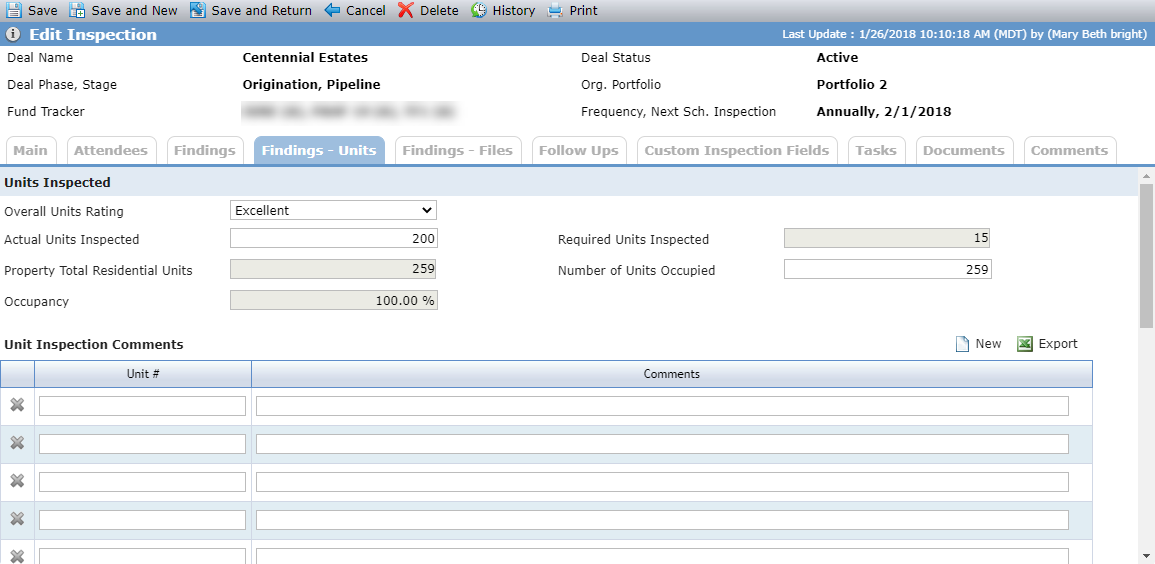
A row is systematically displayed in the Unit Inspection Comments grid for the number of Required Units Inspected.
When you add a Corrective Action row to the grid, the Issue Type is required.
Field | Description |
|---|---|
Required Units Inspected | When a new Inspection record is saved, this field is systematically calculated as the [Property Total Units] times [PercentInspectionUnits], kept between a minimum of [MinInspectionUnits] and a maximum of [MaxInspectionUnits]. Because organizations have different HUD inspection sampling requirements, the system administrator can define the default calculation parameters through the following configuration settings:
NoteChanging system defaults only affects newly created properties; existing property records are not altered. Each property stores its own values for these parameters, initialized from the system defaults at property creation. You can edit the property-level values if your user role includes the Inspection - Edit Calculation Parameters - Modify security role privilege. |
Property Total Residential Units | Displays the value from Edit Property. |
Occupancy | Displays the Number of Units Occupied divided by the Property Total Residential Units. |
Findings - Files Tab
The Findings - Files tab shows, in one place, the status of the file review for all inspected units. For each unit reviewed, you can see whether the correct documentation existed for Tenant Certifications, Lease Agreement, Tenant Application, and any required verifications.
Each field displayed in the Files Inspected grid will display a green checkmark when the corresponding field in the Edit Inspected File is selected. If the corresponding field is not selected, indicating the requirement was not met, then the grid will display a red X.
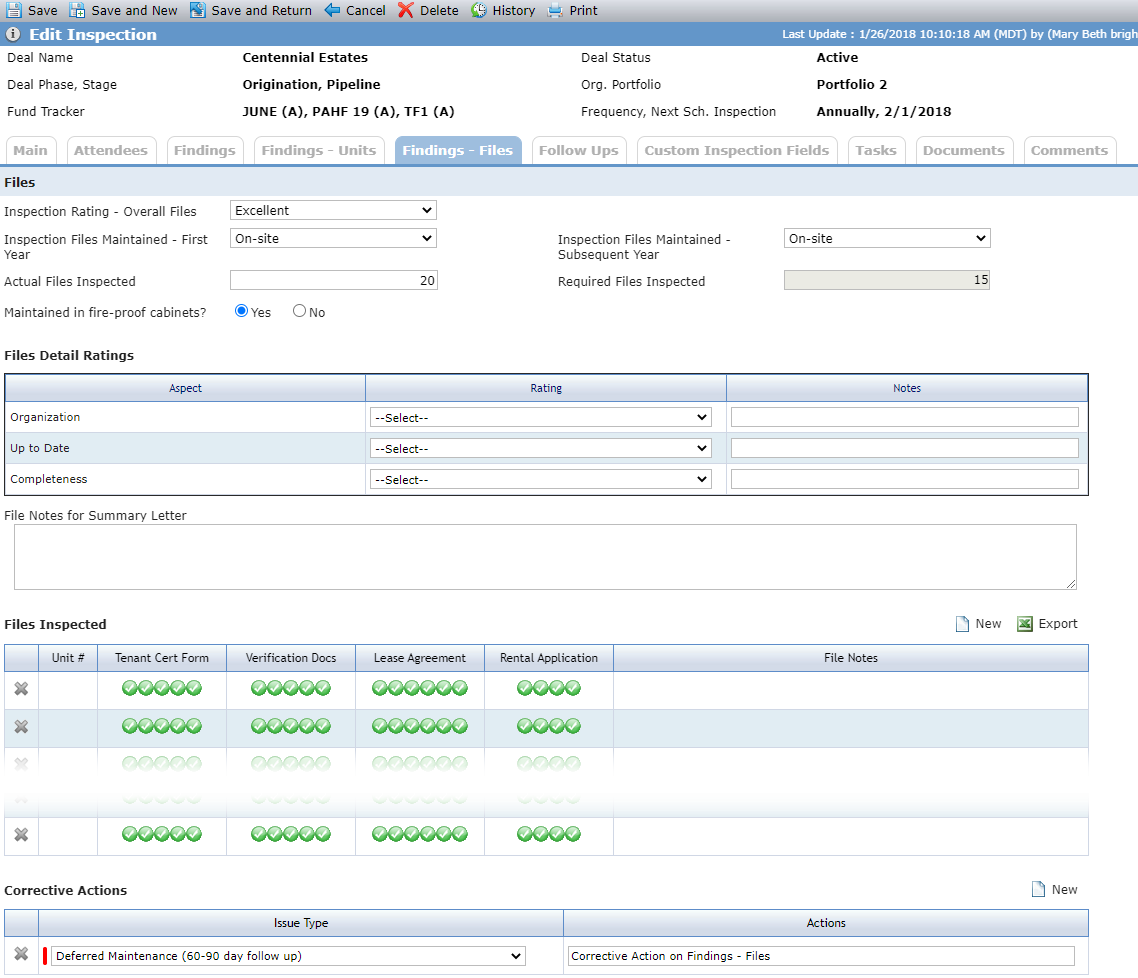
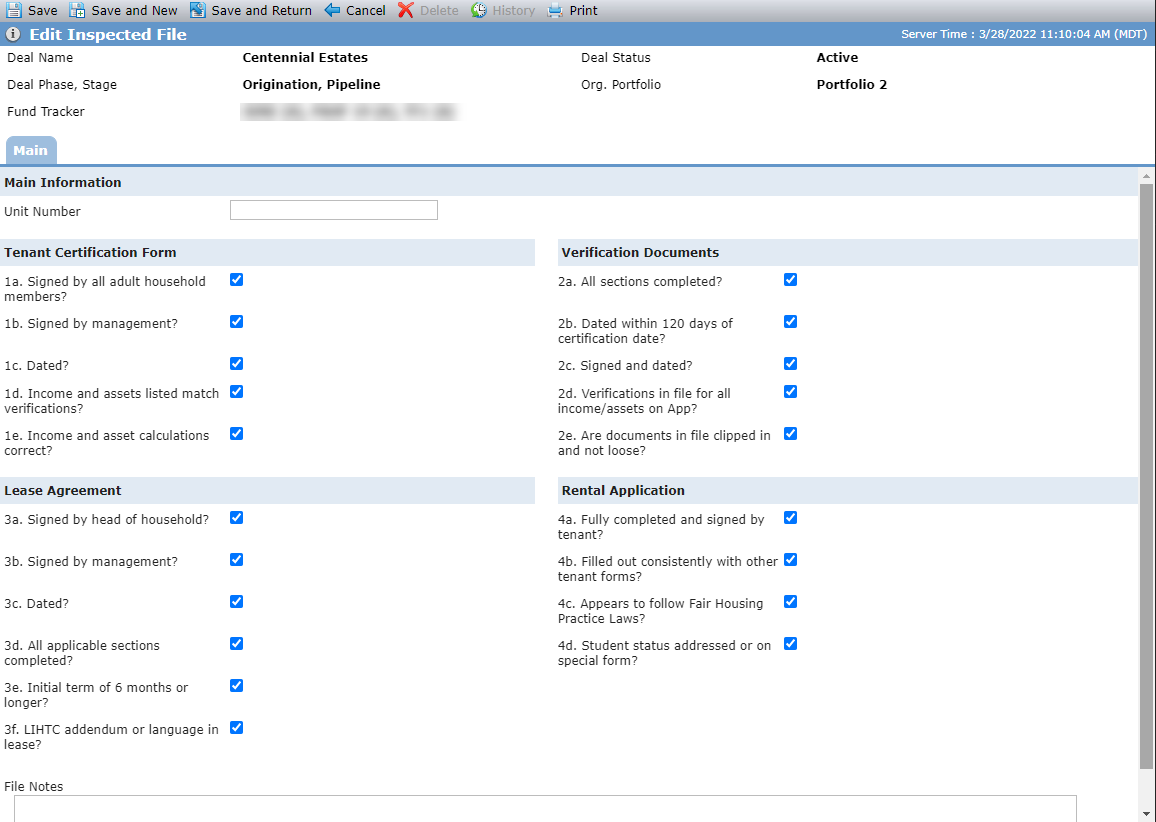
Findings - Files tab; Edit Inspected File (detail record for the Files Inspected grid)
When you add a Corrective Action row to the grid, the Issue Type is required.
When a new Inspection record is saved, the Required Files Inspected field is systematically calculated as the Property Total Residential Units times .20, with a minimum of 5 and a maximum of 15.
Follow Ups Tab
The Follow Ups tab allows you to track follow-up actions required as a result of the inspection.
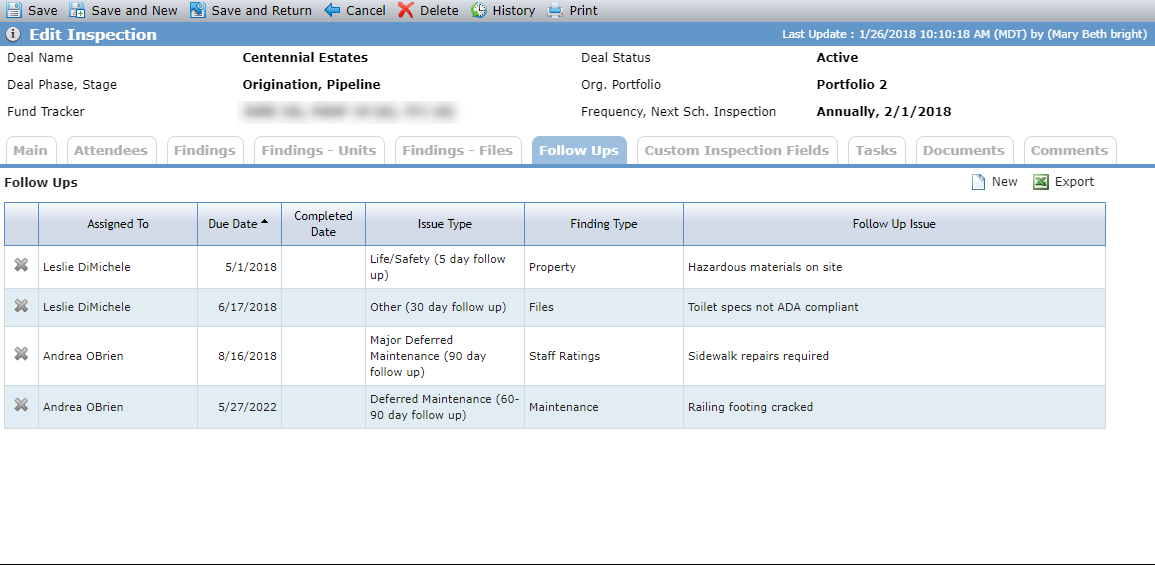
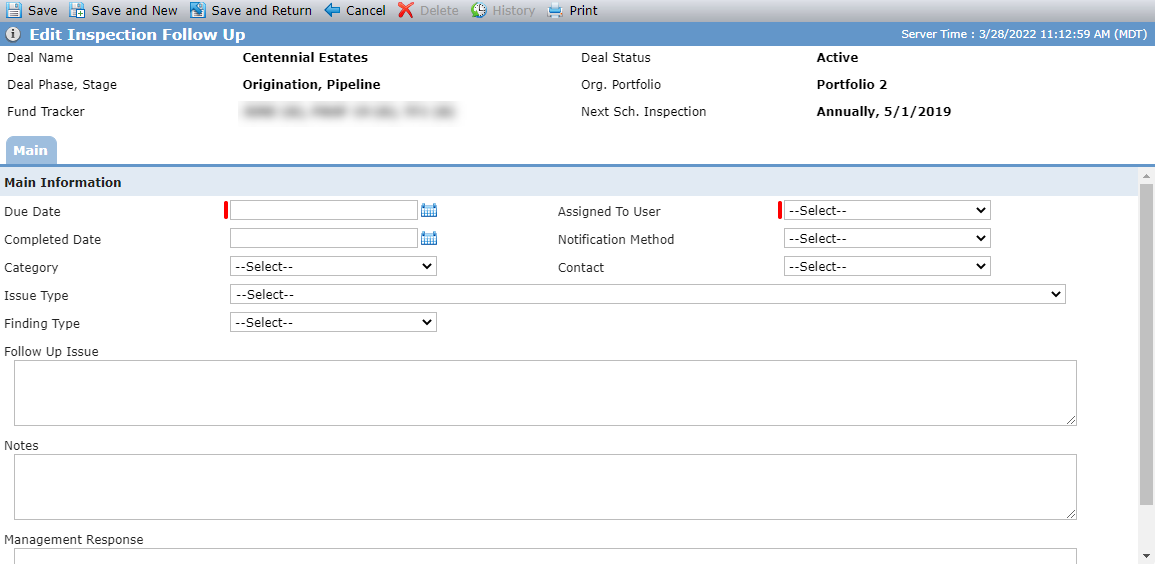
Follow Ups tab; Edit Inspection Follow Up
Field | Description |
|---|---|
Issue Type | Read only if the record was systematically created. |
Finding Type | Read only if the record was systematically created. |
Contact | Select from a list of contacts for the Associated Company entity with the Role of Property Manager for the Deal roles of Partnership, Master Tenant, or QALICB. |