Configure Template Policy Guidelines and Attach to a Template
Policy Guidelines are deal-specific compliance rules that a deal must adhere to throughout its lifecycle. When a deal is created, the system automatically associates the appropriate guidelines based on the deal's program(s), type, and structure.
As a ProLinkAIM admin, you configure and maintain these guidelines through the Policy Guidelines menu option under ProLinkAIM Admin. Guidelines are organized into Policy Groups and Policy Items. Both display in the order defined by their sort values, giving you full control over how compliance information is presented to deal teams.
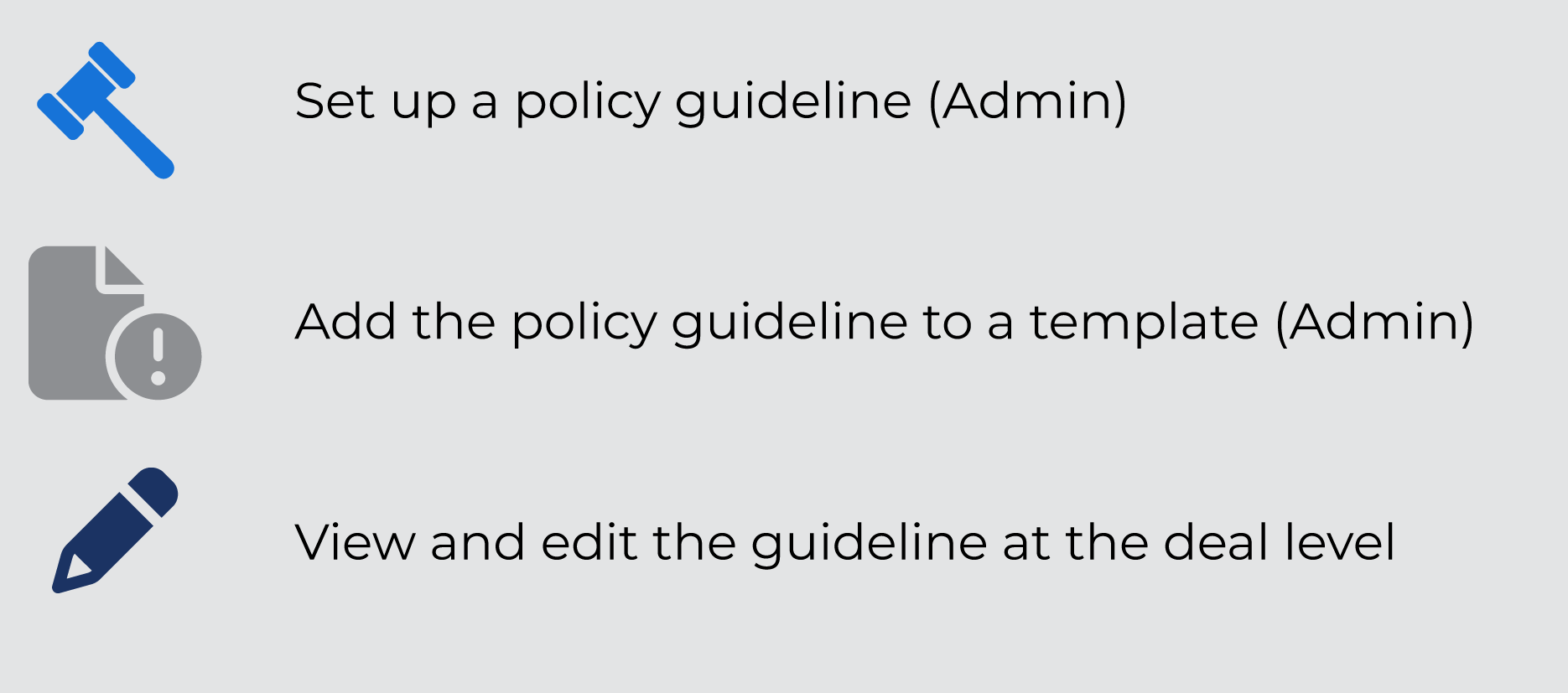
Set up a policy guideline—Your organization will create, update, and maintain template policy guidelines through the Admin panel.
Add the policy guideline to a template—Your organization will add relevant template policy guidelines to each template through the Admin panel. A template is associated to a deal based on program(s), deal type, and structure type.
View and edit the policy guideline at the deal level—The deal team accesses the policy guideline at the deal level. They will identify the response and reason for the response to a policy guideline.
For information about policy guidelines at the deal level, see Deal Policy Guidelines.
The Template Policy Guidelines menu option in the Admin panel allows you to create and activate template policy guidelines, which you can then assign to a template(s) so that the system will bring relevant policy guidelines into deals.
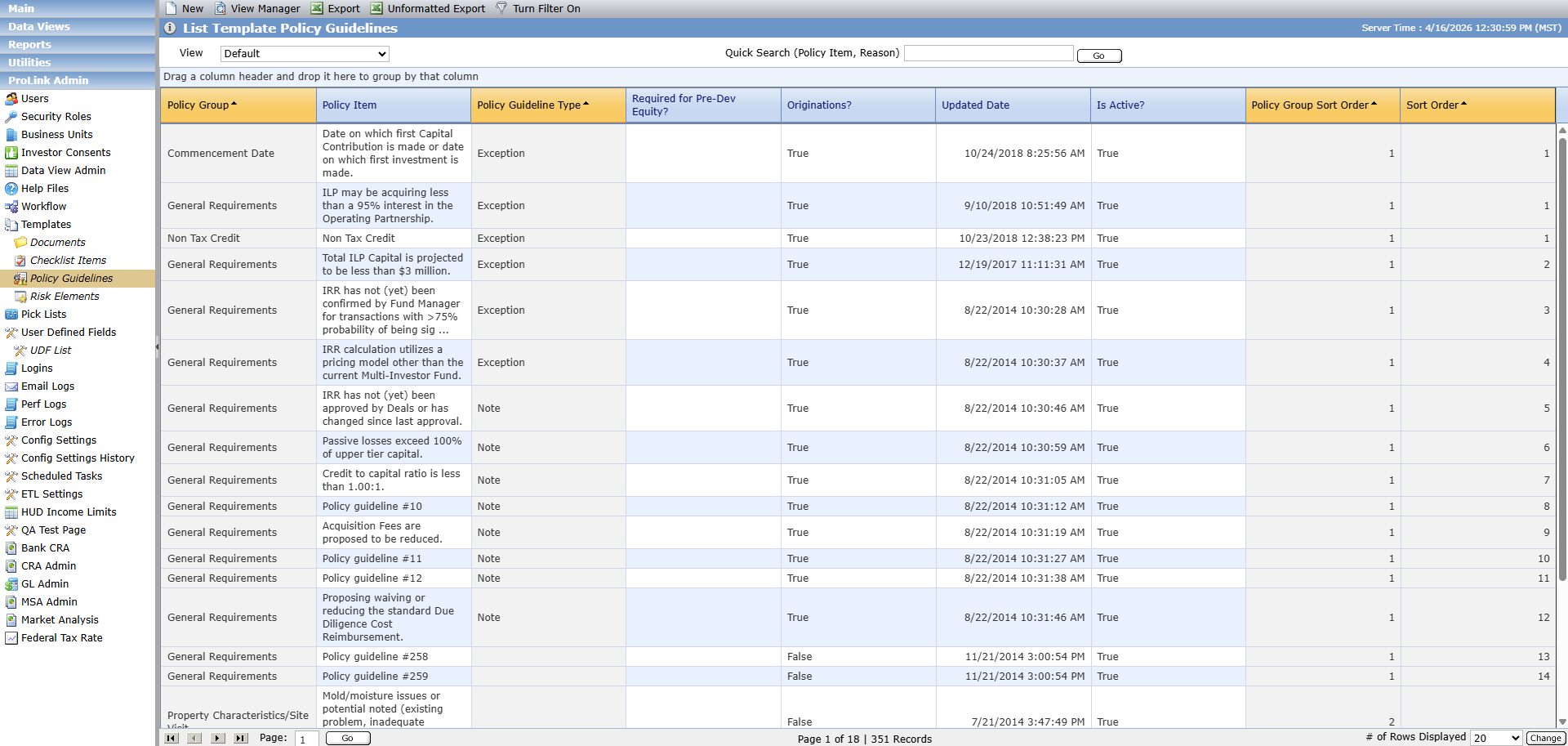
The List Template Policy Guidelines screen is a data view, which means you can leverage the search, filtering, grouping, and sorting functionality you are familiar with.
A template policy guideline defines the group of the policy item along with the item description.
Navigate to the List Template Policy Guidelines screen.
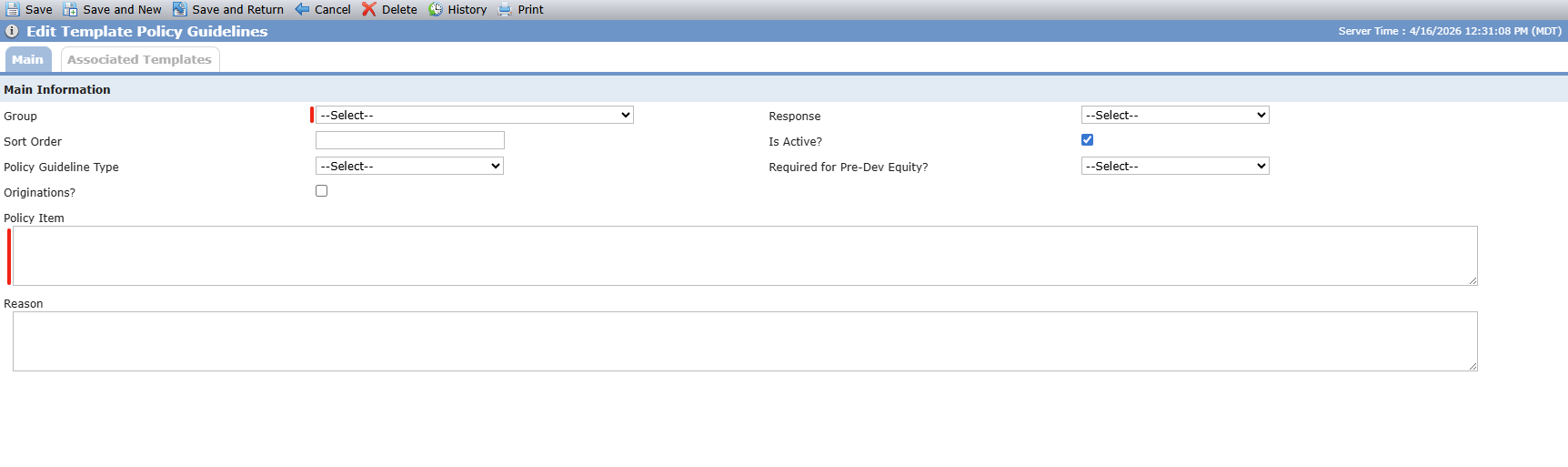
Click New in the top toolbar.
The Edit Template Policy Guidelines screen.
Complete all required fields and any additional optional fields that will provide useful context for deal teams.
Click Save.
Field | Description |
|---|---|
Group | Required. Non-system picklist that identifies the group. |
Response | With the Policy Guideline Type, determines how the Type field on the Deal record is calculated when a response is submitted. |
Sort Order | Controls the display order of this item within its group. Use increments of 10 to allow future insertions without renumbering. |
Is Active | Indicates whether this template policy guideline is currently in use. Set to active to make the template policy guideline available for templates and deals. |
Policy Guideline Type | With the Response, determines how the Type field on the Deal record is calculated when a response is submitted. |
Required for Pre-Dev Equity | Set to "Yes" if this item is required for pre-dev equity; otherwise set to "No." |
Originations | Set to "Yes" if this item applies to originations; otherwise set to "No." This value is displayed on the Deal record as a Yes/No indicator. |
Policy Item | Required. A concise description of the guideline (for example, "LTV does not exceed program maximum"). |
Reason | Optional default description of the reason for the response to the policy guideline (for example, "Increasing number of tenants below defined income limits"). |
After you have configured template policy guidelines for the organization, you can attach them to a template(s).
Tip
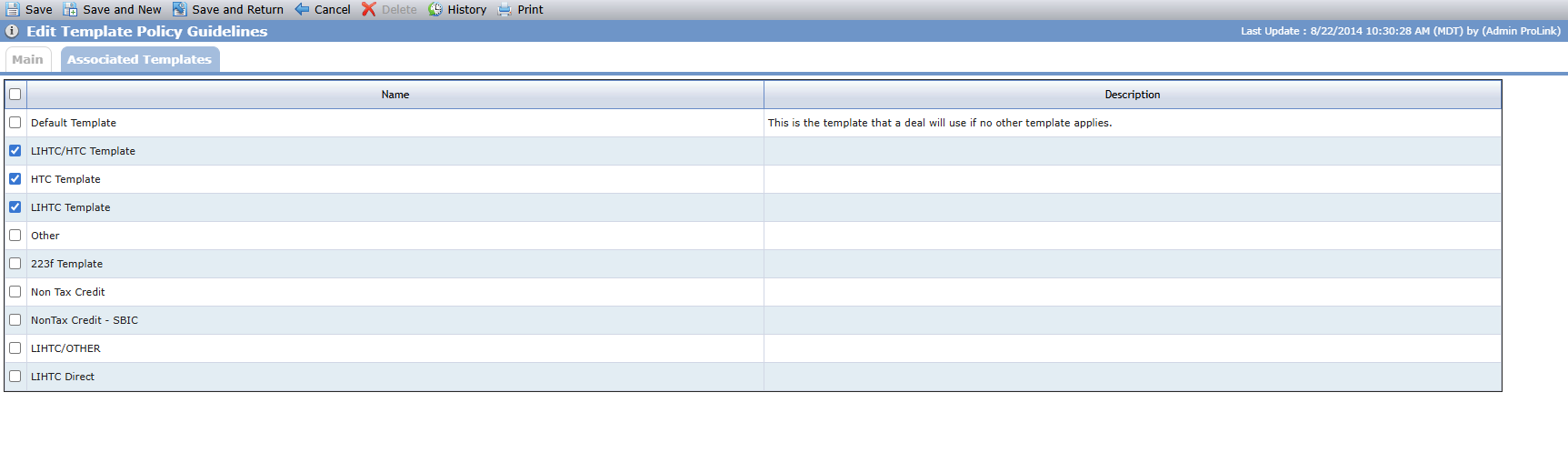
You can view the templates that the Template Policy Guideline is attached to on the Associated Templates tab.
Navigate to the Templates option in the ProLink Admin panel.
The List Templates screen opens.
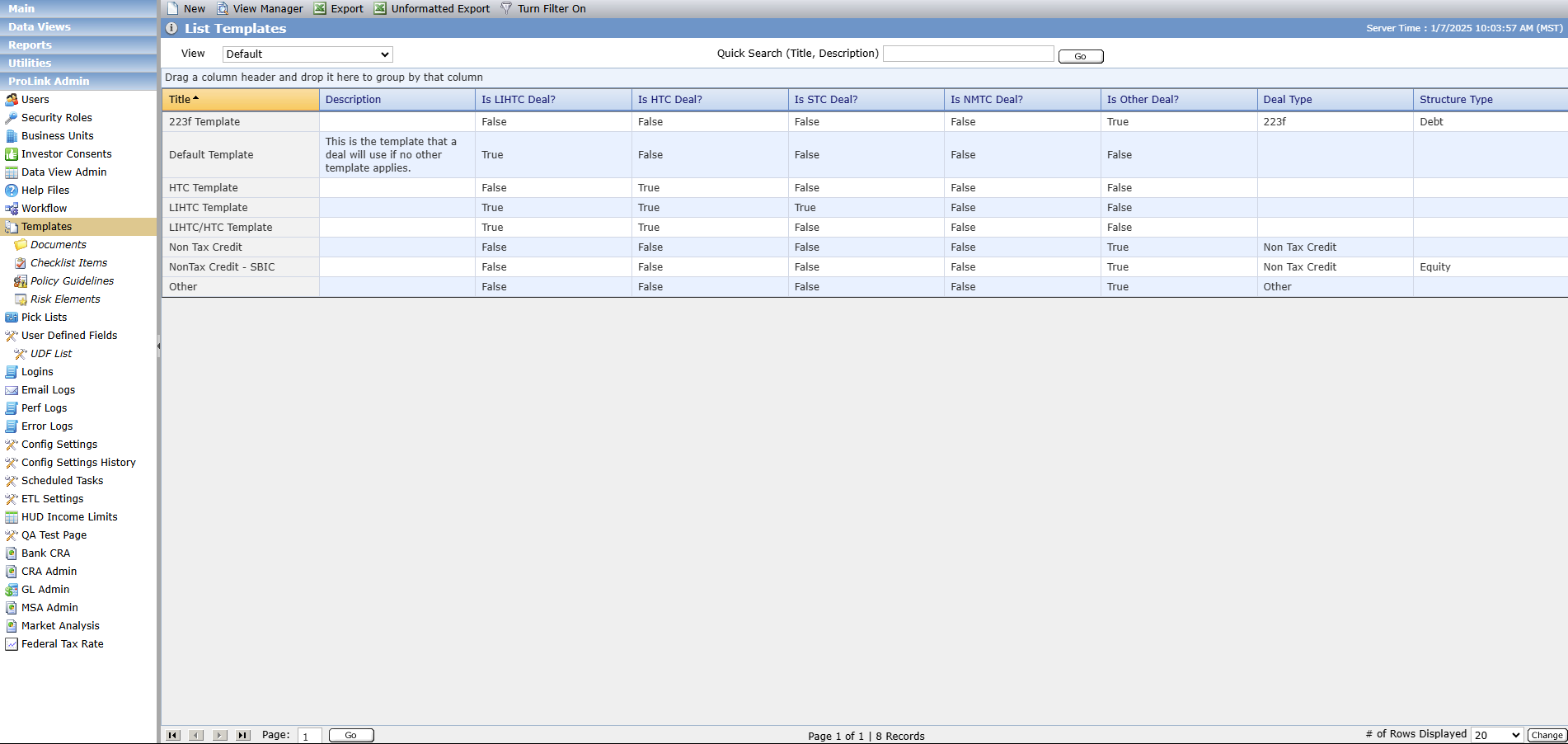
Select the template to edit.
The Edit Template screen opens.
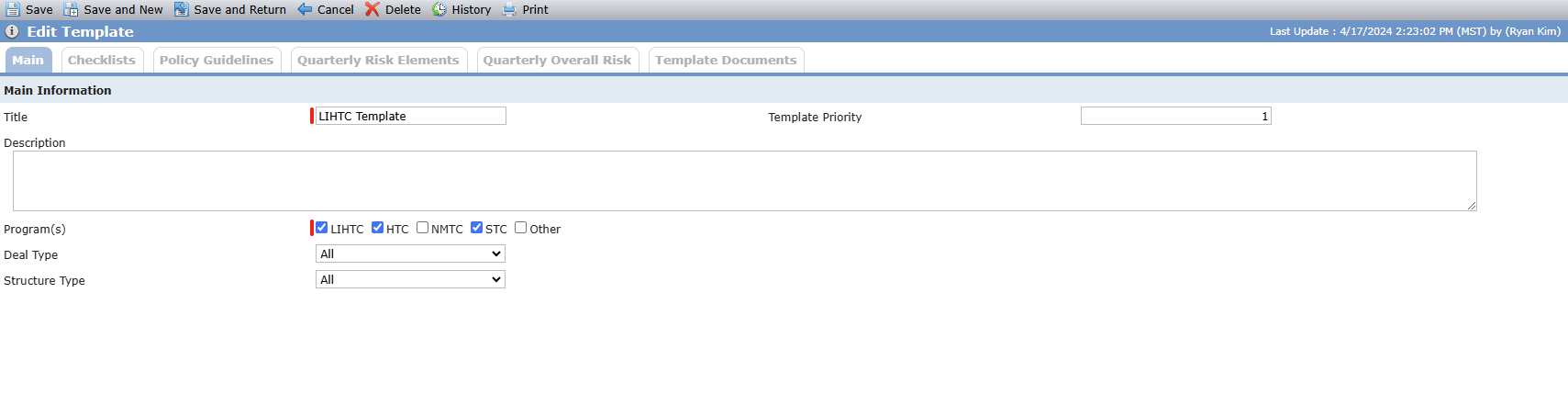
Click the Policy Guidelines tab.
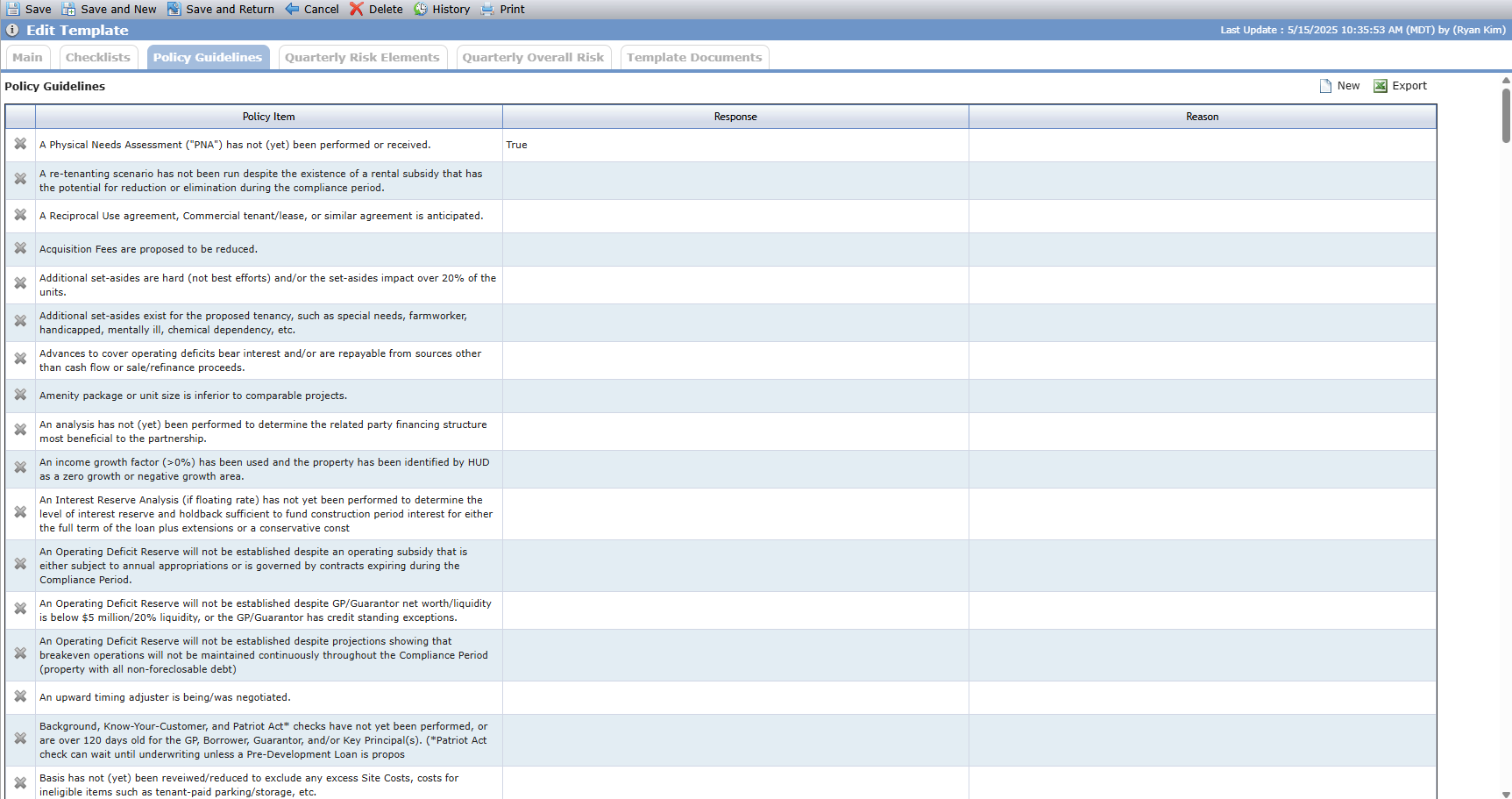
Click New above the Policy Guidelines grid.
The Find Template Policy Guidelines popup opens, populated with all configured Template Policy Guidelines that have not yet been attached to the template.
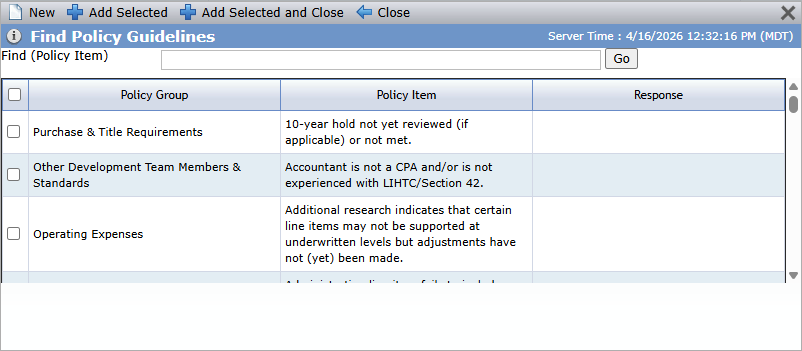
Select the checkbox(es) of the Policy Guideline(s) to attach.
Click Add Selected and Close.
Click Save.
Task | Where to Start |
|---|---|
View all template policy guidelines | Admin > Templates > Policy Guidelines |
Search template policy guidelines by policy item or reason | List Template Policy Guidelines screen > Quick Search |
Create a new template policy guideline | List Template Policy Guideline screen > New |
Edit a template policy guideline | Open existing > Update fields > Save and Return |
Delete a template policy guideline | Edit Template Policy Guideline screen > Delete > Confirm OK |
Attach a template policy guideline to a template | Admin > Templates > Open template > Policy Guidelines tab > New |