About the Benefits Schedule - Low Income Tax Credits (LIHTC)
You can view the deal-level (all owners) or individual owner values at an annual or monthly level.
Note
The monthly benefits functionality might be turned off in your ProLinkAIM environment.
For most organizations, UT Actual Credits and UT Actual Losses will be hidden on deals because you can view income/loss at the fund-level.
You can view building-level values when they exist. Building-level benefits are displayed for years where lease-up records have been created. Click the Expand  icon to show the building-level values. See the Building Calculation section for more information.
There are scenarios when benefits may not be eligible in the first year and need to be deferred. The Benefit functionality can adjust the Benefit years for those deals when:
You create an 8609 for the Building and Line 10a on the 8609 is equal to “Yes”
OR
You turn the Building(s) Deferral button to On (click the toolbar button) AND select the Pre-8609 Deferral field for the Building.
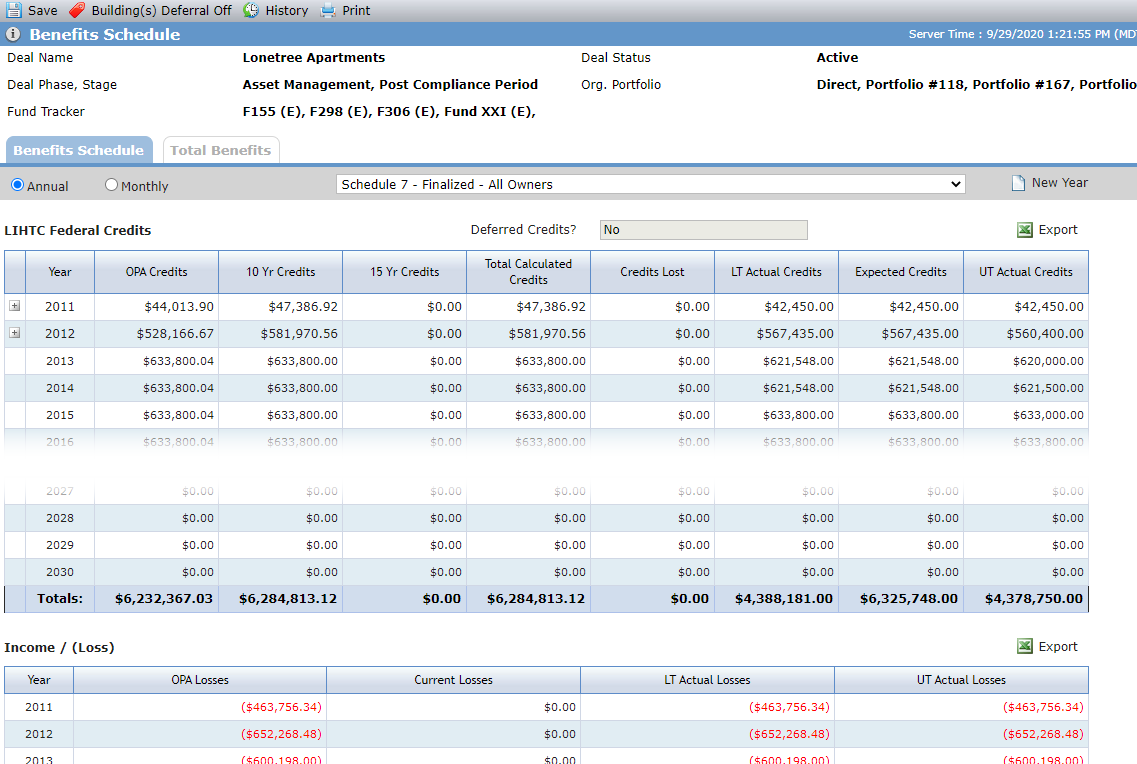
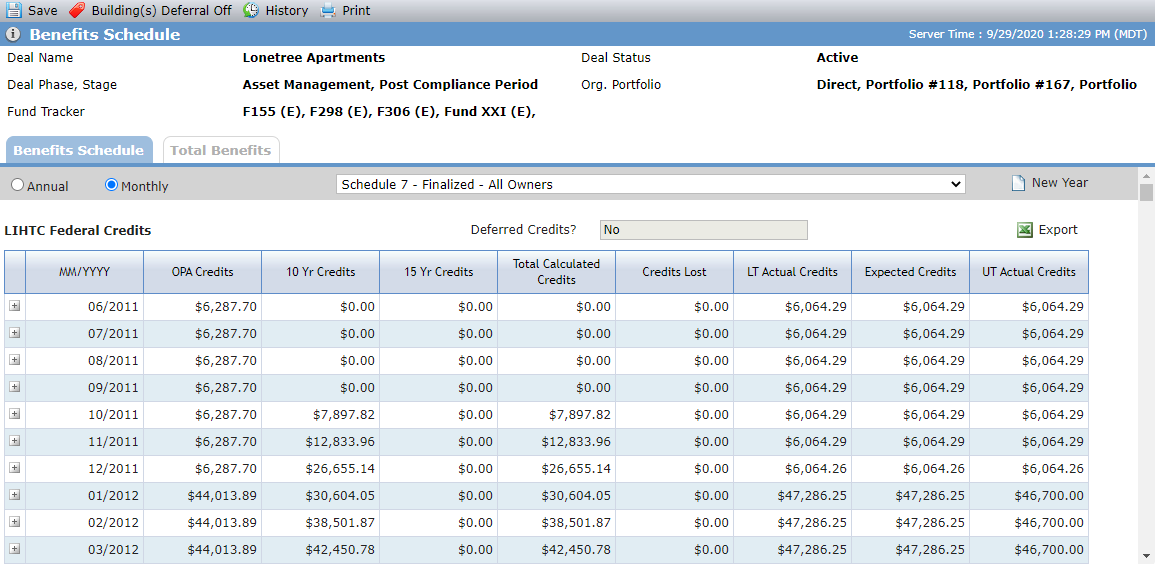
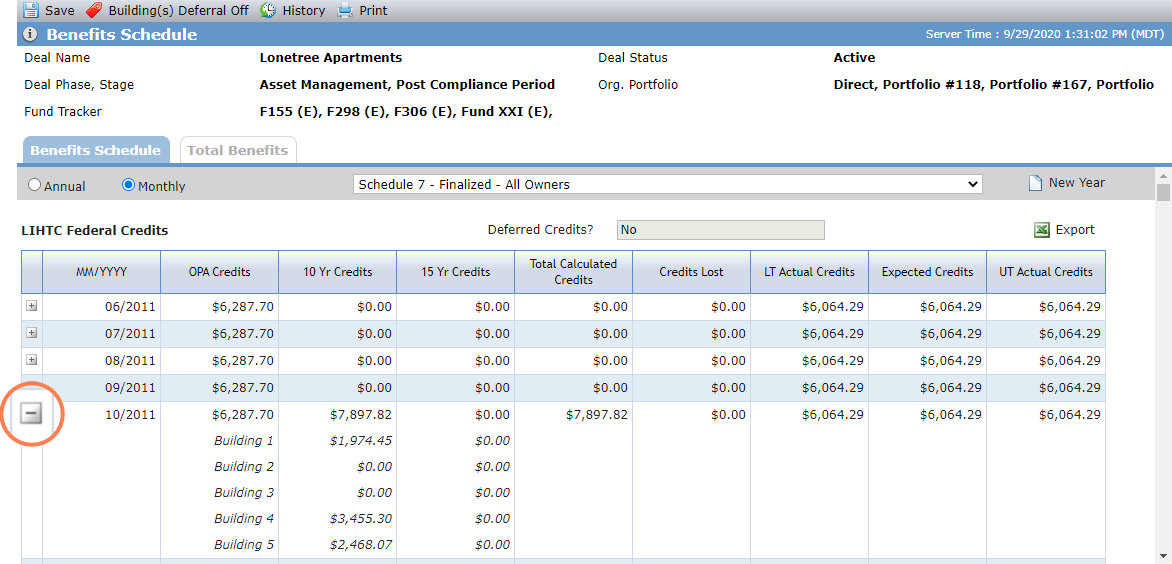
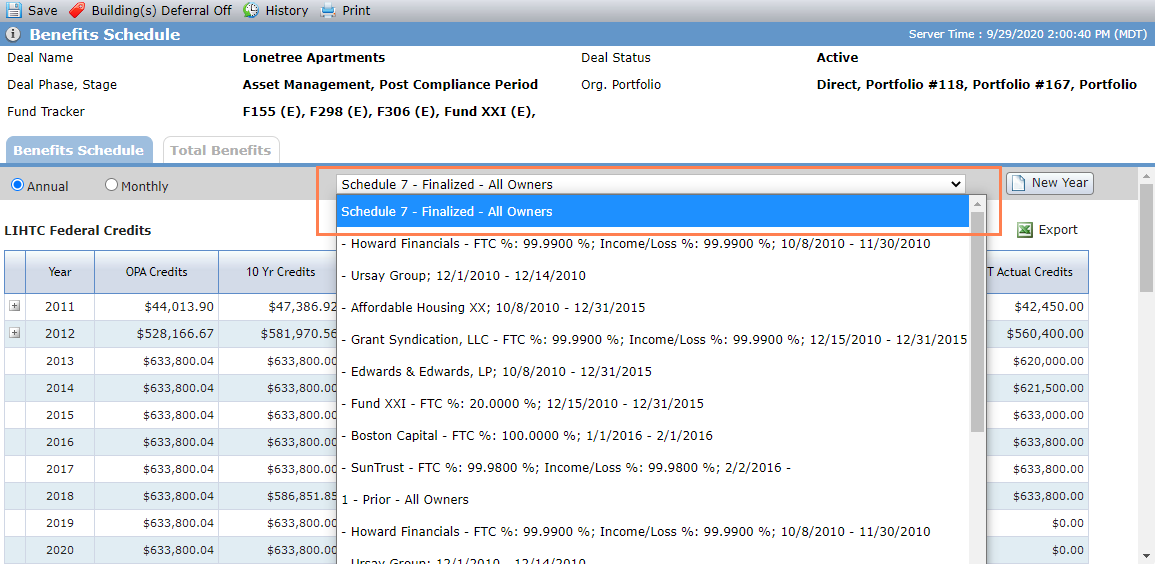
The Owner list contains all Ownership Schedules—Proposed and Finalized—with a listing of All Owners. Benefits will be calculated only for those entities that are Owners of the Partnership.
Owner-level values are calculated based on the Owner's ownership percentage in the Ownership Schedule (based on the value populated for the FTC%). If part of the period being calculated overlaps with the ownership period, the calculated values are pro-rated. If the owner has multiple ownership periods within the same schedule, all ownership periods and their corresponding ownership percentages are calculated and summed for the value of the periods.
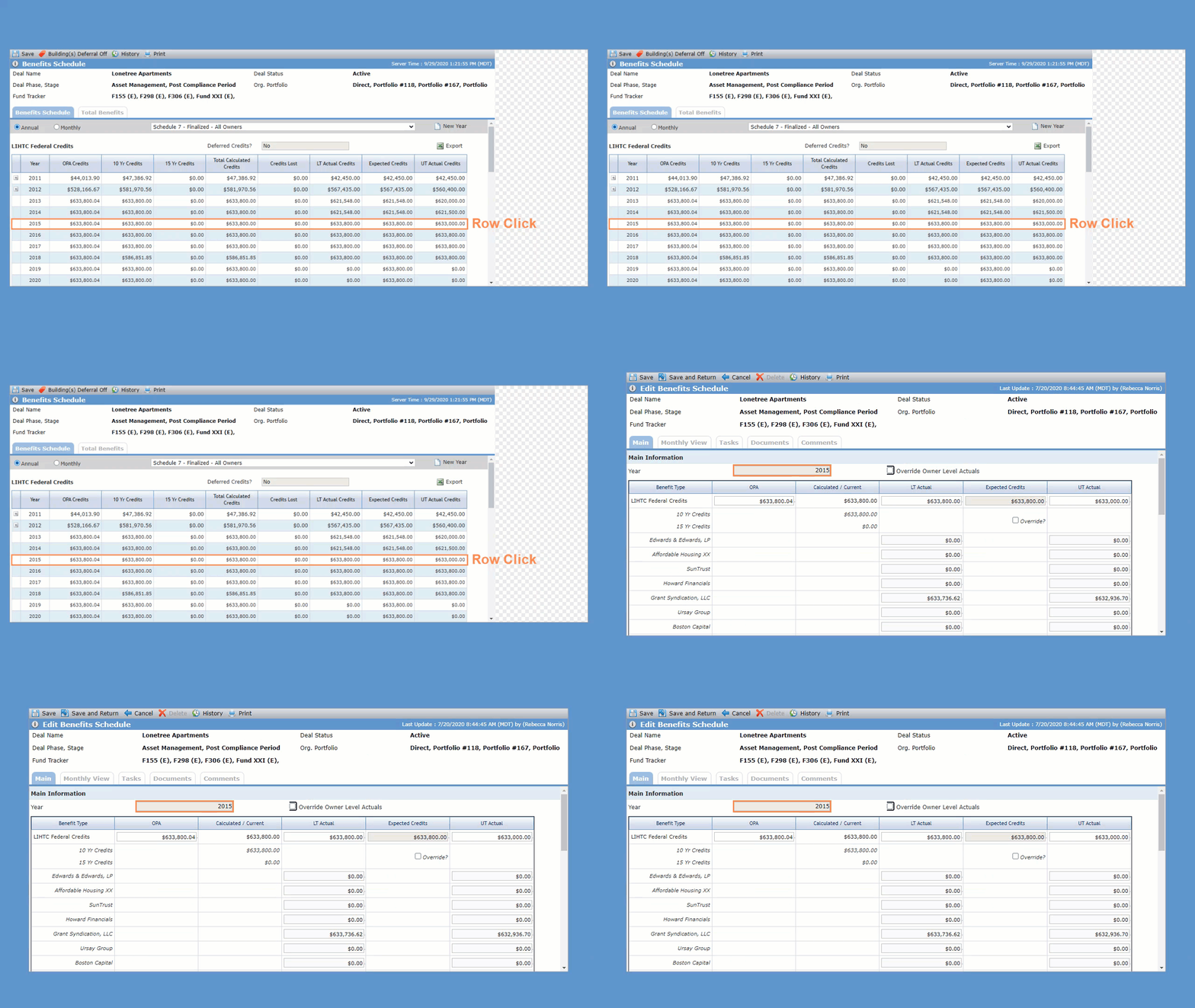
Click a Benefit Year row in the grid to open the corresponding edit screen.
The system automatically creates a minimum of 11 benefit years. If the full benefits are not paid out in 11 years, additional month/year records will be created.
Year 1 is based on the Placed-in-Service Date (PISD) as follows:
The earliest Actual PISD on all Buildings on the Deal will be used, if any exist. If none exist, then
The earliest Projected PISD on all Buildings on the Deal will be used, if any exist. If none exist then
The Actual PISD on Edit Property will be used, if it exists. If none exist, then
The Projected PISD on Edit Property will be used
The month the benefit stream begins is based on whether lease up records exist as follows:
Note
Lease up records are created to track the initial lease up of the individual buildings whereas occupancy is used to track the occupancy of the property once 100% lease up has occurred for all buildings.
If lease up records exist for the year of the PISD, the benefits stream will begin in the month of the first populated lease up month (even if it is earlier than the PISD month) and the year of the PISD being used.
If no lease up records exist and occupancy records exist for the PISD, the benefits stream will begin in the month of the first populated occupancy month (even if it is earlier than the PISD month) and the year of the PISD being used.
If no lease up records or occupancy records exist for the year of the PISD, the benefits stream will begin in the month and year of the PISD.
You can create additional benefits years for any deal.
Navigate to the deal, and then select Benefits Schedule (under Accounting Summary) in the left navigation menu.
The Benefits Schedule screen opens.
Click New Year.
The Add New Benefit Year popup opens.
Enter the Year (YYYY).
The year added does not need to be a consecutive year. You cannot duplicate existing years.
Click Save and Close.
You can delete benefit years that were manually created (years not created automatically by the system).
Navigate to the deal, and then select Benefits Schedule (under Accounting Summary) in the left navigation menu.
The Benefits Schedule screen opens.
Click a Benefit Year row in the grid.
The Edit Benefits Schedule screen opens.
Click Delete in the top toolbar, and then click OK to confirm the deletion.
The 10 Yr Credits, 15 Yr Credits, and Total Calculated Credits columns on the Benefits Schedule screen are calculated when all of the following conditions in the table below are met.
Note
For most deals, the benefit stream is based on 10 yr credits.
Prorata calculation | When one of the Annual Amounts and PISDs listed below are populated, this calculation assumes 100% of annual amount divided by 12 for each month. This calculation does take into consideration the PISD. If only the Property PISD is populated, then the first year’s credits will not begin until the PISD month. If PISDs are at the Building level, then PISD will be taken into consideration when calculating the benefits.
|
Lease up or Occupancy calculations |
|
All the fields on the Benefits Schedule tab are read-only fields. The values displayed are either manually populated on the corresponding edit screen or calculated based upon specific conditions. The following list only identifies those fields that are not manually populated. If the value is dependent upon multiple conditions, the calculation will be outlined in the following Calculation sections.
10 Yr Credits—Calculated value based upon building level tax credit units, lease up and occupancy records. See calculation in Calculation section.
15 Yr Credits—Calculated value based upon building level tax credit units, lease up and occupancy records. See calculation in Calculation section.
Total Calculated Units—The sum of the 10 Yr and 15 Yr Credits.
Credits Lost—Calculated amount for 15 Yr Credits. See calculation in Calculation section.
LT Actual—Calculated value that can be overridden. Triggers an Approval when the value is updated (systematically or manually). See calculation in Calculation section.
Expected Credits—Calculated value that can be overridden. See calculation in Calculation section.
A number of values are calculated based upon the existing conditions of the deal. As the conditions change (information is modified), the values re-calculate.
Building-level calculations | The value will be calculated at the building level for years when:
|
The best available annual amount
| |
Calculating best available monthly amount
| |
Monthly Calculations | Each monthly Benefit record will calculate based upon the criteria that the reporting period meets. In some cases, there may be lease up records that exist for the period. For other reporting periods occupancy records may exist. For some periods there may be no information available to calculate the value. Below is the logic for how the monthly benefits will calculate. |
Lease up records data will be used to calculate the Benefit month when it exists.
| |
When no lease up records exist but Occupancy records exist for the Benefit month, the most recent 10 Yr TC % value for the Occupancy record year will be used.
| |
Values will be based upon 100% occupancy for years where no Occupancy records exist but prior year lease up or occupancy records are populated.
|
Calculated monthly and summed for annual values
Building-level calculations | The value will be calculated at the building level for years when:
|
The best available annual amount
| |
Calculating best available monthly amount
| |
Monthly Calculations |
|
Annual values | Sum of months for years |
Sum of the 15 Yr Credits divided by (# months credits were earned) minus Calculated 15 Yr Credits for the month if the month is in the building's 15 Yr benefit stream.
For months and years not in the benefit stream, the credits will be lost.
Monthly values | Annual amount divided by the # of months' credits were earned |
Annual values | Manually entered |
Monthly values | Annual amount divided by the # of months' credits were earned |
Annual values for Years 1 - 10 | The value displayed for Expected Credits is dependent upon a what Benefit values exist. The logic is as follows:
|
Annual values for Years 11 - 13 | Maximum annual amount minus Expected Credits for corresponding prior year
|
Monthly values | Owner-level values are calculated based upon the Owner’s ownership percentage as identified in the FTC % field in the Finalized Ownership Schedule. This applies to all values except LT Actuals when an Owner level overridden amount has been populated. |
Annual values | Sum of monthly values |