Modify a Data View
Users can modify private data views. Only users with system administrative rights can modify an existing public data view.
Note
See Manage ProLinkAIM Data Views for information about Data View administration and public views.
To see the view types created for a specific data view, open the View Manager and review the list of views. The Public column indicates whether a view is private (False) or public (True).
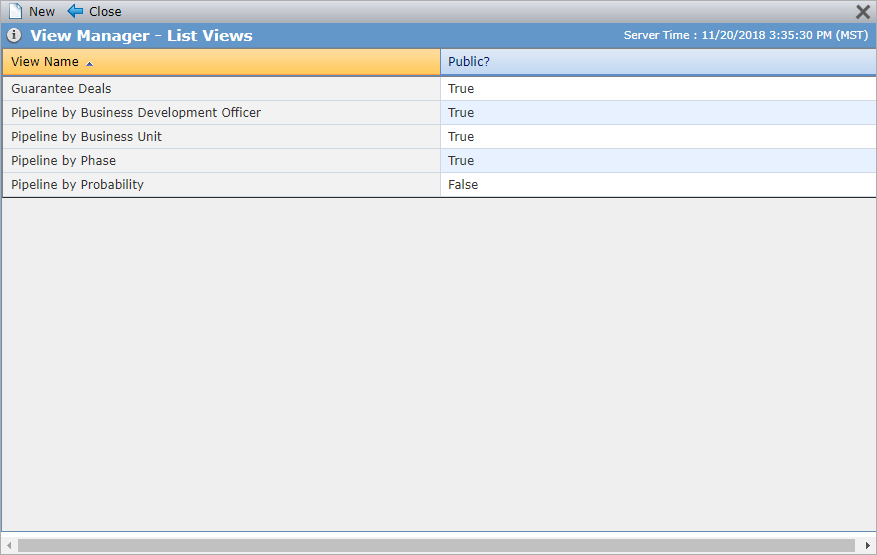
To modify a private view:
Access ProLinkAIM and click Data Views in the left navigation panel.
Select the data view.
Click View Manager in the top toolbar.
Select the view from the list.
Remember the Public view field must be False.
Make modifications to the view.
Click Save and Close.
The data view is refreshed with the changes you made in the View Manager.
After the view is saved, if you need the view to be returned to its original state, you can reset the view to the last saved version of the view.
To reset the view:
Access ProLinkAIM and click Data Views in the left navigation panel.
Select the data view.
Click View Manager in the top toolbar.
Select the view from the list.
Click Reset View.
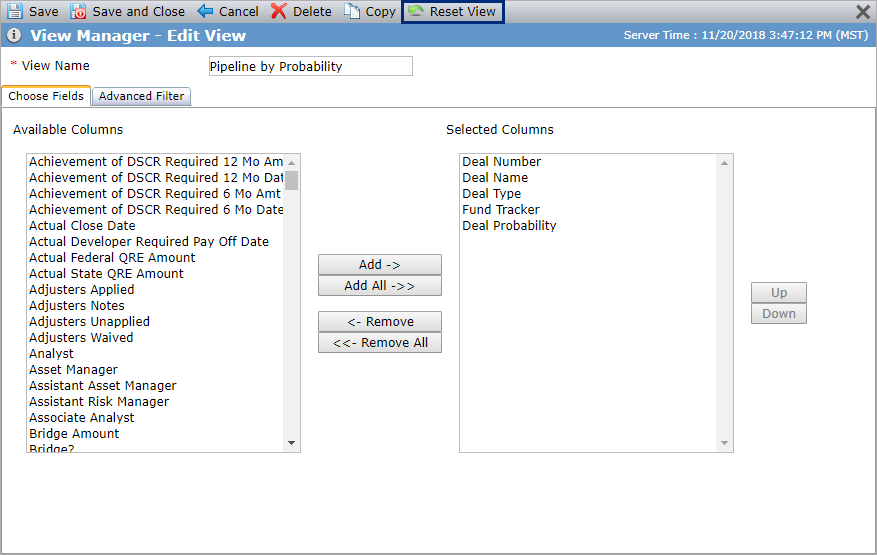
Click Save and Close.