About the Construction Budget
The Construction Budget provides tracking of all information for the budget related to construction. You can find the Construction Budget functionality for a selected deal through the Construction menu option in the left navigation panel. The corresponding Edit Construction Budgets screen shows all Construction Budgets established for the property.
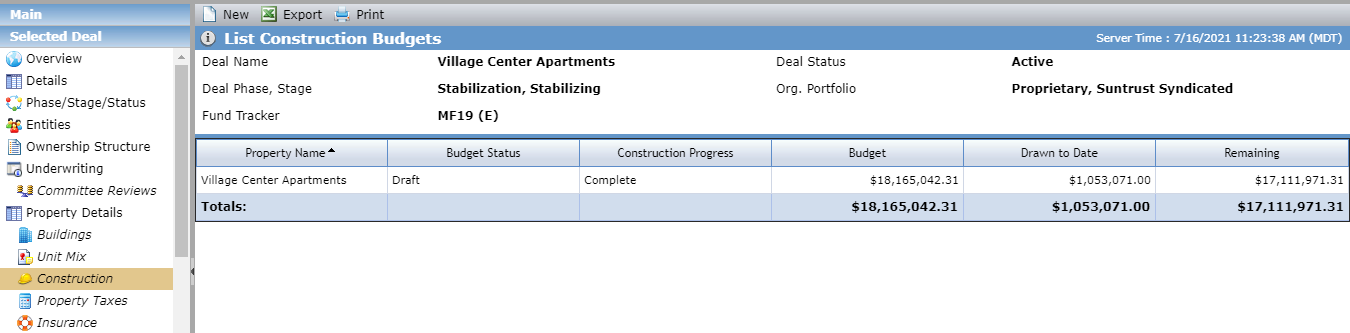
When you click into the row for a Construction Budget, the edit screen opens. Here, the Main tab shows basic information about the budget, including the associated property, budget status, and construction progress.
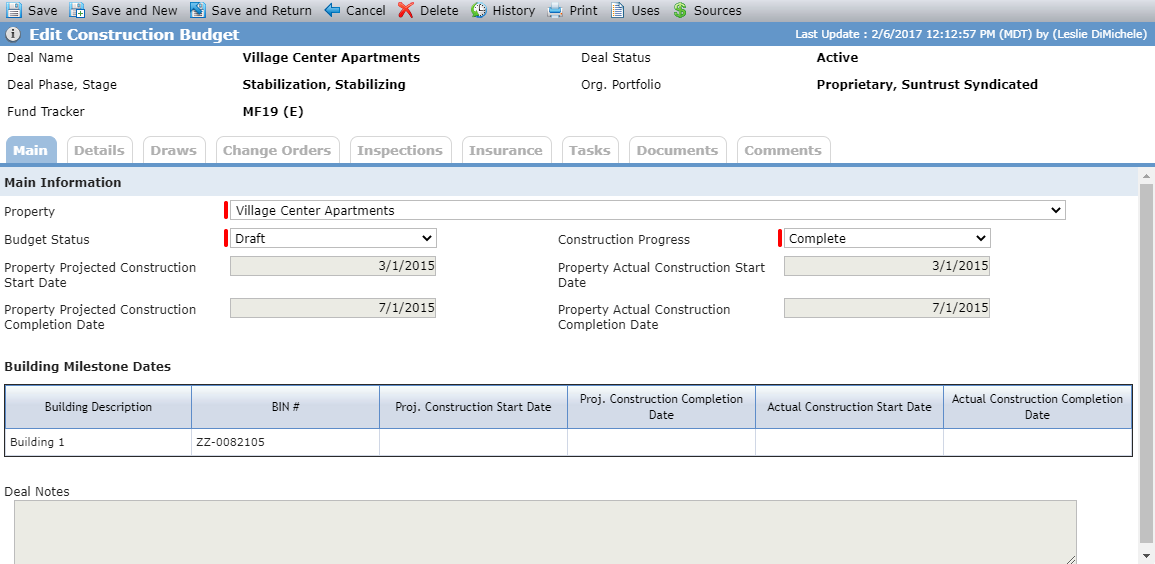
The read-only fields in the Main Information section are displayed from the Edit Property screen.
The Building Milestone Dates grid shows building-level detail for all buildings that exist for the selected property.
The Deal Notes section shows the information in the Notes field on the Deal Detail screen.
After you add Sources and Uses to the budget (explained in detail in the following sections), the Details tab provides an up-to-date accounting of the budget and any received draws.
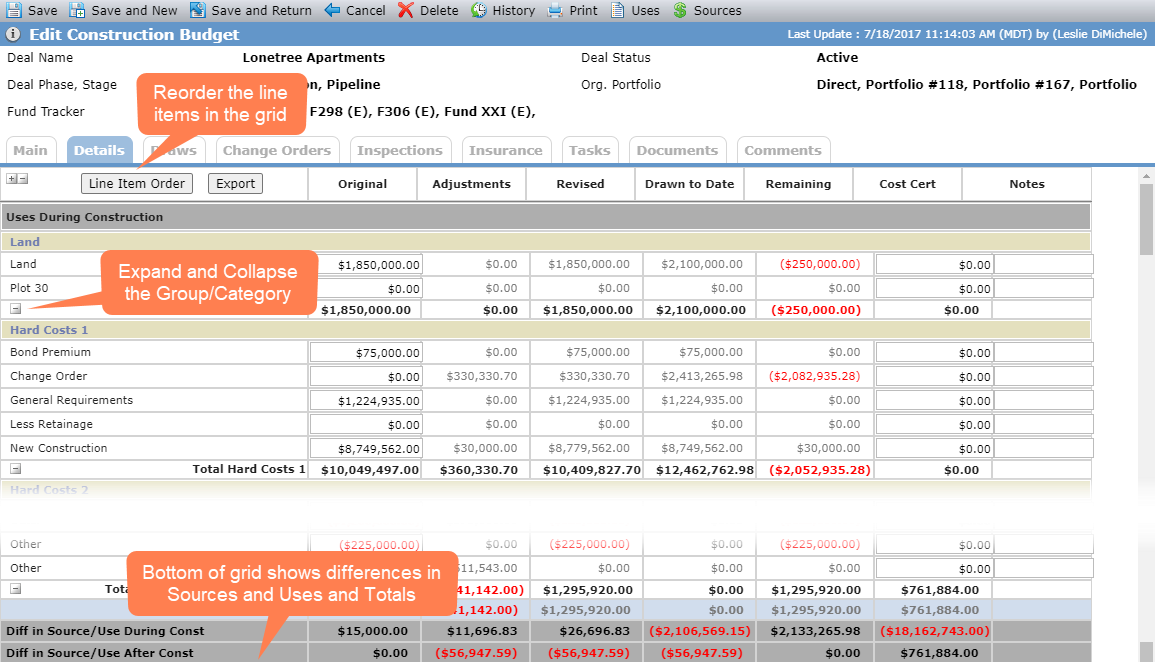
Column | Description |
|---|---|
Original | The initial budget amount for the line item (editable). Only editable when the budget is in a Draft status unless you have the Construction Budget - Final security privilege. |
Adjustments | The sum of all adjustments for the line item across all draws for the budget (calculated). |
Revised | The original amount plus adjustments for the line item (calculated). |
Drawn to Date | The sum of all draw amounts for the line item (calculated). |
Remaining | The Revised amount minus Drawn to Date for the line item (calculated). |
Cost Cert | The Cost Cert amount (editable). |
Notes | Free-form text you can enter for a specific line item. |
At the bottom of the Details grid, the differences and totals are shown:
Diff in Source/Use During Const—Sum of Sources During Construction minus sum of Uses During Construction.
Diff in Source/Use After Const—Sum of Sources After Construction minus sum of Uses After Construction.
Total Project Uses—Sum of all Uses (Before and After Construction).
Total Project Sources—Sum of all Sources (Before and After Construction).
Diff in Total Sources/Uses—The difference between Sources and Uses.
Navigate to the deal, and then select the Construction option in the left navigation menu.
The List Construction Budgets screen opens.
Click New in the top toolbar.
The Edit Construction Budget screen opens.
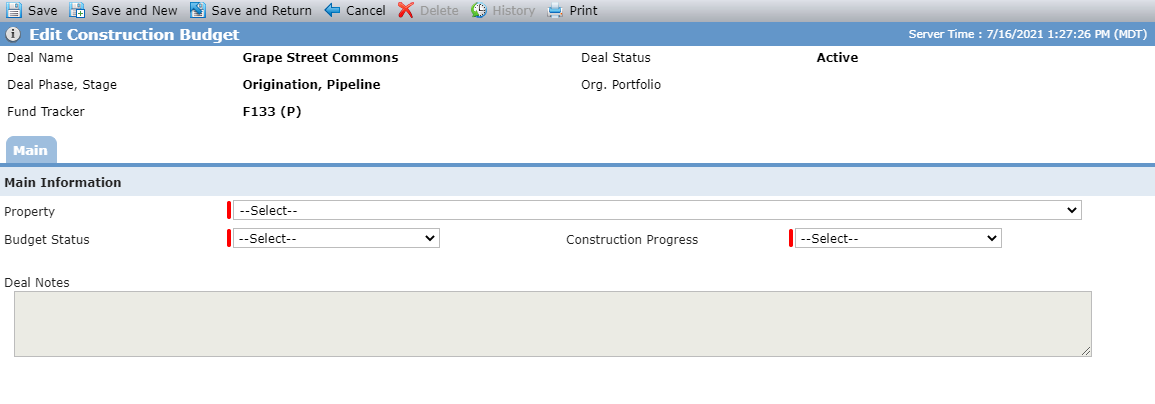
Select the Property.
Select the Budget Status.
After you change the Budget Status to Final, modifications to the budget are limited. You can change information on the Main tab; you can add Use and Source line items on the Details tab; and you can delete the budget.
Select the Construction Progress.
Be sure to update this field as the construction project progresses.
Click Save.
Information from the property's building(s) is displayed and additional tabs become available: Details, Draws, Change Orders, Inspections, Insurance.
The Details tab is where you capture the specifics of the budget. When you first access this tab, no line items are displayed. You can create line items in the following ways:
Use a SmartDox template to add the line items
Line items added to the budget will display on Draw records as you create draws.
Determine what line items you want to add and whether they are already available.
Navigate to the deal, and then select the Construction option in the left navigation menu.
The List Construction Budgets screen opens.
Select the construction budget to edit.
The Edit Construction Budget screen opens.
Click Uses in the top toolbar.
The Construction Budget Use Line Items popup opens.
Add an existing line item.
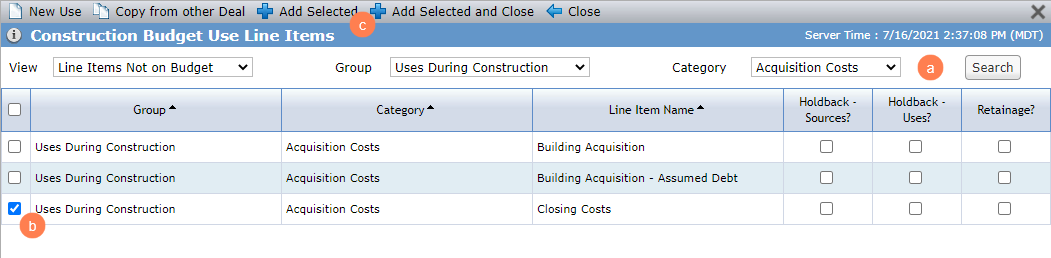
Select which line items to search, and then click Search.
View—You can view all line items that have been selected for the budget or all line items that have not been selected yet.
Group—You can view all the line items associated to Uses During Construction or Uses After Construction.
Category—A list of all categories available, based on the options you select for View and Group.
Select the checkbox of the line item to add.
Click Add Selected to add the line item and keep the popup open to add more line items.
OR
Click Add Selected and Close.
OR
Create and add a new line item.

Click New Use in the top toolbar.
The Add New Construction Budget Use Line Item popup opens.

Select the Group for the line item.
Select the Category for the line item.
Note
The system administrator can add a new Category through the PL_ConstructionBudgetLineItemCategory picklist in ProLink Admin.
Enter a unique Name for the line item.
Optionally, select whether to holdback Sources or Uses for the line item.
Optionally, select whether retainage applies to the line item.
Click Save and Close.
Navigate to the deal, and then select the Construction option in the left navigation menu.
The List Construction Budgets screen opens.
Select the construction budget to edit.
The Edit Construction Budget screen opens.
Click Uses in the top toolbar.
The Construction Budget Use Line Items popup opens.
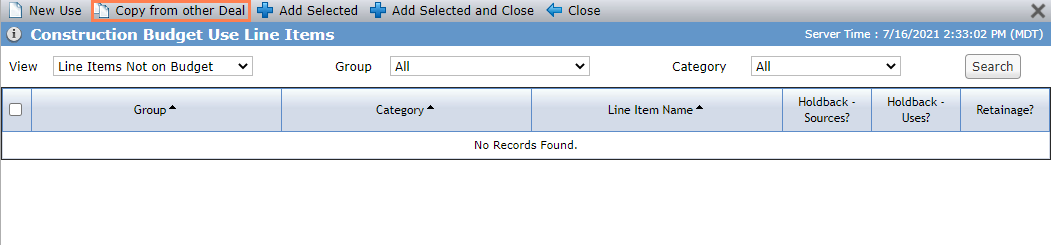
Click Copy from other Deal.
The Copy Construction Budget Use Line Items popup opens.

Enter the Deal Name to copy.
Click Search.
Select the checkbox of the deal to copy.
Click Copy Use Line Items and Close.
Caution
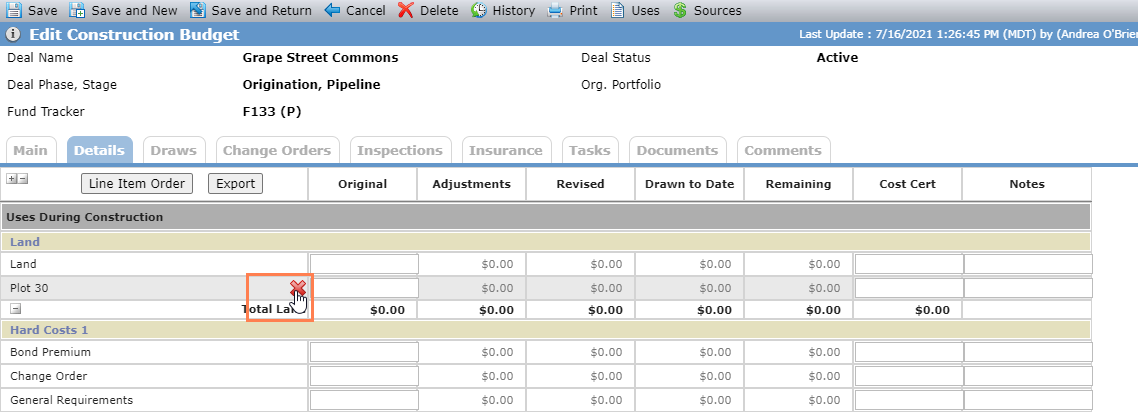
If you remove a line item, it is removed from all existing Draw records.
To remove a line item from the budget, hover over the name and click  . Then click OK to confirm.
You can associate the sources on the deal to the Construction Budget to determine whether the budget is in balance or not. The Sources come from other areas within the deal such as Equity Schedule, Debt/Financing, and Other Sources and Uses.
Sources are not applied directly to a specific line item but to a line item category—Sources During Construction or Sources After Construction. This association is done through the Source button in the top toolbar. All Capital Contributions, Debt Instruments, and Other Sources recorded on the deal are visible through the Sources popup.
Navigate to the deal, and then select the Construction option in the left navigation menu.
The List Construction Budgets screen opens.
Select the construction budget to edit.
The Edit Construction Budget screen opens.
Click Sources in the top toolbar.
The Construction Budget Source Line Items popup opens.
Add an existing Source.
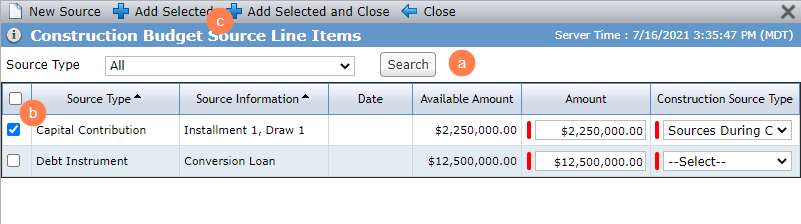
Optionally, filter the existing sources by the Source Type and click Search.
All—All sources on the deal
Capital Contributions—All Capital Contribution records on the deal
Debt Instrument—All Debt Instrument records on the deal
Other Source—All Other Source records on the deal
Select the row of the Source to add.
Click Add Selected to add the Source and keep the popup open to add more sources.
OR
Click Add Selected and Close.
OR
Create and add a new Source.
Note
If you add a Source here, it is also available within its corresponding menu option. For example, if you add a new Capital Contribution, it is also available in the Equity Schedule.
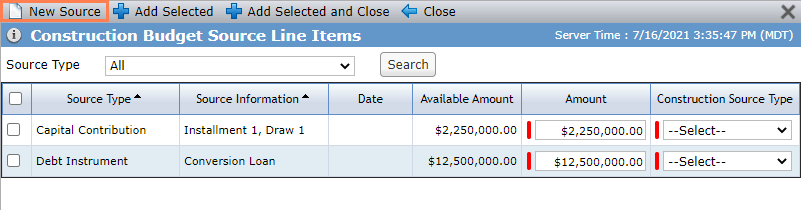
Click New Source in the top toolbar.
The Add New Construction Budget Source Line Item popup opens.
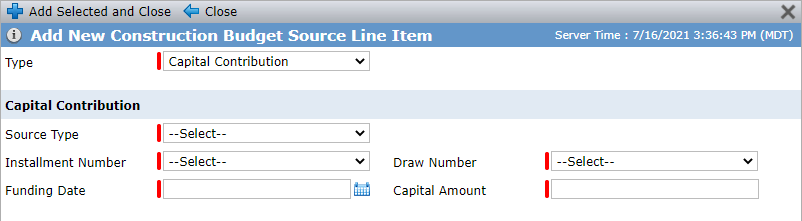
Capital Contribution
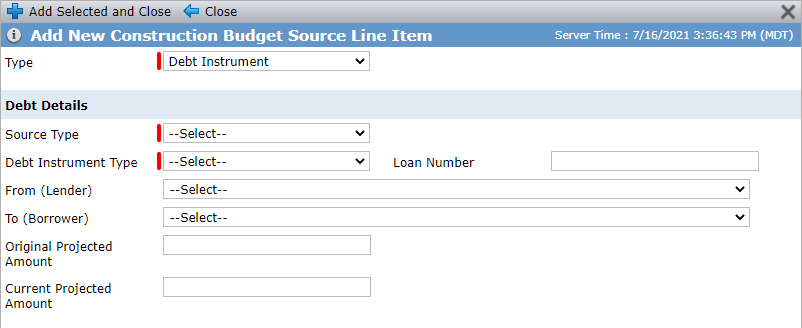
Debt Instrument
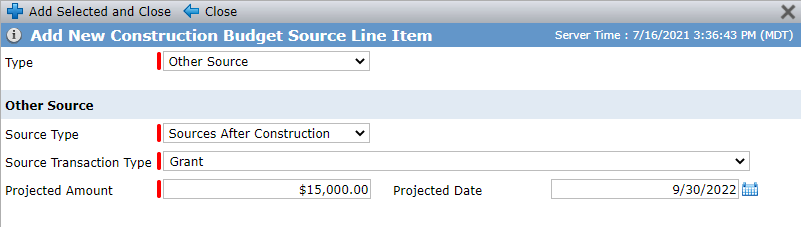
Other Source
Complete the required fields and optional fields as needed. The fields shown depend on the type of Source.
Click Add Selected and Close.
The Detail grid provides the accounting for both the Sources and Uses, indicating whether the amounts balance.