Deal Entities in ProLinkAIM
An entity is any company or individual that is referenced on a deal or fund within the system. Company entities include partnerships or other owners, developers, and service providers, such as accounting or law firms, property managers, or contractors. Individual entities might be particular contacts that are employees of one of those service providers, or may be service providers that are directly related to a deal.
An entity can be displayed on a deal in many ways depending on the role they hold. You might even have one entity that has more than one role on the same deal; for example, once as a Sponsor and once as a Guarantor.
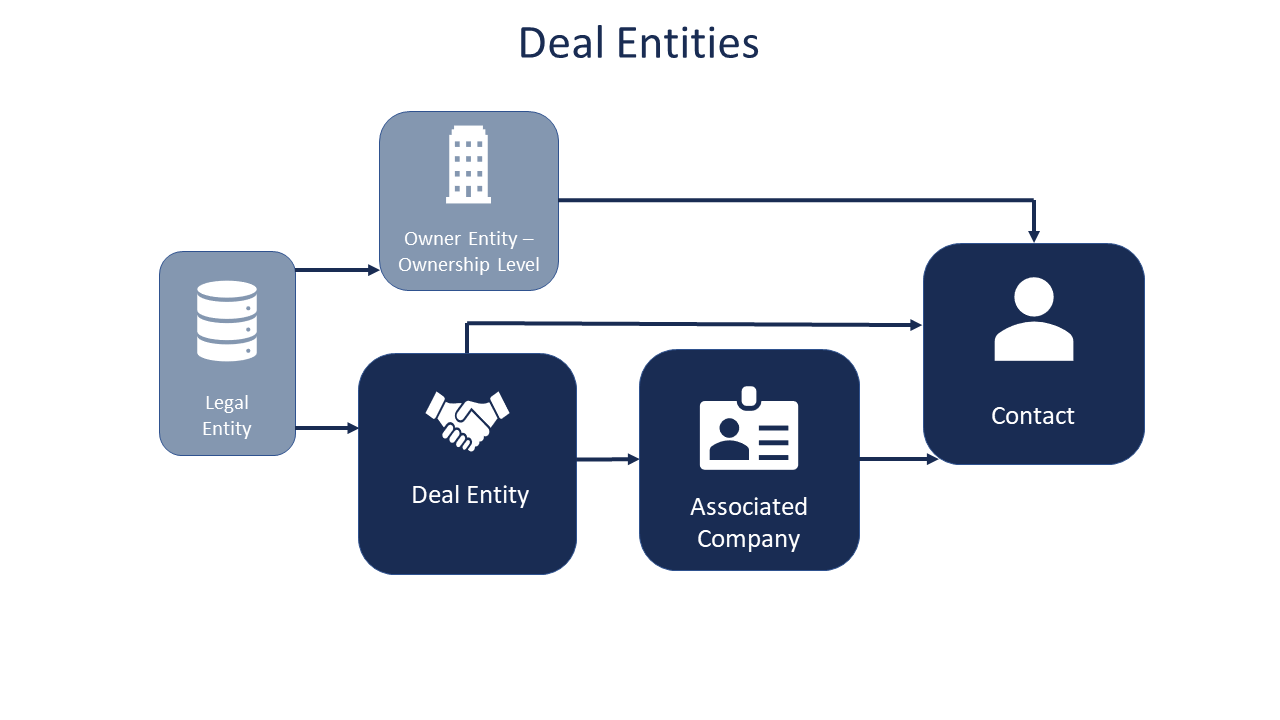
On a deal, an entity can be displayed as a deal entity, associated company, or contact. You can view the relationships on the List Entities screen. Deal entities are those entities that hold a leading role on the deal, such as General Partners, Investor Members, and Lenders. Associated companies are secondary entities, meaning they are affiliated to the deal through another, leading entity. A contact is the point person for the deal entities and associated companies.
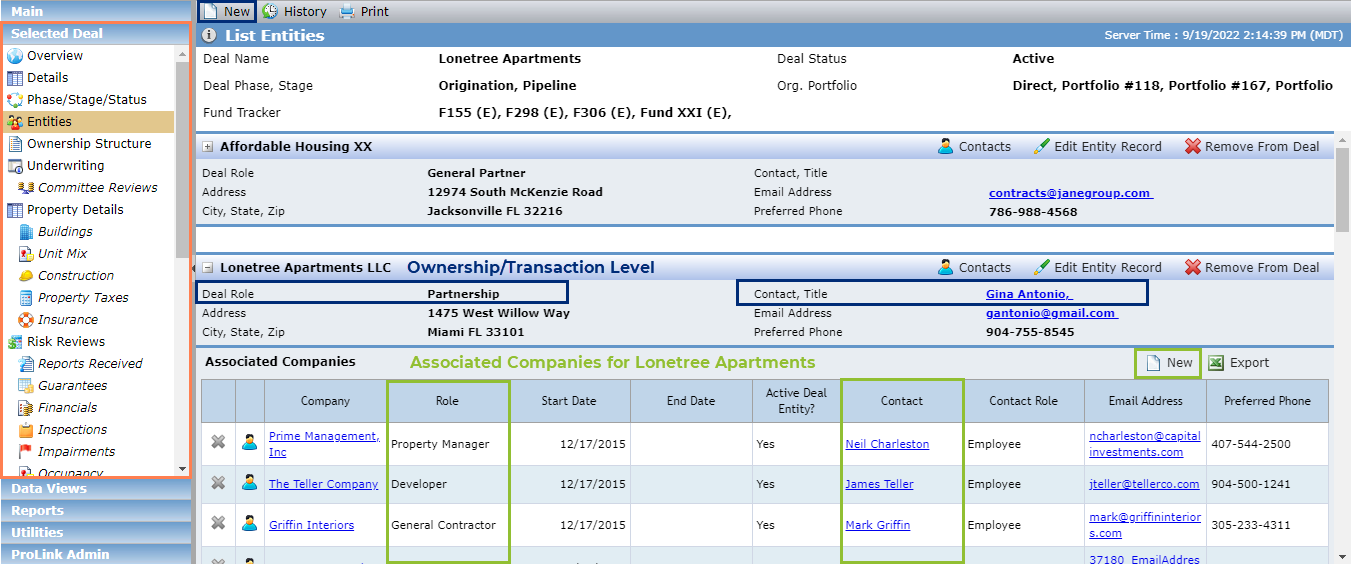
Let's look closer at the structure of a deal entity in ProLinkAIM. The information outlined in blue is specific to the deal entities (the parties directly related to the deal), while the information outlined in green is specific to the companies associated to those deal entities.
Next, let's look at some of the information that may be displayed on the List Entities screen for a deal. Some of this information, such as Contacts, must be updated first on the Legal Entity record. See Edit an Account for more information about updating the Legal Entity record. Again, the blue markup indicates deal entity actions, and the green markup indicates associated company actions.
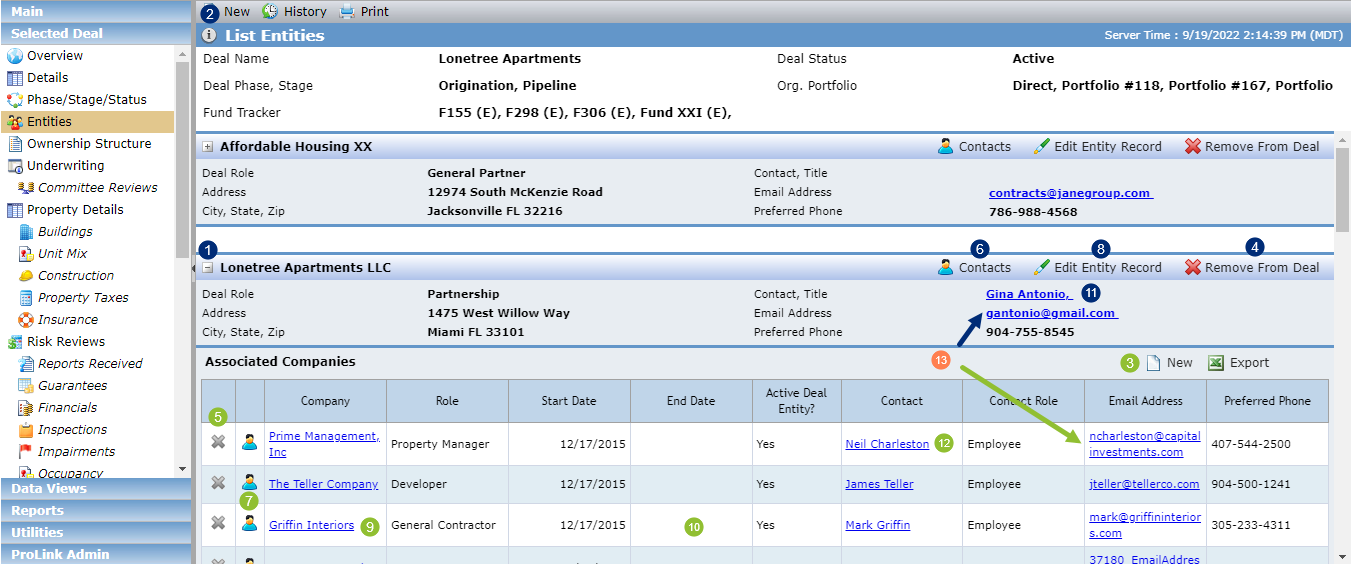
Expand/collapse the deal entity record.
Add an associated company to the deal (under the applicable deal entity).
View and edit contacts for the deal entity. The Entity Contacts popup opens for the deal entity.
Click the hyperlink to view and edit the primary contact for the associated entity. The Entity Contacts popup opens for the associated company entity.
View and edit the legal entity record for a deal entity. The Edit Entity screen opens for editing the deal entity.
Click the hyperlink to view and edit the legal entity record for an associated company. The Edit Entity screen opens for editing the associated company entity.
Row click to view the deal-specific information for an associated company. The Edit Associated Company screen opens.
View and edit the contact information for the deal entity contact. The Edit Entity screen opens for editing the contact entity.
View and edit the contact information for the associated company contact. The Edit Entity screen opens for editing the contact entity.
Open your default email client with the Email Address populated in the To field.
Important
Before you add an entity to a deal, the entity must first exist as a legal entity in ProLinkAIM.
For more information about legal entities, see Introduction to Entities.
Navigate to the deal, and then select the Entities option in the left navigation menu.
The List Entities screen opens.
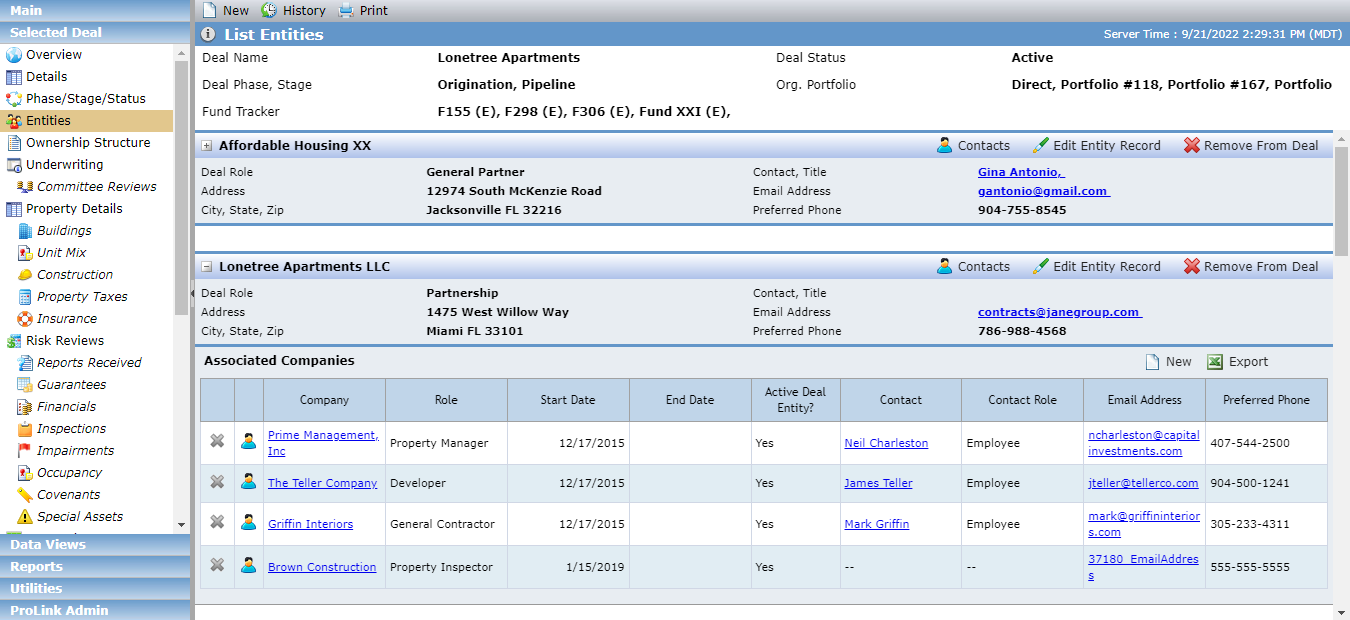
Click New in the top toolbar.
The Entity Search - Add Deal Entity popup opens.
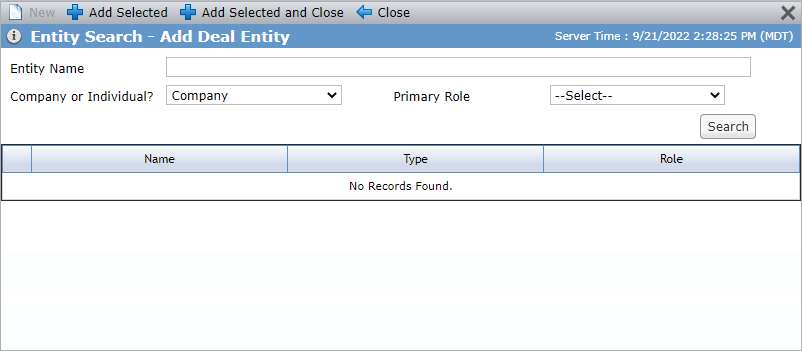
Complete a search and add the entity.
Optionally, enter part or all of the Entity Name.
Select whether to search for companies, individuals, or both. The default is Company.
Optionally, select the Primary Role of entities to search.
The field lists every role in the system.
Click Search.
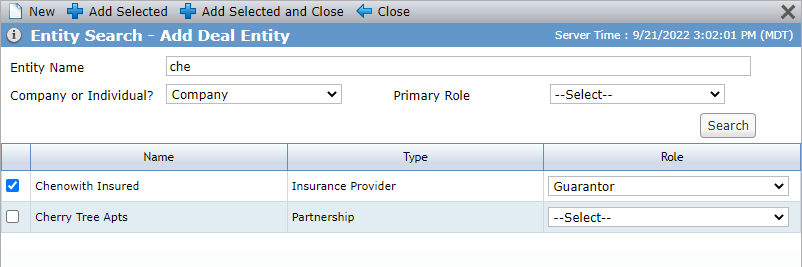
Select the checkbox for the entity(ies) to add, and then select the deal Role for each entity.
The field lists only the roles of the deal-level entities.
Caution
You can click New in the top toolbar to create a new legal entity, if needed. However, we recommend you complete a broad search first to make sure the entity truly does not exist in the system. For example, if you search narrowly for Maxwell J. Greene, the search could return no results; however, the entity already exists under the name Max Greene. Creating duplicate entity records might create problems with reporting or when future updates are required.
Click Add Selected and Close.
The entity is added as a deal-level entity.
The deal type determines what type of deal entities are required on a deal. The following deal entities are systematically created when you create the deal:
LIHTC Deals must have a Deal Entity defined with a role of “Partnership” and can only have one entity defined with a role of Partnership. If you try to remove the only Deal Entity with a role of “Partnership” or add a new Deal Entity with a role of “Partnership” when one already exists, the system displays an error message.
NMTC Deals must have at least one Deal Entity for each of the following Deal Roles: Sub-CDE, QALICB, and Investment Fund. If you try to remove the only Deal Entity of any of those Deal Roles, the system displays an error message.
HTC Deals must have a Deal Entity defined with a Deal Role of “Partnership” or a Deal Entity defined with a Deal Role of “Master-Tenant.” If you try to remove the last Deal Entity of both of those roles, the system displays an error message.
An associated company is an individual or company involved in a deal indirectly, through a deal-level entity; for example, a property manager associated to the partnership.
Navigate to the deal, and then select the Entities option in the left navigation menu.
The List Entities screen opens.
Click
 to expand the deal entity and see the detailed information.
Click New above the Associated Companies grid.
The Entity Search - Add Deal Entity popup opens.
Complete a search and add the entity.
Optionally, enter part or all of the Entity Name.
Select whether to search for companies, individuals, or both. The default is Company.
Optionally, select the Primary Role of entities to search.
The field lists every role in the system.
Click Search.
Select the checkbox for the entity(ies) to add, and then select the deal Role for each entity.
The field lists only the roles of the associated companies.
Caution
You can click New in the top toolbar to create a new legal entity, if needed. However, we recommend you complete a broad search first to make sure the entity truly does not exist in the system. For example, if you search narrowly for Maxwell J. Greene, the search could return no results; however, the entity already exists under the name Max Greene. Creating duplicate entity records might create problems with reporting or when future updates are required.
Click Add Selected and Close.
The entity is added as an associated entity.
The Start Date of the association defaults to the current date. Click into the row to view and edit the details of the association.
For each associated company, the Primary Contact is displayed in the grid. This is a deal-level selection, which you can change by clicking
 in the row of the associated company.
The Edit Associated Company screen provides a view of the associated company details. Click the row of an associated company on the List Entities screen to access the Edit Associated Company screen. Here you can capture additional detail that is specific to the associated company’s role. For example, an associated company with a role of Property Manager will have sections on this screen to track management fee OPA information, management fee agreement information, and fee services.
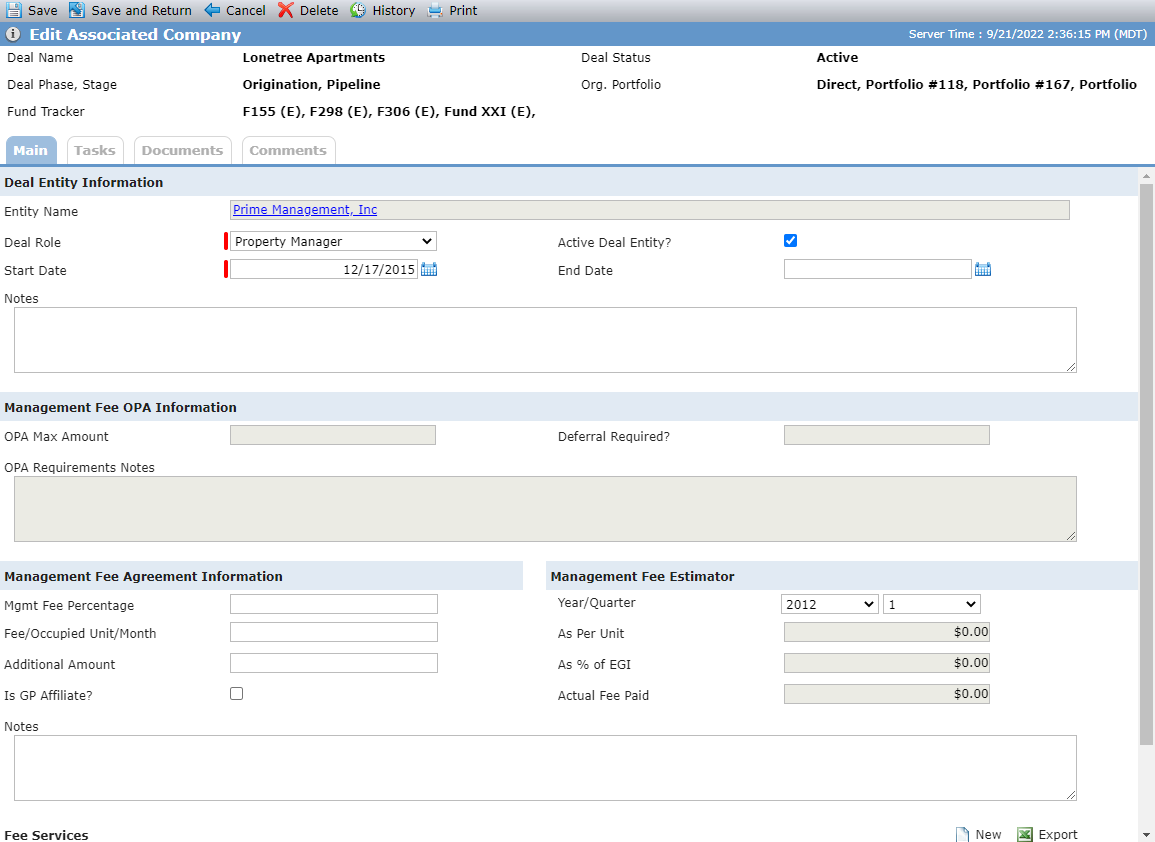
The Management Fee OPA Information, Management Fee Agreement Information, Management Fee Estimator, and Fee Services sections will be displayed only if the Deal Role = Property Manager (Edit Entity screen - Deal Specific Information).
Calculations and System Populated Fields
This section describes the system calculations and other system populated fields on the Edit Associated Company screen.
Field | Description |
|---|---|
OPA Max Amount | Displayed from the Deal Details - OPA tab. |
Deferral Required | Displayed from the Deal Details - OPA tab. |
OPA Requirements Notes | Displayed from the Deal Details - OPA tab. |
Field | Description |
|---|---|
Year/Quarter | Displays the year(s) for which Financials records are created. |
As Per Unit | Calculated field that determines the total amount of fees based on the fee amount and the number of physical units populated on the Occupancy screen for the selected Year/Quarter. This calculation sums all the physical units up to and including the selected Quarter/Month. If a month on the Occupancy screen is not populated, the calculation assumes the value for the month is the same number as the quarter-end month's value. |
As % of EGI | Calculated field that determines the Effective Gross Income (EGI) for the deal. The calculation multiplies the Net Rental Income from the Periodic Financial Income Statement that corresponds to the selected Year/Quarter by the Mgmt Fee Percentage. |
Actual Fee Paid | Calculated field that displays the Total Management Fee from the Periodic Financial Income Statement that corresponds to the selected Year/Quarter. |
Fee Services
The Fee Services section of the Edit Associated Company screen lists the Fee Service records for the entity. This section is displayed only if the Deal Role = Property Manager (Edit Entity screen - Deal Specific Information).

Click New above the grid to add a new record, or click into a row in the grid to view and edit an existing record. The Edit Fee Service screen opens.
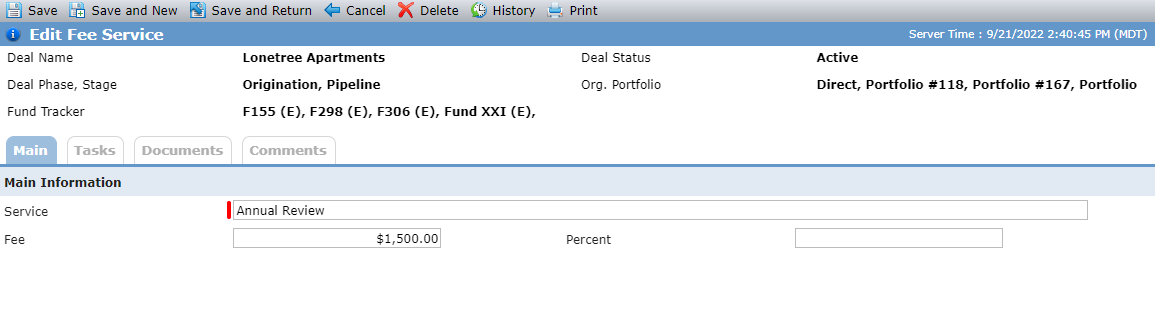
The Edit Fee Service screen allows you to add or edit a Fee Service record. A fee service is used to track any additional fee associated to the management fee agreement. An actual dollar amount or percentage can be associated to the service.
To remove an entity from the deal, click Remove from Deal in the Deal Entity toolbar, and then click OK to confirm the removal. This action does not delete the entity from the system; it only removes the entity from the deal.
You cannot remove an entity with the following roles if they have an associated record:
Lender
Loan Servicer
Owner (on the ownership schedule)
Partnership, QALICB, Sub-CDE, Investment Fund, or Guarantor
To remove an associated company from a deal entity, click  at the beginning of the row, and then click OK to confirm the removal. This action does not delete the associated company entity from the system; it only removes the association from the deal.
You cannot remove an associated company with the Deal Role of Allocatee if that entity is selected as an Allocatee on a QEI record (NMTC Summary), and if it is the only entity for the deal with a Deal Role of Allocatee.
When you add a deal entity or associated company, the primary contact on the selected entity will default to the primary contact for that entity on the deal, and that information will become deal-level information. If you later change the primary contact at the legal entity level, the deal selection does not change. Likewise, if you change the primary contact at the deal level, it does not change at the legal entity level.
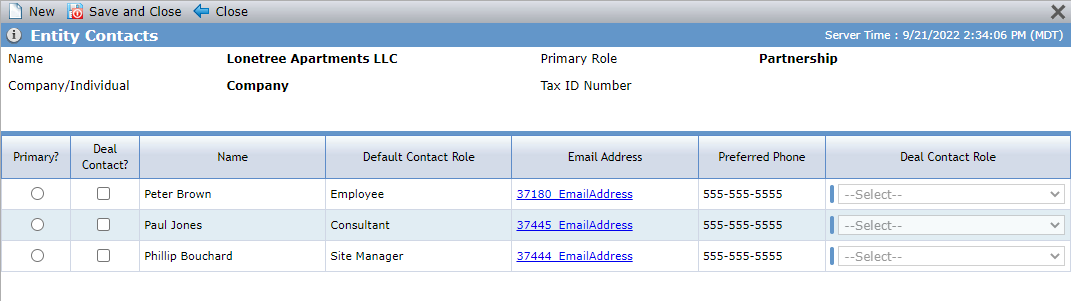
The Entity Contacts popup provides a view of all of the contacts for the selected entity and allows you to change the primary contact for that entity on the selected deal, as well as identify one-to-many deal contacts for the deal, and the Contact Role for each contact on the deal.
Keep in mind that an entity contact must be an individual entity.
Click Contacts in the Deal Entity toolbar to access the Entity Contacts popup for the deal entity, or click in the row of the Associated Companies grid to access the Entity Contacts popup for the associated company.
Caution
You can click New in the top toolbar of the Entity Contacts popup to add a new contact to the selected entity. This functionality allows you to search existing entities, or create a new legal entity if the contact does not exist in the system. We recommend you complete a broad search first to make sure the entity truly does not exist in the system before creating a new one. For example, if you search narrowly for Maxwell J. Greene, the search could return no results; however, the entity already exists under the name Max Greene. Creating duplicate entity records might create problems with reporting or when future updates are required.