Quarter 4, 2025 ProLinkAIM Release Notes
ProLink Solutions is pleased to announce the Quarter 4, 2025 release. You've come to the right place to review what's new and tickets delivered.
UAT Build: November 13, 2025
Production Build: December 11, 2025
What's New
The release introduces the following new functionality.
Completion of Fund Losses in the Fund Benefits Schedule Functionality
In Quarter 2, ProLink started enhancements to the Fund Benefits Schedule to show more granular Income/(Loss) tracking. With Quarter 4, the functionality is complete. You can track lower-tier Income/(Loss) separately from upper-tier Income/(Loss) as well as track both OPA and Actual loss values.
The Fund Only OPA Losses and Fund Only Actual Losses columns, which allow you to store losses incurred by the fund, are now available. The Total Combined OPA Losses column contains the sum of Rollup LT OPA Losses and the fund-incurred OPA income/loss. The Total Combined Actual Losses column contains the sum of the Rollup LT Actual Losses and the fund-incurred Actual income/loss.
ProLink added the ability to edit fund-only losses from the Main tab for annual benefits and from the Quarterly View tab for quarterly benefits. When you click Edit Fund Only Losses above the Taxable Income/ (Loss) grid, the following popup opens, where you can enter and save your changes. Saving these changes does not result in recalculating or saving any other Benefits Schedule fields.
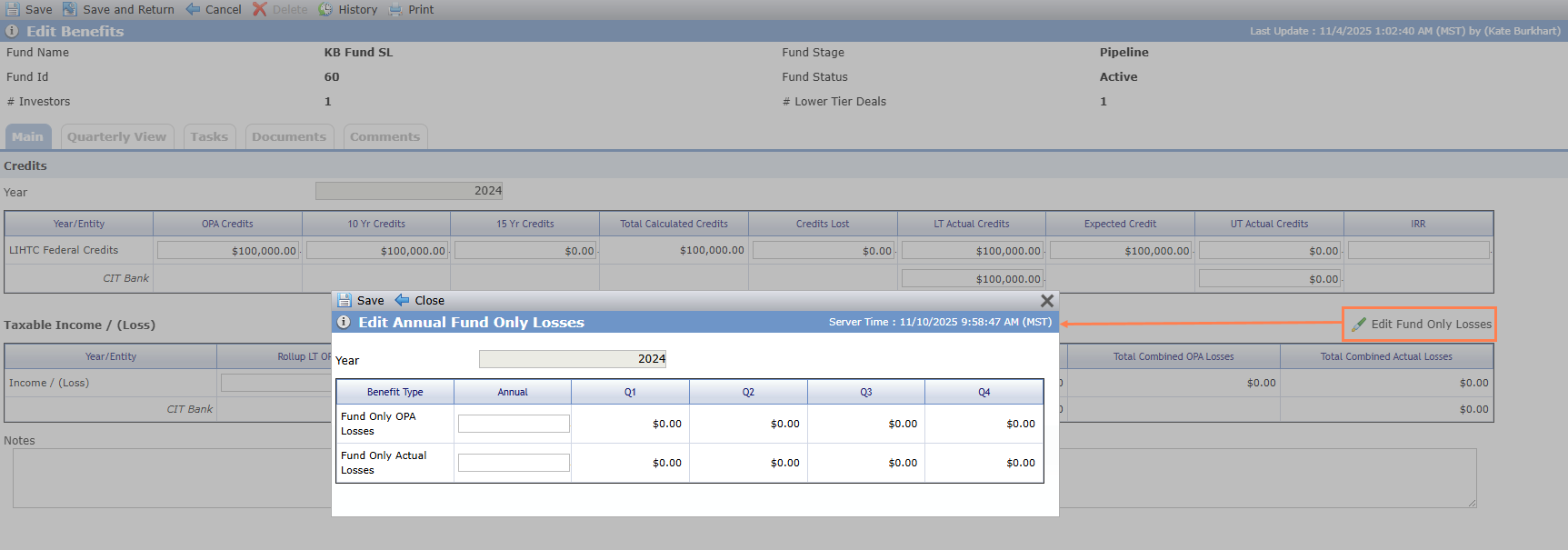
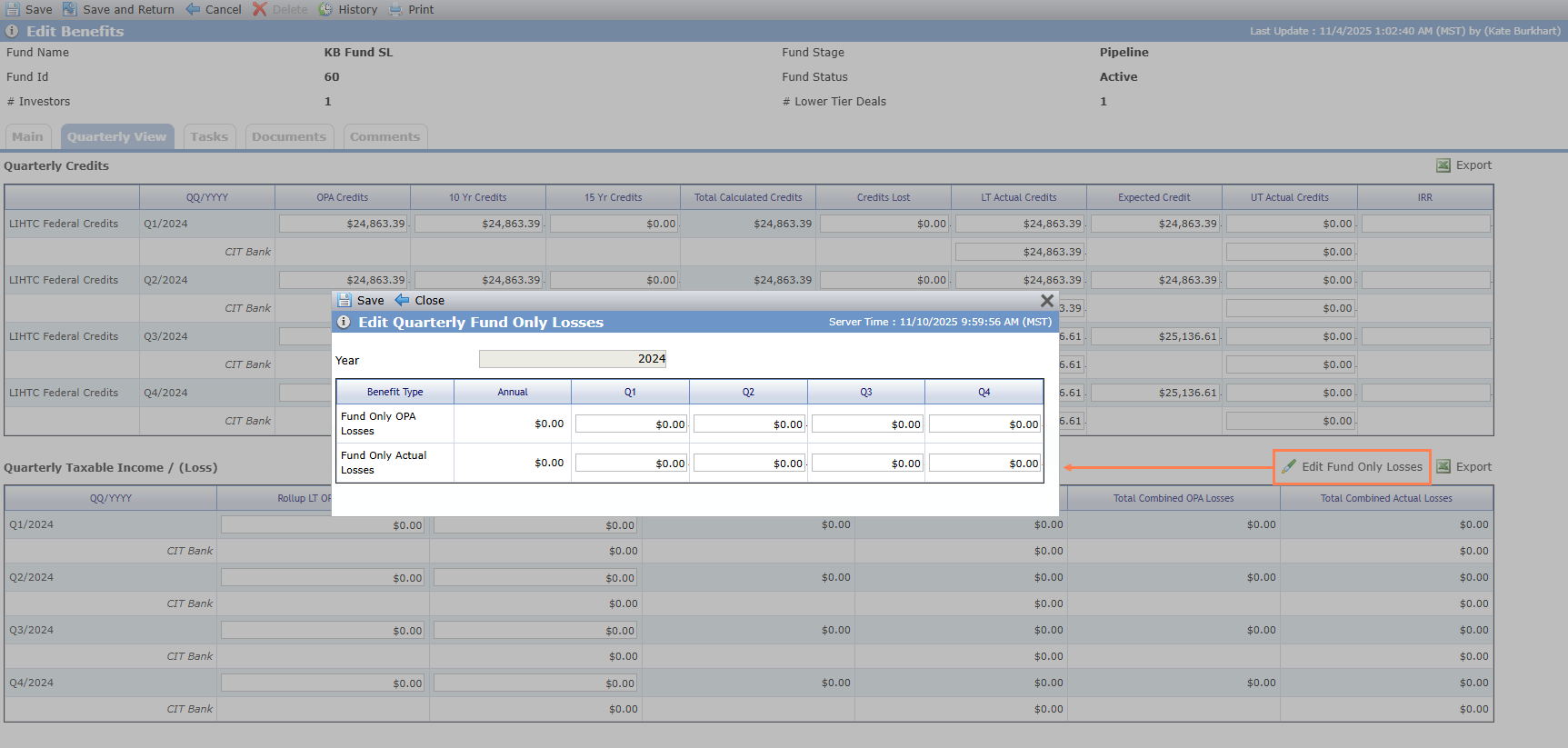
Edit Benefits - Main Tab; Edit Benefits - Quarterly View Tab
New Straight-Line Impairment Functionality
ProLink introduces a new Straight-Line deal impairment method, which depreciates the investment evenly over time. When selected for the deal/fund details, the Straight-Line method is used for impairment calculations for all entities invested in the deal or fund.
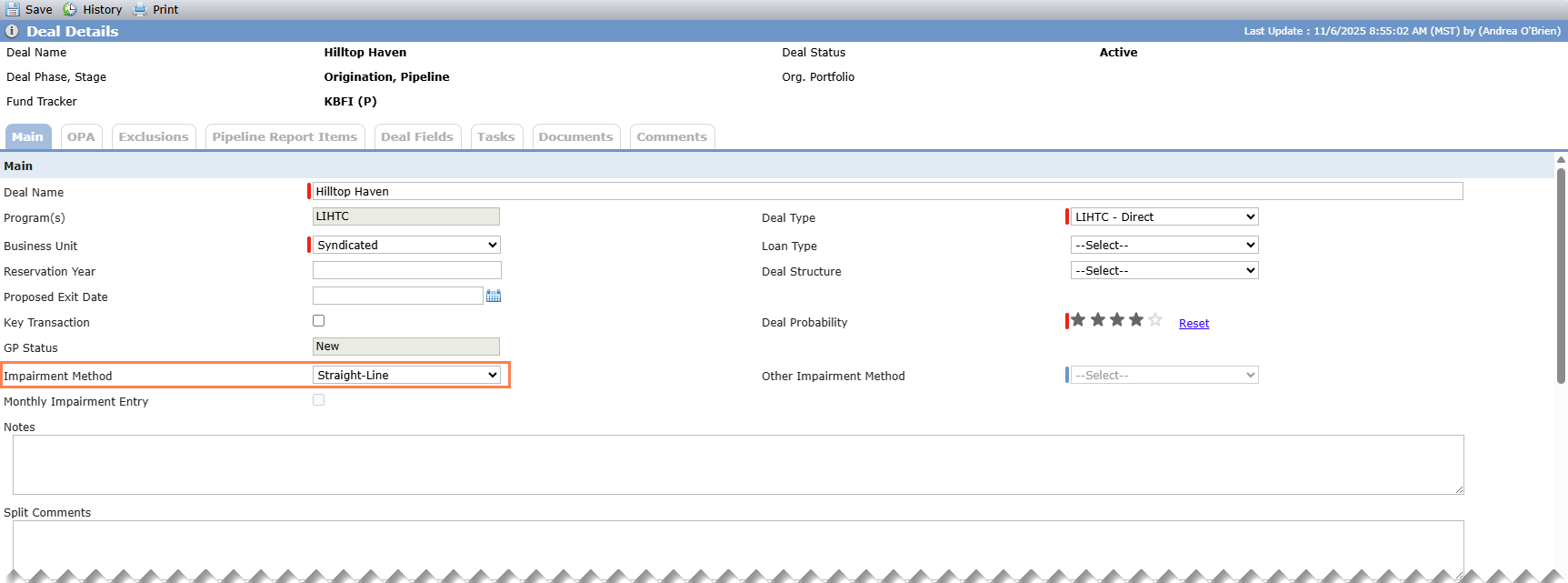
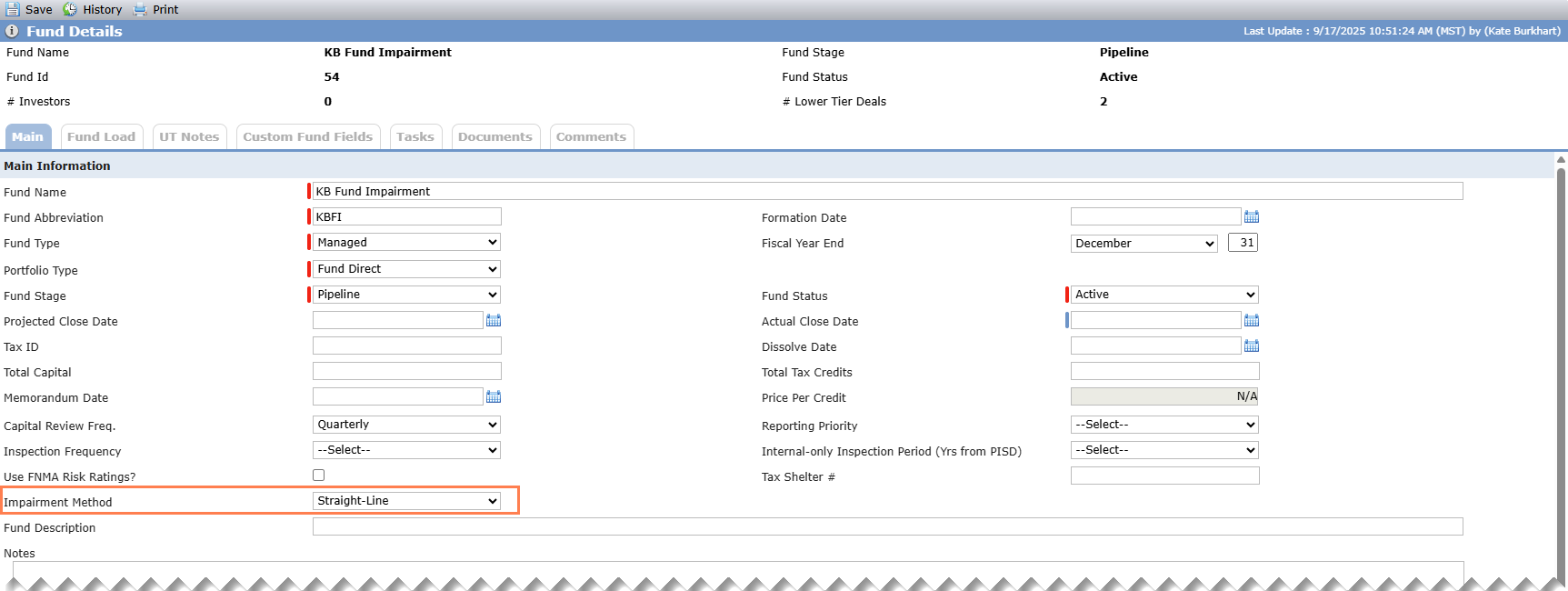
Deal Details - Impairment Method; Fund Details - Impairment Method
ProLink updated the Recalculate Impairment popup (Edit Impairment screen) for the Straight-Line impairment method.
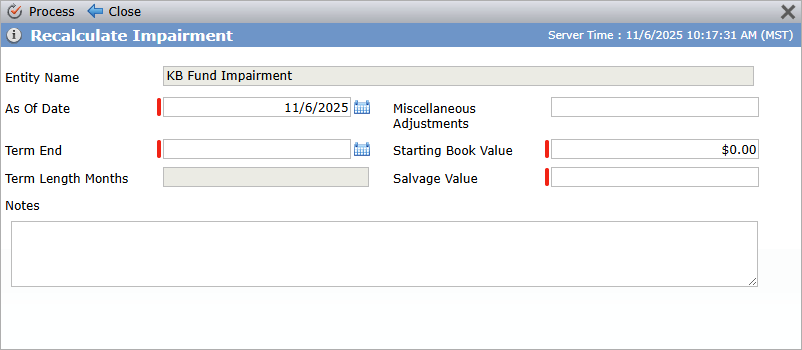
Fields for Straight-Line impairment (re)calculation include:
Entity Name—Read-only name of the investor entity selected on the Edit Impairment screen.
As Of Date—The date from which the calculation should begin.
The date must be in the current month unless you have the Impairment Backdating security privilege.
Starting Book Value—Starting book value of the investment on the As Of Date.
For deal impairments, if the calculation has never been run before, the value defaults to the Total Adjusted Capital for the selected Investor Entity. If the calculation has been run previously, the value defaults to the Beginning Book Balance for the month of the As of Date.
For fund impairments, if the calculation has never been run before, the value defaults to the Total Fund Commitment for the selected Investor Entity. If the calculation has been run previously, the value defaults to the Beginning Book Balance for the month of the As of Date.
Salvage Value—The expected final book value at the end of the term.
Term End Date—The date on which the impairment term will end.
Miscellaneous Adjustments—Adjustments either up or down to the Book Value.
Term Length (months)—A read-only field containing the calculated number of months from the month of the As Of Date to the month of the Term End Date.
Notes—Text field for information about specific recalculations that is saved to the history.
Note
The new Notes field is available in the popup for all impairment methods.
When you click Process, the system calculates the Impairment Schedule using the Straight-Line depreciation method. During processing, the system:
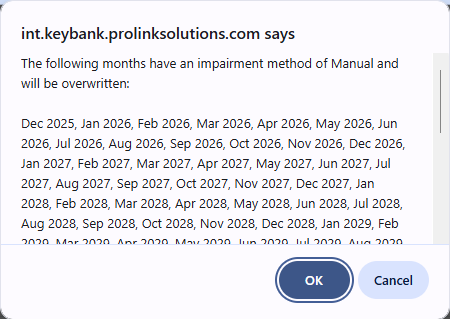
Validates whether the process will overwrite any existing Manual Impairment records. If so, the system prompts you to confirm or cancel the overwrite.
Creates the Impairment Schedule Year and Month records if they do not already exist.
For NMTC deals, the first year record is determined by the year of the deal's Actual Close Date. For all other deal types, the first year record is determined by the year of the Admission Date of the selected entity from the finalized ownership schedule.
The last year record will be the year with the greatest value of the following options: last year of benefit schedule years, last year of the Date Received from Cash Flow Payments where the selected entity is the payor, last year of Capital Contribution records where the assigned owner is the same as the selected entity, last year of the Exit Date for the selected entity on the finalized ownership schedule, or year of the end of the amortization term (Term End Date in the Recalculate popup).
For funds, the first year record will be the earliest of the following options: year of the selected entity's earliest admission date from the finalized ownership schedule or year of the As Of Date (Recalculate popup).
The last year record will be the year with the greatest value of the following options: As Of Date + length of Term or As Of Date + 16 years.
Calculates monthly Impairment records.
Calculation will start in the month of the As Of Date and terminate at the month of the Term End Date, with the month of the As Of Date counting as Month 1 in the Term and the month of the Term End Date counting as the final month in the Term.
The Ending Book Value in the last month of the term will be equal to the Salvage Value that was defined in the Recalculate Impairment popup.
Values for the columns in the Monthly Impairment Schedule will be set to the following:
MM/YYYY—The month and year of the period in the format “January 2020.”
Impairment Method—“Straight-Line."
Projected CRA Period End Value—Will be blank.
Beginning Book Balance—The book value for the investment at the start of the month, prior to applying any depreciation or adjustments.
First impairment month record = User-entered Starting Book Value
Subsequent months = Ending Book Value from the month immediately prior to the month being calculated
Impairment Charge—The calculated depreciation to be applied that month. Represented as a negative currency amount.
First impairment month record = (Starting Book Value – Salvage Value) / Length of Term
Subsequent months = (Month Beginning Book Balance – Salvage Value + Miscellaneous Adjustments) / Length of Term Remaining
Forecasted Residual Payments—Will be blank.
Miscellaneous Adjustments—Adjustments to the book value that are applied after depreciation.
First impairment month record = Any user-entered value for Miscellaneous Adjustments
Subsequent months = Will be blank.
Ending Book Value—The final book value of the investment at the close of the month after applying depreciation and adjustments.
First impairment month record = Beginning Book Balance – Impairment Charge + Miscellaneous Adjustments
Subsequent months = Ending Book Value (or Beginning Book Balance – Impairment Charge)
Calculates annual Impairment records based on the results of the monthly impairment calculation.
Calculation Year—The year of the period in the format “2020.”
Impairment Method—“Straight-Line."
Projected CRA Period End Value—Will be blank.
Beginning Book Balance—The book value for the investment at the start of the year.
Impairment Charge—The sum of Impairment Charge values from every Impairment Month Record in the year.
Forecasted Residual Payments—Will be blank.
Miscellaneous Adjustments—The sum of Miscellaneous Adjustments from every Impairment Month Record in the year.
Ending Book Value—The Ending Book Value from the last month of the year.
If you change the impairment method from one method to another, the system preserves existing impairment method records.
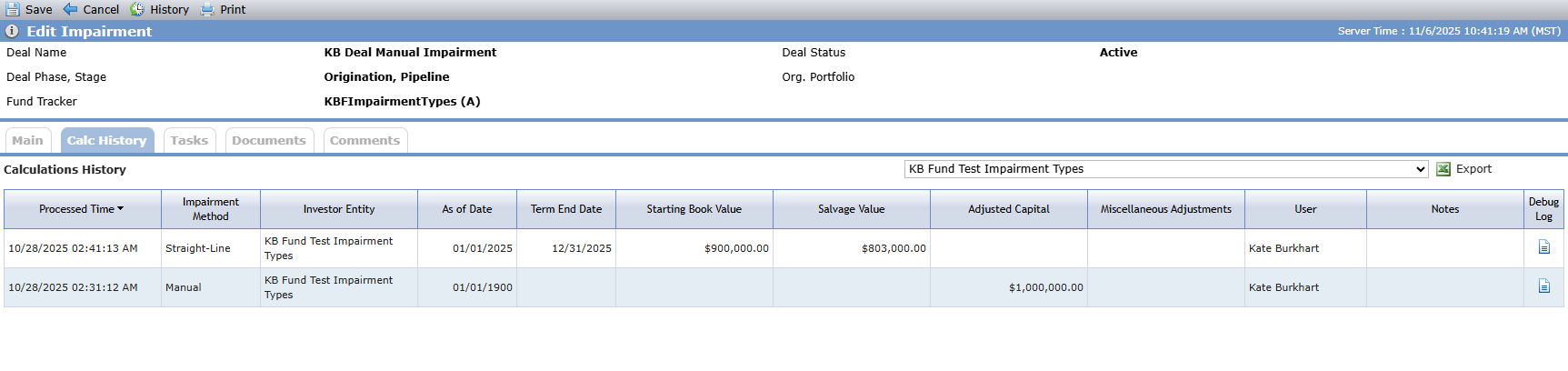
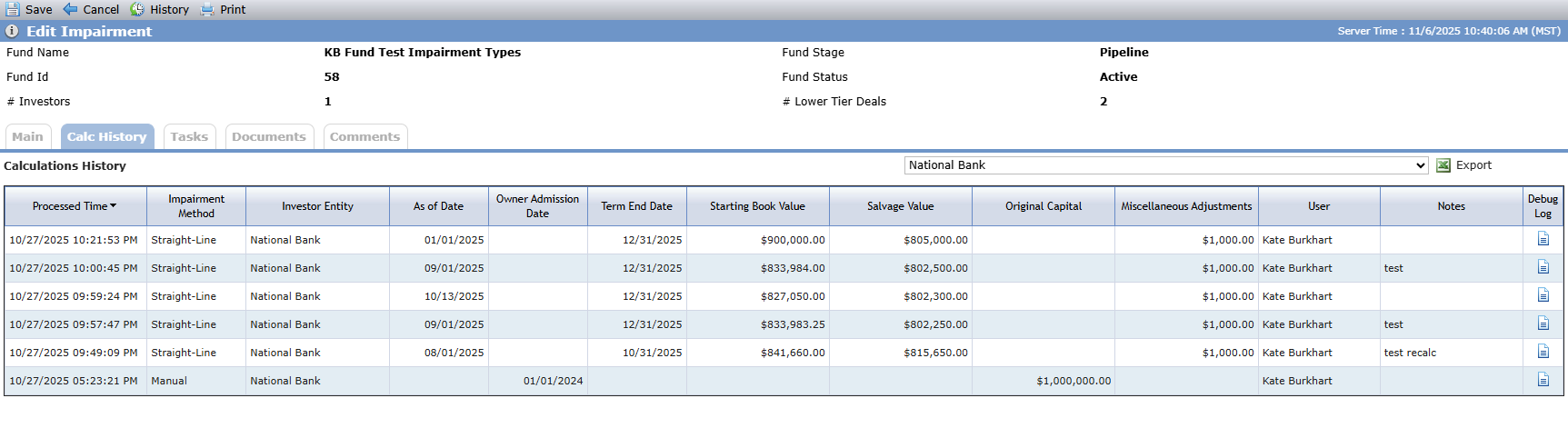
ProLinkAIM captures the history of impairment calculations for each investor-investment relationship on a new Calc History tab of the Edit Impairment screen. Different from the standard record audit history, the calculation history shows the values that were used to perform impairment calculations. The calculation history is available for all impairment methods, and the columns in the grid depend on the impairment method(s) listed.
Deal Impairment - Calc History; Fund Impairment - Calc History
If you clear the Impairment Schedule checkbox on a finalized ownership schedule for an owner, the system deletes the impairment history along with current impairment data.
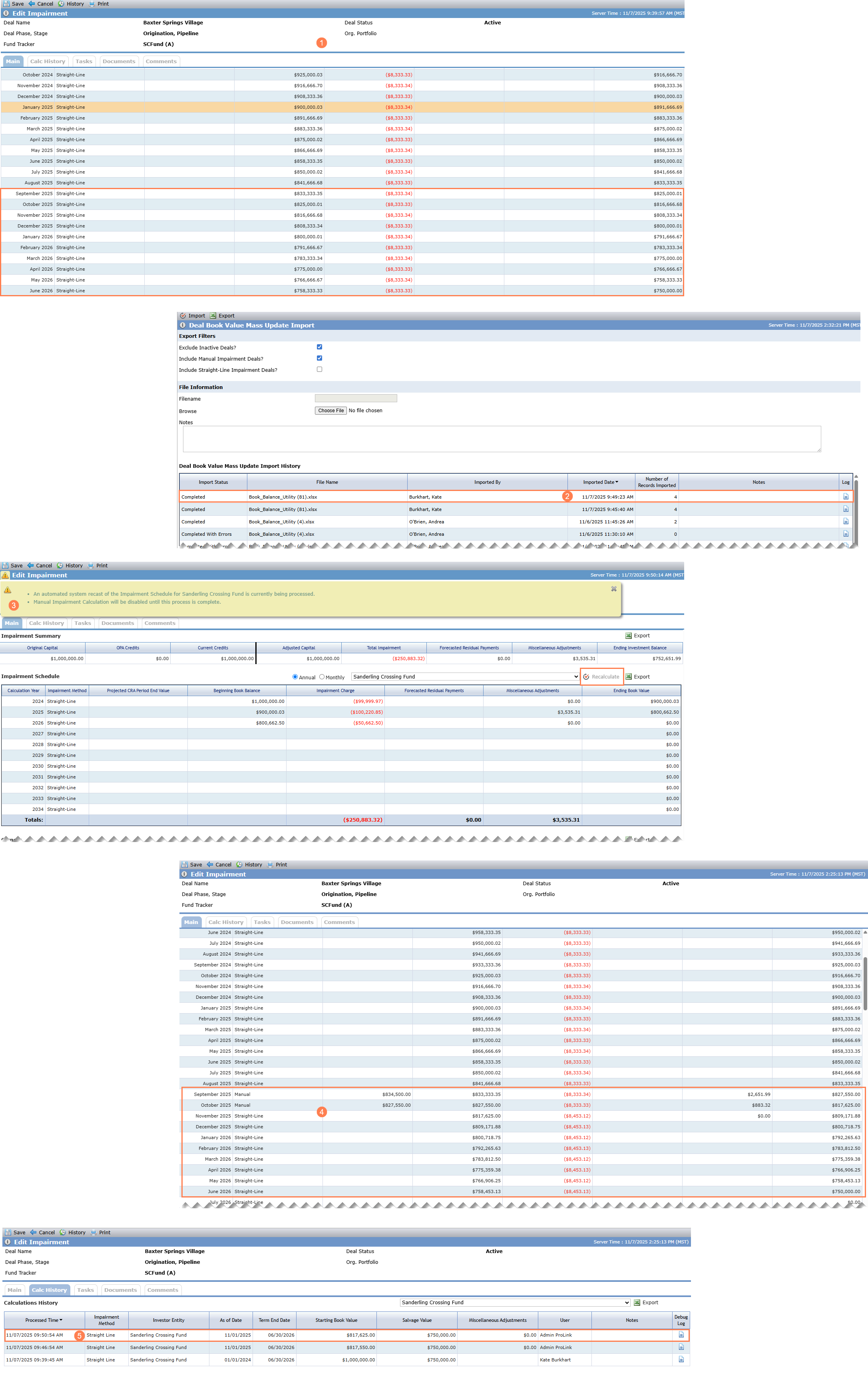
Organizations can override calculated Straight-Line impairment values through the Deal/Fund Book Value Mass Update Import utilities. When the imported value belongs to a deal/fund with Straight-Line impairment, the system updates the following fields for the imported Impairment Month records:
Impairment Method = Manual
Ending Book Value = Imported value from template
Projected CRA Period End Value = Imported value from template
Miscellaneous Adjustments = Previous Miscellaneous Adjustments + Imported Ending Book Value – Calculated Ending Book Value
The variance between the previously calculated Straight-Line Ending Book Value and the imported Ending Book Value will be reflected in the Miscellaneous Adjustments column.
Impairment Charge = Existing calculated value
ProLink updated the Export Filters of the Deal/Fund Book Value Mass Update Import utilities to include the following options:
Include Manual Impairment Deals/Funds—Selected by default. When selected, all investments in deals/funds with "Manual" selected as its Impairment Method are eligible for inclusion in the export.
Include Straight-Line Impairment Deals—Cleared by default. When selected, all investments in deals/funds with "Straight-Line" selected as its Impairment Method are eligible for inclusion in the export.
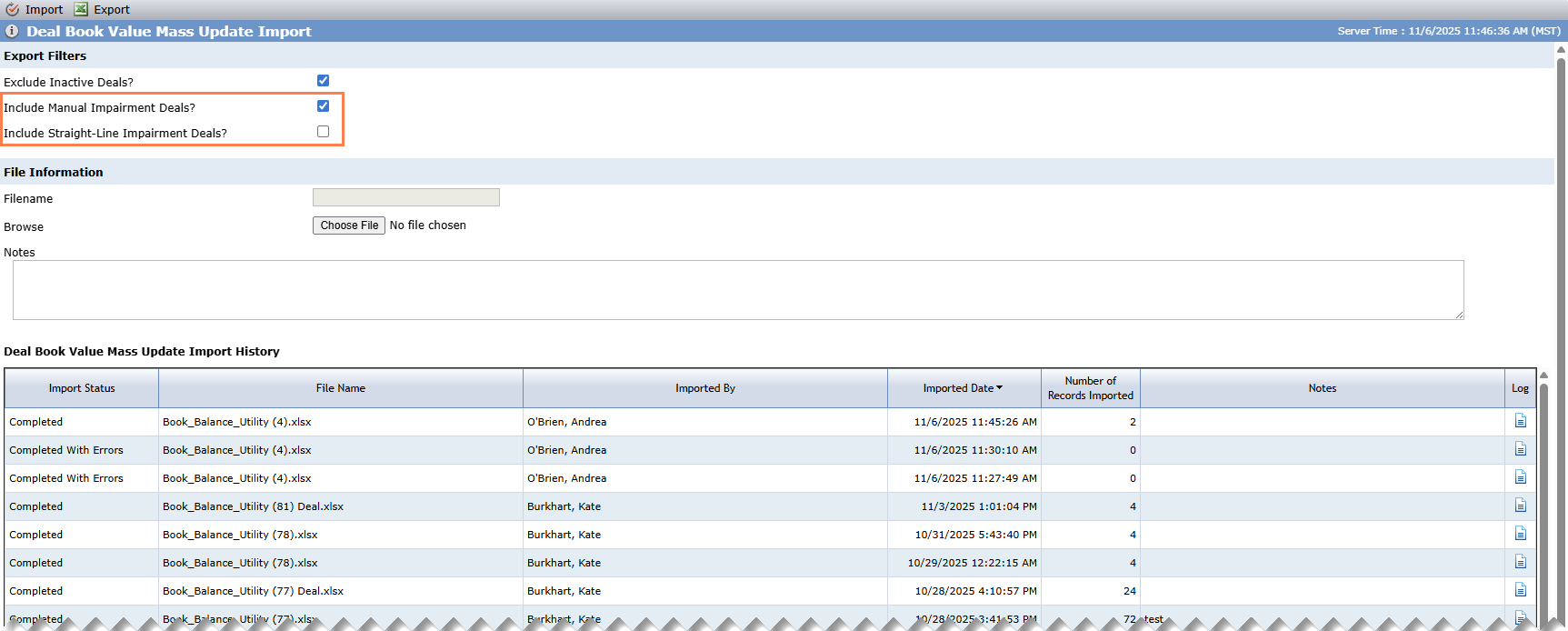
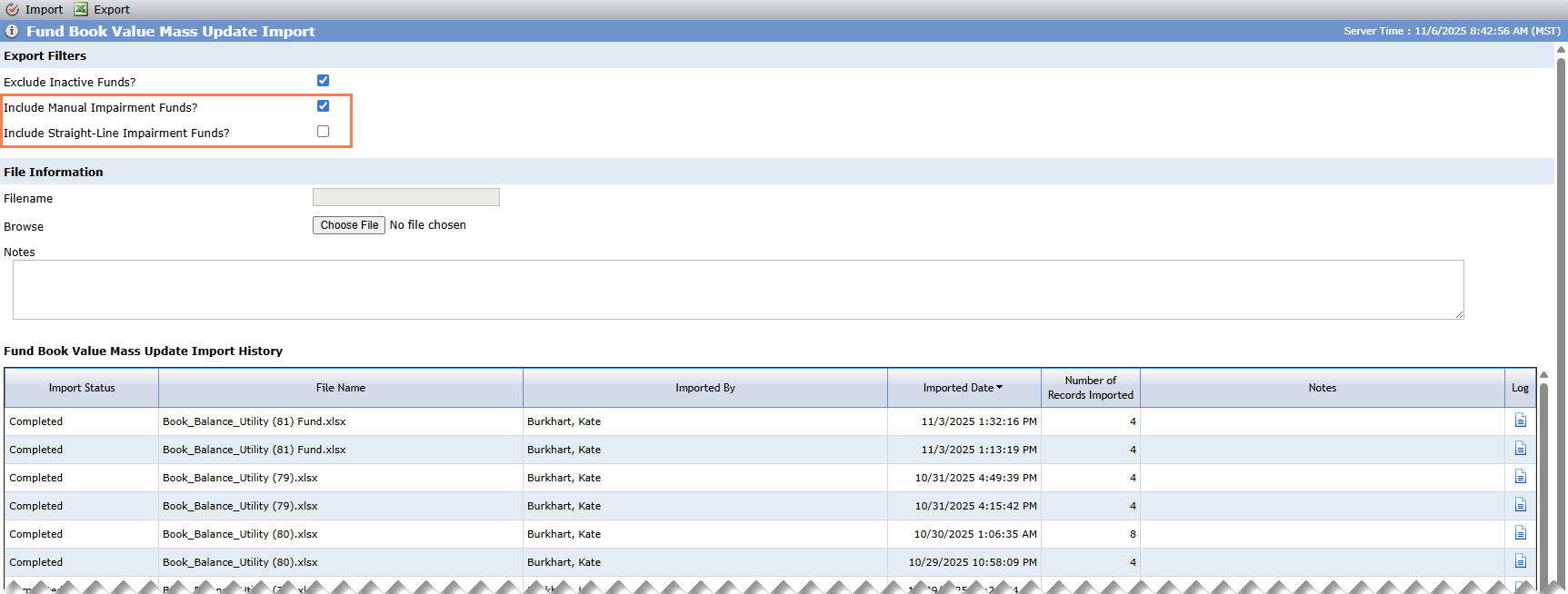
Deal Book Value Mass Update Import; Fund Book Value Mass Update Import
You must select at least one of these options. Select both options to export a file with both Manual and Straight-Line impairment deals/funds.
The utilities now validate that imported entries are contiguous by date. If you import a file with more than one row for the same combination of Deal ID/Fund ID and Entity ID, the dates for those rows must represent a contiguous period of time. The rows do not have to appear in sequential order. If a deal/fund-entity combination fails the validation, the system does not import any rows for the combination. The system does import all valid rows.
In addition, when you import data for deals/funds that use the Straight-Line impairment method, the system automatically recalculates the remainder of the depreciation term for the updated Impairment Schedule when the Ending Book Value in the import file is different than the Ending Book Value in the system for the same month. The recalculation begins in the month immediately after the latest month of an imported value.
The system uses the impairment Calc History to determine the variables for the recalculation:
As Of Date = First of the month immediately after the latest manually updated (imported) month
Term End Date = Date from the most recent history record for the impairment schedule
Salvage Value = Value from the most recent history record for the impairment schedule
Starting Book Value = The Ending Book Value specified in the import for the prior month
Miscellaneous Adjustments = $0.00
Automatic recalculation is skipped if the Impairment Schedule has never been calculated using the Straight-Line method before, if the date of the imported row is after the calculated As Of Date for the auto-recalculation, or if the imported value is less than the salvage value selected for the recalculation.
Automatic recalculation results in a new impairment calc history record with ProLink Admin shown as the user. The import log file also includes information about auto-recalculations.
If you visit the Impairment Schedule where automated recalculations are being processed, the screen displays a message indicating recalculations are pending or in process and the Recalculate button is disabled. In addition, the Impairment Schedule field on the Ownership Structure popup is disabled.
Ability to Add New Financials Line Items to Multiple Years
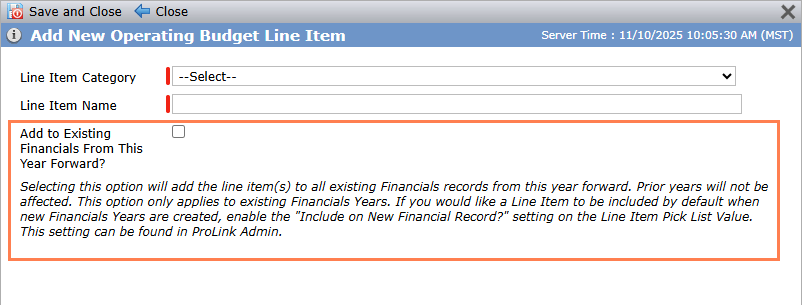
ProLink introduces the ability to add new or missing line item(s) to existing Financials records at one time. ProLink added a new checkbox to the Add Operating Budget Line Item(s) popup. (To access this popup, click New Line Item in the top toolbar of the Edit Operating Budget screen.) When you select the Add to Existing Financials From This Year Forward checkbox, the system adds the selected Line Items to all existing Financials records (Budget, Periodic, and Annual) from the year of the current Operating Budget forward.
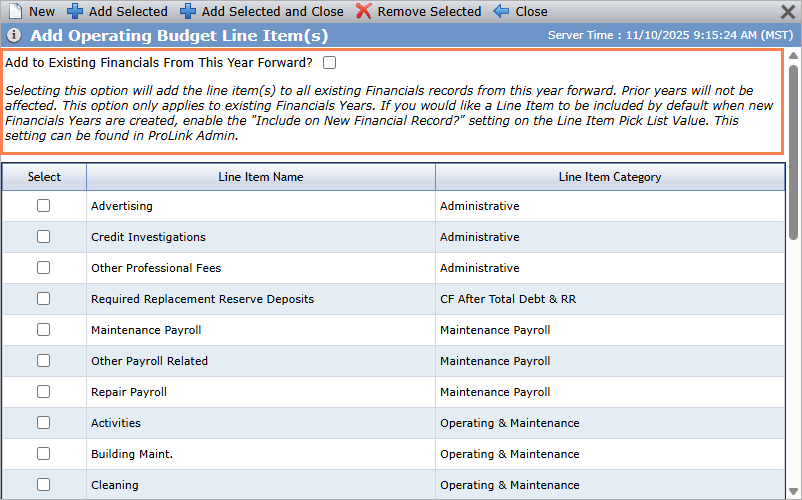
You can also make this selection if you create a new operating budget line item for an existing operating budget. (To access this popup, click New in the top toolbar of the Add Operating Budget Line Item(s) popup.)
Note
If you subsequently add a new year, the system will not add the line item(s) that you manually added across multiple existing records. To include line item(s) by default on new records, the administrator should configure the PL_LineItem picklist value through ProLink Admin.
Risk Review Label Change
ProLink changed the screen label of the Occupancy field on the Edit Risk Review screen to Recent Updates, which matches how the field is labeled in reports. The database name did not change, so any organization-specific reporting and SmartDox templates are not impacted by the change.
Priority Field SmartDox Behavior Change
ProLink updated SmartDox so that the system saves the value sent in the Priority field (if greater than 0) (Deal>Cash Flow Annual Distributions>Distribution Priority). If the field is not mapped or is 0, then the system incrementally assigns the priority value (existing behavior).
Tickets Delivered
The release includes the following items.
Ticket Number | Description |
|---|---|
26046 | ProLink removed the extraneous Yes/No checkboxes for Line B on the Tax Form 8609-A form so that the form matches the IRS form. |
28481 | ProLink fixed an issue so that the data displayed in the comparison column on the Edit Financials screen matches the selected Financials record in the drop-down list. The selected comparison persists while you are on the Edit Financials screen, regardless of changing tabs (Income Statement, Balance Sheet). |
29699 | ProLink fixed an issue so that you can delete Committee Review meeting records even if Committee Review Policy Guideline records are associated. |
30133 | ProLink fixed an uncommon issue with files not being uploaded to ProLinkAIM on SmartDox Sends. |
31037 | ProLink fixed an issue so that the system saves user defined field (UDF) values as expected. |
N/A | ProLink fixed a rounding issue that occasionally occurred when saving annual fund benefits. |
N/A | ProLink fixed an issue with the New Year Process that resulted in the system creating duplicate financial versions. |