Introduction to Entities
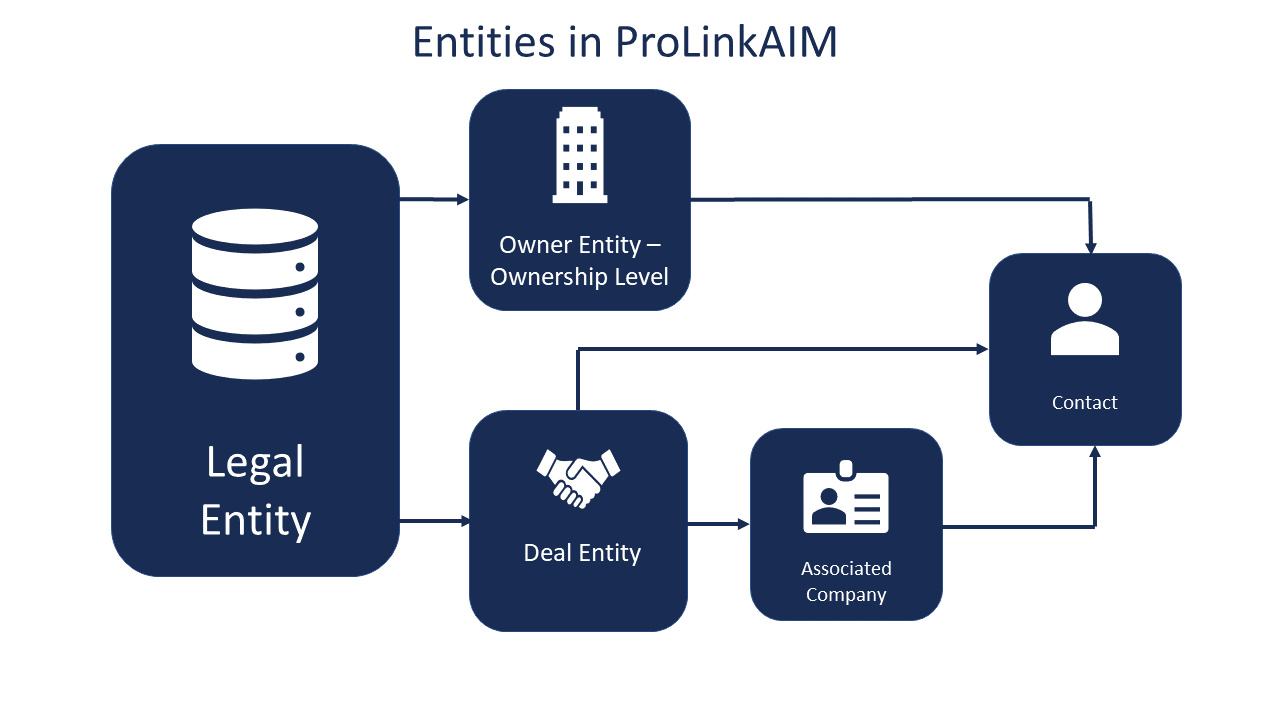
An entity is any company or individual that is referenced on a deal or fund within the system. Company entities include partnerships or other owners, developers, and service providers, such as accounting or law firms, property managers, or contractors. Individual entities might be particular contacts that are employees of one of those service providers, or may be service providers that are directly related to a deal or fund.
Note
In the ProLinkAIM database, Entity records are called "legal entities."
All entities are assigned a Primary Role, such as Attorney, Developer, or Property Manager, which describes the main function that the entity will perform on deals/funds in the system. Each entity can be assigned a deal-level role when added to a deal or fund-level role when added to a fund, which can be different from their Primary Role. For example, McCormack Baron Samuels, Inc. has a Primary Role of Developer but when assigned to the Brownstone Apartments deal, this entity is assigned as the Property Management Company in addition to being assigned as the Developer.
You only create an entity once. Updates to an entity record are automatically reflected on all the deals/funds in the application with which the entity is associated.
See Deal Entities in ProLinkAIM for more information about deal-level entities, and see Fund Entities for more information about fund-level entities.
Tip
Keep in mind entities are shared across the entire application. As an organization, you should decide on conventions for naming entities that make sense for all teams.
To view all entities in the application, navigate to the Entities data view in the left navigation panel.
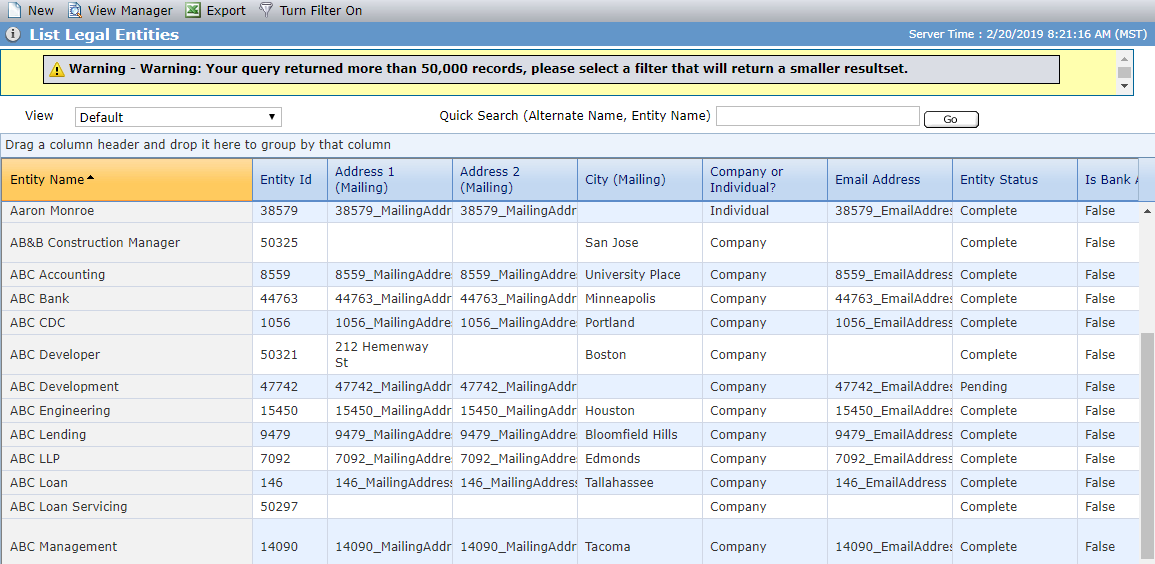
The List Entities screen is a data view screen, which means you can filter, sort, search, and create custom views, like with other data views.
To edit an entity, click the row in the grid to open the Edit Entity screen for the selected entity. When you access the Edit Entity screen from a deal or fund, the Deal/Fund Specific Information section is displayed.
Caution
Before creating a new entity record, you should always perform a search to make certain the entity does not already exist. Creating duplicate entity records might create problems with reporting or when future updates are required.
Note
When a deal or fund is created, depending upon the programs selected, the application might systematically create entities. See Create a Deal for more information.
Navigate to the Entities data view in the left navigation panel.
Search for the entity.
Enter the name to search in the Quick Search field, and then click Go. Enter only a portion of the name to broaden the results. Be sure to also search for variations of the name or acronyms.
Use the wildcard (*) before or after part of the name to broaden results.
Turn on filtering and enter a search on Entity Name or any other columns.
If the entity does not exist in ProLinkAIM, click New in the top menu bar.
The Edit Entity screen opens.
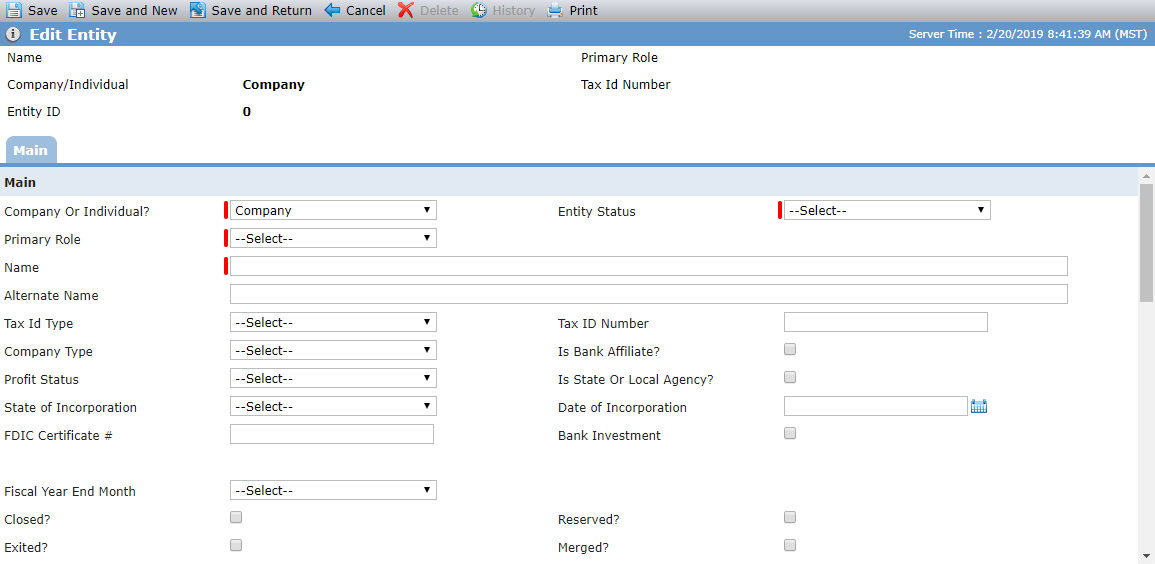
Complete the required fields and any optional fields needed.
The fields available change depending on whether the entity is a company or an individual, as well as the primary role selected.
The Entity Status designation helps you quickly identify entities that are in the process of setup (Pending) or Complete. Even if an entity is Pending, you can associate it with deals and funds.
The Tax ID Number will be masked to display only the last four digits or characters. All other digits or characters are replaced with an asterisk (*).
Determine whether the entity is a bank affiliate. Entities that require special processing need to be flagged as bank affiliates, which allows GL Cost Centers to be associated to the entity, invoices to be created for fees due to the entity, and book values to be calculated for the entity.
Click Save.
After saving, additional tabs are displayed: Associations, Contacts, Accounts, Deals/Funds, Financials, Correspondence, Reporting Requirements, NMTC, and AMIS.
Field | Description |
|---|---|
Company or Individual | Required field that indicates whether the entity is a company/organization or an individual person. The fields available change depending on whether the entity is a company or an individual, as well as the primary role selected. |
Entity Status | Required field The Entity Status designation helps you quickly identify entities that are in the process of setup (Pending) or Complete. Even if an entity is Pending, you can associate it with deals and funds. When you save an entity with the Entity Status of Complete, the entity name (company and individual entities) becomes read-only to prevent accidental updates after an entity is marked as Complete. To edit the name, first change the Entity Status to Pending and save the record. |
Primary Role | Required field that indicates the main function that the entity will perform on deals/funds in the application. |
Tax ID Number | The Tax ID Number will be masked to display only the last four digits or characters. All other digits or characters are replaced with an asterisk (*). |
Is Bank Affiliate (Company) | Used for TC Credits/Losses Approval and GL. See If the Entity Is a Bank Affiliate. |
FDIC Certificate # (Company) | Used for CRA Footprint Import |
Bank Investment (Company) | Indicates the company was created as an investment for the bank to serve for a specific role for a deal. These are typically Investment Funds, or CDEs on NMTC deals. |
Fiscal Year End Month | Identifies the month that is the last month of the entity's reporting fiscal year. |
Block Automated Emails | When this field is selected, the entity can be excluded from automated emails, such as workflow. Workflow will exclude the email address in the entity's Email Address field but will use the Alternate Email Address, if populated. The Alternate Email Address field becomes available when the Block Automated Emails checkbox is selected. For more information about workflow notifications, see Manage Workflows. |
Control Number | Field available only when Allocatee or Sub-CDE is selected as Primary Role |
CDE Service Area | Field available only when Allocatee or Sub-CDE is selected as Primary Role |
Rating Date | Required field, available only when Allocatee or Sub-CDE is selected as Primary Role |
Rating | Required field, available only when Allocatee or Sub-CDE is selected as Primary Role |
Accredited | Field available only when Investor is selected as Primary Role or when the entity is an Owner in a Syndicated Fund Ownership Schedule |
CIMS Code | Field available only when Sub-CDE or QALICB is selected as Primary Role |
NMTC Portfolio Manager | Field available only when Allocatee is selected as Primary Role |
Associated Property | Field available in the Deal Specific Information section when QALICB is selected as Primary Role |
The Other IDs section allows you to track other IDs for the entity. The IDs might be for an external association that has a separate assigned ID; for example, an FNMA ID.
Click New above the Other IDs grid to add another row to the grid.

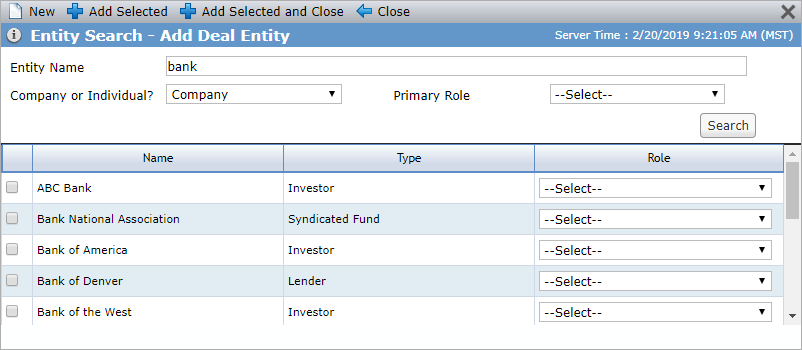
You can look up entities by name or role from a number of different areas in the application. The following list describes the locations that trigger the Entity Search popup screen:
List Entities screen (for a deal or fund)
New button in toolbar
New button above the Associated Companies grid
New button within the Entity Contacts popup (accessed through the Contacts button in the deal/fund Entity toolbar)
Ownership Schedule
New Owner button above the Owners grid (un-finalized Ownership Schedule)
Replace Owner icon in Owners grid in Proposed Ownership Schedule
Edit Entity screen
New button above Companies grid - Associations tab
New button above Contacts grid - Associations tab
Edit Insurance Policy
New button above Additional Insureds grid
The
 button for the Broker Name field
Edit Guarantee
On first save of a new Guarantee record and from the New button above the Guarantors grid, the Find Guarantor popup opens, which lists all Guarantors on the deal. Click Search in the top toolbar of the popup to open Entity Search.
After you perform a search, the New button becomes available, which allows you to create the entity in the application if it does not exist.
Caution
Before creating a new entity record, you should always perform a search to make certain the entity does not already exist. Creating duplicate entity records might create problems with reporting or when future updates are required.
You can delete an entity only if it has been removed from all associated deals/funds:
As a Deal Entity
As a Fund Entity
As a Contact
As an Associated Company
As a Guarantor
Insurance Broker on an Insurance Policy
Insurance Provider on an Insurance Policy