Introduction to ProLinkAIM Financials
Financial Reporting captures financial information reported to a deal from a reporting entity. The reporting entity may be different depending on the deal type. For LIHTC Deals the Partnership on the deal is responsible for the reporting, while on NMTC deals the Sub-CDE is the reporting entity.
Three types of Financials are generally reported:
Operating Budgets—Typically includes a forecasted and budgeted amount.
Periodic Financials—Can be monthly, quarterly, semi-annually, or annually.
Annual Financials—Annual audit information.
The same line items are reported for each type of financial.
Financials can be created in multiples. You can create them manually as needed, or set them up as part of the New Year Process Utility. If set up through the New Year Process, each year the required financials will be created systematically when the New Year Process is run.
See New Year Process for more information about the utility.
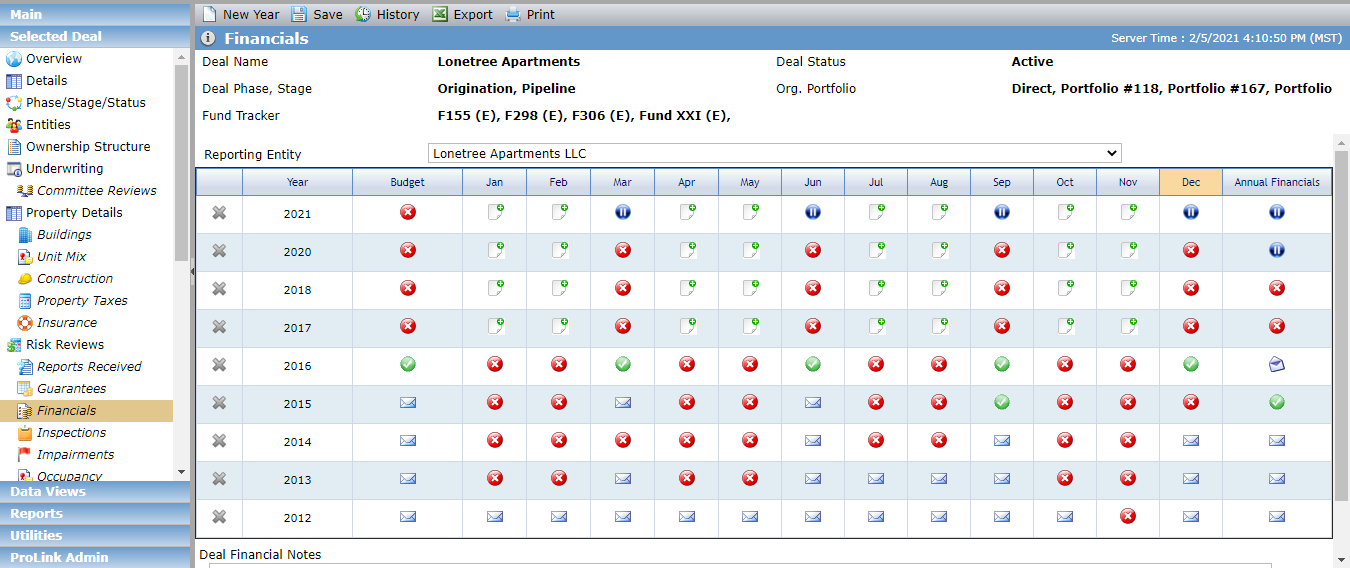
The Financials grid information changes depending on the Reporting Entity selected in the drop-down list. The Reporting Entity list displays a list of all Deal Entities; however, depending upon the deal type, financials may only exist for one or two entities. After you select an entity, a list of all the financials that have been created for that entity is displayed.
Different icons represent the status of the financial. Click an icon to navigate to the edit screen for the corresponding financial, where you can see details and make updates.
 | Not Received Status and Due Date > System Date |
 | Not Received Status and Due Date <= System Date |
 | Received Status |
 | Pending Status |
 | Approved Status |
 | Waived Status |
 | Record Not Created NoteYou can still click the icon to navigate to the edit screen for the corresponding financial. However, the screen will not include the additional tabs, such as Income Statement and Balance Sheet. |
Navigate to the deal, and then select the Financials option in the left navigation menu.
Click New Year in the top toolbar.
The Add New Reporting Year popup opens.
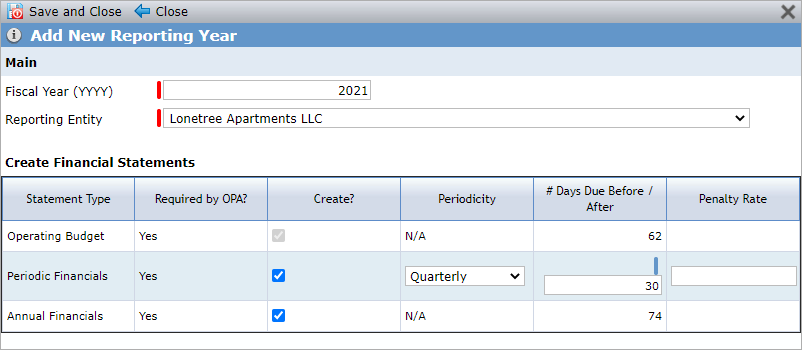
Enter the Fiscal Year.
Select the Reporting Entity to create the financials for.
You can create financials for any Deal Entity on the deal; however, based on the deal type, a specific entity like the Partnership or Sub-CDE may be the only reporting entity.
Select the Create checkbox for the applicable type(s) of financials and enter any details specific to the financial type.
Operating Budget
The Create checkbox for Operating Budget defaults to selected and cannot be changed; Operating Budgets are always created.
If Operating Budgets are required per OPA (Deal or Entity), the # of Days Due <Before/After> Period and Penalty Rate values will default from the corresponding OPA tab.
If Operating Budget is not required per OPA, the budget will be created with:
Status of “Not Received”
Due Date of <first day of the Fiscal Year> - <# Days Due Before Period> (populated in the popup)
Penalty Rate (populated in the popup)
The system creates the version record(s) for the budget based on the checkbox(es) selected on the deal OPA: Final, Draft.
Periodic Financials
If Periodic Financials are required on OPA (Deal or Entity) and the deal is in the Stabilization phase, a prior phase, or Special Assets phase, the Periodicity, # of Days <Before/After> Period, and Penalty Rate will default from the corresponding fields from the Stabilization section of the OPA tab.
If Periodic Financials are required on OPA (Deal or Entity) and the deal is in the Asset Management phase, or a later phase, the Periodicity, # of Days <Before/After> Period, and Penalty Rate will default from the corresponding fields from the Asset Management section of the OPA tab.
If a Periodic Financial is not required per OPA but selected to be created through the popup:
Periodicity equal to:
Monthly—12 records are created, one for each of the FYEM and FYE and the 11 months preceding it.
Quarterly—4 records are created, one for the FYEM and the others for months that precede it by 3, 6, and 9 months.
Semi-Annually—2 records are created, one for the Fiscal Year End Month and the month that precedes it by 6 months.
Annually—One record is created for the Fiscal Year End Month.
Status of “Not Received”
Due Date of <first day of the Fiscal Year> - <# Days Due Before Period> (populated in the popup)
Penalty Rate (populated in the popup)
Annual Financials
If Annual Financials are required per OPA (Deal or Entity), the # of Days Due <Before/After>, Period, and Penalty Rate values will default from the corresponding OPA tab.
If Annual Financials are not required per OPA but selected to be created through the popup:
Status of “Not Received”
Due Date of <first day of the Fiscal Year> - <# Days Due Before Period> (populated in the popup)
Penalty Rate (populated in the popup)
The system creates the version record(s) for the annual financial record based on the checkbox(es) selected on the deal OPA: Final, Draft, Amended.
Click Save and Close.
Click an icon on the Financials screen to navigate to the edit screen for the corresponding financial, where you can see details and make updates. The Main tab on the edit screen is different depending on the type of financial statement.
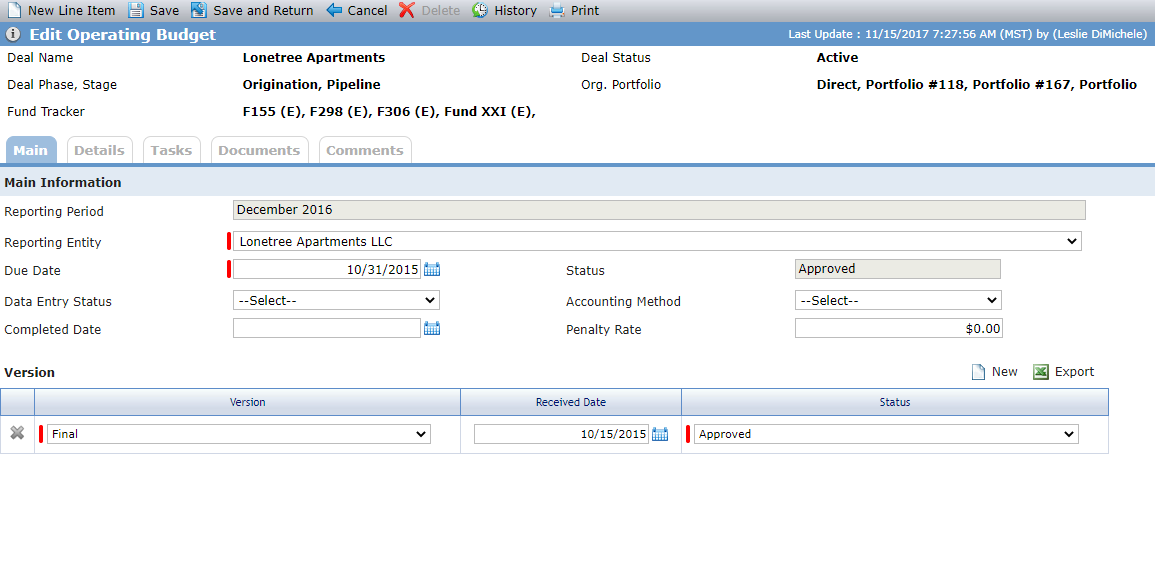
The Edit Operating Budget screen - Main tab includes the Main Information section and the Version section. The Version grid is sorted by Received Date, descending, with blank rows at the end.
The read-only Status field displays the status from the Version grid with the most recent date.
Note
The Delete button is disabled. To delete an Operating Budget, you must delete all financials for the reporting year from the Financials screen.
Add Line Item(s) to a Financial
You can add new line items needed for the deal. When you add a line item, it is displayed on the Operating Budget, Periodic Financials, and Annual Financials for that year.
Note
The New Line Item button is disabled when the Reporting Entity has a deal role of Sub-CDE.
Navigate to the deal, and then select the Financials option in the left navigation menu.
Click the icon for the applicable Year in the Budget column.
The Edit Operating Budget screen opens.
Click New Line Item in the top toolbar.
The Add Operating Budget Line Item(s) popup opens.
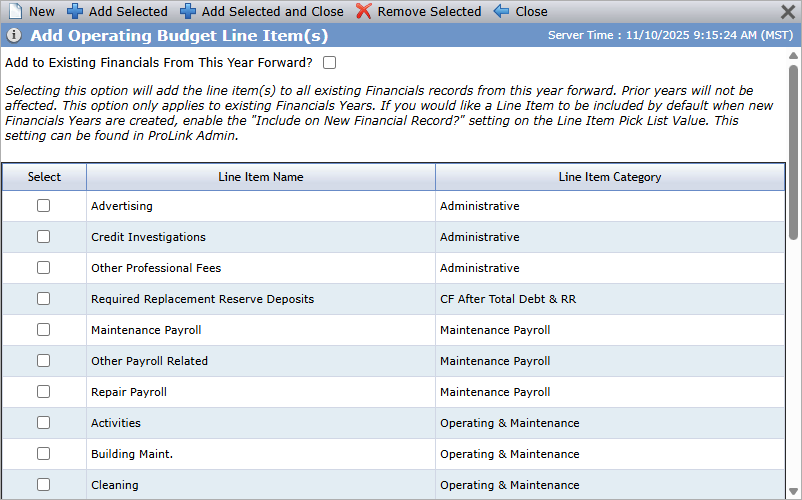
Select the checkbox(es) of the line items to add.
Select the Add to Existing Financials From This Year Forward checkbox to add the selected line items to all existing Financials records from the year of the current Operating Budget forward.
Note
If you subsequently add a new year, the system will not add the line item(s) that you manually added across multiple existing records. To include line item(s) by default on new records, the administrator should configure the PL_LineItem picklist value through ProLink Admin.
Click Add Selected and Close.
Add a New Line Item
If the deal requires a line item that is not yet available, you can create it.
Note
The New button is disabled when the Reporting Entity has a deal role of Sub-CDE.
Important
System administrators can create new line item categories through the ProLink Admin panel.
Navigate to the deal, and then select the Financials option in the left navigation menu.
Click the icon for the applicable Year in the Budget column.
The Edit Operating Budget screen opens.
Click New Line Item in the top toolbar.
The Add Operating Budget Line Item(s) popup opens.
Click New in the top toolbar.
The Add New Operating Budget Line Item popup opens.
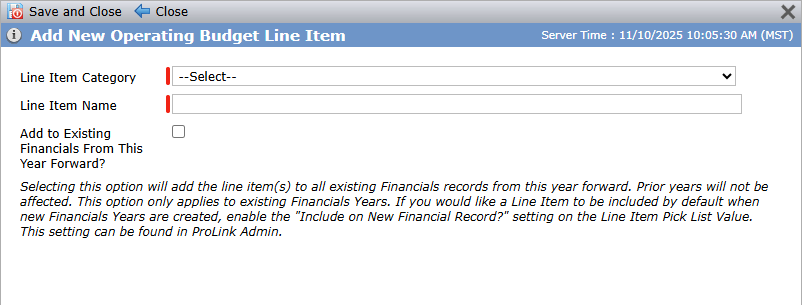
Select a Line Item Category to associate the new item to.
Enter a unique name for the Line Item Name.
Select the Add to Existing Financials From This Year Forward checkbox to create and add the new line item to all existing Financials records from the year of the current Operating Budget forward.
Note
If you subsequently add a new year, the system will not add the line item(s) that you manually added across multiple existing records. To include line item(s) by default on new records, the administrator should configure the PL_LineItem picklist value through ProLink Admin.
Click Save and Close.
Delete a Line Item
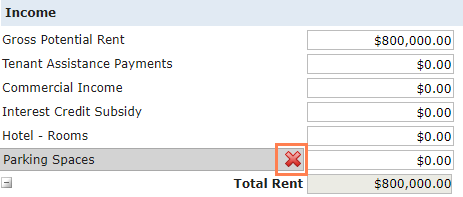
If needed, you can delete the configurable, deal-specific line items. To delete a line item from a financial, hover your mouse over the line item, and then click  and save the record. Deleting the line item removes the item from all financials for that year.
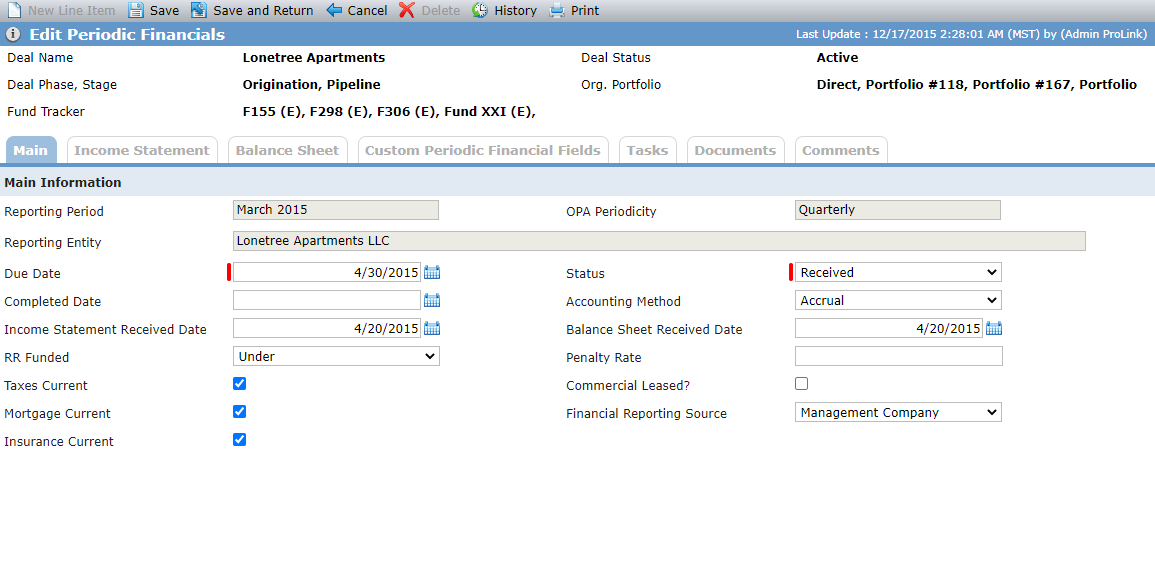
The Edit Periodic Financials screen - Main tab includes the Main Information section.
Note
The Delete button is disabled. To delete a Periodic Financial, you must delete all financials for the reporting year from the Financials screen.
The New Line Item button is disabled. You can add new line items through the Edit Operating Budget screen.
You can update the Status to Received only when both the Income Statement Received Date and Balance Sheet Received Date are populated.
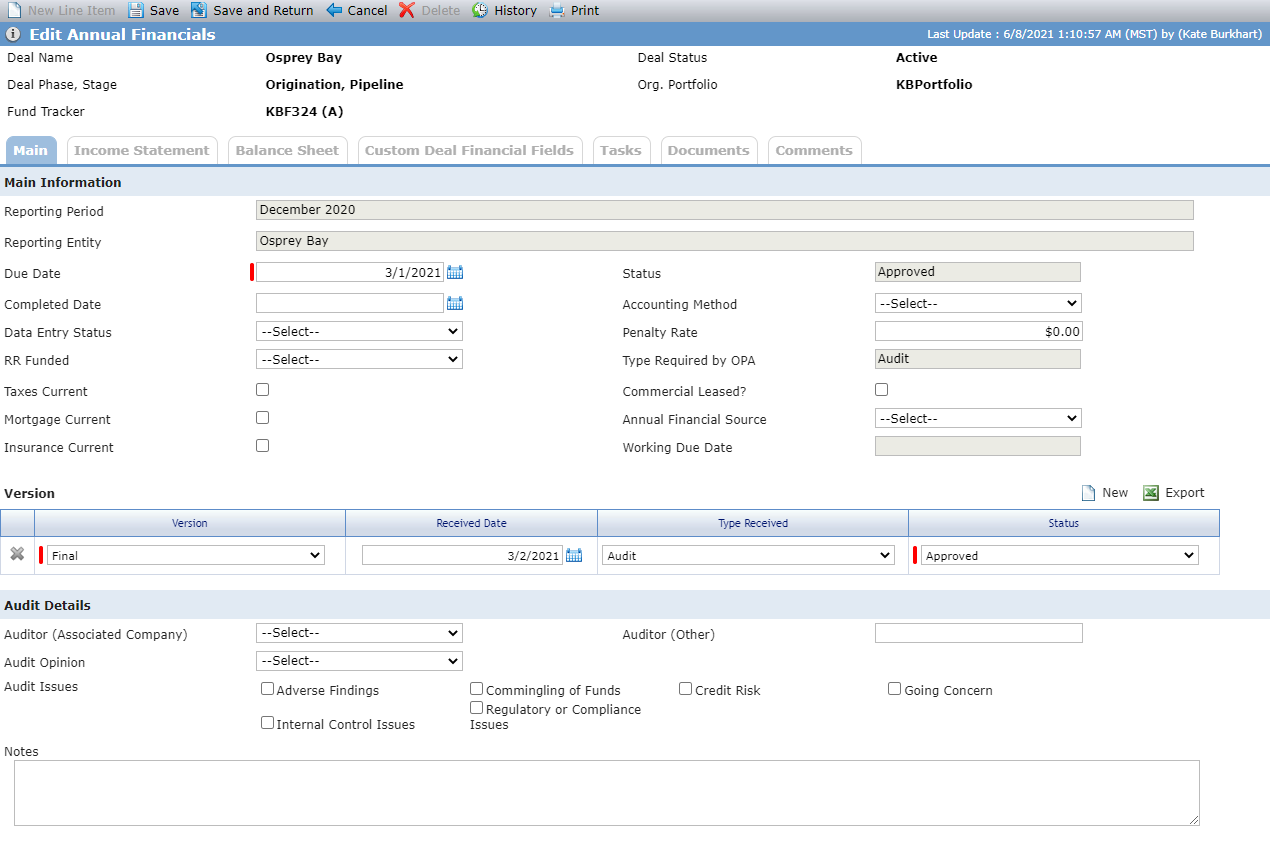
The Edit Periodic Financials screen - Main tab includes the Main Information section, Version section, and Audit Details.
Note
The Delete button is disabled. To delete an Annual Financial, you must delete all financials for the reporting year from the Financials screen.
The New Line Item button is disabled. You can add new line items through the Edit Operating Budget screen.
Field | Description |
|---|---|
Due Date | Required. The date the Annual Financial is due. The date will default to the # of Days Due after Period from the OPA tab of Deal Details if Annual Financials are required. |
Status | Displays the status from the Version grid with the most recent date. |
Completed Date | The date the Annual Financial has been reviewed and is in good order. |
Accounting Method | Select the accounting method used to calculate the Annual Financial. |
Data Entry Status | Select the status of the Annual Financial processing. |
Penalty Rate | The penalty amount that may be due if the Annual Financial is not received by the due date. This amount can be displayed from Deal Details (OPA) if Annual Financials are required and the Penalty Amount is populated. |
RR Funded | Identifies whether the replacement reserves are current at the end of the year. |
Type Required by OPA | A read-only field that defaults from the OPA when required. |
Annual Financial Source | Select where the Annual Financial amounts are coming from. |
Working Due Date | A read-only field that displays the date from the deal's active Syndicated Fund Owner's corresponding Annual Financial record. If there is more than one active Syndicated Fund Owner, then the earliest Working Due Date for the corresponding record is used. |
Auditor (Associated Company) | Select the auditor for the Annual Financial from a list of all Associated Company entities. |
Auditor (Other) | Enter the auditor name for the Annual Financial if the auditor is not an Associated Company entity. |
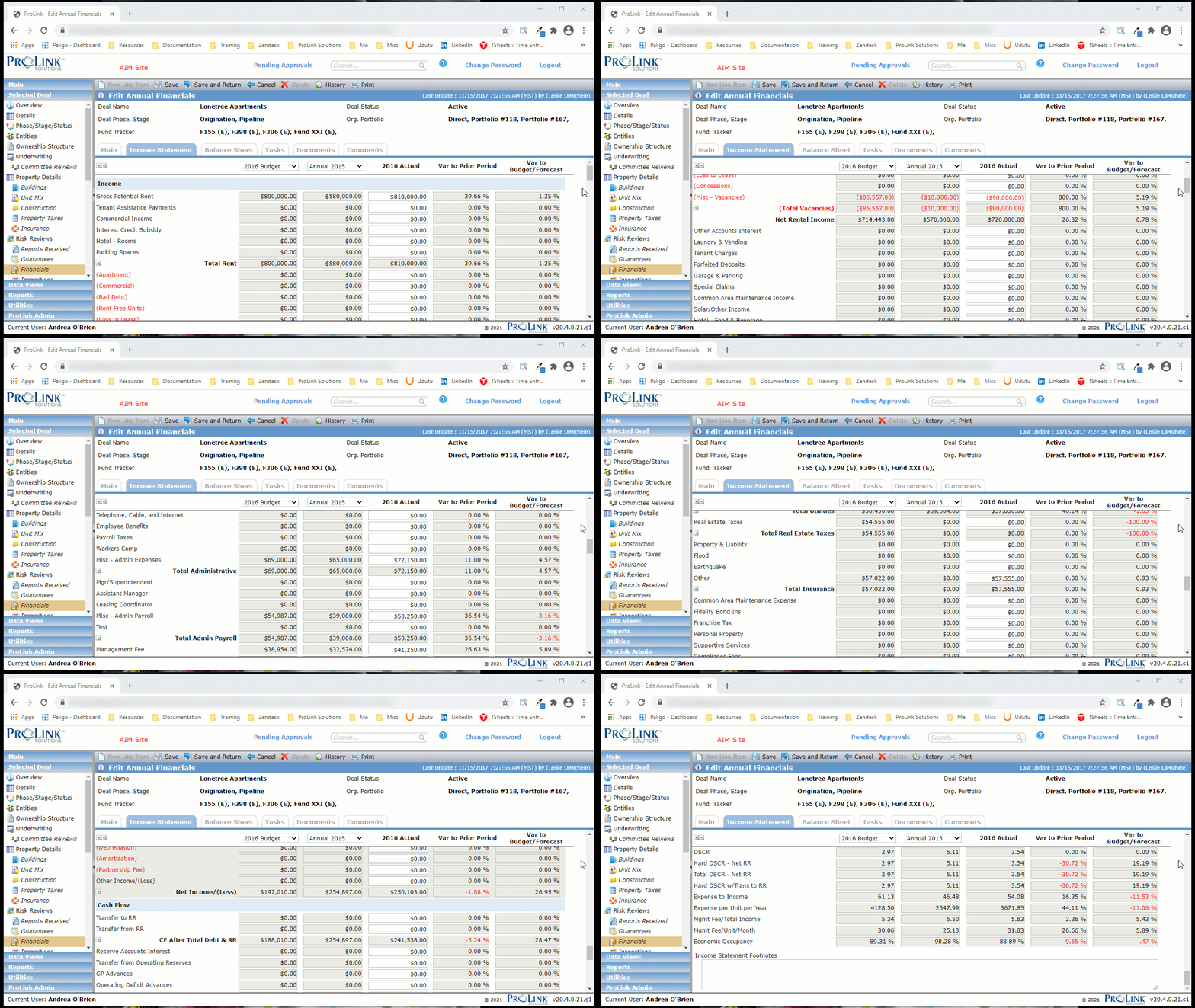
The Income Statement is displayed on all three financials—Operating Budget (labeled Details), Periodic Financials, and Annual Financials. The same line items appear on all three financials.
You can expand and collapse the Income Statement, exposing all line items or just the sub-total for the corresponding section. You can expand and collapse sections individually or use the  buttons at the top of the tab to expand and collapse all sections.
For the Operating Budget, the Forecast and Budget columns are editable. For Periodic Financials, the current period column is editable, and for Annual Financials, the current Actual column is editable.
The line items for a Reporting Entity that has a Deal Role of Sub-CDE are different than those of other Reporting Entities.
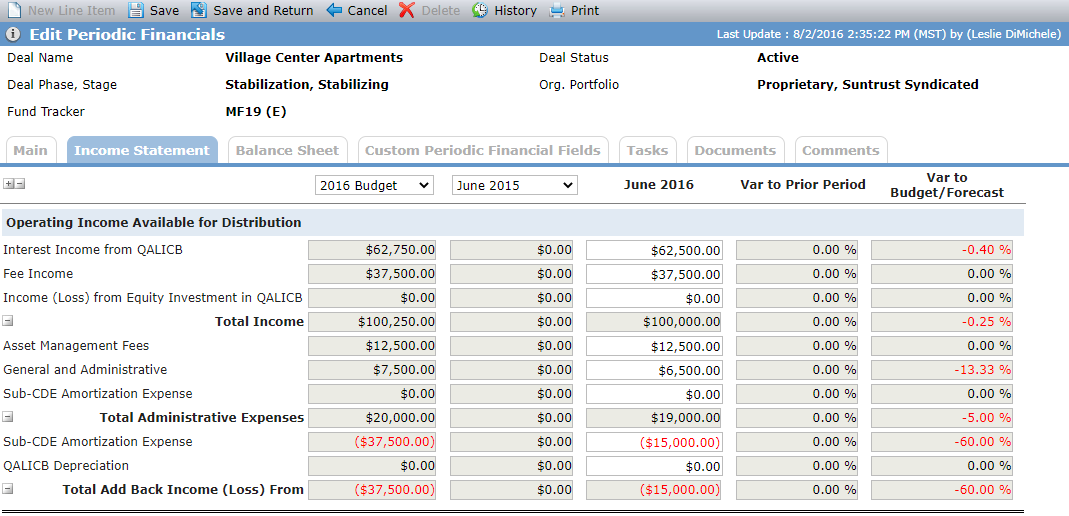
You can view comparisons for each financial:
Operating Budget—Compare current to any other existing Budget.
Operating financials (monthly, quarterly) are uploaded based on the property management company's trial balance data. For these entries, the system expects YTD values, as opposed to the values for the selected period only (whether month or quarter) to ensure accurate budget/forecast variances. By default, the system displays budget/forecast values prorated based on the period selected. Operating financials metrics derive risk rating, not annual financials metrics.
Periodic Financials—Compare current to the same year Budget or Forecast, and compare to any other Periodic or Annual Financial that exists.
Annual Financials—Compare current to same year Budget or Forecast, and compare to any other Periodic or Annual Financial that exists.
When you select a period to compare to the current record, the Variance columns calculate the variance percentage between the current record and the Prior Period and the variance percentage between the current record and the Forecast.
The Footnotes added to Operating Budget, Periodic Financials, or Annual Financials are deal level, and any notes populated on one financial will be displayed on all Income Statements for that deal.
Field | Calculation |
|---|---|
Net Rental Income | Total Rent minus Total Vacancies |
Net Operating Income | Total Income minus Total Operating Expenses |
Monthly Debt P&I Payment | If you add Monthly Debt P&I Payment as a line item, ProLink can configure your environments to calculate the data from the Debt record (Terms tab). |
Net Income/(Loss) | Calculation is customer specific:
|
CF After Total Debt & RR | (Net Operating Income – Total Debt Payments) – (Transfer to RR – Transfer from RR + any other line item under CF After Debt & RR) |
Net Cash Flow | Net Operating Income - Total Debt Payments - Transfer to RR + Transfer from RR + Total Cash Flow Adjustments |
DSCR | The calculation method is customer specific:
NoteThe following Microsoft Excel spreadsheet provides examples for the three DSCR calculation methods.  Click the XLS icon to download the DCR calculation examples. |
Hard DSCR – Net RR | (NOI) – (Transfer to RR – Transfer from RR + any other line item under CF After Debt & RR)/Total Hard Debt |
Total DSCR – Net RR | (NOI) – (Transfer to RR – Transfer from RR + any other line item under CF After Debt & RR)/Total Debt Payments |
Hard DSCR w/Trans to RR | (Net Operating Income minus Transfer to RR) divided by Total Hard Debt |
Expense to Income | Total Operating Expenses divided Total Income |
Expense per Unit per Year | Total Operating Expenses divided by Property Total Residential Units |
Mgmt Fee/Total Income | Total Management Fee divided by Total Income |
Mgmt Fee/Unit/Month | Management Fee divided by Property Residential Units divided # of months:
|
Economic Occupancy | ((Total Rent minus Commercial Income minus Interest Credit Subsidies) minus (Total Vacancies minus Commercial Vacancies) divided by (Total Rent minus Commercial Income minus Interest Credit Subsidies)) |
NOI w/ Cash Flow Adjustments | Available only if ProLink has configured your environments to include it. Net Income/(Loss) + Amoritization/Depreciation + Partnership Fees + Adjustment 1 + Adjustment 2 + Adjustment 3 + Total Mortgage Interest Expense |
Property Cash Flow | Available only if ProLink has configured your environments to include it. NOI w/ Cash Flow Adjustments - Monthly Debt P&I Payment - Required Replacement Reserve Deposits |
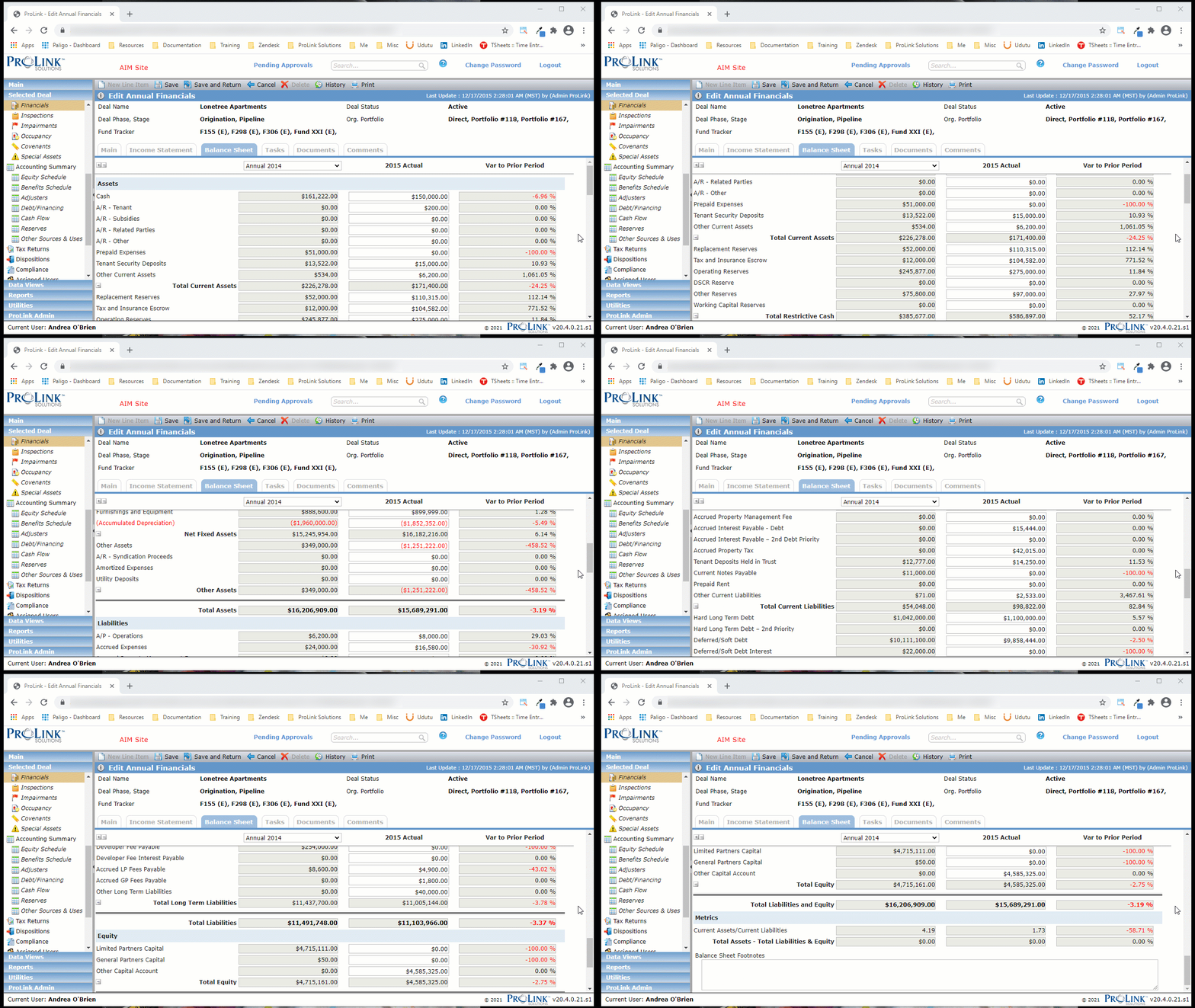
The Balance Sheet is displayed on Periodic Financials and Annual Financials. The same line items appear on all financials.
You can expand and collapse the Balance Sheet, exposing all line items or just the sub-total for the corresponding section. You can expand and collapse sections individually or use the buttons at the top of the tab to expand and collapse all sections.
For Periodic Financials, the current period column is editable, and for Annual Financials, the current Actual column is editable.
You can view comparisons for each financial:
Periodic Financials—Compare current to any other Periodic or Annual Financial record that exists.
Annual Financials—Compare current to any other Periodic or Annual Financial record that exists.
And you can view variance between the current and selected financial.
The Footnotes are deal level, and any notes populated on one financial will be displayed on all Balance Sheets for that deal.