Manage Procorem WorkCenters in ProLinkAIM
You can associate a single primary Procorem WorkCenter to a deal, fund, or entity in ProLinkAIM for ease of navigation and thorough record-keeping. If the WorkCenter does not exist yet, you can create it from ProLinkAIM. Your organization's policies will dictate when you create a WorkCenter, for example, before or after a deal closes.
You can create a WorkCenter associated with a:
Deal—Easily exchange documents related to a deal between your organization and external entities, such as developers, accountants, lenders, attorneys, and more. During the lifecycle of the deal, the entities involved in the exchange of documentation may change. For example, when the deal is in Origination, the developer may be heavily involved, and when the deal moves into Underwriting, lenders and attorneys may take a more active role. During Asset Management, a Property Manager may be required to provide monthly or quarterly reporting.
Fund—Easily exchange documentation, such as required periodic reporting, between the fund and its investors.
Entity—Creating a WorkCenter for an entity would be optimal when it is an external entity associated with multiple deals or funds, such as a Property Manager, investor, or third-party consultant. The entity WorkCenter allows the entity to place its documentation for all deals/funds in one WorkCenter rather than having to manage multiple WorkCenters. Your organization can then transfer the documents to the appropriate deal or fund in ProLinkAIM using the Get Files from Procorem functionality.
You will find the WorkCenters menu link in the left navigation panel of deals and funds.
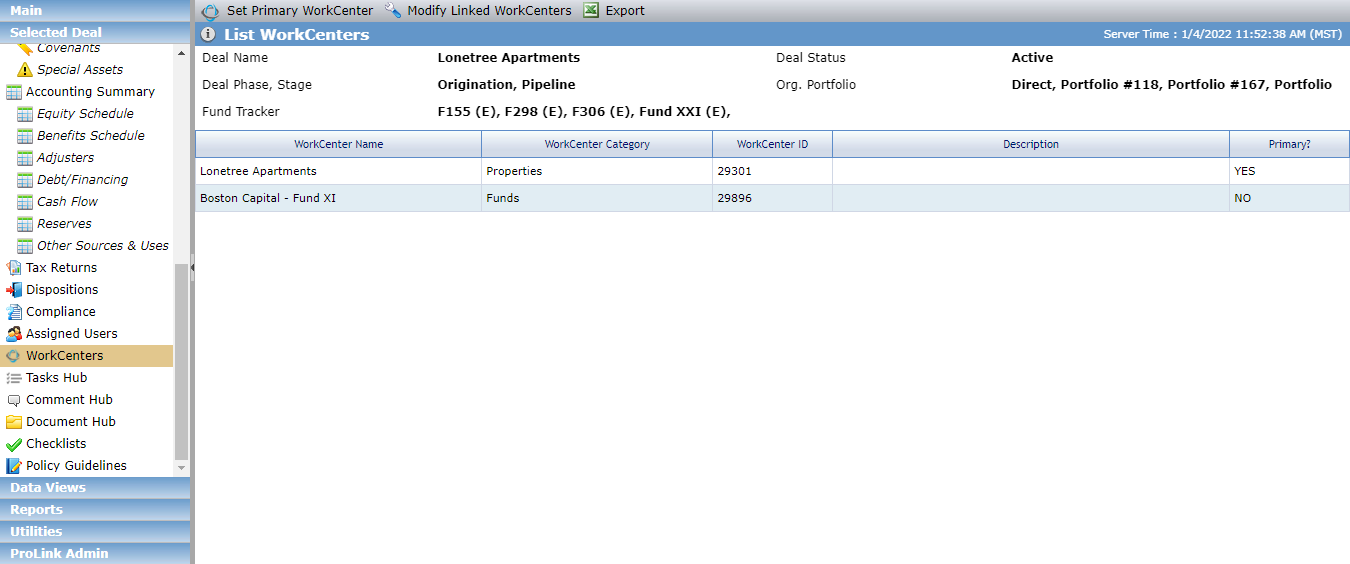
To see the WorkCenter(s) associated with an entity, visit the Edit Entity screen - WorkCenters tab.
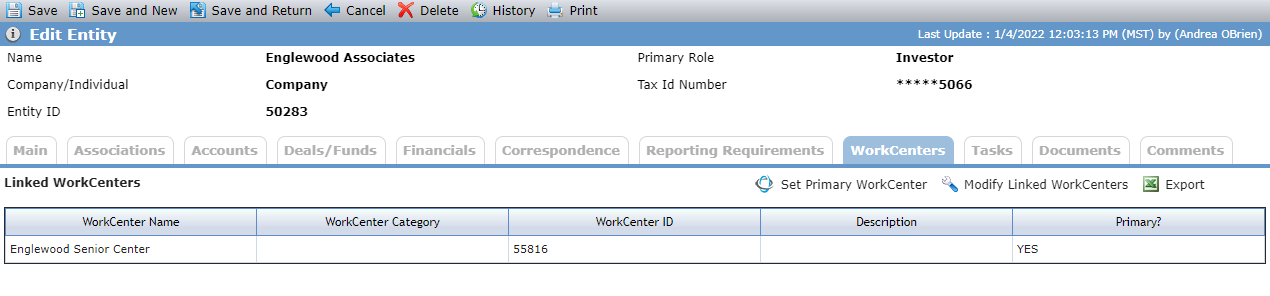
The List WorkCenters screen (for deals and funds) or grid (for entities) shows the primary WorkCenter and any WorkCenters that have been linked to the primary WorkCenter in Procorem.
The primary WorkCenter is the first one to be linked to the deal, fund, or entity. If the primary WorkCenter includes WorkCenter links in Procorem, the linked WorkCenters are also linked in for convenience.
Clicking the row for a WorkCenter from the List WorkCenters screen/grid in ProLinkAIM opens the WorkCenter in Procorem. If you aren't logged into Procorem, the system prompts you for your email and password. Within Procorem, you can invite internal and external parties to collaborate in the WorkCenter.
Important
Your organization must have a Procorem account, and you must be an Account Member to access the WorkCenter once created. Contact your ProLink system administrator for questions about account privileges.
By using the same email address for Procorem and ProLinkAIM, you ensure the process designates you as the WorkCenter owner.
You can quickly create a WorkCenter that is automatically associated to the ProLinkAIM deal, fund, or entity.
To create the deal or fund WorkCenter, navigate to the deal or fund, and then click WorkCenters in the left navigation panel.
OR
To create the entity WorkCenter, navigate to the entity, and then click the WorkCenters tab.
The List WorkCenters screen opens.
List WorkCenters screen on deals and funds; List WorkCenters grid on entities
Click Set Primary WorkCenter.
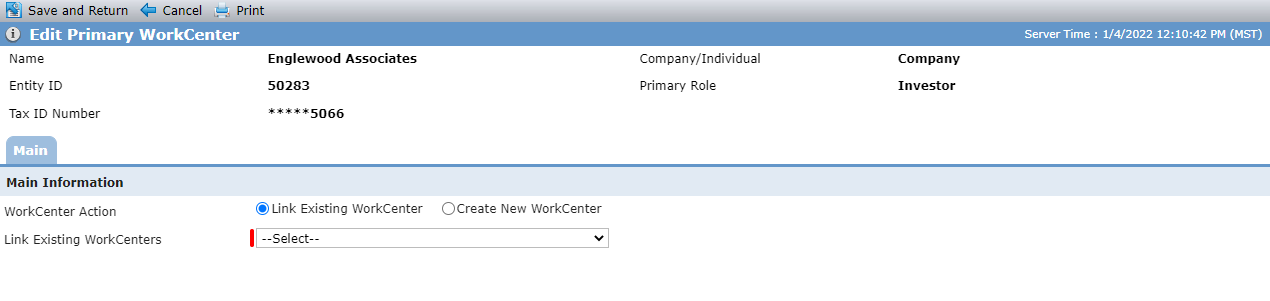
The Edit Primary WorkCenter screen opens.
Select Create New WorkCenter.
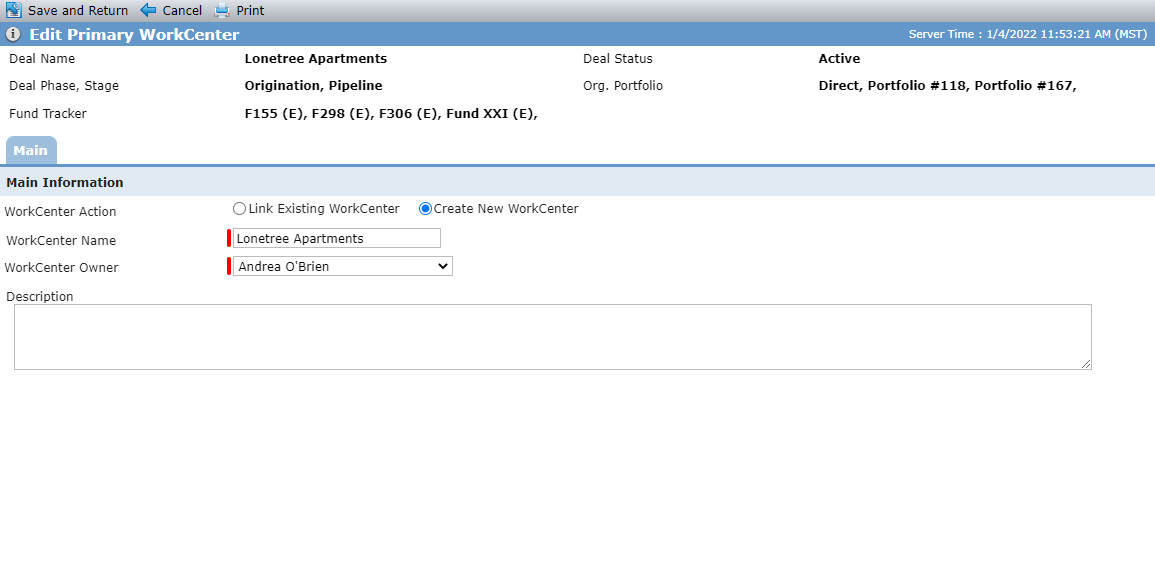
The WorkCenter Name defaults to the deal, fund, or entity name. Edit the name, if needed.
The WorkCenter Owner defaults to your name. Select a different owner from the list of active ProLinkAIM users, if needed. If the selected user does not exist in Procorem, the WorkCenter will be created but without a WorkCenter Owner. If you select someone else, you will not be able to access the WorkCenter unless you have account administrator permissions or if the WorkCenter Owner adds you as a Collaborator.
Optionally, enter a description that will be visible (and editable) in Procorem.
Click Save and Return.
After you confirm the WorkCenter creation, the system creates the WorkCenter and links it to the deal, fund, or entity.
You can navigate to the WorkCenter from ProLinkAIM and customize the WorkCenter as needed. For example, invite internal and external parties to be collaborators and import a template. See the Procorem Help Center for more information.
If the WorkCenter is already set up in Procorem, you can associate it to the ProLinkAIM deal, fund, or entity. After, make sure to check the link to verify you have connected the correct WorkCenter.
To link a WorkCenter to a deal or fund, navigate to the deal or fund, and then click WorkCenters in the left navigation panel.
OR
To link a WorkCenter to an entity, navigate to the entity, and then click the WorkCenters tab.
The List WorkCenters screen opens.
List WorkCenters screen on deals and funds; List WorkCenters grid on entities
Click Set Primary WorkCenter.
The Edit Primary WorkCenter screen opens.
Select the WorkCenter in the Link Existing WorkCenter list.
Note
You can select from active (not archived) WorkCenters within the Procorem account.
If the primary WorkCenter is archived after it has been linked to the deal, fund, or entity, then it will continue to be displayed in ProLinkAIM until you change it.
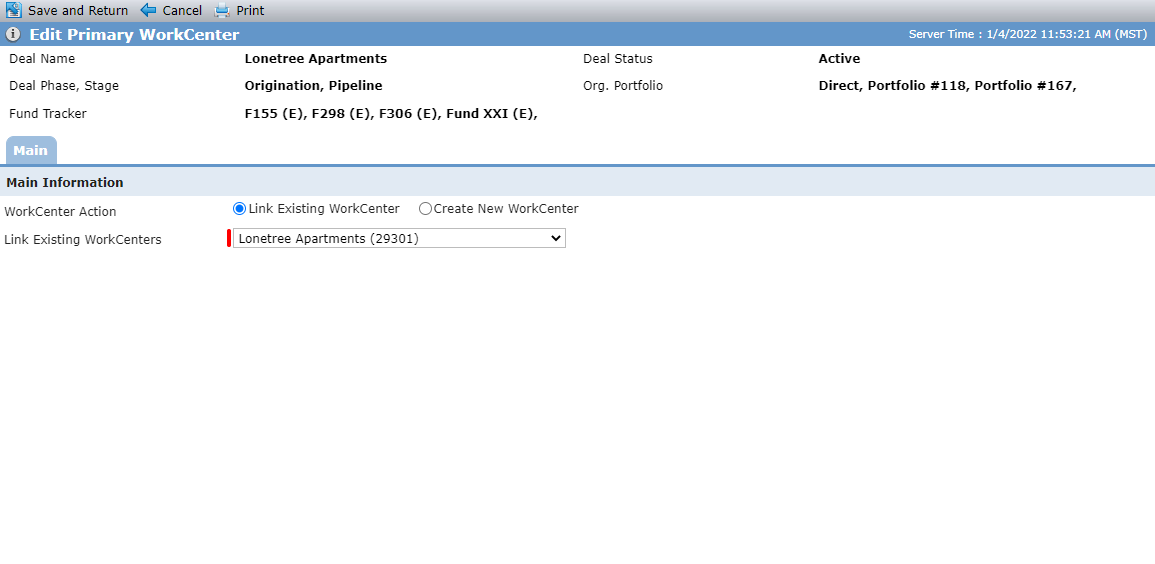
Click Save and Return.
You can navigate to the WorkCenter from ProLinkAIM to review the WorkCenter. See the Procorem Help Center for more information.
Clicking Modify Linked WorkCenters in the top menu bar of the List WorkCenters screen opens the WorkCenter Links page in Procorem on the primary WorkCenter. Within the primary WorkCenter on Procorem, you can add and change the links to other WorkCenters.
You can remove or change the primary WorkCenter, if needed. Clearing the Link Existing WorkCenter list un-links the primary WorkCenter as well as any WorkCenters linked to the primary WorkCenter in Procorem.
Navigate to the deal or fund, and then click WorkCenters in the left navigation panel.
OR
Navigate to the entity, and then click the WorkCenters tab.
The List WorkCenters screen opens.
List WorkCenters screen on deals and funds; List WorkCenters grid on entities
Click Set Primary WorkCenter.
The Edit Primary WorkCenter screen opens.
Select --Select-- in the Link Existing WorkCenter list to remove the primary WorkCenter from the record.
If, instead, you want to select a different WorkCenter as the primary, then select the appropriate WorkCenter in the list.
Click Save and Return.
If you encounter an error when trying to access a Procorem WorkCenter from ProLinkAIM, check for the following reasons:
You are not a Collaborator on the WorkCenter—Contact the WorkCenter owner.
You are not a Member on the Account—Contact your system administrator.
The WorkCenter no longer exists—Contract your system administrator.
ProLinkAIM is not configured correctly to connect to Procorem—Contact ProLink Support.