Introduction to ProLinkAIM Investor Reports
The Investor Reports functionality allows you to identify the fund reports that are required and when they need to be delivered to investors. The Investor Reports screen is made up of the Delivery Status tab and the Report Requirements tab.
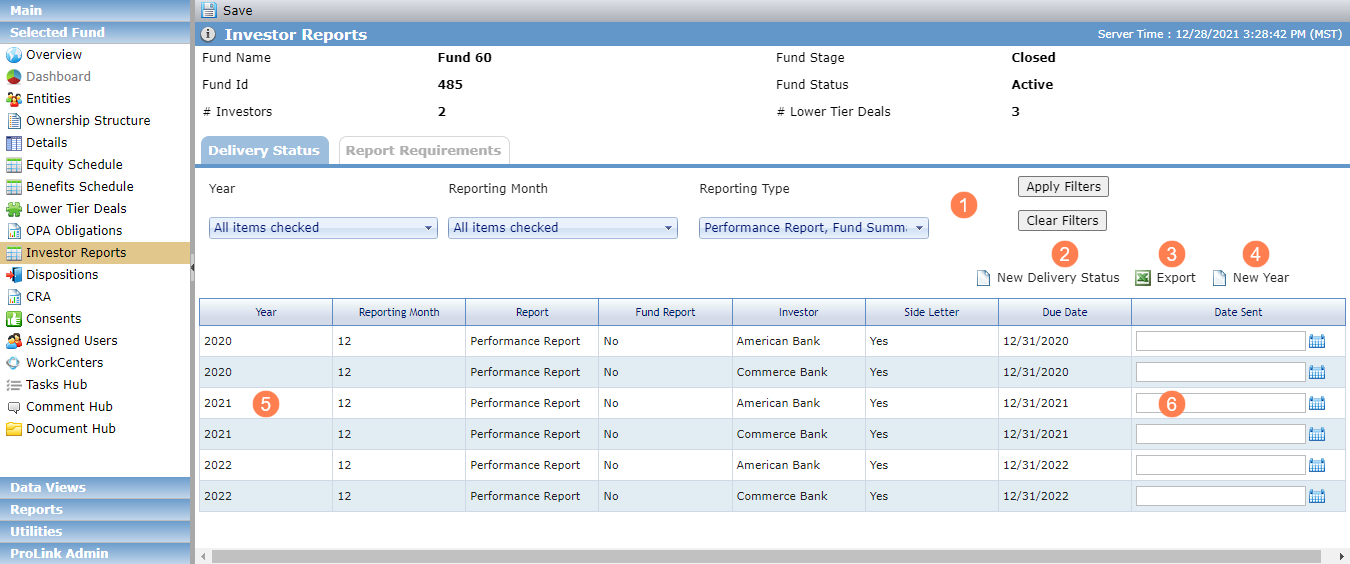
The Delivery Status tab defaults to showing all scheduled investor reports (up to 200 records). On this tab, you can:
Filter records by Year, Reporting Month, and Reporting Type so that you can locate specific records easily.
Export the records.
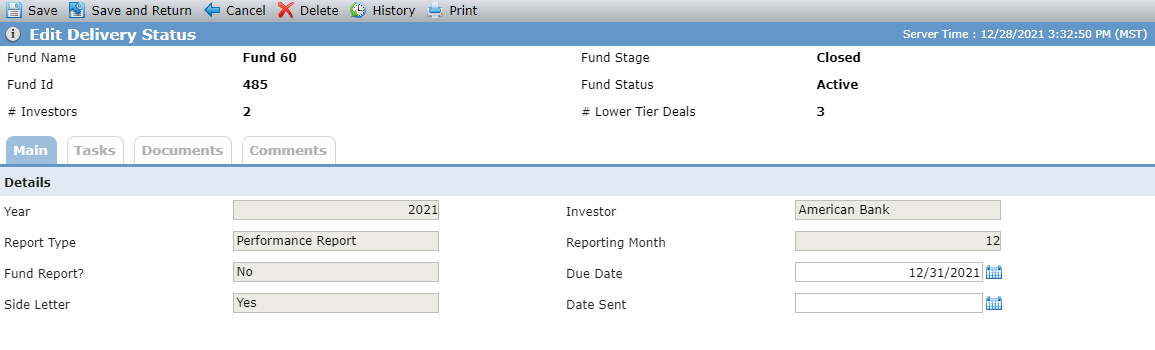
Click a row to open the Delivery Status record. You can then edit the Due Date and Date Sent as well as delete the record if needed.
Note
Once the Delivery Status records are created, you must manually edit or delete the records to reflect changes to the ownership schedule.
Track the Date Sent for an investor report. Be sure to click Save in the top toolbar after entering your updates.
The Report Requirements tab allows you to view investor reports and add new investor reports.
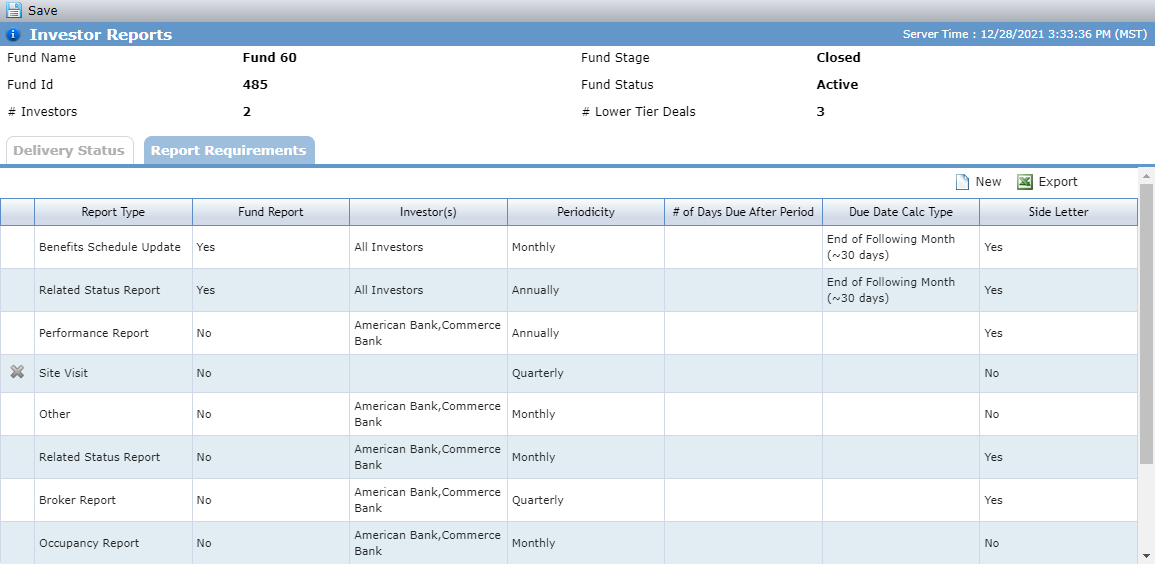
Click a row to open the Investor Report record.
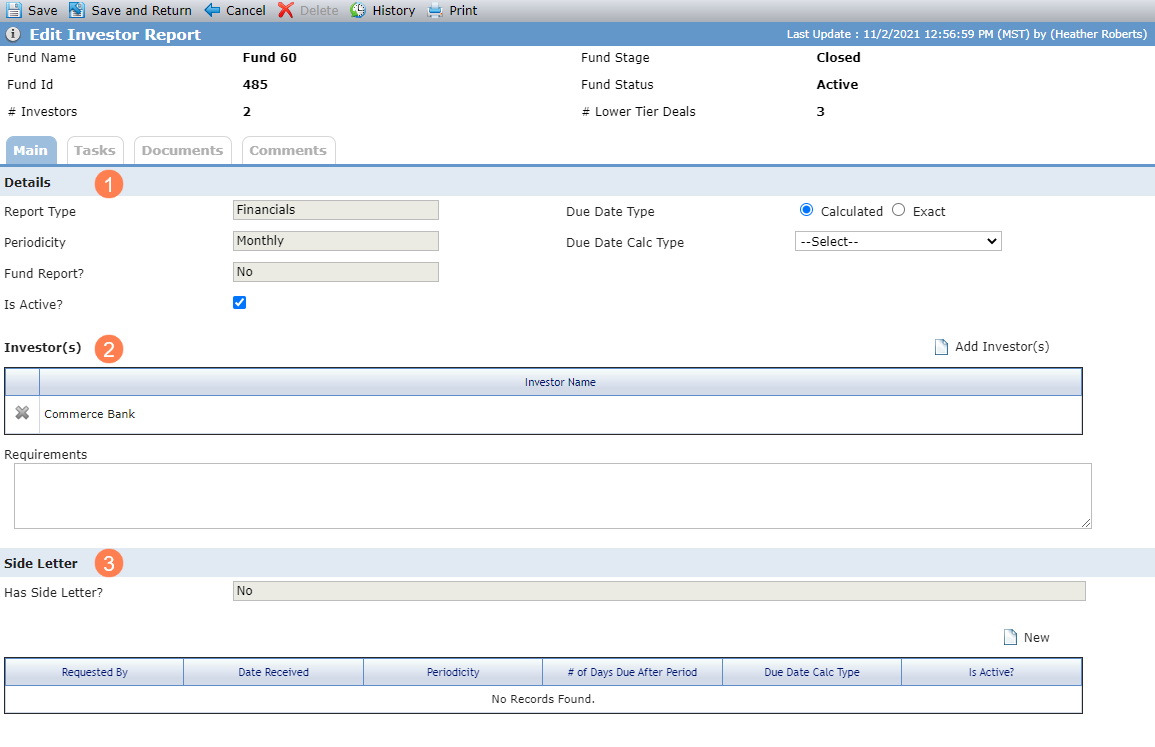
Here you can:
View and edit the details of the report.
Add and remove investors for the report (when the report is not a Fund Report).
View and add side letters to the report.
Add an Investor Report
Navigate to the Report Requirements tab on the Investor Reports screen.
Click New above the grid.
The New Investor Report popup opens.

Select the Report Type.
Select the Fund Report checkbox to indicate the report is for all investors in the fund.
If the report is a Fund Report, the Investors grid on the Edit Investor Report screen is hidden, and all investors are associated with the report.
Select the Periodicity of the report.
When an investor report has a periodicity of Ad Hoc, the report is not eligible for Delivery Status record creation through the New Year Process (whether through the New Year button on the Delivery Status tab or through the New Year Process utility). You can create the Delivery Status record(s) through the New Delivery Status button on the Delivery Status tab.
Click Save.
The Edit Investor Report screen opens.
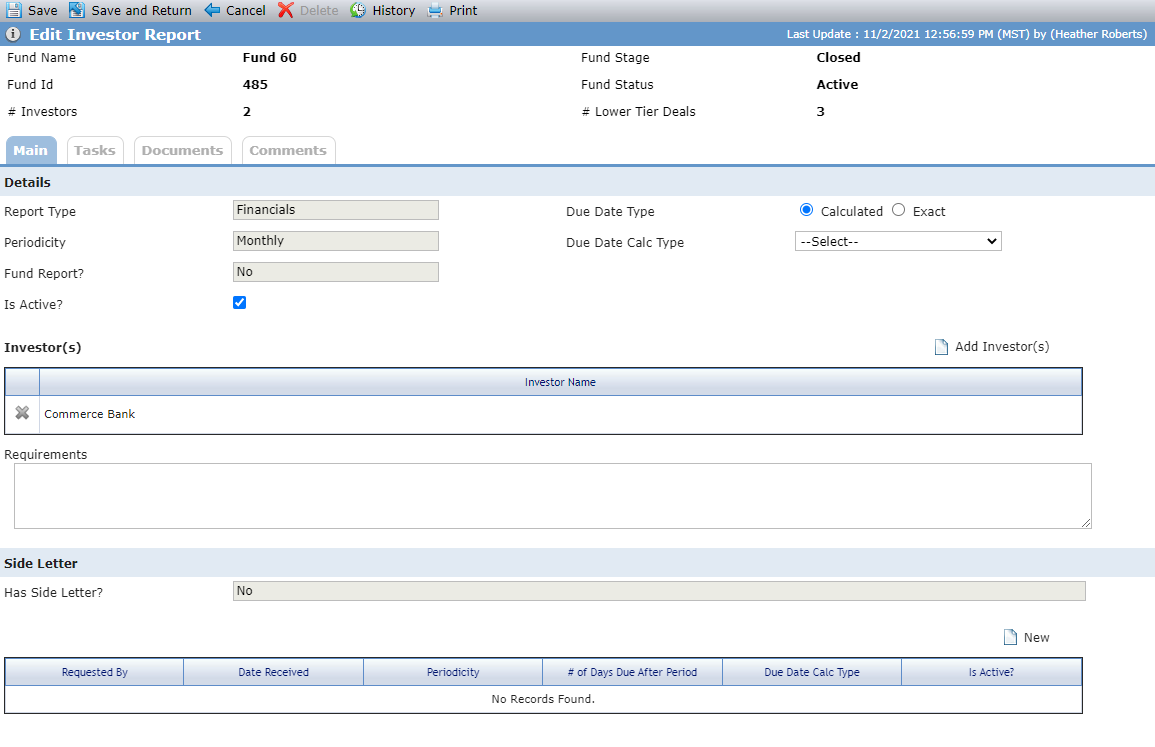
The Due Date Type defaults to Calculated. If needed, select Exact.
If the Due Date Type is Calculated, select the Due Date Calc Type.
The system calculates the due date, which is not necessarily exact, using the calculation type. Calculation types include:
End of Following Month (the last day of the month after the reporting period)
Middle of 2nd Following Month (the 15th day of the second month after the reporting period)
End of 2nd Following Month (the last day of the second month after the reporting period)
End of 3rd Following Month (the last day of the third month after the reporting period)
End of 4th Following Month (the last day of the fourth month after the reporting period)
Examples: If the reporting period ends on February 28 and the Due Date Calc Type is "End of the Following Month (~30 days)," then the due date is March 31 (more than 30 days). If the reporting period ends on March 31 and the Due Date Calc Type is "End of the Following Month (~30 days)," then the date date is April 30. If the reporting period ends on March 31 and the Due Date Calc Type is "Middle of 2nd Following Month," then the due date is May 15.
OR
If the Due Date Type is Exact, enter the # of Days Due After Period.
Use this option when a specific date is needed. The system identifies the due date as exactly the number of days entered from the end of the reporting period.
Examples: If the reporting period ends on February 28 and the # of Days Due After Period is 10, then the due date is March 10. If the reporting period ends March 31 and the # of Days Due After Period is 10, then the due date is April 10.
Click Save.
To add investors to a report (when the report is not a Fund Report), click Add Investor(s) above the Investor(s) grid. The Add Investor(s) popup opens, which allows you to select the investor(s) to add.

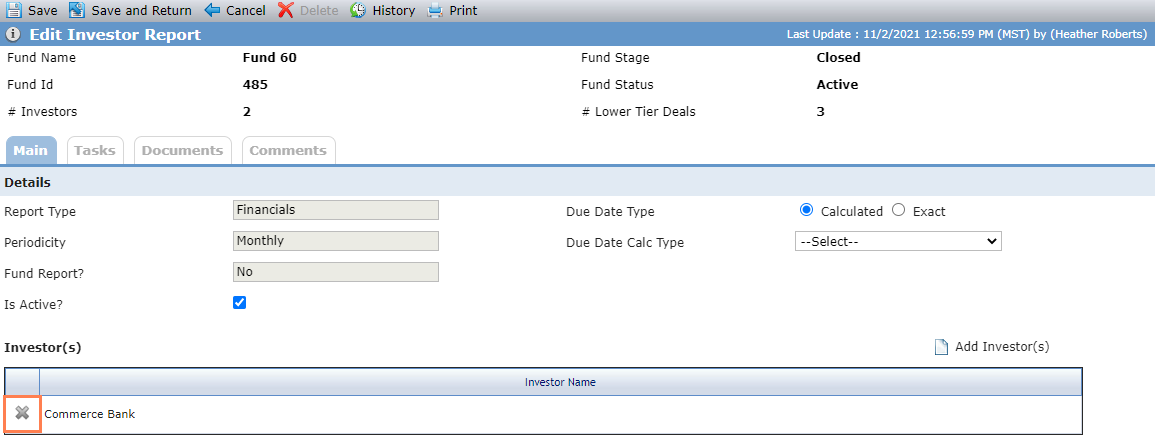
To remove investors from a report (when the report is not a Fund Report), click the  icon for the row on the Edit Investor Report screen.
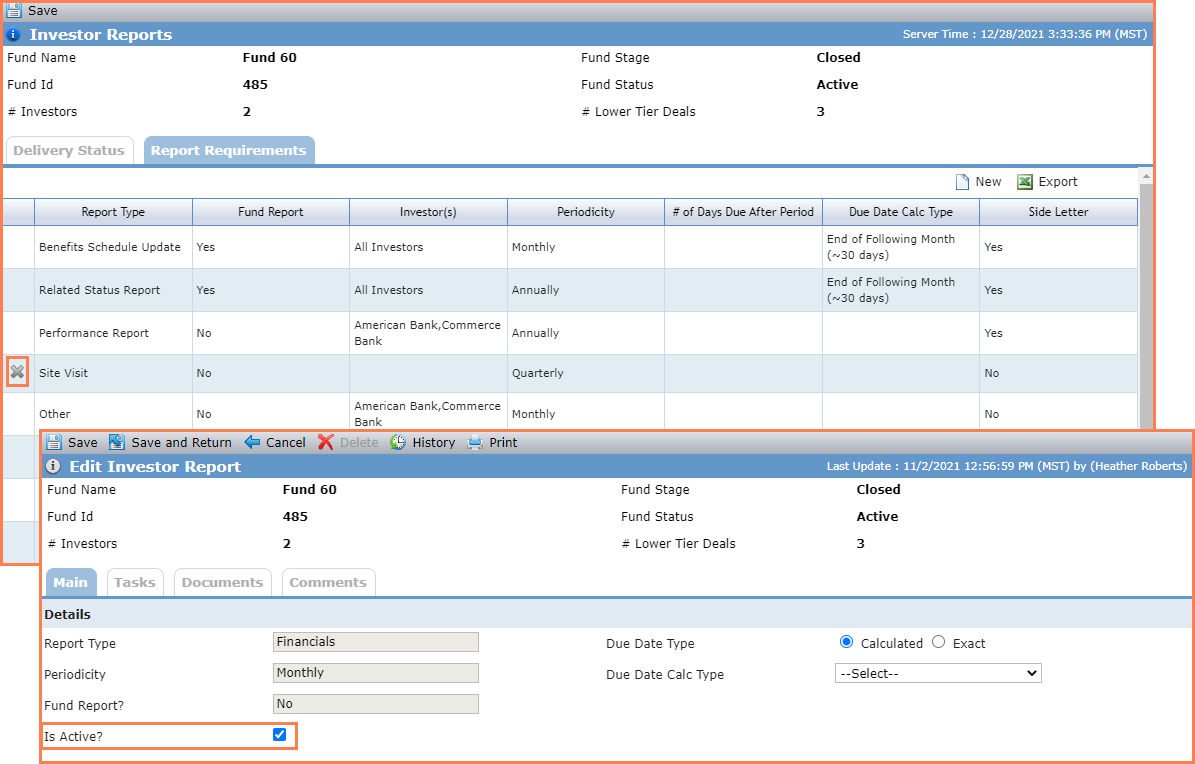
To delete an investor report, click the icon for the row on the Report Requirements tab. The deletion is immediate (no confirmation required). You cannot delete an investor report if one or more associated Delivery Status records exists. If needed, you can inactivate the investor report on the Edit Investor Report screen.
Add a Side Letter to an Investor Report
You can add a requirement for a side letter to include a supplement for a specific investor.
When side letter(s) exist, the system calculates both the parent investor report due date and the side letter due date(s) and then applies the lesser of all due dates to all investors selected for the parent investor report.
Navigate to the Report Requirements tab on the Investor Reports screen.
Click the row of the investor report to edit.
The Edit Investor Report screen opens.
Click New above the Side Letter grid.
The Edit Side Letter screen opens.
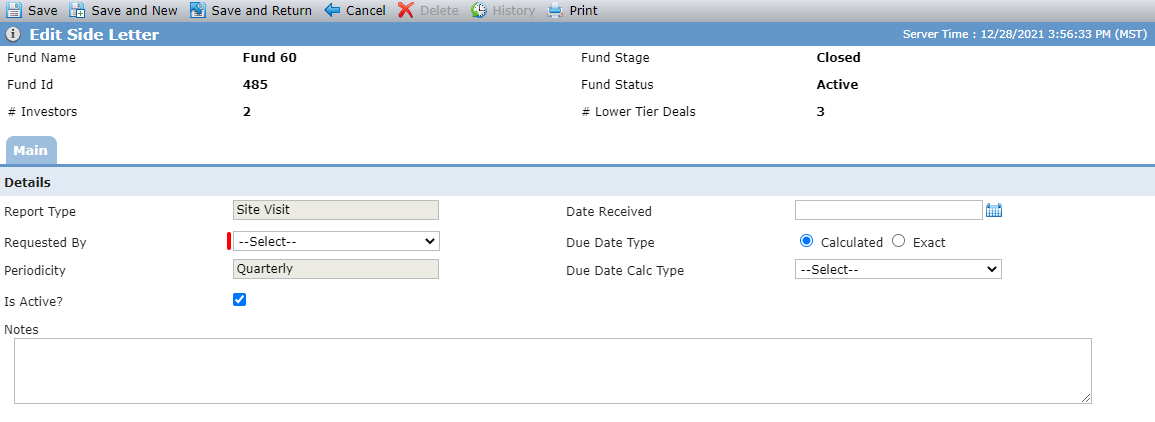
Select the investor in the Requested By list.
The Due Date Type defaults to Calculated. If needed, select Exact.
If the Due Date Type is Calculated, select the Due Date Calc Type.
OR
If the Due Date Type is Exact, enter the # of Days Due After Period.
Click Save.
Schedule the Delivery of an Investor Report
You can create a Delivery Status record without running the New Year systematic process or adding a new investor report.
Note
Once the Delivery Status records are created, you must manually edit or delete the records to reflect changes to the ownership schedule.
Navigate to the Delivery Status tab on the Investor Reports screen.
Click New Delivery Status above the grid.
The New Delivery Status popup opens.
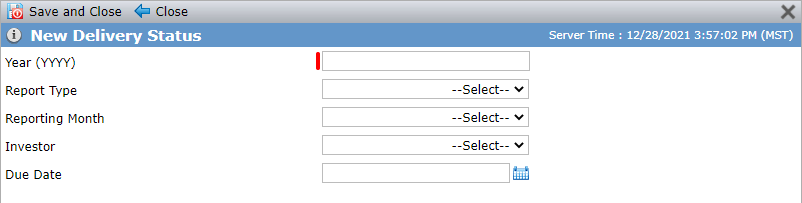
Enter the Year.
Optionally, select the Report Type.
Optionally, select the Reporting Month.
Optionally, select the Investor.
Optionally, enter the Due Date.
Click Save and Close.
Add a New Year of Investor Reports
You can initiate the systematic creation of investor report delivery status records for a specified year. The system determines the report due date based on the report's Periodicity and Due Date Type. In order for the New Year Process to create records, the fund must have an Actual Close Date and the Fund Stage must be Closed (Fund Details screen).
Note
Alternatively, you can stub out investor report delivery status records through the New Year Process utility.
Note
When an investor report has a periodicity of Ad Hoc, the report is not eligible for Delivery Status record creation through the New Year Process (whether through the New Year button on the Delivery Status tab or through the New Year Process utility). You can create the Delivery Status record(s) through the New Delivery Status button on the Delivery Status tab.
Navigate to the Delivery Status tab on the Investor Reports screen.
Click New Year above the grid.
The Add New Delivery Status Year popup opens.

Enter the Year.
Click Save and Close.