Get Data
For mapped fields that allow it, data can be pulled from the ProLink application into a SmartDox document using the SmartDox Get Data feature.
Click the ProLink option in the menu bar of Microsoft Excel or Word.

Microsoft Excel

Microsoft Word
Click Get Data located in the ProLink menu.
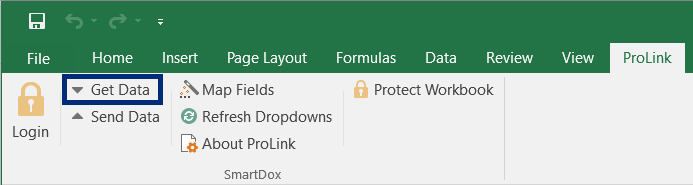
If the document is not logged into the ProLink application, the Login window opens. Log in using an appropriate username and password.
A SmartDox document must be associated with a particular record from the ProLink database. This might be a specific project, business deal, investment, property, or other record type in the ProLink application. Once associated, the SmartDox document can retrieve that record and its associated data. If the SmartDox document is not already associated with a particular record in the ProLink application, a Search window opens and allows for an appropriate record to be located.
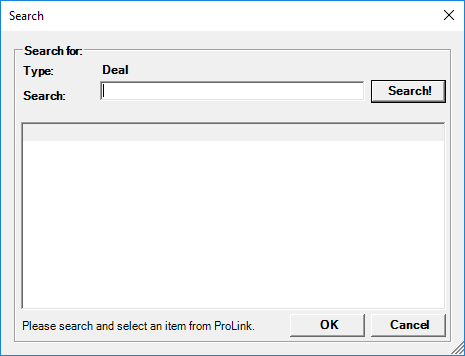
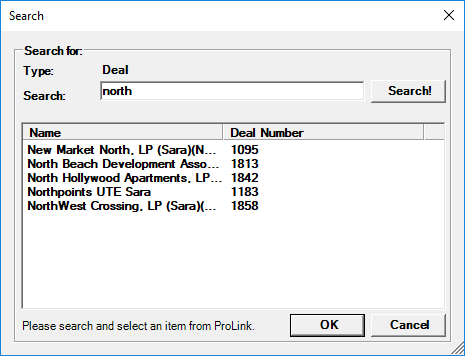
Enter keywords to search into the Search field of the Search window. Click Search, and a list of records that match the keywords are returned. Only the first 2,000 matching search results are displayed. Select the desired record and click OK. Alternatively, double-click the desired record. The selected record will be associated with the document. In the future, only the selected record and its associated data will be retrieved into the document.
Tip
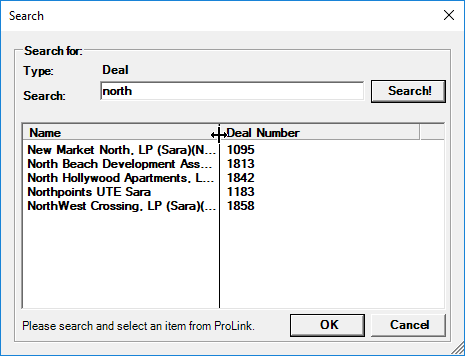
You can adjust the size of the window—horizontally and vertically. You can also adjust the size of a specific column by selecting the vertical line at the end of the specific column and moving to the right or left.
The document contacts the ProLink application and downloads the data for the associated record into the mapped fields in the document.
Note
If a message appears with text similar to, “Error: A Field is mapped that no longer exists. It will be automatically unmapped,” the data point to which the field is mapped is no longer available in the ProLink application database. SmartDox will automatically remove the mapped field from the document.