Create a Deal
Important
Before creating a deal, determine the program(s) and deal type for the deal. These selections dictate the underlying structure of the deal and which configurable items will be used (Documents, Checklists, Risk Elements, and Policy Guidelines). Security privileges dictate which deals you can view based upon the programs selected.
If the deal is an NMTC deal, make sure the entity (or entities) that is the allocatee(s) for the deal are added to the application prior to creating the deal. You need to select the allocatee(s) in order to save the deal.
If the deal is an HTC deal, you need to know if the deal will have a Master Tenant or Partnership.
The Add New Deal screen allows you to capture the minimum information necessary to establish a deal in ProLinkAIM. After the deal is created, you can use the Edit Deal Details screen to add additional information as the origination process continues and the information becomes available.
Click the New Deal menu option in the Main Menu of the left navigation panel.
The Add New Deal screen opens.
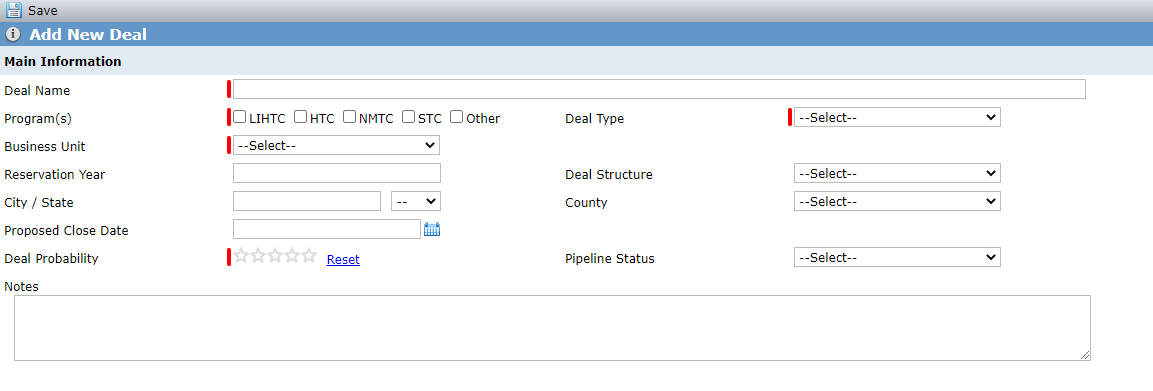
Enter the minimum required fields (identified by a red line on screen and by asterisk below).
Deal Name (*)—The name must be unique.
Programs(*)—Select all the programs that will generate tax credits. The bottom of the screen updates to display additional grid(s) depending on the program(s) you select.
Deal Type(*)—Values are specific to your organization. Your system administrator configures the values through the Pick Lists option in the ProLink Admin panel.
Business Unit(*)—Values are specific to your organization. The system administrator configures these values through the Business Unit option in the ProLink Admin panel.
Use Master Tenant—If the deal is an HTC deal and there is a master tenant, select this checkbox.
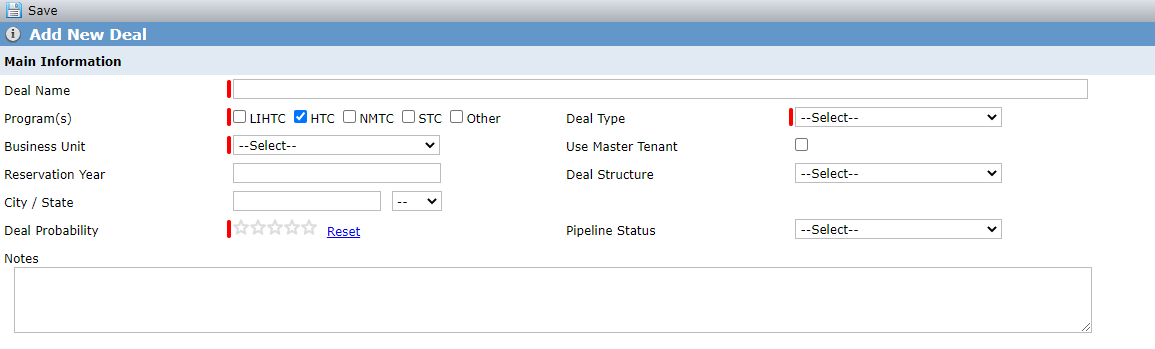
Reservation Year—The year the tax credits were applied for.
Deal Structure—Select from the system picklist to identify the deal as Equity, Debt, or Both.
City/State—The location of the deal's property.
County—The location of the deal's property.
Proposed Close Date—The system populates the Estimated Actual Closing Date (Deal Status History grid) with the same value.
Deal Probability(*)—Indicate the level of probability that the deal will close. You can update this value as the deal moves through Pipeline and Underwriting.
Pipeline Status—Select from the non-system picklist to identify the current status of the deal while in the Pipeline stage.
Enter any additional, optional information in the Main Information section known at the time.
Complete the grid(s) at the bottom of the screen. The information carries to the Benefits functionality and is used to calculate the tax credits that will be generated for the program.
LIHTC/HTC/STC/Other Program Information (appears when the LIHTC/HTC/STC/Other programs are selected). The application adds a row for one program.
Note
Make sure to click Add New Tax Credit above the grid for each additional program you selected in the Main Information section.
If your LIHTC deal has both Rehab and Acquisition credits, make sure to add two rows to the grid, one for each type.

NMTC Program Information (appears when the NMTC program is selected). Sources and QEI information is required when adding an NMTC deal.

QEIs (Qualified Equity Investments) (appears when the NMTC program is selected)

Click Save.
The application saves the deal, with the Deal Status set to Active and Deal Stage set to Pipeline.
The Deal Overview screen opens.
In addition, the application builds out additional records and information based on the type of deal. See the following sections for more information.
The application creates a Property record with the following information:
Property Name equals Deal Name
City equals Deal City (if populated)
County equals Deal County (if populated)
State equals Deal State (if populated)
Associated QALICB equals the QALICB on the deal (for NMTC deals only)
The application creates a Building record with the following information:
Property equals Property Name
Building Description equals Building 1
City equals Deal City (if populated)
State equals Deal State (if populated)
The application creates an Assigned User record for you (the user that created the deal). The user is added as a Role Lead and Deal Lead with a Role of Originator.
The application evaluates the Templates (ProLink Admin) that match the programs, deal type, and deal structure selected for the deal and adds the following records where they match the deal:
Documents
Checklist
Policy Guidelines
Risk Elements
The application creates a Total Benefits record. For LIHTC, HTC, and NMTC programs, the application also creates a Benefits Schedule. If an STC or Other program is selected along with LIHTC, HTC, or NMTC, then those Benefit Schedules are also created. However, if the deal only has an STC or Other program selected, then you have to manually add the Benefits Schedule. The systematically created records include the following information:
Tax Credit Type
Sub Type (not available for HTC deals)
Basis
PPC
Rate
Forecasted Annual Amount
The application creates the following Additional Annual Reports to the OPA tab of Deal Details.
Accountant Workpapers
Component Audit Letter
Cap Ex Budget
LIHTC AOC (for LIHTC deals only)
The application creates one Additional One-Time Report to the OPA tab of Deal Details for each picklist item found in the PL_DocumentReport picklist (ProLink Admin > Picklists).
The application creates the Admission Stages within the Status History grid on the Main tab of Deal Details. The values displayed are configurable and specific to your organization. The Admission Stages reflect the benchmark or milestone dates that you track during the Pipeline and Underwriting phases of the deal. Examples of the Admission Stages might include:
Package Received
LOI Issued
LOI Signed
Short Form Admission
Actual Closing
Closing Binder Received
AM Transition
Investor Approval
The application creates a Financial Forecast record, which allows tracking Underwriting models that are used for the deal. The Status is not required for this record.
The application creates a Pricing Modal record, which allows tracking of different pricing scenarios for ownership of a deal. The Status is not required for this record.
The application creates a new Partnership entity and adds it as a deal entity.
Note
Entities that are systematically created when the deal is created are placeholders. You should update each placeholder entity to reflect the real information of the actual entity that will hold that role for the deal.
The placeholder partnership is added with the following information:
Company Or Individual equals Company
Equity Status equals Pending
Primary Role equals Partnership
Name equals the Deal Name
Deal Role equals Partnership
Mailing Address City equals Deal City (if populated)
Mailing Address State equals Deal State (if populated)
The application creates a proposed Ownership Schedule with the placeholder Partnership displayed as the Owned Entity. After you update the Partnership name, the change is also reflected in the Ownership Schedule.
The application creates a new Master Tenant entity and adds it as a deal entity.
Note
Entities that are systematically created when the deal is created are placeholders. You should update each placeholder entity to reflect the real information of the actual entity that will hold that role for the deal.
The placeholder master tenant is added with the following information:
Company Or Individual equals Company
Equity Status equals Pending
Primary Role equals Master Tenant
Name equals the Master Tenant - Deal Name
Deal Role equals Master Tenant
Mailing Address City equals Deal City (if populated)
Mailing Address State equals Deal State (if populated)
The application creates a proposed Ownership Schedule with the placeholder master tenant displayed as the Owned Entity. After you update the master tenant name, the change is also reflected in the Ownership Schedule.
The application creates a new Sub-CDE entity and adds it as a deal entity.
Note
Entities that are systematically created when the deal is created are placeholders. You should update each placeholder entity to reflect the real information of the actual entity that will hold that role for the deal.
The placeholder Sub-CDE entity is added with the following information:
Company Or Individual equals Company
Equity Status equals Pending
Primary Role equals Sub-CDE
Name equals the Sub-CDE - Deal Name
Deal Role equals Sub-CDE
Mailing Address City equals Deal City (if populated)
Mailing Address State equals Deal State (if populated)
The application creates a new QALICB entity and adds it as a deal entity. The placeholder QALICB entity is added with the following information:
Company Or Individual equals Company
Equity Status equals Pending
Primary Role equals QALICB
Name equals the QALICB - Deal Name
Deal Role equals QALICB
Mailing Address City equals Deal City (if populated)
Mailing Address State equals Deal State (if populated)
The application creates a new Investment Fund entity and adds it as a deal entity. The placeholder Investment Fund entity is added with the following information:
Company Or Individual equals Company
Equity Status equals Pending
Primary Role equals Investment Fund
Name equals the Investment Fund - Deal Name
Deal Role equals Investment Fund
Mailing Address City equals Deal City (if populated)
Mailing Address State equals Deal State (if populated)
The application adds each allocatee selected when the deal was created as a new Associated Company for the Sub-CDE entity.
The application creates a new QEI record using the Allocatee, Projected Amount, and Projected Date that was populated when the deal was created.
The application creates a new Leveraged Debt Detail record where the Original Projected Amount equals the Leveraged Source Amount populated when the deal was created.
The application creates a new OPA Commitment record with the following information:
Installment Number equals 1
Forecast Date equals the Proposed Close Date (if populated when the deal was created; otherwise, the current date is used).
Forecast Amount equals NMTC Equity Commitment Amount
Program equals NMTC