Bulk Deal Creation Utility
Important
You will need the Bulk Deal Creation - Modify security privilege to be able to import a file of new deals through the Bulk Deal Creation utility. You'll also need the Utilities - Panel - View privilege.
The availability of the utility is controlled by a ProLink-only configuration setting. Please reach out to ProLink Support if you are interested in this functionality.
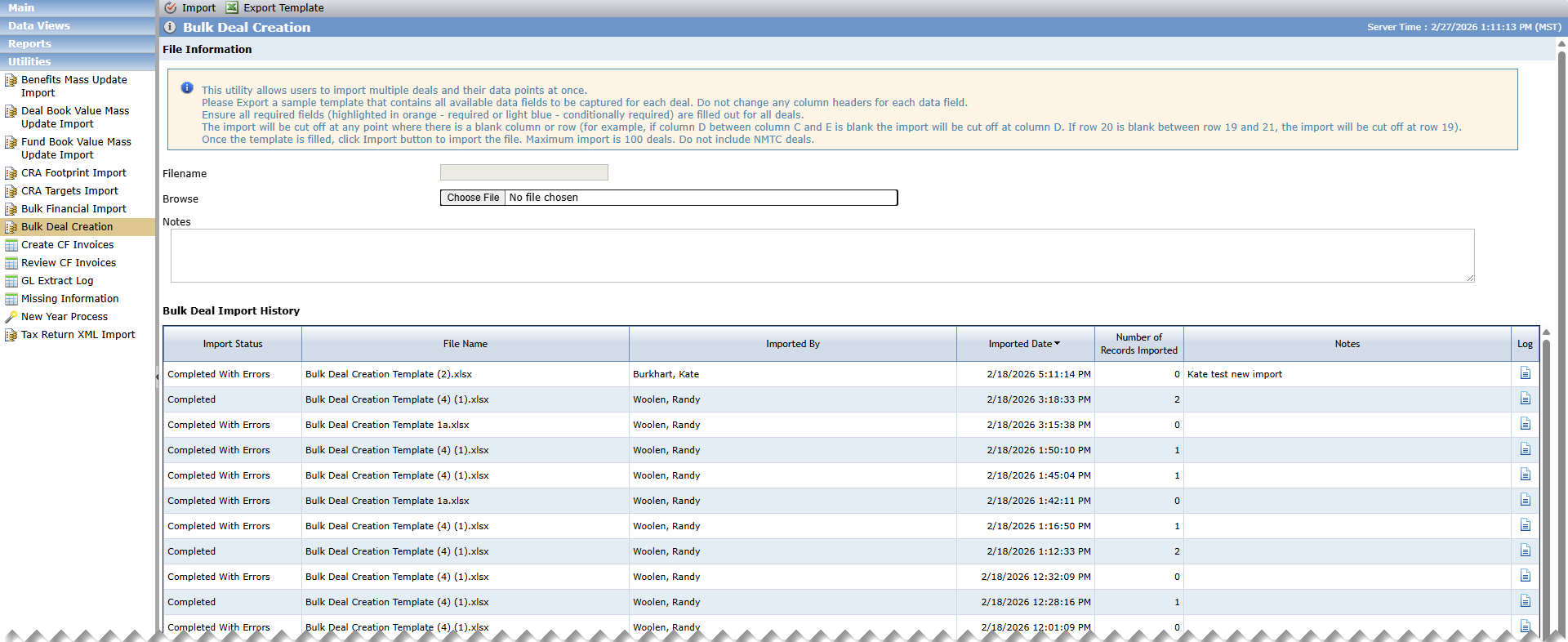
The Bulk Deal Creation utility allows you to create multiple deals at once. The utility provides a template so you can quickly import critical deal data points to begin managing and analyzing additions to your pipeline.
The Deal Book Value Mass Update Import History grid shows a list of import files. The Import Status will be one of the following:
Processing
Completed—Indicates the number of deals successfully imported and the total number of deals in the file.
Completed with Errors—Processing is complete, but one or more records in the file could not be updated. You can download a log file to review any errors that occurred during the import process.
To use the utility to create a large number of deals at one time:
Export the template.

The first row is the header row. Do not change this row.
Any active user defined fields (UDFs) on the Deal object are included at the end of the template.
Complete all required fields (columns) for every deal (row) in the template.
The header for required columns is highlighted orange, and the header for conditionally required columns is highlighted light blue. For the program fields, you are required to mark only one program per record as true. You do not need to mark the other program fields false (can be blank).
Enter data in the expected data type for the field, such as date, currency, and so on. For picklist fields, only select a valid value from the list.
The maximum number of deals you can import with one template is 100. You cannot import NMTC deals.
Upload the completed template.
Click Import.
The import will stop where there is a blank column or row. For example, if column D between column C and E is blank, the import stops after column C. If row 20 is blank between row 19 and 21, the import stops after row 19.