What's New
The release introduces the following new functionality.
New Security Privilege
ProLinkAIM includes a new security privilege for the SQL Pre-Filter field in workflows. As a result, the system administrator can designate advanced users as those with permission to write SQL queries for workflows.
Updates to the Guarantees Screen
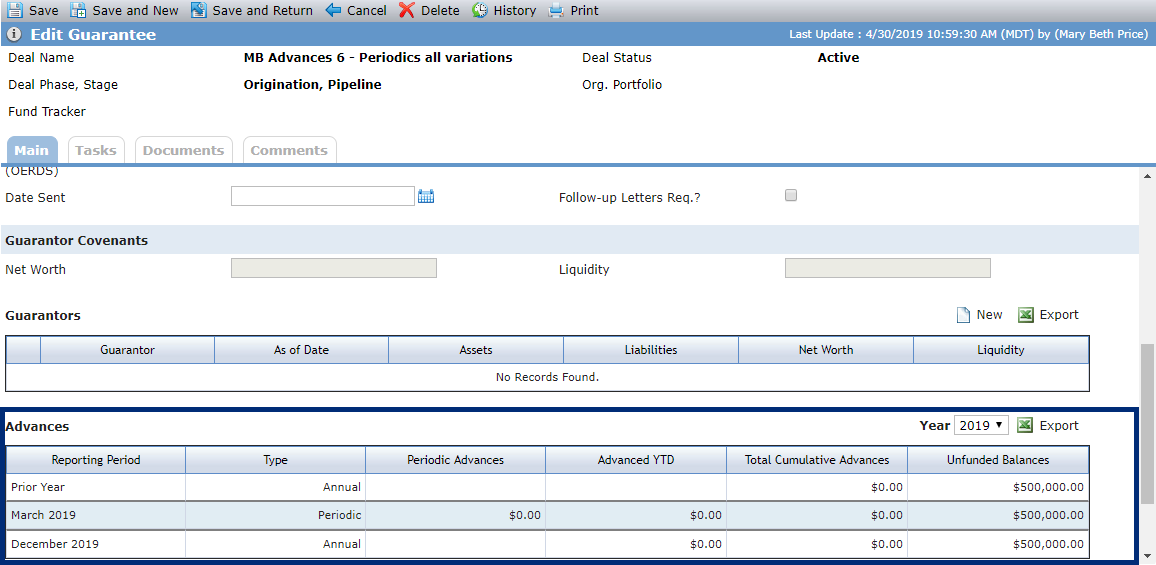
We made changes to the Advances grid on the Edit Guarantee screen. As a reminder, the Advances grid is displayed for Operating Deficit guarantees. The grid now shows rows for periodic values where the periodic financial has a completed date. Also, note the following grid column changes.
Column | Description |
|---|---|
Periodic Advances | No change. The calculated value continues to use the current Advanced YTD amount minus the previous Advanced YTD amount. |
Advanced YTD | The field shows the Operating Deficit Advances line item from the income statement on the periodic financial of the matching period. The field functioned this way for periodics; it now does so for annual financials, too. |
Total Cumulative Advances | The column header is changed from Cumulative Advances to Total Cumulative Advances. And we updated the calculation as follows:
|
Unfunded Balance | We updated the calculation as follows:
|
In addition, ProLinkAIM includes a new Operating Deficit Advances data view. The available columns are:
All deal-level fields (Deal Number, Deal Name, and Deal Type are default columns)
Guarantee Type (default)
Guarantee Amount (default)
Reporting Period (default)
Type (default)
Periodic Advances (default)
Advanced YTD (default)
Cumulative Advances (default)
Unfunded Balances (default)
The Quick Search fields are Deal Number, Deal Name, and Reporting Period. When you click a record, you navigate to the Edit Guarantee screen for the corresponding Guarantee record.
Updates to Deleting a Building Record
The process for deleting building records has been simplified. If a building has "Building Excluded" or "Not Applicable" selected for the Covered Scope list on the property insurance policy record, then you can delete the building without first deleting the insurance record.
Add Record ID to the Bank CRA Debt Allocation Screen
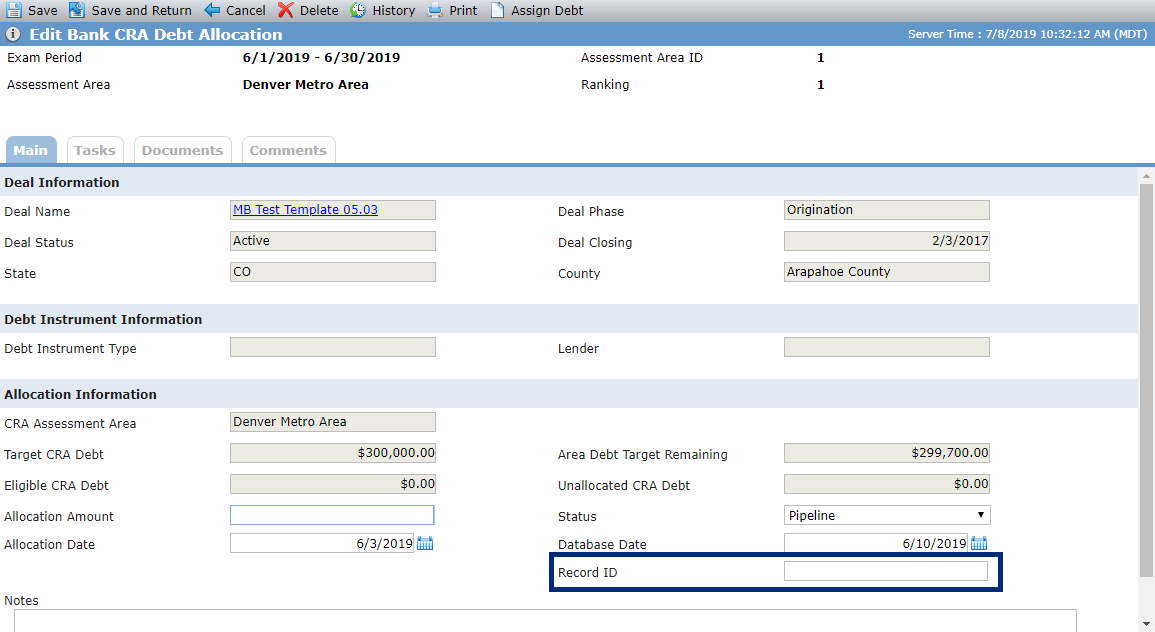
The Edit Bank CRA Debt Allocation screen includes a new Record ID field, which you can use to track the internal CRA ID of the debt allocation.
Add Fields to the Bank CRA Equity Allocation Screen
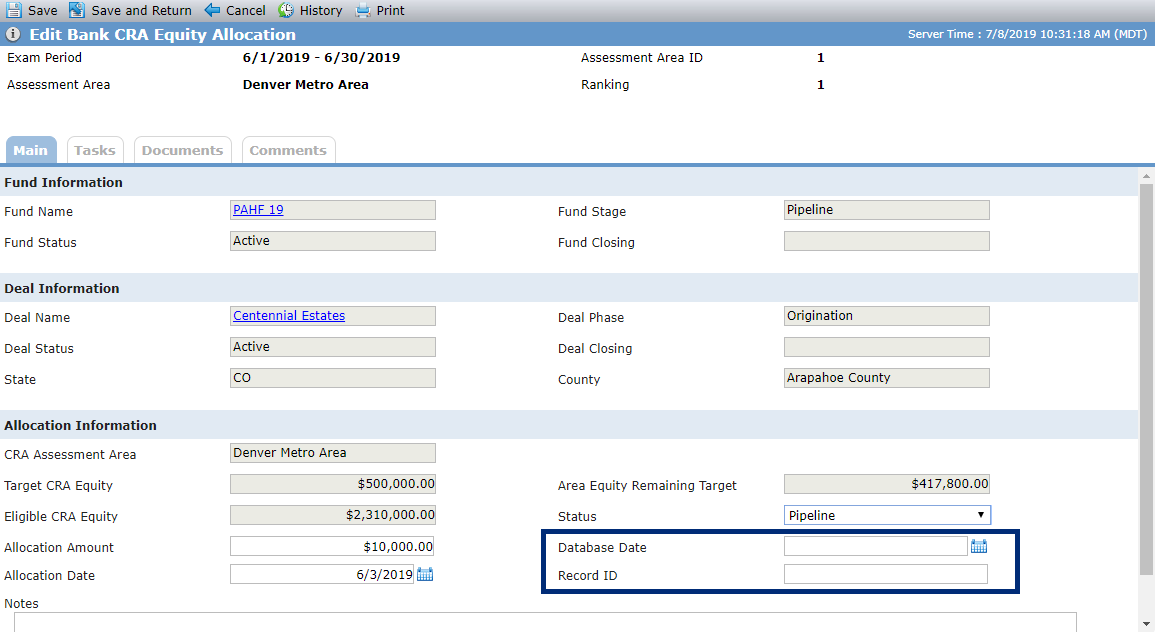
The Edit Bank CRA Equity Allocation screen includes two new fields:
Record ID—The ID of the internal bank CRA record.
Database Date—The date the CRA record was entered into the internal bank CRA tracking system.
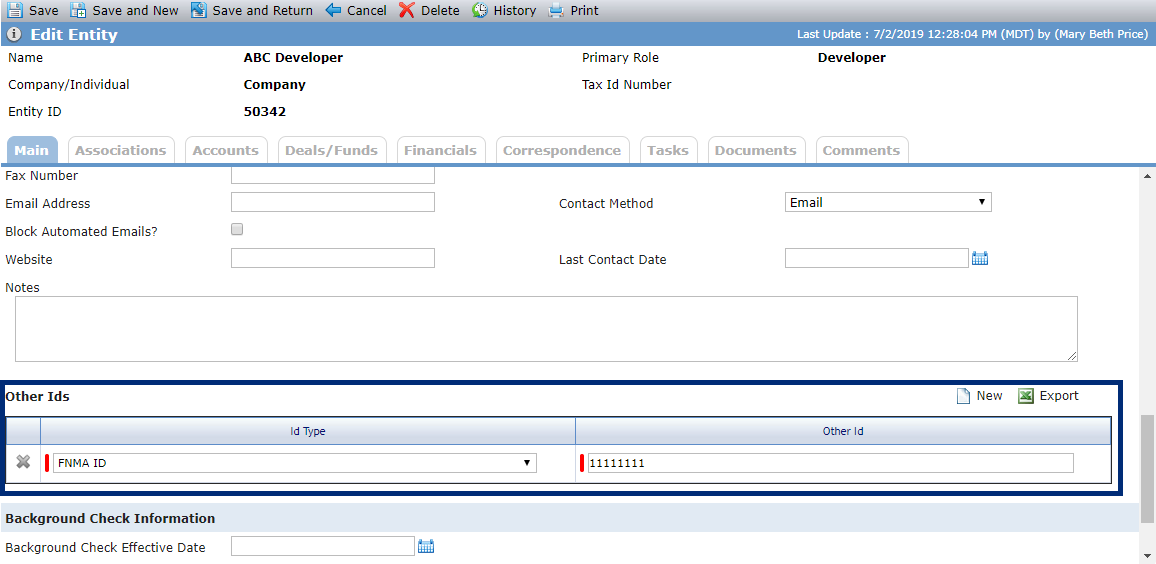
Add Other IDs to the Edit Entity Screen
The Edit Entity screen includes a new grid called "Other Ids," which allows you to track multiple IDs. These could be IDs for external systems. The Id Type field is a non-system picklist for which the system administrator can define values.
Updates to the Pricing Model Logic (PLS Support Ticket 2142)
ProLink Solutions updated the Pricing Model logic so that when you select a fund and save the record, the entity associated with the fund is no longer added as an owner in the ownership schedule. The pricing model no longer impacts the ownership schedule.
New User Defined Fields
We have added the ability to create user defined fields for the following objects:
Capital Contribution
Construction Budget Draw
Deal Benefits Schedule
Deal Financials - Budget and Annual
Note
User defined fields for Budget and Annual Financials appear on both the Operating Budget and Annual Financial records. When you set up the fields, you define the Section Header Name to organize the fields. The fields must be named uniquely (for example, you cannot have multiple fields titled "Date").
Deal Financials - Periodic
Fund
Inspection
Occupancy
Performance Enhancements
ProLink Solutions made performance-related changes to decrease page load times, especially on the data views.
In addition, we made the following performance-related changes:
Removed the OPA fields from the Deals data view.
Added a Deal OPA data view.
Updated the Organizational Portfolios field in data views to show all public views instead of individualized views.
Procorem WorkCenter Announcements
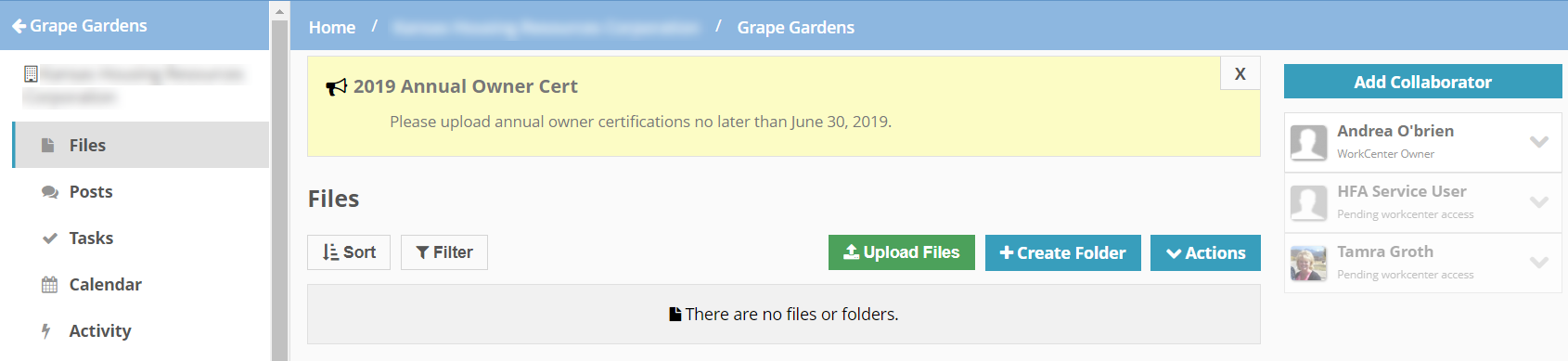
The system administrator can define announcements to be displayed in a banner format on all WorkCenter pages for WorkCenters in a particular category.
The Account Settings page includes a new Announcements tab, where you can see active announcements as well as add new ones. If you do not define an expiration date, the announcement is displayed indefinitely.
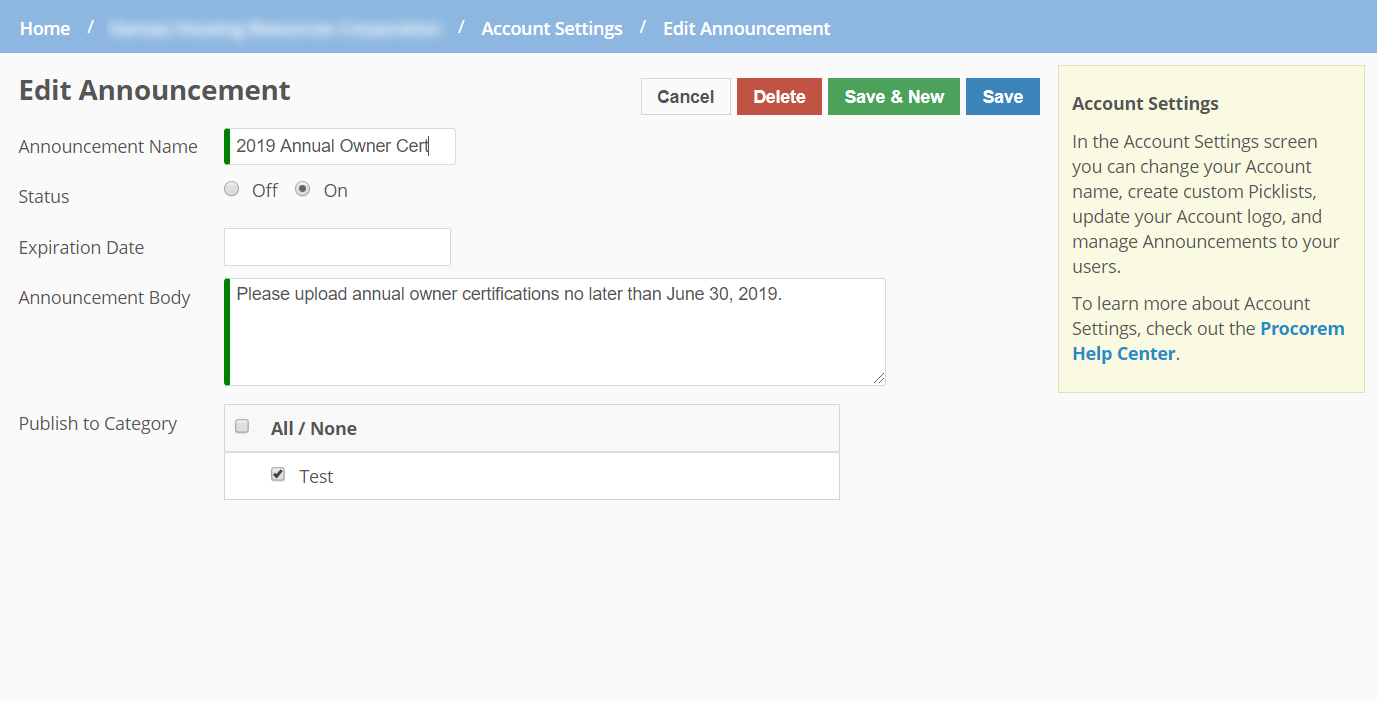
For announcements to be displayed, a WorkCenter must have a category defined, and then the administrator selects the category or categories to which the announcement applies. You set up category values through Account Settings, and then define the category for a WorkCenter through WorkCenter Settings.
Procorem users can dismiss the announcement by clicking X. Once dismissed, the announcement is no longer displayed in the browser for that session.