Manage Deal Details - OPA Tab
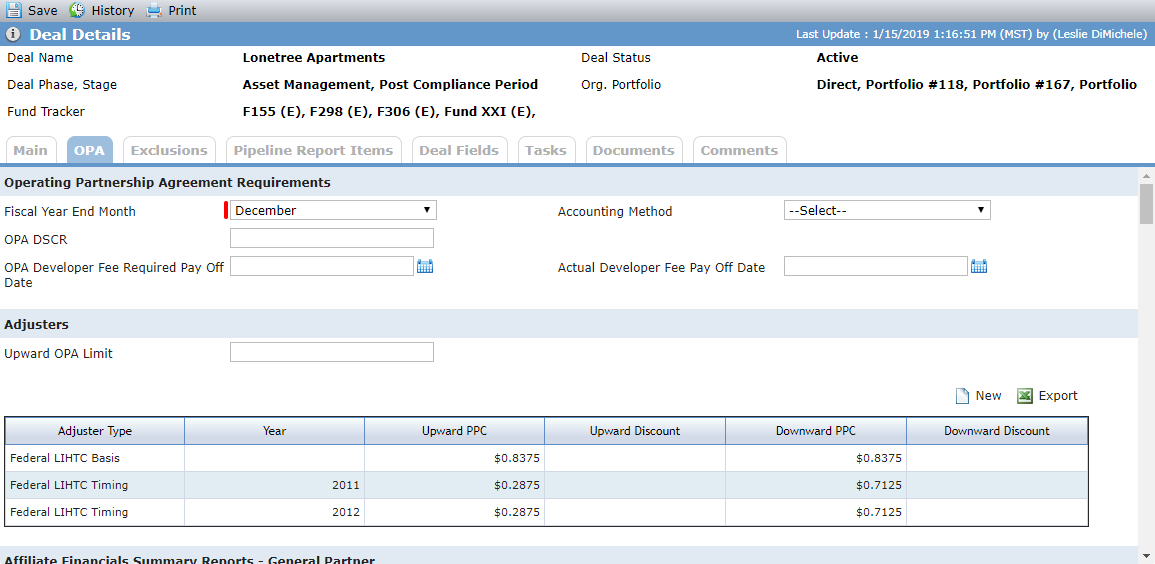
The OPA tab records requirements of the deal as specified on the Operating Partnership Agreement (OPA), also referred to as the Limited Partnership Agreement (LPA). It includes requirements for financial statements, cash flow, occupancy reports, tax returns, and other required documents.
Impact of OPA | OPA |
|---|---|
The information stored on the OPA tab is used when creating new records, either manually or through the New Year process. The following New Year processes will create records when the process is selected for the year (through the New Year Process Utility) and it is required on the OPA tab for the deal:
| |
# of Days Due | Defaults from OPA for the following records when the record is created after the OPA value is populated:
Defaults from OPA to Reports Received for the following records when the record is created after the OPA value is populated:
|
Penalty Rate | Defaults from OPA for the following records when the record is created after the OPA value is populated:
Defaults from OPA to Reports Received for the following records when the record is created after the OPA value is populated:
|
Effective OPA Terms section on Edit Annual Cash Flow Distributions | Cash Flow OPA Terms |
Inspections | Inspection OPA fields:
|
Tax Returns | Fiscal Year End Month |
Annual Financials | Fiscal Year End Month |
Periodic Financials | Fiscal Year End Month impacts the months that are created for Periodic Financials when Periodicity is not monthly |
Operating Budgets | Fiscal Year End Month |
Insurance OPA Requirement Period and Waiver | Insurance Requirements |
Adjusters | OPA Adjuster values populated for each Tax Credit Type |
Covenants |
|
Missing Information Utility |
|
Affiliate Financials Summary Reports for General Partners or Guarantor Due Date | If the # of Days Due After Period field is updated or the Required checkbox is selected, then the Due Date is updated as follows: Due Date updated to the As of Date on the Financial Summary plus the lowest # of Days Due After Period. |
Annual Financial Due Date | If the # of Days Due After Period field is updated or the Required checkbox is selected, then the Due Date is updated as follows: Due Date updated to the last day of the Fiscal Year End Month in the Reporting Year plus the # of Days Due After Period. |
Lease Up Due Date | If the # of Days Due After Period field is updated or the Required checkbox is selected, then the Due Date is updated as follows: Due Date updated to the last day of the month of the Reporting Period plus the # of Days Due After Period. |
Occupancy Due Date | If the # of Days Due After Period field is updated or the Required checkbox is selected, then the Due Date is updated as follows: Due Date updated to the last day of the month of the Reporting Period plus the # of Days Due After Period. |
Operating Budget Due Date | If the # of Days Due After Period field is updated or the Required checkbox is selected, then the Due Date is updated as follows: Due Date updated to the first day of the month of the Reporting Period plus the # of Days Due Before Period. |
Periodic Financial Due Date | If the # of Days Due After Period field is updated or the Required checkbox is selected, then the Due Date is updated as follows: Due Date updated to the last day of the month of the Reporting Period plus the # of Days Due After Period. |
Tax Returns Due Date | If the # of Days Due After Period field is updated or the Required checkbox is selected, then the Due Date is updated as follows: Due Date updated to the last day of the Tax Year plus the # of Days Due After Period. |
Note
Operating Partnership Agreement information can be tracked at a deal level on the OPA tab, or for NMTC deals at the Entity level on the Entity OPA tab.
The Edit OPA Adjuster screen allows you to document the OPA adjuster requirements. This sets the basis upon which adjusters are calculated. Adjusters are typically only applied for deals with a LIHTC or HTC program selected. Adjusters are calculations that compare actual delivered tax credits to the tax credit amounts that were promised under the OPA. Adjusters can be based upon a Price Per Credit (PPC) amount or Discount (percentage). For more information about adjusters, see Adjusters.
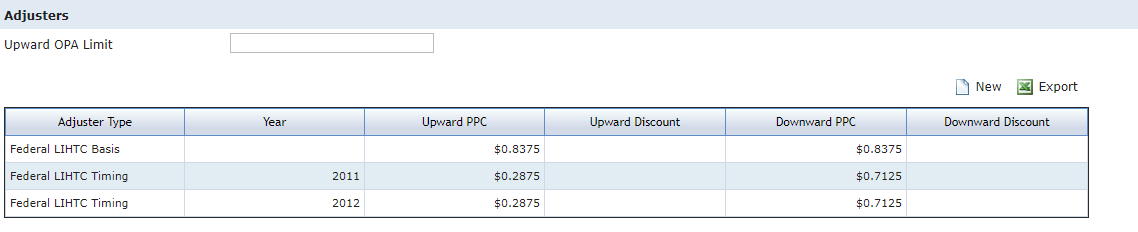
If you edit or delete an existing manual OPA adjuster, the system deletes all manual adjusters for that type and recalculates all adjusters and adjuster totals.
Navigate to Deal Details - OPA tab.
Click New above the Adjusters grid to add an adjuster.
OR
Click the row of the adjuster to edit an existing adjuster.
The Edit OPA Adjuster screen opens.
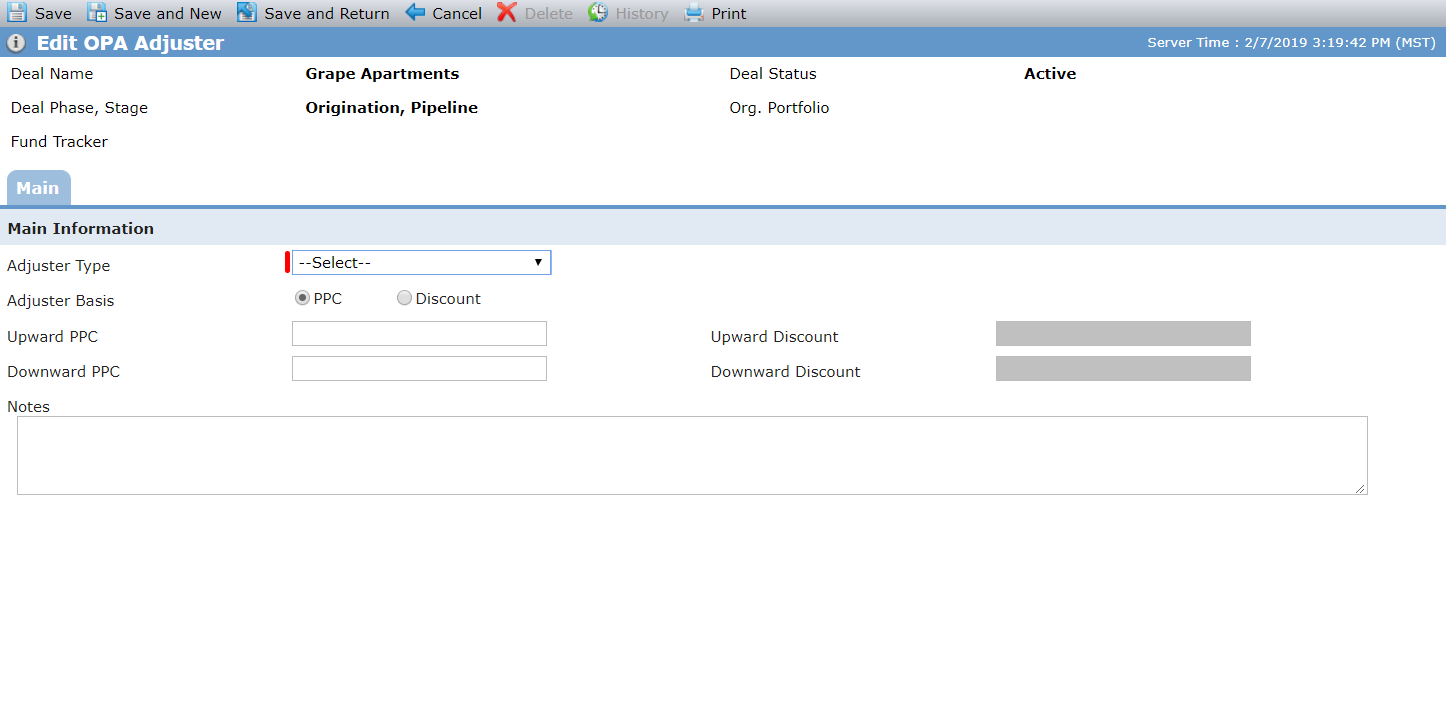
Enter or update the adjuster details as needed.
Only one Basis Adjuster record can be created for a Tax Credit Type.
Only one Timing Adjuster record can be created for a year for a Tax Credit Type.
Only one Compliance Adjuster record can be created for a Tax Credit Type.
Only Timing Adjusters can be created on an annual basis.
Only one Depreciation Adjuster can be defined on a Deal for the LIHTC Tax Credit Type.
Only one Amended Return (AAR) Adjuster can be defined on a Deal for the LIHTC Tax Credit Type.
Only one Depreciation Adjuster can be defined on a Deal for the HTC Tax Credit Type.
Only one Amended Return (AAR) Adjuster can be defined on a Deal for the HTC Tax Credit Type.
Click Save and Close.
The Edit Cash Flow OPA Terms screen displays the terms that have been set for cash flow based upon a specific Effective Date. The Terms can change, so you can create multiple records.

Navigate to Deal Details - OPA tab.
Click New above the Cash Flow grid to add new cash flow terms.
OR
Click the row of the cash flow terms to edit existing terms.
The Edit Cash Flow OPA Terms screen opens.
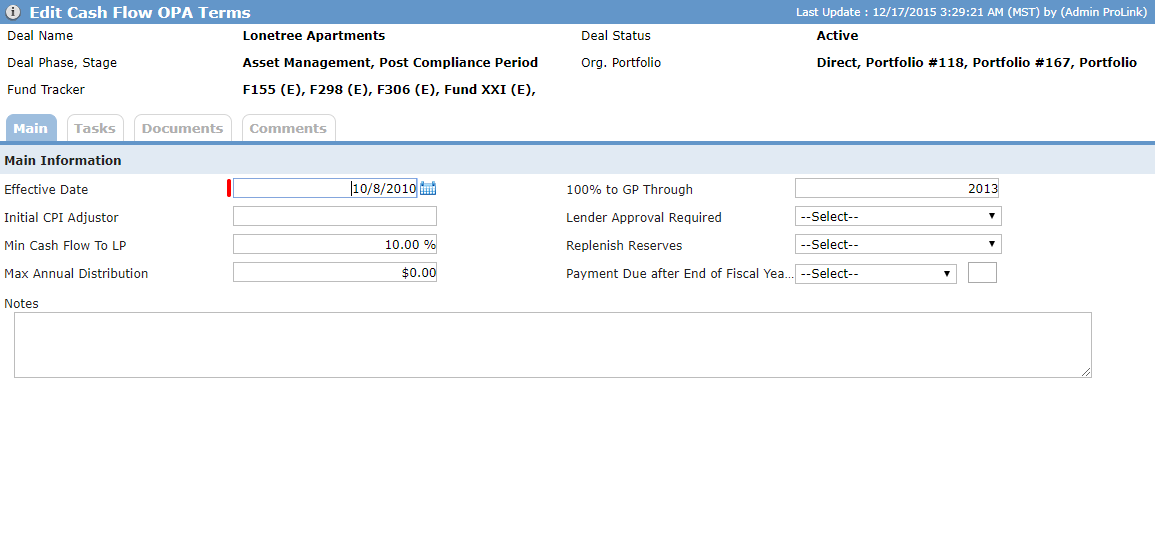
Enter or update the cash flow terms as needed.
The Effective Date must be unique for the deal.
Click Save and Close.
This section tracks the type of inspections that are required for the deal and the frequency required.
If the Tax Credit checkbox is selected, and the deal is owned by a Syndicated Fund, the Frequency must be equal to, or more frequent than, the Inspection Frequency selected for that fund (Fund Details screen). Additionally, the Internal-only Inspection Period (Yrs from PISD) must be equal to, or more frequent than, the Internal-only Inspection Period (Yrs from PISD) selected for that fund.
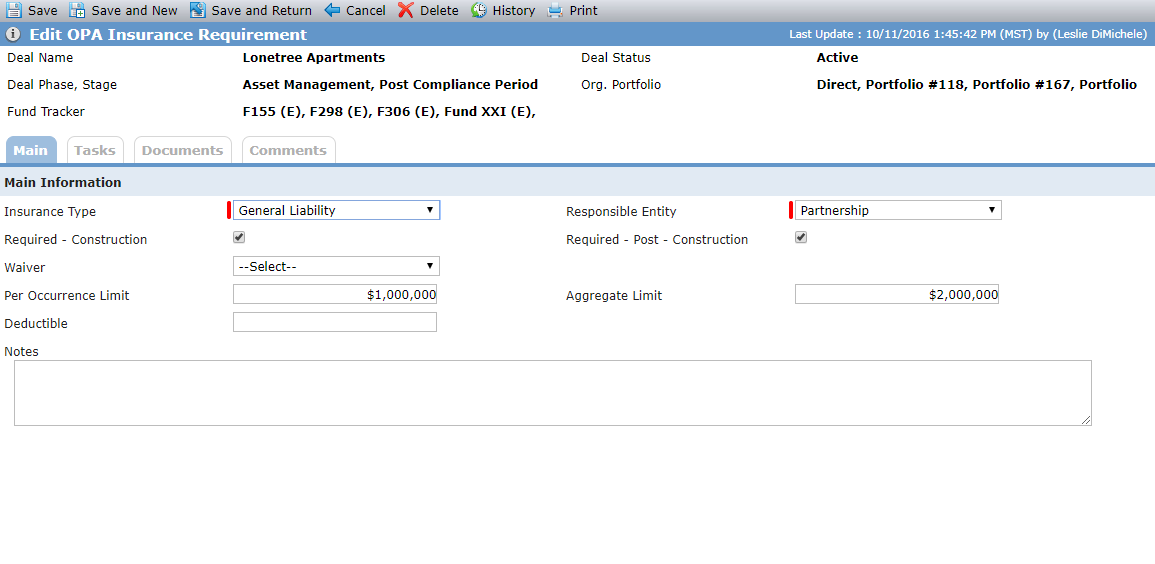
The Edit OPA Insurance Requirements screen allows you to document the insurance requirements of all responsible parties on a Deal. There are two effective periods of the insurance requirements, during construction of the project, and after completion of construction. Actual Construction Completion Date is the date upon which the construction period ends and the permanent period begins. The Actual Construction Completion Date from Edit Property is used to determine which OPA Requirement Period is in effect, Construction or Post-Construction. When the Required – Construction checkbox is selected, the insurance information is then displayed on Construction Budget and Draw records.
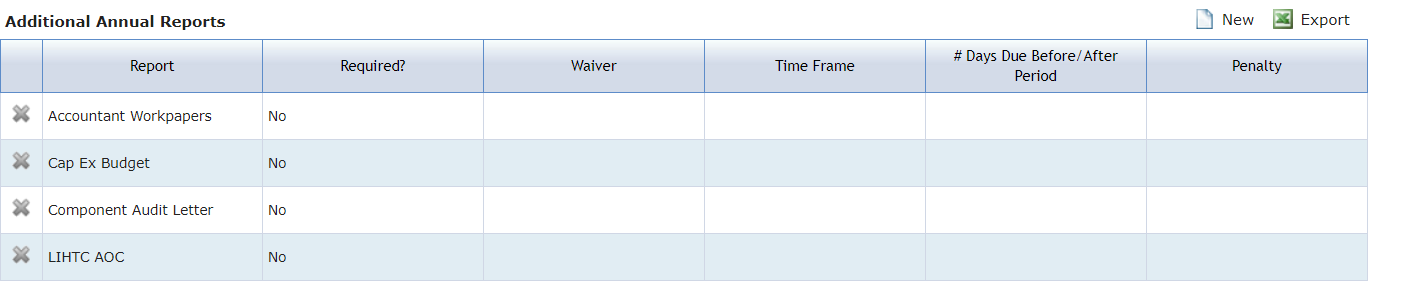
The Additional Annual Report section allows organizations to record the requirements for annual reports they may require for the deal that are not already listed on the OPA screen. The Report list is configurable so the system administrator can add whatever reports the organization needs to track.
Navigate to Deal Details - OPA tab.
Click New above the Additional Annual Reports grid to add a new report.
OR
Click the row of the report to edit an existing report.
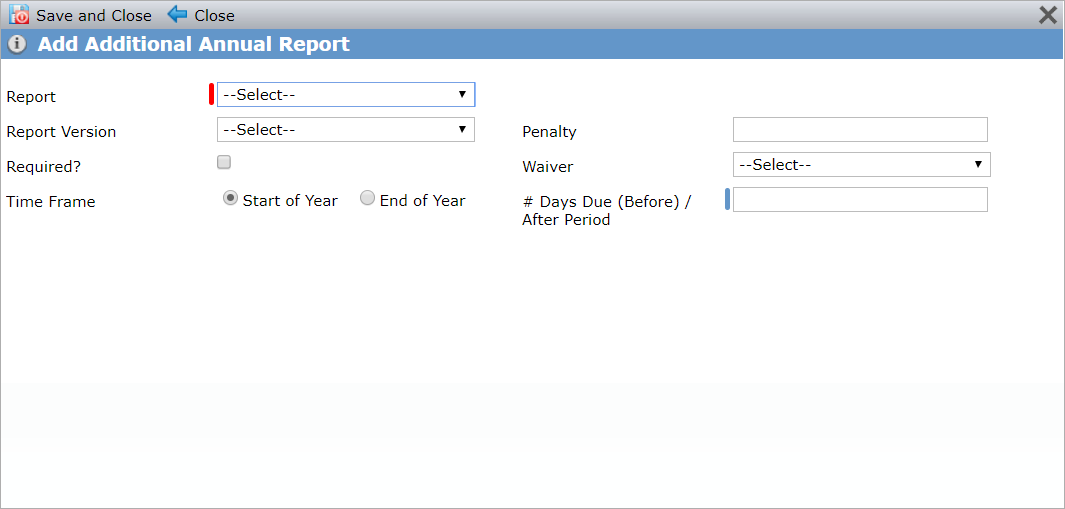
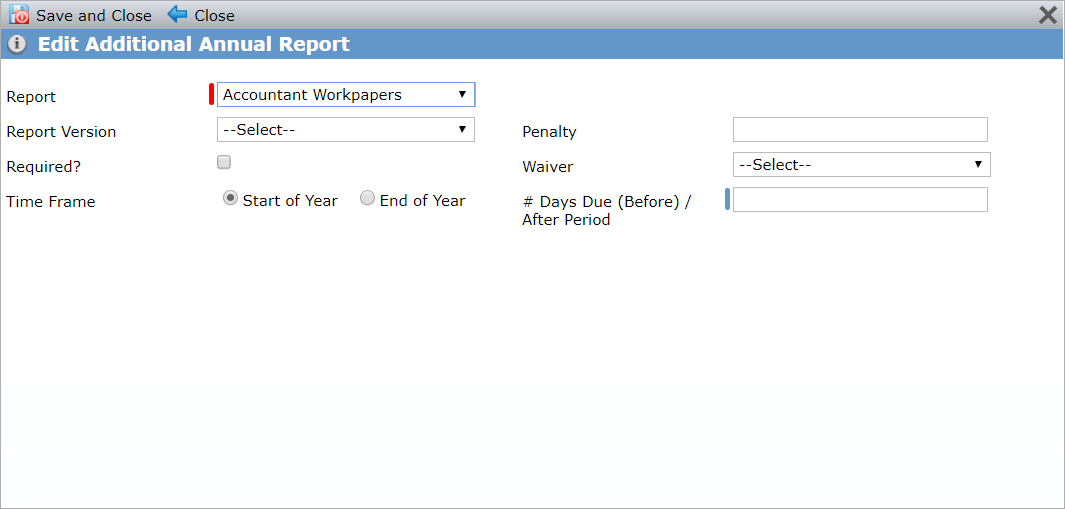
Add Additional Annual Report and Edit Additional Annual Report
Enter or update the report details as needed.
LIHTC AOC is a report option if the deal is a LIHTC or STC-LIHTC program.
CIIS Audit and CIIS ILR are report options if the deal is an NMTC or STC-NMTC program.
The # of Days Due (Before)/After Period can be positive or negative. Enter a negative number for a Before Period.
If the # of Days Due (Before)/After Period is updated, the timeframe is switched for the Start of Year and End of Year, or the Required checkbox is updated, the Due Date for any existing records will be updated as follows:
Timeframe is Start of Year - Due Date equals First day of Period plus # of Day Due (Before)/After Period.
Timeframe is End of Year – Due Date equals Last day of Period plus # of Day Due (Before)/After Period.
Click Save and Close.
The Additional One-Time Report section allows organizations to record the requirements for any one-time reports they may require for the deal that are not already listed on the OPA screen. The Report list is configurable so the system administrator can add whatever reports the organization needs to track.
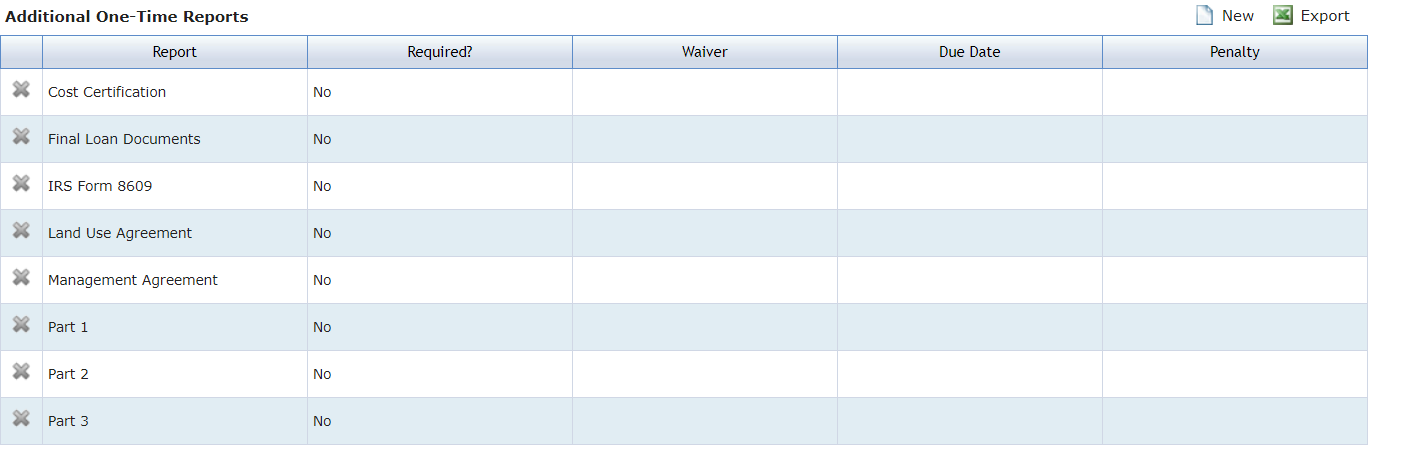
Navigate to Deal Details - OPA tab.
Click New above the Additional One-Time Reports grid to add a new report.
OR
Click the row of the report to edit an existing report.
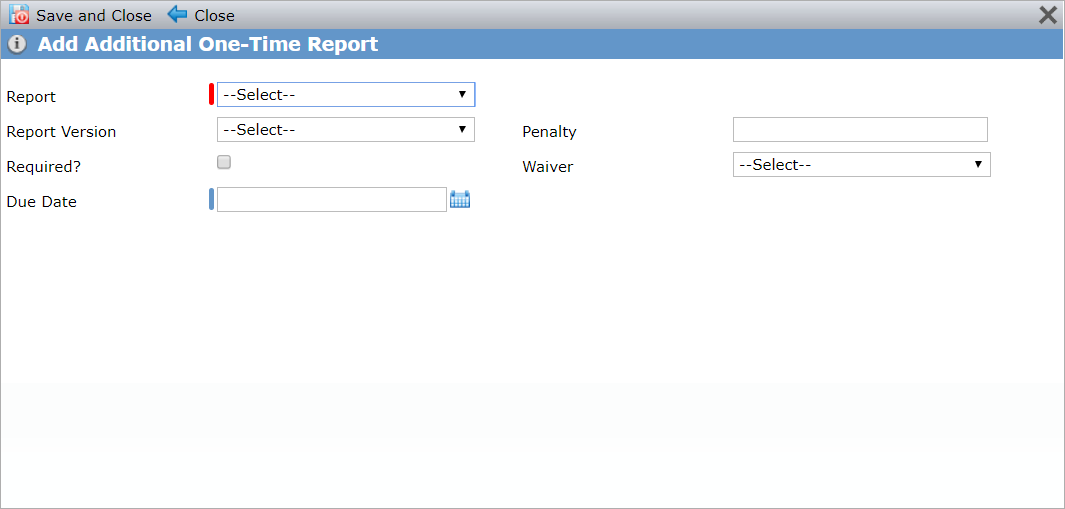
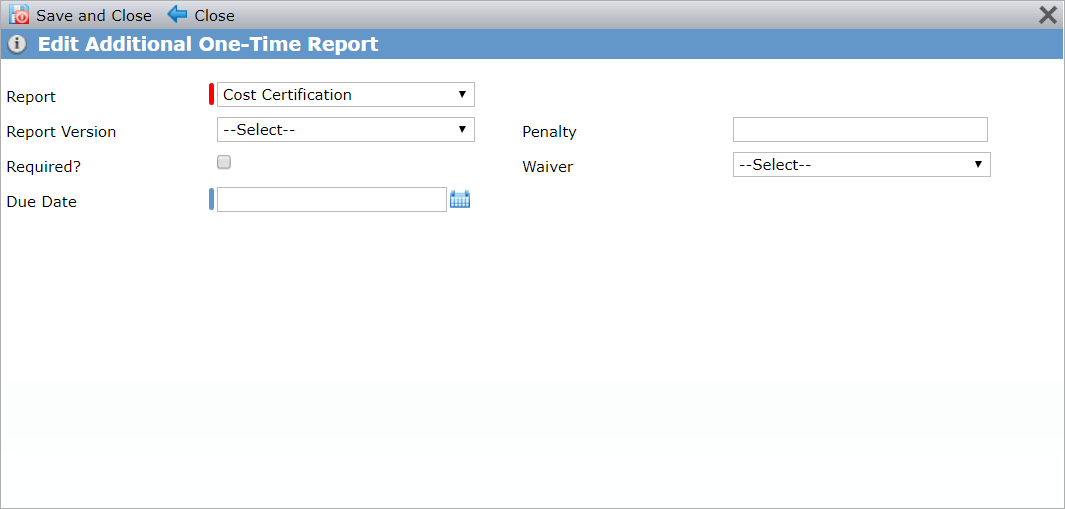
Add Additional One-Time Report and Edit Additional One-Time Report
Enter or update the report details as needed.
Click Save and Close.