View the Deal Ownership Schedule
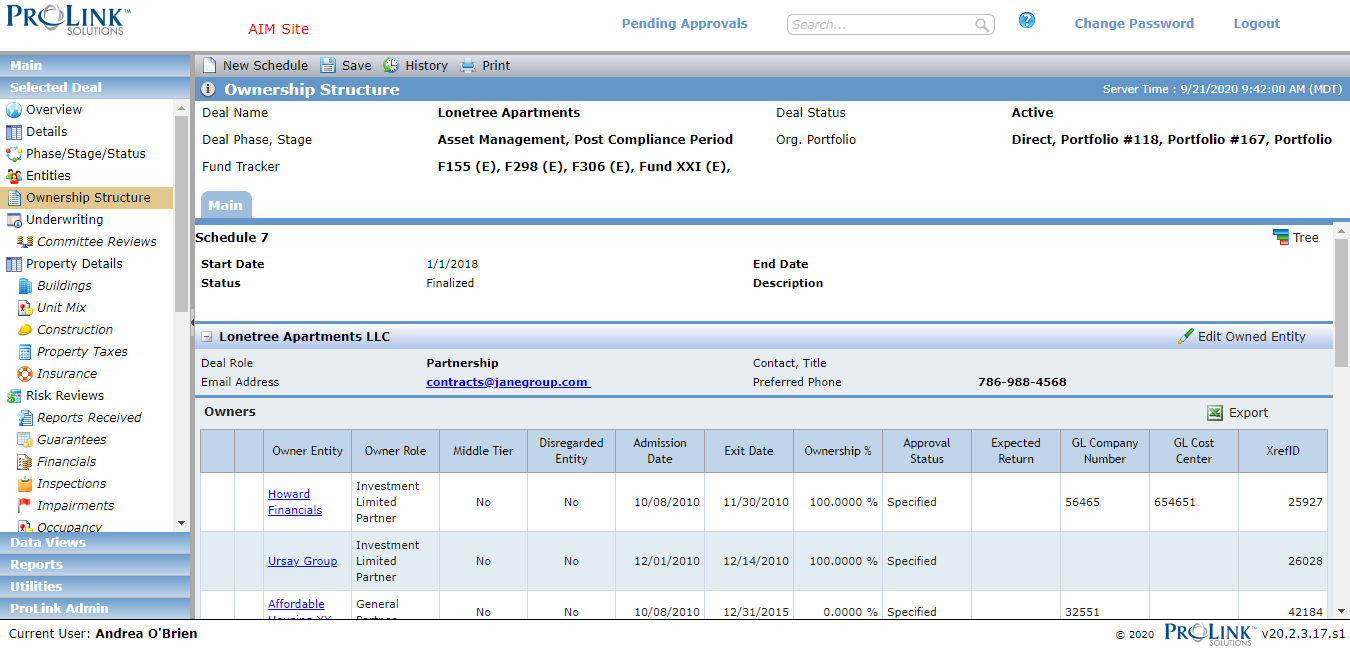
When you create a LIHTC, HTC, or STC deal, the application automatically creates a proposed ownership schedule with all Partnership and Master Tenant entities added as Owned Entities. You will need to add the owners manually.
All information shown in the Owners grid is from data populated through a popup screen or from the Legal Entity record for the corresponding entity.
Note
The XrefID is systematically generated for the relationship between the Owner Entity and the deal. It is displayed for all deals except NMTC and STC - NMTC.
You will manually populate the NrefID, which represents the relationship between the Sub-CDE and Investment Fund. The format is a unique 6-digit number that begins with the number 9. It is displayed for NMTC and STC - NMTC deals.
You might need to create a new schedule for a new deal, or when changes are made to the owners of the Owned Entity. Multiple proposed schedules can exist at one time.
Navigate to the deal, and select Ownership Structure in the left navigation menu.
The Ownership Structure screen opens.
Click New Schedule in the top toolbar.
The New Ownership Schedule popup opens.
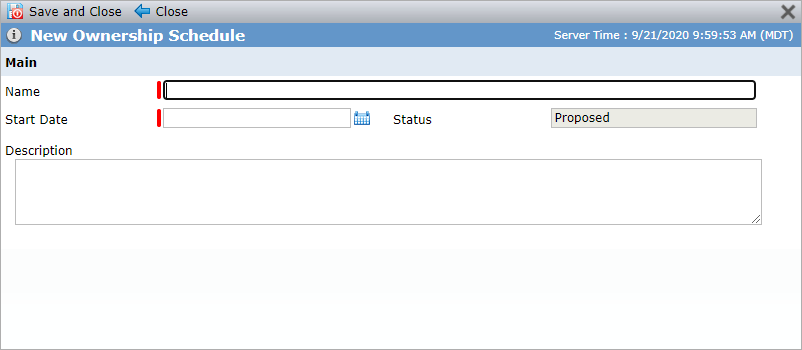
Enter the Name of the schedule.
Enter or select the Start Date.
Note that the Status defaults to Proposed.
Optionally, enter a Description.
Click Save and Close.
If there is an existing schedule, the application automatically copies the owners from the existing schedule to the new schedule.
You can edit the Name, Start Date, or Description for a proposed schedule. Click the Edit button  .
.
You can delete a proposed schedule by clicking the Discard button  .
.
After a schedule is created, while it is still in a Proposed status, you need to add Owned Entities. Every schedule needs at least one Owned Entity, but you can create multiple Owned Entities when needed.
When you create a LIHTC, HTC, or STC deal, the application automatically creates a proposed ownership schedule with all Partnership and Master Tenant entities added as Owned Entities. You will need to add the owners manually.
Navigate to the deal, and select Ownership in the left navigation menu.
The Ownership Structure screen opens.
Click New Owned Entity in the top toolbar.
The Add Owned Entity popup opens, displaying any entities that exist on the deal in a Deal Role of Partnership, Investment Fund, Master Tenant, Sub-CDE, or any existing Owner Entities, for a different Owned Entity within the schedule, that are not already listed on the Ownership Schedule.
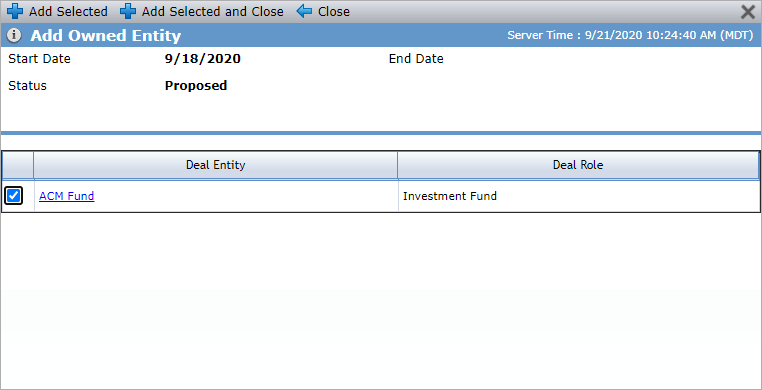
Click the deal entity hyperlink to view the Edit Entity screen.
Select the checkbox of the entity or entities, and then click Add Selected and Close.
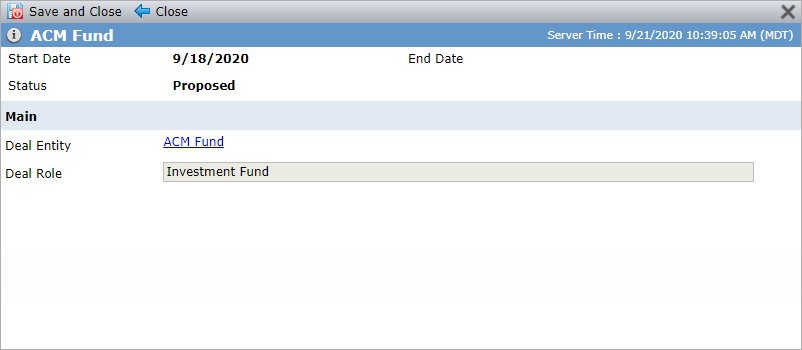
The Owned Entity is added to the schedule. While the schedule is in a Proposed status, you can edit the Owned Entity
 .
.
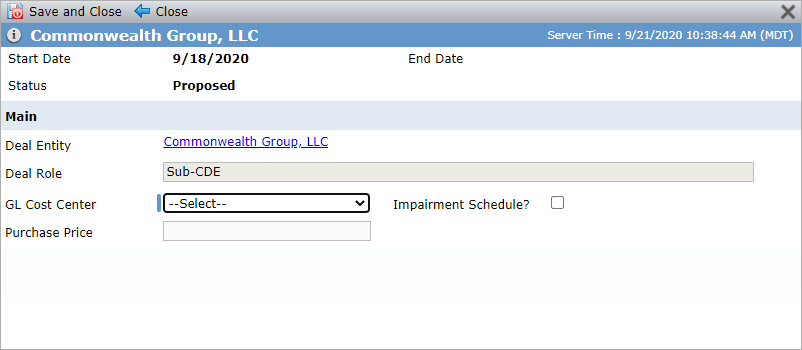
For NMTC deals, when the Owned Entity is a Bank Affiliate and has a Deal Role of Sub-CDE, the popup contains additional fields to accommodate the ability for the entity's Impairment Schedule to be calculated and its General Ledger (GL) data to be collected. The Purchase Price field, which is used as the Beginning Balance for the Sub-CDE on the Impairment screen, is only editable for users with the Purchase Price security privilege, and only if the Impairment Schedule checkbox is selected. You can modify these fields even after the Ownership Schedule is finalized.
After an Owned Entity is added to the schedule, you can add Owners. While the schedule is in a Proposed status, you can remove an owner or modify their data. After the schedule is finalized, you can edit only certain fields (GL Cost Center, Impairment Schedule, Tax Matters Partner).
Note
You cannot add the owned entity as an owner entity.
Navigate to the deal, and select Ownership in the left navigation menu.
The Ownership Structure screen opens.
Click New Owner above the Owners grid for the applicable Owned Entity.
The Find New Owner popup opens.
Entities on the deal with a Deal Role that is also an Ownership Role are displayed. If the entity is not listed, click Search All Entities to search for any entity in the application.
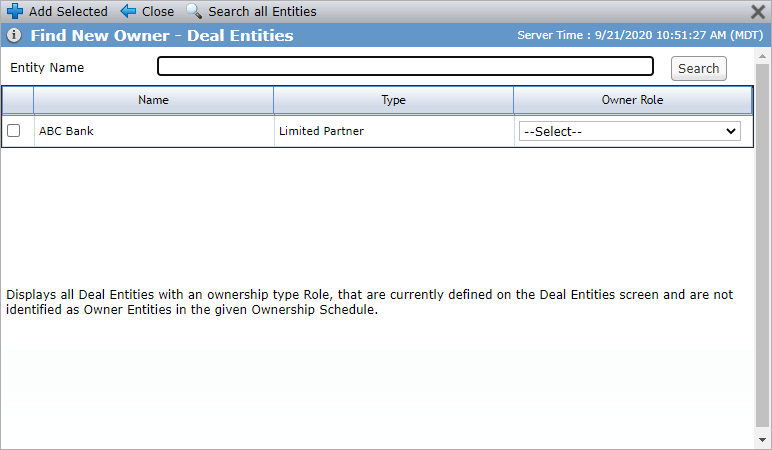
Select the checkbox of the entity to add as Owner.
Select the Owner Role for the entity.
If the Owner is a Syndicated Fund, the application creates a Fund Loan record on the deal's Equity Schedule.
Click Add Selected.
The Owner popup is displayed. It contains pertinent information for the owner such as the dates the owner owned the entity and their percentage of ownership.
Additionally, the percentage of tax credit benefits the owner is entitled to is also stored in the schedule. This allows ProLinkAIM to calculate the annual and quarterly amount displayed on the Benefit Schedule.
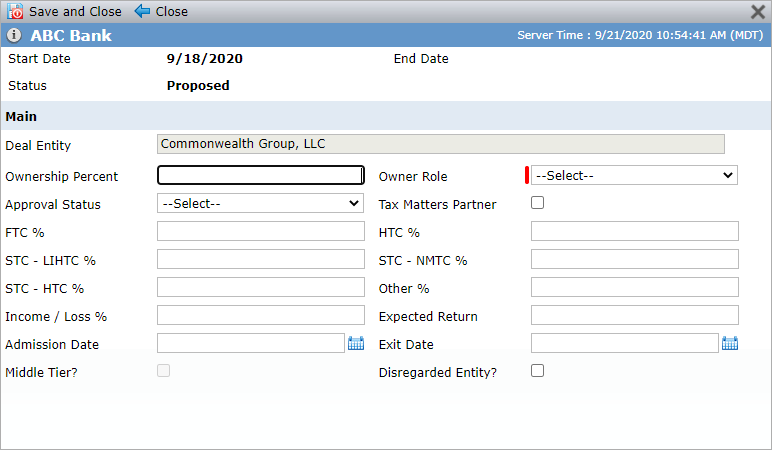
The GL Cost Center and Impairment Schedule fields are displayed only when the entity is a Bank Affiliate (Main tab of Edit Entity).
Complete the fields as needed.
The percentage values are used to calculate benefits and other data within the application. When populating the tax credit types, all fields must be populated, even if the value is 0%.
You can select the Tax Matters Partner checkbox field for one active owner only.
The Exit Date cannot be before the Admission Date.
If you enter an exit date for an owner and finalize a proposed ownership schedule, and if the result will be that all owners have an exit date, then the system presents an error if a manual adjuster exists with a year greater than the new exit date.
Click Save and Close.
If you Close the Owner popup without saving, the selected owner is not added to the schedule.
Repeat steps 3–7 to add additional owners.
Click Save.
The owner is added to the schedule.
While a schedule is in a Proposed status, you can click the row of the Owner to open the Owner popup and edit the details for the Owner on the deal. (Clicking the hyperlink opens the Edit Entity screen.)
After the schedule is finalized, you are able to modify a few fields:
All Owner Entities
Tax Matter Partner
Disregarded Entity
Owner Entities that are marked as a Bank Affiliate
GL Cost Center
Impairment Schedule
Owner Entities that have a Primary Role of Syndicated Fund
Middle Tier
While a schedule is in a Proposed status, you can remove an Owner by clicking  at the beginning of the Owner row.
While a schedule is in a Proposed status, you can replace an existing owner with another entity.
Note
You cannot add the owned entity as an owner entity.
When you finalize a schedule, if there are any replaced owners, the new owner will replace the existing owner as the "From" on any Capital Contributions, Deal Costs, or Working Capital where the:
Capital Contribution is not Paid
The Funding Date is greater than or equal to the new owner's Admission Date and less than the Exit Date (if there is an Exit Date).
Navigate to the deal, and select Ownership in the left navigation menu.
The Ownership Structure screen opens.
Click
 .
.The Replace Owner popup opens.
Entities on the deal with a Deal Role that is also an Ownership Role are displayed. If the entity is not listed, click Search All Entities to search for any entity in the application.
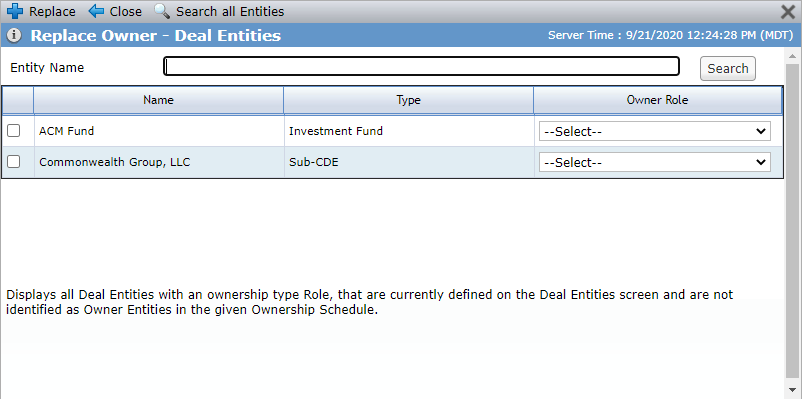
Select the checkbox of the entity to add as Owner.
Select the Owner Role for the entity.
If the Owner is a Syndicated Fund, the application creates a Fund Loan record on the deal's Equity Schedule.
Click Add Selected.
The Owner popup is displayed. It contains pertinent information for the owner such as the dates the owner owned the entity and their percentage of ownership.
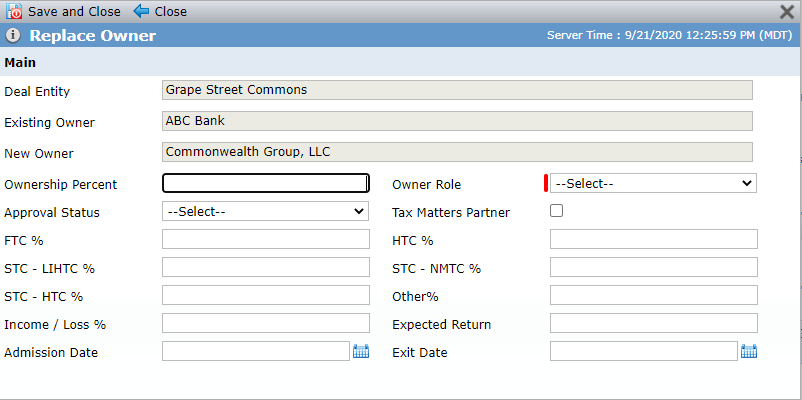
The GL Cost Center and Impairment Schedule fields are displayed only when the entity is a Bank Affiliate (Main tab of Edit Entity).
Complete the fields as needed.
The percentage values are used to calculate benefits and other data within the application. When populating the tax credit types, all fields must be populated, even if the value is 0%.
You can select the Tax Matters Partner checkbox field for one active owner only.
The Exit Date cannot be before the Admission Date.
Click Save and Close.
If you Close the Owner popup without saving, the selected owner is not added to the schedule.
Click Save.
The replacement owner is added to the schedule. The owner being replaced remains in the schedule, with the Exit Date populated; the Exit Date will default to one day prior to the Admission Date of the new Owner.
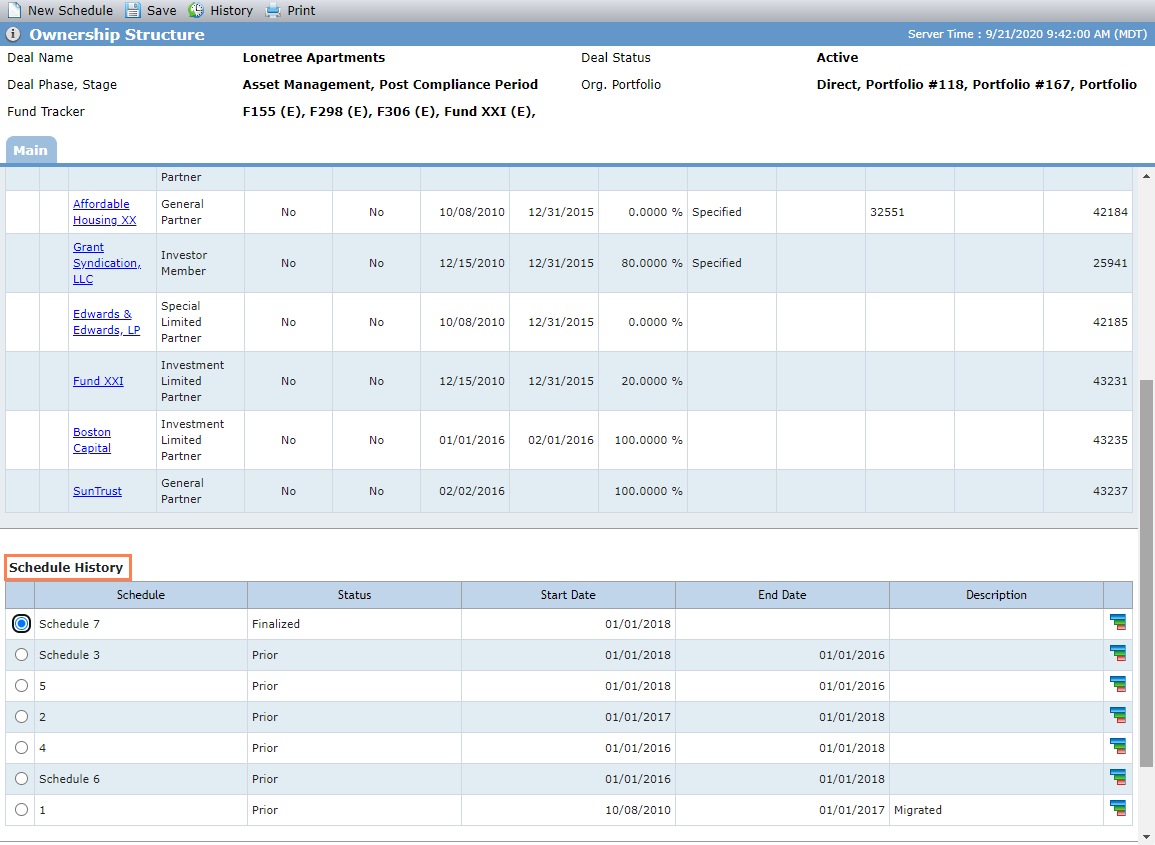
When a deal has a finalized schedule, it will be the default schedule displayed. Other functionality in the system is dependent on a finalized schedule; until a finalized schedule exists, impairment records cannot be created, fund benefits cannot be passed up to fund owners, and fund loads cannot be calculated. To see other schedules, scroll down to the Schedule History grid.
After you have added the owners and all data is completed for the schedule, you can finalize the schedule.
To finalize a schedule:
The sum of the Ownership Percentages for each Owner Entity equals 100% from the first Admission Date to the current date.
All of the following fields are required (Owners popup): All tax credit % fields, Income/Loss %, Ownership %, Admission Date.
Navigate to the deal, and select Ownership in the left navigation menu.
The Ownership Structure screen opens.
Click
 .
.The page is refreshed, and the screen is updated to reflect the change.
If there is a current finalized schedule, its status is updated to Prior.
Important
You must have the Deal - Ownership Schedule - Unfinalized - Modify security privilege to un-finalize an ownership schedule.
If needed, you can un-finalize a finalized, deal-level ownership schedule. To un-finalize a prior schedule, first un-finalize the more recent schedules, in cascading fashion.
When you un-finalize an ownership schedule, the schedule moves to a status of Proposed. The most recent schedule with a status of Prior changes to Finalized.
You cannot un-finalize a schedule if any owned entities or owner entities on the deal:
Is selected as the owner on a Capital Contribution record
To un-finalize a schedule with this scenario, navigate to the record and remove the entity.
Is selected as the To or From party on a Debt record
To un-finalize a schedule with this scenario, navigate to the record and remove the entity.
Is associated to a QEI
To un-finalize a schedule with this scenario, navigate to the record and remove the entity.
Has an existing Impairment record
To un-finalize a schedule with this scenario, navigate to the record:
If the Impairment record lists multiple owners, be sure to clear the Impairment Schedule checkbox for any owners you will be removing rom the schedule. This ensures the Impairment Schedule continues to reflect only the correct entities.
If the owner you are removing from the ownership schedule is the only owner on the Impairment record, the Impairment record will be deleted when the owner is removed from the ownership schedule.
Has an owner-level LT Actual populated
To un-finalize a schedule with this scenario, navigate to the record and remove the amount for the populated years.
To un-finalize a schedule:
Navigate to the deal, and select Ownership in the left navigation menu.
The Ownership Structure screen opens.
Click the Tree view
 for the schedule.
The Ownership Schedule Tree View popup opens.
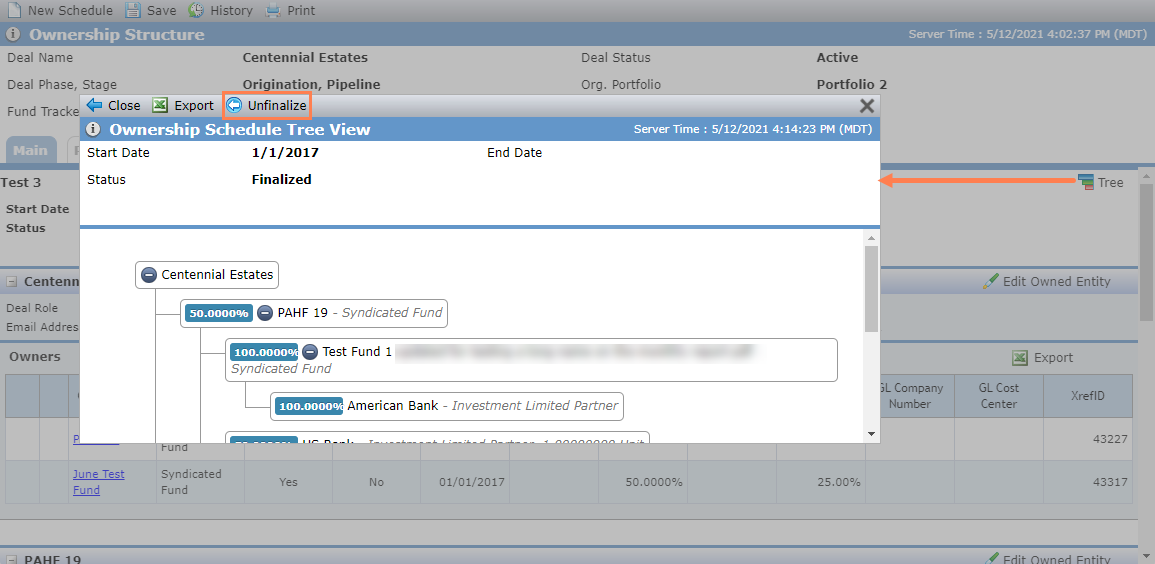
Click Unfinalize in the top toolbar.
The page is refreshed, and the screen is updated to reflect the change.
If there is a current Prior schedule, its status is updated to Finalized.
If multiple schedules exist, the Schedule History grid at the bottom of the screen shows the finalized schedule first, followed by any proposed schedules, and lastly any prior schedules.
The Tree view displays the Ownership Schedule visually, showing the Owner's Ownership Percentage and Role.
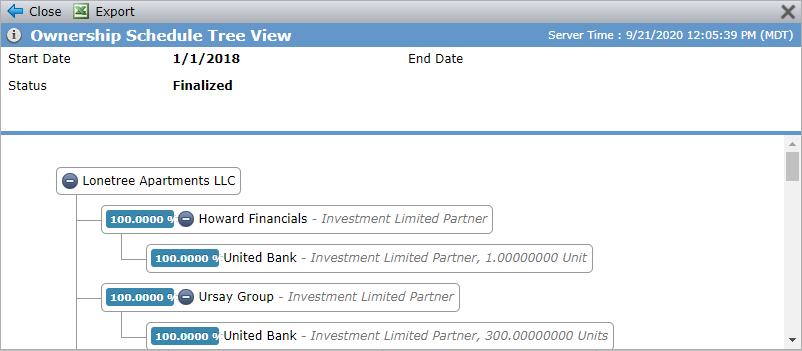
If multiple Owned Entities exist for one schedule, multiple trees are displayed in the view.