Manage the Deal Phase/Stage/Status
ProLinkAIM provides tracking of lower-tier deals from Origination through Asset Management.
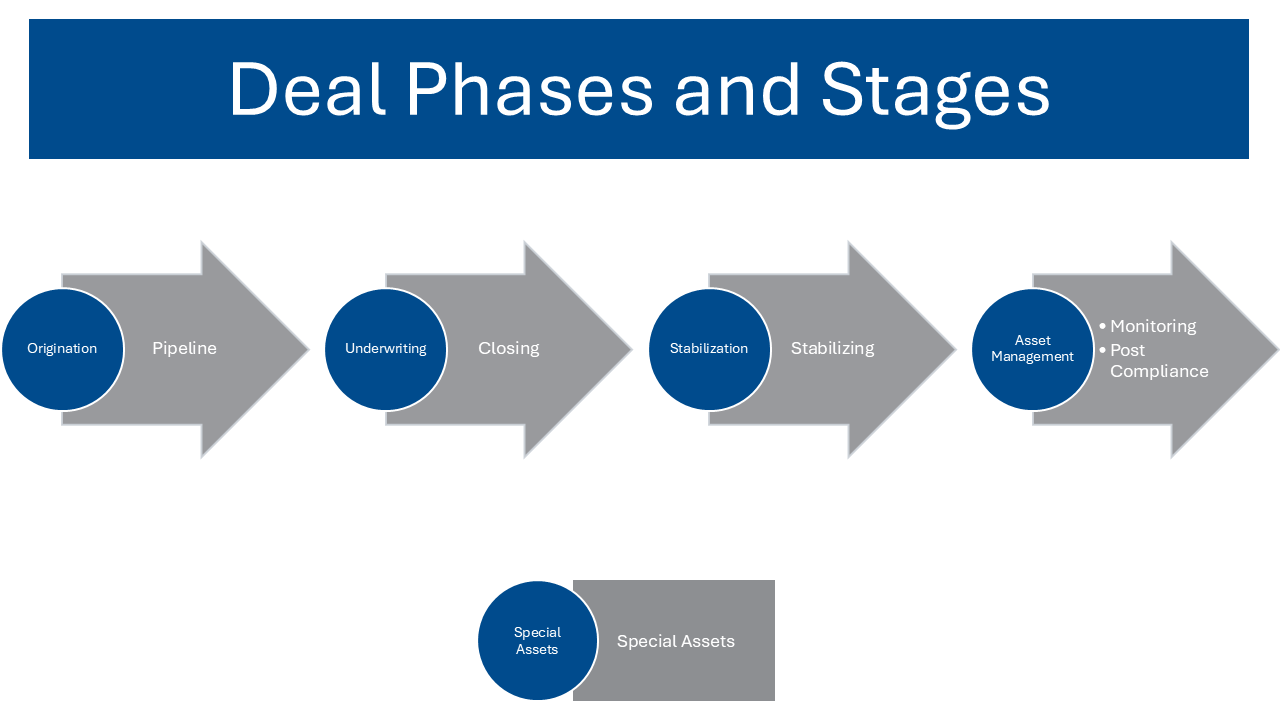
Use the Deal Stages screen to advance the deal stage. The system tracks the user and the date of the stage advancement. You can revert a deal to a previous stage, suspend a deal, or identify it as "dead" in the origination phase.
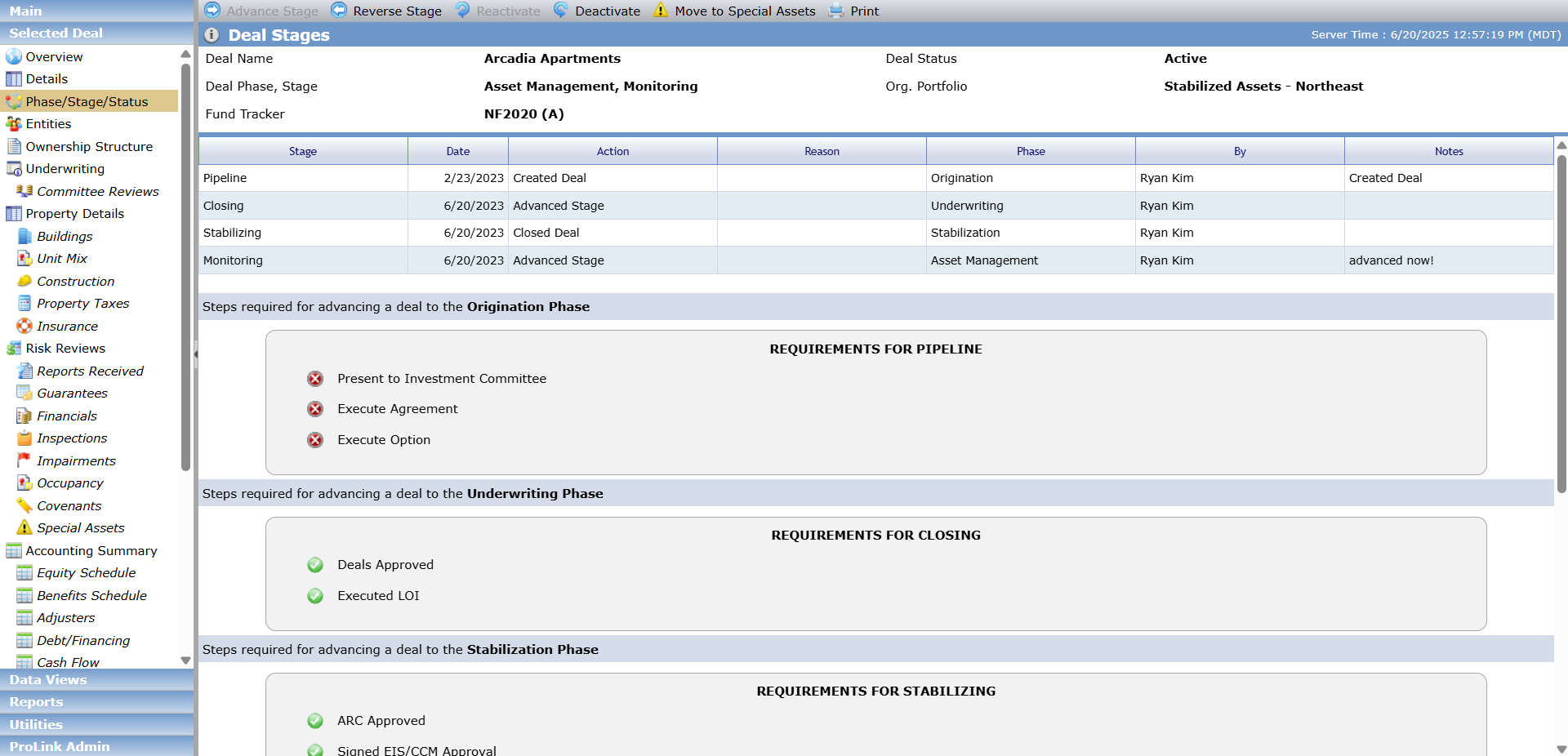
The screen displays the criteria necessary to advance the deal to a given stage. Steps completed show a green check mark  , and incomplete steps show a red X
  .
.
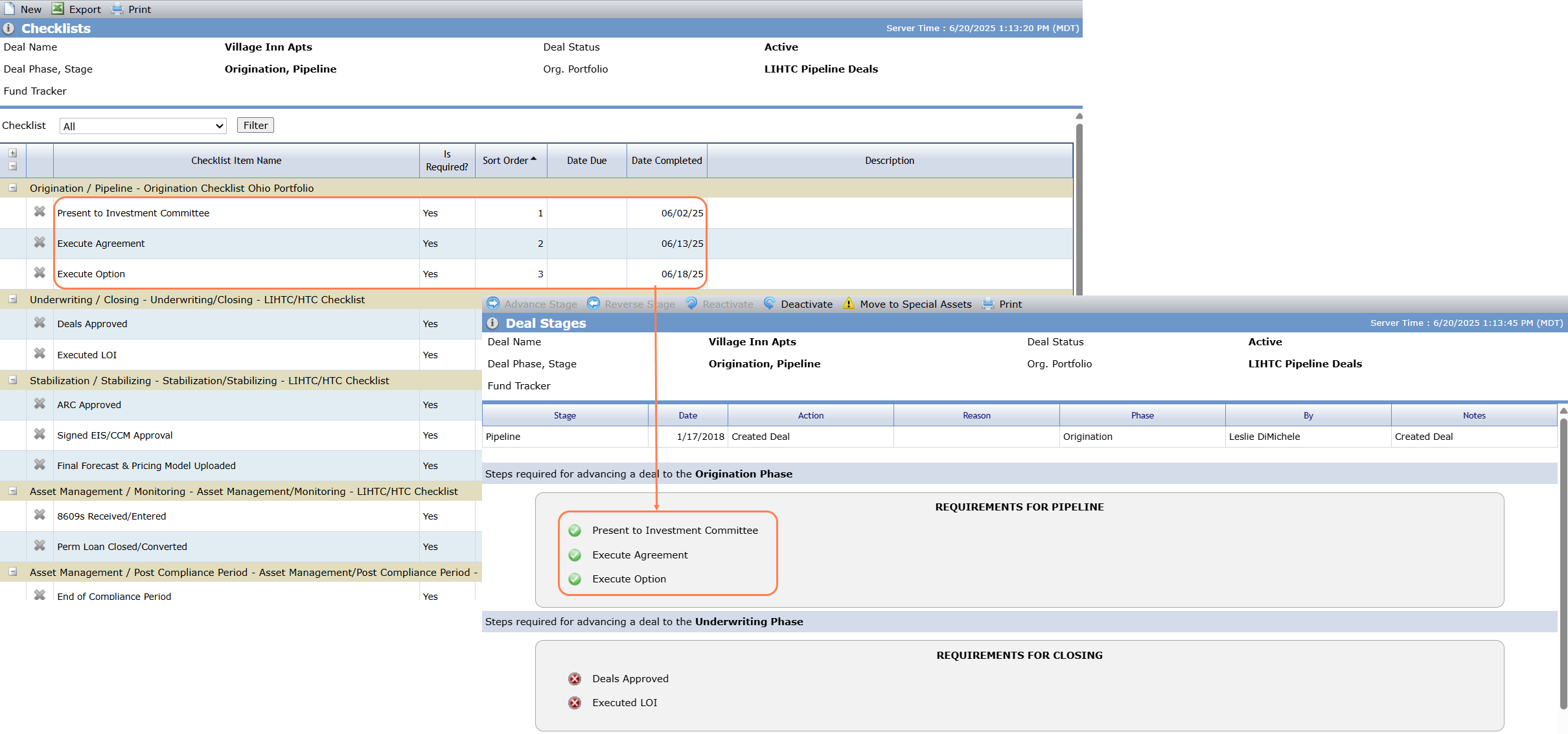
The system administrator defines the template checklist items/steps required to advance to each stage. The items are displayed by Sort Order if one exists, then Days Until Due, and then alphabetically by name.
The system adds template checklists to the deal based on the matched template and the deal phase and stage indicated on the template checklist. See Template Checklist Items for more information.
The system adds template documents to the deal based on the matched template and deal phase indicated on the template document. See Template Documents for more information.
To advance a deal to the Stabilization phase/Stabilizing stage, the deal must also have a finalized ownership schedule (Ownership Schedule with a Status = Finalized). At this advancement, the system sets the Action field to Closed Deal.
ProLinkAIM includes some system actions based on stage changes:
When the deal advances or reverts to Stabilization, the system changes the Due Date of all Occupancy records on the deal with a Due Date after the current system date as follows: Due Date = <Last day of the month of the Reporting Period> + <# Days Due After Period from Occupancy (from Stabilization section of Deal OPA)>
When the deal advances or reverts to Stabilization, the system changes the Due date of all Periodic Financial records on the deal with a Due Date after the current system date as follows: Due Date =<Last day of the month of the Reporting Period> + <# Days Due After Period from Periodic Financials (from Stabilization section of Deal OPA)>
When the deal advances or reverts to Asset Management, the system changes the Due Date of all Occupancy records on the deal with a Due Date after the current system date as follows: Due Date = <Last day of the month of the Reporting Period> + <# Days Due After Period from Occupancy (from Asset Management section of Deal OPA)>
When the deal advances or reverts to Asset Management the system changes the Due Date of all Occupancy records on the deal with a Due Date after the current system date as follows: Due Date = <Last day of the month of the Reporting Period> + <# Days Due After Period from Periodic Financials (from Asset Management section of Deal OPA)>
Navigate to the deal, and then click the Phase/Stage/Status menu option.
The Deal Stages screen opens.
Click Advance Stage in the top toolbar.
The button is available when the deal has met the criteria to advance to the next stage.
The Advance Stage popup opens.
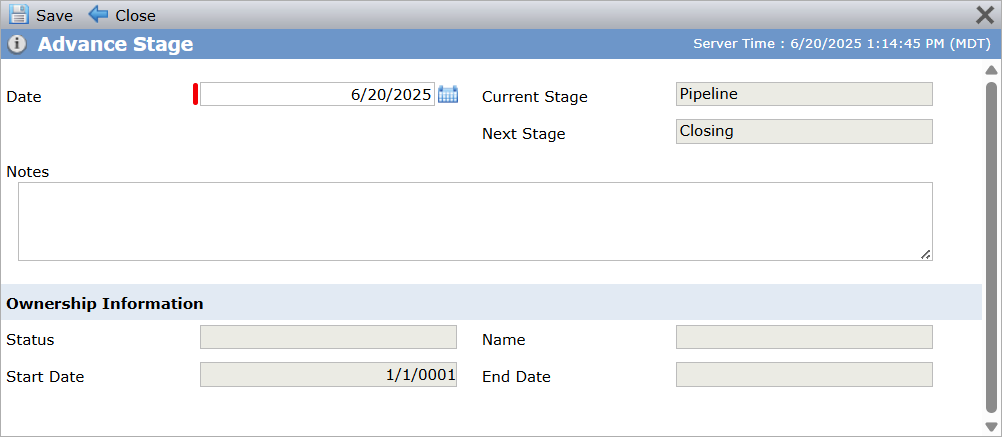
The Date defaults to the current date. You can change it if needed.
Optionally, enter Notes about the stage change.
Click Save.
The system advances the stage and sends an email to all assigned users in the Lead Role on the deal, alerting them to the change.
If needed, you can reverse the stage of the deal. However, you cannot reverse the stage if the deal is in the Special Asset phase or if reversal would move the deal to a different phase.
Navigate to the deal, and then click the Phase/Stage/Status menu option.
The Deal Stages screen opens.
Click Reverse Stage in the top toolbar.
The button is available when the deal has moved into the first stage.
The Reverse Stage popup opens.
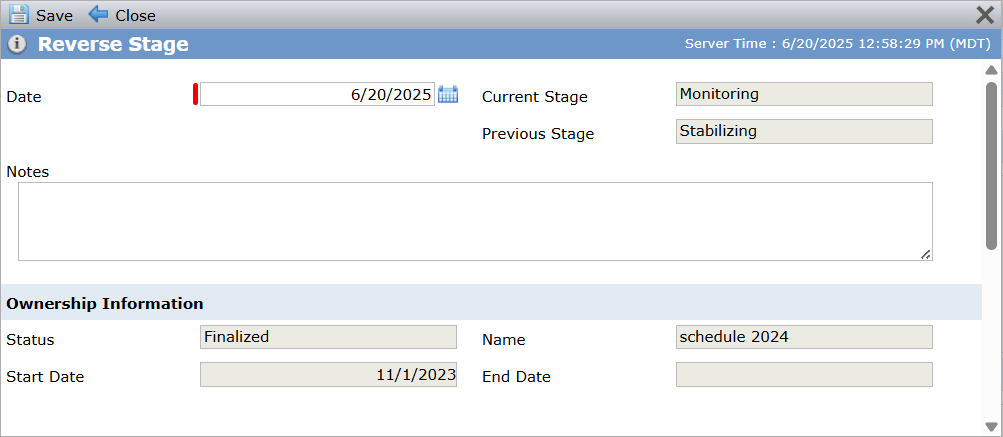
The Date defaults to the current date. You can change it if needed.
Optionally, enter Notes about the stage change.
Click Save.
The system reverses the deal to the previous stage.
Navigate to the deal, and then click the Phase/Stage/Status menu option.
The Deal Stages screen opens.
Click Deactivate in the top toolbar.
The button is available when the deal status is Active.
The Deactivate Deal popup opens.
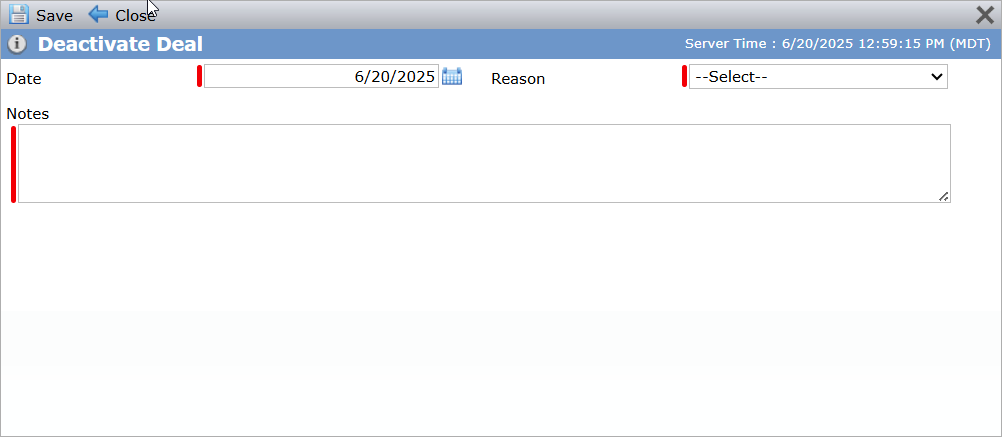
The Effective Date defaults to the current date. You can change it if needed.
Select the Reason for the change.
If the Reason = Lost, you can enter the Lost Tax Credit Price and Lost To fields.
Optionally, enter Notes about the stage change.
Click Save.
The system deactivates the deal.
Navigate to the deal, and then click the Phase/Stage/Status menu option.
The Deal Stages screen opens.
Click Reactivate in the top toolbar.
The button is available when the deal status is Inactive.
The Reactivate Deal popup opens.
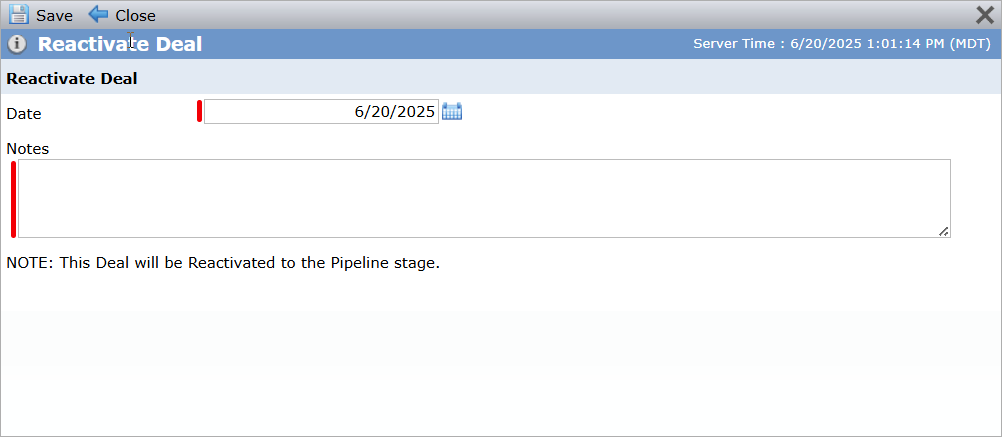
The Effective Date defaults to the current date. You can change it if needed.
Optionally, enter Notes about the stage change.
Click Save.
The system returns the deal to the Origination phase and Pipeline stage.
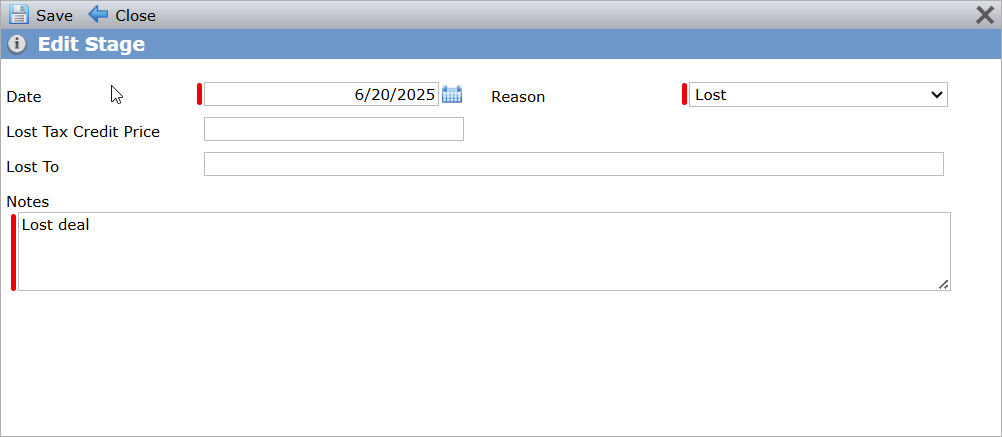
Click a row in the Deal Stage grid to view and edit information about the stage.
When the Action for any stage is Deactivated, the Reason field is displayed. When the Reason = Lost, the Lost Tax Credit Price and Lost To fields are displayed.
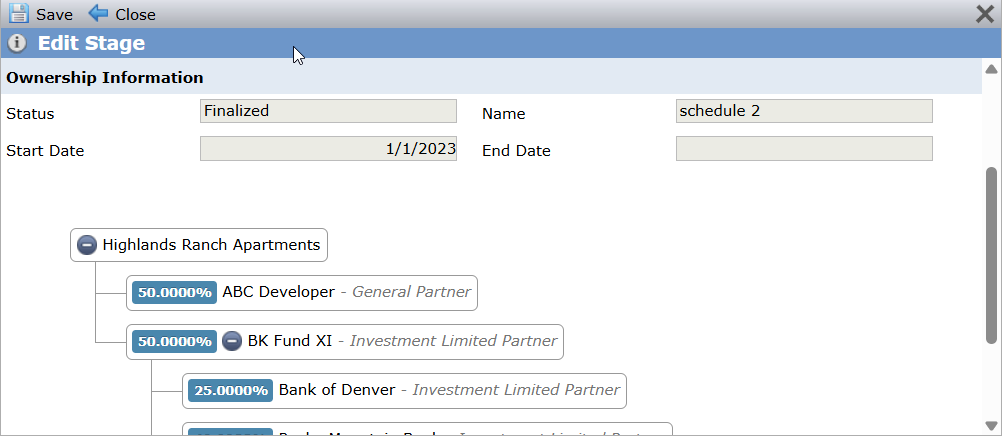
The Ownership Information section is displayed when the deal is in the Stabilizing stage for a closed deal. You can expand an Owned Entity to view associated Owner Entities.
You can move a deal to the Special Assets watch list, which allows you to track the activities required when a deal needs additional attention. For more information about Special Assets, see Special Assets.
Navigate to the deal, and then click the Phase/Stage/Status menu option.
The Deal Stages screen opens.
Click Move to Special Assets in the top toolbar.
The button is available when the deal is not marked as a Special Asset.
The Move to Special Assets popup opens.
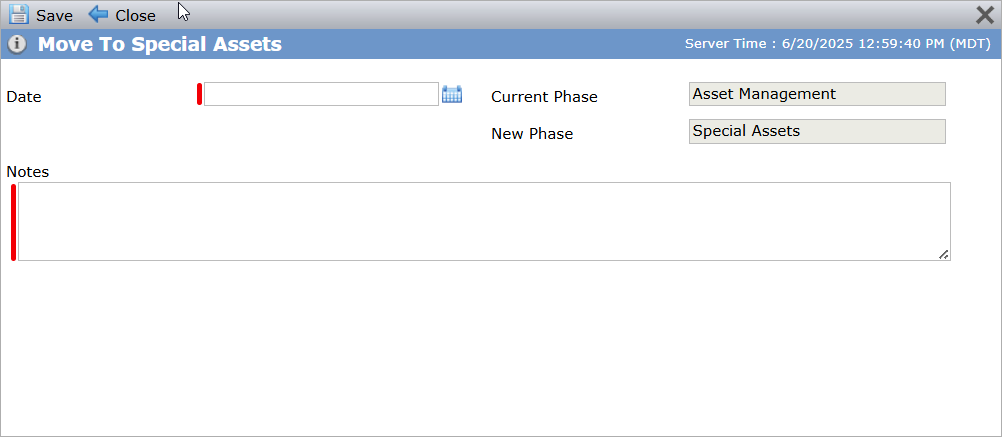
Enter the Date for the change.
Enter Notes about the change.
Click Save.
The system changes the deal to the Special Assets phase and stage.
Tip
When a deal is ready to move off the watch list, click Move Out of Special Assets.