Introduction to ProLinkAIM Reserves
If Reserves are required for a deal, the information is tracked within the Reserves functionality in ProLinkAIM.
Important
At the Deal Details level (OPA tab), you can indicate whether Reserves are waived or required for a deal, and if required, what type(s) of Reserves are required. The OPA information is descriptive only and does not impact the Reserve records.
The Reserves screen lists all Reserve records for the deal. From this screen, you can add a new Reserve record.
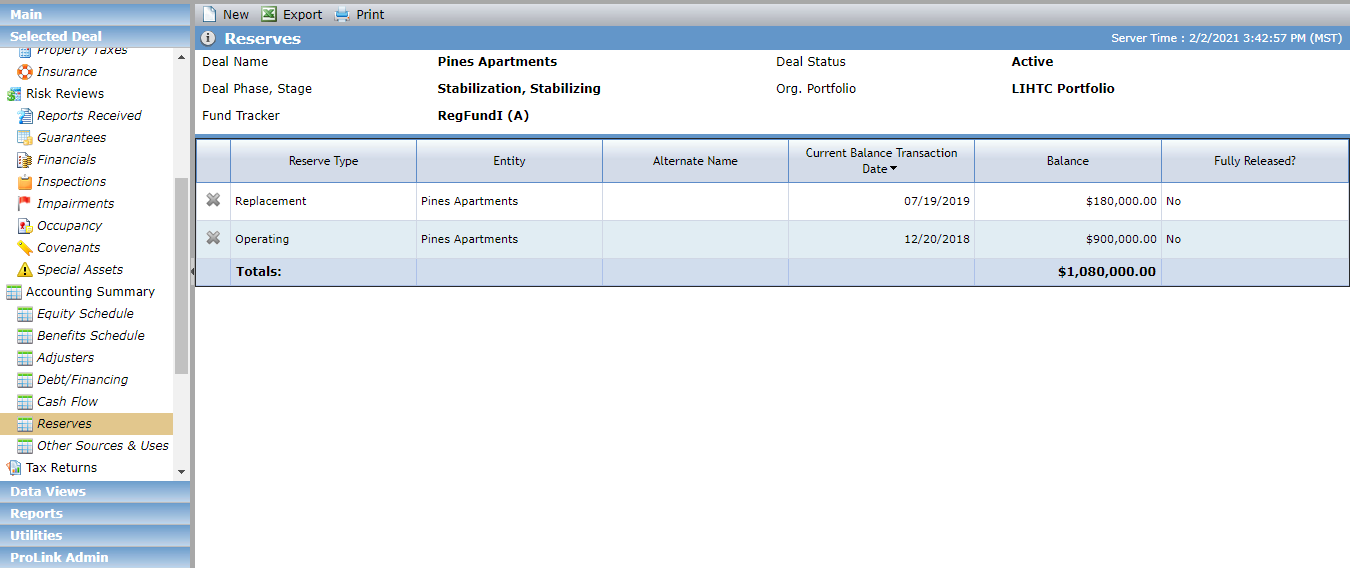
To add a new Reserve record:
Navigate to the deal, and then select Reserves (under Accounting Summary) in the left navigation menu.
Click New in the top toolbar.
The Edit Reserve screen opens.
Select the Reserve Type. The value selected determines what fields are displayed on the screen.
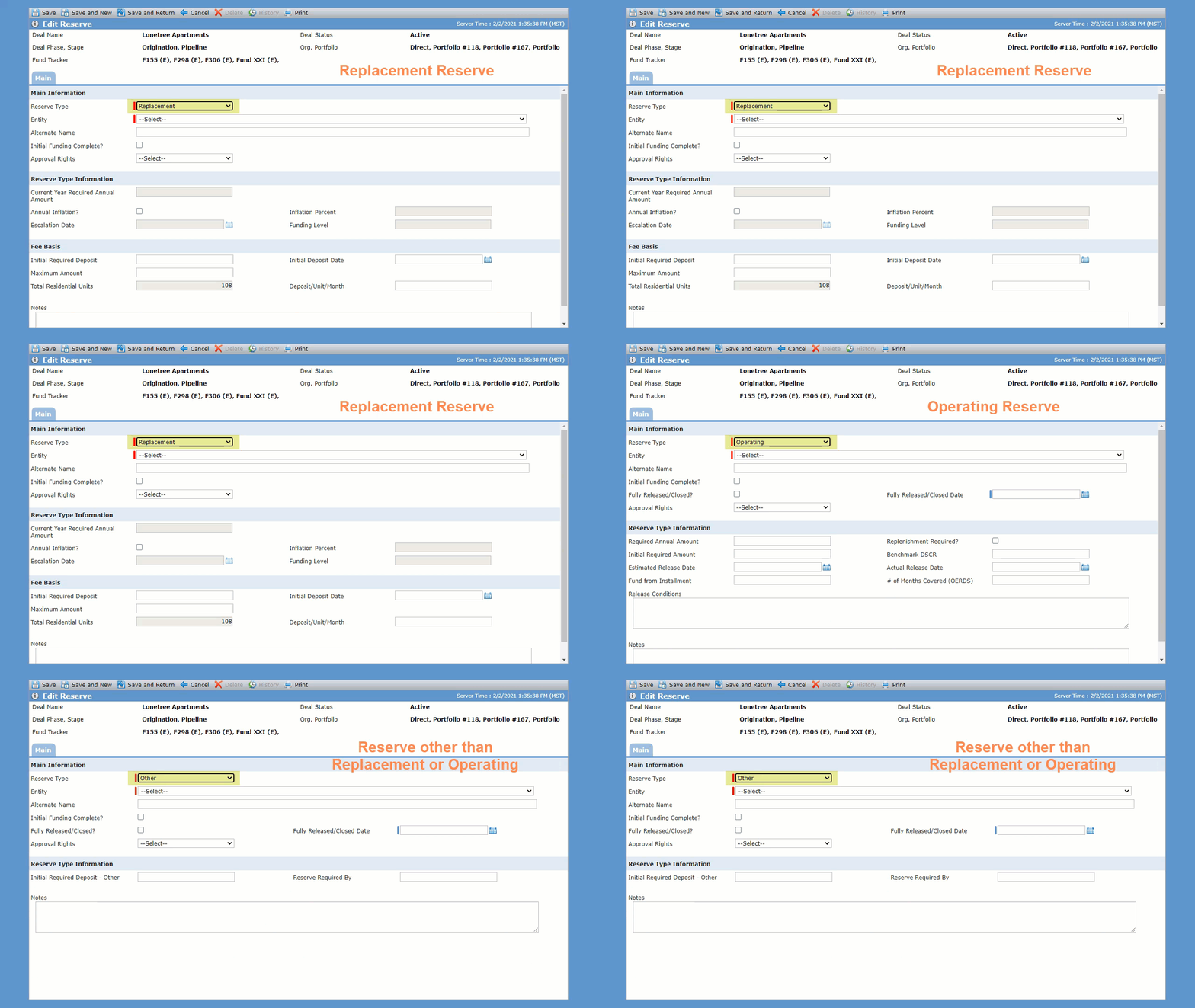
Select the Entity from the list of entities on the deal to indicate the responsible party holding the Reserve.
Complete the optional fields as needed.
If the Annual Inflation checkbox is cleared, the Inflation Percent field is disabled.
The Escalation Date field must be on the first day of the month, and the year must be greater than the year of the Initial Deposit Date. The Escalation Date field is disabled if the Annual Inflation checkbox is cleared.
Click Save.
Reserve Types
Reserve Type | Edit Screen |
|---|---|
Replacement Reserves | 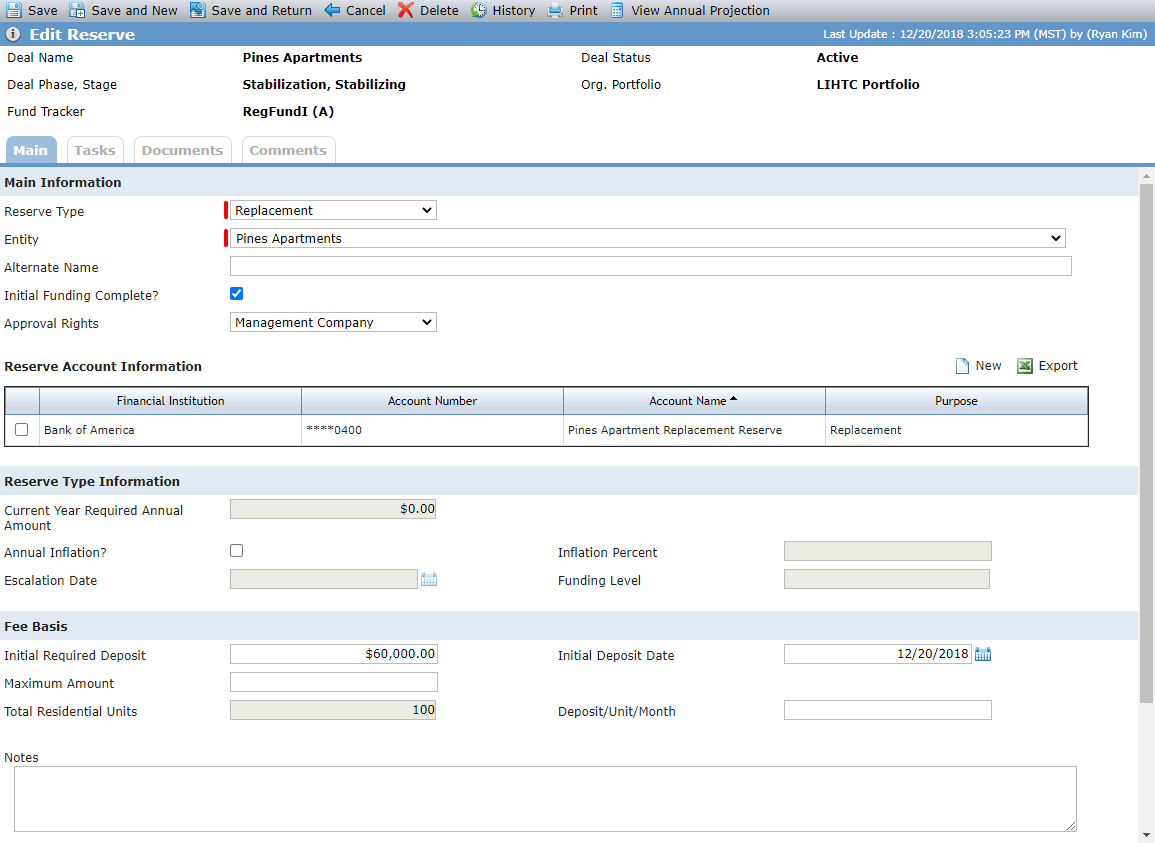 |
Operating Reserves | 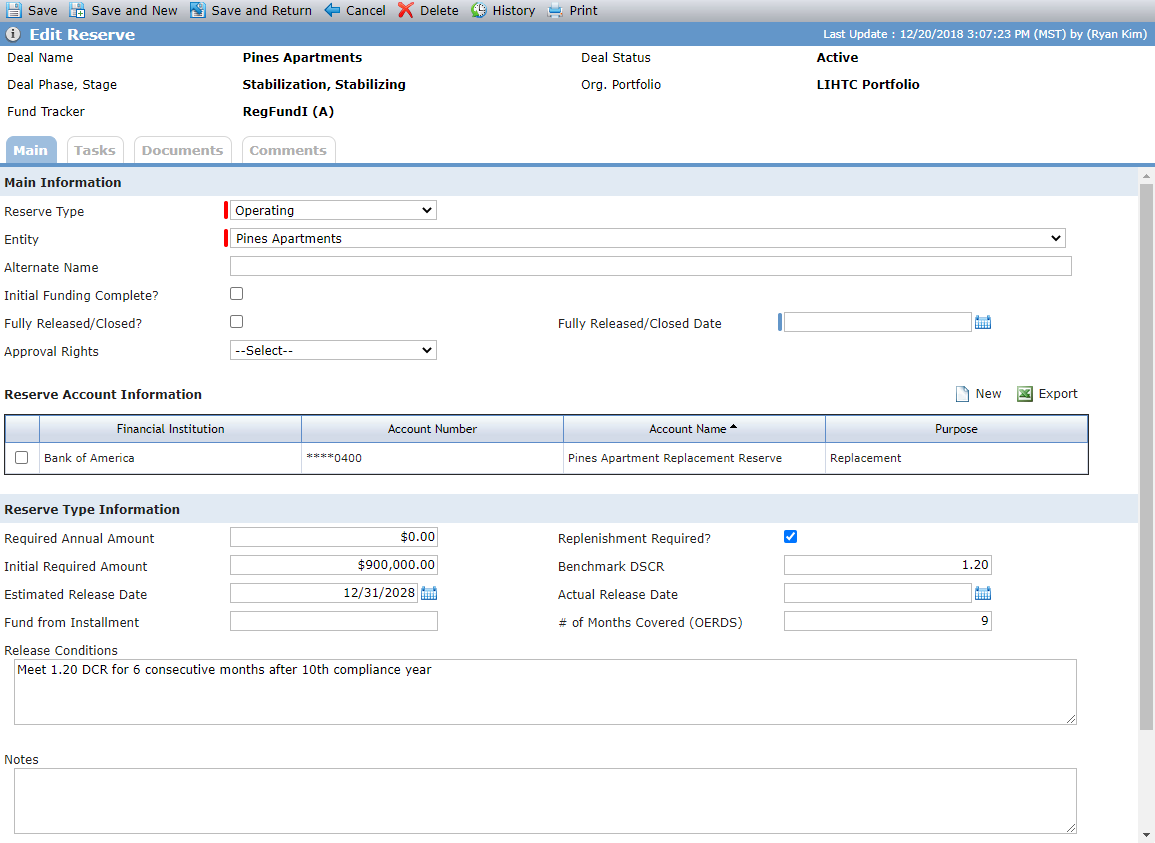 |
Reserve Type other than Replacement or Operating | 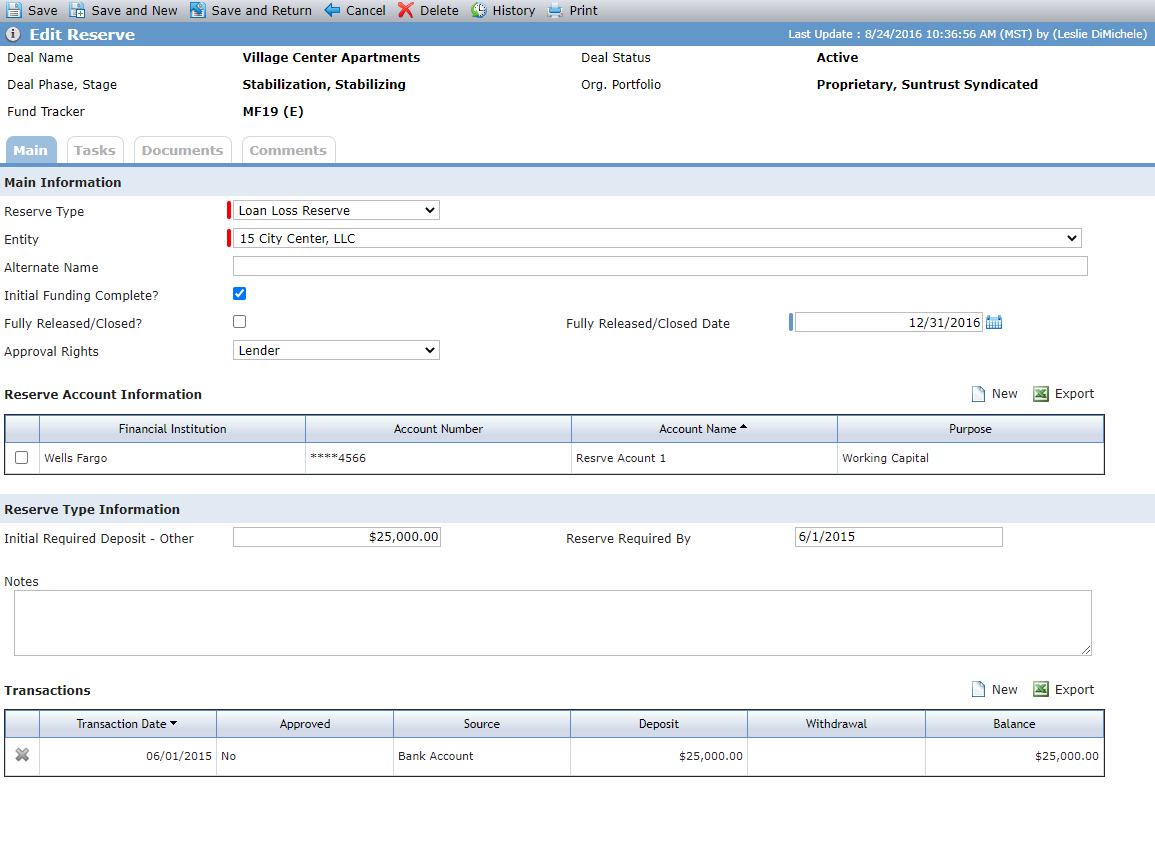 |
View Annual Projection (Replacement Reserves Only)
If the Reserve Type is Replacement, you can click View Annual Projection in the top toolbar to open the Projected Required Annual Amount popup.
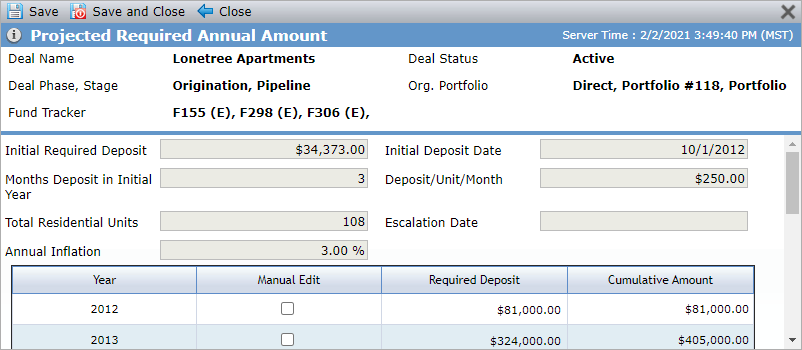
This screen calculates a schedule of annual required deposit amounts for the life of the deal (until the end of the Compliance period). Replacement Reserves are calculated on a fixed monthly amount based on a per unit per month, and total residential units on the deal.
The first year will be the year of the Initial Deposit.
The last year will be one of the following:
NMTC Deals—Latest compliance end date across all QEIs on the deal. If no end compliance date exists, then seven years after the first year of the Initial Deposit.
LIHTC Deals—Latest compliance date across all properties for the deal. If no compliance end date exists, then 16 years after the first year of the Initial Deposit.
HTC Deals—Latest compliance date for the property for the deal. If no compliance end date exists, then five years after the first year of the Initial Deposit.
STC and Other Deals—One year after the first year of the Initial Deposit.
When the Annual Inflation checkbox is cleared... |
|
When the Annual Inflation checkbox is selected... | The Required Deposit is calculated using an inflated adjusted Monthly Amount starting the Year of the Escalation Date and annual thereafter on the anniversary of the Escalation Date. It is calculated as follows:
|
Some organizations have a custom line item in their Financials records called Required Replacement Reserve Deposits. The Required Deposit value from the Reserves record(s) (Type = Replacement) is used to populate the Required Replacement Reserve Deposits line item on the Income Statement tab of Financials records as follows:
Annual Financials—For the applicable year, Required Deposit value
Period Financials—For the applicable year, calculated based on the month and the Required Deposit value
In the first year that a deal legal entity is required to make replacement reserve deposits, the system respects the month of the Initial Deposit Date when prorating the annual required deposit amount across that year's financial periods.
The value is also used in evaluating DCR and ECR Risk Elements.
If you need to override the calculated Required Deposit value for a year, you can select the Manual Edit checkbox for the row, which allows you to enter your own value.
Reserve Accounts
The Reserve Account Information grid displays a list of bank accounts that exist (Account tab of Edit Entity) for the entity selected on the record. If the entity has several bank accounts, select the checkbox at the beginning of the row for an account to indicate it is the account for the reserve funds.
Note
If you add an account through the Reserve record, the new account is also displayed on the Accounts tab of Edit Entity for the entity.
See Edit an Entity - Accounts Tab for more information.
To add a new account record:
Navigate to the deal, and then select Reserves (under Accounting Summary) in the left navigation menu.
Click the Reserve record to which to add an account.
The Edit Reserve screen opens.
Click New above the Reserve Account Information grid.
The Add Account popup opens.
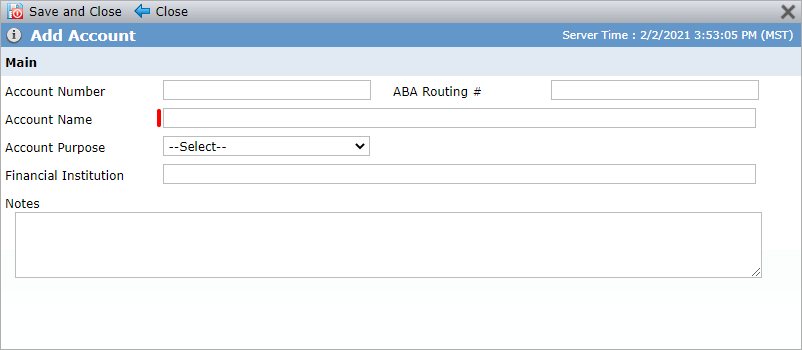
Enter the Account Name and any optional information about the account.
Click Save and Close.
Reserve Transactions
Use the Transactions grid to track the transactions related to the Reserve. The Transaction Amount for a withdrawal can exceed the Reserve amount.
The Balance in the Transactions grid displays the previous row’s balance plus the Deposit and Withdraw for that record.
To add a Reserve Transaction:
Navigate to the deal, and then select Reserves (under Accounting Summary) in the left navigation menu.
Click the Reserve record to which to add a transaction.
The Edit Reserve screen opens.
Click New above the Transactions grid.
The Edit Reserve Transaction screen opens.
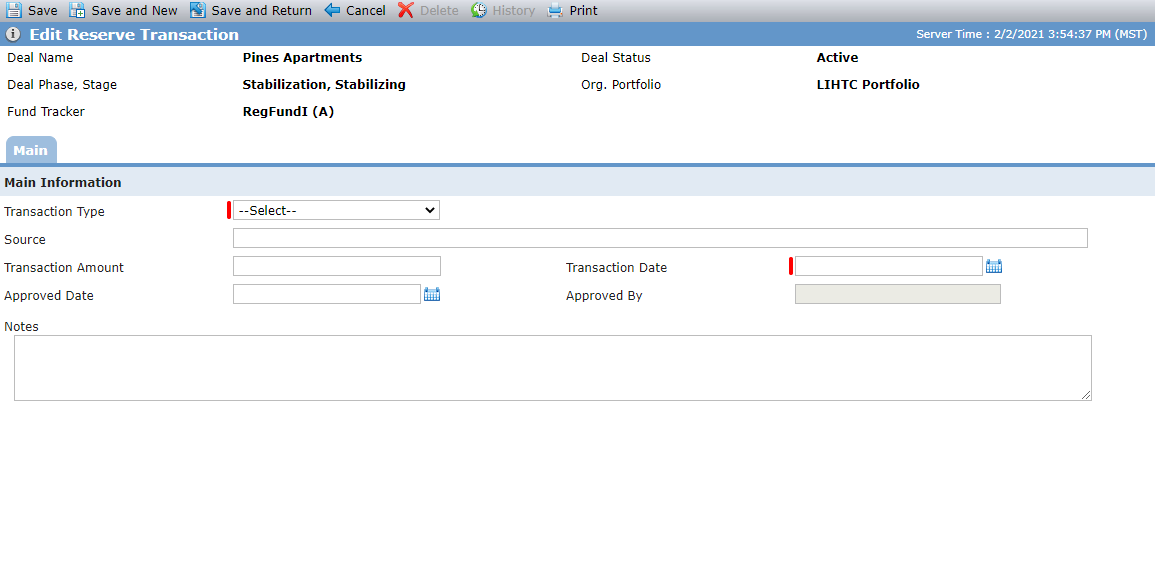
Select the Transaction Type.
Enter or select the Transaction Date.
Complete the optional fields as needed.
Click Save.