Quarter 2, 2023 ProLinkAIM Release Notes
ProLink Solutions is pleased to announce the Quarter 2, 2023 release. You've come to the right place to review what's new as well as additional tickets delivered.
UAT Build: May 18, 2023
Production Build: June 15, 2023
What's New
The release introduces the following new functionality.
Bank CRA Updates
ProLink has made updates to the Bank CRA functionality, including the ability to delete equity allocations, view the applicable pipeline status from the deal, and easily adjust the ranking of assessment areas.
Delete an Equity Allocation
You can now delete equity allocation records from the Equity Allocations grid on the Equity Allocations tab of the Edit Exam Period Assessment Area screen.
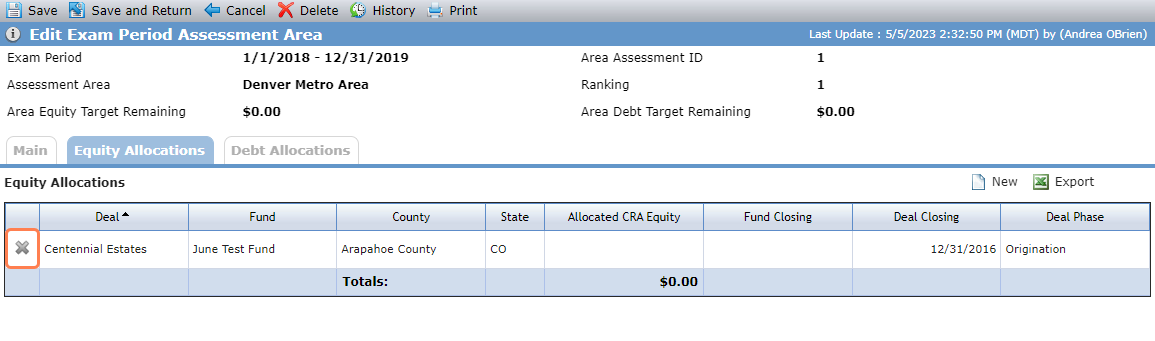
When you click  , the system asks for confirmation.
You can also delete an equity allocation from the Edit Bank CRA Equity Allocation screen. Click Delete in the top toolbar, and then confirm the deletion.
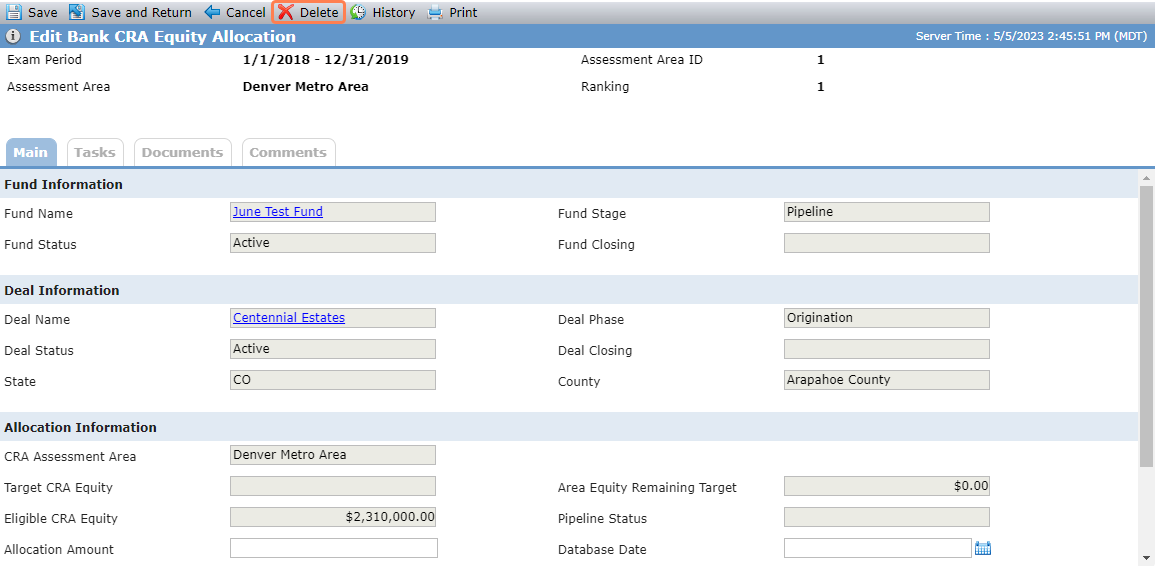
When you delete an equity allocation from either location, the system completes the following actions:
The equity allocation is deleted from the assessment area.
The equity allocation becomes available from the Find CRA Equity Matches popup.
The system calculations are re-adjusted.
The Total in the Allocated CRA Equity column of the Equity Allocations tab of the Edit Exam Period Assessment Area screen.
The Area Equity Target Remaining on the Equity Allocations tab of the Edit Exam Period Assessment Area screen.
The Area Equity Target Remaining on the Main tab of the Edit Exam Period Assessment Area screen.
The Allocated CRA Equity on the Main tab of the Edit Exam Period Assessment Area screen.
The Total CRA Equity on the Main tab of the Edit Exam Period Assessment Area screen.
The Allocated CRA Equity on the Main tab of the Edit Bank CRA Exam Period screen.
The Total CRA Equity on the Main tab of the Edit Bank CRA Exam Period screen.
The Allocated CRA Equity column of the Assessment Areas grid on the Edit Bank CRA Exam Period screen.
The Total in the Allocated CRA Equity column of the Assessment Areas grid on the Edit Bank CRA Exam Period screen.
The Area Equity Target Remaining column of the Assessment Areas grid on the Edit Bank CRA Exam Period screen.
The Total in the Area Equity Target Remaining column of the Assessment Areas grid on the Edit Bank CRA Exam Period screen.
The Total in the Allocated CRA Equity column of the Equity Allocatons tab of the Edit Bank CRA Exam Period screen.
View the Pipeline Status
The Edit Bank CRA Equity Allocation and Edit Bank CRA Debt Allocation screens now include the Pipeline Status field, which displays the value from the Deal Details screen.
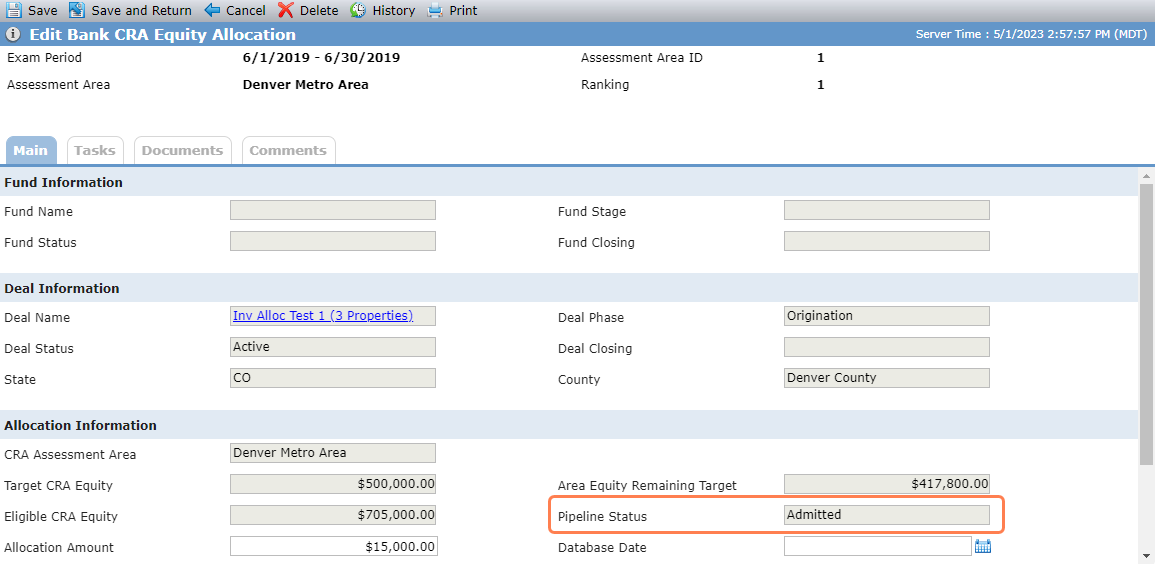
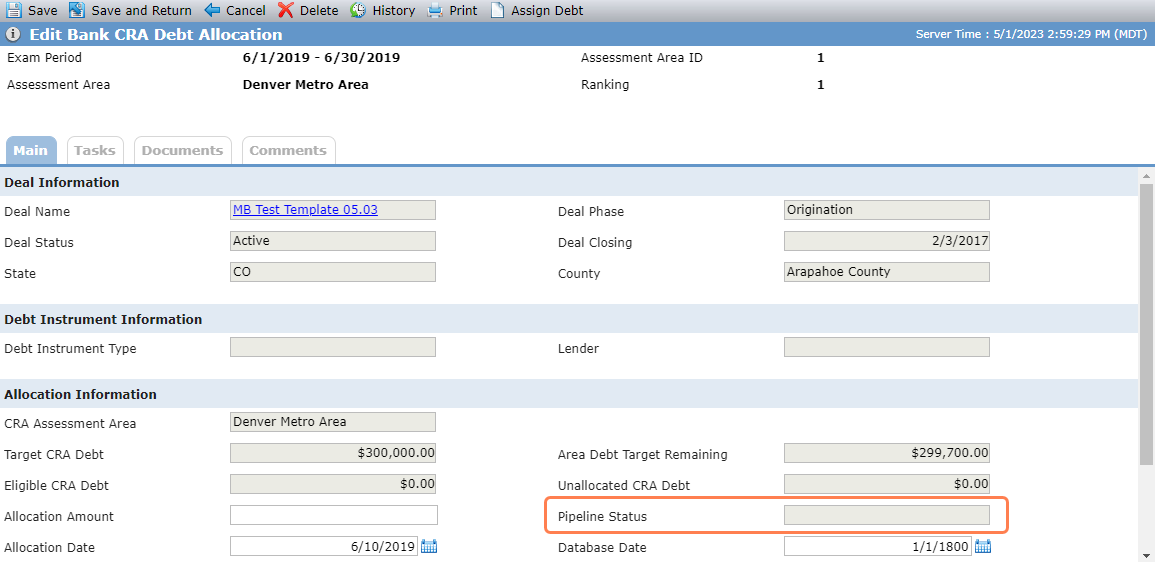
Edit Bank CRA Equity Allocation; Edit Bank CRA Debt Allocation
ProLink removed the Status field from the screens and corresponding data views. The field remains read only in the database.
Easier Ranking of Assessment Areas
ProLink updated the CRA Admin utility for easier ranking of assessment areas.
The List Bank CRA Assessment Areas, accessible through the CRA Admin menu option, is renamed to Bank CRA Assessment Areas.
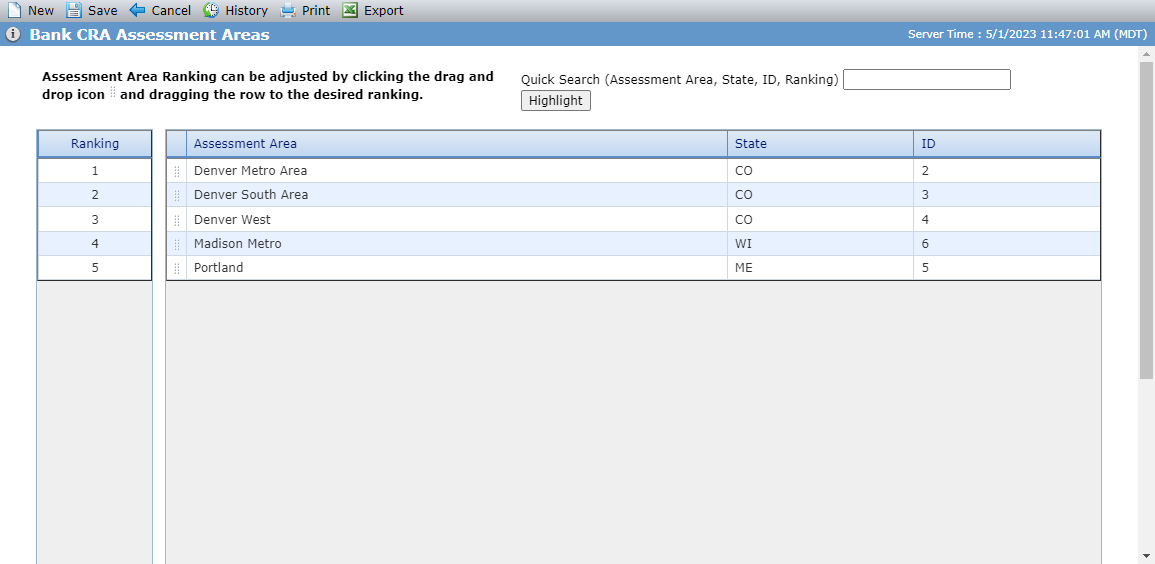
The screen continues to show a list of unique assessment areas.
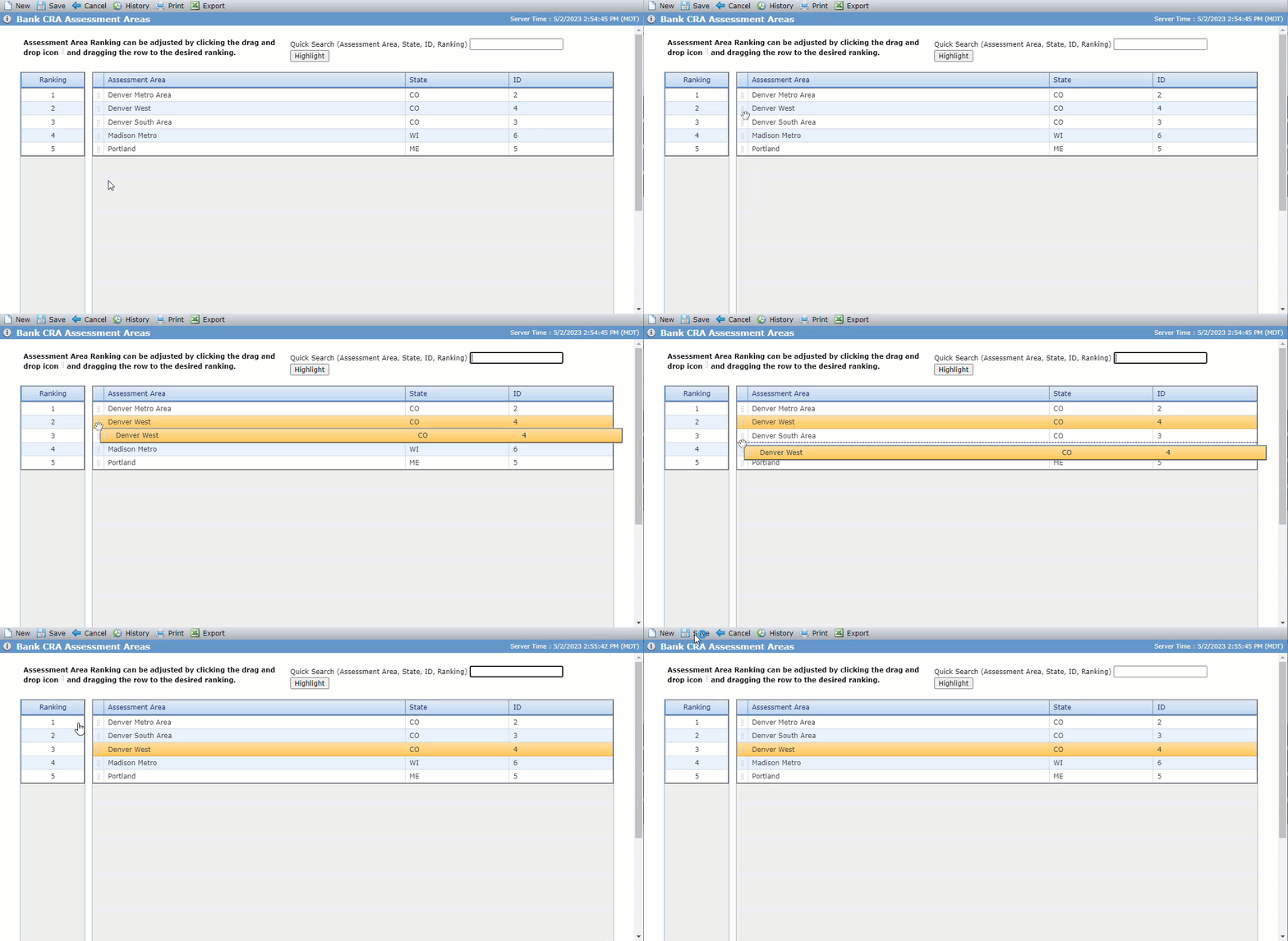
For easier ranking of the areas, you can now click  to drag and drop a row to the desired ranking area indicated in the left-most column. Be sure to click Save to keep any ranking changes.
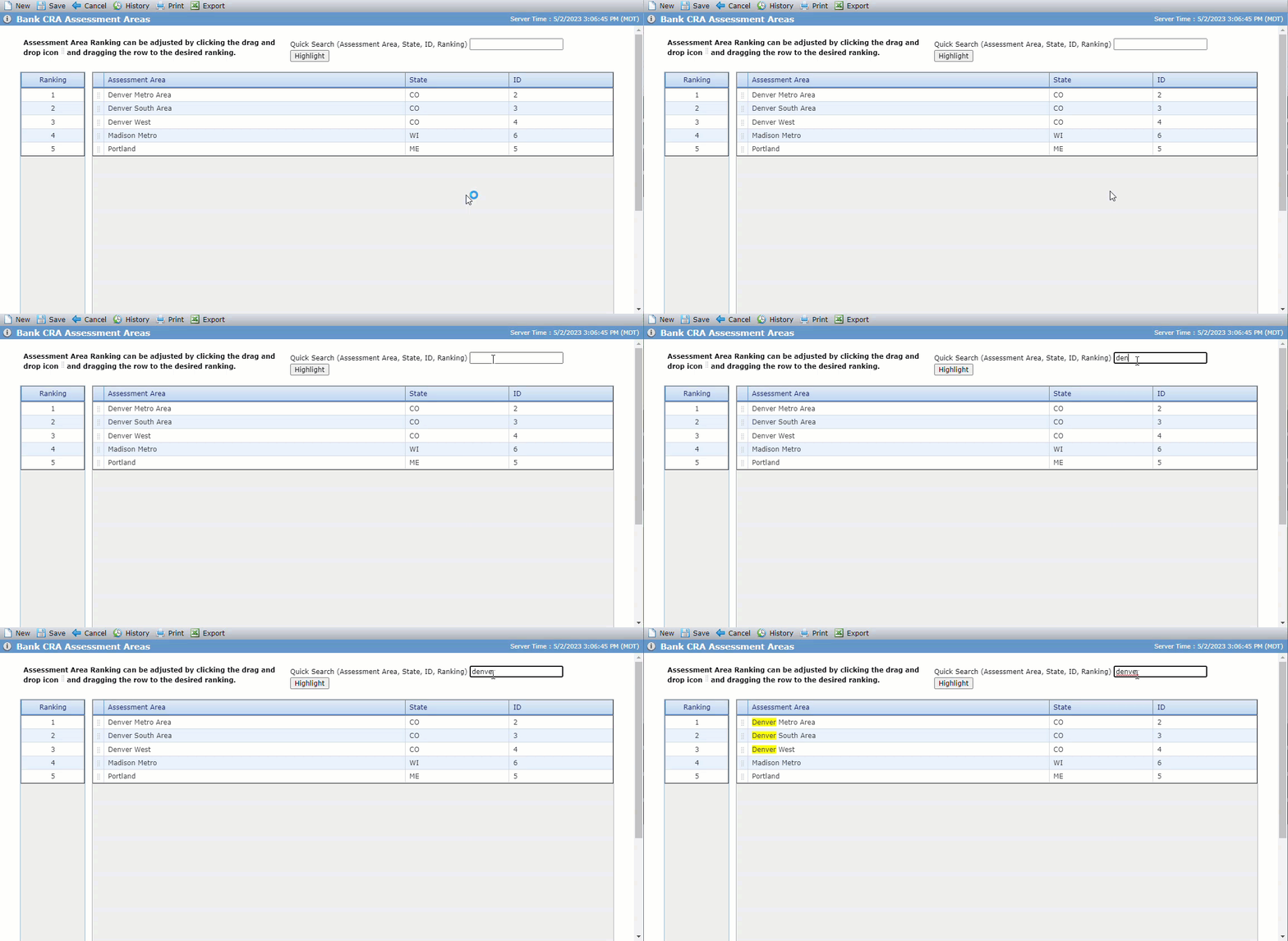
You can search the screen by assessment area, state, ID, and current ranking by entering search text in the Quick Search text box and clicking Highlight. The matching text in the grid is highlighted on the screen.
You can click in a row to open the Edit Bank CRA Assessment Area screen. The ranking is now read only on the edit screen. You can click New in the top toolbar to create a new assessment area. The system adds the new area as the last row in the grid (lowest ranking). If you delete an assessment area, the system adjusts the rankings automatically.
As a result of these changes, the Bank CRA Assessment Areas screen no longer functions as a data view. Custom views, Quick Search, paging, filtering, and the View Manager are no longer available.
New Fund Correspondence Assignments
ProLink introduces new functionality that allows you to assign investor contacts to specific fund correspondence types so that you can quickly see a comprehensive correspondence list for each fund or investor.
The Correspondence tab on the Legal Entity - Edit Entity screen includes a new grid called Fund Contact Assignments. This grid is available only when the legal entity's primary role is Investor.
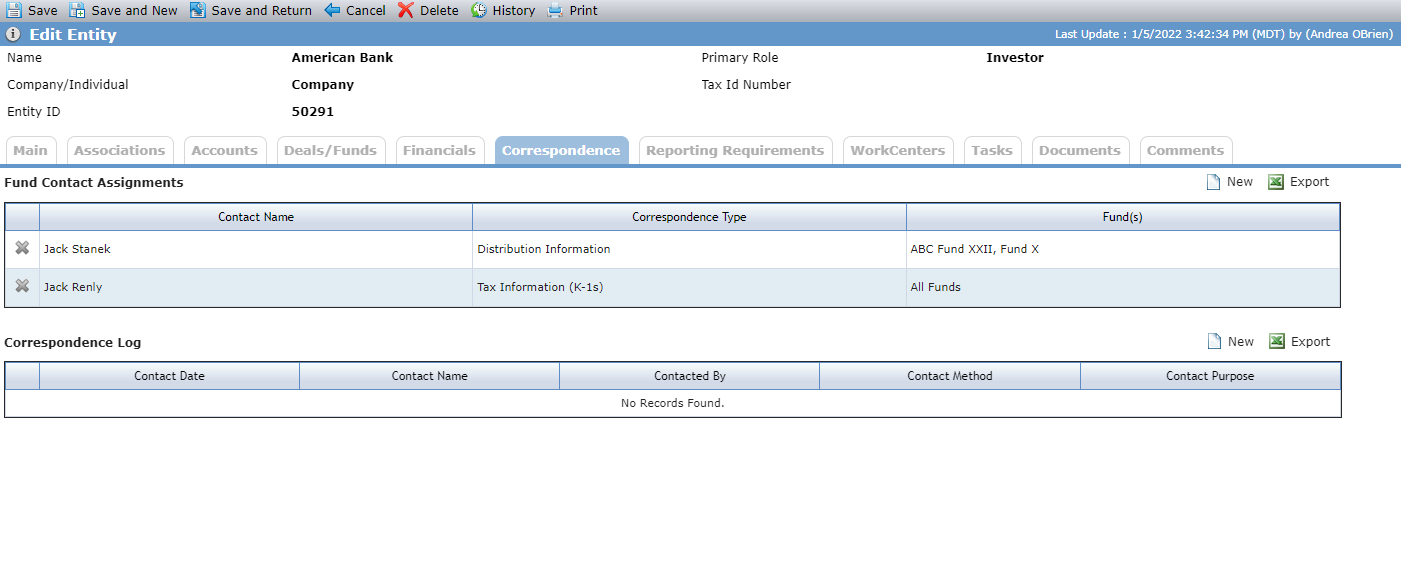
Click New above the grid to open the Edit Fund Contact Assignments screen.
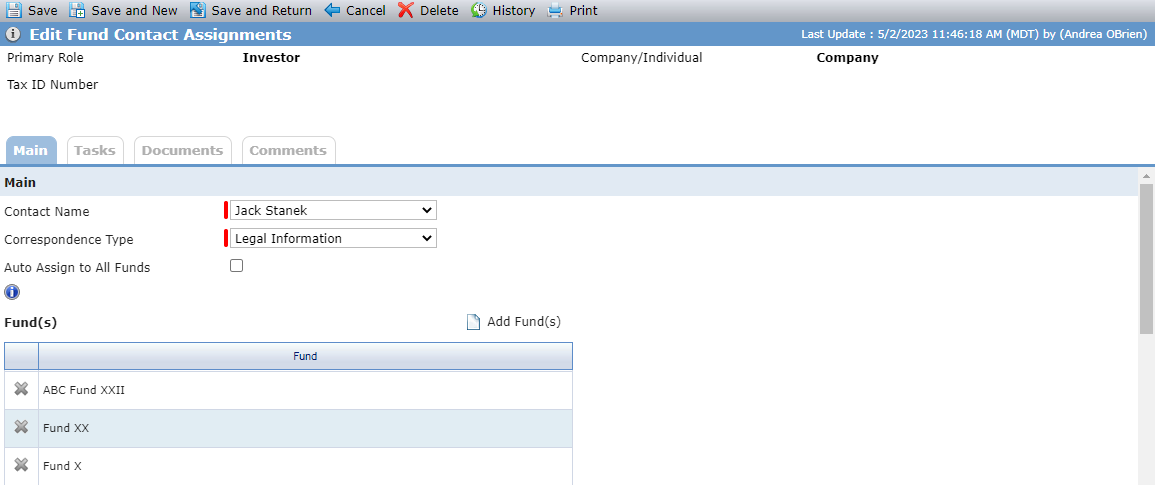
The new non-system picklist called PL_FundCorrespondenceType contains values for the Correspondence Type drop-down list on the screen.
When you select the Auto Assign to All Funds checkbox, the selected contact is assigned as the contact for the selected correspondence type for all funds on the deal. If you clear the Auto Assign to All Funds checkbox, after you save the record, you can click Add Fund(s) above the Fund(s) grid to select which of the deal's funds the contact should be assigned to.
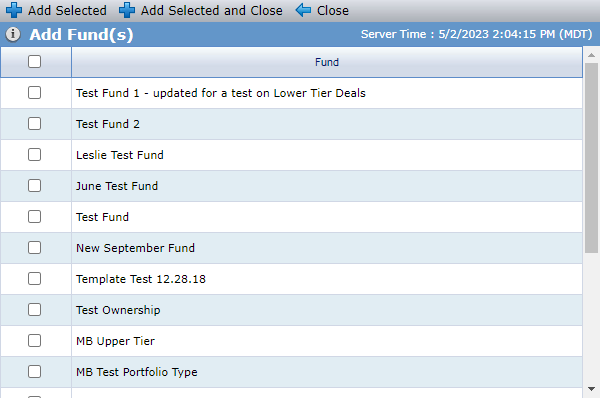
Before you can delete a contact from the entity, you must first delete any Fund Contact Assignments created for the contact. If the legal entity is removed from a fund, the system deletes the fund from any Fund Correspondence Assignments.
If you remove the parent investor entity from a fund, then the system deletes the fund from any assignments for that entity.
If you change the primary role for the parent investor entity, then the system deletes all fund contact assignments.
ProLinkAIM includes a new Fund Correspondence Assignments data view so you can view a list of all contacts with Fund Correspondence Assignments in one place.
Help Updates
The Help Center includes new content for functionality related to:
Tickets Delivered
The release includes the following items.
Ticket Number | Description |
|---|---|
19442 | ProLink made changes so that the New Year Process for NMTC deals creates Sub-All Tests and Redemption Tests as expected. |
20605 | ProLink fixed an issue that resulted in the New Year Process sometimes returning errors on Occupancy records. |
20876 | ProLink fixed an issue where impairments were not displayed when there are multiple ownership schedules. |
20880 | ProLink fixed an issue that resulted in HTML code showing instead of currency values when exporting the benefit schedule. |
20921 | ProLink fixed an issue so that the system shows or hides the FNMA tab on a risk review based on the Use FNMA Risk Review checkbox as expected. |
N/A | ProLink fixed an issue so that the benefit schedule shows the correct values when an owner exits and re-enters the deal with different percentage values. |
N/A | ProLink fixed an uncommon issue where investor amounts were not being displayed correctly on the benefits schedule at the fund level. |