Edit an Entity - Accounts Tab
The Accounts tab on the Edit Entity screen lists all the bank accounts that have been created for the entity.
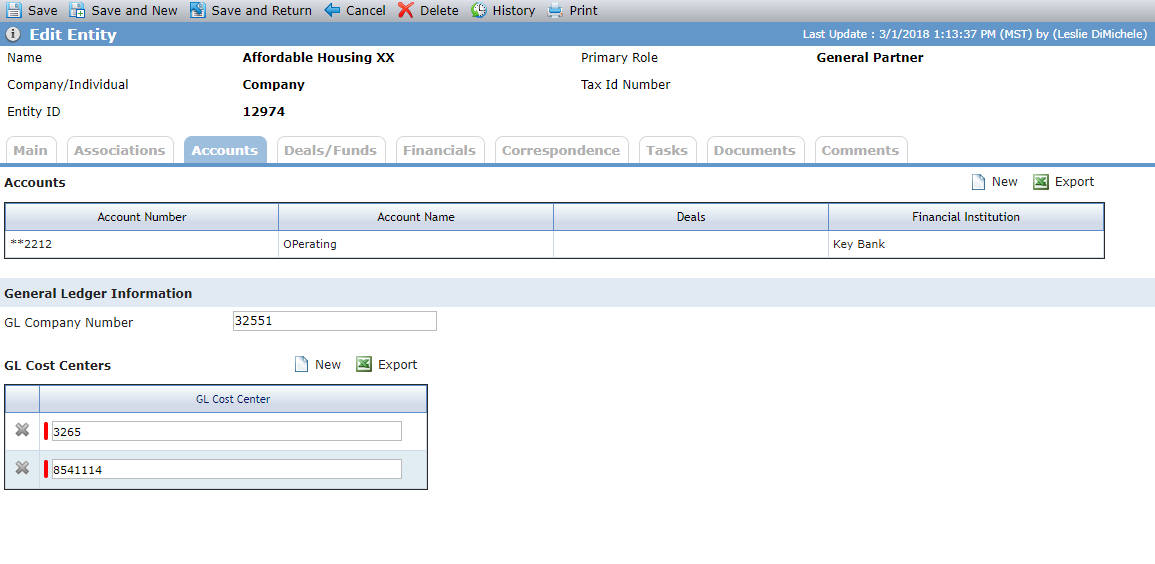
The General Ledger Information section appears only when the Is Bank Affiliate checkbox is selected on the Main tab. You can add additional GL cost centers by clicking New above the GL Cost Centers grid. You cannot delete a GL cost center if it has been selected on an (proposed or finalized) Ownership Schedule for that entity.
Edit an Account
When you click New above the Accounts grid on the Accounts tab of the Edit Entity screen, or when you click the row of an existing account, the Edit Account screen opens. Manage the bank account details on this screen.
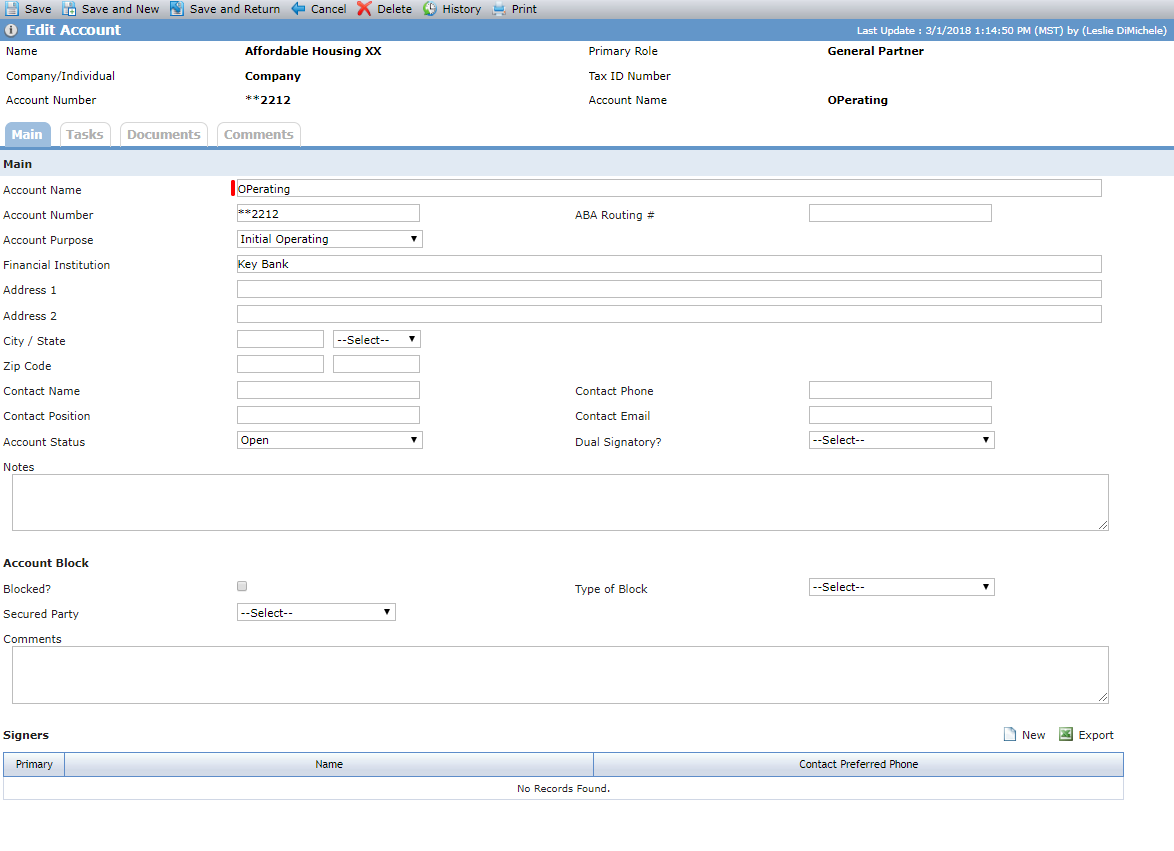
In the Account Block section, you can indicate the account is blocked, meaning limited use or other restriction is on the account. This is informational only.
The Signers grid appears after an account record is initially saved. Here you can track the individuals who have the ability to access the bank account. The Primary checkbox defaults to selected for the first signer added.
Add a Signer to an Account
You can add a signer to a bank account either as an entity or manually.
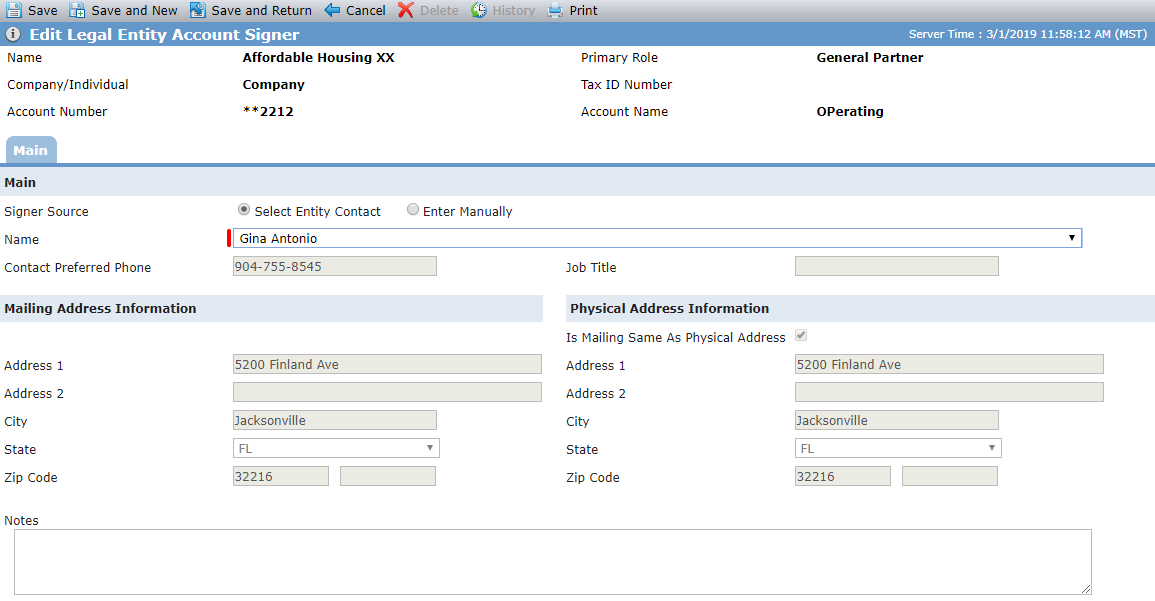
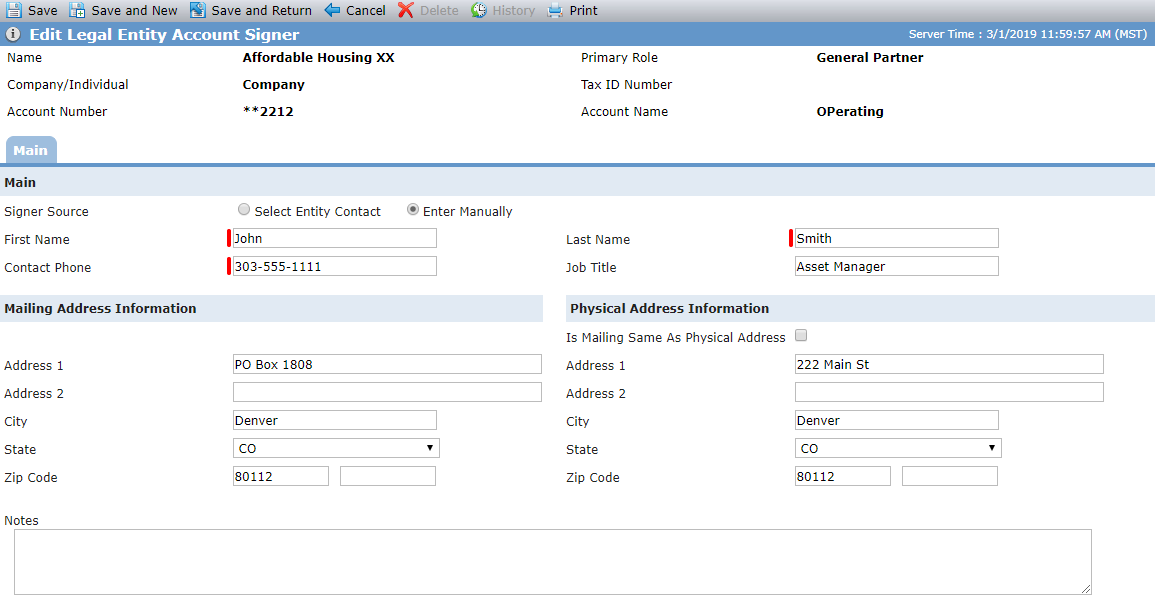
Select Entity Contact; Enter Manually
When you select the Select Entity Contact option, the Name list displays all the existing contacts for the entity. The other fields default based on the entity selected. When you select the Enter Manually option, you manually enter the information about the signer.