About the Benefits Schedule - Historic Tax Credits (HTC)
You can view the deal-level (all owners) or individual owner values at an annual or monthly level.
Note
The monthly benefits functionality might be turned off in your ProLinkAIM environment.
For most organizations, UT Actual Credits and UT Actual Losses will be hidden on deals because you can view income/loss at the fund-level.
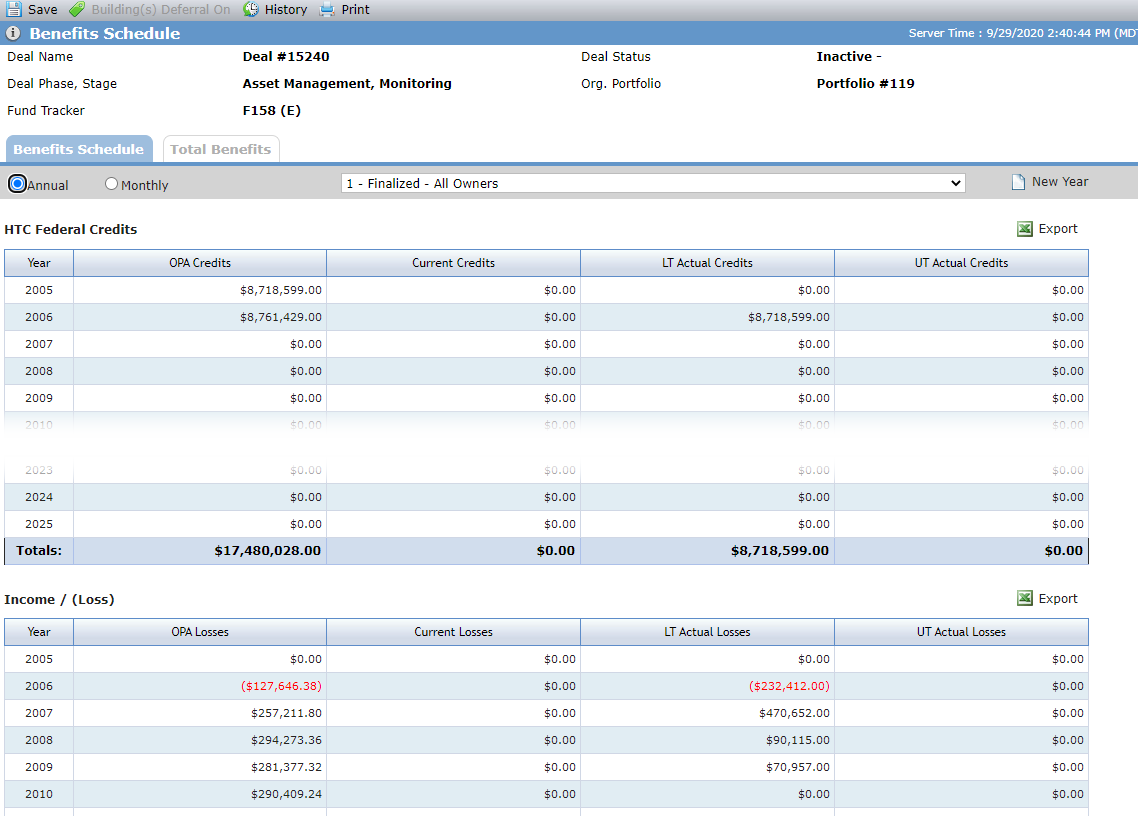
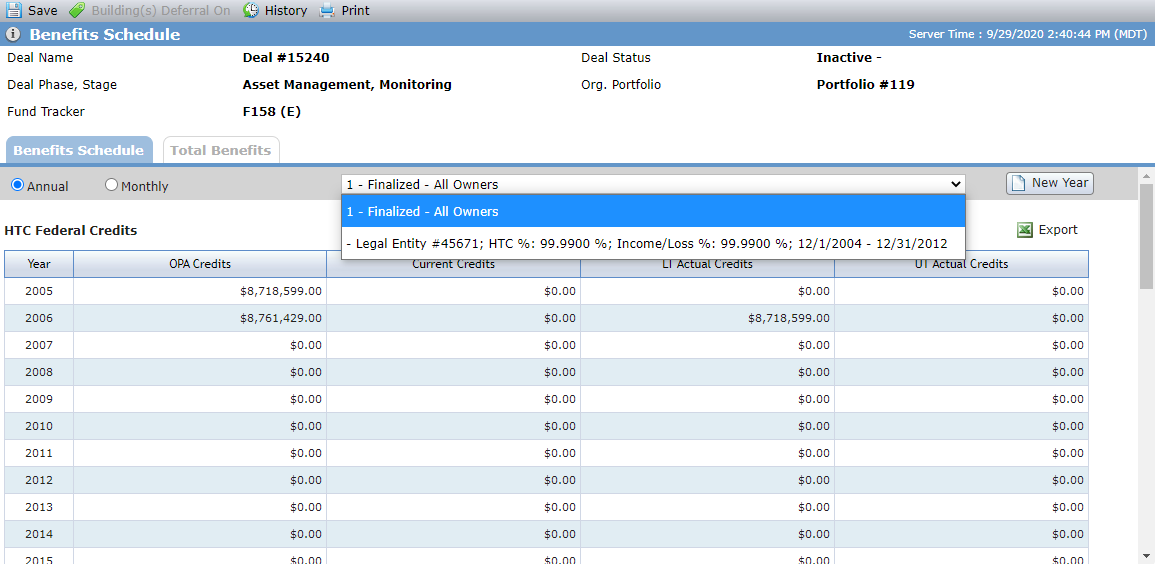
The Owner list contains all Ownership Schedules—Proposed and Finalized—with a listing of All Owners. Benefits will be calculated only for the Owners of the Master Tenant if one exists. If no Master Tenant exists, then Benefits for the Owners of the Partnership will be calculated.
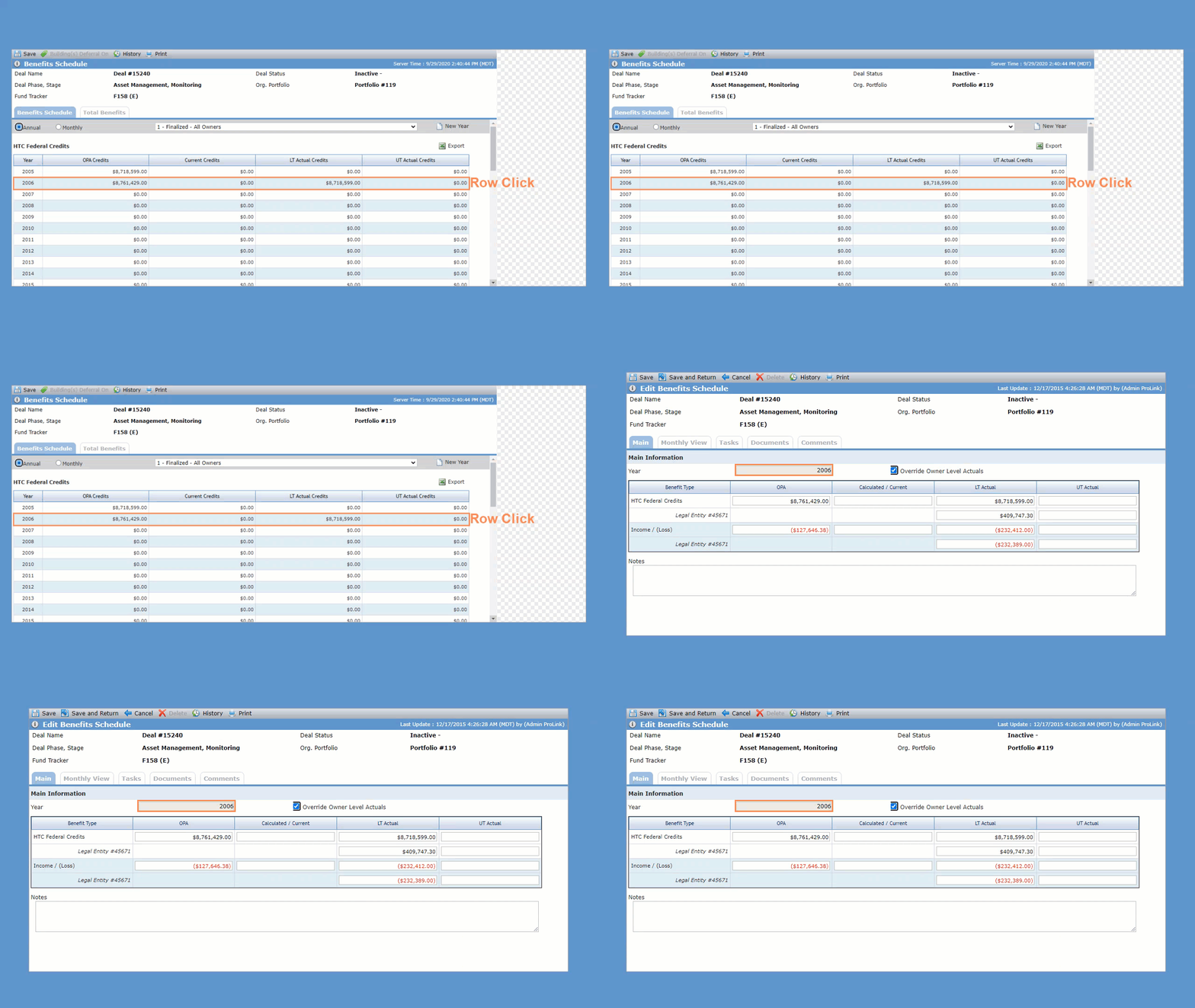
Click a Benefit Year row in the grid to open the corresponding edit screen.
The system automatically creates one benefit year.
Year 1 is based on the Placed-in-Service Date (PISD) as follows:
The earliest Actual PISD on all Buildings on the Deal will be used, if any exist. If none exist, then
The earliest Projected PISD on all Buildings on the Deal will be used, if any exist. If none exist then
The Actual PISD on Edit Property will be used, if it exists. If none exist, then
The Projected PISD on Edit Property will be used
You can create additional benefits years for any deal.
Navigate to the deal, and then select Benefits Schedule (under Accounting Summary) in the left navigation menu.
The Benefits Schedule screen opens.
Click New Year.
The Add New Benefit Year popup opens.
Enter the Year (YYYY).
The year added does not need to be a consecutive year. You cannot duplicate existing years.
Click Save and Close.
You can delete benefit years that were manually created (years not created automatically by the system).
Navigate to the deal, and then select Benefits Schedule (under Accounting Summary) in the left navigation menu.
The Benefits Schedule screen opens.
Click a Benefit Year row in the grid.
The Edit Benefits Schedule screen opens.
Click Delete in the top toolbar, and then click OK to confirm the deletion.
All fields are manually populated.
The LT Actual is a calculated value that can be overridden. Triggers an Approval when the value is updated (systematically or manually). For customers where the the Approval functionality is enabled, an overridden value will trigger an Approval.
Owner-level values are based on the owner's ownership percentage as identified in the HTC % field in the Ownership Schedule.