Configure Template Documents and Attach to a Template
Template documents are the key to making SmartDox functionality work. By associating a template document to a given template, it will be available at the deal level. The automatically attached document can then be downloaded from the deal and used with the SmartDox add-in. In addition, template documents can be refreshed, or re-uploaded, by selecting the same file and uploading it to the Template Document record.
As a ProLinkAIM admin, you are responsible for creating and maintaining these documents.
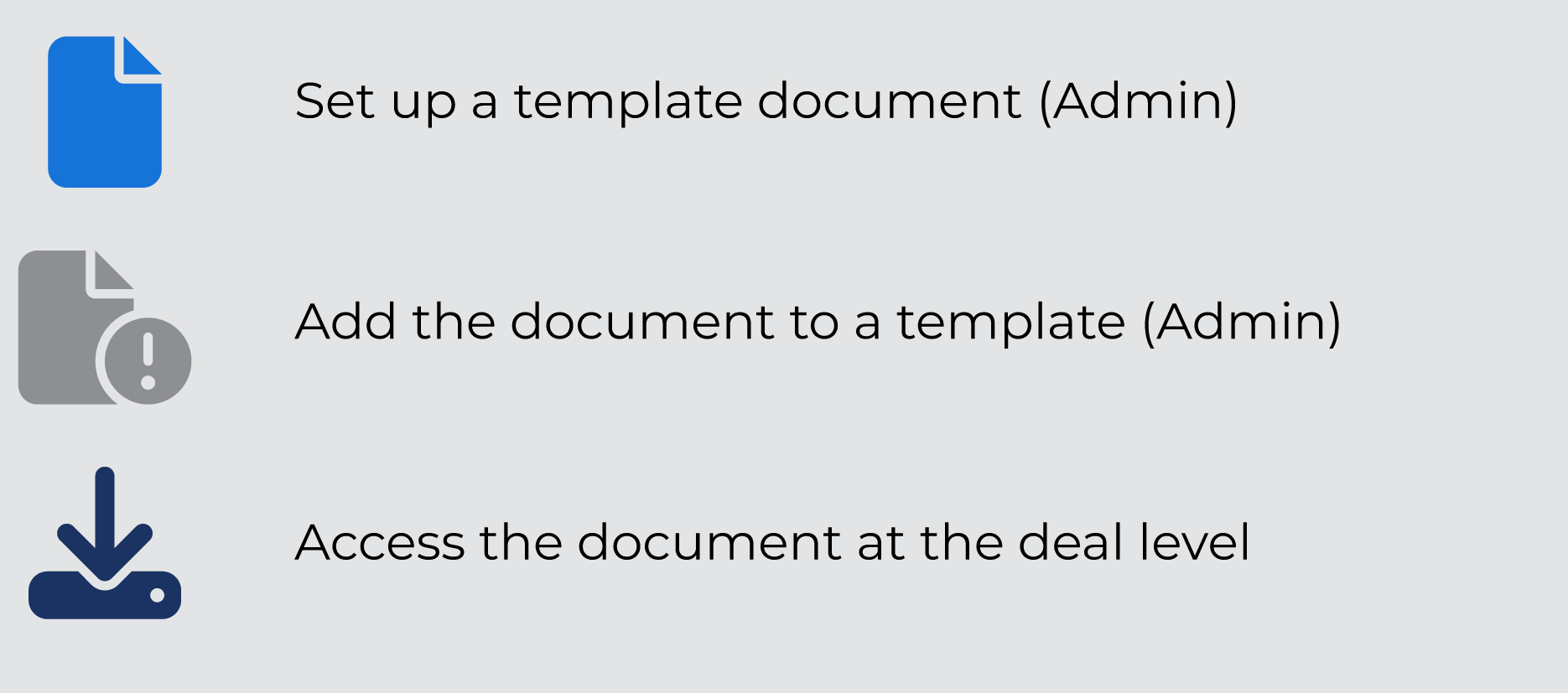
Create a template document—Your organization will create, update, and maintain template documents through the Admin panel.
Add the document to a template—Your organization will add relevant template documents to each template through the Admin panel. A template is associated to a deal based on program(s), deal type, and structure type.
Access the document at the deal level—The deal team can download the template documents for the deal on the Deal Overview.
For information about documents at the deal level, see Deal Overview.
The Template Documents menu option in the Admin panel allows you to create and activate template documents, which you can then assign to a template(s) so that the system will bring relevant documents into deals.
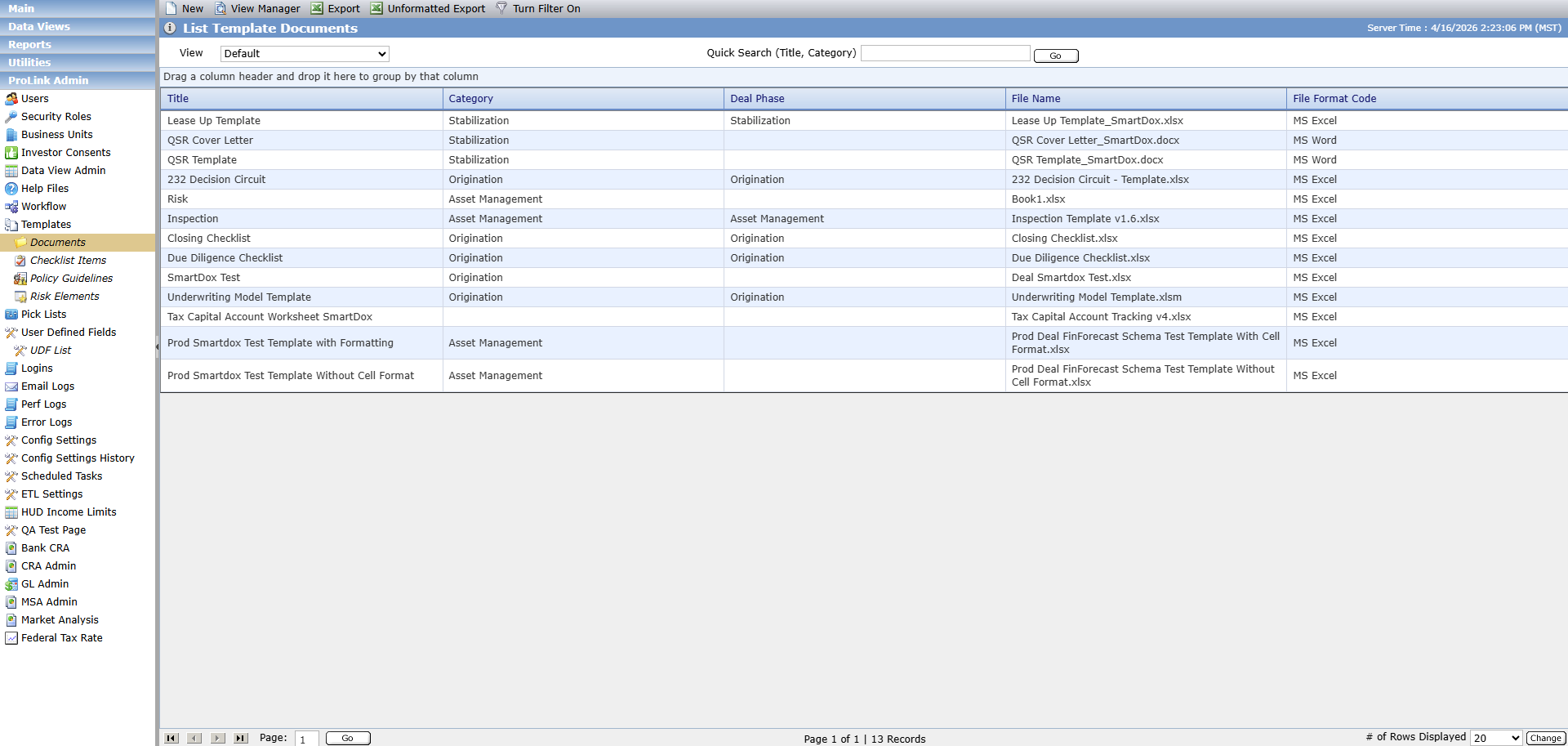
The List Template Documents screen is a data view, which means you can leverage the search, filtering, grouping, and sorting functionality you are familiar with.
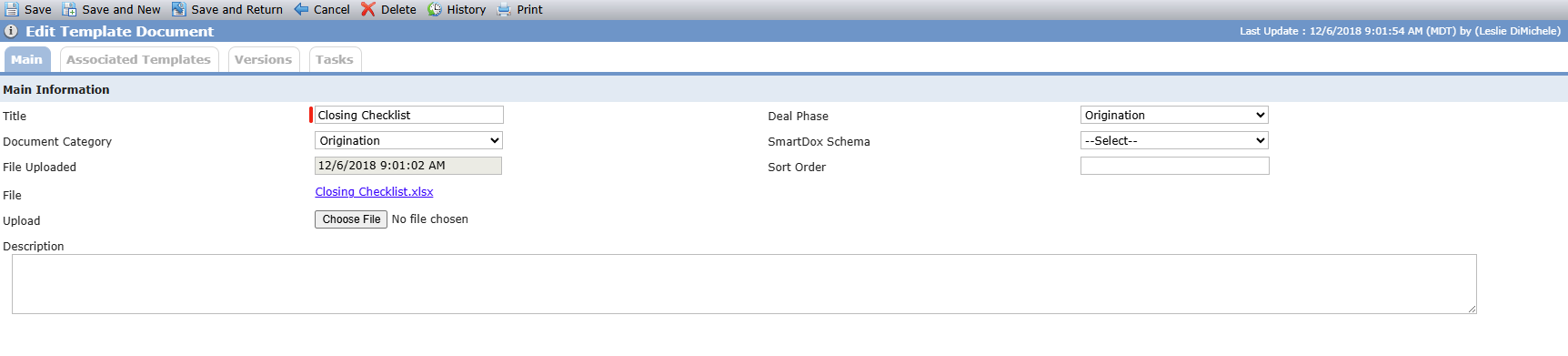
The Edit Template Document screen is used to define attributes about documents that will be associated to templates. The Main tab defines the attributes of the document, such as name, and also includes information such as sort order which defines the precedence of the document on templates.
Caution
You cannot delete template documents that are associated to a template or workflow.
The Versions tab of Edit Template Document gives users the ability to view previous versions of the document. All previous versions of the document can be opened from this screen.

A template document identifies the file that will be used as a template.
Navigate to the List Template Documents screen.
Click New in the top toolbar.
The Edit Template Checklist screen opens.
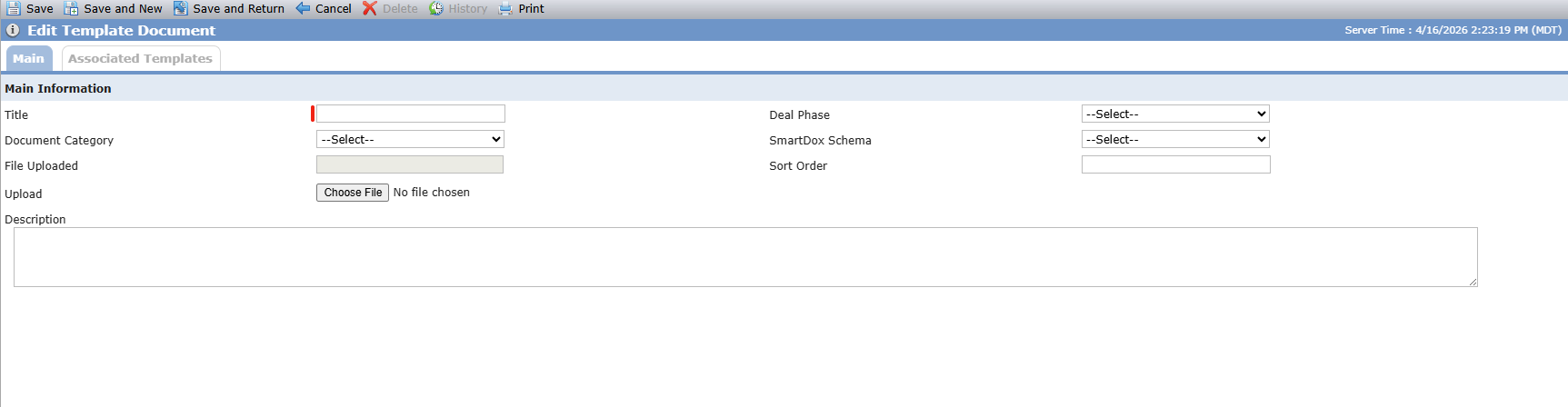
Complete all required fields.
Click Choose File and select the document to upload.
Click Save.
Field | Description |
|---|---|
Title | Required. A descriptive name that identifies the policy guideline item (for example, "QSR Cover Letter"). |
Deal Phase | The deal phase this document is associated with. |
Document Category | The document category (non-system picklist) of the document. |
SmartDox Schema | The SmartDox schema mapped to the document. |
File Uploaded | The file name of the uploaded document. |
Sort Order | The display order of this document. |
Description | A text description of the document (for example, "Cover letter to accompany Quarterly Status Report (QSR) template to be completed quarterly by Property Manager"). |
After you have configured template documents for the organization, you can attach them to a template(s).
Tip
You can view the templates that the Template Document is attached to on the Associated Templates tab.
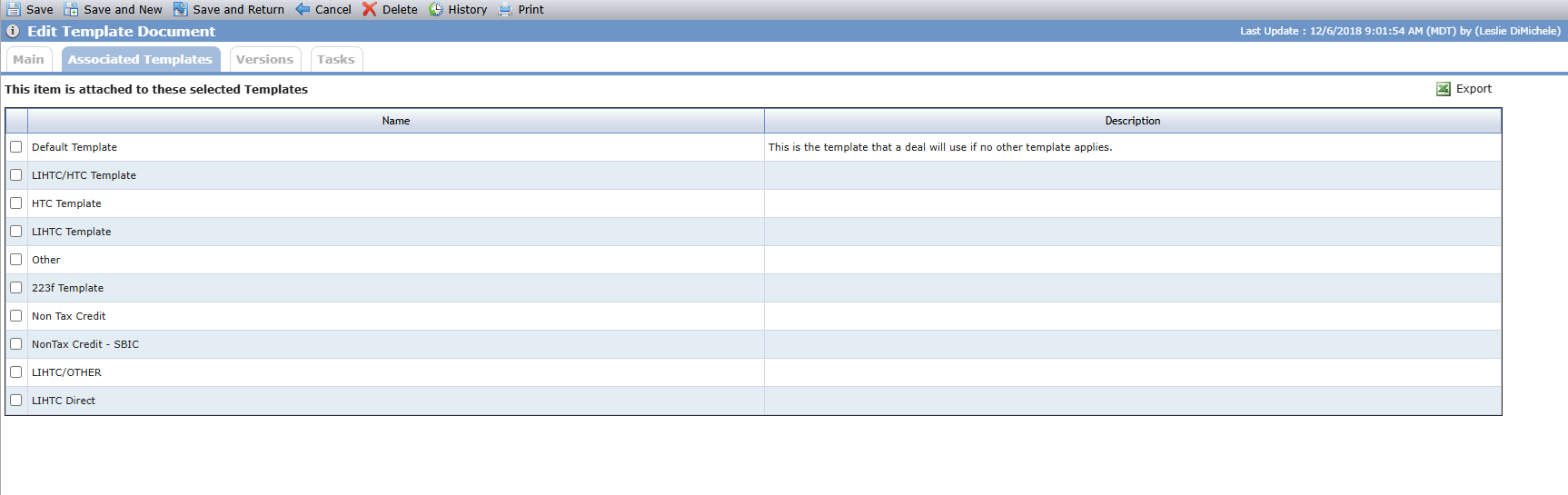
Navigate to the Templates option in the ProLink Admin panel.
The List Templates screen opens.
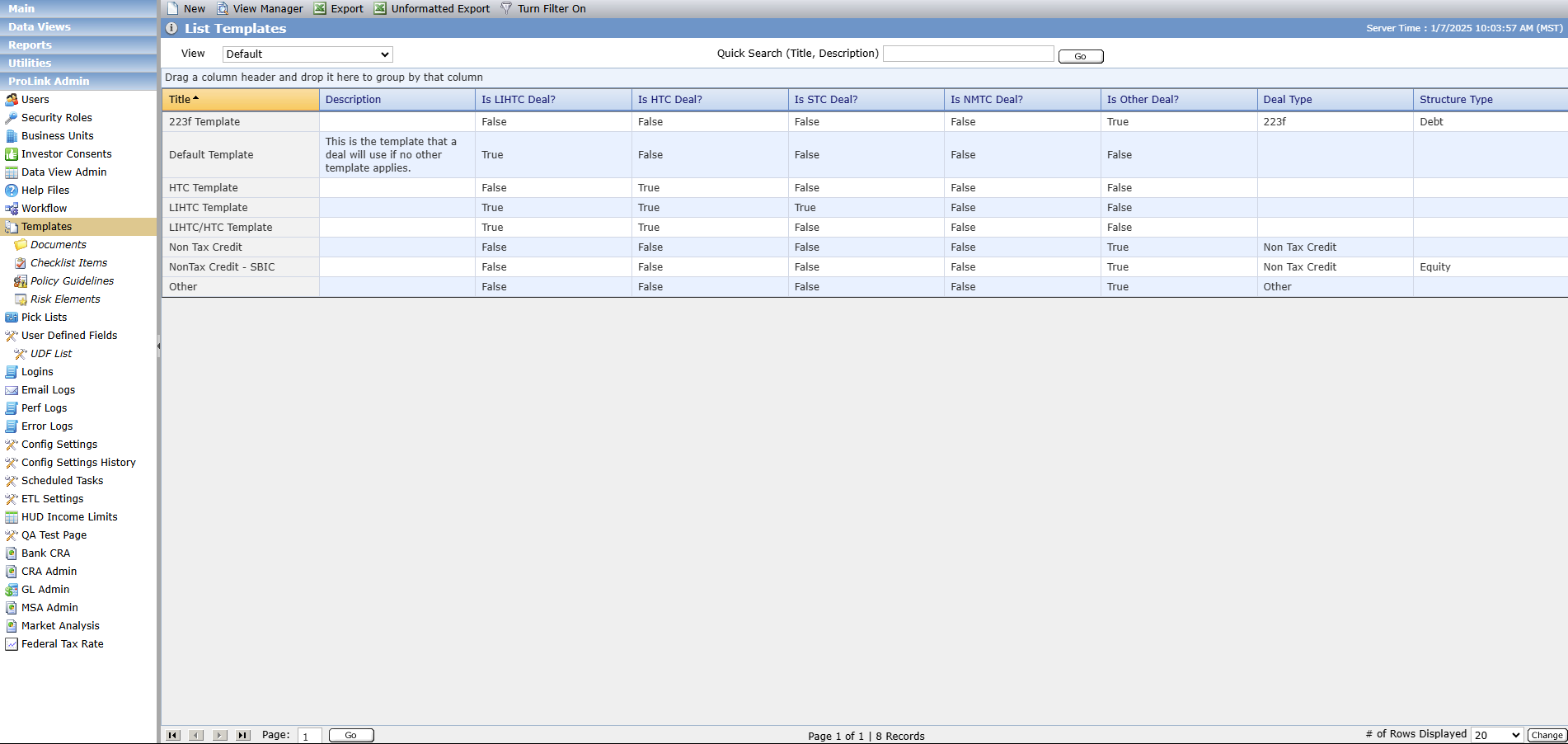
Select the template to edit.
The Edit Template screen opens.
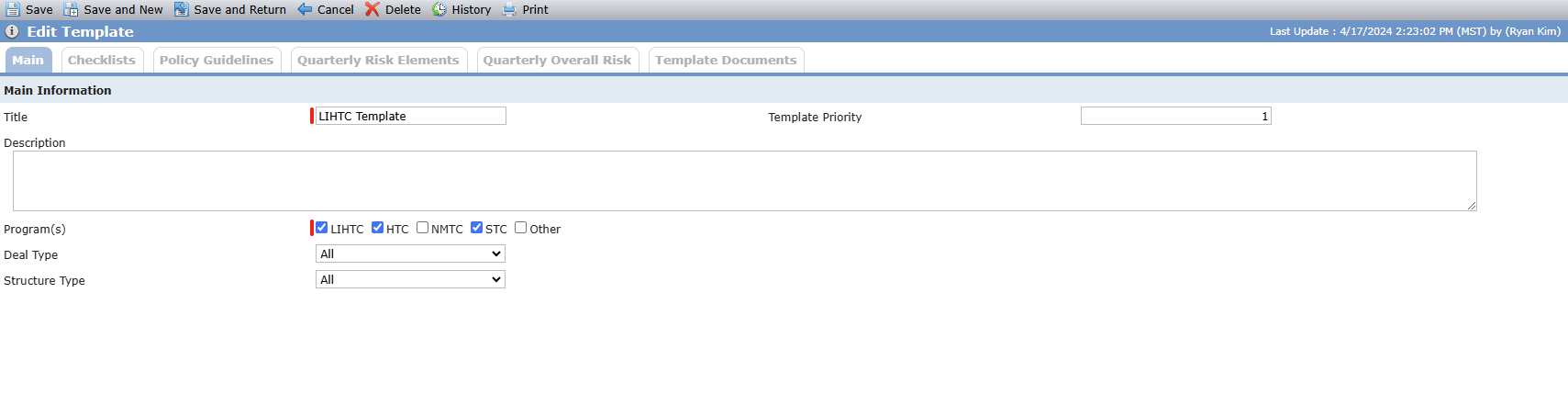
Click the Template Documents tab.
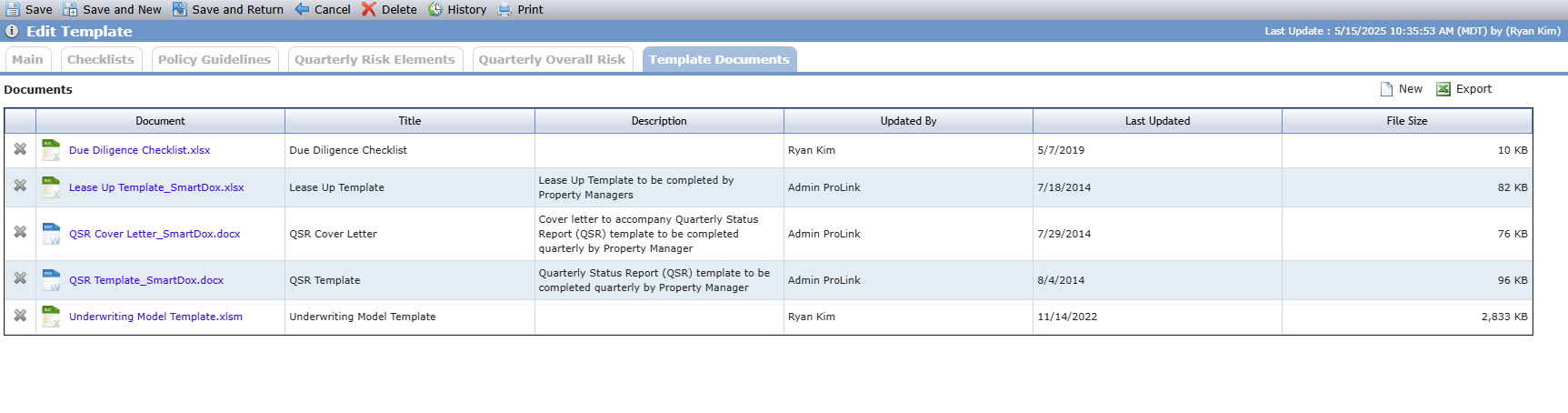
Click New above the Documents grid.
The Find Template Documents popup opens, populated with all Template Documents that have not yet been attached to the template.
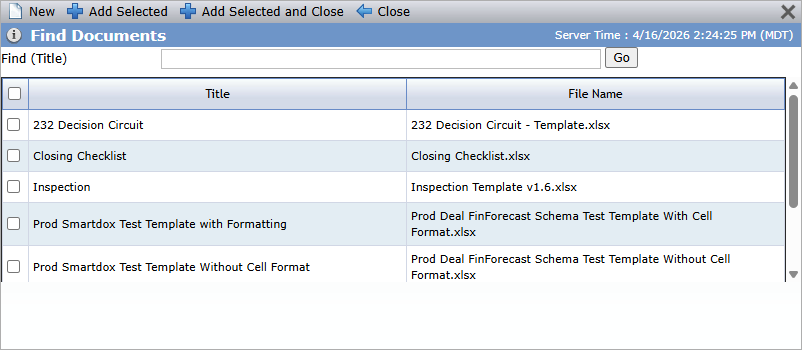
Select the checkbox(es) of the Document(s) to attach.
Click Add Selected and Close.
Click Save.
Task | Where to Start |
|---|---|
View all template documents | Admin > Templates > Documents |
Search template documents by title or category | List Template Document screen > Quick Search |
Create a new template document | List Template Document screen > New |
Edit a template document | Open existing > Update fields > Save and Return |
Delete a template document | Edit Template Document screen > Delete > Confirm OK |
Attach a template document to a template | Admin > Templates > Open template > Template Documents tab > New |