Introduction to the CRA Footprint Import Utility
The Footprint Import helps you create investor CRA Assessment Areas (Footprints) for multiple investors at the same time. The import is processed from a Federal Deposit Insurance Corporation (FDIC) CSV file that contains a listing of FDIC insured institutions and the locations where they have a presence.
For information about investor-specific footprints, see Edit CRA Investor - Footprint Tab.
Tip
Use the CRA Footprint data view to see all footprints across all investors. This view is helpful when you are trying to identify which investors have a specific footprint.
Before you can import a file, make sure the investors that need to be updated have been added as entities to the system. The primary role of these entities must be "Investor" and their FDIC Certificate # must be populated.
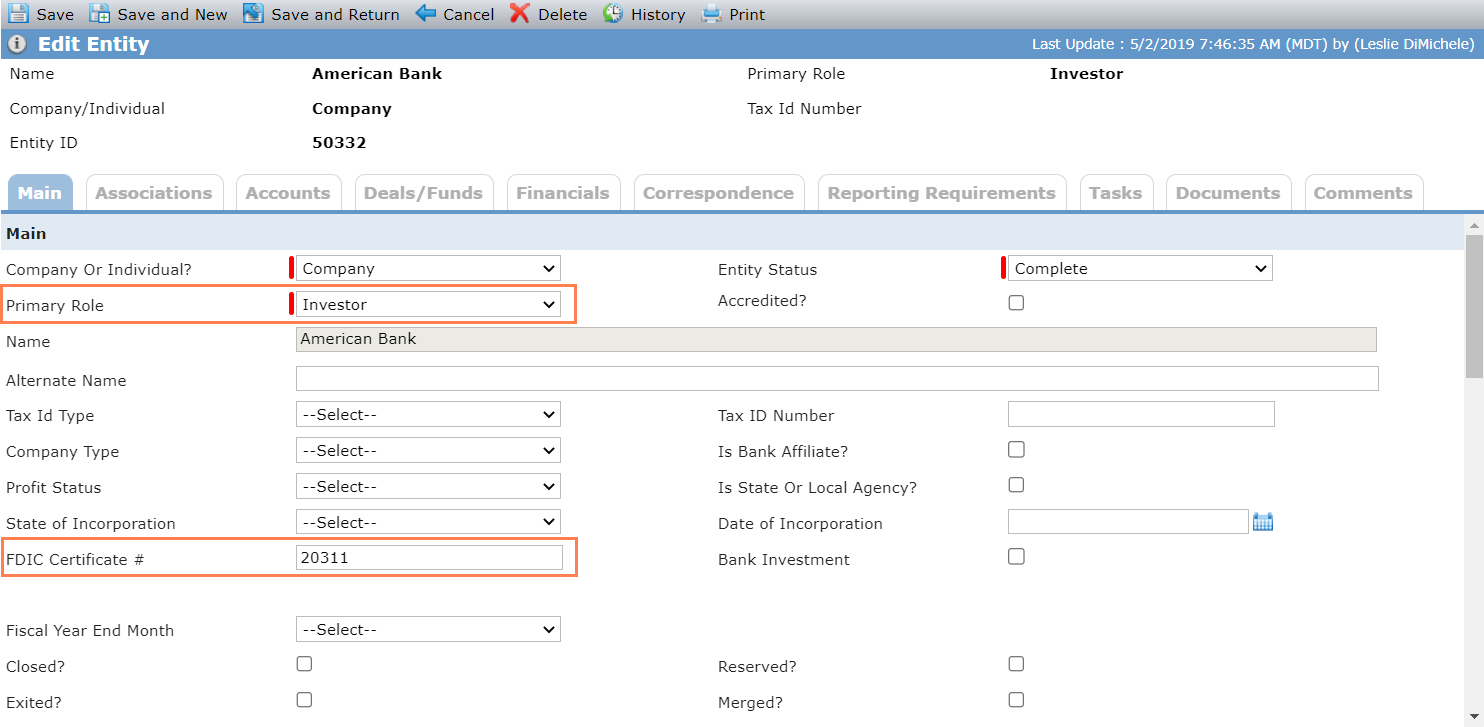
The FDIC Certificate # is located in the CSV file in Column L.
You will need to download the CSV file from the FDIC website: https://banks.data.fdic.gov/bankfind-suite/bulkData/bulkDataDownload
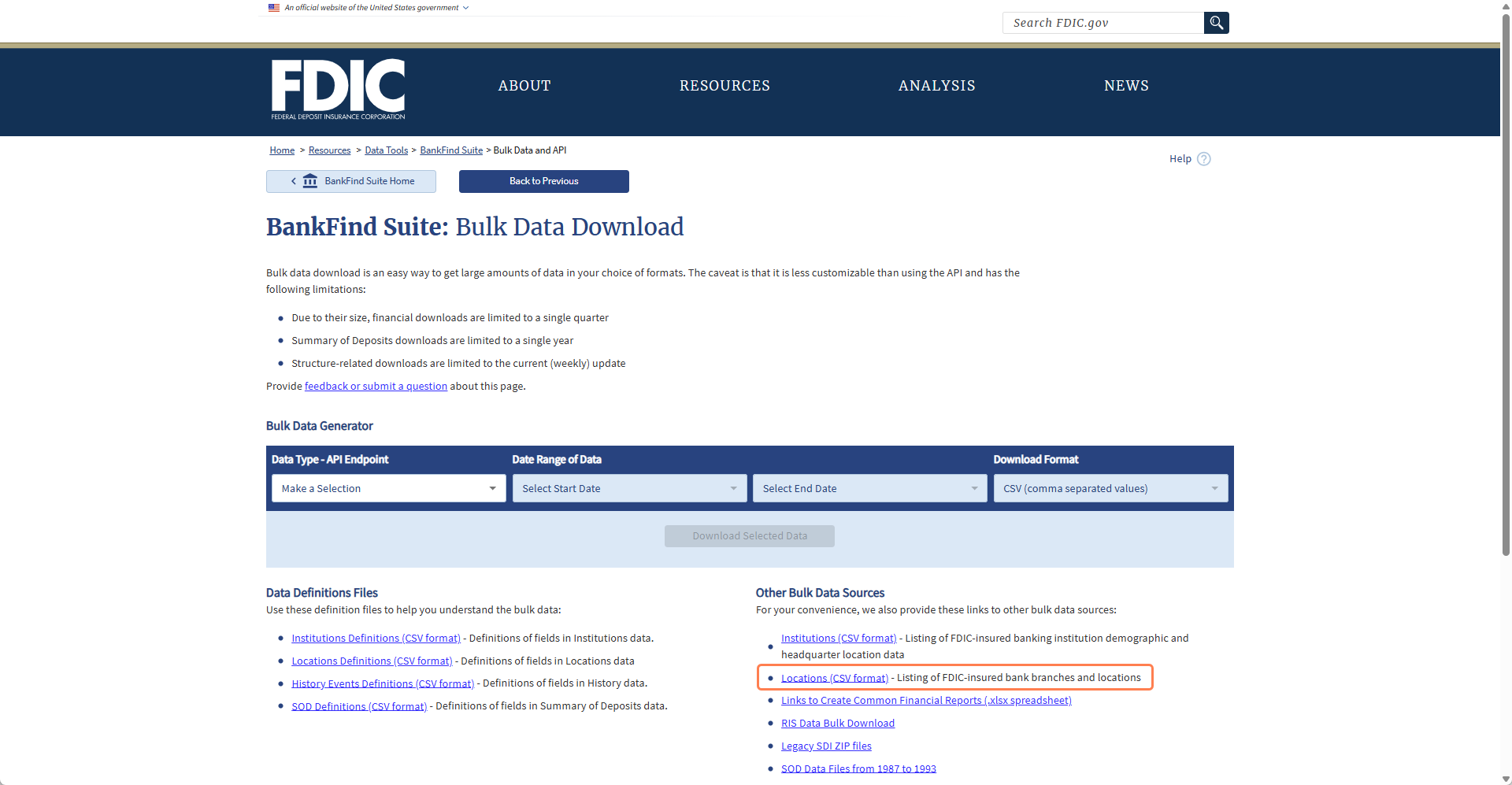
On the website:
Click the Locations (CSV format) link.
Depending on your browser, the browser will prompt you to save or open the file, or the browser will download the file automatically.
Save the locations.csv file locally.
You do not need to remove those investors (rows) in the file that you do not want to import. If the investors exist in the CSV file but ProLinkAIM does not have a matching entity record, the import utility will skip the investor.
The CRA Footprint Import utility lists all FDIC CSV files that have been imported. Importing a file will systematically create all CRA assessment areas that do not already exist in ProLinkAIM for the investor.
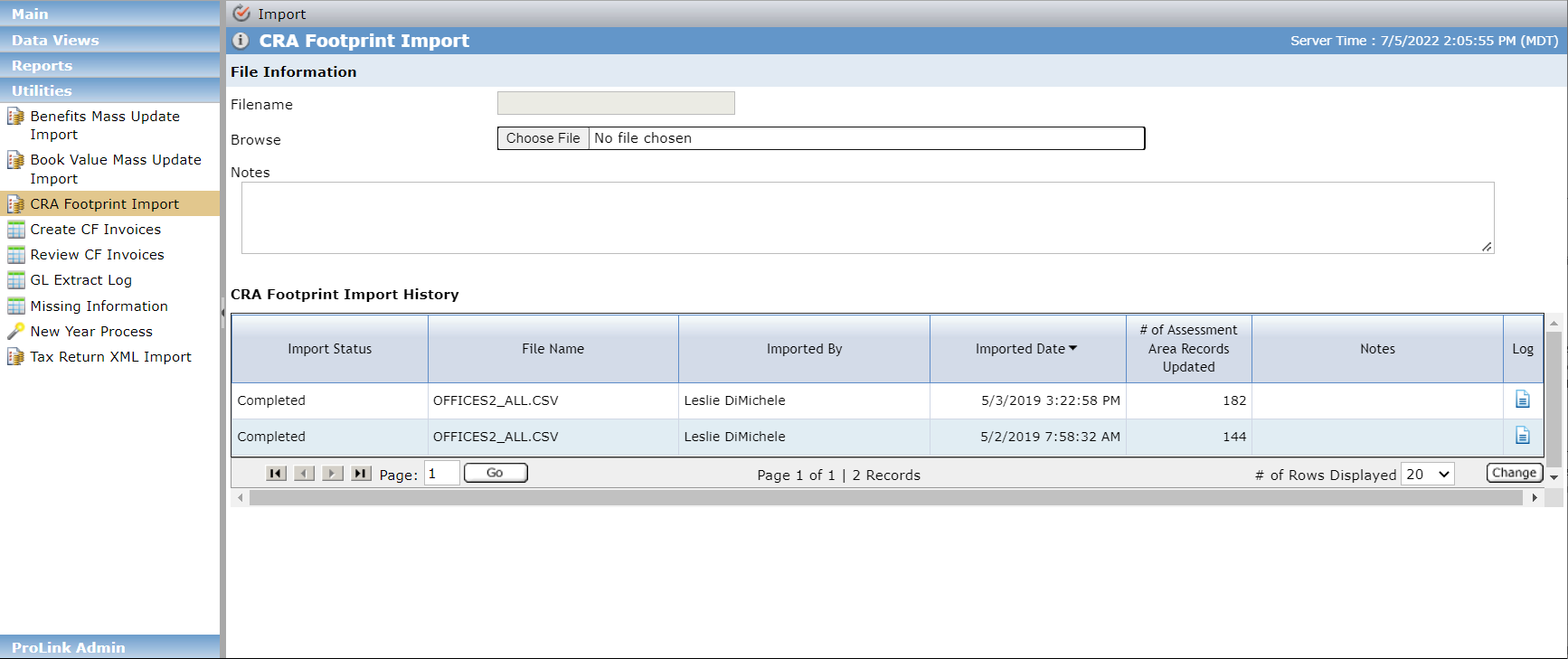
To import a file:
Navigate to the Utilities menu in the left navigation panel, and then click CRA Footprint Import.
Click Browse to locate and select the file you saved locally.
You can select only CSV files.
Click Import in the top toolbar.
The import process might take a few minutes, depending on the size of the file selected. Only one file can be processed at a time.
The status will show "Processing." You will need to refresh the screen to check if the process has Completed or Completed with Errors.
Here's what is happening for each row in the file:
Prior to the data being analyzed to determine if a matching investor exists in the system, the file itself is first reviewed to determine that it is in the appropriate format and that a header row exists.
If the file can be processed, the system will look at each row in the file, one at a time, to determine if the value in Column L (Cert) matches any FDIC Certificate # in the system.
If the system cannot locate a match it will move on to the next row.
If the system locates a match, it will identify all CRA Assessment Area records that exist that that investor.
The “Is Active” flag for all CRA Assessments Area records for the investor will be cleared (unchecked). The flags are cleared so that any locations that exist in the application that are not included in the field will remain cleared, meaning that location is not active.
Caution
If the file is modified prior to importing, all locations for any investors left in the file must remain in the file. If they are removed from the file, they will be cleared in the system and appear to be inactive locations.
The system will then attempt to match the State and County of the location in the file to an Assessment Area record for the investor.
If the Assessment Area already exists for that investor, the “Is Active” flag will be selected (checked) to indicate the location is active.
If the system cannot locate an existing Assessment Area for the investor (no match for the State and County), a record will be created and the “Is Active” flag will be selected.
After the import has completed, the CRA Footprint Import History grid displays the results. The results include the status to indicate whether any errors occurred during the import and the number of records updated.
Note
# of Assessment Area Records Updated displays the number of records (rows) that were successfully updated in ProLinkAIM. This includes records where the assessment area already existed and the “Is Active” flag was cleared (and possibly re-selected).
An error log provides detail about the import. If no errors occurred, the log displays only the Started and Completed times. If errors occurred with the file, the log displays the following types of messages:
No header row exists in this file. A header row is required for the successful processing of this file. If this error occurs, no records are updated.
The county is not found. This indicates that the county in the file did not match any county for the associated state in ProLinkAIM. You might need to add or correct the county in ProLinkAIM. The County is a non-system picklist, which the system administrator can manage.
The state is not found. This indicates that the county in the file matched a county in ProLinkAIM; however, it is not associated to the state in the file.