Display a Mapped Field in Multiple Locations in Microsoft Word
To display the value of a mapped field in multiple locations within a Word template, such as within lines of text, use a bookmark.
Double-click on the mapped field that should be referenced elsewhere.
The Text Form Field Options window appears.
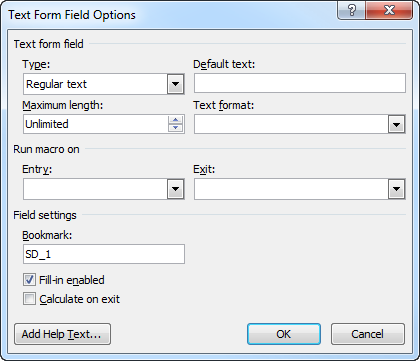
Note the bookmark reference in the Bookmark field. In this case, “SD_1”.
Caution
Do not change the value of the Bookmark field in the Text Form Field Options window. It will break SmartDox mapping.
Place the cursor where the mapped field should also display and press CTRL+F9 on the keyboard. Two curly brackets will appear as “{ }”.
Enter the term “REF”, a blank space, and the bookmark reference from step 2 between the curly brackets. In our example, the completed reference would look like “{REF SD_1}”.
When you get data for a document based on the template, the value of the mapped field will appear in the location of the mapped field and the location of the bookmark reference.