Edit the Benefits Schedule - NMTC
Note
For most organizations, UT Actual Credits and UT Actual Losses will be hidden on deals because you can view income/loss at the fund-level.
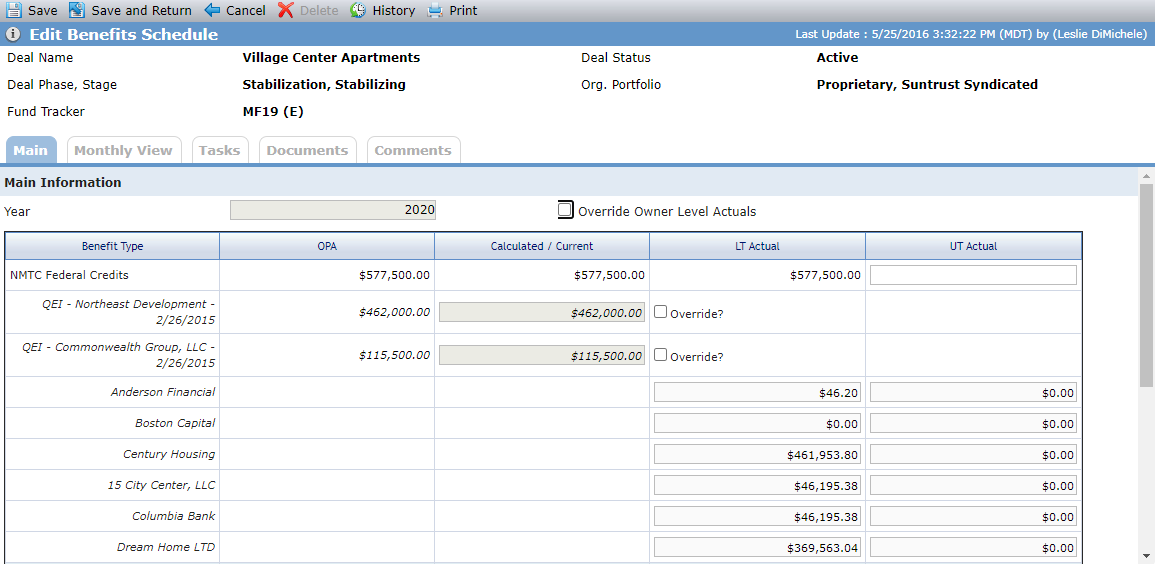
The Edit Benefit screen is where you can manually enter benefit values (for values that are not calculated). A number of calculated fields can be overridden on the screen.
Tip
ProLink includes data views to help report on benefits across the portfolio:
Deal Benefit Schedules
Deal Benefit Schedules - Owners—Displays a row for each deal owner benefit year, allowing you to report on benefit schedules by owner entity per deal. You can click a row to navigate to the applicable Deal Edit Benefits Schedule screen. You can quick search on Deal Name or Name.
Override Calculated Values
Important
You need the Benefits Schedule - Override Owner Level Actuals security privilege to override calculated values.
Select the Override Owner Level Actuals checkbox to change the owner-level LT Actual and UT Actual amounts to editable fields. You can override one or multiple owners' LT Actuals and UT Actuals.
Note
The system does not sum overridden owner-level actual amounts nor update the deal-level actual amount, even when the deal-level amount is not populated.
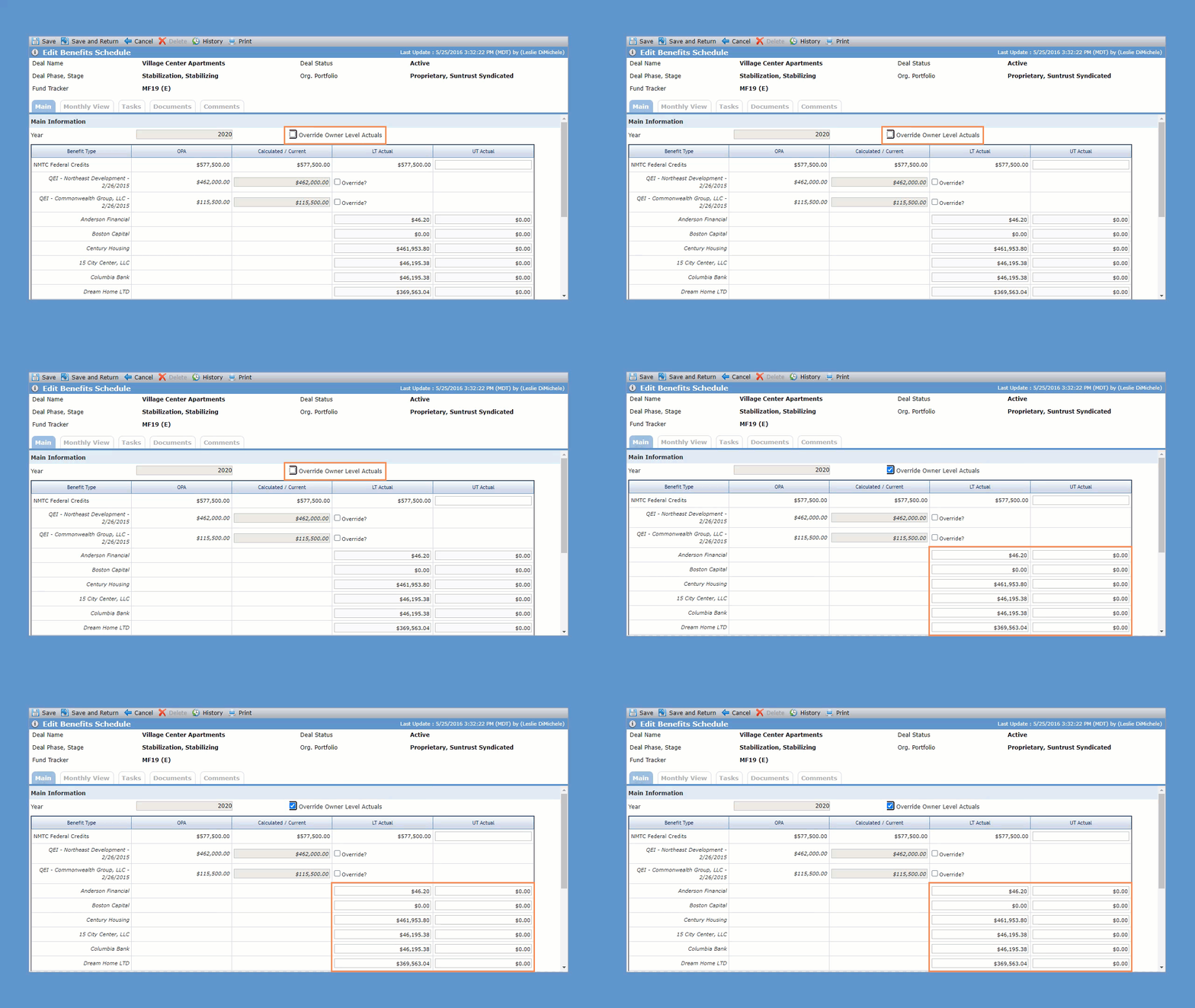
Main Tab
Main Information
This section displays:
The read-only, calculated deal-level LT Actual value (sum of the Calculated/Current amounts for all QEIs).
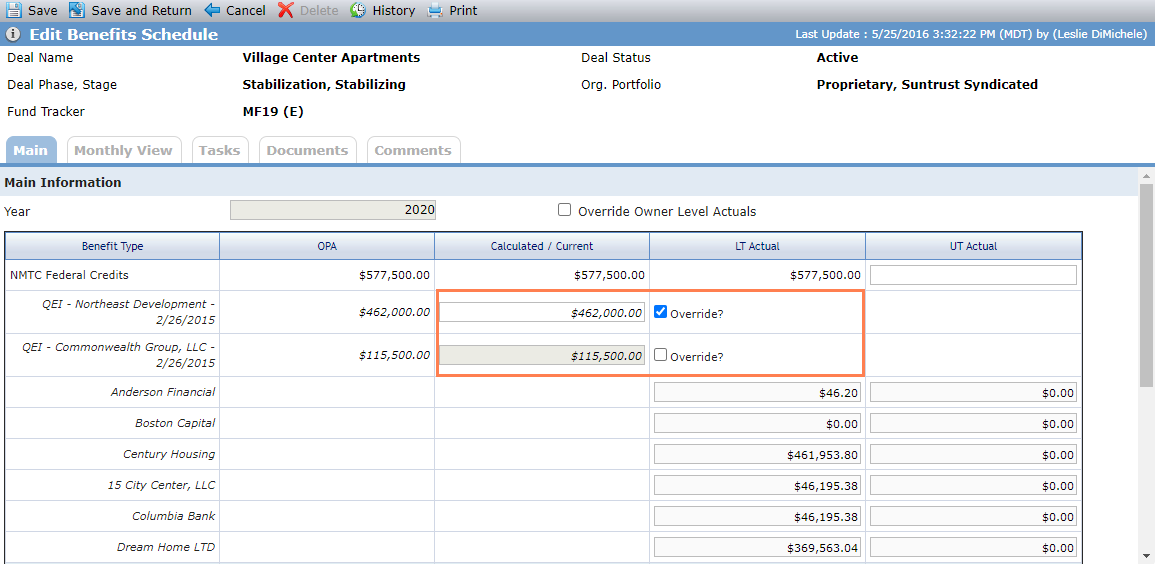
QEI level tax credits.
Select the Override checkboxes to make the QEI Calculated/Current values editable.
LT Actual and UT Actual values at the owner level.
Only those owners of the Sub-CDE(s) in a Finalized Ownership Schedule, when the Sub-CDE is the To entity for a QEI.
Owner-level values are calculated based on the owner's ownership percentage (Ownership Schedule) unless overridden.
Monthly View Tab
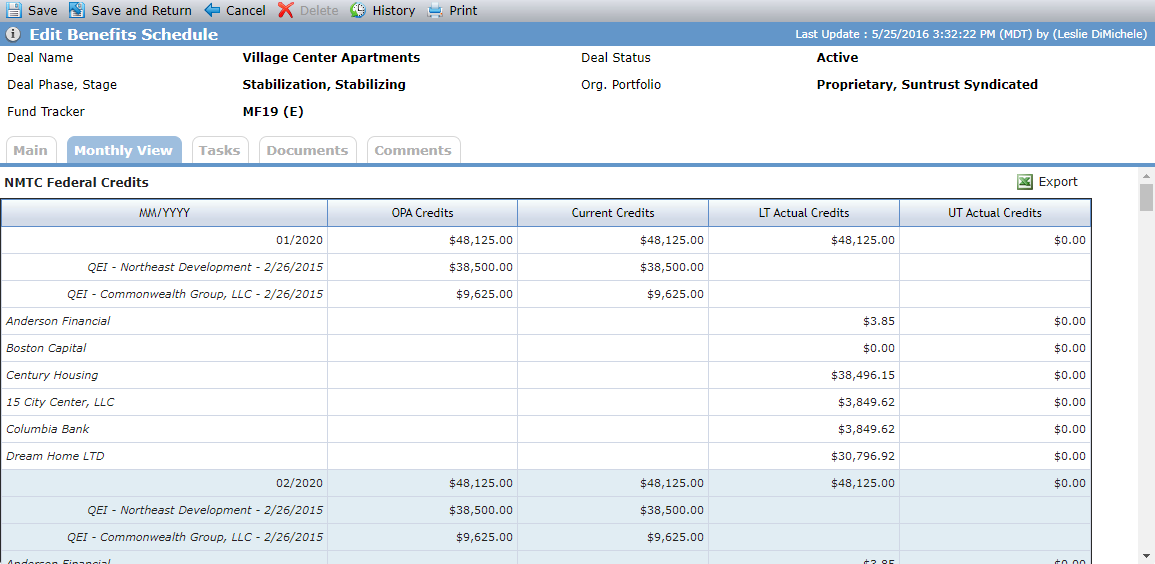
The screen displays a row for QEI-level benefits. The deal-level values are the sum of the QEIs. The fields are read-only and calculated based on the annual values.