Introduction to ProLinkAIM Fund OPA Obligations
The OPA Obligations screen allows you to track the Operating Partnership Agreement obligations for a fund, including tax returns and annual financials.
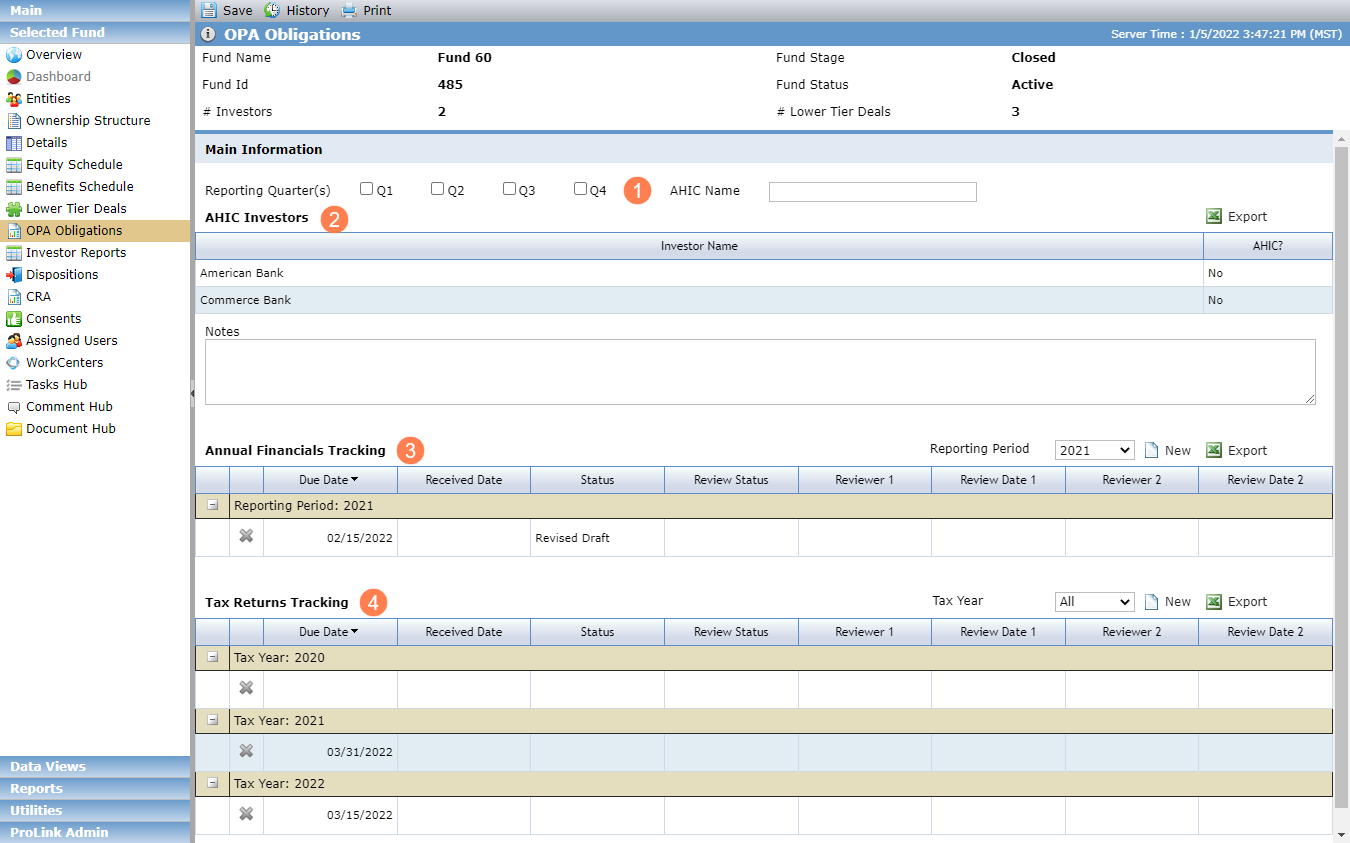
Optionally, identify the Reporting Quarter(s) and AHIC Name for the fund.
The AHIC Investors grid shows all owners that are in a Proposed or Finalized Ownership Structure for the selected fund. If you indicated on the corresponding entity's record that the investor is a member of AHIC, the grid displays Yes.
The Annual Financials grid shows all existing Annual Financials records, grouped by Reporting Period. You can filter the grid by Reporting Period. Click the row of a record to open the Edit Fund Annual Financials screen.
The Tax Returns grid shows all existing Tax Return records, grouped by Tax Year. You can filter the grid by Tax Year. Click the row of a record to open the Edit Fund Tax Return screen.
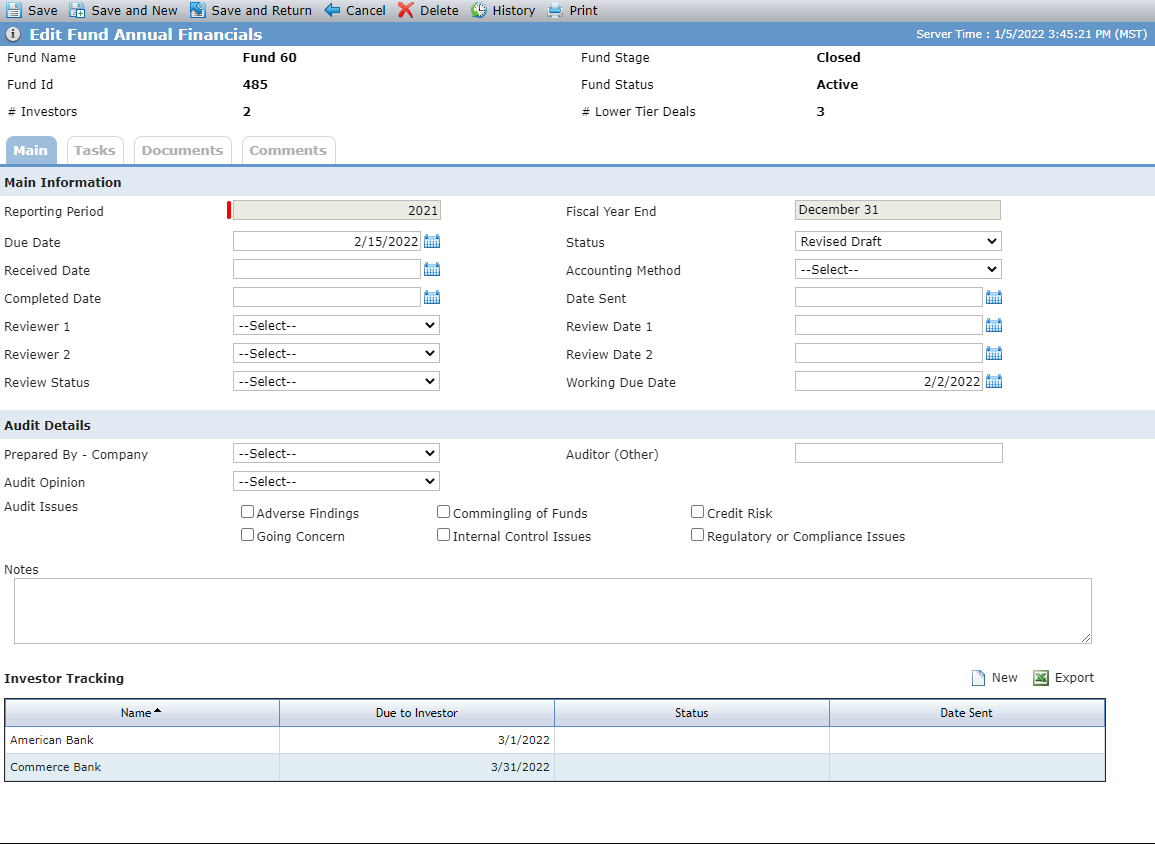
The Edit Fund Annual Financials screen provides annual financial tracking information for the fund and its investors. The information includes Audit Details, Reporting Period, Reviewers, and various tracking dates. Fund Annual Financial records can be created systematically through the New Year Process utility.
Field/Section | Description |
|---|---|
Reporting Period | Read-only after the record is first created and saved. If an Annual Financials record already exists for the same Reporting Period, then the system defaults the following fields from the most recently created record for the Reporting Period: Prepared By - Company, Auditor (Other), Audit Opinion, Reviewer 1, Review Date 1, Reviewer 2, Review Date 2, and Due Date. |
Fiscal Year End | Displays the Fiscal Year End Month and Day from the Edit Fund Details - Main tab. |
Due Date | After the Investor Tracking grid is populated, the system calculates the default Due Date by using the earliest Due to Investor date. |
Received Date | The year must be after the Reporting Period year. |
Completed Date | The year must be after the Reporting Period year. |
Working Due Date | The date the fund needs to deliver Annual Financials information to the organization's accountants so the information can be prepared for investors. |
Prepared By - Company | Select from a list of the companies with a Fund Role of Accountant and Accountant - Audit associated with the selected fund. |
Investor Tracking | All Owners in a Finalized or Proposed Ownership Schedule are displayed in the grid. The Due to Investor date is calculated by adding the Due Date for Audited Financials from the Edit Entity - Reporting Requirements tab to the last date of the Reporting Period displayed on the Edit Annual Financials - Main tab. |
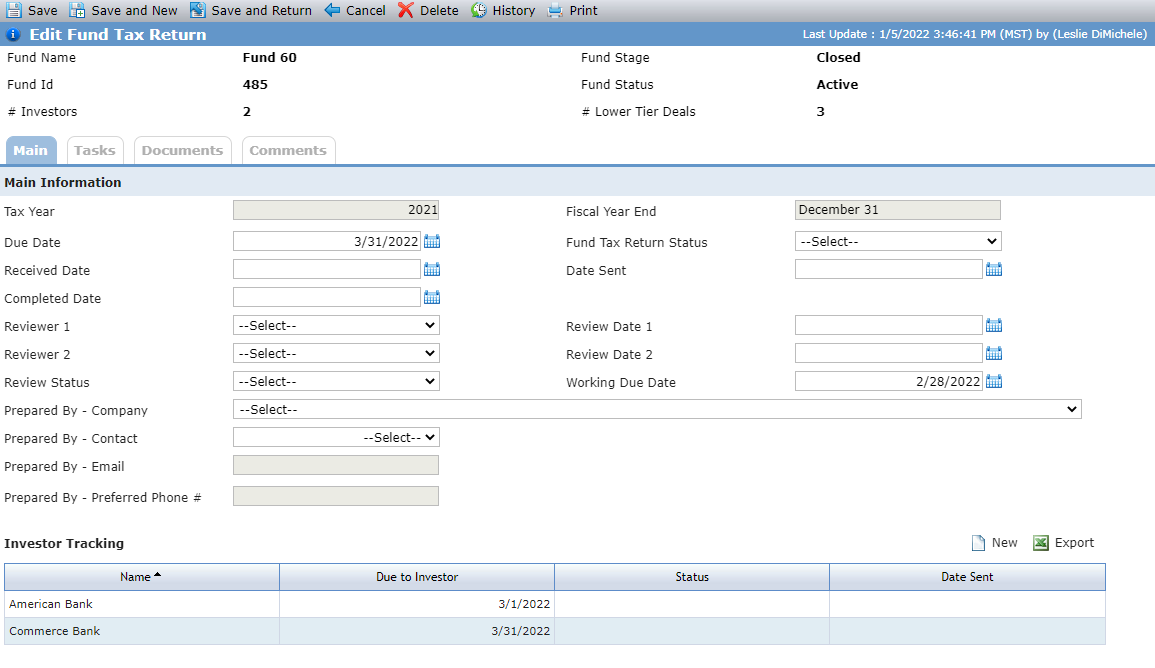
The Edit Fund Tax Return screen provides tax return tracking information for the fund and its investors. The information includes Reporting Period, Reviewers, and various tracking dates. Fund Tax Return records can be created systematically through the New Year Process utility.
Field/Section | Description |
|---|---|
Tax Year | Read-only after the record is first created and saved. If a Tax Return record already exists for the same Tax Year, then the system defaults the following fields from the most recently created record for the Tax Year: Prepared By - Company, Prepared By - Contact, Prepared By - Email, Prepared By - Preferred Phone, Reviewer 1, Review Date 1, Reviewer 2, Review Date 2, and Due Date. |
Fiscal Year End | Displays the Fiscal Year End Month and Day from the Edit Fund Details - Main tab. |
Due Date | After the Investor Tracking grid is populated, the system calculates the default Due Date by using the earliest Due to Investor date. |
Received Date | The year must be after the Reporting Period year. |
Completed Date | The year must be after the Reporting Period year. |
Working Due Date | The date the fund needs to deliver Annual Financials information to the organization's accountants so the information can be prepared for investors. |
Prepared By - Company | Select from a list of the companies with a Fund Role of Accountant and Accountant - Audit associated with the selected fund. |
Prepared By - Contact | Select from a list of Contacts associated with the selected Prepared By - Company. |
Prepared By - Email | If the Contact is selected, the system displays the email address for the selected contact. If no contacts exist, the system displays the email address for the Company Entity. |
Prepared By - Preferred Phone | If the Contact is selected, the system displays the preferred phone number for the selected contact. If no contacts exist, the system displays the preferred phone for the Company Entity. |
Investor Tracking | All Owners in a Finalized or Proposed Ownership Schedule are displayed in the grid. The Due to Investor date is calculated by adding the Due Date for Audited Financials from the Edit Entity - Reporting Requirements tab to the last date of the Reporting Period displayed on the Edit Annual Financials - Main tab. |
You can track when Annual Financials and Tax Returns are due and sent to investors. Whether you are maintaining investor information for an Annual Financial or Tax Return record, the process to add and edit the investor information is the same.
To add an investor, click New above the Investor Tracking grid.
The Edit Investor Tracking popup opens.
OR
To edit an investor, click the row of a record in the Investor Tracking grid.
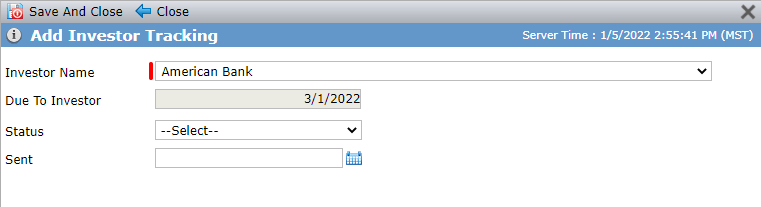
The Add Investor Tracking popup opens.
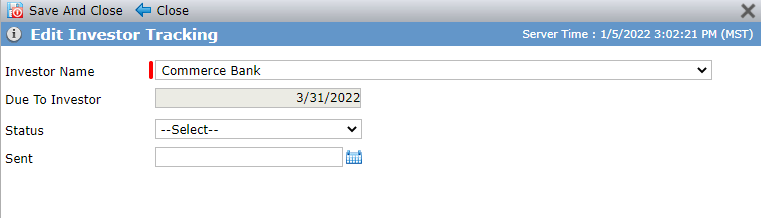
Add Investor Tracking; Edit Investor Tracking
Select the Investor Name.
The system calculates the Due to Investor date by adding the Due Date for the Audited Financials or Tax Return from the Edit Entity - Reporting Requirements tab to the last day of the Reporting Period for the corresponding record.
Optionally, select the Status and enter or select the Sent date.