Introduction to ProLinkAIM Investor Consents
The Investor Consents functionality allows you to manage the list of consents that are required if an action occurs and to track the consents that are in process.
Prior to associating and tracking Investor Consents at the fund level, they must first be added to ProLinkAIM. Consents consist of Templates—or Categories—and Action Items. The system includes a few out-of-box Investor Consents already available. The system administrator can add more through ProLink Admin.
After Investor Consents are set up, you can add a consent to a fund.
Then you can add an Action Item to the consent so that it can be tracked.
Tip
View Consent details across the system through the Consent Tracking data view.
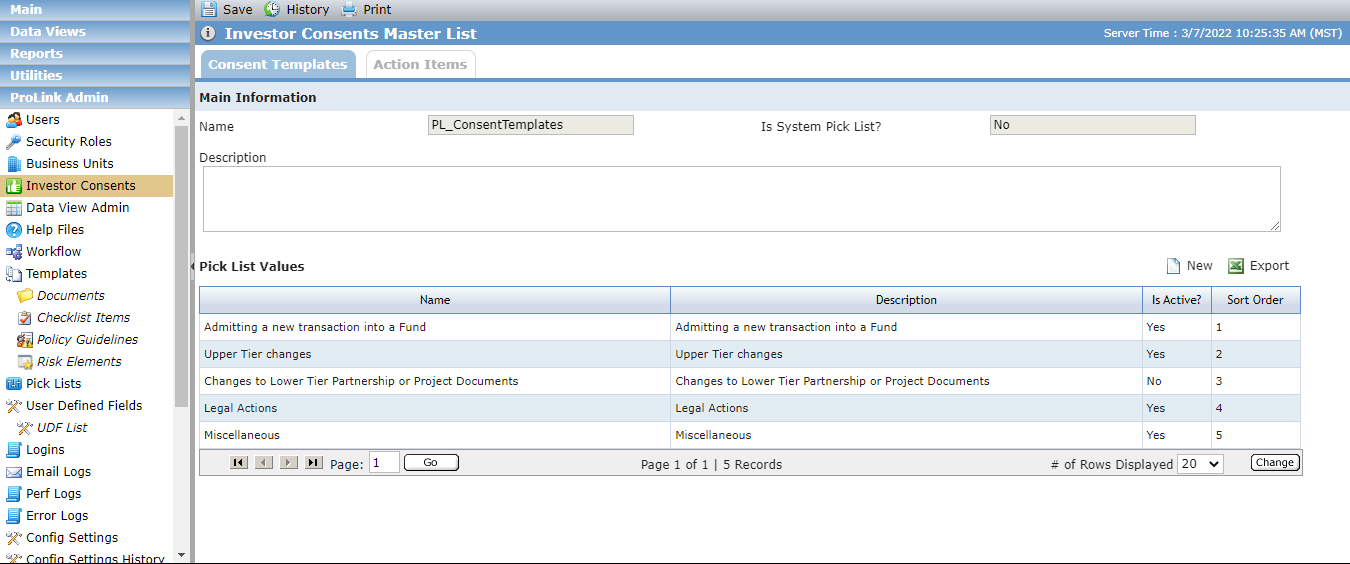
Through the Investor Consent option in ProLink Admin, you can view:
All existing Templates (Categories)
All available Action Items
To add a new Template (Category):
Navigate to the ProLink Admin menu, and then select the Investor Consents menu option.
Click New above the grid.
The Edit Pick List Value screen opens.
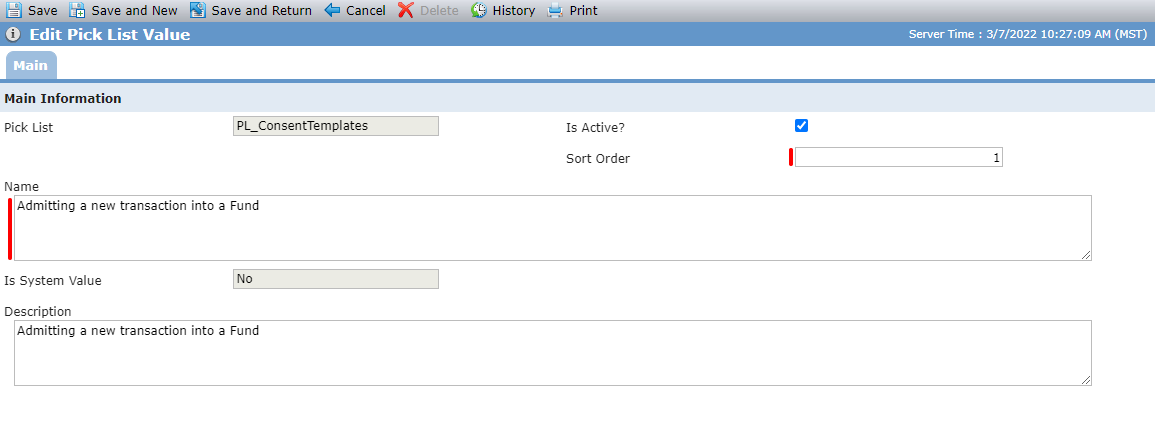
Enter the Sort Order to identify the placement of the template in the picklist.
Enter the Name.
Optionally, enter a Description.
Click Save.
The Template is now available for selection on any Action Item, existing or new.
To add a new Action Item:
Navigate to the ProLink Admin menu, and then select the Investor Consents menu option.
Click the Action Items tab.
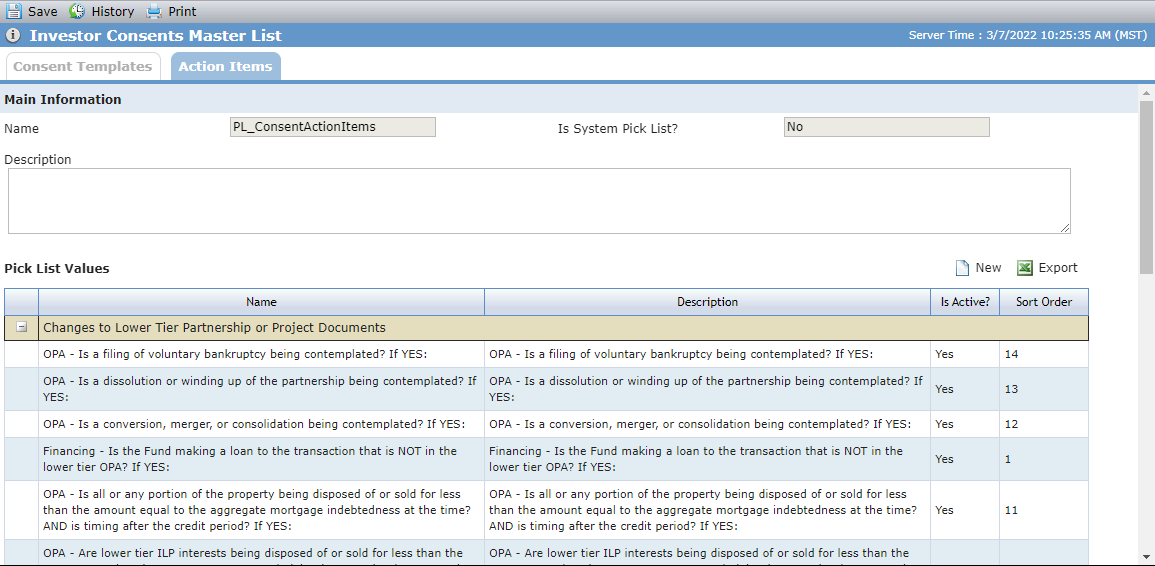
Click New above the grid.
The Edit Pick List Value screen opens.
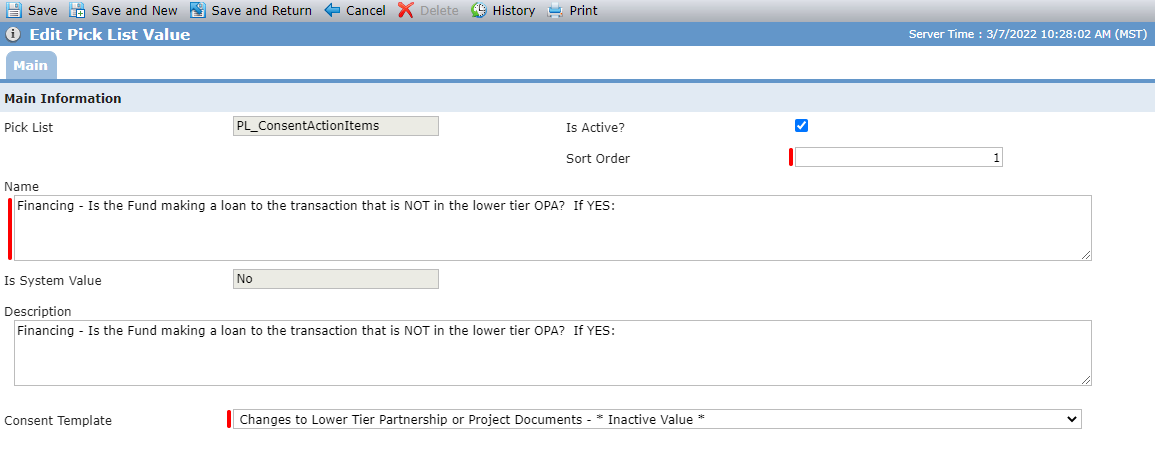
Enter the Sort Order to identify the placement of the Action Item in the picklist.
Enter the Name.
Select the Consent Template to associate the Action Item to.
Optionally, enter a Description.
Click Save.
The Action Item is now available for selection on a fund.
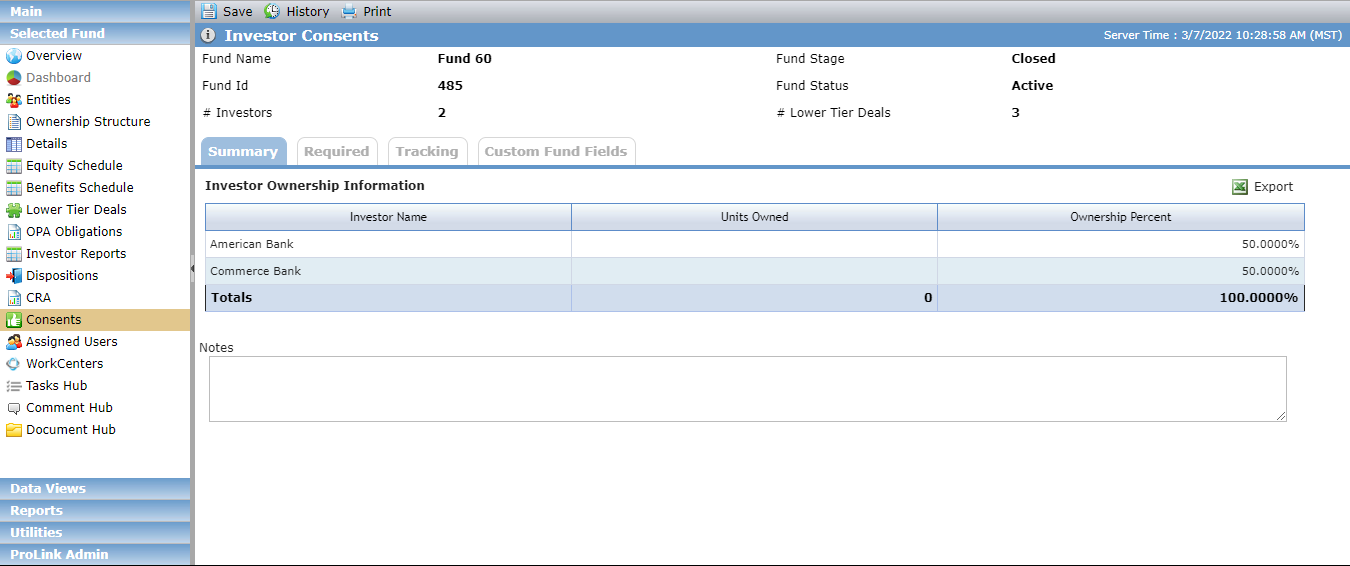
The Investor Consents screen at the fund level shows a row for each Owner Entity within a finalized ownership schedule from the Ownership Structure screen for a Syndicated Fund.
Column Data | Description |
|---|---|
Investor Name | Displays the Owner Entity from the Ownership Structure screen. |
Units Owned | Displays the Unit from the Ownership Structure screen. |
Ownership Percent | Displays the Ownership % from the Ownership Structure screen. |
Total Units Owned | Sum of the Units Owned. |
Total Ownership Percentage | Sum of the Ownership Percentage. |
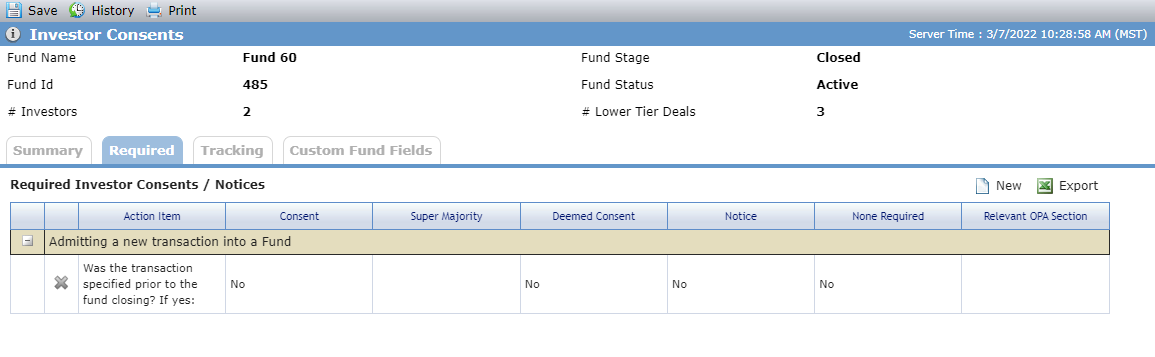
The Required tab (Required Investor Consents/Notices) captures the Action Item, Consent (yes/no), Super Majority percent, Deemed Consent (yes/no), Notice (yes/no), and more for a selected Template.
Add a Consent
Navigate to the Fund, and then select the Consents menu option.
Click the Required tab.
Click New above the grid.
The Edit Required Investor Consent screen opens.
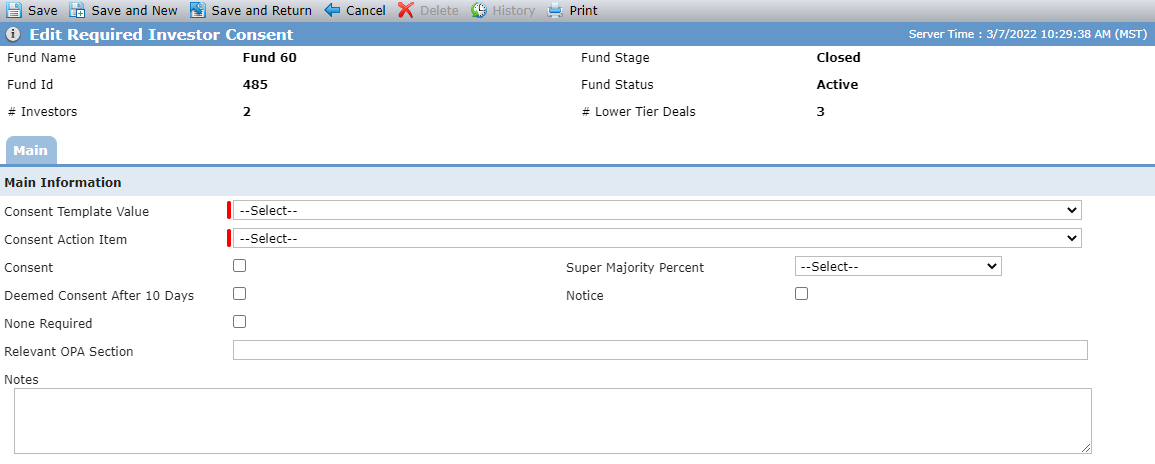
Select the Consent Template Value (Category) for the Action Item you need to add.
Select from the values created in ProLink Admin Investor Consents (PL_ConsentTemplates).
Select the Consent Action Item.
Select from all applicable values (associated to the selected Template) in ProLink Admin Investor Consents (PL_ConsentActionItems). You cannot select a value already associated to the Consent Template for the fund.
Complete the remaining fields as needed.
Click Save.
The Tracking screen captures the Request Date, Target Date, Deal Name, Consent Template, Consent Request, Consent Received, and Total Investor Consent information.
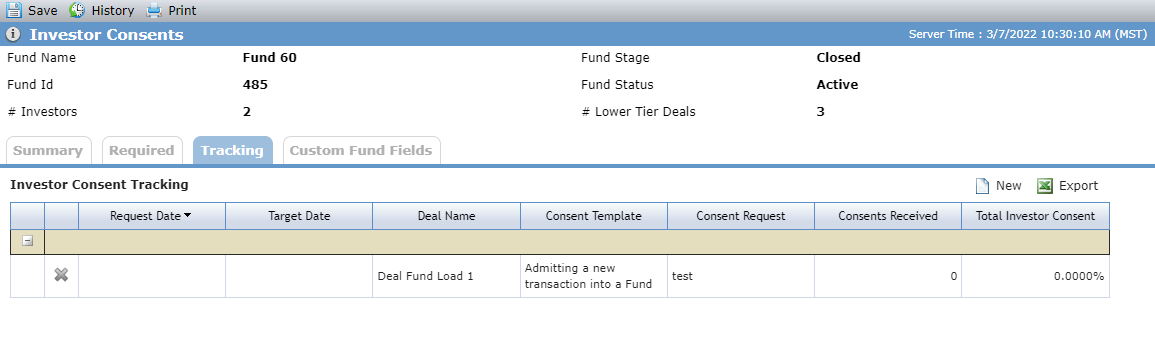
The Consents Received column shows the number of investors where the Date Consent Given (Consents Gathered grid) is populated on the Edit Consent Tracking - Main tab. The Total Investor Consent column shows the sum of Ownership % for the investors where the Date Consent Given field (Consents Gathered grid) is populated on the Edit Consent Tracking - Main tab.
Field | Description |
|---|---|
Deal Type | Current Deal, Proposed Deal, or Fund. If you select a Current Deal (already associated to the fund) for the Deal Type, the Proposed Deal Name field is hidden and the Deal Name field is visible. If you select Proposed Deal for the Deal Type, the Deal Name field is hidden and the Proposed Deal Name field is visible. |
Deal Name | Select from all Lower Tier Deals where the ownership schedule is in a status of Finalized and the Fund is an owner on the schedule. |
Proposed Deal Name | Select from all Lower Tier Deals where the ownership schedule is in a status of Proposed and the Fund is an owner on the schedule. |
Consent Template | Select from only those Templates listed on the Investor Consents - Required tab. |
Consent Action Item | Select from only those Action Items associated with the value selected in the consent Template list. The list will also only display those Action Items listed on the Investor Consents - Required tab. |
Total Consent Received | Sum of all of the Ownership % values in the Consents Gathered grid where the Date Consent Given is populated. |
Consents Gathered | |
Investor | Displays the Investor from the Investor Consents - Summary tab. |
Ownership % | Displays the Ownership Percentage from the Investor Consents - Summary tab. |
Side Letter | Displays from the Edit Investor Consent - Main tab. |
Consent or Notice Required | Displays either "Consent" or "Notice" based on which column has a "Yes" value from the Investor Consents - Required tab. |
Type of Consent or Notice | Displays the Type of Consent or Notice from the Edit Investor Consent - Main tab. |
Date Consent Given | Displays the Date Consent Given from the Edit Investor Consent - Main tab. |
Type Received | Displays the Type of Consent Received from the Edit Investor Consent - Main tab. |
Track a Consent
Navigate to the Fund, and then select the Consents menu option.
Click the Tracking tab.
Click New above the grid.
The Edit Consent Tracking screen opens.
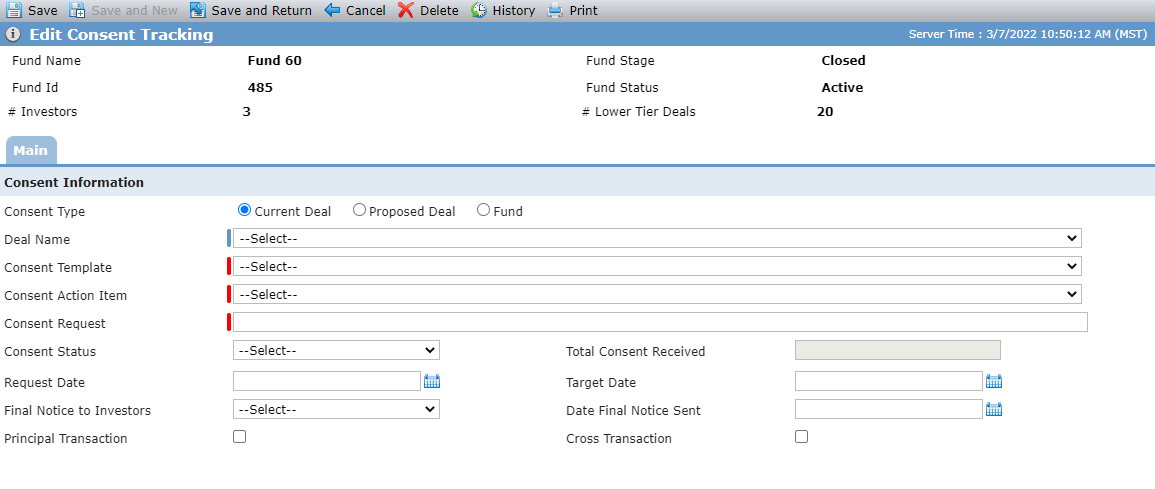
Select whether the consent pertains to a Current Deal (finalized deal), a Proposed Deal, or directly to the Fund.
If you selected Current Deal or Proposed Deal, select the Deal Name or Proposed Deal Name.
Select the Consent Template.
Select the Consent Action Item.
Enter the Consent Request. This is specific information such as names and dates.
Populate the remaining fields as needed to capture detail about communicating the change.
Click Save.
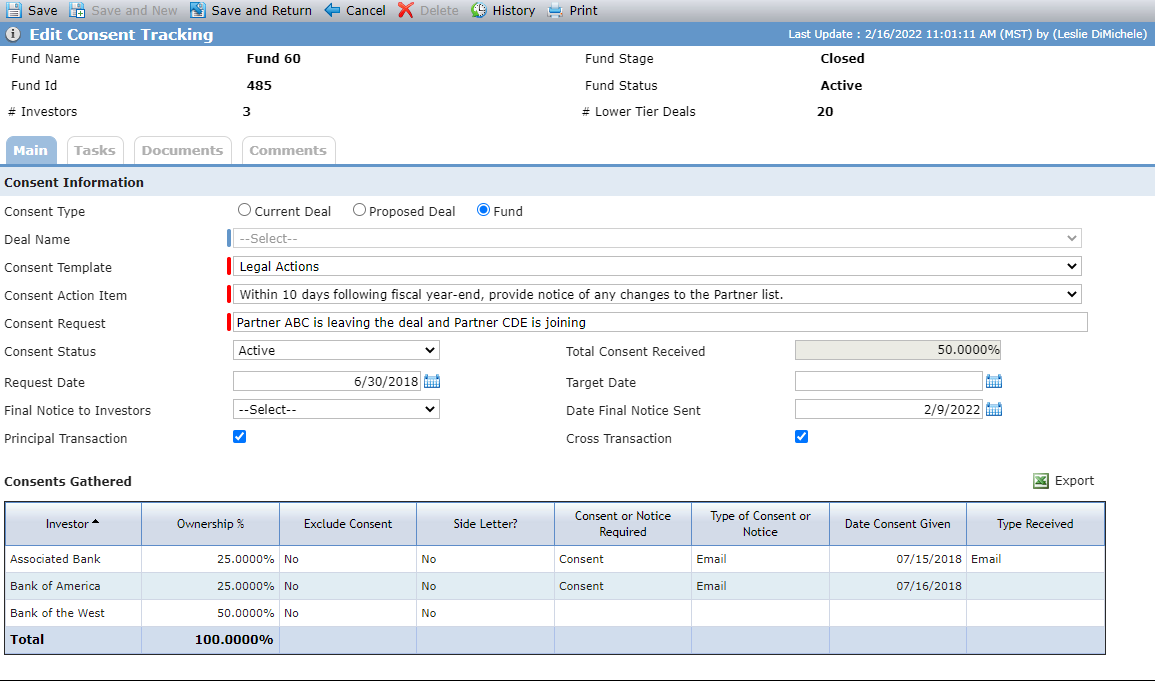
The system creates an Investor Consent record for each owner displayed on the Investor Consents - Summary tab. The Consents Gathered grid is displayed and populated with the investors (Owner Entities) within a finalized ownership schedule from the Ownership Structure screen for the fund.
Click into an investor row of the Consents Gathered grid to update the consent information for that Owner, such as receipt date and method.
View or Edit an Investor Consent Record
The Edit Investor Consent screen captures the detailed information needed for tracking consents on the fund activity, including tracking information, investor information, and consent/notice information.
Note
The Owner entity must be removed from the Ownership Schedule before you can delete an Investor Consent.
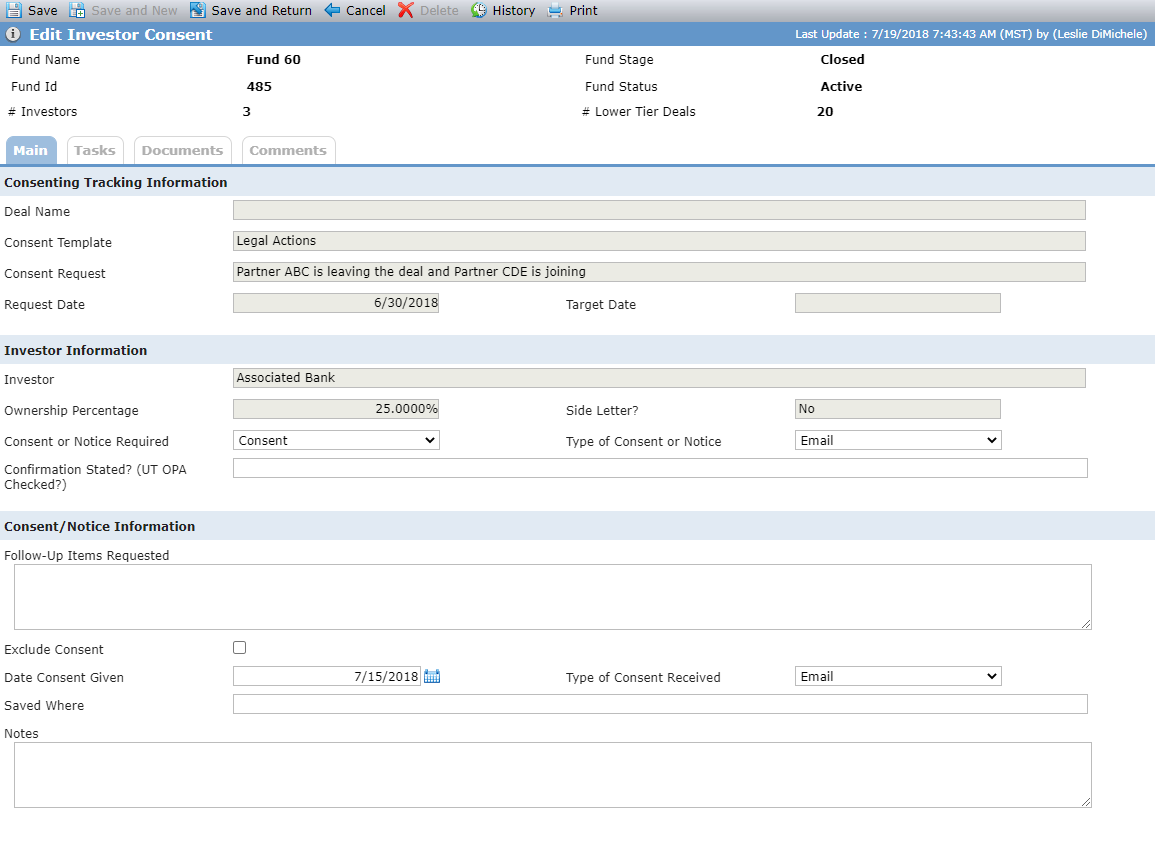
Field | Description |
|---|---|
Consent Tracking Information | |
Deal Name | Displays the Deal Name from the Edit Consent Tracking - Main tab. |
Consent Template | Displays the Consent Template from the Edit Consent Tracking - Main tab. |
Consent Request | Displays the Consent Request from the Edit Consent Tracking - Main tab. |
Request Date | Displays the Request Date from the Edit Consent Tracking - Main tab. |
Target Date | Displays the Target Date from the Edit Consent Tracking - Main tab. |
Investor Information | |
Investor | Displays the Investor from the Edit Consent Tracking - Main tab - Consents Gathered grid. |
Ownership Percentage | Displays the Ownership % from the Edit Consent Tracking - Main tab - Consents Gathered grid. |
Side Letter | Displays from the Finalized Schedule of the Fund Ownership Structure where the Investor on the Consent equals the Owner entity in the finalized schedule. |
Consent or Notice Required | Select Consent or Notice. |
Type of Consent or Notice | Select the method for the Consent or Notice. |
Consent/Notice Information | |
Type of Consent Received | Select the method for the received Consent. |