Quarter 3, 2024 ProLinkAIM Release Notes
ProLink Solutions is pleased to announce the Quarter 3, 2024 release. You've come to the right place to review what's new.
UAT Build: August 15, 2024
Production Build: September 12, 2024
What's New
The release introduces the following new functionality.
New CRA Targets Import Utility
ProLinkAIM includes a new utility called CRA Targets Import, which allows you to upload CRA targets, or goals, for each assessment area for an exam period in bulk.
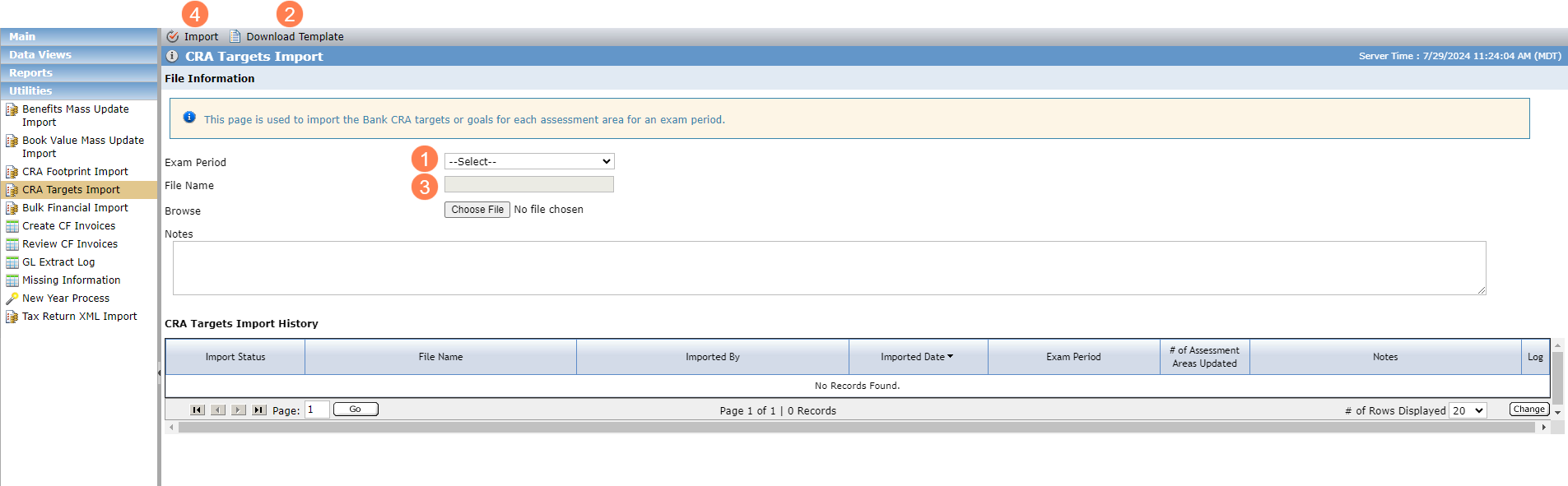
Select the Exam Period.
Download the template and populate it.

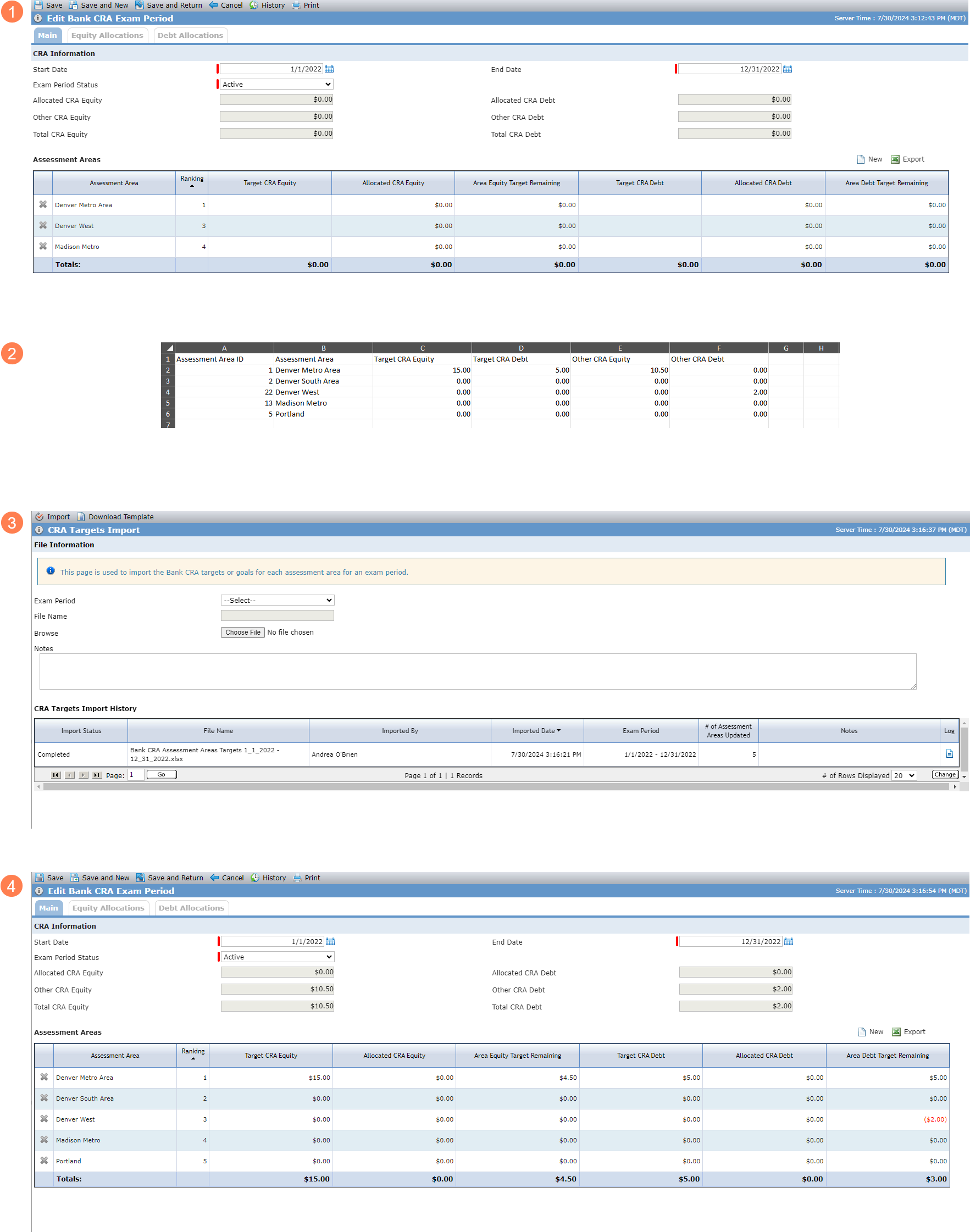
The system exports a Microsoft Excel template populated with a list of all assessment areas ordered by ranking. If target values exist for the assessment areas for the selected bank exam period, the system populates the fields in the template.
If no bank CRA assessment areas exist, the system presents an error and cannot export the template.
Select the template you updated.
Click Import.
The system schedules the import process. The import is completed successfully or completed with errors. For each matched assessment area for the bank exam period, the system updates the Target CRA Equity, Target CRA Debt, Other CRA Equity, and Other CRA Debt fields based on the values in the file.
You can see details about previous imports in the Import History grid, as well as access the log files.
A new security privilege, CRA Targets Import, determines whether you can add or modify CRA targets through an import file. Without the new security privilege (if you have access to the Utilities panel), you can view the utility but not download or import the template.
The following example shows the Edit Bank CRA Exam Period screen before and after a successful import.
New Field for Tax Returns
The Edit Tax Return screen includes a new field called AAR Reporting Year. The field is a non-system picklist, which is initially populated with 20 years prior to the current year plus 10 years after the current year.
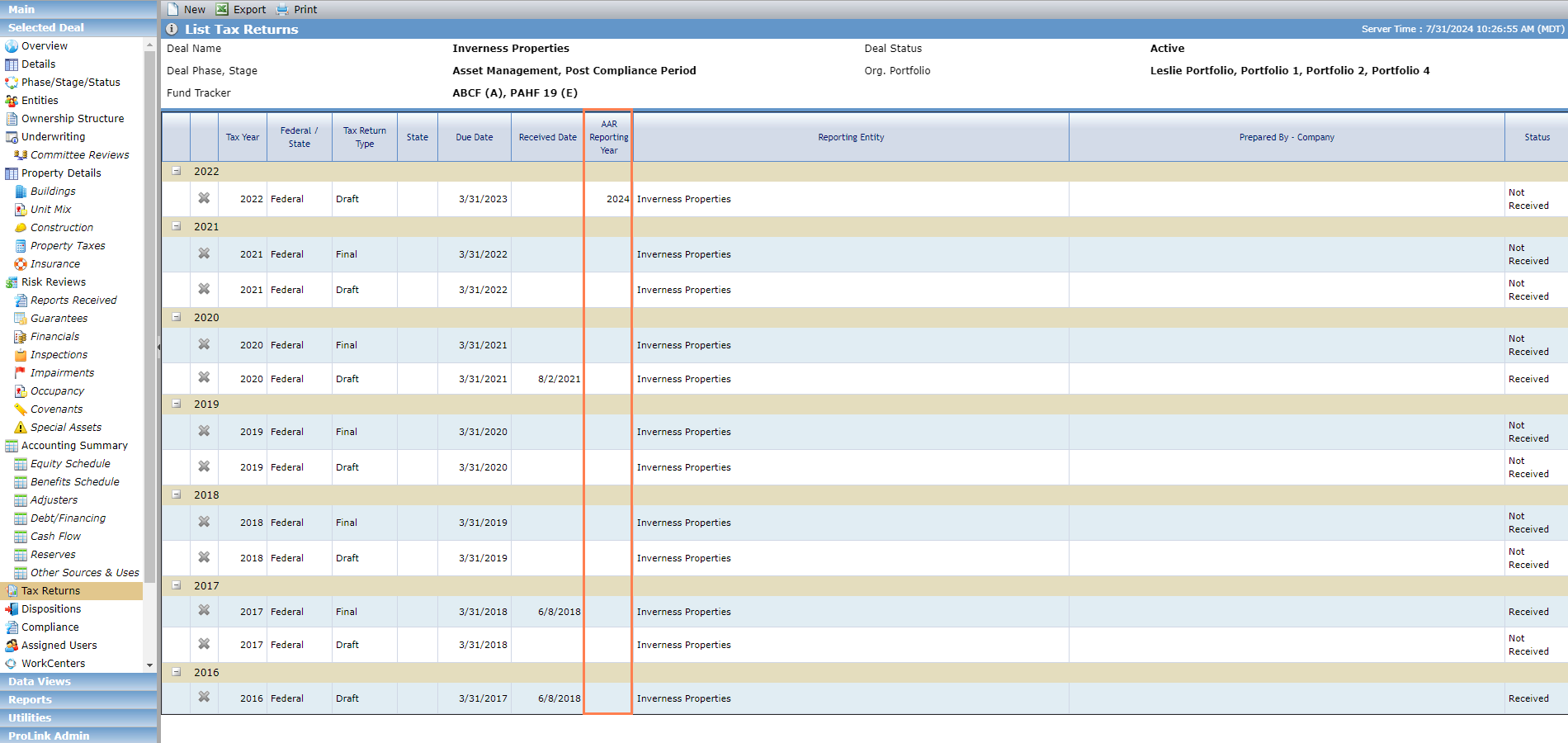
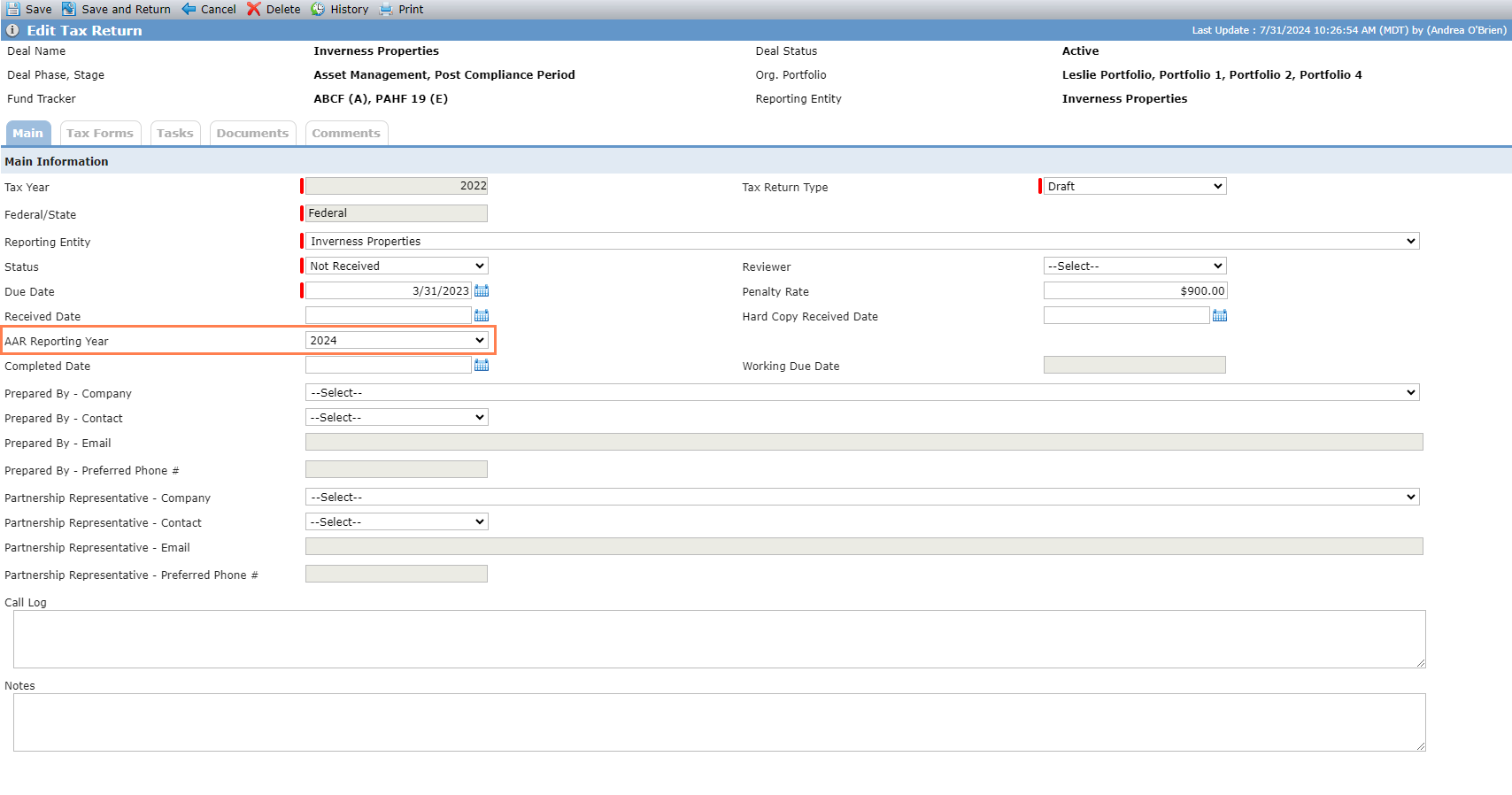
List Tax Returns screen; Edit Tax Returns screen
The field is also shown on the Reports Received screen (Tax Returns grid).
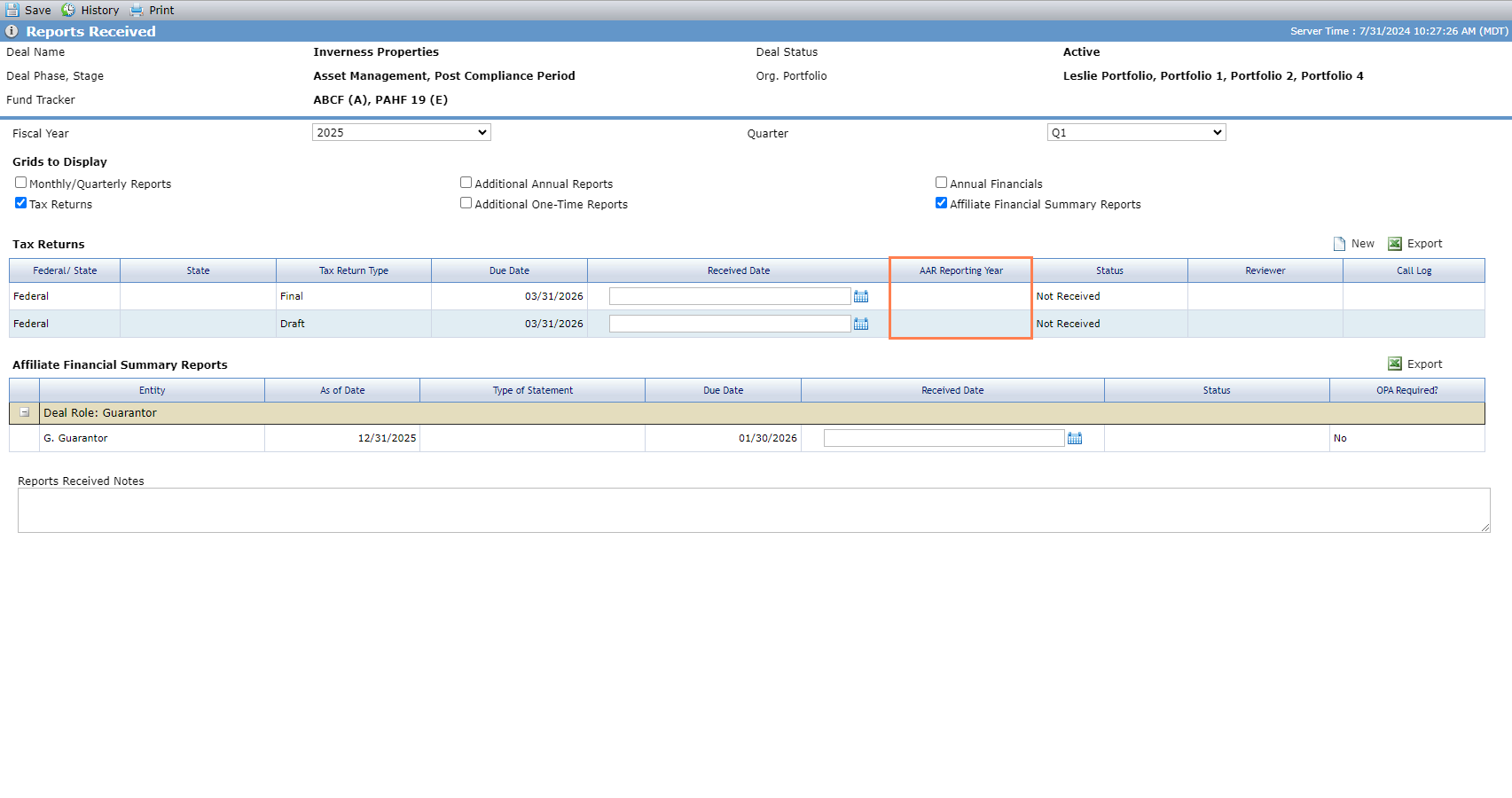
ProLink added the field to the Tax Returns data view, SmartDox, and workflow.
Investment Allocation Report Version 4.0
ProLink introduces a new version of the Investment Allocation Report. The 4.0 version is differentiated as follows:
The system validates that the As of Date is within the selected exam period.
While the system is generating the report, the screen shows the following message: "Generating the report may take a minute or longer. Thank you for your patience."
The Microsoft Excel file name includes the exam period and As of Date. For example, Investment_Allocation_Report_v4 Exam Period 7-1-2020 to 12-31-2022 with As of Date 6-4-2024.xlsx.
If the deal's actual close date (Deal Details > Status History > Actual Closing > Effective Date) is within the exam period, the Current Period columns will be populated. Otherwise, the Prior Period columns will be populated.
For Current Period Deals, the Working CRA Credit Amount on the Investment As of Selected Date tab equals the sum of the total adjusted capital for the deal's capital contributions that are not marked as Exclude from Total Capital.
For Prior Period Deals, the Working CRA Credit Amount on the Investment As of Selected Date tab includes any deal that has an ending monthly book value from the monthly deal impairments that is greater than zero for the latest month within the CRA exam period prior to the As of Date.
For Current Period Deals, the Working CRA Credit Amount on the Investment End of Cycle tab and Excluded Investments tab equals the sum of the total adjusted capital for the deal's capital contributions that are not marked as Exclude from Total Capital.
For Prior Period Deals, the Working CRA Credit Amount on the Investment End of Cycle tab and Excluded Investments tab includes any deal that has an ending monthly book value from the monthly deal impairments that is greater than zero for the latest month within the CRA exam period prior to the As of Date.
For deals where there is only one property, the Working CRA Credit Amount is multiplied by 100%.
For deals where there are multiple properties, the Working CRA Credit Amount is multiplied by a property split ratio as follows:
Properties with a CRA Invested Amount of zero or null are excluded.
Sum the CRA Invested Amount of each property. This is the denomiator.
Divide the CRA Invested Amount of each property by the denominator to identify the property's split ratio.
Multiply the Working CRA Credit Amount by the property split ratio.
The Edit Property screen includes a new calculated field called Property Split Ratio.
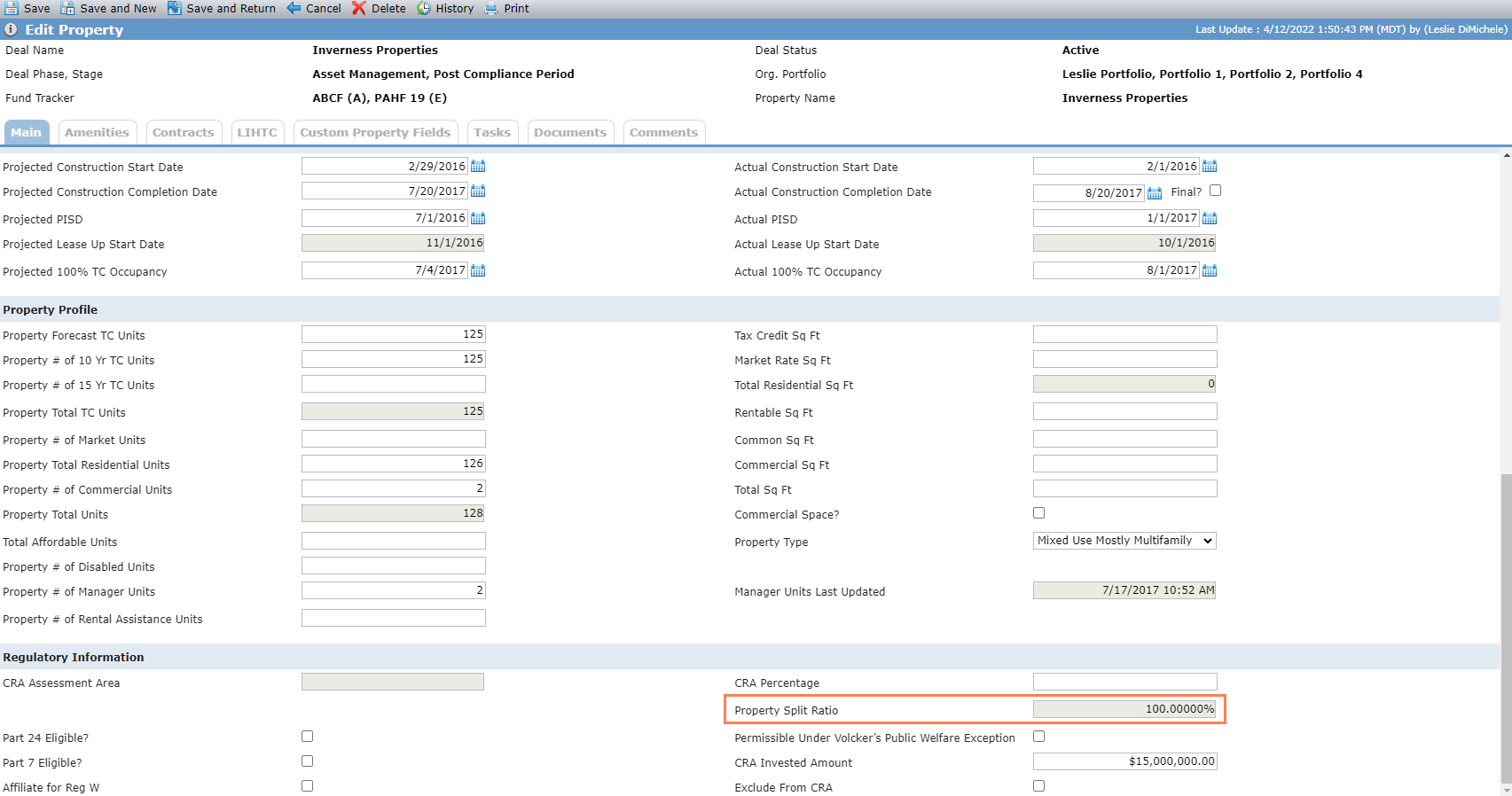
The field displays 100% if the deal has a single property.
If the CRA Invested Amount is zero, the field displays 0%.
If the deal has more than one property, the field displays the sum of all non-CRA excluded properties on the deal with a non-zero invested amount divided by the property's CRA Invested Amount.
Changes to Fund Benefits
ProLink made several updates to Fund Benefits functionality:
We updated the Calculate Benefits from the LT Deals popup to use the year only. All data within the year selected and future years will be deleted and replaced.
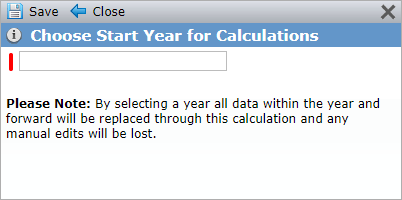
ProLink made changes to ensure the Owner field lists all ownership periods for an owner that exits and re-enters the fund. Regardless of the ownership period selected, the screen shows the same data for the investor (entire ownership time).
The system checks the admission and exit dates of the investors, rather than the ownership schedule start and end dates when calculating benefits for individual investors.
The Benefits Schedule now shows all years of the schedule when an owner is selected, even if their ownership is limited to part of the time.
ProLink made corrections to the quarterly benefit calculations.
ProLink fixed an issue with annual fund benefits that resulted in an owner showing the entire fund benefits instead of their percentage.
ProLink fixed an issue where no data was displayed when selecting an individual investor for Fund Quarterly Benefits and data for the same investor was displayed when selecting individual investors for Fund Annual Benefits.
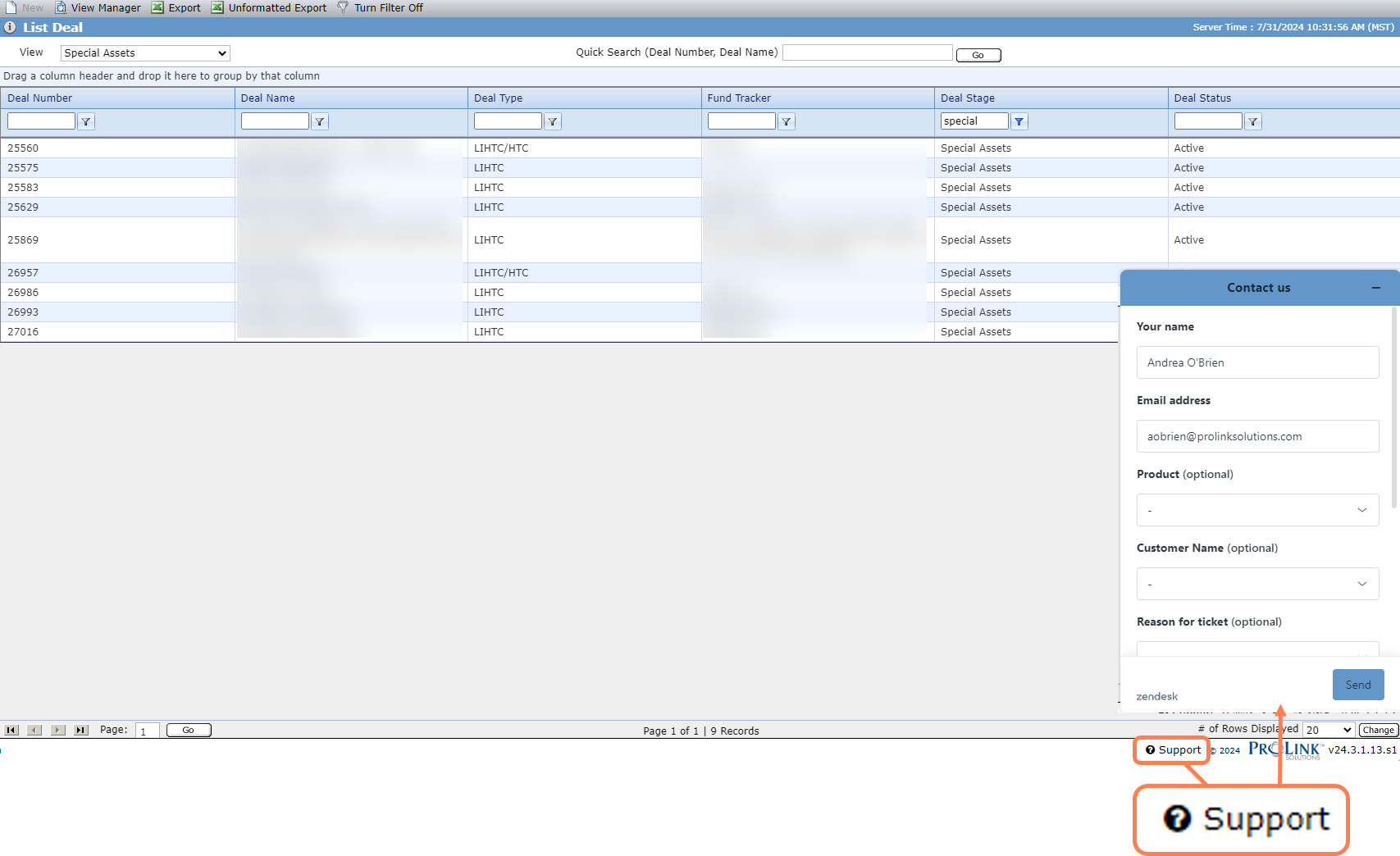
Integrated Support Widget
ProLinkAIM now includes the Support widget inside the application for easy access to ProLink Support. The widget availability is determined by a new configuration setting called "IsZenDeskEnabled."