Mass Mapper Step-by-Step
Determine which data points need to be mapped multiple times, the positions where the mapped fields should reside, and how many times each field should be repeated.
Click Map Fields in the ProLink menu, enter the appropriate username and password, if prompted, and choose the desired Schema, if prompted.
Add the desired Schema Groups to the Mapped Groups section. Do not map individual data points to locations in the template, yet.
Locate the Schema Group to be repeated and click it to select. Right-click the Schema Group name. A Duplicate Group option appears.
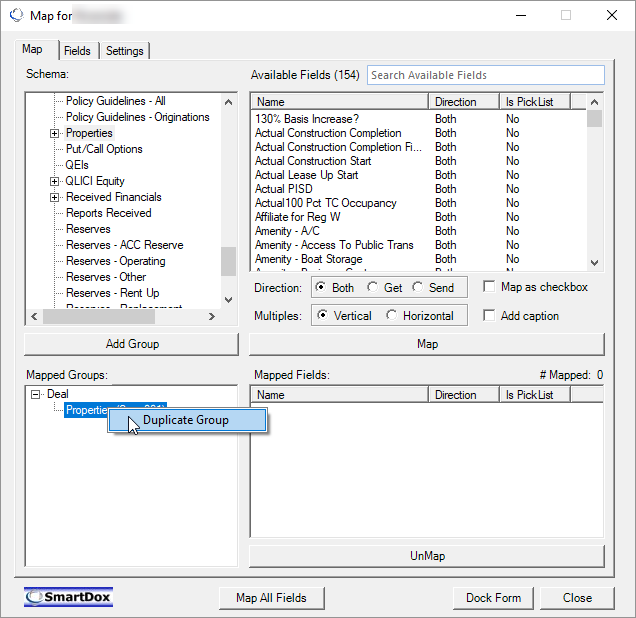
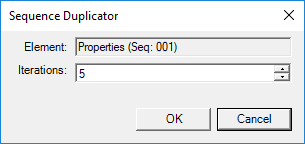
Click Duplicate Group. The Sequence Duplicator window appears.
Enter the number of copies of the Schema Group desired, including the original being duplicated, into the Iteration field.
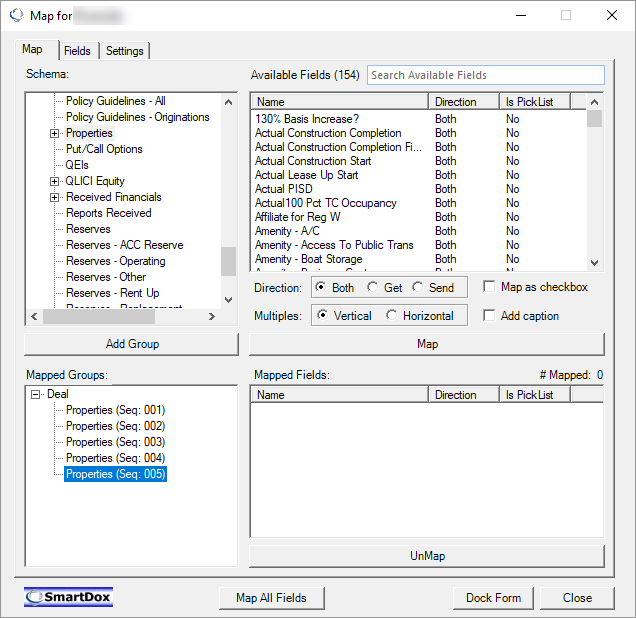
Click OK. The selected Schema Group is duplicated. Each copy of the Schema Group has a unique sequence number, represented in parentheses next to the Schema Group name in the Mapped Groups section of the Map for ProLink SmartDox window.
Tip
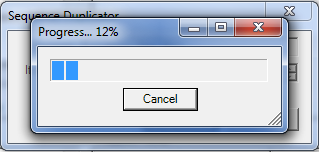
During execution of the Sequence Duplicator, the system displays a progress bar showing the percentage completion of the mapping process. You can immediately cancel this process by clicking Cancel. Execution will stop, and the completed mapped groups will appear in the Mapped Groups list.
Click the first sequence of the Schema Group from which data points are to be mapped.
In the Available Fields section, click a data point to be mapped.
Select the location in the template where the first of the mass mapped fields should be located.
Select Vertical or Horizontal from the Multiples section to determine whether the mass mapped fields will be mapped below or to the right of the location selected.
Right-click Map. The Mass Mapper option appears.
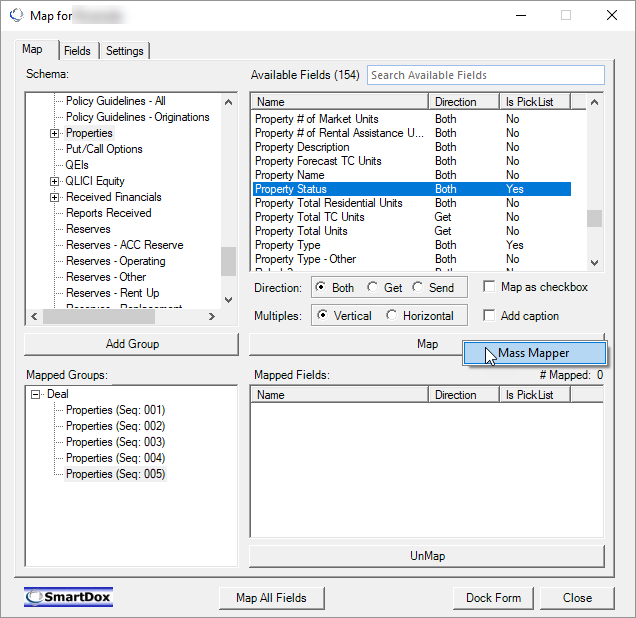
Click Mass Mapper. The Sequence Mapper window appears.
Select the Schema Group that belongs to the data point being mapped. This enables the Iterations field in the window.
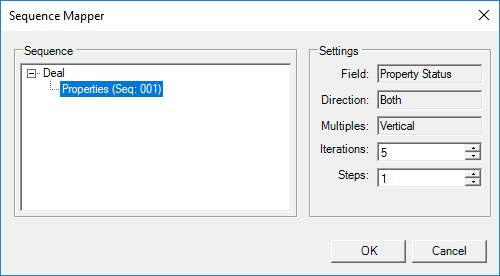
Enter the desired number of copies of the data point to be mapped into the Iterations field of the Sequence Mapper window. Enter the number of spaces below (or to the right of) each mass mapped field that the next mass mapped field should appear into the Steps field. Click OK.
Note
The Steps field does not indicate the number of rows/columns between mass mapped fields, but rather a count of the number of rows/columns from one mass mapped field to the next.
Tip
During execution of the Sequence Duplicator, the system displays a progress bar showing the percentage completion of the mapping process. You can immediately cancel this process by clicking Cancel. Execution will stop, and the completed mapped groups will appear in the Mapped Groups list.
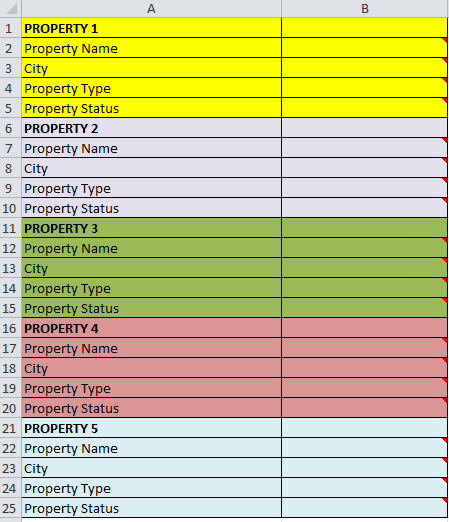
Repeat steps 9–15 for all fields that need to be mapped using the Mass Mapper. Remember to select a new starting location for the next data point to be mapped. By selecting column B2 for the Property Name data point and using the same number of Iterations and Steps, the template would then look like the following figure.
Save the template.