About Total Benefits - LIHTC
The Total Benefit tab captures key information by Benefit Type in order to calculate the total amount of the Benefits generated on the deal. You can add or remove the programs that will be included in the deal. A grid is displayed for each selected program type.
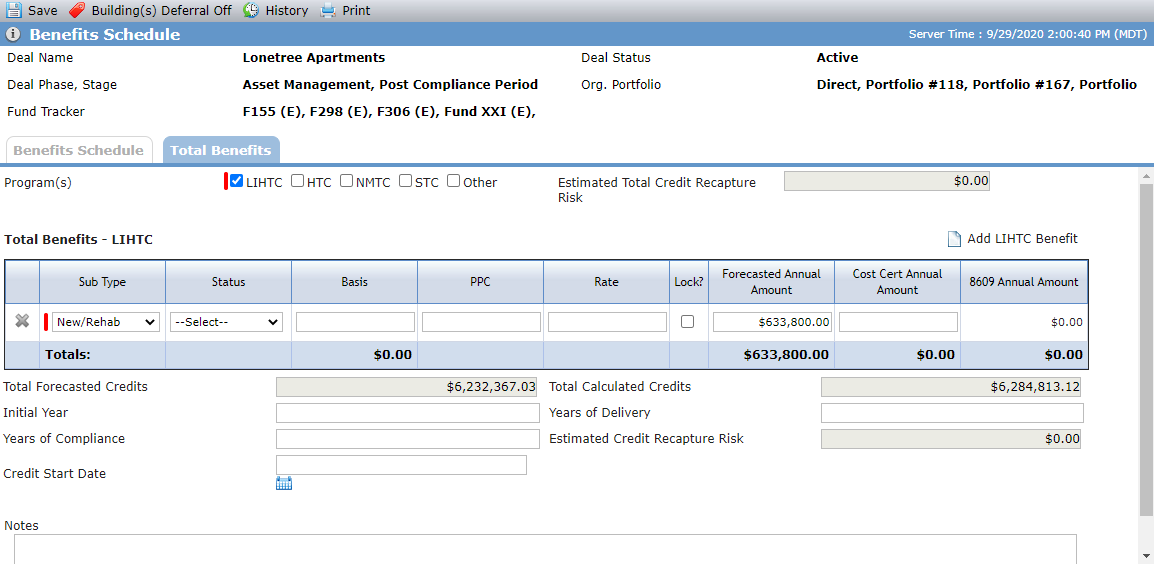
Add the LIHTC Program
The Total Benefits tab is populated based on the Program Type(s) selected at deal creation. You can add additional programs to the Total Benefits if needed.
Navigate to the deal, and then select Benefits Schedule in the left navigation menu.
The Benefits Schedule screen opens.
Click the Total Benefits tab.
Select the LIHTC checkbox.
An empty grid is added.
Click Add LIHTC Benefit above the grid.
A row is added to the grid.
Populate the benefits details.
Sub Type (required)
The sub-type of the tax credit.
Status
The status of the tax credits.
Basis
The amount that the housing tax credit are generated based upon.
PPC
The price per credit is the price the tax credits are worth.
Rate
The Interest rate that applies to the tax credits.
Lock
Select to indicate the rate is locked.
Forecasted Annual Amount
The annual amount of tax credits that the deal is forecasted to generate.
Cost Cert Annual Amount
The annual amount of tax credits that the deal will generate based upon the cost certificate.
Repeat steps 4–5 to add additional benefits.
Multiple rows can exist as long as the Sub Type is different for each row.
The Total Forecasted Credits value is displayed from the Total row for the OPA Credits on the Benefits Schedule screen.
The Total Calculated Credits value is displayed from the Total row for the Total Calculated Credits on the Benefits Schedule screen.
Enter the first year tax credits are generated for the program in the Initial Year field.
Enter the number of years tax credits will be generated for the program in the Years of Delivery field.
Enter the number of years compliance will be required for the program in the Years of Compliance field.
The Estimated Credit Recapture Risk value is a system-calculated field.
Enter or select the date the tax credits will begin being generated in the Credit Start Date field.
Click Save.
Remove the LIHTC Program
When you clear the LIHTC checkbox, the system deletes all data on the Edit Property - LIHTC tab and the Edit Building - LIHTC tab for all properties and buildings on the deal.