Introduction to ProLinkAIM Insurance Policies
Different types of insurance may be required throughout the lifecycle of a deal. Monitoring the policies could be critical to ensuring that requirements are met for obtaining tax credits.
Asset Managers and Insurance Processors with the appropriate security privileges can access the Insurance Policy records on deals.
The Operating Partnership Agreement (OPA) sets the high-level values as per the partnership agreement as well as sets the requirements for each type of policy. This information, located at the deal level, cascades to the Insurance records.
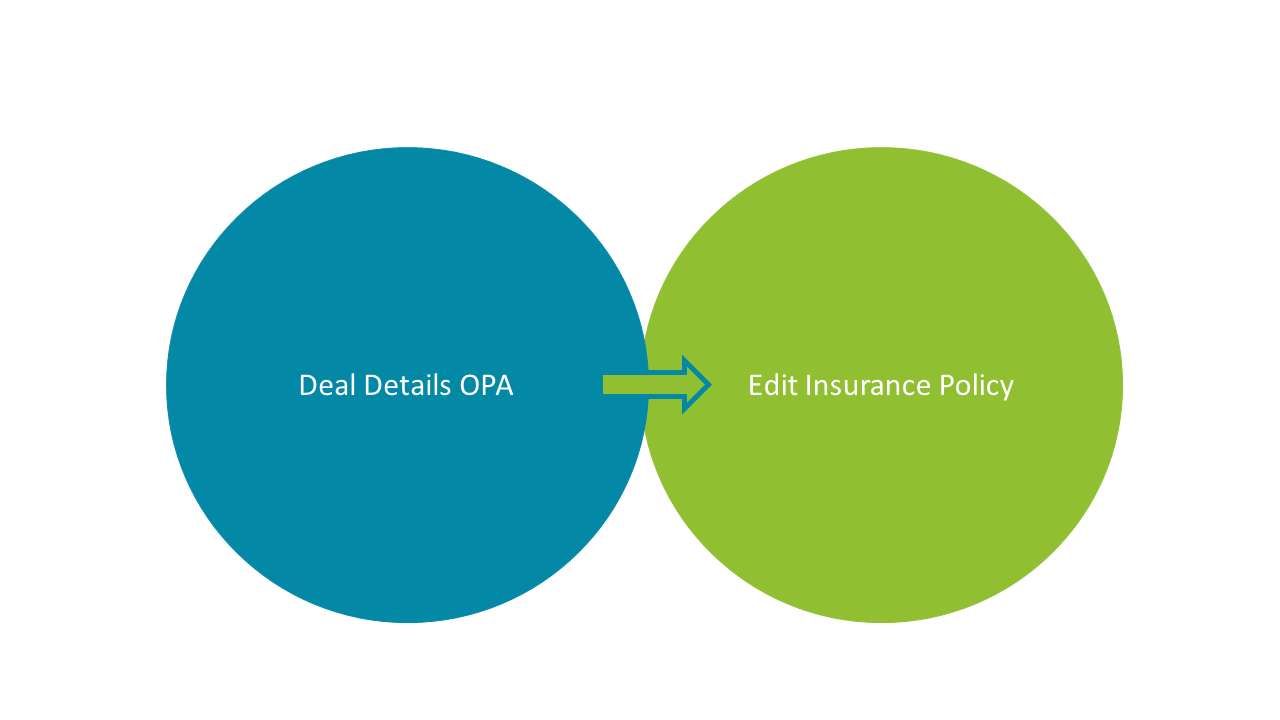
To view a deals' insurance policies, navigate to the deal, and then select the Insurance option in the left navigation panel (under Properties). The List Insurance Policies screen opens.
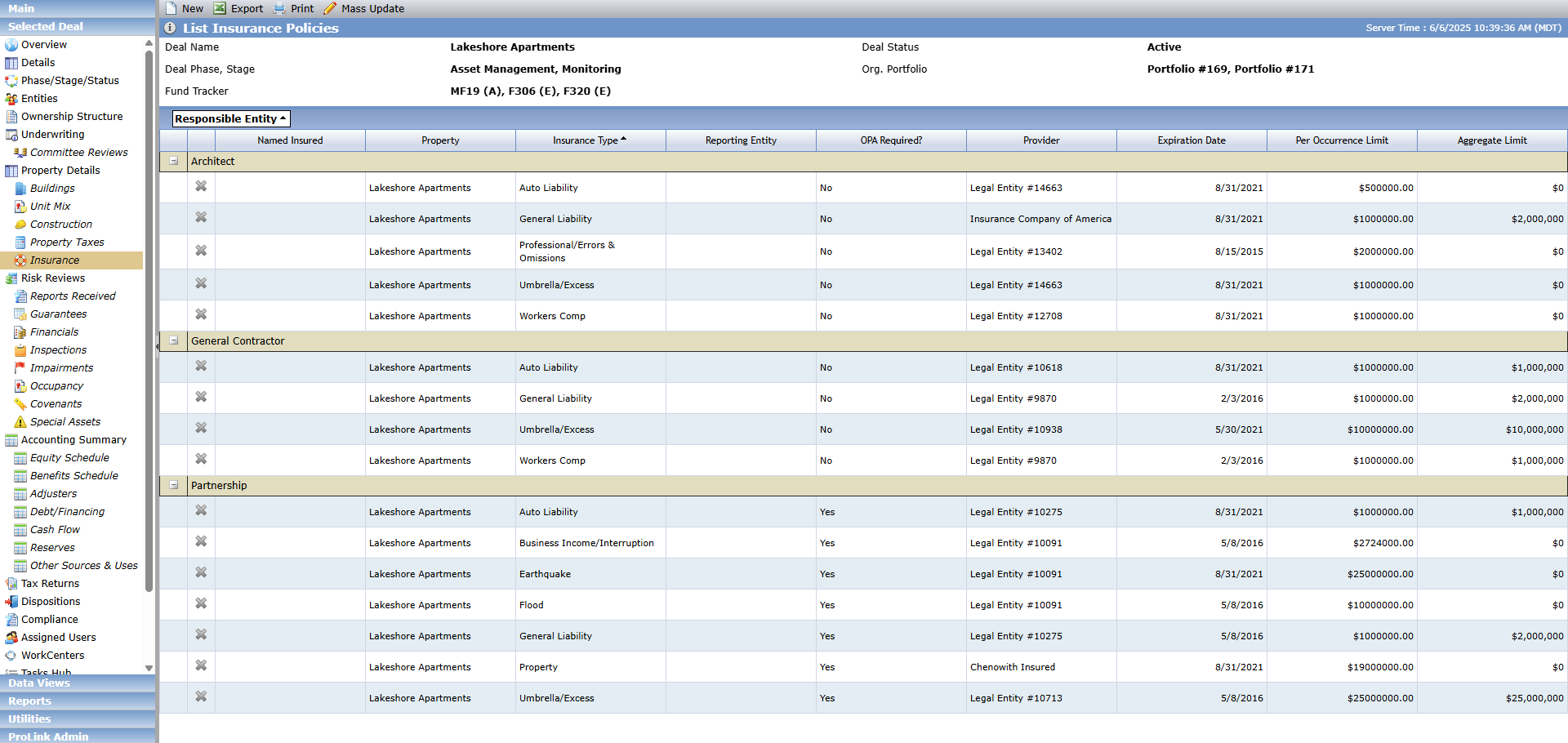
The List Insurance Policies screen includes grouping. The default grouping is by Responsible Entity. The first sort is by Responsible Entity; the second sort is by Insurance Type.
A warning appears if the property is in a flood zone (Edit Property) and no flood zone insurance exists for the deal.
You can quickly update details on one or more of the deal's insurance policies at one time using the Mass Update tool, which is located in the top toolbar of the List Insurance Policies screen.
Click a row in the List Insurance Policies screen to open the Insurance record and view its details. The Edit Insurance Policy screen opens.
The details of a particular insurance policy are captured on Main tab of the Edit Insurance Policy screen. Remember to use the supplemental tabs—Tasks, Documents, and Comments—for assigning reminders, associating important policy documents, and posting internal notes related to policy activities.
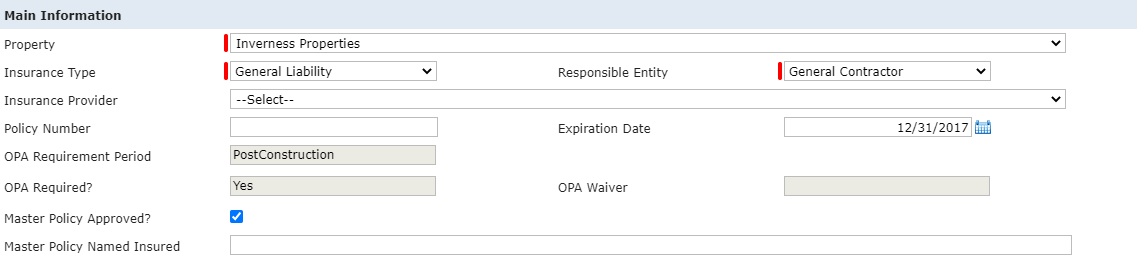
Main Information section

Overall Insurance Policy Notes section

Policy Review section

Broker Information section
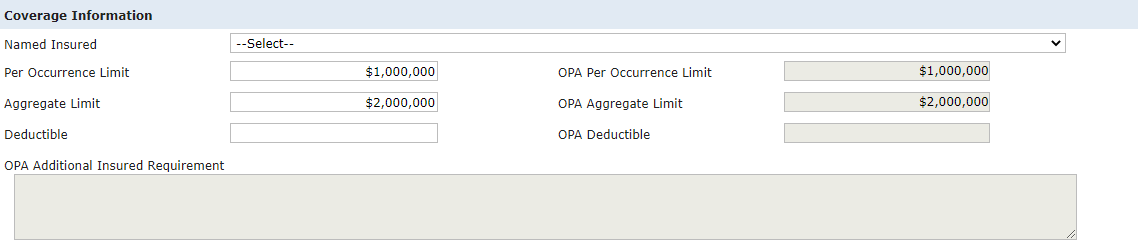
Coverage Information section
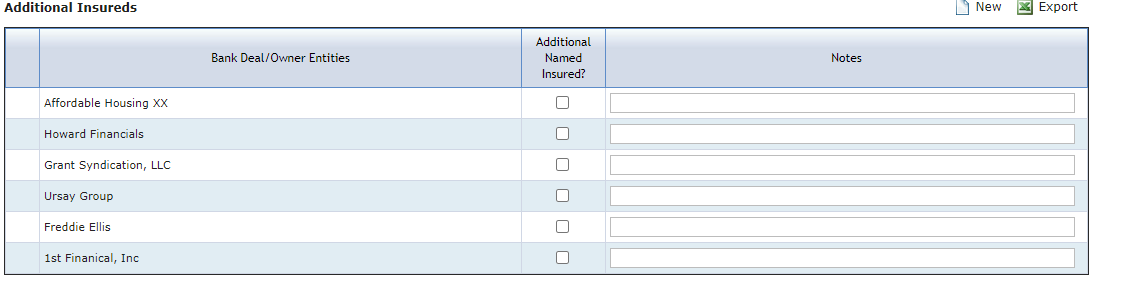
Additional Insureds section

Buildings Covered section
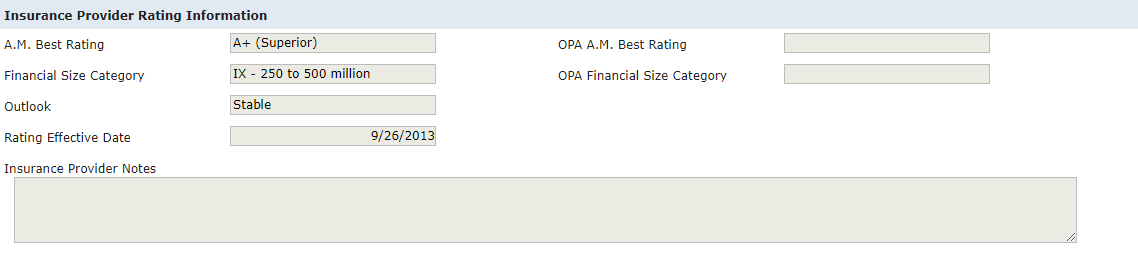
Insurance Provider Rating Information section
Section/Field | Description |
|---|---|
Main Information/Property | Required field that lists all properties associated to the deal; select the property that the insurance policy is for |
Main Information/Insurance Type | Required field (system picklist) that identifies the type of insurance coverage for the policy |
Main Information/Responsible Entity | Required field (system picklist) that identifies the role of the entity that is responsible for the insurance policy |
Main Information/Reporting Entity | Only appears if NMTC or STC - NMTC program is selected on the deal Displays a list of all Deal Entities and Associated Companies on the deal |
Main Information/Insurance Provider | Displays a list of all active Legal Entities in the application with the Primary Role of Insurance Provider |
Main Information/OPA Requirement Period | Determined by the Actual Construction Completion Date (Edit Property):
|
Main Information/OPA Required | Reporting requirements (Yes or No) are determined as follows:
The values are determined by the Insurance Type, Responsible Entity, and whether the Insurance Type/Responsible Entity combination is required on the OPA for the OPA Requirement Period.
|
Main Information/OPA Waiver | Displays from deal level or Reporting Entity OPA record for the Insurance Type/Responsible Entity combination. |
Overall Insurance Policy Notes | Displays from Insurance Provider Notes on Edit Entity for the entity selected as the Insurance Provider |
Policy Review | This section displays information about internal policy reviews. The Policy Reviewed By and Second Reviewed By lists display all active system users. |
Broker Information | This section displays the name and contact information for the entity selected as the broker for this insurance policy. The Contact Name displays a list of all Contacts for the entity selected as the Broker. The Contact Preferred Phone displays the selected Contact’s phone number. If no Contact is selected, then the phone number of the entity selected as the Broker is displayed. The Contact Email Address displays the selected Contact’s email address. If no Contact is selected, then the email address of the entity selected as the Broker is displayed. |
Coverage Information/Named Insured | Displays a list of all active Deal Entities and Associated Companies for the deal |
Coverage Information/Per Occurrence Limit | Open text field so that you can enter a dollar amount or percentage; be sure to add the appropriate symbol for the value you enter |
Coverage Information/OPA Per Occurrence Limit | Displays the Per Occurrence Limit value from the deal-level or entity-level OPA for the Insurance Type/Responsible Entity combination |
Coverage Information/Aggregate Limit | Formatted as dollar amount |
Coverage Information/OPA Aggregate Limit | Displays the Aggregate Limit value from the deal-level or entity-level OPA for the Insurance Type/Responsible Entity combination |
Coverage Information/Deductible | Open text field so that you can enter a dollar amount or percentage; be sure to add the appropriate symbol for the value you enter |
Coverage Information/OPA Deductible | Displays the Deductible value from deal-level or entity-level OPA for the Insurance Type/Responsible Entity combination |
Coverage Information/OPA Additional Insured Requirement | Displays from OPA Additional Insured Requirement on the OPA tab. If there is a Reporting Entity, then the values display from the corresponding entity’s OPA record. |
Coverage Information/Coverage Type | Only editable when the Insurance Type is General Liability |
Coverage Information/Maximum Aggregate Cap | Only editable when the Insurance Type is General Liability |
Additional Insureds | Displays all Owner and Deal Entities that are Bank Affiliates (Is Bank Affiliate is selected on Edit Entity) See Introduction to Entities for more information. TipThe Insurance data view includes a comma-delimited list of all "Additional Insured(s)" entities on the insurance policy, as well as a comma-delimited list of all "Additional Insured on Policy," which are the entities that have the Additional Named Insured checkbox selected. |
Buildings Covered | Displays a list of all Buildings that exist on the selected Property For each building, you can select the coverage detail NoteTo delete a building from the deal, the Covered Scope for the building must be "Not Applicable" or "Building Excluded." |
Insurance Provider Rating Information | Displays values from the Entity record for the Entity selected as the Insurance Provider |
This section displays the name and contact information for the entity selected as the broker for this insurance policy.
Click
 to open the Entity Search popup.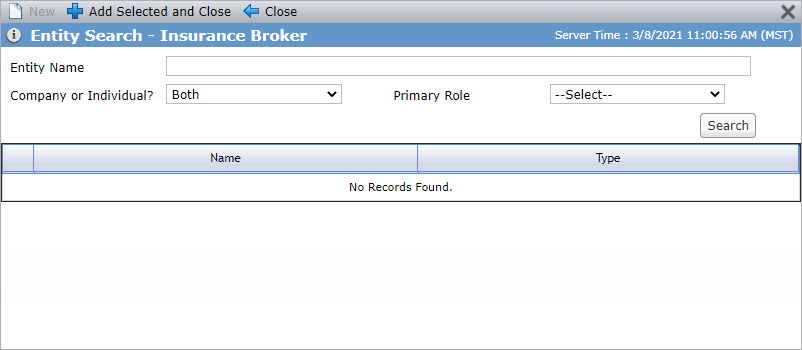
Search for and add the desired Insurance Broker entity.
See Introduction to Entities for more information about entity search.
The entity is added as the broker for the insurance policy. The entity is not added as a Deal Entity to the deal.
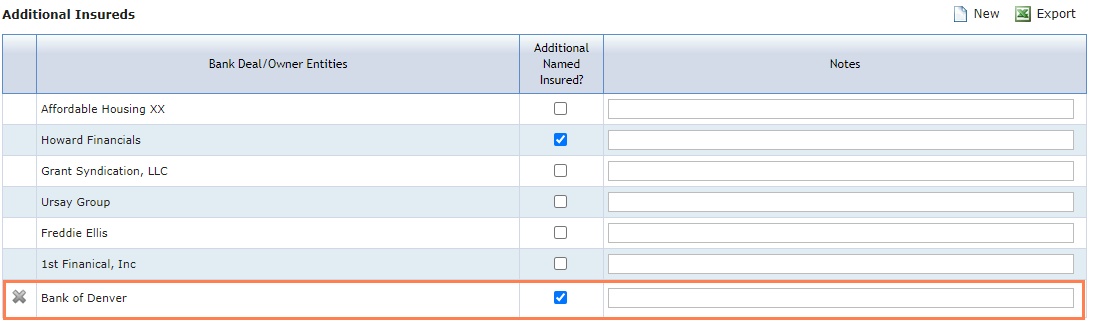
The Additional Insureds grid lists all Owner and Deal Entities that are Bank Affiliates (Is Bank Affiliate is selected on Edit Entity).
While you cannot remove the systematically added Bank Affiliate entities, you can add other entities as needed. Then, select the checkbox(es) in the Additional Named Insured column to indicate which entity(ies) are covered in the insurance policy.
Click New above the Additional Insureds grid to open the Entity Search popup.
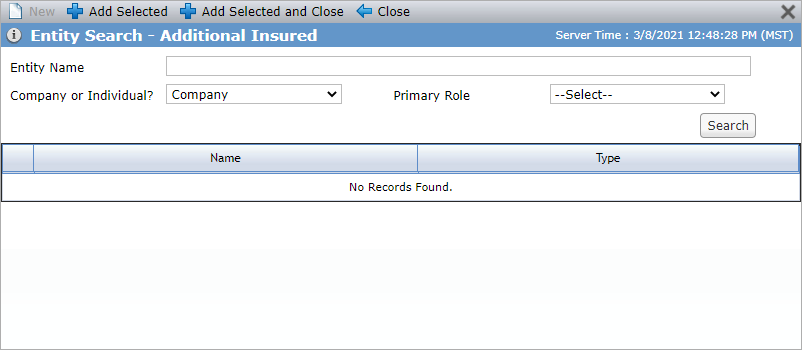
Search for and add the desired Additional Insured entity.
The entity is added as an additional insured for the insurance policy. Be sure to select the checkbox in the Additional Named Insured column to indicate the entity is covered.
You can remove entities that were manually added by clicking  at the beginning of the row.
You can quickly update details on one or more of the deal's insurance policies at one time using the Mass Update tool.
Navigate to the deal, and then select Insurance in the left navigation panel.
The List Insurance Policies screen opens.
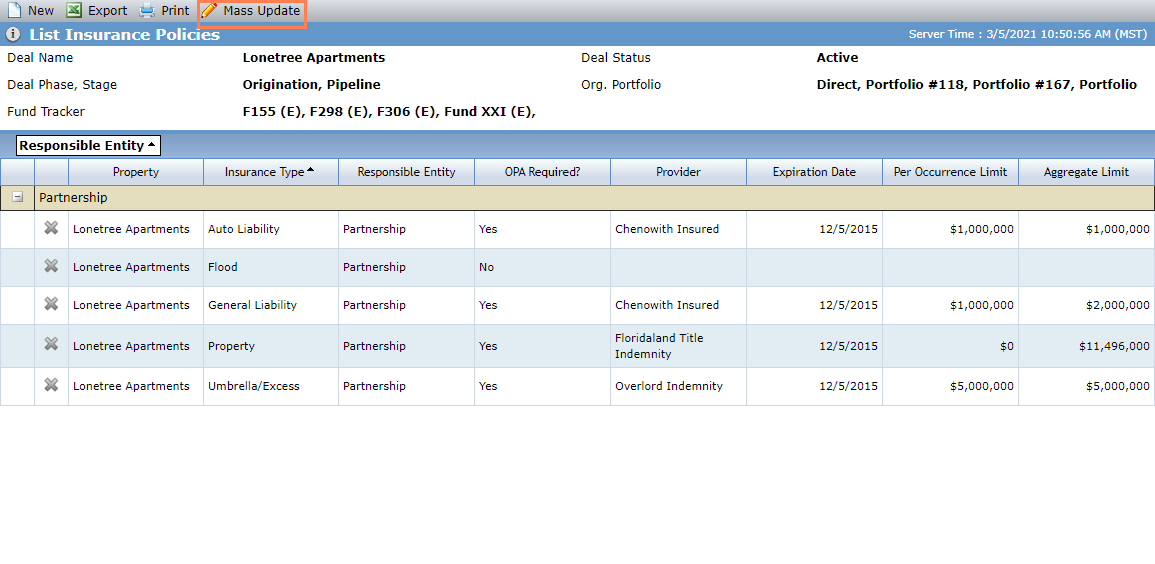
Click Mass Update in the top toolbar.
The Edit Insurance Policies popup opens.
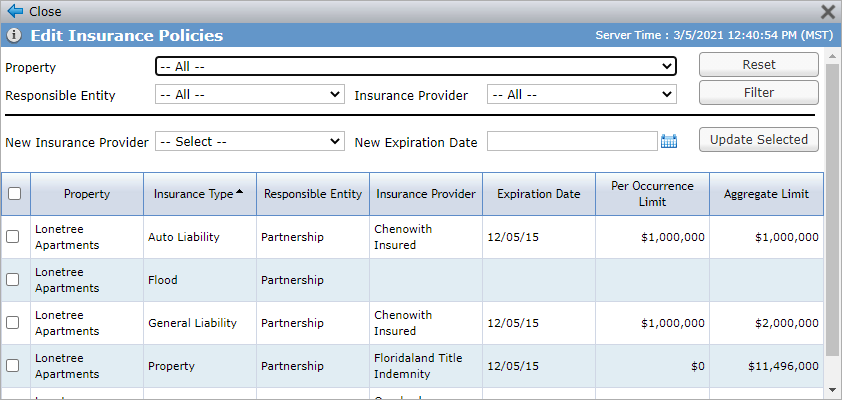
Optionally, you can narrow the grid by selecting filters in the top portion of the screen and clicking Filter:
Property
Responsible Entity
Insurance Provider
Select the new provider in the New Insurance Provider list.
In the grid, select the checkbox(es) for the Insurance Policy record(s) to update.
Click Update Selected.
Navigate to the deal, and then select Insurance in the left navigation panel.
The List Insurance Policies screen opens.
Click Mass Update in the top toolbar.
The Edit Insurance Policies popup opens.
Optionally, you can narrow the grid by selecting filters in the top portion of the screen and clicking Filter:
Property
Responsible Entity
Insurance Provider
Enter or select a New Expiration Date.
In the grid, select the checkbox(es) for the Insurance Policy record(s) to update.
Click Update Selected.