About Construction Draws and Change Orders
After the Construction Budget is created, with Sources and Uses, you can begin tracking draws and change orders against the budget.
The Draws tab shows all Draw records.
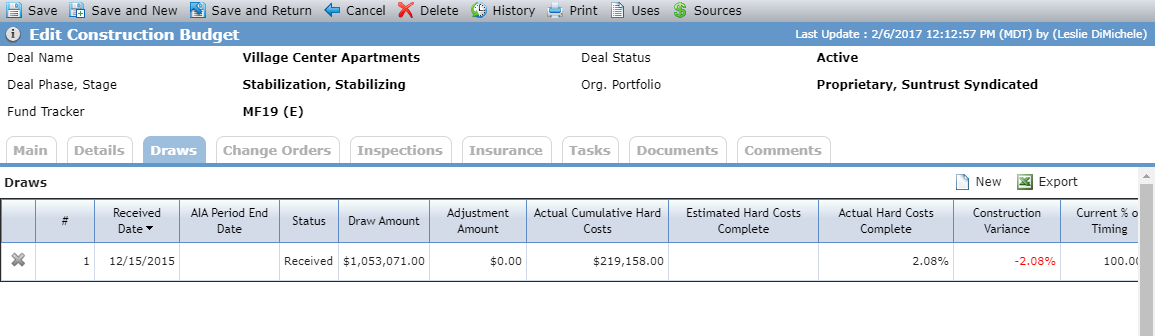
The Status is based on the following logic:
Received—Received Date is the only date populated for the draw.
Approved—Approved Date is populated and Disbursed Date is not populated.
Disbursed—Disbursed Date is populated.
The Edit Draw screen includes the following calculated fields:
Actual Cumulative Hard Costs—(Sum of Cumulative Draw amounts for all Hard Costs category totals (Details tab)) minus (Sum of Cumulative Draw amounts for all Less Retainage lines within Hard Cost categories (Details tab)).
Actual Hard Costs Complete—Actual Cumulative Hard Costs divided by (sum of revised amounts for all Hard Cost category totals (Details tab)).
Construction Variance—Est Hard Costs Complete minus Actual Hard Costs Complete.
Create a Draw
Navigate to the deal, and then select the Construction option in the left navigation menu.
The List Construction Budgets screen opens.
Select the construction budget to edit.
The Edit Construction Budget screen opens.
Select the Draws tab.
Click New above the Draws tab.
The Edit Draw screen opens.
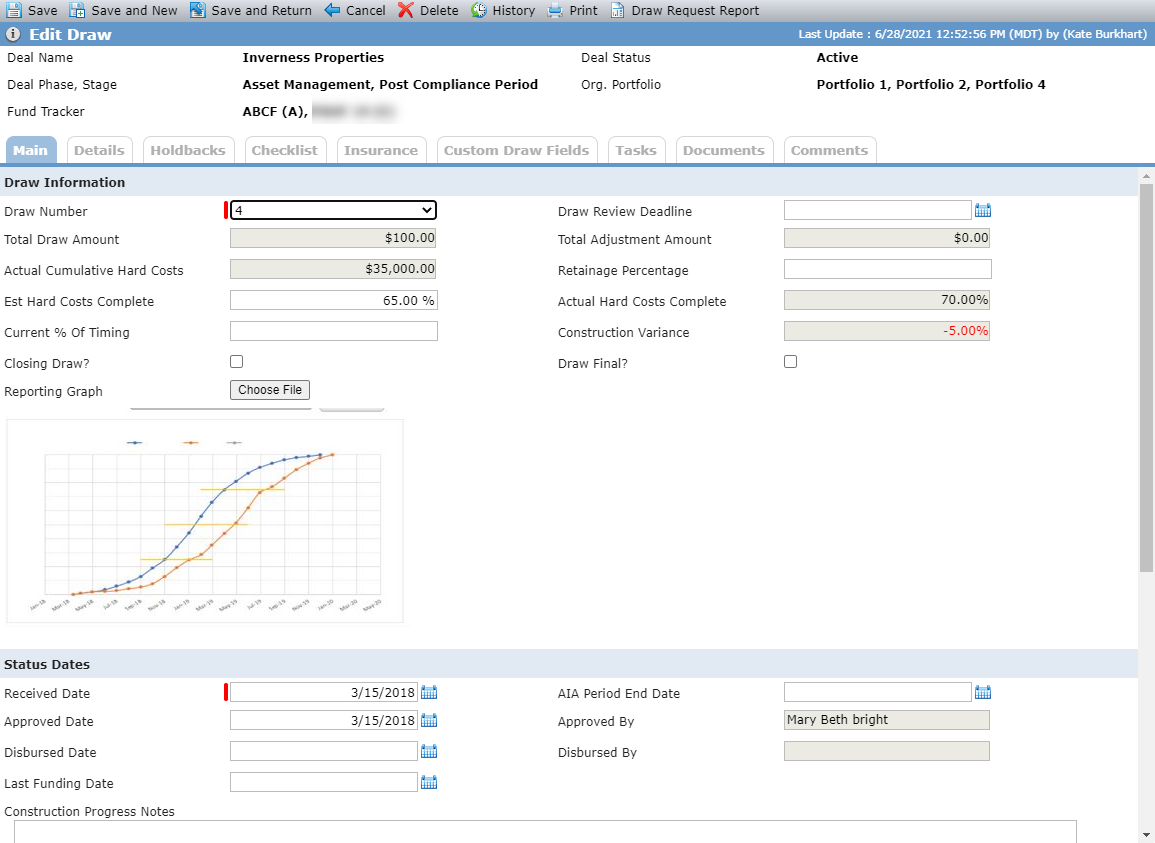
Select the Draw Number. The number must be unique for the property.
Enter or select the Received Date.
Note
Later the appropriate user can return to the draw to enter the Approved Date and Disbursed Date. The Approved Date must be populated before you can enter the Disbursed Date.
Note
You can upload a picture, which can then be displayed in the Watchlist Report. Be sure to save the Draw record after uploading the file.
Click Save.
Additional tabs become available: Details, Holdbacks, Checklists, Insurance.
The Investor Notes field, Construction Progress Notes field, and Notes field are copied from the most recent draw.
Details Tab
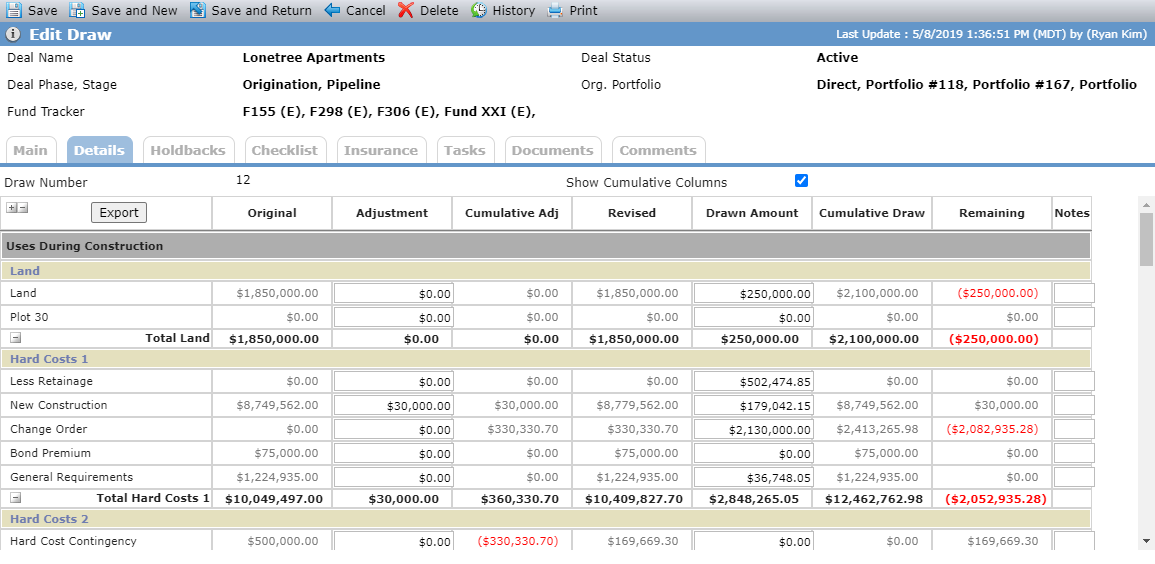
This tab shows all the line items that were added to the Construction Budget.
Select the Show Cumulative Columns checkbox above the grid to show the Cumulative Adj and Cumulative Draw columns in the grid.
Column | Description |
|---|---|
Original | The initial budget amount for the line item (displays from Budget). |
Adjustments | The adjustment amount for the line item for the draw (editable while the Disbursed Date is blank). |
Cumulative Adj | The sum of all adjustments for the line item (calculated). Displayed when the Show Cumulative Columns checkbox is selected. |
Revised | The original amount plus cumulative adjustments (calculated). |
Drawn Amount | The draw amount for the line item (editable while the Disbursed Date is blank). |
Cumulative Draw | The sum of all draw amounts for the line item (calculated). Displayed when the Show Cumulative Columns checkbox is selected. |
Remaining | The Revised amount minus the Cumulative Draw to Date (calculated). |
Notes | Free-form text you can enter for a specific line item. |
At the bottom of the Details grid, the differences and totals are shown:
Diff in Source/Use During Const—Sum of Sources During Construction minus sum of Uses During Construction.
Diff in Source/Use After Const—Sum of Sources After Construction minus sum of Uses After Construction.
Total Project Uses—Sum of all Uses (Before and After Construction).
Total Project Sources—Sum of all Sources (Before and After Construction).
Diff in Total Sources/Uses—The difference between Sources and Uses.
Holdbacks Tab
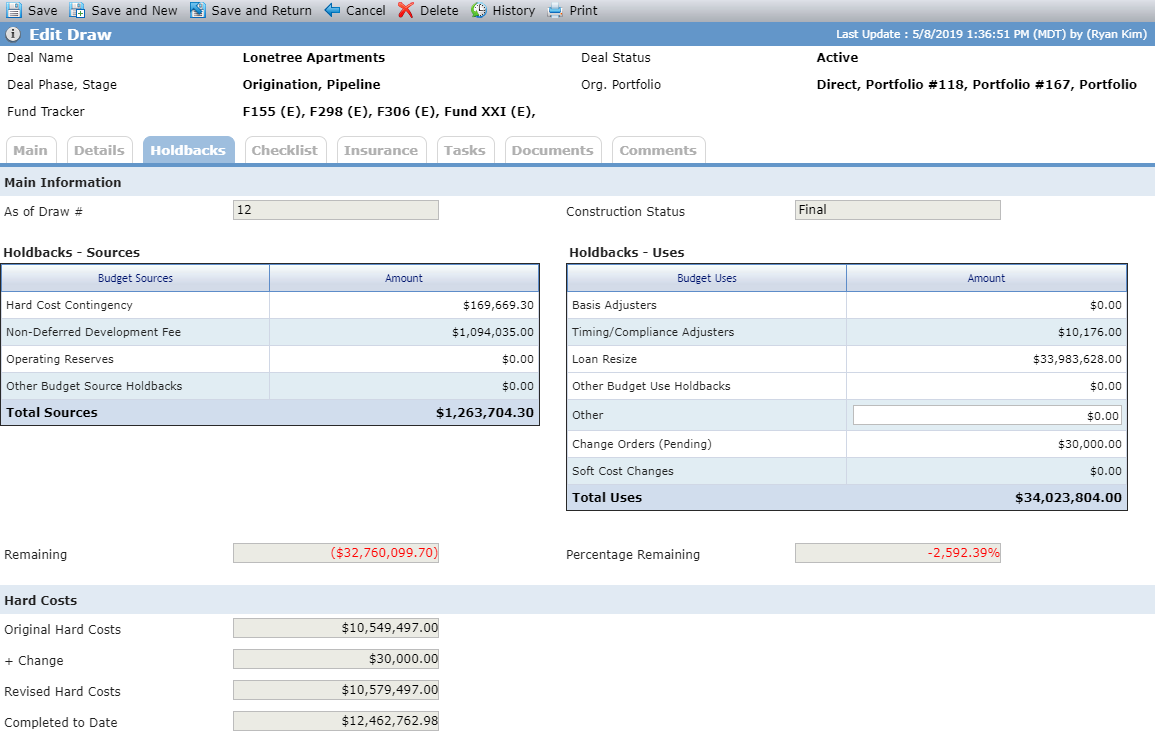
This tab tracks holdbacks and retainage for construction draws.
Field | Description |
|---|---|
As of Draw # | The draw number (displays from Main tab). |
Hard Cost Contingency | The Remaining amount of the Hard Cost Contingency line items from the Construction Budget when selected as Holdback - Sources. The line item must be labeled exactly as Hard Cost Contingency. |
Non-Deferred Development Fee | The Remaining amount of the Non-Deferred Development Fee line items from the Construction Budget when selected as Holdback - Sources. The line items must be labeled exactly as Non-Deferred Development Fee. |
Operating Reserves | The Remaining amount of the Operating Reserves line items from Edit Construction Budget when selected as Holdback – Sources. |
Other Budget Source Holdbacks | The sum of Remaining amount of all Line Items selected as Holdback – Source minus Remaining amount for Hard Cost Contingency minus Remaining amount for Non-Deferred Development Fee minus Remaining amount Operating Reserves. |
Total Sources | The sum of Hard Cost Contingency plus Non-Deferred Development Fee plus Operating Reserves plus Other Budget Source. |
Basis Adjusters | The total of Basis Adjusters for the Deal. |
Timing/Compliance Adjusters | The total of Timing/Compliance Adjusters for the Deal. |
Loan Resize | The sum of Original Projected Amount for all Debt Instruments minus sum of Current Projected Amount for all Debt Instruments. |
Other Budget Use Holdbacks | The sum of Remaining amount for all line items that have been selected as Holdback – Uses? |
Change Orders (Pending) | The sum of all Change Orders that do not have an Approved Date populated. |
Soft Cost Changes | The sum of Total rows for Original column minus sum of Total rows for Revised column for all Soft Cost categories. (The Soft Costs Category on picklists must have the Is Soft Cost Category checkbox selected.) |
Total Uses | The sum of all Holdback Uses. |
Remaining | The total Sources minus Total Uses. |
Percentage Remaining | The Remaining divided by Total Sources. |
Original Hard Costs | The sum of Total rows for Original column for all Hard Cost categories. (The Hard Costs Category on picklists must have the Is Hard Cost Category checkbox selected.) |
+ Change | Same value as Change Orders (Pending). |
Revised Hard Costs | The sum of Total rows for Revised column for all Hard Cost categories. (The Hard Costs Category on picklists must have the Is Hard Cost Category checkbox selected.) |
Completed to Date | The sum of Drawn to Date (Budget) column for all Hard Cost categories. (The Hard Costs Category on picklists must have the Is Hard Cost Category checkbox selected.) |
Checklists Tab
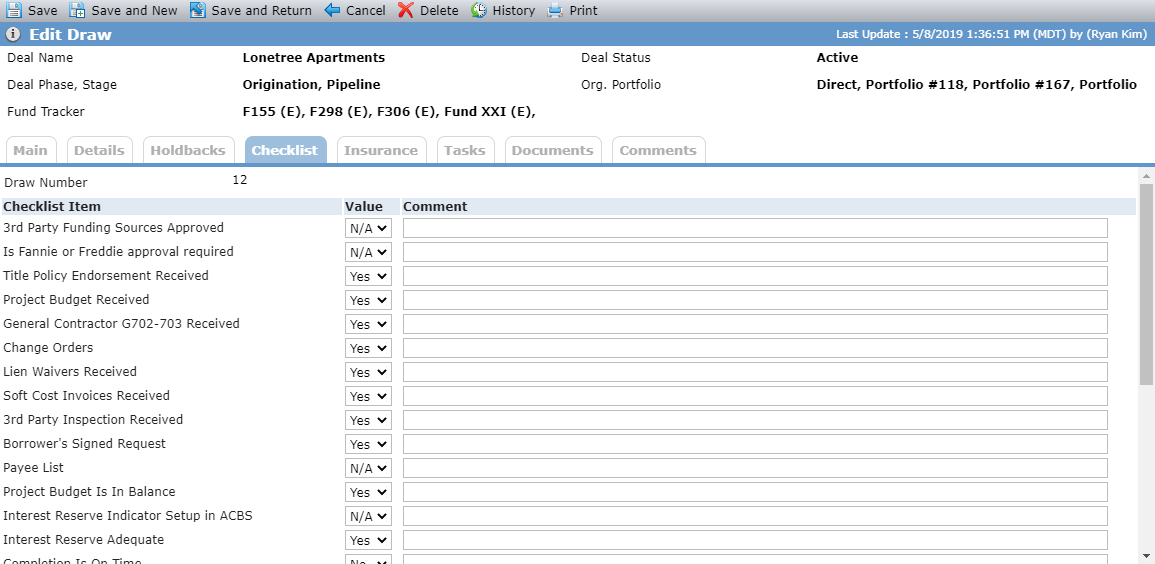
This tab is a list of the items that need to be completed before approval of the draw. The system administrator can configure the list using the picklist PL_ConstructionDrawChecklist in ProLink Admin.
The Change Order tab shows all Change Order records.
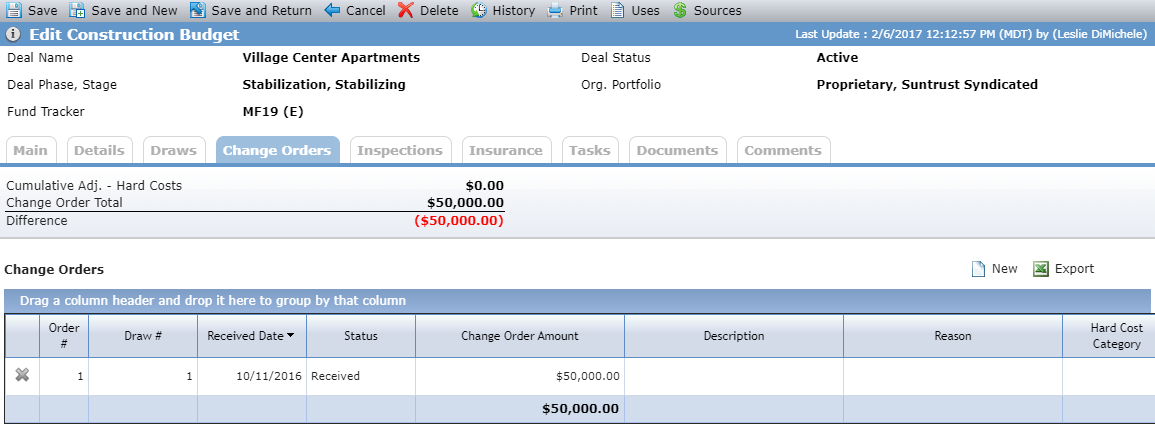
The Status is based on the following logic:
Received—Received Date is the only date populated for the change order.
Approved—Approved Date is populated.
Create a Change Order
Navigate to the deal, and then select the Construction option in the left navigation menu.
The List Construction Budgets screen opens.
Select the construction budget to edit.
The Edit Construction Budget screen opens.
Select the Change Orders tab.
Click New above the Change Orders grid.
The Edit Change Order screen opens.
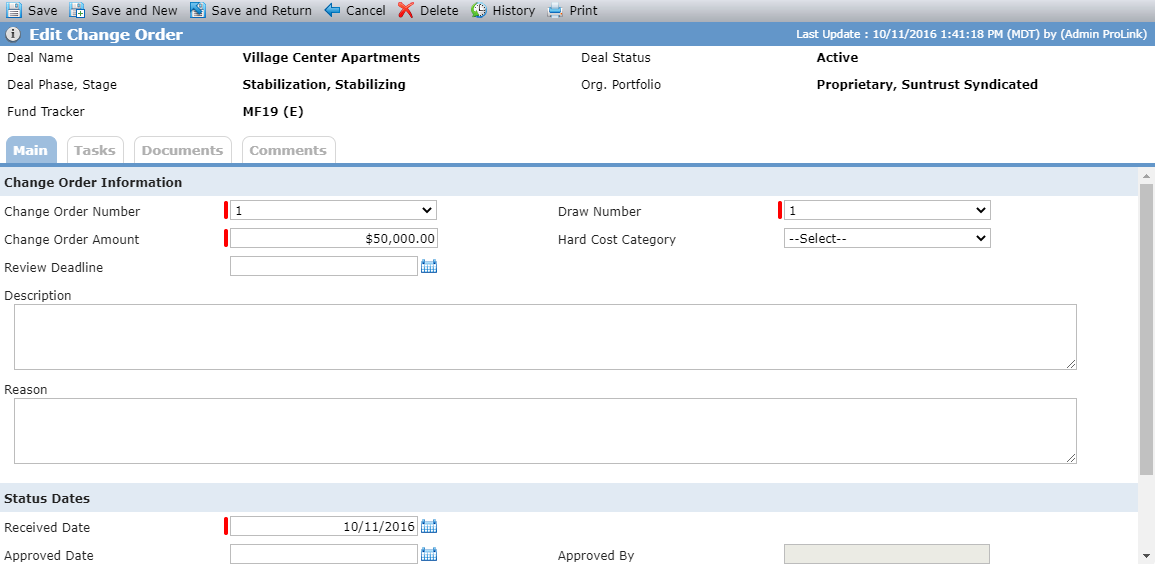
Select the Change Order Number.
Select the Draw Number of the draw to associate the change order to.
After you create the draw, enter the change order amount in the Adjustment column for the corresponding line item on the Details tab to see the impact of the change order.
Tip
Some clients add a change order line item and then update that line item for change orders. Other clients update the actual line item that the change occurred on. It is important for your organization to identify and document the approach you will take.
Enter the Change Order Amount.
Enter or select the Received Date.
Note
Later the appropriate user can return to the draw to enter the Approved Date.
Click Save.